
 Login


The update button for Elementor 4 is easy to press and hard to undo on a busy live site. Most guides stop at “make a backup” and skip the questions that matter: what happens to your pages, and how do you get back if something breaks?
This Elementor V4 migration guide answers both, using Elementor’s own documentation. You will learn what changes when you update, how to upgrade step by step, how to mix V3 widgets and V4 elements on one page, how to turn the Atomic Editor off, and how to roll back.
Updating to Elementor 4 does not change existing pages. Back up, test on staging, update addons and then Elementor and Elementor Pro together, and turn on the Atomic Editor when you are ready. V3 widgets and V4 elements can share one page. You can switch atomic features off at any time, or roll back from Version Control.
Will Elementor 4 Break My Site?
According to Elementor’s Version 4 FAQ, nothing happens to existing sites when you update. The main difference is a notice for the new Atomic Elements section at the top of the Elements panel, which you can activate or dismiss.
- No rebuild needed: existing sites and layouts stay unchanged.
- Production-ready: Elementor states that atomic features are stable and safe for production.
- Optional: adoption is up to you, at your own pace.
Addons, themes and custom code are the real risk, which is why the steps below still start with a backup and a staging copy.
Want a plain-English breakdown each time Elementor ships an update? [ADD: newsletter signup link]
What Changes When You Update to Elementor 4
| New sites | Existing sites | |
| Atomic features | On by default for new sites from April 2026 | Off until you activate them |
| Elements panel | Atomic Elements at the top | A notice to activate or dismiss |
| Existing V3 pages | Not applicable | Unchanged |
| Mixing V3 and V4 | Allowed on the same page | Allowed on the same page |
| Turning atomic features off | At any time | At any time |
For what the new editor adds, see Elementor V3 vs V4 differences and the Atomic Editor benefits and limitations.
How to Upgrade to Elementor 4 Safely
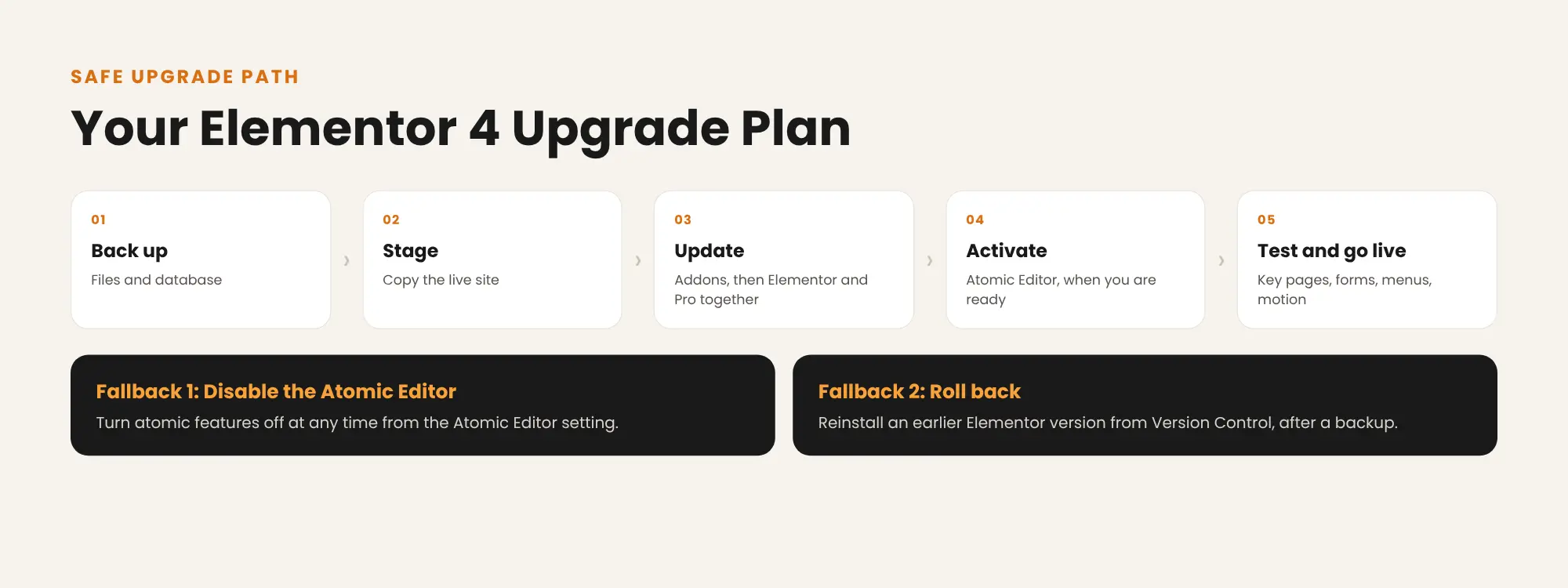
Step 1: Back up files and database
Take a full backup before any change. Elementor’s rollback guidance starts with the same advice.
Step 2: Copy the site to staging
Run every step below on a staging copy first. Animation Addons licenses count staging sites as free, so your addon license covers the test site.
Step 3: Update addons, then Elementor and Elementor Pro together
Update each addon to its latest release, then update Elementor and Elementor Pro so both run the same major version. Check which addons support version 4 in our Elementor V4 compatible addons guide, and follow how to test your Elementor addon before upgrading.
Step 4: Activate the Atomic Editor when you are ready
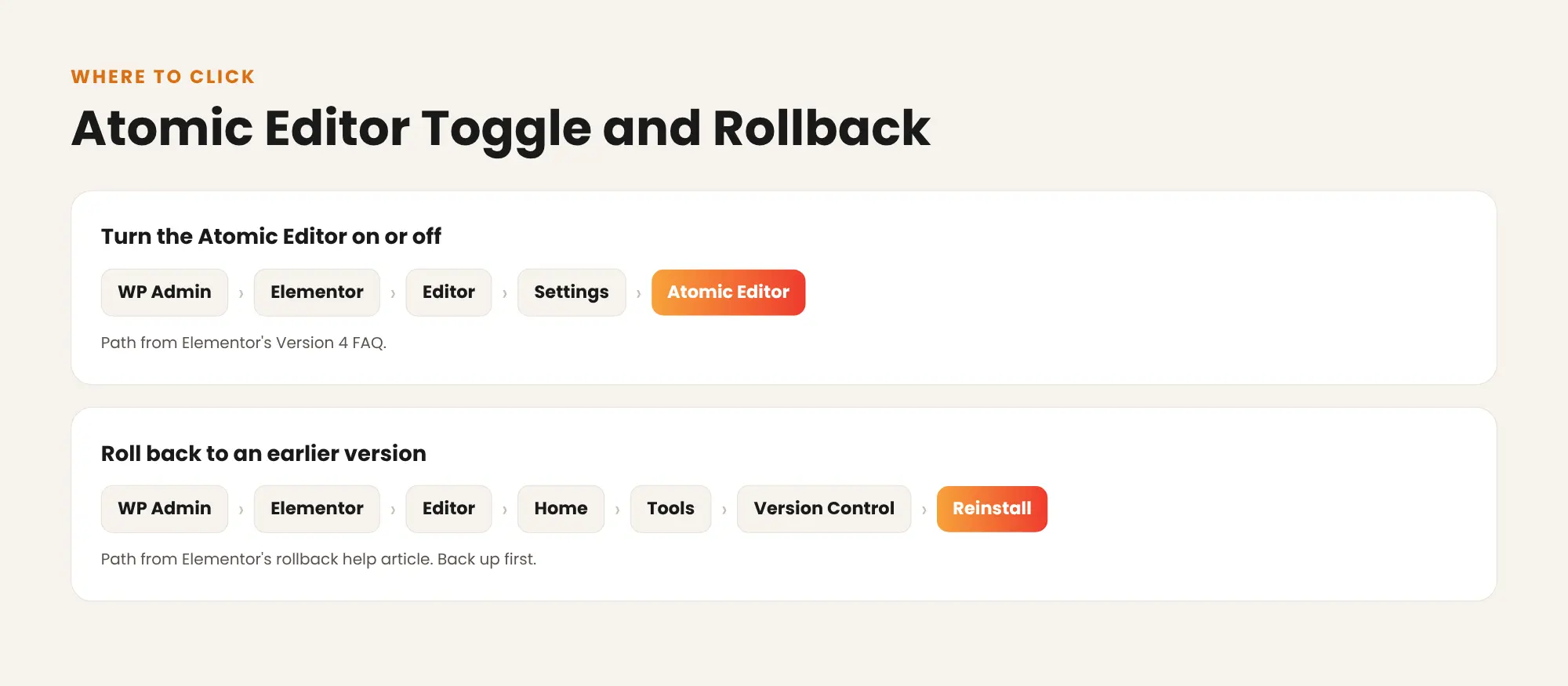
Go to WP Admin › Elementor › Editor › Settings › Atomic Editor and activate it. This step is optional: you can update Elementor and keep building with V3 widgets.
Step 5: Test key pages
Check forms, menus, sliders, popups and animated sections on desktop and mobile. Open the browser console and look for errors.
Step 6: Repeat on the live site
When staging passes, back up the live site and repeat the same steps. If an addon misbehaves, see common Elementor V4 addon conflicts.
How to Turn the Atomic Editor On or Off
Elementor states that atomic features can be disabled at any time. The setting lives in one place:
- Go to WP Admin › Elementor › Editor › Settings.
- Find Atomic Editor.
- Activate it to build with Atomic Elements, or turn it off to keep the classic editor.
- Save.
Before you turn it off on a site that already uses Atomic Elements, test the change on staging and check how existing atomic sections display. [VERIFY: how existing Atomic Elements render on the front end after the Atomic Editor is turned off]
[SCREENSHOT] Elementor Editor Settings screen showing the Atomic Editor setting
Mixed V3/V4 Pages: The Rules
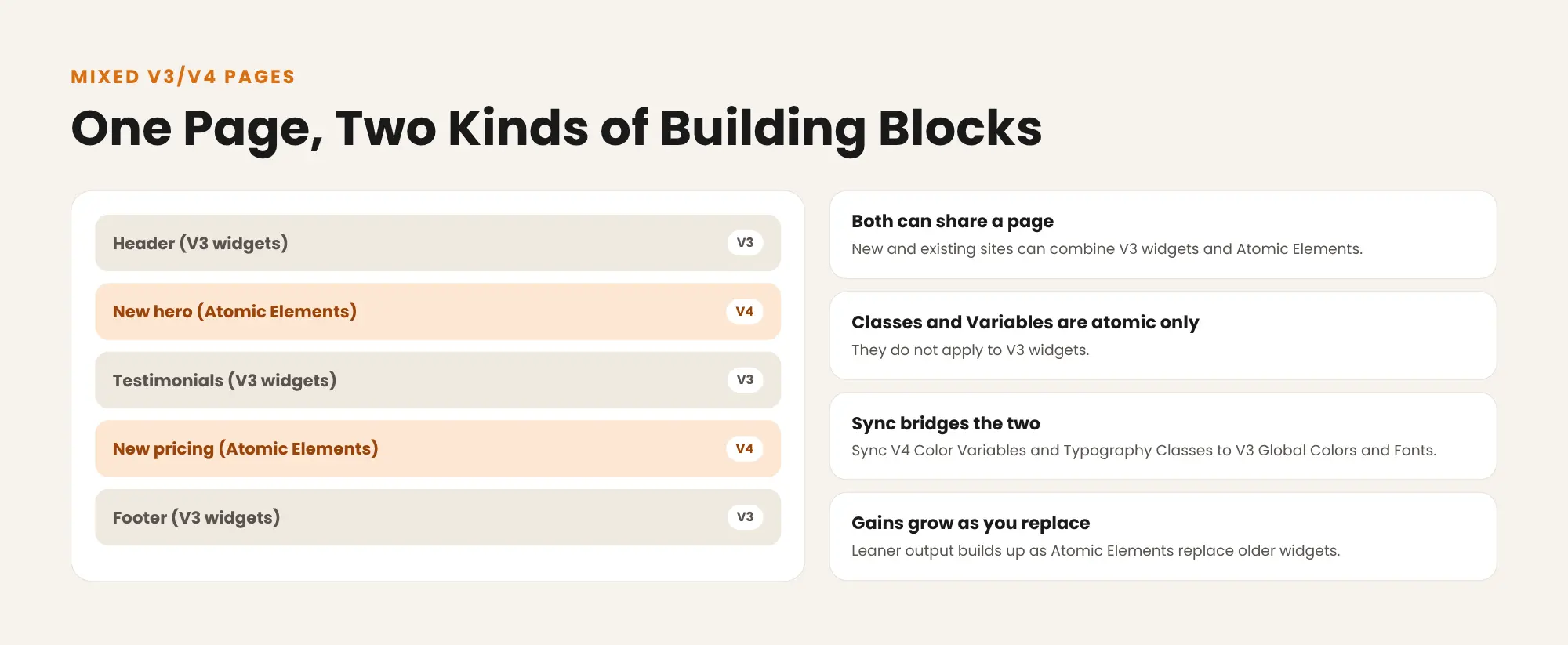
You do not have to choose one system per page. Elementor’s FAQ sets out how the two work together:
- Both can share a page. New and existing sites can combine V3 widgets and Atomic Elements on the same page.
- Classes and Variables are atomic only. They do not apply to V3 widgets.
- Sync bridges the two. Version 4.0 can sync V4 Color Variables and Typography Classes to V3 Global Colors and Fonts.
- Performance gains grow over time. On mixed pages, gains vary; output gets leaner as Atomic Elements replace older widgets.
New to the design system? Read Classes and Variables explained.
Elementor V4 Migration: Moving V3 Content to Atomic Elements
There is no automatic converter yet
Elementor’s FAQ does not describe a tool that converts V3 widgets into Atomic Elements. It says future versions will introduce more advanced syncing and migration solutions. Today, moving a section to V4 means rebuilding it with Atomic Elements.
Migrate section by section
Elementor recommends starting new sites with V4 elements and introducing Atomic Elements gradually on existing sites, starting with new pages or big new sections. A practical order:
- Set up Variables and Classes for colors, type and spacing.
- Build new sections with Atomic Elements.
- Rebuild old sections when you redesign them, not all at once.
Loop templates: the 4.2 bridge
If you use Elementor Pro Loops, version 4.2 lets you load existing V3 Loop Item templates inside an Atomic Loop Item. Elementor’s 4.2 developer update calls this a migration bridge, not the intended long-term pattern, but it means you do not need to rebuild every Loop before moving to the Atomic Editor.
V3 widget to V4 element mapping
Where Elementor 4.4 has no native Atomic Element yet, an addon can fill the gap with an element that uses the same Style tab, Classes and Variables.
| V3 widget | Elementor 4 native element | Animation Addons Atomic element |
| Heading | Heading | Not needed |
| Text Editor | Paragraph | Not needed |
| Button | Button | Not needed |
| Image | Image | Not needed |
| Container | Flexbox, Div Block, Grid (4.2) | Not needed |
| Tabs, Accordion | Tabs, Accordion (4.3) | Not needed |
| Icon List | List (4.4) | Atomic Icon List (free) |
| Google Maps | Google Maps (4.4) | Atomic Google Maps (free) |
| Image Carousel | Carousel (4.4, Elementor Pro) | Atomic Nested Slider (free) |
| Form (Pro) | Atomic Form (Elementor Pro) | Atomic Form (free) |
| Loop Grid (Pro) | Loop (4.2, Elementor Pro) | Atomic Loop Grid (free) |
| Flip Box (Pro) | None yet | Atomic Flip Box (free) |
| Countdown (Pro) | None yet | Atomic Countdown (free) |
| Nav Menu (Pro) | None yet | Atomic Nav Menu (Pro), or WP Menu (free) |
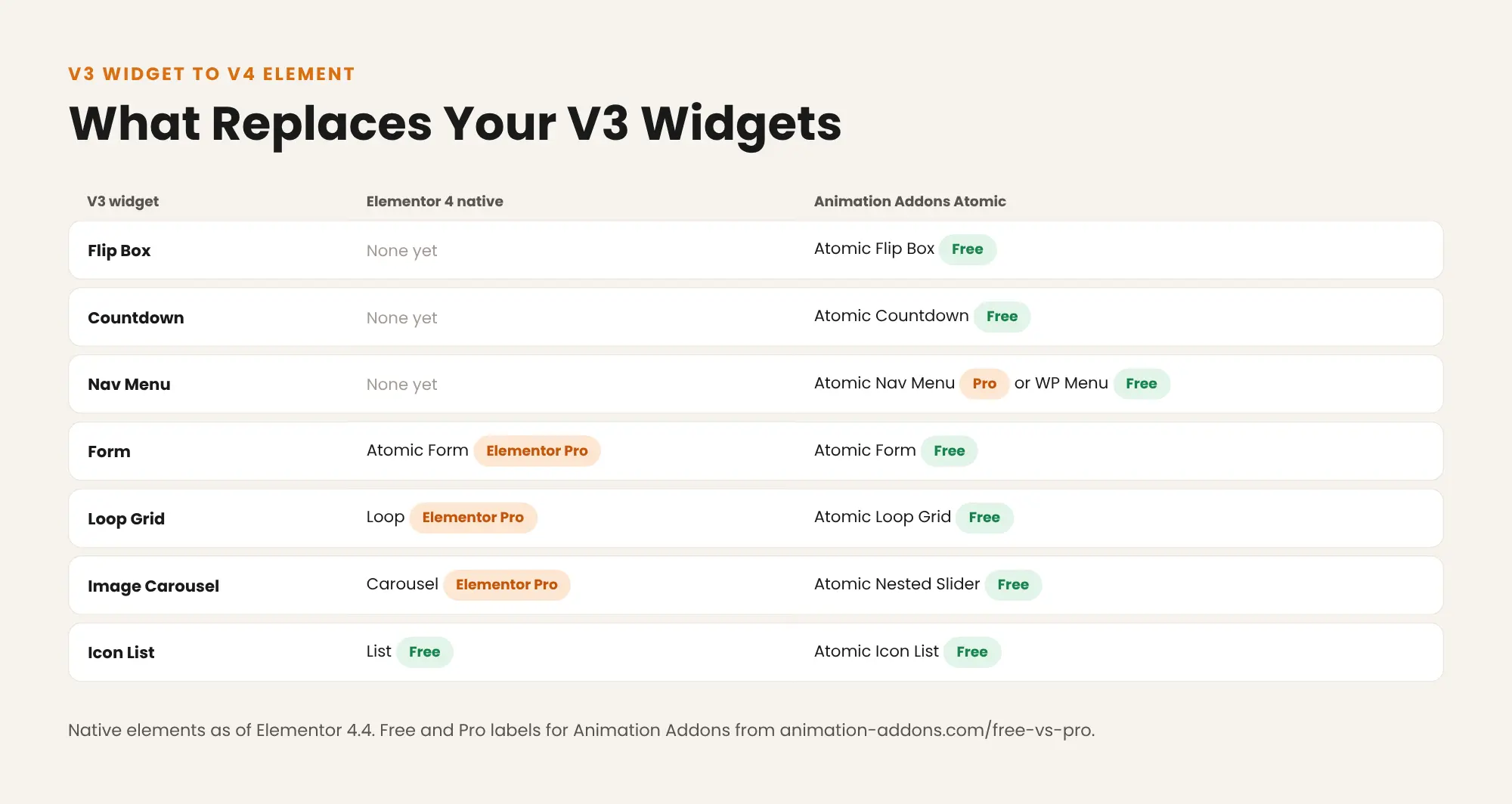
Free and Pro labels for Animation Addons come from the Free vs Pro page. For a full tour of the elements, see the complete guide to Elementor V4 Atomic elements.
How to Roll Back Elementor
If an update causes problems, Elementor’s rollback help article lists these steps:
- Back up your site.
- Go to WP Admin › Elementor › Editor › Home.
- Click Tools, then the Version Control tab. By default, the rollback is set to the previous version of Elementor or Elementor Pro.
- To go further back, choose an earlier release in the Rollback Version dropdown.
- Click Reinstall for that version.
- Click Continue in the confirmation window.
Cautions from Elementor: it does not support or recommend outdated versions, and you should test a rollback on staging first. If you cannot reach WP Admin, you can download an earlier Elementor Core version from WordPress.org; direct download works for Elementor Core only, not Elementor Pro.
If a page already uses Atomic Elements, test the rollback on staging before the live site, so you can see how those sections display on the earlier version.
[SCREENSHOT] Elementor Tools, Version Control tab with the Rollback Version dropdown and Reinstall button
Disable or Roll Back: Which Should You Use?
| Situation | Use | Why |
| You prefer the classic editor for now | Turn off the Atomic Editor | Elementor stays up to date; atomic features are hidden |
| A new Elementor release broke something | Roll back to the previous version | Restores the last working release while a fix ships |
| An addon conflicts with Elementor 4 | Update or disable the addon first | The cause is often the addon, not Elementor |
| You are not sure | Test both on staging | Never test on the live site first |
Keep Your Classic Addon Library While You Migrate
A gradual migration only works if your addons keep working on both sides. One Animation Addons license covers Elementor 3 and Elementor 4: the classic library of 100+ widgets keeps your existing pages running, while 40+ Atomic elements cover the V4 sections you build next. See the Animation Addons Elementor 4 release notes for what changed.
Troubleshooting After the Upgrade
| Problem | What to try |
| No Atomic Elements in the panel | Activate the Atomic Editor in Elementor › Editor › Settings |
| Styles look right in the editor but not on the live page | Clear your cache plugin, then use Elementor’s Regenerate Files and Data tool in Tools |
| Editor errors after updating | Make sure Elementor and Elementor Pro run matching versions, then check addons one by one |
| A widget stopped working | Update the addon that provides it; roll back only if the problem started with an Elementor release |
Get each Elementor release explained, with what changed, what is free or Pro, and what to test before you update.
[ADD: newsletter signup link]
Final Thoughts
An Elementor V4 migration does not have to be a single risky switch. Updating changes nothing on existing pages, V3 widgets and V4 elements can share a page, and the Atomic Editor can be turned off at any time. If a release breaks something, Version Control rolls you back.
Back up, test on staging, update addons first, and move content to Atomic Elements section by section. Where Elementor has no native element yet, use the mapping table to pick an Atomic alternative, and keep your classic widgets running until each page is ready.
FAQs
Will updating to Elementor 4 break my site?
Elementor states that nothing happens to existing sites when you update. Still, back up and test addons on staging, because addons and themes are the usual cause of problems.
Do I have to rebuild my V3 pages for Elementor 4?
No, existing sites and layouts stay unchanged. You can move sections to Atomic Elements gradually, at your own pace.
How do I disable the Elementor Atomic Editor?
Go to WP Admin › Elementor › Editor › Settings › Atomic Editor and turn it off. Elementor states atomic features can be disabled at any time.
Can I keep using the classic Elementor editor?
Yes, you can update Elementor and keep building with V3 widgets. Activate the Atomic Editor only when you are ready.
Can V3 widgets and V4 elements be on the same page?
Yes, new and existing sites can combine V3 widgets and Atomic Elements on one page. Classes and Variables apply only to the Atomic Elements.
How do I roll back Elementor to an earlier version?
Back up, then go to Elementor › Editor › Home › Tools › Version Control and reinstall the version you need. Test the rollback on staging first.
Is there a tool to convert Elementor V3 to V4?
Elementor’s FAQ does not describe an automatic converter and says more migration solutions will come in future versions. Today you rebuild sections with Atomic Elements.
What happens to my V3 Loop templates?
Since Elementor 4.2, you can load existing V3 Loop Item templates inside an Atomic Loop Item. Elementor calls this a migration bridge rather than the long-term pattern.
Do my Global Colors and Fonts carry over to Elementor 4?
Version 4.0 can sync V4 Color Variables and Typography Classes to V3 Global Colors and Fonts. Classes and Variables themselves do not apply to V3 widgets.
Do I need a new Animation Addons license for Elementor 4?
No, one Animation Addons license covers Elementor 3 and Elementor 4. Staging sites are free, so you can test the upgrade on a copy.


Leave a Reply