
 Login
Login


Confused by Elementor V4 Classes, Variables, Local Classes, and Global Classes? You’re not alone. Elementor V4 introduces a new CSS-first way to build reusable design systems, but the terminology can feel unfamiliar at first.
In this beginner-friendly guide, you’ll learn what Elementor V4 Classes and Variables are, how they differ, how to create and use them, and how they work together to keep your website consistent and easier to maintain. No coding experience required.
Elementor V4 Classes are reusable sets of styling rules that help you style multiple elements consistently, while Variables are reusable values such as colors, fonts, and sizes.
Local Classes are useful for one-off styling, whereas Global Classes can be reused across multiple elements and updated from one place.
Together, they make Elementor V4 websites easier to design, maintain, and update.
Key Takeaways
- Classes bundle styles so you can reuse the same design across multiple elements.
- Local Classes are best for unique, one-off styling.
- Global Classes are ideal for repeated elements such as buttons, cards, and headings.
- Variables store reusable values such as brand colors, fonts, and sizes.
- Classes and Variables work together—variables provide values, while classes define reusable styling.
- Update once, reuse everywhere: changing a global class or variable can save hours of repetitive editing.
- Start small: create one useful variable and one reusable class, then expand your design system as your website grows.
Why Elementor V4 Introduced Classes and Variables
Before the how, it helps to understand the why.
In older page builders, you style each element by hand. Ten buttons that should match means styling ten buttons and if you change your mind, you edit all ten again. As a site grows, keeping everything consistent becomes a real chore, and small inconsistencies creep in.
Inconsistent styling looks unprofessional, and manual editing wastes time you could spend building.
Elementor editor V4 adopts the principles of Atomic Design, the idea of creating small, reusable elements. In Elementor, these reusable style sets are called classes, matching the vocabulary used by CSS. Variables extend the same idea to individual values like colors and fonts.
You define a style or value once and reuse it everywhere. Elementor even notes that proper use of classes can improve your website’s performance, on top of saving you time.
What are Elementor V4 Classes?
If you’ve ever styled the same button, heading, or card again and again in Elementor, you already know the problem: repetition makes design maintenance harder. Elementor V4 Classes solve this by letting you group reusable styling rules and apply them wherever you need them.
Think of a class as a reusable style recipe. Instead of setting typography, spacing, colors, borders, and other styles separately on every element, you define the styling once in a class and reuse it across your website.
For example, a primary-button class could define your button’s color, typography, padding, and border radius. Apply that class to 10 buttons, and you can update all 10 from one place.
The result? Less repetitive styling, more consistency, and faster design changes.
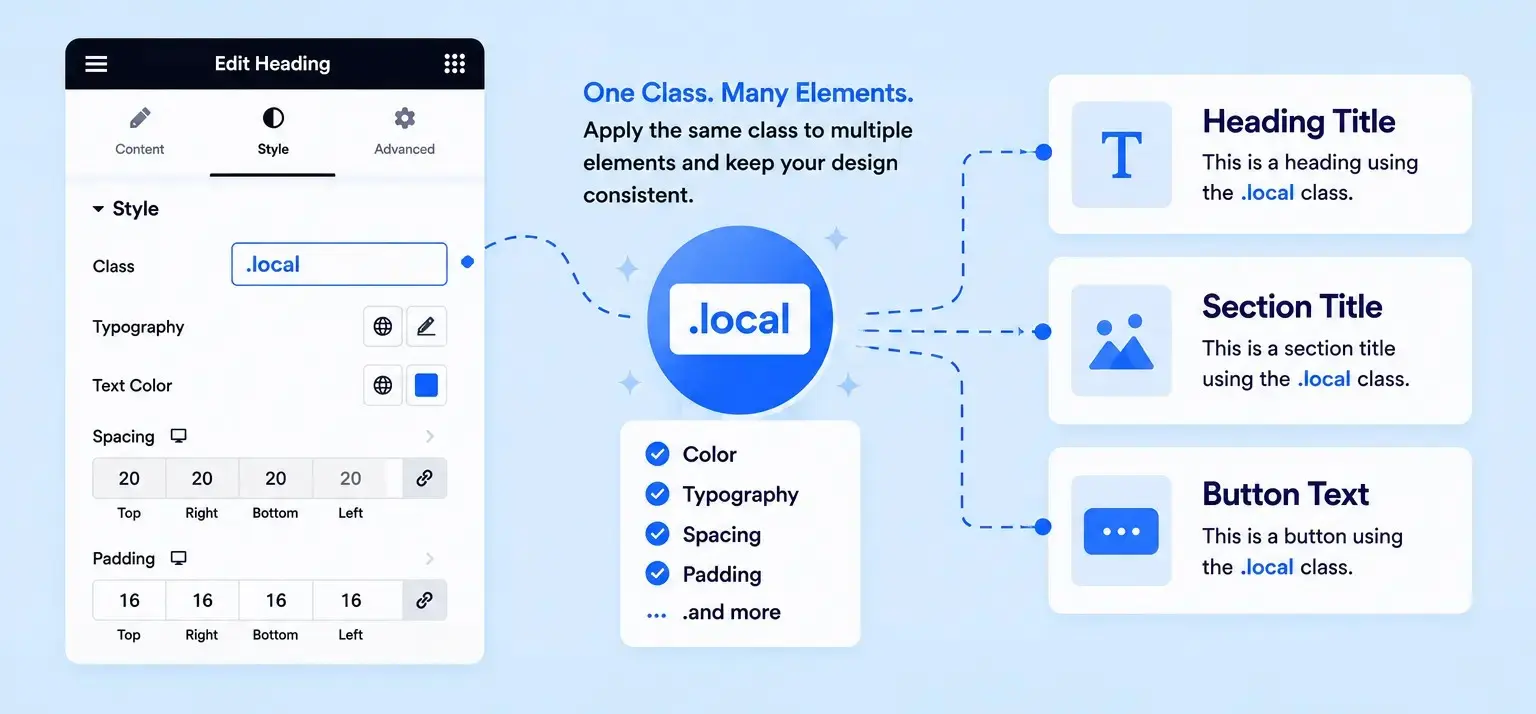
Local Classes
A local class is designed for styling a specific element. It’s useful when the styling is unique and you don’t expect to reuse it elsewhere.
For example, imagine you have a special headline in your homepage hero section. You can use its local class to control its typography, spacing, or other styles without affecting other headings.
Use local classes when:
- The style is unique to one element.
- You need a one-off design variation.
- You don’t need the same styling elsewhere.
Think of a local class as a custom recipe made for one dish, useful when that dish is different from everything else.
Global Classes
A global class is made for styles you want to reuse across multiple elements. Instead of recreating the same design repeatedly, you define it once and apply the class wherever needed.
For example, create a primary-button global class with your brand color, typography, padding, and border style. You can then apply it to buttons throughout your website.
The real benefit appears when you make a change. Update the global class once, and every element using that class follows the change automatically.
Use global classes for repeated patterns such as:
- Primary and secondary buttons
- Card designs
- Section headings
- Repeated content blocks
- Consistent spacing or typography styles
How Classes Work in Elementor V4
Elementor V4 editor makes class-based styling part of the visual editing workflow, so you don’t need to write CSS just to create and reuse a class.
When you add an element, you can assign a class through the Style panel. You can then define the styling for that class and reuse it on other elements.
The basic workflow is simple:
Create → Style → Reuse → Update
For example:
Create:
primary-button
Style: Set color, typography, padding, and other properties
Reuse: Apply the class to multiple buttons
Update: Change the class once when your design needs an update
This is where Elementor V4 Classes become especially useful. Instead of treating every element as an isolated design, you can build reusable styling patterns that keep your website consistent as it grows.
- Quick tip
- If you find yourself giving the same style to two or more elements, that’s a good signal to consider turning that repeated styling into a reusable class.
What are Variables in Elementor V4?
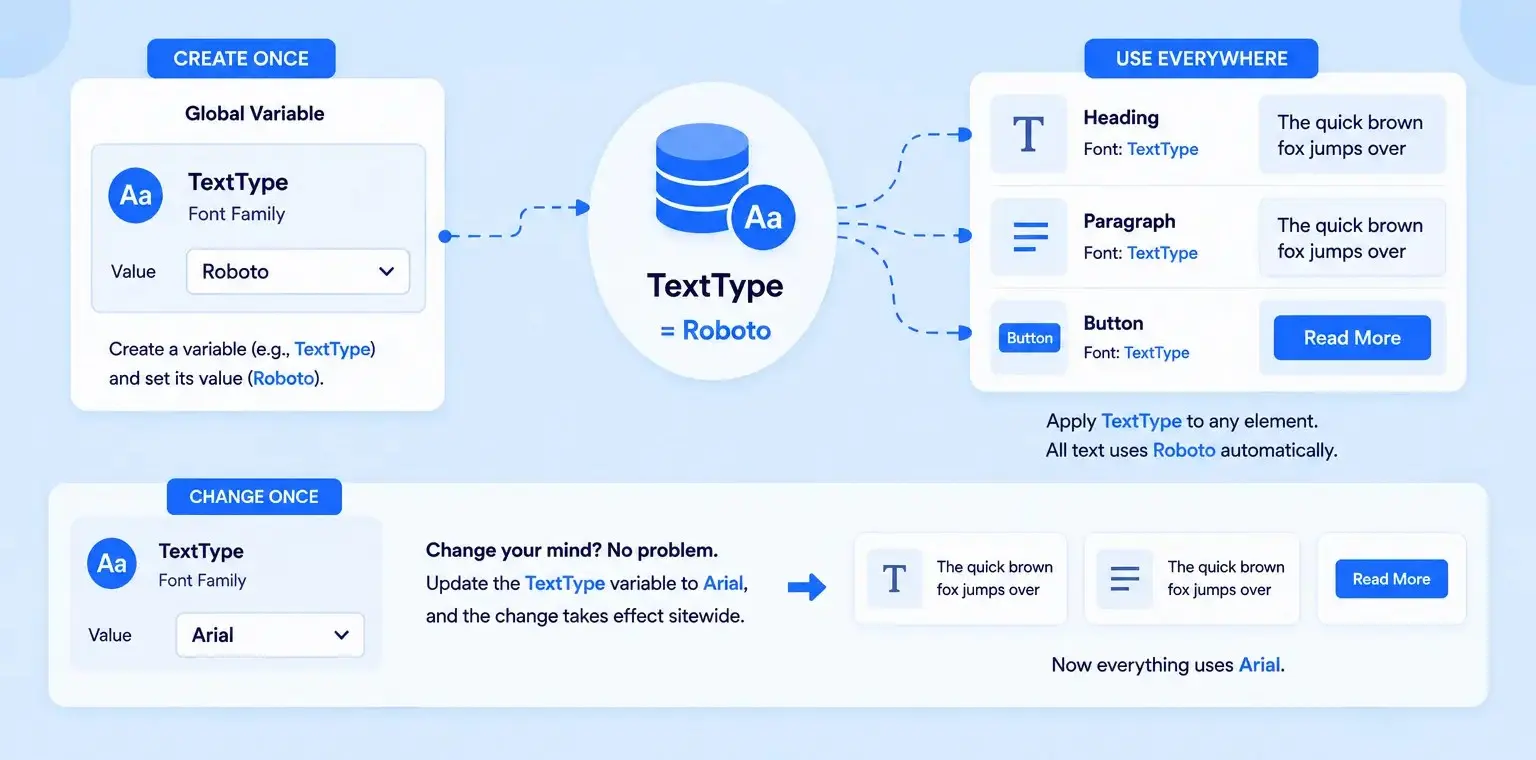
If a class is a reusable style recipe, a variable is one of the ingredients. Elementor V4 Variables let you save a value once and reuse it across your website instead of manually selecting or entering the same value repeatedly.
For example, instead of choosing your brand color every time you style a button, create a variable such as BrandBlue and use it wherever that color is needed. If your brand color changes later, update the variable once and every element using it can follow the change.
This makes your design system more consistent, easier to maintain, and faster to update. Elementor V4 animations currently focuses variables on common design values such as colors, font families, and sizes.
Color Variables
Color variables let you save frequently used colors and reuse them throughout your design.
For example:
BrandBlue → #2563EB
Instead of manually selecting the same blue for buttons, links, headings, and other elements, you can reference the BrandBlue variable wherever that value is needed.
Need to refresh your brand color later? Change the variable once instead of hunting through individual elements.
Best for: brand colors, primary colors, secondary colors, and other frequently reused text or design colors.
Font Variables
Font variables help you keep typography consistent across your website.
For example:
HeadingFont → Roboto
You can use the same variable wherever that font is required. If you later switch from Roboto to another typeface, updating the variable can save you from manually changing every affected element.
Best for: heading fonts, body fonts, and other frequently reused font families.
Size Variables
Size variables let you reuse consistent size values instead of choosing them repeatedly.
For example:
HeadingSize → 48px
Rather than manually entering or selecting the same size in multiple places, you can use the saved variable wherever appropriate.
This is particularly useful when you want your design to follow a consistent visual scale and make future adjustments easier.
How to Create a Variable
Creating a variable follows the same define once, reuse everywhere principle.
A simple workflow is:
1. Choose a supported style value
Select the color, font, or size you want to reuse.
2. Create a variable
Give the value a clear, meaningful name such as BrandBlue, HeadingFont, or LargeHeading.
3. Set its value
Assign the actual color, font family, or size to the variable.
4. Use it across your design
Whenever you need that value, select the variable instead of entering or choosing the value manually.
5. Change it from one place
If your design changes, update the variable rather than editing every element individually.
A simple way to remember it
Variable = one reusable value
Class = a reusable set of styles
So, a BrandBlue variable can provide the color, while a primary-button class can define the complete button styling that uses that color.
That combination is where Elementor V4’s reusable design system becomes especially powerful.
Classes vs Variables: What’s the Difference?
Beginners often mix these up, so here’s the simplest way to keep them straight.
| Header Labels | Classes | Variables |
|---|---|---|
| What is it? | A reusable set of styles | A reusable value |
| Controls | Multiple style properties | Individual values |
| Example | primary-button | brand-blue |
| Can be reused? | Yes | Yes |
| Used on | Elements | Style properties |
| Change once? | Updates elements using the class | Updates properties using the variable |
| Can work together? | Yes | Yes |
| Best for | Reusable component/element styling | Colors, fonts, sizes, etc. |
- Variables define the value; classes define how that value is used.
How Classes and Variables Work Together
Classes and Variables become more powerful when you use them together. Variables control reusable values, while Classes organize those values into reusable styling patterns giving you a simple way to build a consistent design system in Elementor editor V4.
For example, you could create a BrandBlue variable for your primary brand color and use it within a primary-button class. Apply that class to multiple buttons, and you can maintain the same color, typography, spacing, and overall style across your website. One can also designs faster websites through ready-made templates.
The workflow is simple:
- Create a Variable → Use it in a Class → Apply the Class → Update from one place
This approach saves repetitive work and makes global design changes much easier. If your brand color changes, you can update the variable instead of manually editing every button that uses it.
- Think of it this way: A Variable provides the value, while a Class provides the styling structure. Together, they turn individual design decisions into reusable building blocks.
Common Beginner Mistakes and How to Fix Them
Some of the common beginner mistakes and how to fix them are narrated below –
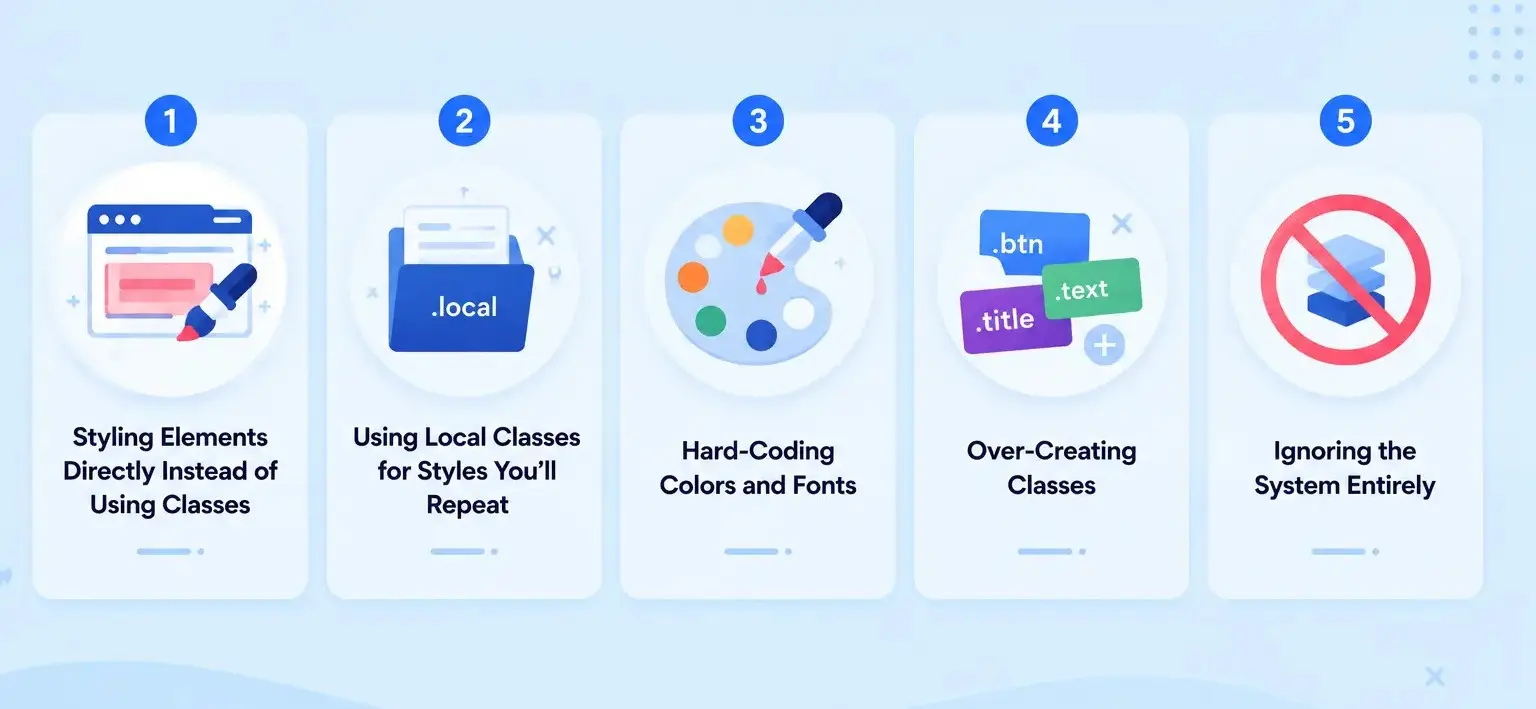
1. Styling Elements Directly Instead of Using Classes
One of the most common mistakes beginners make is applying styles directly to individual elements. It feels convenient because you can quickly change the color, spacing, or typography of a single element and move on. However, this approach creates major maintenance issues later.
Fix: Create a global class for any style that may be reused. When you need to change the button color, padding, or border radius, you only need to update the class once, and every button on the site updates automatically.
2. Using Local Classes for Styles You’ll Repeat
Another mistake is starting with local classes and then continuing to duplicate those styles throughout the project. At first, you might think a section or card design is unique, but as the website grows, you realize you’re recreating the same styles repeatedly. This often leads to inconsistencies.
Fix: As soon as you notice a style being used more than once, convert it into a global class. This keeps your design consistent and dramatically reduces maintenance work.
3. Hard-Coding Colors and Fonts
Many beginners directly type color values or manually select fonts every time they need them. This may not seem like a problem on a small website, but it becomes a major headache during a redesign or rebranding project.
Fix: Create variables for your brand colors, font families, font sizes, spacing values, and border radiuses. Then reference these variables throughout your site. If the brand changes later, you only need to update the variable once, and the entire website updates automatically.
4. Over-Creating Classes
Some users go in the opposite direction and create a new class for almost every element they build. Before long, they end up with hundreds of one-off classes that nobody remembers or understands.
This creates unnecessary complexity and makes the project difficult to maintain.
Fix: Keep your class system simple and intentional. Create classes only for styles that genuinely need to be reused. A small, organized set of classes is usually enough for most projects. Reusing these classes keeps your design system clean and predictable.
5. Ignoring the System Entirely
Some beginners continue building websites exactly as they did before and never adopt Elementor V4’s variables and global classes. They treat every page as an isolated design instead of part of a larger system.
Fix: Start small and build the habit gradually. You don’t need to create a complete design system on day one. Begin with just one brand color variable and one global class. Then add more variables and classes as your project grows.
Do Elementor V4 Classes Improve Performance?
Yes, Elementor V4 Classes can contribute to better website performance by encouraging reusable styling instead of repeatedly defining the same styles for individual elements. This can help keep the page’s styling more organized and reduce unnecessary repetition in the generated code.
However, Classes alone won’t make a website fast. Images, fonts, JavaScript, DOM size, hosting, plugins, and overall page structure also have a major impact on Core Web Vitals.
The real advantage is the CSS-first, reusable approach: define a style once, reuse it across multiple elements, and update it centrally when needed. This makes your website easier to maintain while supporting a cleaner and more efficient design workflow.
- Elementor V4 Classes can support better performance, but think of them as one piece of a broader performance strategy, not a magic speed boost.
Can You Use Classes and Variables Without Knowing CSS?
Yes. Elementor V4 lets you create, apply, and manage Classes and Variables directly from the visual editor, so you can build a more consistent design system without writing CSS code.
You can start with simple concepts: use Variables for reusable values such as colors, fonts, and sizes, and Classes for reusable styling patterns such as buttons, cards, or headings. As you become more comfortable, learning basic CSS concepts can help you understand how styles are organized and reused but you don’t need to be a CSS expert to get started with Elementor V4.
Elementor V3 vs V4: What’s Different?
Elementor V4 introduces a more CSS-first, reusable approach to website building, while Elementor V3 primarily relies on styling individual widgets and using traditional global settings. Instead of repeatedly configuring the same design properties, V4 makes Classes, Variables, and other reusable design-system features central to the workflow.
| Elementor V3 | Elementor V4 |
|---|---|
| Style elements individually | Reuse styles with Classes |
| Global colors and fonts | Reusable Variables |
| More widget-focused styling | More system-based styling |
| Repeated manual adjustments | Centralized style changes |
| Traditional Elementor workflow | CSS-first, atomic workflow |
The biggest difference isn’t simply a new interface, it’s how you think about styling. In V3, you may style each element as you build; in V4, you can define reusable values and styles once, then apply them across your design.
You also don’t have to rebuild everything from scratch. V3 widgets can work alongside V4 Atomic Elements, allowing you to gradually adopt the newer workflow instead of replacing an existing website all at once.
- In short: V3 is largely element-focused, while V4 moves toward a reusable design-system approach where Classes and Variables help you build faster and maintain consistency.
Final Thoughts: Start Small, Build Confidence
Elementor V4 classes and variables look intimidating at first, but the core idea is simple: define your styles and values once, then reuse them everywhere. Classes bundle styles apply to elements, local for one-offs, global for anything repeated, while variables save individual values like colors and fonts so you can update your whole site from a single place.
For beginners, the payoff is immediate: consistent designs, faster edits, and a cleaner, better-performing site. You don’t need to master everything at once. Create one color variable, build one global button class, and change them once to see the magic. That single exercise will teach you more than any amount of reading and set you up to build faster in Elementor V4.
FAQs
Classes in Elementor V4 are reusable collections of styling properties that can be applied to elements, helping you maintain consistent designs across your website. Each element has a local class by default, while additional classes can be created and reused as needed.
Variables are reusable values that you can define once and use throughout your design, such as colors, font families, and sizes. They make global design changes easier because you can update a value without manually editing every element that uses it.
A Class groups multiple styling properties together, while a Variable stores a specific reusable value. For example, primary-button could be a class, while brand-blue could be a color variable used within that class.
A local class is used to control the styling of the individual element you’re working on, while a global class is designed to be reused across multiple elements. Global classes are especially useful for repeated design patterns because changes can be managed centrally.
Add an element, style it using its local class, then open the class options and choose Convert to global class. You can then reuse that class on other elements and manage it through the Class Manager.
Select a supported style property, click the Variable option, and create a new variable with a meaningful name and value. Once created, the variable can be reused across your Elementor V4 design.
Yes, Elementor V4 allows variables to be used as part of a class, combining reusable values with reusable styling rules. This lets you create flexible design systems where a class can reference variables such as fonts or colors.
No, you don’t need to write CSS to create or use Elementor V4 Classes because they can be managed directly through the visual editor. However, understanding basic CSS concepts can help you better understand how classes and styling priorities work.
Yes, proper use of classes can contribute to better performance by reducing repetitive styling and creating more efficient output. However, overall website performance also depends on factors such as DOM structure, images, scripts, hosting, and other plugins.
Yes, Elementor V3 widgets and V4 Atomic Elements can be used together on the same page. This allows you to introduce the new V4 workflow gradually without rebuilding your existing layouts.
The Class Manager is a centralized tool for managing your Elementor classes, including renaming, deleting, and reordering them. You can access it through the Design System area or from the Elementor element panel.
The Variables Manager is a centralized workspace where you can manage the variables used in your Elementor design system. It lets you view, edit, create, and delete variables from one place, making large design systems easier to maintain.



Leave a Reply