
 Login


A header with eight menu links, a phone number and social icons looks crowded on a laptop and breaks on a phone. Most visitors only need the full menu at the moment they look for it.
An off-canvas menu hides the navigation behind one button and brings it back as a full panel when the visitor asks for it. This tutorial shows you how to build an animated Elementor off canvas menu with the Animated Off-Canvas widget from Animation Addons, without Elementor Pro. You will set up the open button, add your WordPress menu with sub-menus, fill the contact column, pick a layout and test it on a phone.
To create an off-canvas menu in Elementor, install Animation Addons Pro and turn on Animated Off-Canvas in Animation Addons → Elements. Drag the widget into your header, write the Open Button Text or turn on Enable Icon Toggle Button, and choose a WordPress menu in Menu. Add your logo, contact details and social links, style both columns, then preview on desktop and mobile. Elementor Pro is not needed.
What Is an Off-Canvas Menu?
An off-canvas menu is a navigation panel that stays outside the visible page until a visitor presses a button, usually a hamburger icon or a “Menu” label. The panel then moves in over the page, and a close button hides it again.
An off-canvas menu fits when:
- Your menu has more items than fit in one header row.
- You want contact details, social links or search next to the menu.
- You want one menu pattern that works on desktop and on phones.
What Is the Animated Off-Canvas Widget?
The Animated Off-Canvas widget is a Pro Elementor widget from Animation Addons. A menu button opens a full-screen panel with your WordPress menu, plus an optional column for a logo, contact details, social links and search.
| Key fact | Detail |
| Plan | Animation Addons Pro |
| Widget type | Classic Elementor widget (Elementor 3 editor) that keeps working in Elementor 4 |
| Works with | Elementor Free and Elementor Pro |
| Panel | Full screen, with a left and a right column |
| Content | WordPress menu, logo or image, contact details, social icons, search, language links |
| Motion | The panel fades in; the left column moves down from the top and the right column moves up from the bottom |
| Open button | Text, icon, or both |
| Requires | Animation Addons for Elementor (free) and Animation Addons Pro |
| Last updated | October 2026 |
How the Slide-In Animation Works
The motion is what makes this an animated menu and not a panel that just appears. When a visitor presses the open button:
- The panel fades in over half a second.
- The left column moves down from the top as it fades in.
- The right column moves up from the bottom as it fades in.
Closing plays the same motion in reverse. The motion comes built into the widget, so you set up content and style, not keyframes.
Sub-menus move too. A menu item with children shows a plus icon. A click slides its sub-menu open and turns the plus into a minus.
Want to see the real widget first? Open the three live demos on the Animated Off-Canvas page.
What You Need Before You Start
| Requirement | Why |
| WordPress with Elementor (Free or Pro) | The widget does not need Elementor Pro |
| Animation Addons for Elementor (free) | The base plugin |
| Animation Addons Pro | Animated Off-Canvas is a Pro widget |
| A WordPress menu | The widget shows a menu you build in WordPress. Nested items become sub-menus. |
| Your logo, contact details and social links | Optional content for the second column |
| A header template or page | The place where the menu button sits |
Still choosing how to build your header? See our roundup of the best Elementor header and footer builder plugins.
What Goes Inside the Panel
Every part of the panel is a named setting in the Elementor panel, and each part has its own section in the Style tab.
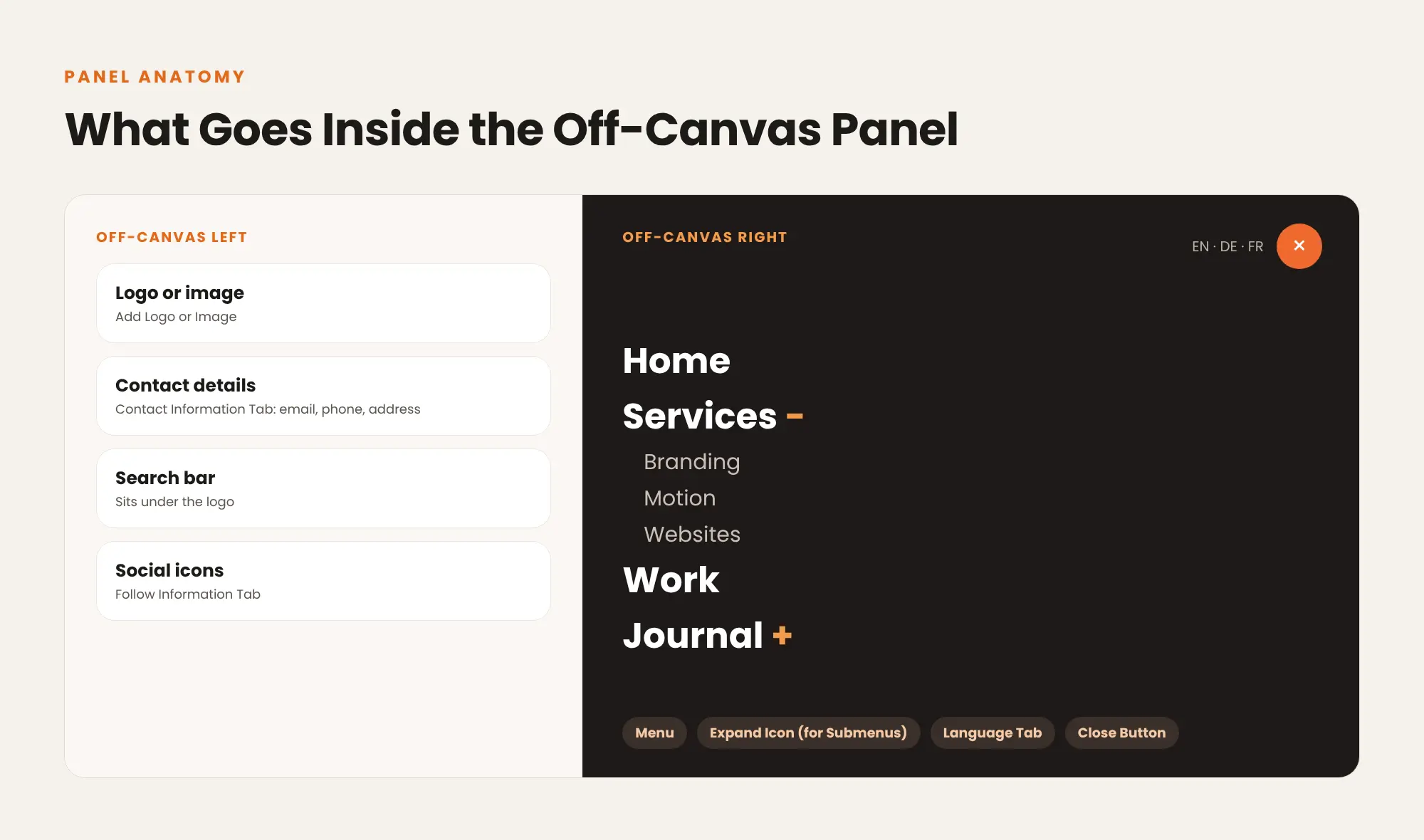
| Part | Where you add it | Where you style it |
| Open button | Settings: Open Button Text, Enable Icon Toggle Button | Open Button |
| Menu with sub-menus | Content: Menu | Menu Settings, Expand Icon (for Submenus) |
| Logo or image | Content: Add Logo or Image | Logo/Image |
| Email, phone and address | Content: Contact Information Tab | Contact |
| Social icons | Content: Follow Information Tab | Follow Social Media |
| Search bar | Sits under the logo | Search |
| Language links | Content: Language Tab | Language |
| Close button | Settings: Default Close Icon Toggle Button | Close Button |
How to Create an Off-Canvas Menu in Elementor: Step by Step
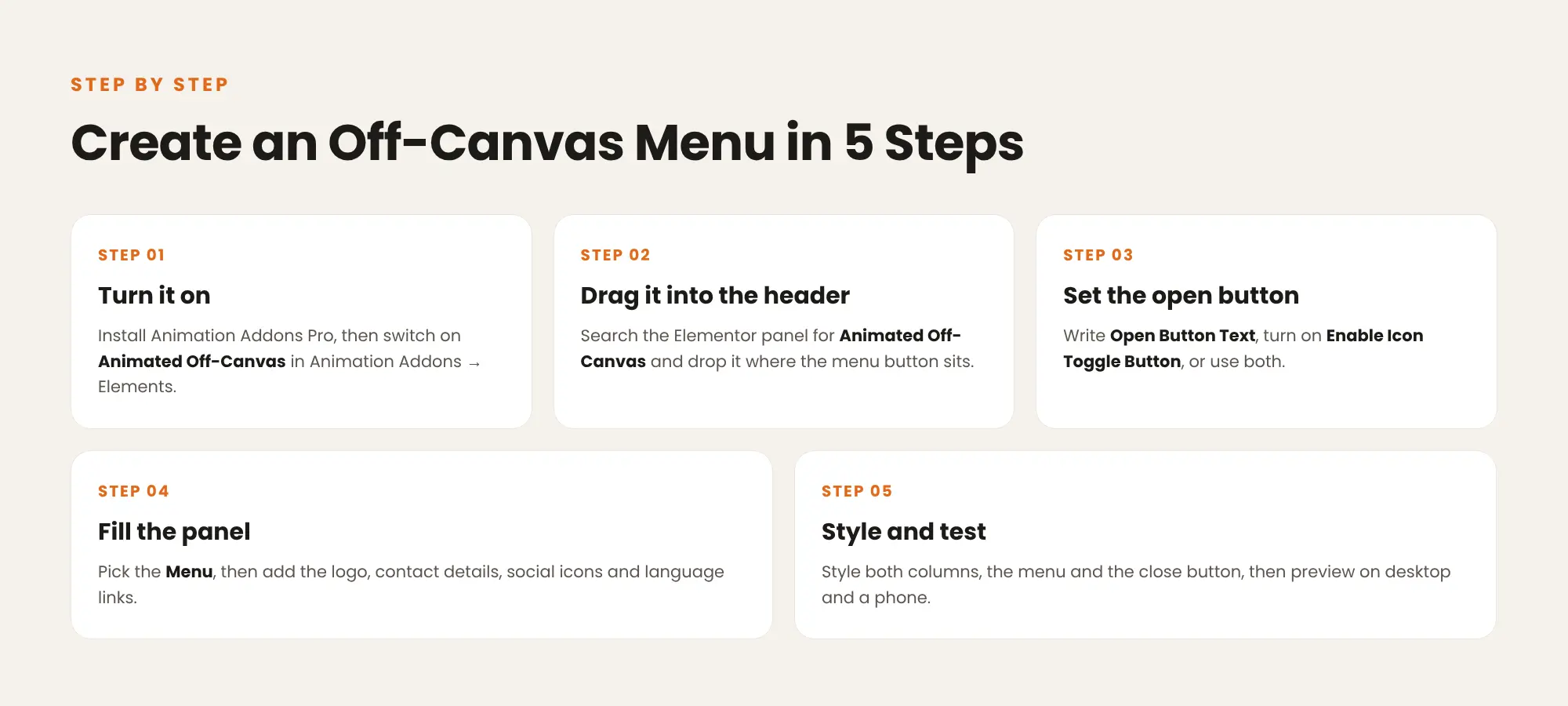
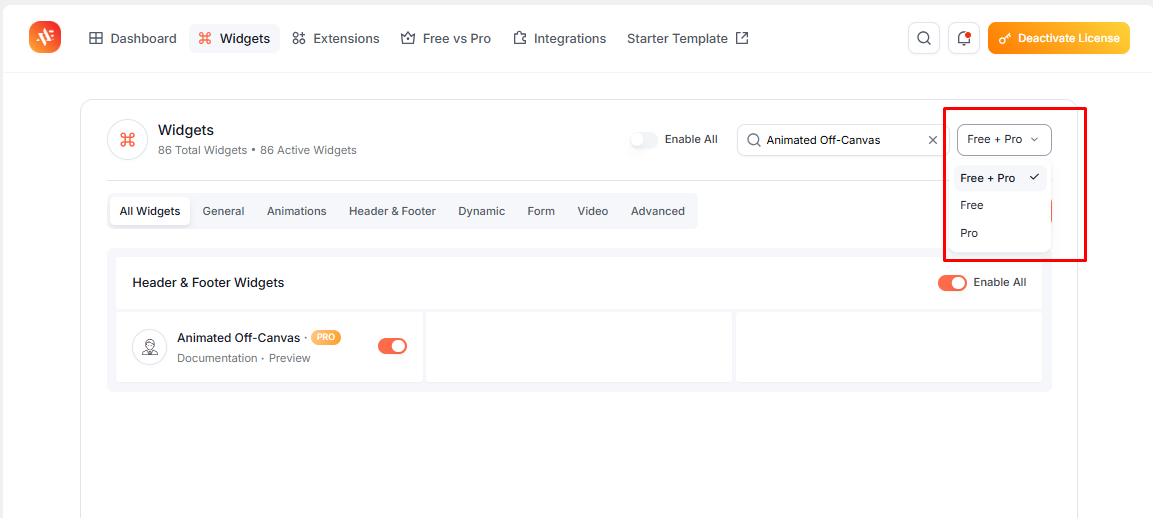
Step 1: Install Animation Addons Pro and turn on the widget
Install Animation Addons for Elementor from WordPress.org, then install and activate Animation Addons Pro with your license key. Go to Animation Addons → Elements, find Animated Off-Canvas and switch it on.
Step 2: Drag the widget into your header
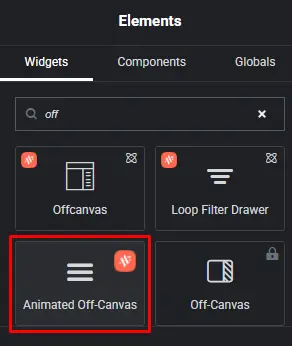
Open your header template or page in Elementor. Search the widget panel for Animated Off-Canvas and drag it where the menu button should sit, usually at the right end of the header next to your logo.
Step 3: Set up the open button
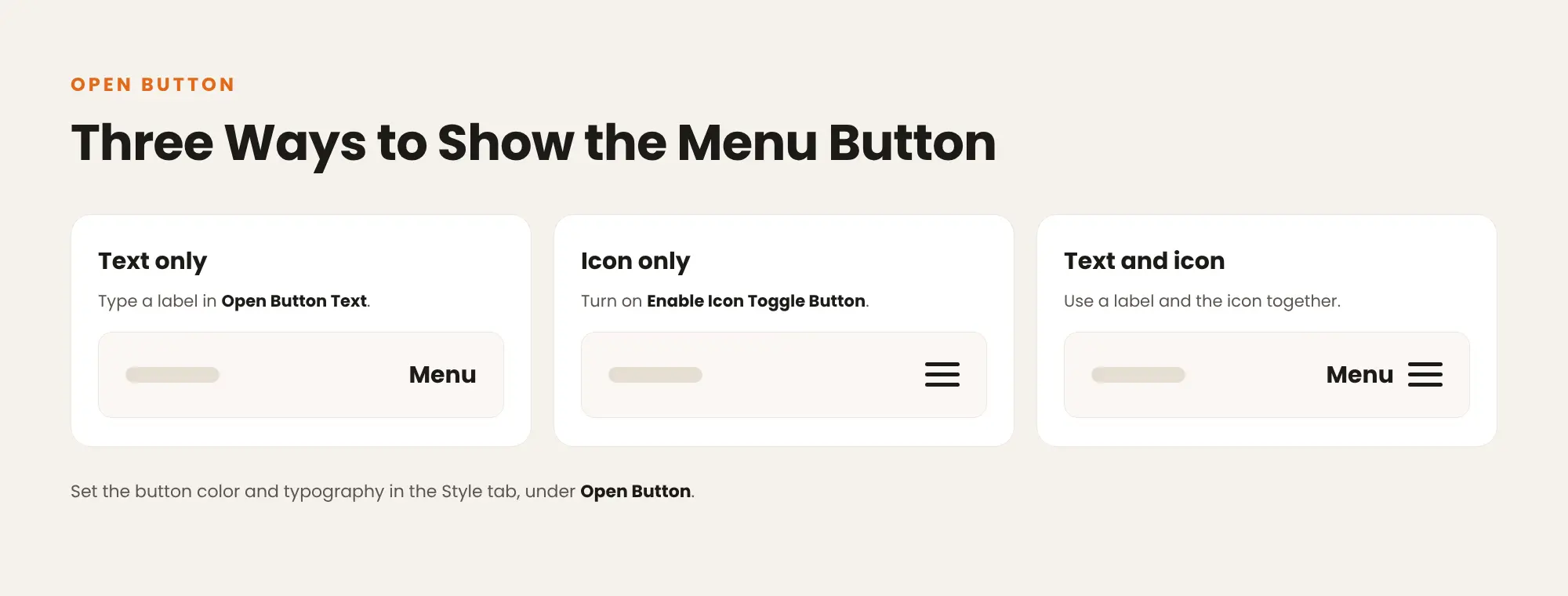
Open the Settings section. You have three options for the button visitors press:
- Text only: type a label such as Menu in Open Button Text.
- Icon only: turn on Enable Icon Toggle Button for a hamburger icon.
- Both: use a label and the icon together.
Default Close Icon Toggle Button sets the default close icon. Color the button and set its font in the Style tab, under Open Button.
Step 4: Choose the menu and fill the panel
In Content, pick a WordPress menu in Menu. Items with children in that menu become sub-menus with a plus icon. Then fill the second column:
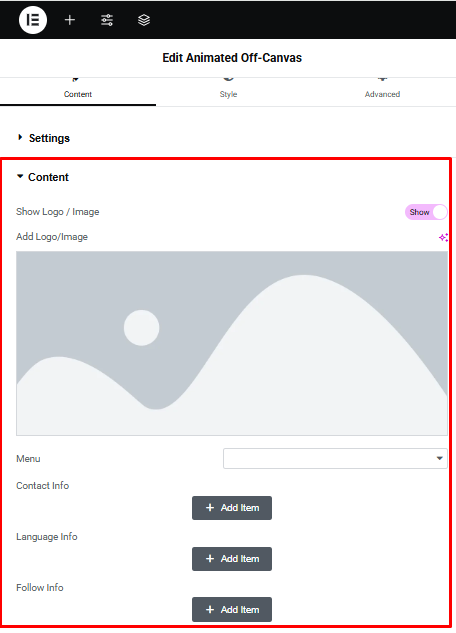
- Add Logo or Image: your logo or any image.
- Contact Information Tab: email, phone and address.
- Follow Information Tab: your social icons.
- Language Tab: language links, which show next to the close button.
Step 5: Style the panel, then preview on desktop and mobile
Open the Style tab. The sections you will use most:
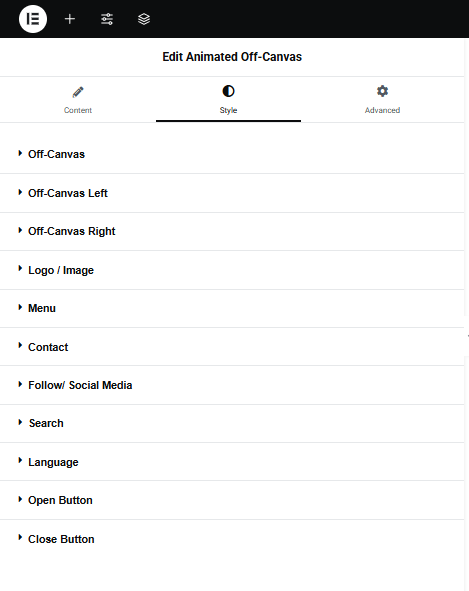
- Off-Canvas Settings: Background Type, Padding and Swap Column, which flips the two columns.
- Off-Canvas Left and Off-Canvas Right: Display, Width, Background Type and Padding for each column.
- Menu Settings: Color, Hover Color, Border Color, Typography, Padding and Level Two & Three Padding.
- Expand Icon (for Submenus): Color, Icon Size and Padding Size of the plus and minus.
- Close Button: Icon Size, Circle Size, Border Radius, Color, Background Type and an Animation Effect.
Save, open the page and press the button. Check that both columns slide in, open a sub-menu, then close the panel. Repeat the test on a phone.
Three Off-Canvas Menu Layouts You Can Build
These three layouts are the live demos on the Animated Off-Canvas page. Each one uses the same widget with different settings.
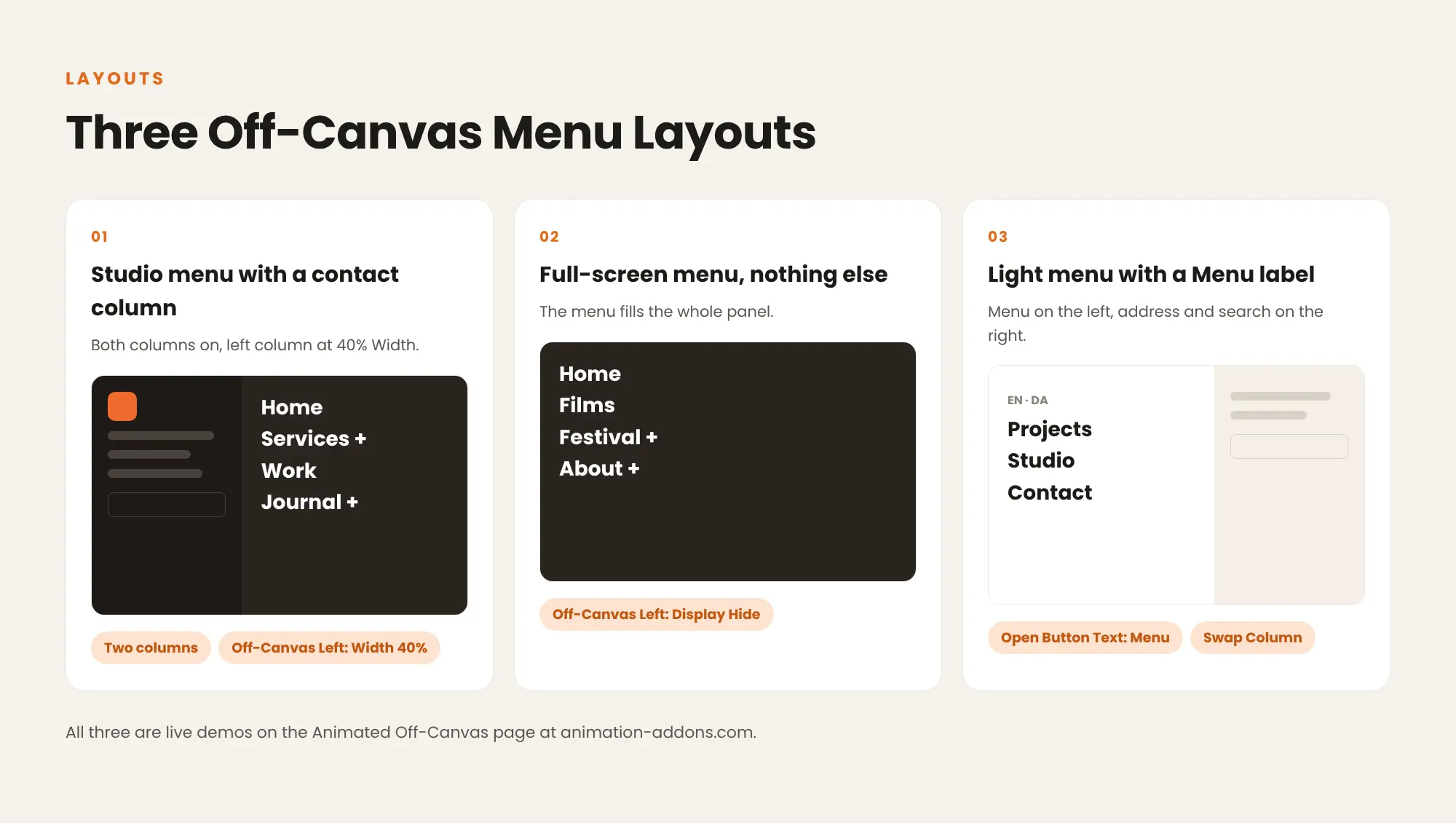
1. Studio menu with a contact column
A dark header for a design studio, with a hamburger button on the right. The panel shows the logo, email, phone, address, search and social icons on the left, and the site menu in large type on the right.
How to build it: keep both columns on. In Off-Canvas Left, set Width to 40% and add the logo, Contact Information, Search and Follow Information. Choose the site menu in Menu and color the links in Menu Settings.
2. Full-screen menu, nothing else
A film studio header where the menu fills the whole panel. This layout reads like a full-screen mobile menu.
How to build it: in Off-Canvas Left, set Display to Hide. Set the background in Off-Canvas Right, and style the plus and minus in Expand Icon (for Submenus).
3. Light menu with a Menu label
A white header with the word Menu instead of a hamburger icon. The panel is light, with the menu on the left, the studio address and search on the right, and language links above the close button.
How to build it: type Menu in Open Button Text. In Off-Canvas Settings, turn on Swap Column to move the menu to the left, then add the Language Tab links and a light Background Type.
Use It as a Mobile Menu Drawer
Many sites show a row of links on desktop and a menu button on phones. You can build that with two widgets in the same header:
- A visible menu for wide screens: the free Nav Menu widget from Animation Addons. In its Advanced tab, open Responsive and hide it on mobile.
- Animated Off-Canvas for phones: in its Advanced tab, open Responsive and hide it on desktop.
For a phone-first drawer, set Off-Canvas Left Display to Hide, so the menu fills the screen. Large sites with many sections can pair the drawer with the Pro Mega Menu widget on desktop.
Best Practices for Off-Canvas Menus
- Keep the top level short. Put detail pages in sub-menus, so the first view of the panel stays easy to scan.
- Add a label to the icon. A Menu label next to the hamburger tells first-time visitors what the button does.
- Show the contact details people look for. A phone number and email in the panel save visitors a trip to the contact page.
- Check text contrast. Menu links over a dark or image background need enough contrast to read.
- Test sub-menus on a touch screen. Tap every plus icon on a phone and make sure each sub-menu opens.
- Keep other header motion light. The panel already moves, so a header with several animations at once feels busy. Read how to optimize animation for page speed.
Want the menu button itself to move on hover? See how to add button animations in Elementor. For moving type in the hero under the header, read how to add text animation in WordPress.
Troubleshooting Common Problems
| Problem | Cause | Fix |
| The widget is missing from the Elementor panel | It is switched off, or Animation Addons Pro is not active | Activate Animation Addons Pro, then switch on Animated Off-Canvas in Animation Addons → Elements |
| The panel opens with no menu links | No menu is chosen, or the WordPress menu is empty | Pick a menu in Content, Menu, and check that the menu has items in WordPress |
| A menu item has no plus icon | The item has no child items in the WordPress menu | Nest the child pages under it in the WordPress menu |
| You want only the menu, with no contact column | The left column is on | Set Off-Canvas Left, Display to Hide |
| The menu sits on the wrong side | The columns use their default order | Turn on Swap Column in Off-Canvas Settings |
| Both the row of links and the menu button show on a phone | Neither widget is hidden per device | Use Advanced, Responsive to hide the Nav Menu on mobile and the off-canvas widget on desktop |
Animated Off-Canvas vs Offcanvas Element vs Elementor Pro Off-Canvas
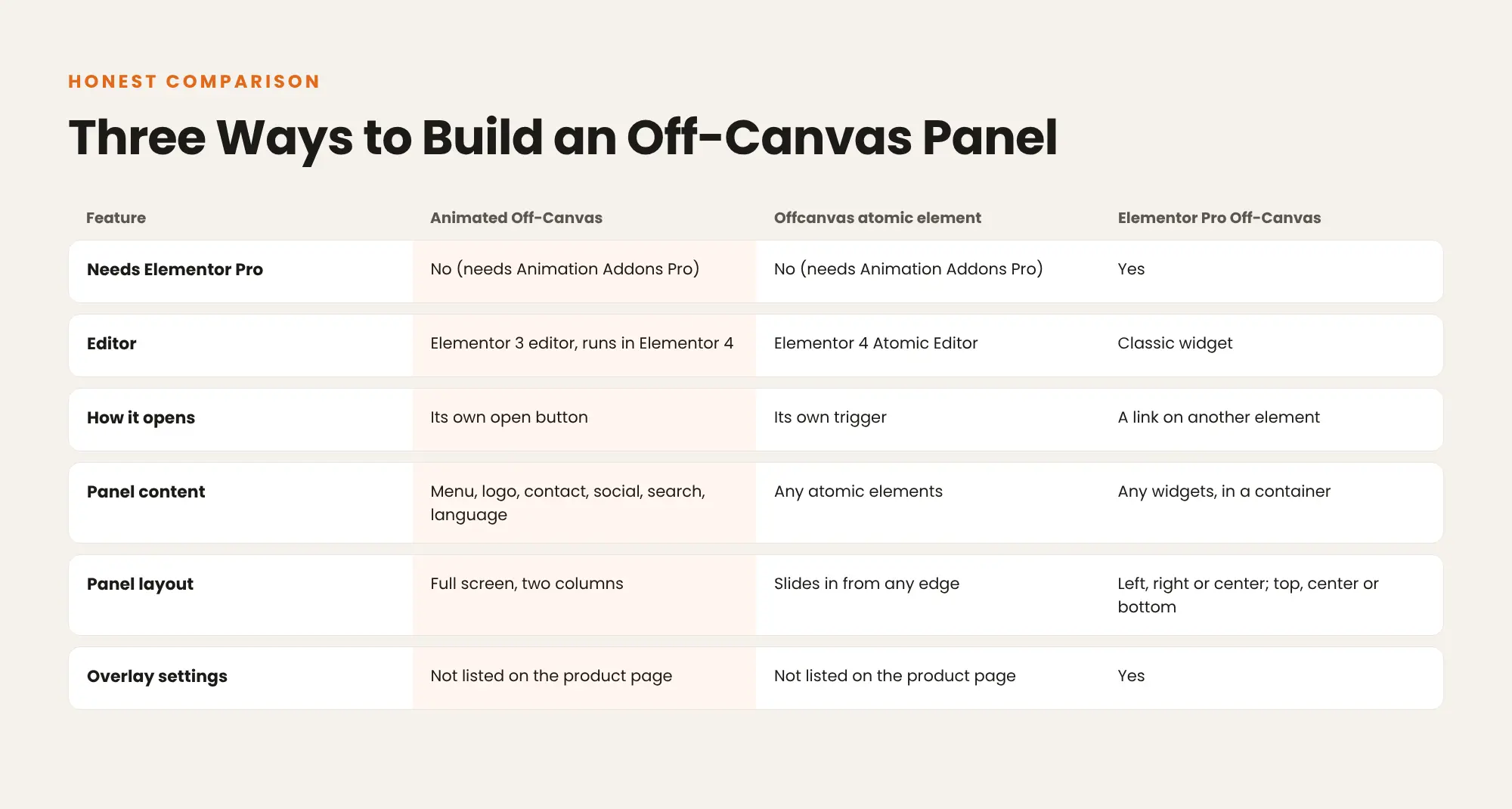
| Feature | Animated Off-Canvas | Offcanvas atomic element | Elementor Pro Off-Canvas |
| Needs Elementor Pro | No (needs Animation Addons Pro) | No (needs Animation Addons Pro) | Yes |
| Editor | Elementor 3 editor, also runs in Elementor 4 | Elementor 4 Atomic Editor | Classic widget |
| How it opens | Its own open button | Its own trigger | A link on another element |
| Panel content | Fixed parts: menu, logo, contact, social icons, search, language | Any atomic elements | Any widgets, inside a container |
| Panel layout | Full screen, two columns | Slides in from any edge | Left, right or center, and top, center or bottom |
| Motion | Fade, with columns from the top and bottom | Slide-in from the chosen edge | Entrance and exit animation with a duration setting |
| Overlay settings | Not listed on the product page | Not listed on the product page | Yes: on or off, color or image |
Where Elementor Pro wins: its Off-Canvas widget is a container that holds any widget, and it adds overlay settings and a choice of entrance and exit animations with a duration. If you already pay for Elementor Pro and want to design the panel from scratch, it is a good fit. Elementor introduced it in version 3.22.
Where Animated Off-Canvas wins: it is a ready-made menu panel. The menu, sub-menus, contact column, social icons, search, language links and the two-column motion are already there, so you fill settings instead of building a layout. It runs on Elementor Free.
Building in the Elementor 4 Atomic Editor? Use the Offcanvas atomic element, an empty panel you fill with atomic elements such as WP Menu, Search Form or Form, styled with Classes and Variables. New to the Atomic Editor? Read Elementor V4 and the Atomic Editor and the differences between Elementor V3 and V4. For what Elementor 4 gives you for free, see Elementor 4 Free vs Pro.
Which Plan Includes Animated Off-Canvas?
Every Animation Addons Pro plan includes Animated Off-Canvas, because Pro plans do not lock features by plan. Only the number of sites and the billing term change. Plans start at $49 a year. Until 5 December 2026, Pro is up to 50% off, from $24.50 for the first year, and every plan comes with a 15-day money-back guarantee. See Animation Addons pricing explained for every plan.
Hide the Menu, Keep It Close
A full-screen off-canvas menu with built-in slide-in motion, sub-menus, contact details and social icons, plus every other Pro widget and GSAP extension. Works with Elementor Free.
Final Thoughts
An animated off-canvas menu clears your header and still keeps the full navigation one press away. The setup takes five steps: turn on the widget, drag it into the header, set the open button, choose the menu and fill the panel, then style it and test.
Start from one of the three layouts. Use the two-column studio menu when contact details matter, the full-screen menu for a phone-first drawer, and the light layout with a Menu label for a calm brand. Test every sub-menu on a phone before you publish, and keep the top level of the menu short.
FAQs
How do I add an off-canvas menu in Elementor?
Add the Animated Off-Canvas widget to your header, choose a WordPress menu in Menu and set the open button. Visitors press the button and the panel slides in over the page.
Do I need Elementor Pro for an off-canvas menu?
No, Animated Off-Canvas works with Elementor Free. It is part of Animation Addons Pro, not Elementor Pro.
How do I make a hamburger menu in Elementor?
Turn on Enable Icon Toggle Button in the widget’s Settings. The widget then shows a hamburger icon that opens the panel, and you can add a text label with Open Button Text.
How does the off-canvas panel animate?
The panel fades in over half a second while the left column moves down from the top and the right column moves up from the bottom. Closing plays the motion in reverse.
Can the menu panel show sub-menus?
Yes, menu items with children get a plus icon. A click slides the sub-menu open and turns the icon into a minus.
Can I make a full-screen menu in Elementor?
Yes, the panel covers the whole screen. Show both columns for a menu with contact details, or hide the left column for a menu-only layout.
Can I use it as a mobile menu drawer?
Yes, put the widget in your header and set Off-Canvas Left, Display to Hide. The menu then fills the screen on a phone.
What else can go in the off-canvas panel?
A logo or image, contact details, social icons, a search bar and language links. You can show, hide and style each part on its own.
How do visitors close the panel?
With the round close button at the top of the menu column. You set its icon size, circle size, border radius, color and background in the Close Button section.
Does Animated Off-Canvas work in Elementor 4?
Yes, it is a classic widget, so Elementor 4 lists it with the legacy widgets. In the Atomic Editor you can also use the Offcanvas atomic element.


Leave a Reply