
 Login


A looping animation catches the eye once, then visitors stop noticing it. A Lottie that reacts to the visitor keeps working: it builds as they scroll, plays when they hover, or turns to follow the cursor.
This tutorial shows you how to create an Atomic Lottie animation in WordPress with Elementor 4 and Animation Addons. You will learn the four playback types, how to load a Lottie JSON file even when WordPress blocks the upload, and how to style and publish it. You also get six real use cases, mobile rules and fixes for common problems.
To create an Atomic Lottie in WordPress, install Animation Addons for Elementor and Animation Addons Pro, open a page with the Atomic Editor on, and drag Lottie onto the canvas. Paste a Lottie .json URL or pick one from the Media Library, choose scroll-scrubbed, hover, click or cursor-driven playback, then set the width and publish.
What Is the Atomic Lottie Element?
The Lottie element is an Elementor 4 Atomic Element from Animation Addons that plays Lottie animations on scroll, hover, click or cursor movement. A lightweight vector animation responds to the visitor instead of only looping. It runs on Elementor Free with Animation Addons Pro.
| Key fact | Detail |
| Plan | Animation Addons Pro |
| Element type | Native Elementor 4 Atomic Element, with an internal Lottie Player part that renders the animation |
| Works with | Elementor Free and Elementor Pro, with the Atomic Editor on |
| Playback | Scroll-scrubbed, hover, click, cursor-driven |
| File source | A Lottie .json URL, pasted or picked through the Media Library button |
| Extensions | Regular Animation, Parallax, Tilt, Mouse Move, Custom CSS and the other shared extensions apply |
| Starter templates | Since Pro 4.3.2, template imports store their Lottie files on your site |
| Requires | Animation Addons for Elementor (free) and Animation Addons Pro |
| Version | Animation Addons 4.3, updated October 2026 |
Why Use Lottie Instead of a GIF or Video?
A Lottie file stores an animation as vector instructions in JSON. Motion designers build it in After Effects and hand it to the web as a .json file. Compared with a GIF or video of the same motion, a Lottie file:
- Is usually far smaller.
- Stays sharp at any size, because it is vector.
- Can react to the visitor: its frames can follow the scrollbar or the pointer, which a GIF cannot do.
Why Lottie Takes Extra Work in Elementor 4
Two things slow most people down:
- Elementor’s own Lottie widget is a classic Elementor Pro widget. It is not an Atomic Element, so it does not use Classes and Variables, and it needs an Elementor Pro license. Its triggers do not include cursor-driven playback.
- WordPress blocks .json uploads by default. That is why a Lottie JSON upload in Elementor often fails the first time.
The Animation Addons Lottie element solves both. Want to see it before you install anything? Open the Animation Addons live demo.
What You Need Before You Start
| Requirement | Why |
| WordPress with Elementor (Free or Pro) | The Lottie element does not need Elementor Pro |
| Atomic Editor turned on | Lottie is an Atomic Element |
| Animation Addons for Elementor (free) | The base plugin |
| Animation Addons Pro | Lottie is a Pro element. With only the free plugin, it shows in the panel as a locked card with an upgrade link. |
| A Lottie .json file | Exported from After Effects, or downloaded from a Lottie library such as LottieFiles |
| A URL for the file, or upload permission | See Step 3 for both options |
New to the Atomic Editor? Read the complete guide to Elementor V4 Atomic elements first.
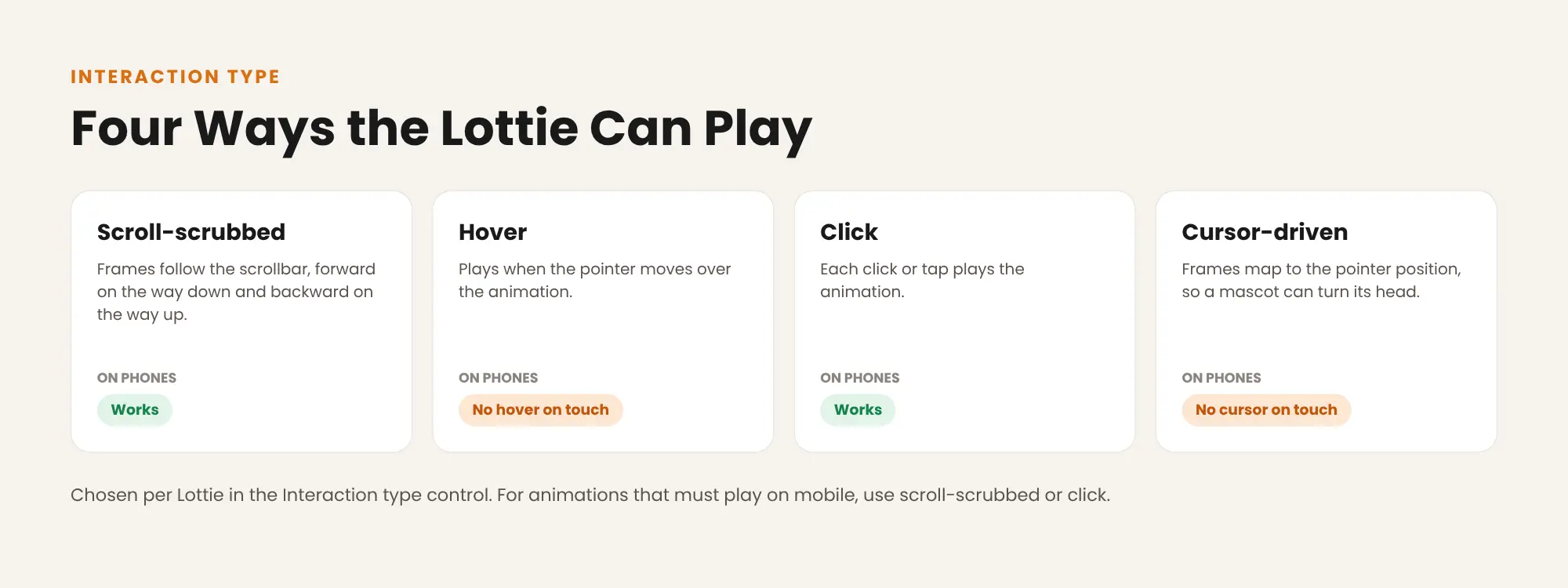
Four Ways the Lottie Element Can Play
You choose one playback type per Lottie in the Interaction type control.
| Interaction type | What it does | On phones and tablets |
| Scroll-scrubbed | Frames follow the scrollbar: forward as the visitor scrolls down, backward as they scroll up | Works |
| Hover | Plays the animation when the pointer moves over it | No hover on touch screens |
| Click | Plays the animation on each click or tap | Works |
| Cursor-driven | Maps the frames to the pointer position, so a mascot can turn its head | No cursor on touch screens |
How to Create an Atomic Lottie: Step by Step
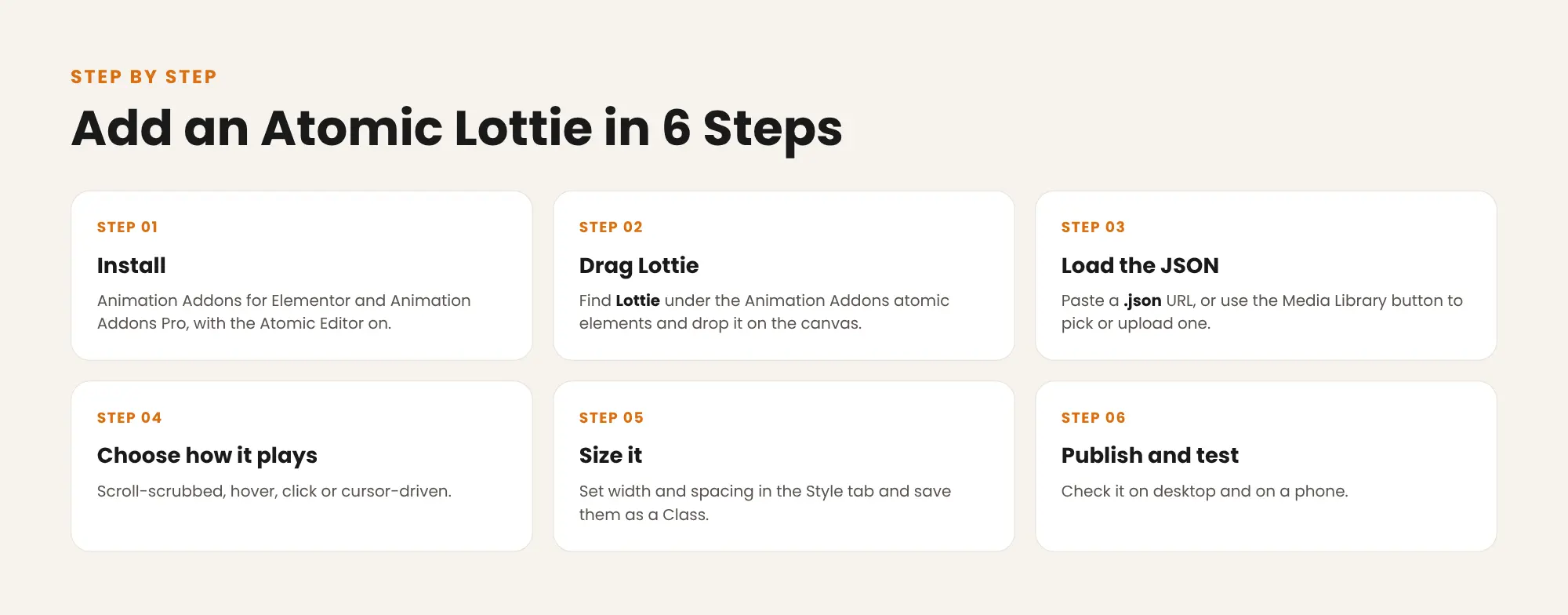
Step 1: Install the plugins and turn on the Atomic Editor
Install Animation Addons for Elementor from WordPress.org, then install and activate Animation Addons Pro with your license key. Open your page in Elementor with the Atomic Editor on.
Step 2: Drag the Lottie element onto the canvas
Find Lottie under the Animation Addons atomic elements and drag it onto the canvas. Drop it into any Flexbox, Grid or card, the same as any other atomic element.
Step 3: Load your Lottie JSON file
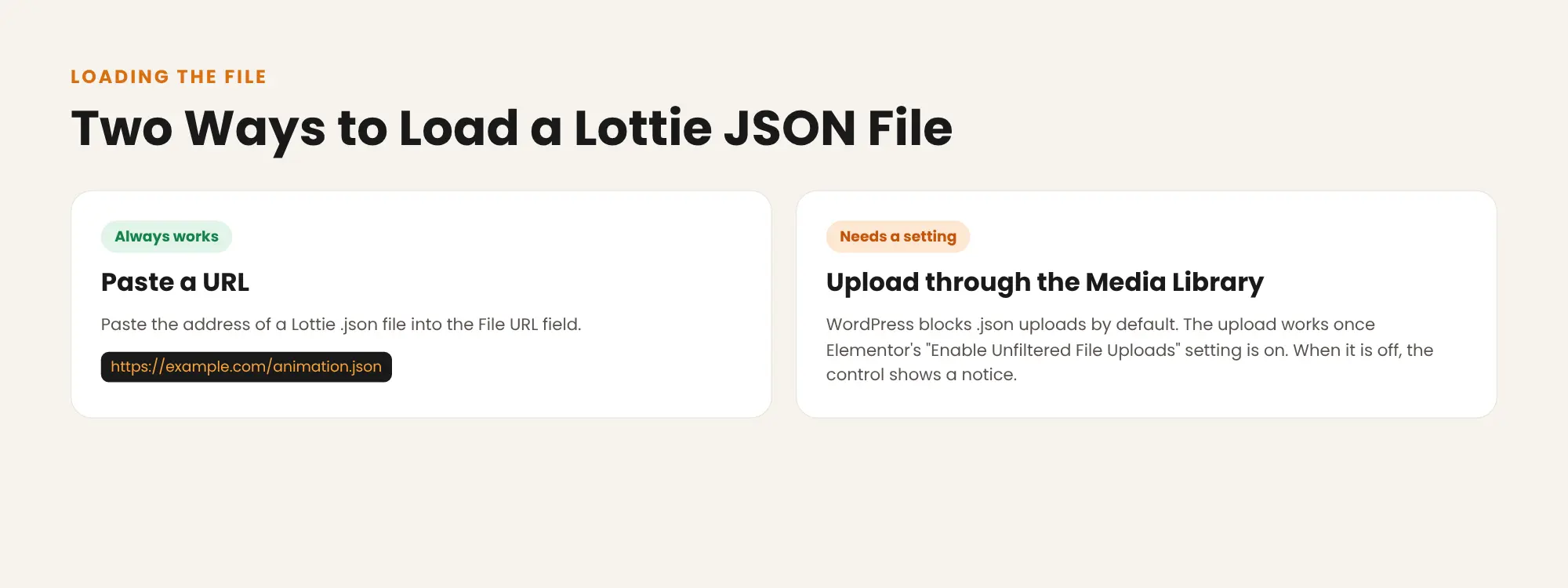
You have two ways to load the file:
- Paste a URL: paste the address of a Lottie .json file into the File URL field. This always works.
- Use the Media Library button: pick a .json file you already uploaded, or upload a new one.
WordPress blocks .json uploads by default. The Media Library upload works once Elementor’s Enable Unfiltered File Uploads setting is on. When it is off, the Lottie control shows a notice, and the URL field still works.
Security tip: unfiltered uploads let users with upload rights add file types WordPress normally blocks. Turn the setting on only if you trust every user who can upload files, or host the .json elsewhere and paste the URL.
Step 4: Choose how it plays
Open Interaction type and pick scroll-scrubbed, hover, click or cursor-driven. For cursor-driven playback, use a file drawn so its frames run from one pose to the other, for example from looking left to looking right.
Step 5: Set the size and save a Class
Set the width and spacing in the Style tab, for example a width of 320px. Save the sizing as a Class, so every Lottie on the site can share it and one edit resizes them all. See Classes and Variables explained if you are new to them.
Step 6: Publish and test on desktop and a phone
Publish the page. On desktop, test the playback you chose. On a phone, check that scroll-scrubbed and click Lotties play, and remember that hover and cursor-driven ones have nothing to react to on touch screens.
Six Ways to Use the Lottie Element
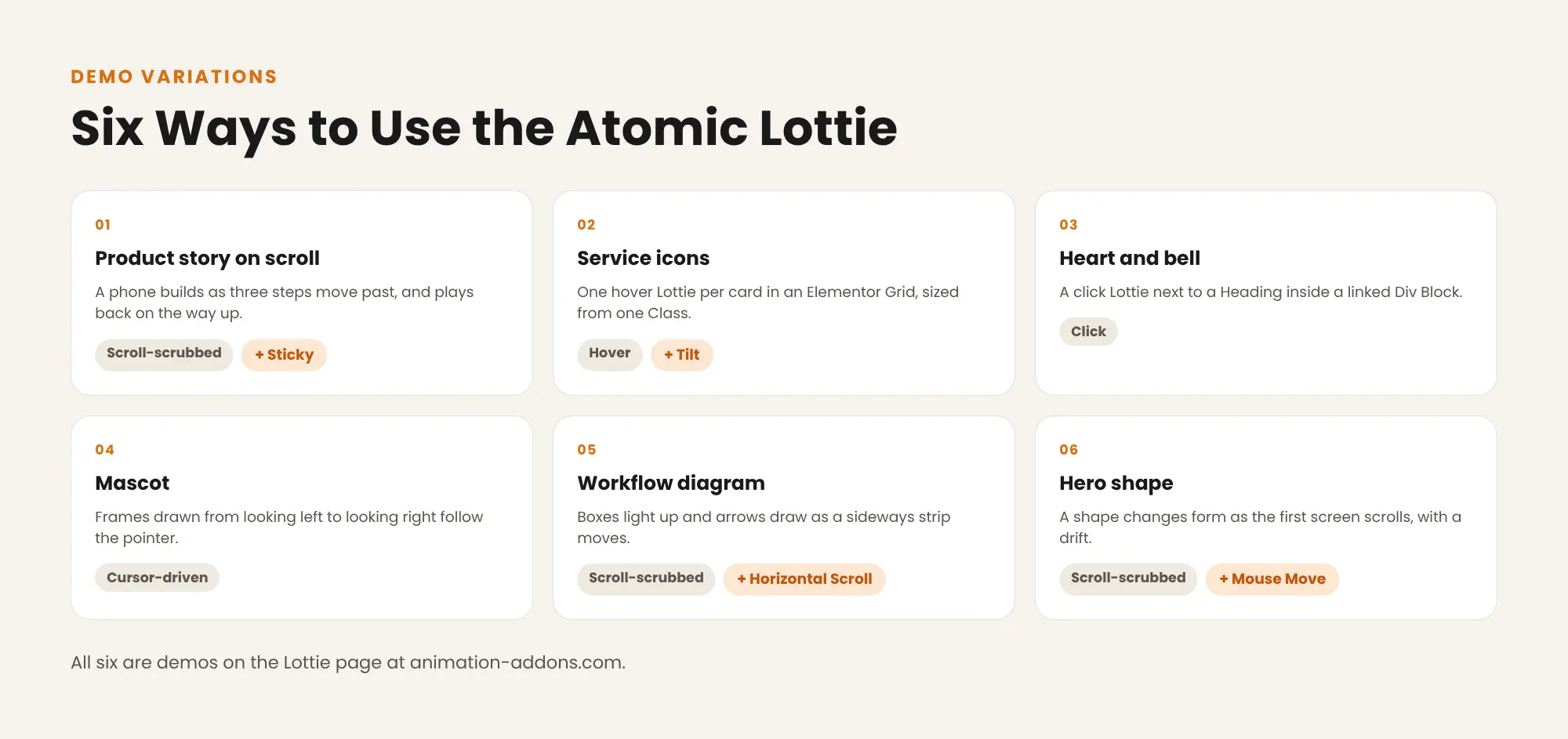
These six builds come from the demos on the Lottie product page. Each uses the Lottie element plus native Elementor 4 elements.
| Use case | Playback | How it is built |
| Product story on scroll | Scroll-scrubbed | A phone builds as three steps move past and plays backward on the way up. The Sticky extension (Pro) holds its column in place. |
| Service icons | Hover | One Lottie per card in an Elementor Grid, sized from one Class. The Tilt extension (Pro) leans each card toward the pointer. |
| A heart and a bell | Click | A Lottie next to a Heading inside a linked Div Block. Each tap plays it once. |
| Mascot that follows the cursor | Cursor-driven | A file drawn from looking left to looking right, so the frames follow the pointer. |
| Workflow diagram | Scroll-scrubbed | A Lottie inside a Flexbox with the Horizontal Scroll extension (Pro). Boxes light up and arrows draw as the strip moves. |
| Floating shape behind a hero | Scroll-scrubbed | The shape changes form as the first screen scrolls, with the Mouse Move extension (Pro) adding a drift. |
Combine Lottie With Motion Extensions
The Lottie element accepts the shared Animation Addons extensions, so you can layer motion over its own playback:
- Parallax to move the Lottie at a different speed from the page.
- Tilt to lean it toward the pointer.
- Mouse Move to make it drift with the cursor.
- Regular Animation to bring it in with an entrance effect.
- Custom CSS for anything the Style tab does not cover.
For other ways to animate vectors, see how to add GSAP DrawSVG animations and how to create animated icons in WordPress.
Best Practices for Lottie Animations
- Keep each file small and avoid raster images embedded inside the animation.
- Limit how many Lotties play above the fold.
- Put the message in real text. A Lottie is visual decoration, so place a heading or paragraph next to it that carries the meaning.
- Choose mobile-safe playback for content that matters: scroll-scrubbed or click. Use hover only where the motion is decoration.
- Respect reduced motion. Animation Addons Pro includes Reduced Motion settings for visitors who ask their device for less movement.
- Use your cache plugin. Animation Addons Pro is compatible with LiteSpeed Cache and WP Rocket.
Building a scroll story with the Lottie? Read how to use sticky scroll effects. For pointer effects on other elements, see how to create a cursor move effect.
Troubleshooting Common Problems
| Problem | Cause | Fix |
| The .json file will not upload | WordPress blocks .json uploads by default | Turn on Elementor’s Enable Unfiltered File Uploads setting, or host the file and paste its URL |
| The Lottie element is locked in the panel | Only the free plugin is installed | Install and activate Animation Addons Pro |
| Nothing happens on a phone | The playback type is hover or cursor-driven | Switch to scroll-scrubbed or click |
| The cursor-driven mascot jumps oddly | The file’s frames do not run from one pose to the other | Re-export the file so frames go in order, for example left to right |
| A template’s Lottie does not show | Older imports loaded files from the demo server | Update to Animation Addons Pro 4.3.2 or later, which stores template Lottie files on your site |
Elementor Pro Lottie vs Atomic Lottie
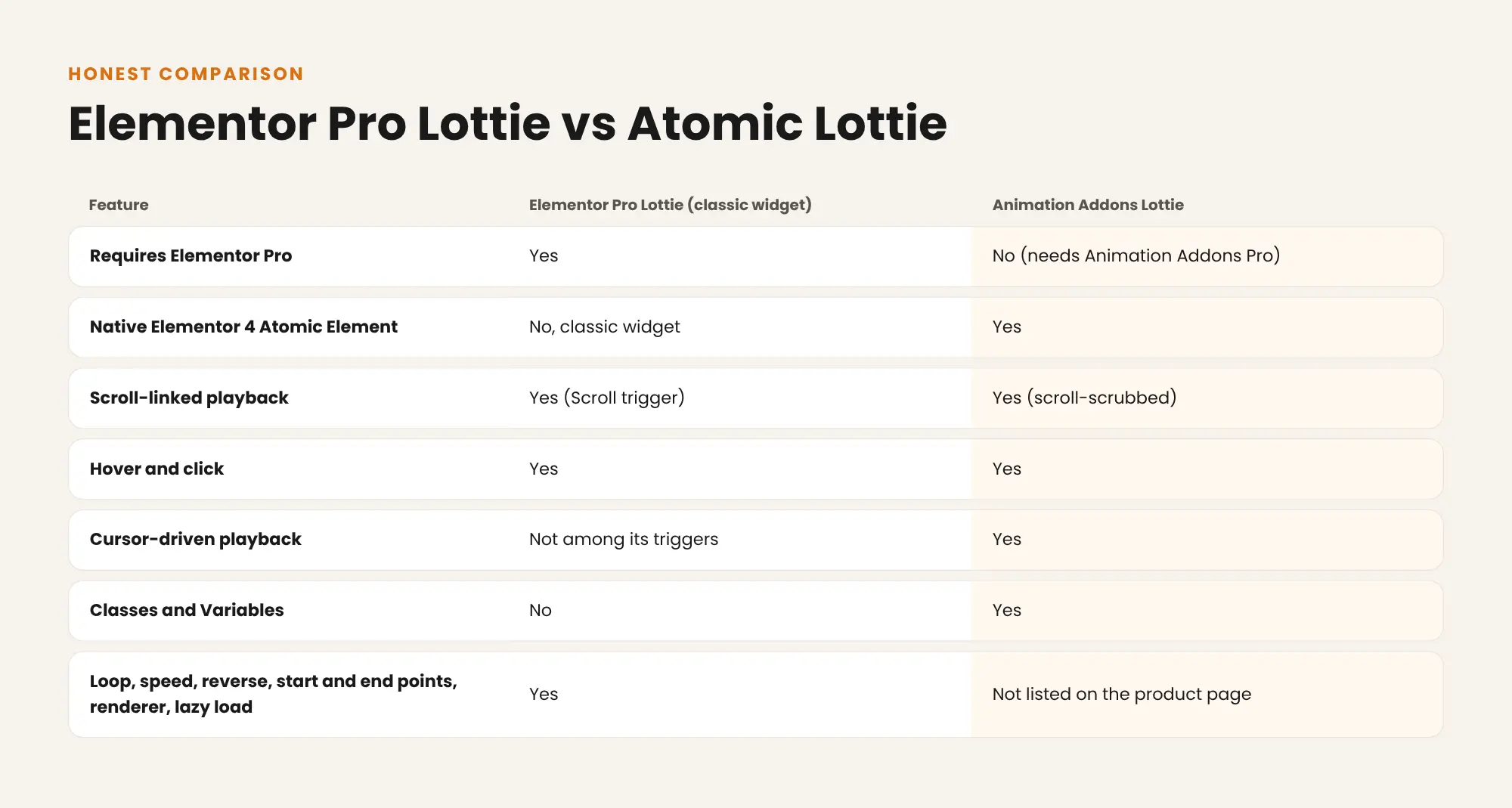
Where Elementor Pro wins: its Lottie widget is the more complete player, with loop, speed, reverse, start and end points, renderer choice and lazy load. If you need those controls and already pay for Elementor Pro, it is a good fit.
Where the Animation Addons Lottie wins: it is a native Elementor 4 Atomic Element, it does not need Elementor Pro, it works with Classes and Variables, and it adds cursor-driven playback. If you need a free option with no motion, Elementor’s own SVG element shows a static vector illustration.
For everything else Elementor 4 includes for free, see Elementor 4 Free vs Pro. On Elementor 3 with classic widgets? Our earlier guide to Lottie and SVG animations in WordPress covers that setup.
Which Plan Includes the Lottie Element?
The Lottie element is included in every Animation Addons Pro plan, because features are not locked by plan. Plans start at $49 a year for 1 site. Until 5 December 2026, Pro is up to 50% off, from $24.50 for the first year. See Animation Addons pricing explained for every plan.
Make Your Illustrations Answer the Visitor
Scroll, hover, click and cursor-driven Lottie as a native Elementor 4 element, plus every other Pro element and GSAP extension. Works with Elementor Free.
Final Thoughts
An Atomic Lottie turns a static illustration into motion that responds to the visitor. The setup takes six steps: install, drag Lottie onto the canvas, load the .json file, choose the playback, size it with a Class, then publish and test.
Pick scroll-scrubbed or click when the animation must work on phones, keep each file small, and put the message in real text next to it. If the upload fails, paste a URL instead. Once it works, reuse the same sizing Class on every Lottie across the site, so one edit keeps them all consistent.
FAQs
How do I add a Lottie animation in Elementor 4?
Drag the Lottie element from Animation Addons onto the page, then paste a .json URL or pick the file from the Media Library. Choose scroll-scrubbed, hover, click or cursor-driven playback, set the size and publish.
Why can’t I upload a Lottie JSON file to WordPress?
WordPress blocks .json uploads by default. Turn on Elementor’s Enable Unfiltered File Uploads setting, or host the file elsewhere and paste its URL.
Does the Animation Addons Lottie element need Elementor Pro?
No, it runs on Elementor Free with the Atomic Editor on. It needs Animation Addons for Elementor and Animation Addons Pro.
Can a Lottie play on scroll in Elementor?
Yes, scroll-scrubbed playback ties the frames to the scroll position, forward on the way down and backward on the way up. Pair it with the Sticky extension to hold the Lottie in view while text scrolls past.
Can a Lottie react to the cursor?
Yes, cursor-driven playback maps the frames to the pointer position. Draw the file so its frames run from one pose to the other.
Do hover and cursor Lottie animations work on phones?
No, phones and tablets have no hover or cursor, so those types have nothing to react to. Use scroll-scrubbed or click playback for animations that must play on mobile.
Do Lottie animations slow down a website?
Lottie files are vector JSON and usually far smaller than a video or GIF of the same motion. Keep files small, avoid embedded raster images and limit how many play above the fold.
Can I add extensions like Parallax or Tilt to a Lottie?
Yes, the Lottie element accepts the shared extensions, including Parallax, Tilt, Mouse Move, Regular Animation and Custom CSS. They layer on top of the Lottie’s own playback.
How is it different from Elementor Pro’s Lottie widget?
Elementor Pro’s widget is the more complete player, with loop, speed, reverse, start and end points, renderer choice and lazy load. The Animation Addons Lottie is a native Elementor 4 element that does not need Elementor Pro and adds cursor-driven playback.
Do starter templates keep their Lottie files after import?
Yes, since Animation Addons Pro 4.3.2, template imports store their Lottie files on your site. Your animations no longer depend on the demo server.

Leave a Reply