
 Login


A long services or process section often loses readers before the last item. Stacking cards fix that: each card pins in place, the next one slides over it, and the visitor reads one step at a time.
This tutorial shows you how to build Atomic Stack Cards in WordPress with Elementor 4 and Animation Addons. You will learn what the element is, how it is built, and how to add, fill, animate and style a deck in six steps. You also get six real use cases, mobile and performance rules, and fixes for the problems people hit first.
To create Atomic Stack Cards in WordPress, install Animation Addons for Elementor and Animation Addons Pro. Open your page with the Atomic Editor enabled and drag the Stack Cards widget into a full-width section.
Next, customize the four default cards from the Cards list, choose one of the 10 available animations, and click Preview Animation to test the effect before publishing.
What Are Atomic Stack Cards?
Atomic Stack Cards is an Elementor 4 Atomic Element from Animation Addons that creates the stacking cards scroll effect. Cards pin and peel away as the page scrolls, with each new card sliding over the last. Every card is a real atomic container that you fill and style yourself, and the motion runs on GSAP ScrollTrigger with no code.
| Key fact | Detail |
| Plan | Animation Addons Pro |
| Element type | Native Elementor 4 Atomic Element: a deck with card children |
| Works with | Elementor Free and Elementor Pro, with the Atomic Editor on |
| Cards | Four on a fresh drop; add, duplicate, remove and drag to reorder from the Cards list |
| Animations | 10 deck animations; Scroll Stack is the default |
| Presets | 10 ready-made deck designs under Apply Preset |
| Responsive | Card styles set per breakpoint in the Style tab |
| Minimum | A deck needs at least 2 cards to stack |
| Requires | Animation Addons for Elementor (free) and Animation Addons Pro |
| Version | Animation Addons 4.3, updated October 2026 |
Why Atomic Stacking Cards Take Extra Work in Elementor 4
Elementor 4 has no stacking cards element. Its 4.3.3 Atomic set covers Heading, Paragraph, Button, Image, SVG, Video, Div Block, Flexbox, Grid, Tabs and Accordion, and the 4.4 release added List, Google Maps and a Pro Carousel, but not a stacking deck.
Without a dedicated element, you have two options:
- Sticky containers by hand: set each container to sticky, offset each one, and repeat for every new card.
- Elementor Pro Interactions: the While scrolling trigger moves one element with the scroll. You build and time each card yourself.
Both work, but every new card means more manual offsets. If you are on Elementor 3 with classic widgets, our earlier guide to the stacked cards effect in Elementor covers the classic widget and a GSAP code method.
- Want to try the Atomic element first? Open the Animation Addons live demo.
What You Need Before You Start
| Requirement | Why |
| WordPress with Elementor (Free or Pro) | Stack Cards does not need Elementor Pro |
| Atomic Editor turned on | Stack Cards is an Atomic Element |
| Animation Addons for Elementor (free) | The base plugin |
| Animation Addons Pro | Stack Cards is a Pro element. With only the free plugin, it shows in the panel as a locked card with an upgrade link. |
| Card content ready | Short text, images and buttons for each card |
New to the Atomic Editor? Read the complete guide to Elementor V4 Atomic elements first.
How Atomic Stack Cards Is Built
Stack Cards is a composite element. The parent Stack Cards deck holds the animation, overlap and easing settings. Each child Stack Card holds your content: Heading, Paragraph, Image, Button, a two-column Flexbox or any other atomic element.
This split matters. You can change the animation without touching any content, and you can restyle every card at once through one Class.
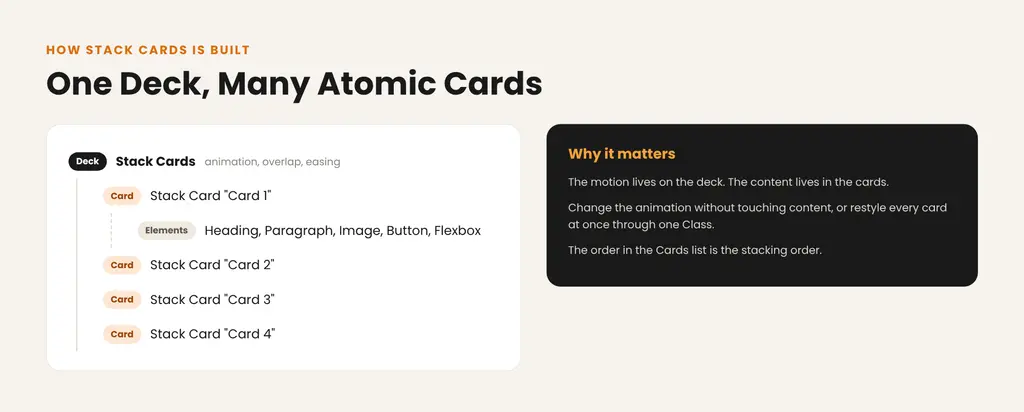
Structure of the Atomic Stack Cards element: a Stack Cards deck with Stack Card children holding atomic elements
How to Create Atomic Stack Cards: Step by Step Methods
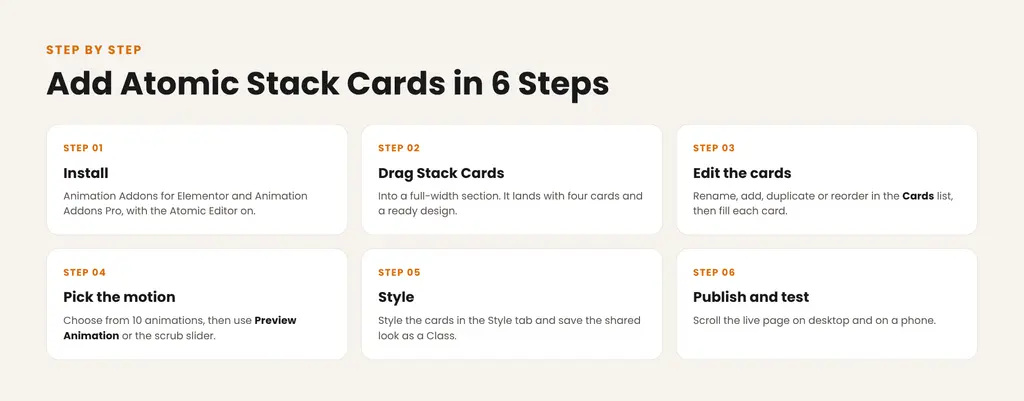
Six steps to add Atomic Stack Cards in Elementor 4
Step 1: Install the plugins and turn on the Atomic Editor
Install Animation Addons for Elementor from WordPress.org, then install and activate Animation Addons Pro with your license key. Open the page you want to edit in Elementor with the Atomic Editor on.
Step 2: Drag Stack Cards into a full-width section
Find Stack Cards in the Atomic Elements panel and drag it into a full-width section. It lands with four cards and the Scroll Stack Showcase preset, so you start from a real pile instead of an empty list.
Step 3: Set up your cards in the Cards list
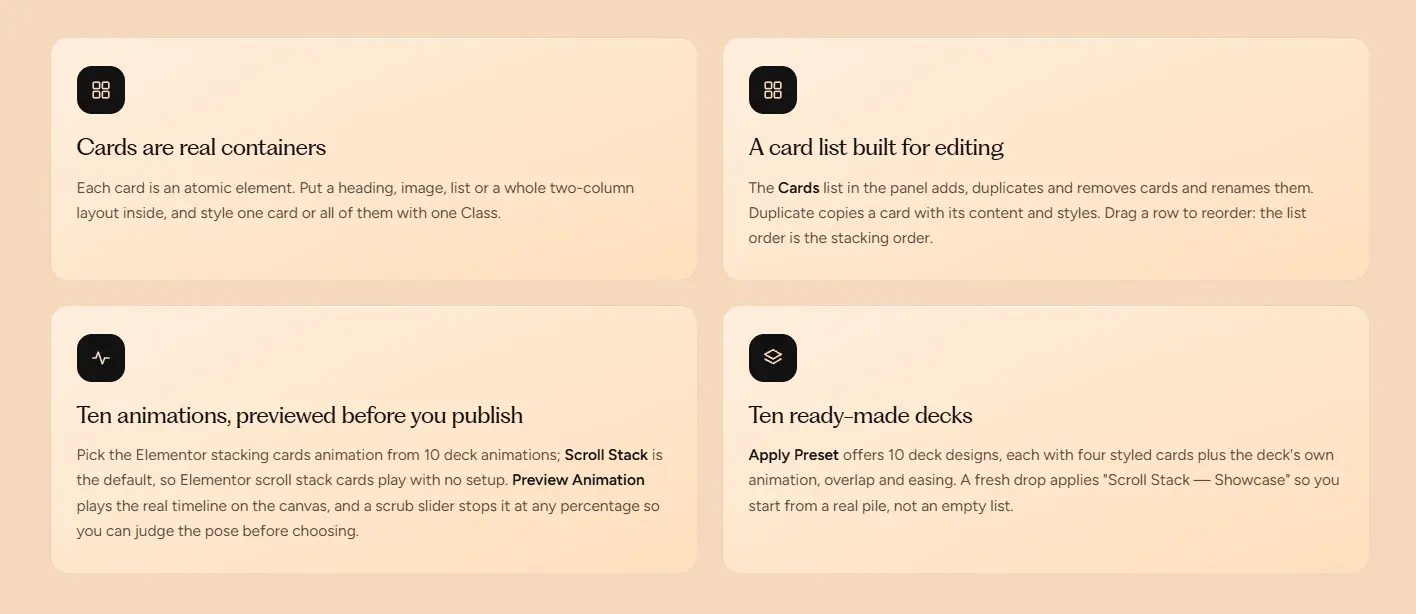
The Cards list in the panel controls the deck:
- Rename each card so the list matches your content, for example “Step 1” to “Step 4”.
- Add a card for each item you need.
- Duplicate a card to copy its content and styles.
- Remove cards you do not need. Keep at least 2.
- Drag a row to reorder. The list order is the stacking order.
Then select each card on the canvas and drop your elements into it. On the canvas, cards sit in a flat list so you can edit them; the stacking only shows in the preview and on the live page.
Step 4: Choose an animation and preview it
Open the Animation list and pick one of the 10 deck animations. Scroll Stack is the default, so a fresh deck already animates with no setup.
Click Preview Animation to play the real timeline on the canvas. Drag the scrub slider to stop the motion at any percentage and judge each pose before you publish.
Prefer a finished look? Open Apply Preset and choose one of 10 ready-made decks. Each preset brings four styled cards plus its own animation, overlap and easing.
Step 5: Style the cards and save a Class
Style each card in the Elementor 4 Style tab: background, padding, radius, typography and colors. Once one card looks right, save the shared look as a Class and apply it to the other cards, so one edit updates the whole deck. Take colors from Variables to keep the deck on brand. See Classes and Variables explained if you are new to them.
Card styles accept per-breakpoint values, so set smaller padding and type sizes for tablet and mobile here.
Step 6: Publish and test on desktop and a phone
Publish the page, then scroll the live version on a desktop browser and on a real phone. Check that each card is fully readable before the next one covers it.
Create Stunning Atomic Stack Cards in WordPress Without Code
Build interactive stacking card layouts using Animation Addons for Elementor and the Stack Cards widget. Choose from 10 animations, customize your cards, preview the effects, and publish with ease.
Six Ways to Use Atomic Stack Cards
These six builds come from the demos on the Stack Cards product page. Each uses Stack Cards plus native Elementor 4 elements.
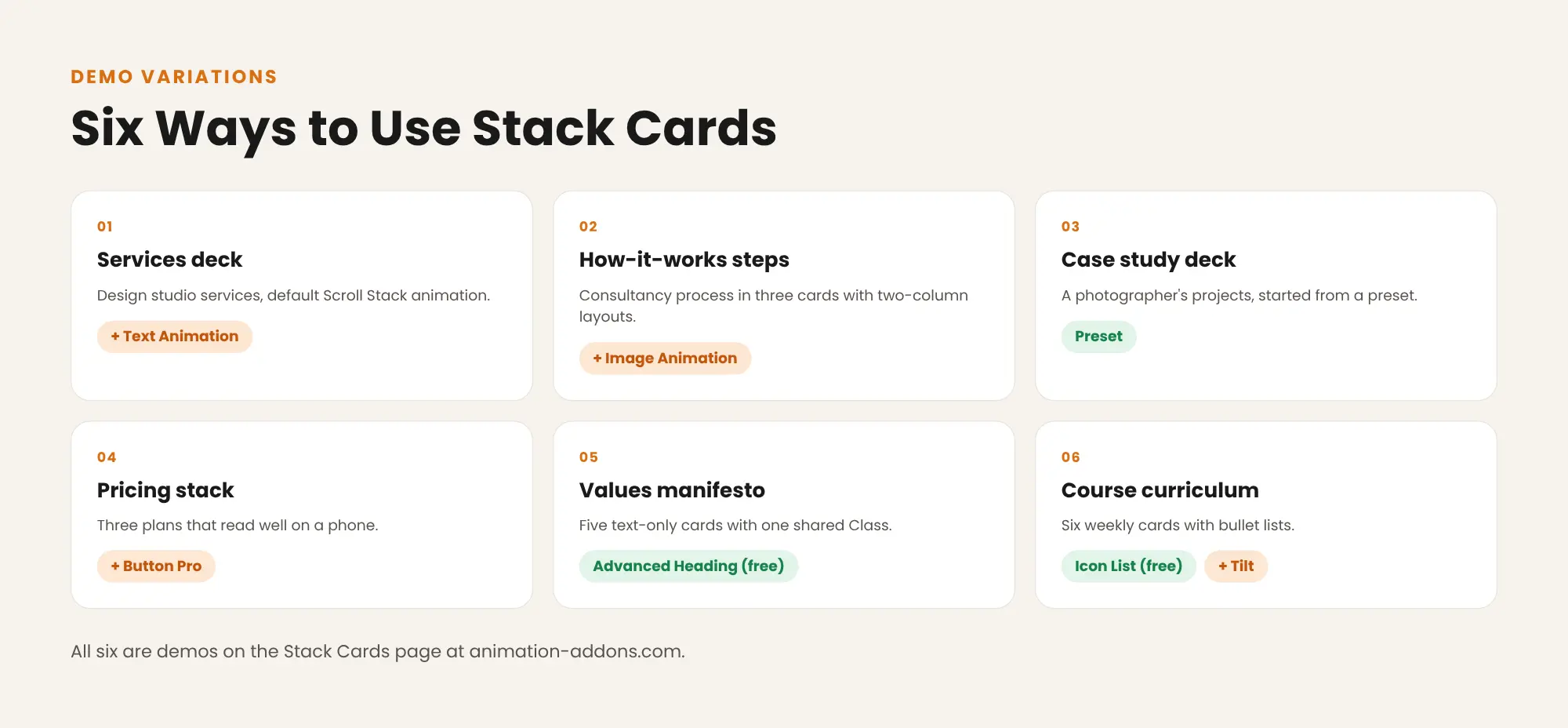
Six ways to use Atomic Stack Cards: services, steps, case studies, pricing, values and course curriculum
| Use case | How it is built | Extra elements |
| Services deck for a design studio | Four cards with Heading, Paragraph, Image and Button; default Scroll Stack; card colors from Variables | Text Animation (Pro) on the headings |
| How-it-works steps for a consultancy | Three cards with a two-column Flexbox, Image and Heading; rows dragged to set step order | Image Animation (Pro) on the photos |
| Photographer’s case study deck | Started from a preset; each card’s background image swapped, with a darker color layered over the photo for readable text | None |
| Mobile-first pricing stack | Three cards with Heading, Paragraph, Icon List and Button Pro; middle plan color from a Variable | Button Pro (Pro) |
| Company values manifesto | Five text-only cards with Advanced Heading (free) and a Paragraph; type sizes saved as one Class | None |
| Course curriculum by week | First card duplicated five times and renamed Week 1 to Week 6; Icon List (free) for bullets | Tilt (Pro) |
What you get with the Stack Cards
Best Practices for Atomic Stacking Cards
- Keep each card under one screen tall. If a card is taller than the viewport, the next card covers content before it is read.
- Use 3 to 6 cards. The demos on the product page use three to six.
- Use a real heading hierarchy inside the cards, the same as elsewhere on the page.
- Reduce padding and type size for phones in the Style tab.
- Compress images inside the cards. Images cost more than the animation.
- Use stacking for sequences such as steps, services or values, not for items readers need to compare side by side.
For more on pinned and sticky motion, read how to use sticky scroll effects and how to use GSAP ScrollTrigger.
Troubleshooting Common Problems
| Problem | Cause | Fix |
| Cards do not stack on the canvas | Cards sit in a flat list in the editor by design | Click Preview Animation or use the scrub slider |
| Nothing animates | The deck has only one card | Add a second card; a deck needs at least 2 |
| Stack Cards is locked in the panel | Only the free plugin is installed | Install and activate Animation Addons Pro |
| Text is hidden on phones | A card is taller than the phone screen | Shorten the content and reduce mobile padding and type size |
| Cards appear in the wrong order | The Cards list order sets the stack | Drag rows in the Cards list |
Performance, Accessibility and SEO
- Performance: Stack Cards animates with GSAP. Animation Addons Pro includes Lazy Animation, which loads GSAP only when an animated element nears the viewport, plus LiteSpeed Cache and WP Rocket compatibility.
- Accessibility: Animation Addons Pro includes Reduced Motion settings for visitors who turn motion off.
- SEO: cards are atomic elements rendered into the page HTML, so headings and text inside them are crawlable like any other section. The stacking is motion applied on top of that markup.
Learn more in our guide to scroll animation in WordPress and Elementor.
Elementor 4 Alone vs Atomic Stack Cards
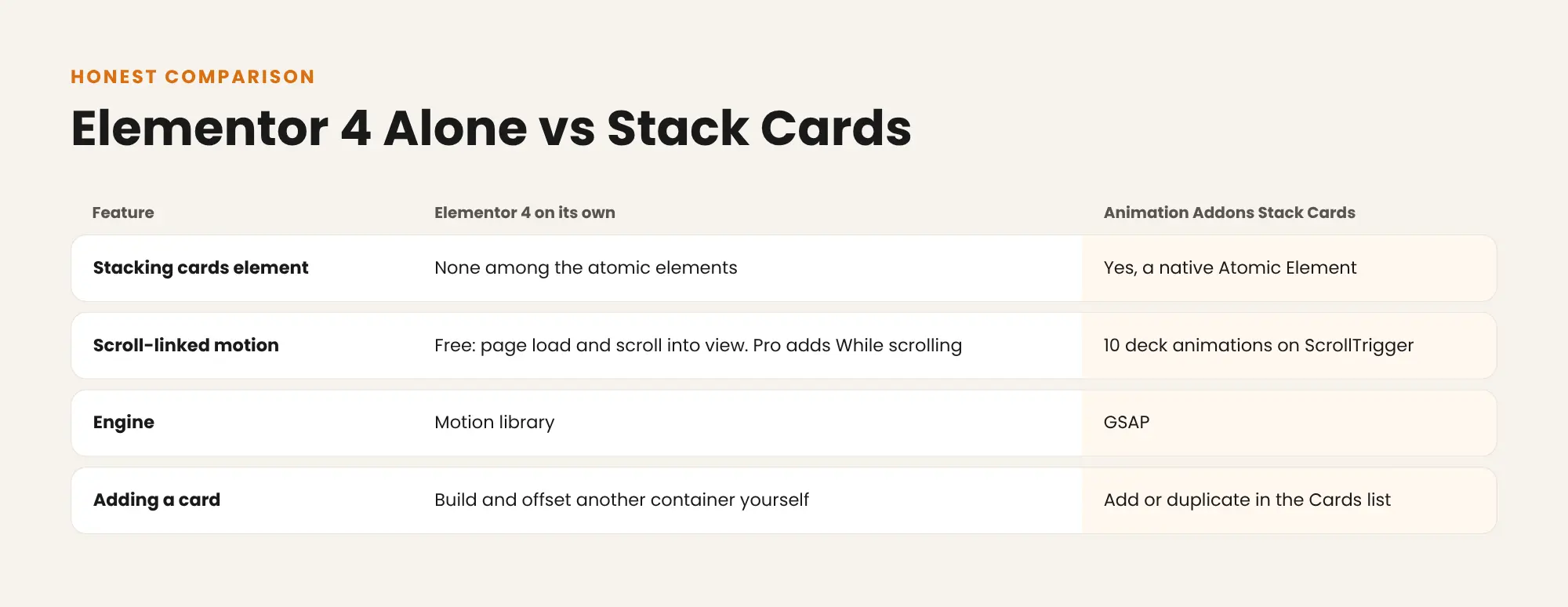
Comparison of Elementor 4 on its own and Animation Addons Stack Cards for the stacking cards effect
Where Elementor alone fits: Elementor Pro’s While scrolling interaction moves one element with the scroll, and sticky containers can fake a stacking effect by hand. That works for one or two simple cards. Stack Cards packages the deck, timing and preview in one element, which saves time when you add or reorder cards. If you need a free option and no scroll motion, the free Timeline element lays out the same steps as a static vertical list.
- For the full picture of what Elementor 4 includes for free, see Elementor 4 Free vs Pro.
Which Plan Includes Stack Cards?
Stack Cards is included in every Animation Addons Pro plan, because features are not locked by plan. Plans start at $49 a year for 1 site. Until 5 December 2026, Pro is up to 50% off, from $24.50 for the first year.
See Animation Addons pricing explained for every plan.
Build Stunning Stacking Cards in Elementor 4 Without Code
Create engaging stacking card effects with 10 deck animations, 10 ready-made presets, and access to every other Pro element and GSAP extension.
Final Thoughts
Atomic Stack Cards turn a long list of services, steps or projects into a scroll story that readers follow card by card. The setup takes six steps: install, drag Stack Cards in, edit the Cards list, pick and preview an animation, style with a Class, then publish and test.
Keep each card shorter than a phone screen, use three to six cards, and compress the images inside them. Start with a preset if you want a finished look fast, and use Preview Animation to check every pose before the page goes live.
FAQs
How do I create stacking cards on scroll in Elementor 4?
Drag the Stack Cards element from Animation Addons onto the page, fill its four default cards, and pick an animation. Check the motion with Preview Animation, then publish.
Does Elementor 4 have a native stacking cards widget?
No, Elementor 4 has no stacking cards element in its Atomic set, including the elements added in 4.4. Stack Cards from Animation Addons fills that gap as a native Atomic Element.
Do Atomic Stack Cards need Elementor Pro?
No, Stack Cards works with Elementor Free with the Atomic Editor on. It needs Animation Addons for Elementor and Animation Addons Pro.
Can I put any content inside a Stack Cards card?
Yes, each card is an atomic container, so it takes headings, text, images, buttons, lists or a full Flexbox layout. Keep each card short enough to fit one screen.
How many cards does a stack need?
A deck needs at least 2 cards to stack, and a fresh drop lands with four. Add, duplicate or remove cards in the Cards list.
How do I change the order of the cards?
Drag rows in the Cards list. The list order is the stacking order.
Can I change the stacking animation?
Yes, pick one of the 10 deck animations in the Animation list, with Scroll Stack as the default. Apply Preset also loads one of 10 ready-made decks with its own animation, overlap and easing.
Do stacking cards work on mobile?
Yes, and a stack suits small screens because it shows one card at a time. Set smaller padding and type sizes per breakpoint, and keep each card shorter than a phone screen.
Will stacking cards slow down my page?
Stack Cards uses GSAP, and Animation Addons Pro loads GSAP only when an animated element nears the viewport. Compress the images inside the cards, because they cost more than the animation.
Can search engines read the content inside Stack Cards?
Yes, the cards are rendered into the page HTML, so their headings and text are crawlable. The stacking is motion applied on top of that markup.


Leave a Reply