
 Login
Login


You have built a beautiful website, but something feels missing. The layout is clean, the colors pop, yet the page looks flat. That is where animated SVG WordPress and Lottie animation WordPress come in.
With just a few clicks in WordPress and Elementor, you can make animated websites using SVG icons, shapes, and visuals move naturally as users scroll.
In this guide, you will learn how to add Lottie animation in WordPress and SVG animation in WordPress. You can use no-code tools like Animation Addons or coding methods such as GSAP animation WordPress or CSS animations.
By the end, you will know how to add smooth motion, improve speed, and keep your design consistent on every device.
The easiest way to add Lottie or SVG animation in Elementor is to use a dedicated animation widget.
Elementor Pro includes a Lottie widget, while Animation Addons provides Lottie and DrawSVG widgets with additional animation controls. Developers can also use GSAP or CSS for custom animations.
What are SVG and Lottie Animations?
Modern websites are no longer limited to static images. SVG and Lottie animations make it possible to add lightweight motion, interactive effects, and visual storytelling without relying on traditional GIFs or large video files.
Although both can create engaging animations, they work differently and are suited to different purposes.
What is SVG Animation?
SVG (Scalable Vector Graphics) is a vector-based image format that can be animated using CSS, JavaScript, or animation libraries such as GSAP. Because SVGs are built from paths, shapes, and other vector elements, they can scale to different screen sizes without losing visual quality.
SVG animation is especially useful for icons, logos, illustrations, line drawings, hover effects, and scroll-based “draw” animations. For example, an SVG path can gradually reveal itself as a visitor scrolls down a page, creating a smooth drawing effect instead of displaying the entire graphic at once.
One of the biggest advantages of SVG is its flexibility. Developers can target individual SVG elements and control properties such as position, opacity, color, transformation, and stroke, while tools such as DrawSVG and GSAP can provide more advanced motion effects.
Best for: lightweight illustrations, icons, logos, line animations, hover effects, and interactive scroll animations.
What is Lottie Animation?
Lottie is an animation format that uses a JSON file to describe and reproduce vector-based animations on the web. Instead of creating every animation effect directly with CSS or JavaScript, designers can create animations in supported design tools and export them as Lottie files for use on websites.
Lottie is particularly useful when you want complex illustrations, character animations, UI interactions, or other detailed motion effects without building the entire animation from scratch with code.
For example, rather than using a static illustration of a person working on a computer, you could use a Lottie animation that makes the character, screen, or surrounding elements move naturally.
Best for: detailed illustrations, animated characters, interactive graphics, onboarding visuals, and pre-designed motion effects.
SVG vs Lottie: Which One Should You Choose?
The choice depends on the type of animation you want. Choose SVG when you need simple, lightweight, highly customizable graphics or path-based effects; choose Lottie when you need a richer animation that has already been designed and exported as a JSON file.
| Feature | SVG | Lottie |
|---|---|---|
| File format | .svg | .json |
| Best for | Icons, logos, illustrations | Complex animations |
| Scalability | Excellent | Excellent |
| Animation | CSS/JS/GSAP | Built-in animation timeline |
| Coding required | Sometimes | Usually no |
| Elementor support | Yes | Yes |
| File size | Usually very small | Varies |
| Interactive animation | Excellent | Excellent |
| Best use case | Draw effects, icons | Illustrations, UI animation |
Use SVG when: you need lightweight icons, logos, line drawings, or path-based animations.
Use Lottie when: you need richer illustrations, character animations, or pre-built motion exported from After Effects.
3 Ways to Add SVG and Lottie Animations in WordPress
There are many ways to use SVG animation, WordPress, and Lottie animations Elementor.
- Elementor’s dedicated Lottie widget is a Pro feature, so Elementor Free users need an addon or custom code approach.
Today, we will focus on 3 methods of how to add SVG and Lottie animations. Let’s explore both no-code and developer-friendly options.
Method 1 : Animation Addons
Animation Addons is a complete WordPress plugin made for Elementor users. It offers a wide range of animation tools, including over 100 widgets, 25 extensions, and thousands of ready-to-use templates, pages, and sections.
It also comes with a built-in animation builder that lets you create your own effects. With all these features, you can design fully animated websites quickly and without any coding.
Add SVG Animation
Here’s a step-by-step guide to adding SVG animation WordPress using Animation Addons:
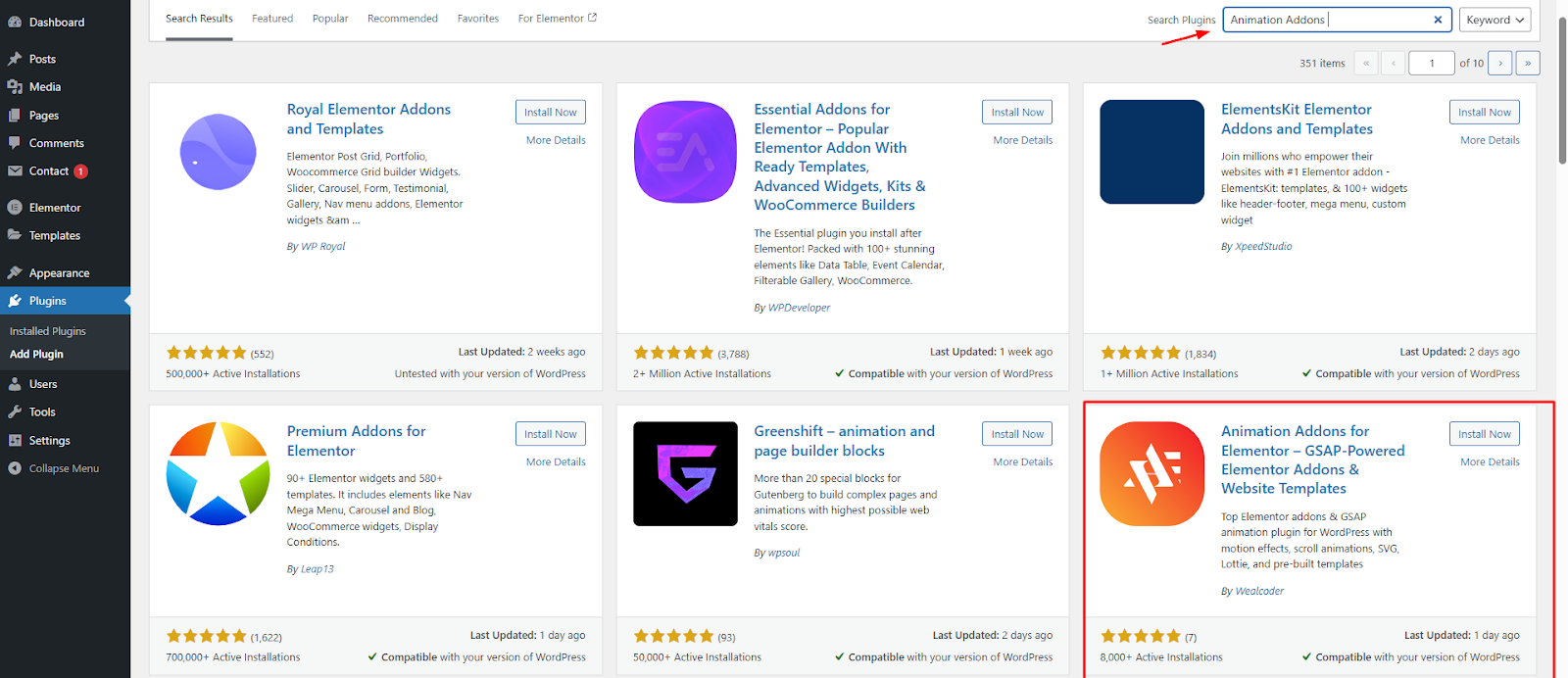
Step 1: First and foremost, ensure that you have installed the Animation Addons plugin on your WordPress website.
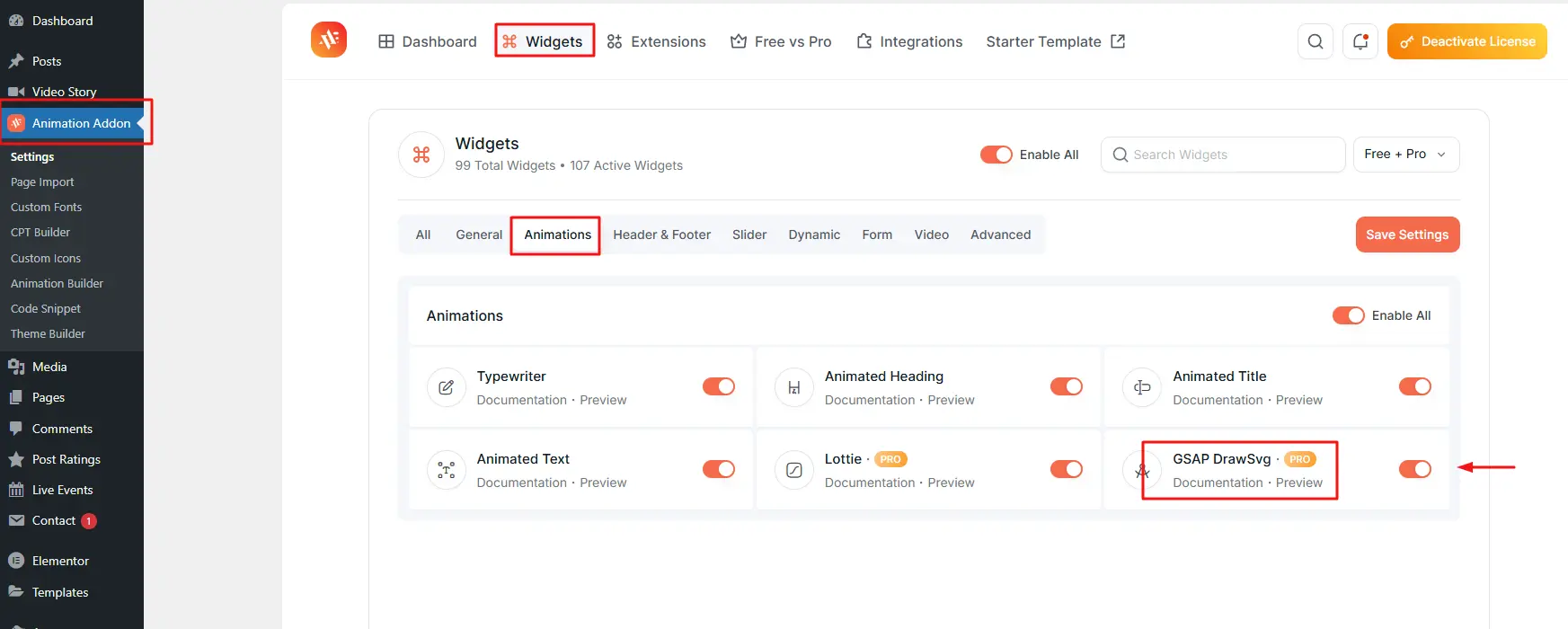
Step 2: After that, open Animation Addons, go to Widgets, and under the Animation section, click on GSAP DrawSVG.
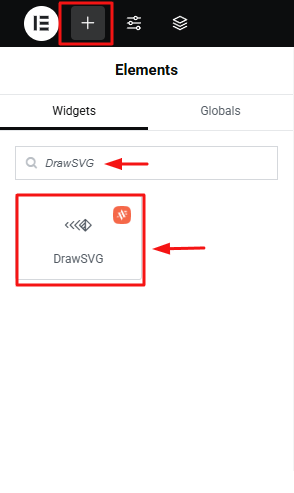
Step 3: Once the setup is complete, go to the Elementor editing panel. Then click the ‘+’ icon and type “DrawSVG” in the search bar to find it.
Step 4: After clicking, you will find four options to customize your SVG animation such as Content, Animation, Scrolltrigger and Linkable. Let’s start with ‘Content’.
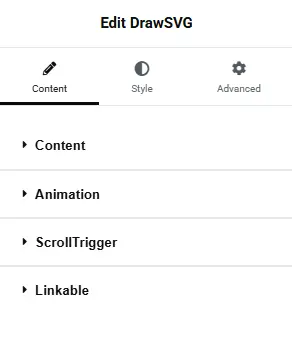
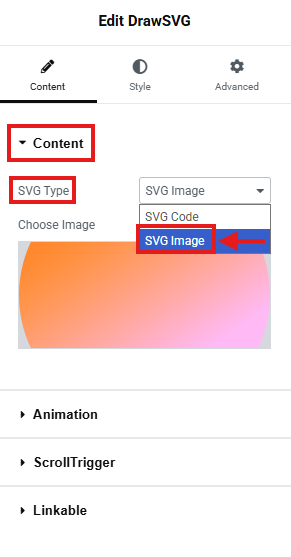
Step 5: In the content section, you will find two types of SVG: SVG Code and SVG Image. SVG Code lets you paste the raw SVG markup for full control over path animations.
On the other hand, SVG Image allows you to use an uploaded SVG file and animate it without touching any code.
For example, here SVG Image is selected, but you can choose either option based on your preference. Notably, an SVG image has animation enabled by default.
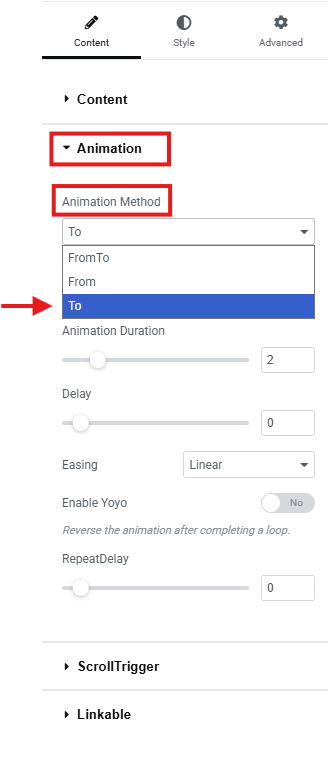
Next, click on ‘Animation’, to access ‘Animation Method’. This setting basically controls the style of the draw effect, such as whether the stroke is drawn from start to end, in reverse, from the center outward, or using a custom direction.
To do this, you have three options: From To, From, and To. You can choose any option based on your preferred animation style.
For example, here ‘To’ is selected.
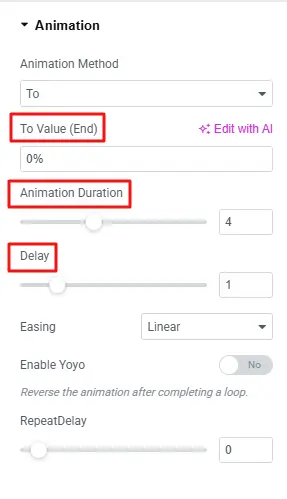
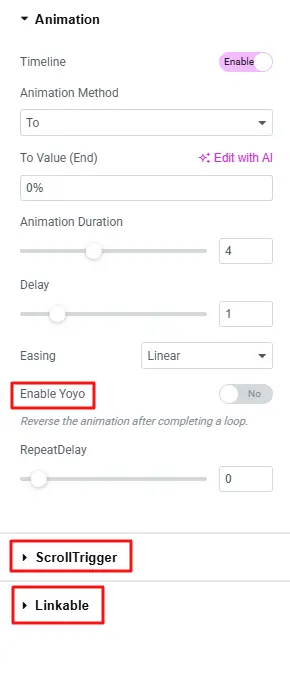
Step 6: Now set the ‘To Value (End)’ according to your choice. It controls how much of the SVG path will be drawn when the animation finishes. For example, here ‘To Value (End)’ is set to 0%, but you can set any value you like.
Similarly, adjust the other settings, such as Animation Duration, which is set to 4 here, and Delay set to 1.
Remember, you can customize each setting based on your preference.
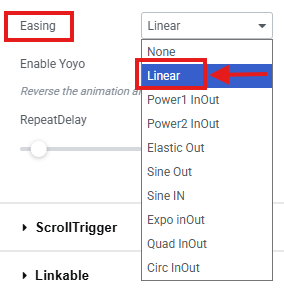
Step 7: The Easing option defines how the SVG moves. It controls the speed and motion style. This makes the animation feel smooth and natural, not flat or robotic.
You will find various options to choose from. For example, here “Linear” is selected, but you can choose any option you like.
Afterward, keep the other settings as they are, such as Enable Yoyo, ScrollTrigger, and Linkable. However, you can adjust them later based on your preference to explore SVG animation.
Step 8: Finally, click the Publish button, then preview your animation. Here is the final output of the SVG animation:
Add Lottie Animation
Adding Lottie animation for Elementor is just as simple:
Step 1: Similarly, enable Lottie animation as you enable SVG in Animation Addons. Then, visit LottieFiles or another animation website and start exploring.
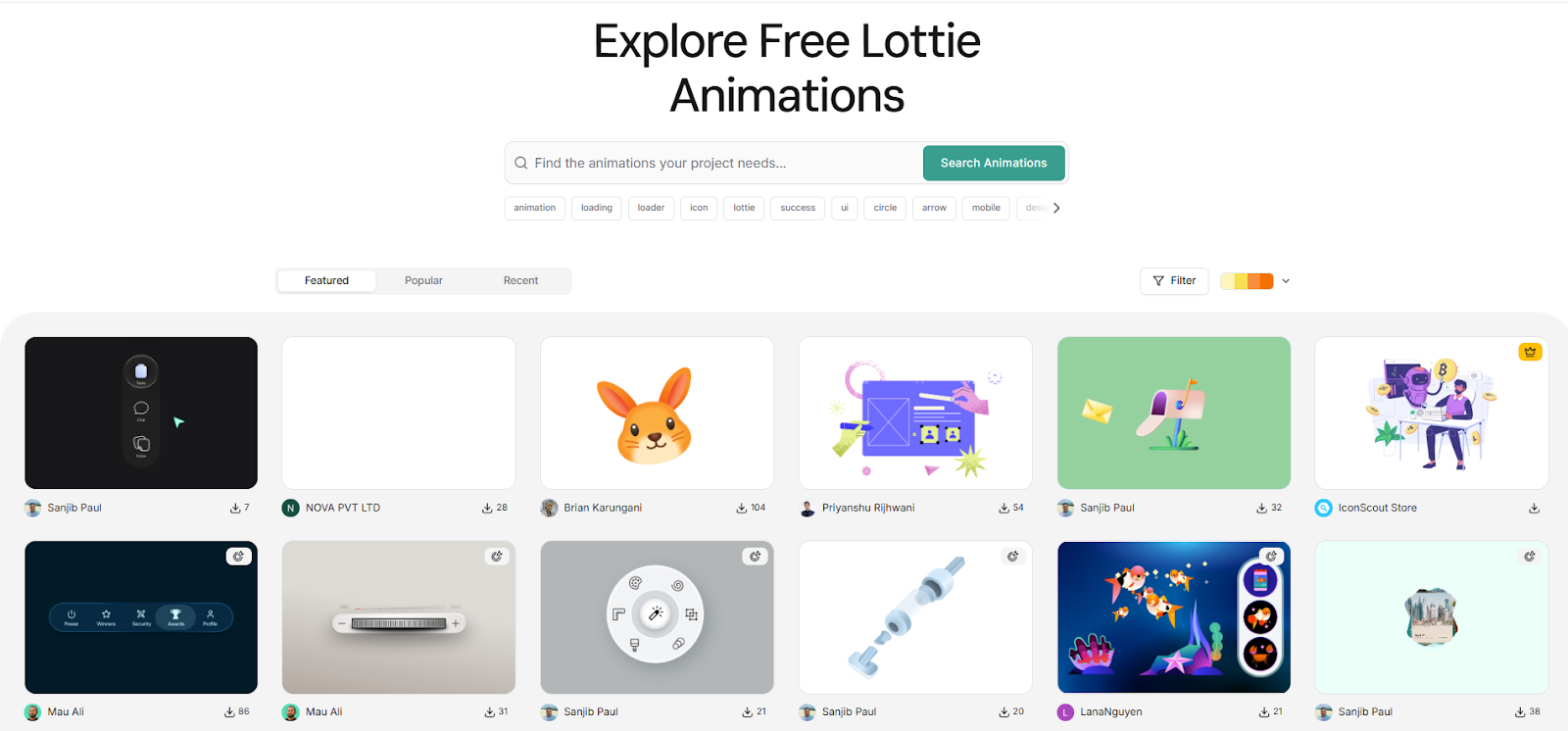
Next, choose a Lottie animation that you like.
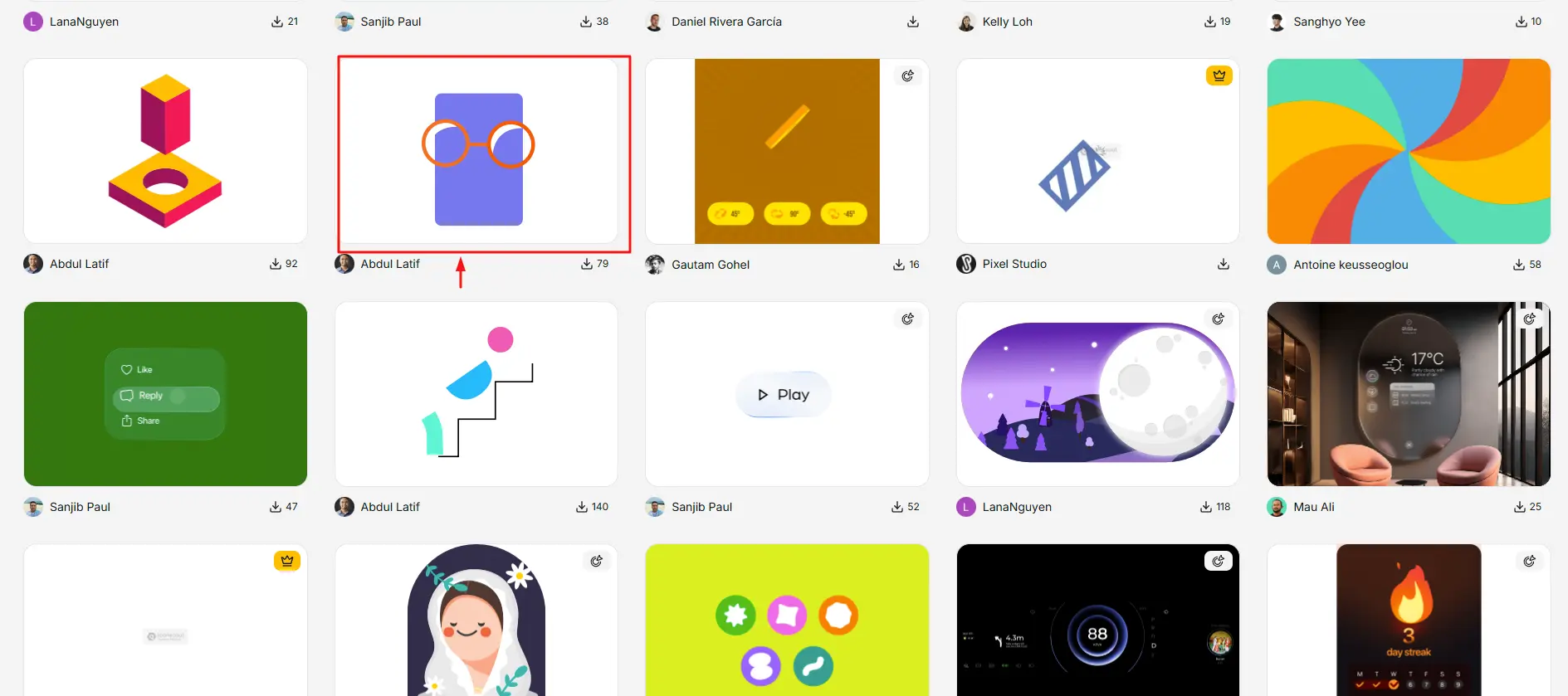
Step 2: Now, click on the Lottie JSON file button to download it and save it to your computer.
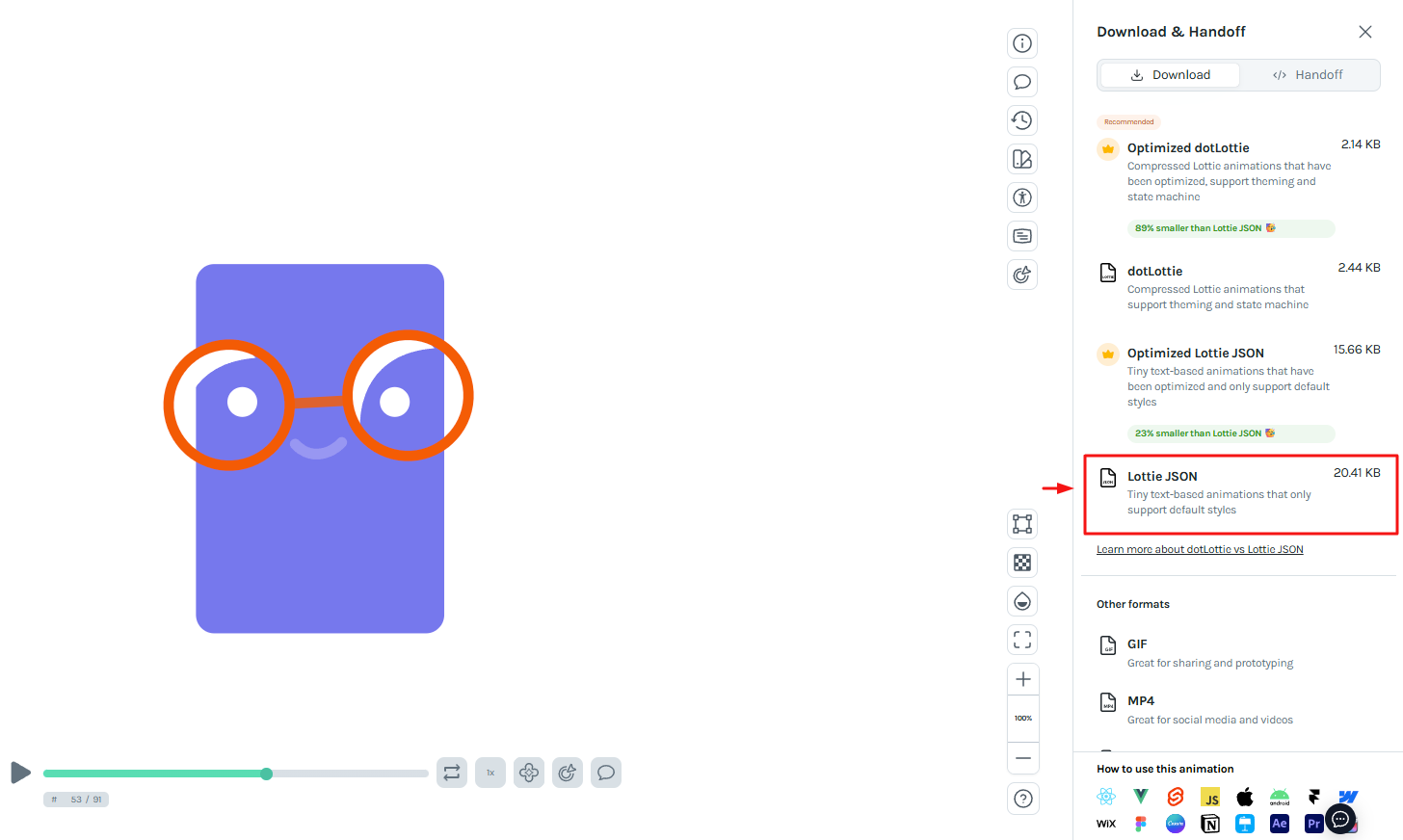
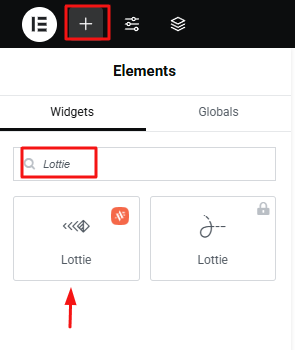
Step 3: Then, go back to the Animation Addons editor panel in Elementor. Click the ‘+’ icon and type “Lottie” in the search bar to find the widget.
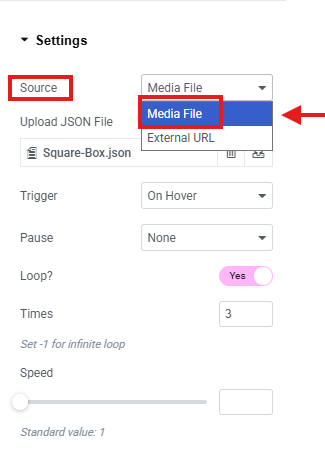
Step 4: Once you click on Lottie, you will see all the settings for it. Under Source, you can choose either Media File or External URL based on your preference.
For example, here Media File is selected.
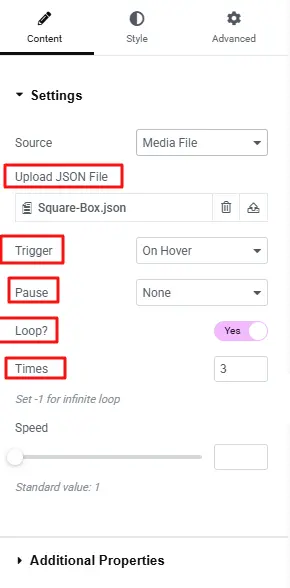
Step 5: Now, upload your Lottie JSON file to the ‘Upload JSON File’.
- Then, set the Trigger to On Hover.
- Set Pause to None.
- Enable Loop and set Loop Times to 3.
- Leave the other settings as they are.
Note: You can customize each setting based on your preference, such as Trigger, Pause, Loop, Loop Times, and more.
Here is the final output of Lottie Animation
Bring Your Website to Life
Add smooth SVG and Lottie animations to your WordPress website without complicated code. Explore powerful animation tools and create engaging interactions directly inside Elementor.
Explore Lottie Animations →Method 2: Elementor Pro
Let’s check out how you can add WordPress Lottie animation directly with Elementor Pro. Go to LottieFiles or any other animation website. Explore the available animations and choose one you like. Then, download its JSON file.
Lottie JSON files can be relatively lightweight compared with raster animation formats, but file size and rendering performance depend on the animation’s complexity.
Here’s how you can easily get your Lottie animation file:
Step 1: Go to the LottieFiles website and make an account to get started.
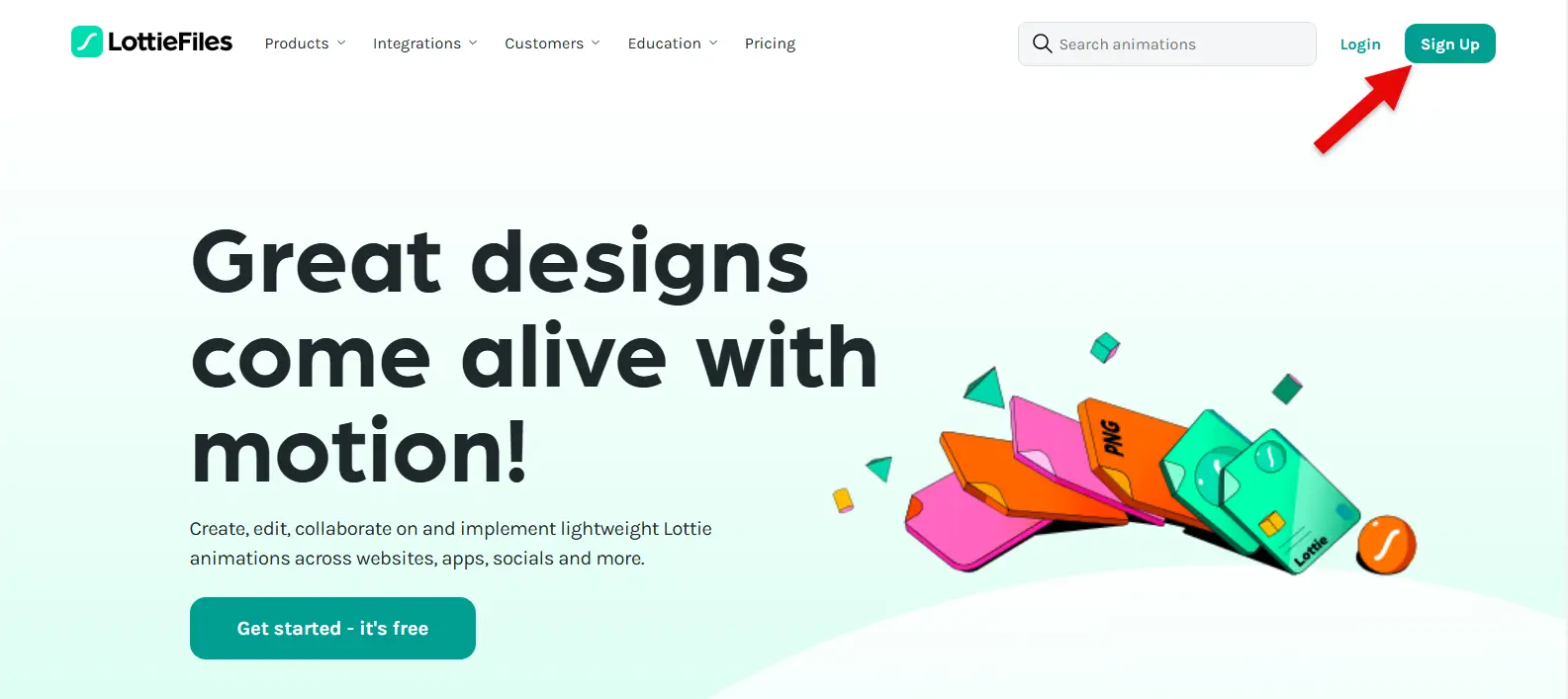
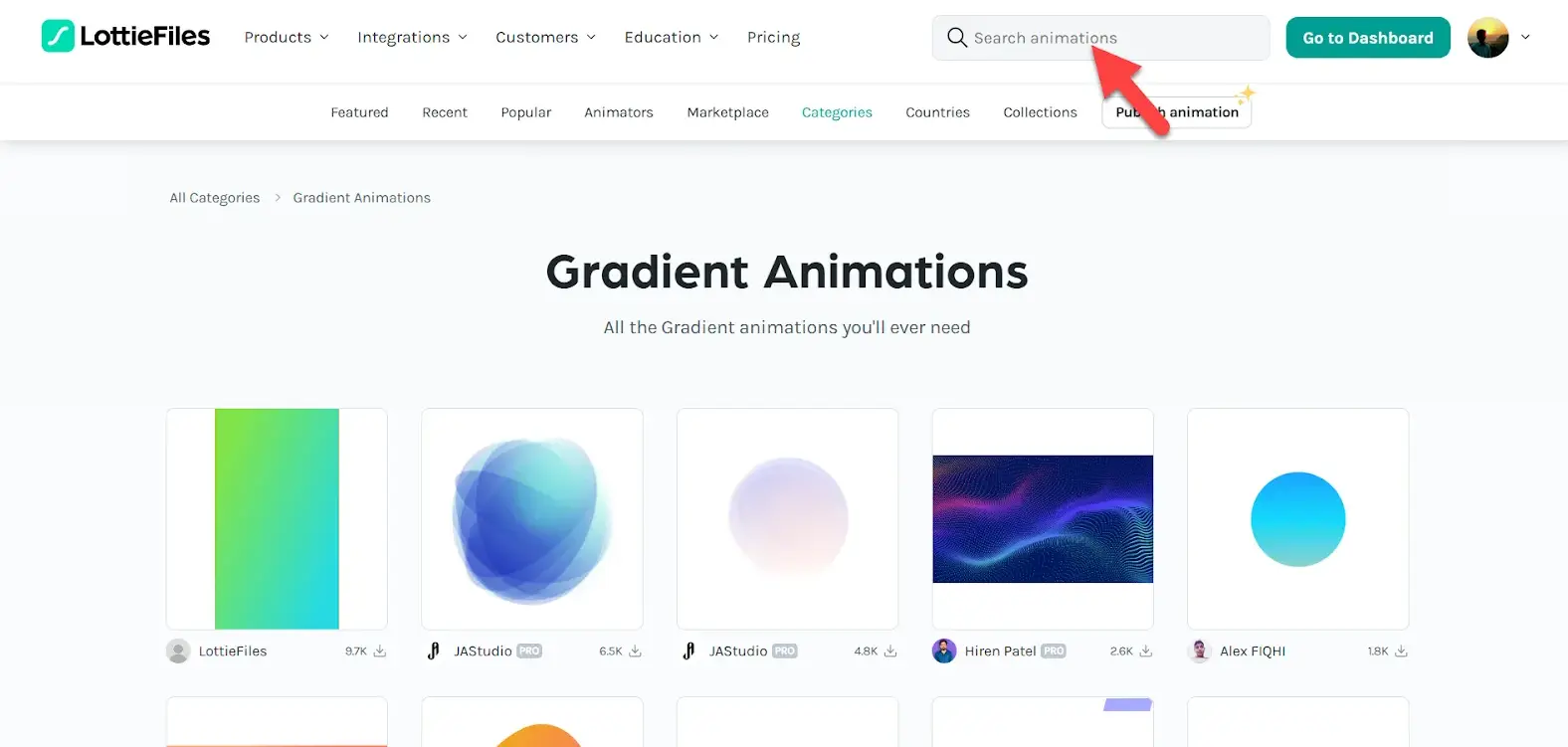
Step 2: After you make your account, use the search bar to find the Lottie animation you want.
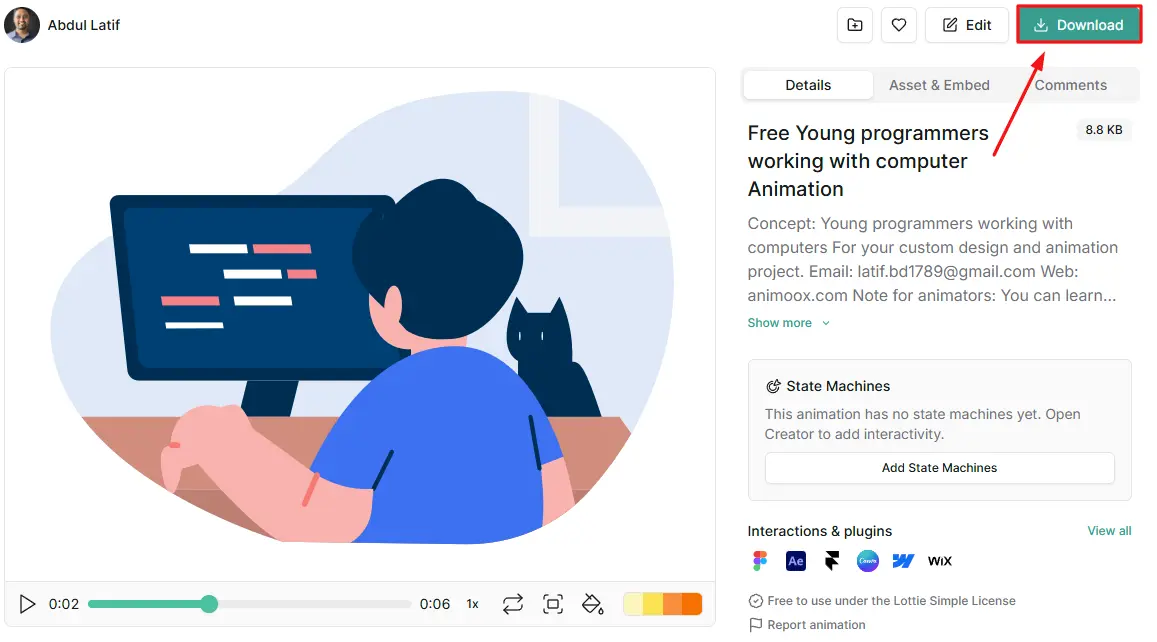
Step 3: Click on the Lottie animation you like, then press the Download button to save it to your computer. Now choose the file format, like JSON, and finish downloading the animation.
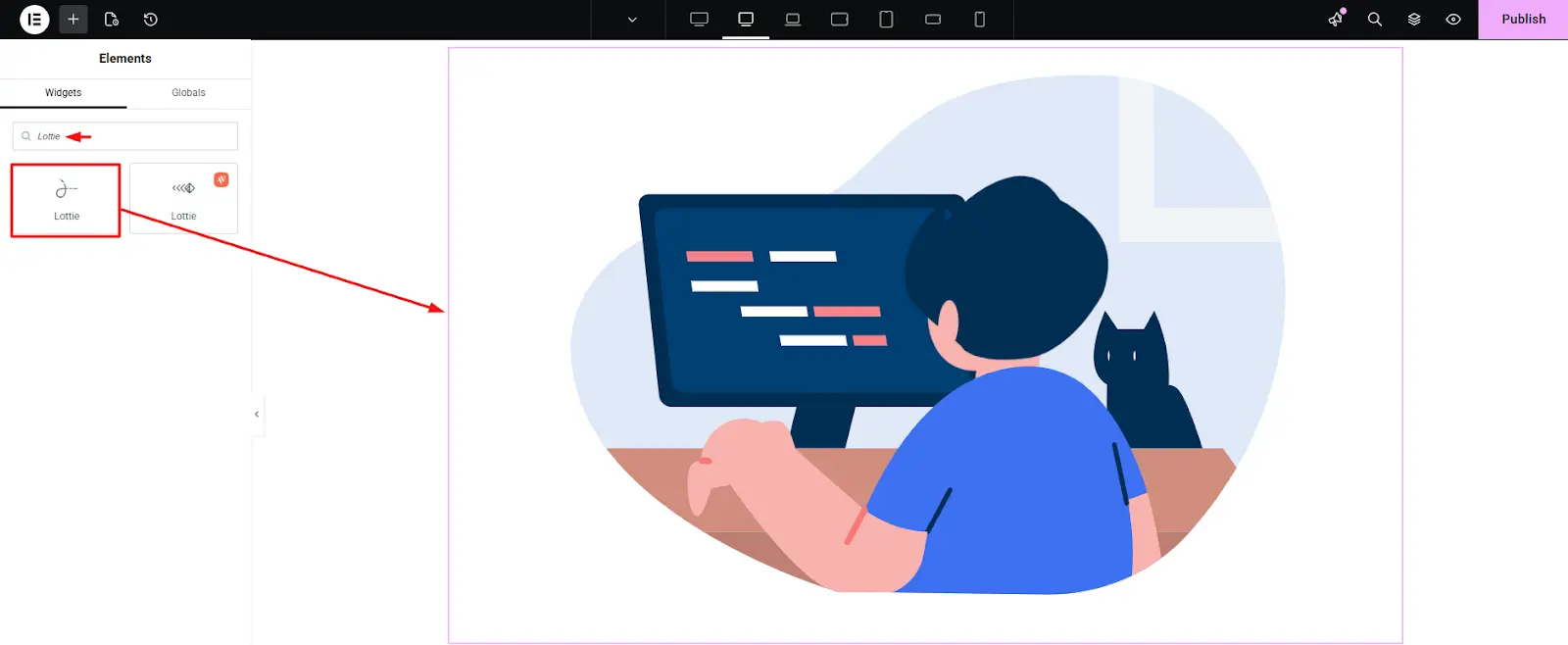
Step 4: After downloading the JSON file, open Elementor and drag the Lottie widget onto your page.
Step 5: To make the animation available on your site, upload the JSON file to your server. You can use your hosting file manager or an FTP tool like FileZilla. Place the file in an easy-to-find folder, for example, yourdomain.com/lottie/filename.json.
As shown in the image below, you can also upload the file using the ‘Upload JSON File’ box.
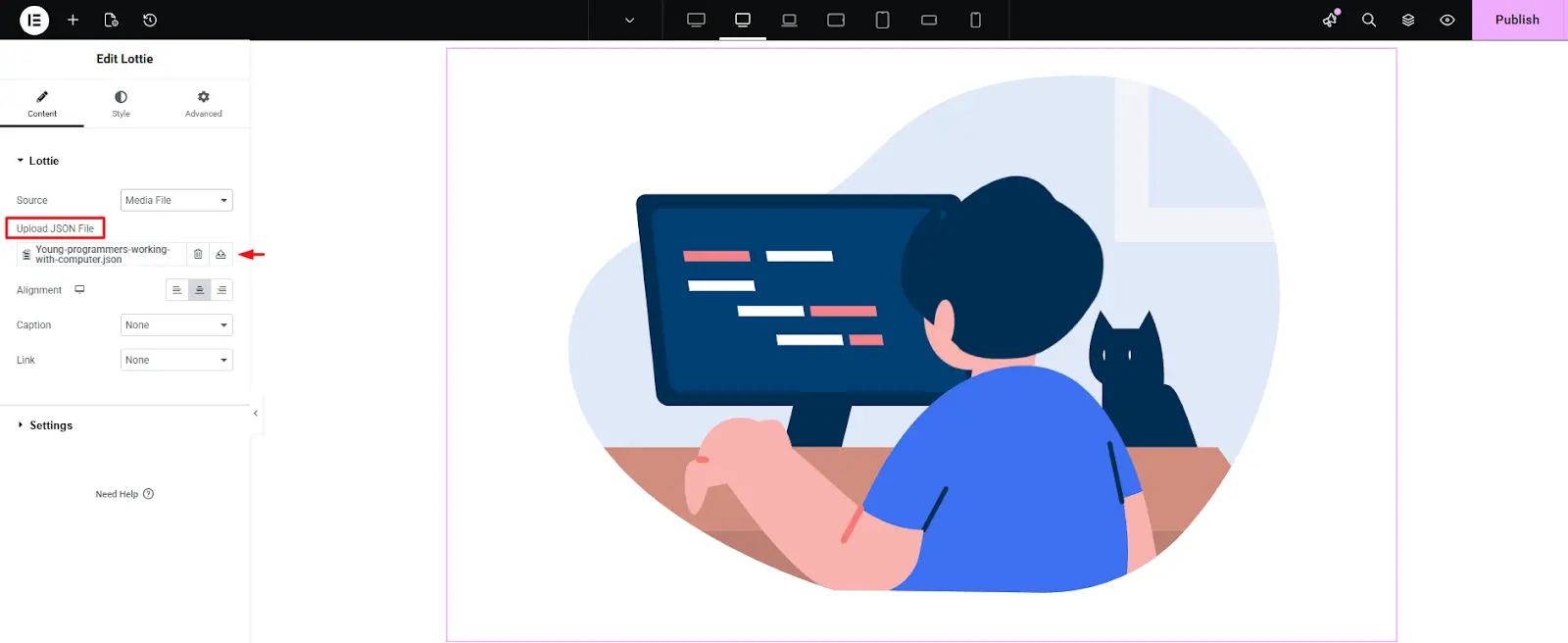
Finally, you are ready to customize your animation based on your liking.
Method 3: Custom Code (Developer Approach)
For developers, writing your own animation code provides full control and customization. There are two main methods:
GSAP
GSAP is a professional-grade JavaScript library for creating high-performance, smooth, and complex animations. It’s the same engine behind Animation Addons.
Implementation in WordPress:
- Add the GSAP library to your theme or plugin using wp_enqueue_script.
- Target elements such as SVGs or Lottie containers using selectors like .svg-path or .lottie-container.
- Use gsap.to(), gsap.from(), or gsap.timeline() to create sequential or chained animations.
Example:
gsap.to(".lottie-container", { duration: 2, x: 100, opacity: 1, ease: "power2.out" });
This animates a Lottie container, moving it horizontally while fading it in smoothly.
CSS Animations/Transitions
CSS animations and transitions are suitable for smaller, simple effects like hover animations or fade-ins. They are lightweight and can be added directly to your theme or via a code snippet plugin.
Example:
					.svg-path {

  transition: stroke-dashoffset 1s ease-in-out;

}

.svg-path:hover {

  stroke-dashoffset: 0;

}
This code animates an SVG path on hover, creating a smooth “draw” effect.
SVG vs GIF vs Lottie Comparison
| Format | Best for | Performance | Scalability |
|---|---|---|---|
| GIF | Simple legacy animations | Poor–Moderate | Poor |
| SVG | Icons, illustrations, path animation | Excellent | Excellent |
| Lottie | Complex vector animation | Good | Excellent |
| WebM/MP4 | Large cinematic animation | Good | Limited |
For most UI animations, SVG or Lottie is preferable to GIF because they provide better scalability and more control.
Common Lottie & SVG Problems in Elementor
Adding motion to an Elementor website can make a page feel more polished and interactive but animation does not always behave exactly as expected. A Lottie may refuse to play, an SVG may appear static, or an animation that looks perfect on desktop may behave differently on mobile.
Most of these issues come down to the animation file, widget settings, loading behavior, or compatibility between the animation and the browser. Here are some common problems and practical ways to troubleshoot them.
1. Lottie Animation Is Not Showing
If your Lottie animation appears blank, first check whether the JSON file is valid and uploaded correctly. If you’re using an external URL, make sure the URL is accessible and the file isn’t blocked by server permissions or other restrictions.
Also check the Lottie widget’s source settings and preview the page outside the Elementor editor. Sometimes an animation can appear correctly inside the editor but fail on the live page because of a loading or script conflict.
2. The Lottie Animation Won’t Play
A Lottie animation can be visible but remain completely still if its playback settings are not configured correctly. Check the trigger, loop, autoplay, and speed settings, and make sure the animation isn’t waiting for a user interaction such as hover or scroll.
If you’re using a scroll-based trigger, test the animation on the published page and make sure the element actually enters the viewport as expected.
3. SVG Animation Isn’t Working
An SVG file can display perfectly as an image but still fail to produce the intended animation. This often happens when the SVG doesn’t contain the appropriate paths, strokes, or elements required by the animation method you’re using.
For path-drawing effects, for example, the SVG structure needs to be suitable for path-based animation. If you’re using an animation addon or GSAP, check that the correct SVG elements are being targeted.
4. Lottie Looks Different From the Original Animation
Not every Lottie animation renders exactly the same way in every environment. Effects, fonts, masks, expressions, or other features used when creating the original animation may not be fully supported by the web renderer.
If certain elements disappear or behave unexpectedly, try a simpler version of the animation or export the animation again using web-compatible features.
5. Animation Is Too Slow or Causes Performance Issues
Animations can consume browser resources, particularly when several complex Lottie files or animated SVGs are running simultaneously. Large JSON files, complicated vector artwork, and multiple autoplay animations can increase the rendering workload.
Optimize the animation before uploading it, avoid unnecessary motion, and use lazy loading or viewport-based triggers for animations that appear below the fold. The article’s existing performance guidance also recommends keeping animation files optimized and avoiding too many concurrent animations.
6. Animation Works on Desktop but Not on Mobile
A layout that works beautifully on a large screen may need different animation settings on mobile. Check the animation’s width, height, positioning, trigger behavior, and overall complexity on smaller screens.
It’s also worth testing on an actual mobile device rather than relying only on Elementor’s responsive preview. A simple animation that performs well on desktop can still feel heavy on an older or lower-powered mobile device.
7. SVG or Lottie Is Hidden Behind Another Element
Sometimes the animation is working, but you simply can’t see it because another Elementor element is covering it. Check the section’s z-index, positioning, overflow settings, and stacking order.
If the animation appears after changing these settings, the problem was related to the page’s layout rather than the animation itself.
8. Scroll Animation Doesn’t Start at the Right Time
Scroll-triggered animations depend on the element’s position within the viewport. If the animation starts too early, too late, or not at all, review the scroll-trigger settings and the element’s surrounding spacing.
Keep the trigger behavior simple and test it on both desktop and mobile, because viewport dimensions can significantly change when the animation begins.
Quick Troubleshooting Checklist
Before replacing an animation or rebuilding your Elementor section, run through this checklist:
- Check the SVG or JSON file for errors.
- Verify the animation source or URL.
- Check trigger, loop, speed, and playback settings.
- Test the animation on the published page.
- Clear your WordPress and browser cache.
- Check for plugin or JavaScript conflicts.
- Test another browser or device.
- Reduce animation complexity if performance is poor.
- Check responsive settings for mobile.
- Make sure another Elementor element isn’t covering the animation.
- Pro tip: When troubleshooting animation, change one setting at a time. This makes it much easier to identify whether the problem comes from the animation file, Elementor settings, another plugin, or the page layout.
A good animation should feel seamless rather than demanding attention. If an effect requires visitors to wait, strains mobile performance, or distracts from the page’s main content, simplifying the animation is often a better solution than adding more effects.
Best Practices for SVG & Lottie in WordPress
Using animations the right way helps you maintain site speed, SEO, and accessibility. Poorly optimized animations can slow down your website, frustrate users, and even hurt your search engine rankings.
To get the most out of animations without sacrificing performance, follow these best practices:
Optimize SVG and Lottie File Size
Large animation files can significantly increase page load times. To prevent this, always optimize your SVG and Lottie files before adding them to your website. Tools like SVGOMG can clean up unnecessary code from SVGs, while LottieFiles Optimizer compresses Lottie JSON files without losing quality.
Smaller file sizes mean faster loading, smoother animations, and improved SEO.
Load Animations Only When Visible
Animations that run immediately on page load can consume resources unnecessarily. Implement lazy loading or scroll-triggered animations so that they play only when the user reaches them.
This reduces initial load time, saves bandwidth, and ensures that animations don’t block important content from appearing quickly. Plugins like Animation Addons make it easy to set up scroll-based triggers without writing code.
Keep Performance and SEO in Check
Even optimized animations can affect site performance if not implemented properly. Always compress files, minimize HTTP requests, and avoid scripts that block the rendering path.
Good animation plugins like Animation Addons are built for speed. They optimize performance automatically. This helps your animations run smoothly and keeps your page speed and SEO safe.
Avoid Overuse of Motion
Animations can make your website fun to use, but too many can be confusing. Too much movement can also make it hard for some people to focus or feel comfortable while browsing.
Use animations strategically to guide attention, highlight important content, or create a sense of interactivity, but always maintain balance and simplicity.
Additional Tips for Best Results:
- Use vector-based animations like SVG and Lottie instead of GIFs for better quality and smaller file sizes.
- Test your animations on multiple devices to ensure smooth performance on mobile and low-end devices.
- Combine animations with static content carefully; motion should enhance, not replace, key information.
- Keep the number of concurrent animations low on a single page to avoid browser rendering lag.
By following these practices, you can create engaging, interactive websites that load quickly, rank well in search engines, and remain accessible for all users engagements.
Wrapping Up
SVG and Lottie are both excellent ways to add motion to an Elementor website, but the right choice depends on the type of animation you need.
Use SVG for lightweight icons, illustrations, and path-based effects. Choose Lottie for more complex pre-built animations and interactive illustrations. If you want a no-code workflow, Elementor Pro or an animation addon can handle most use cases, while GSAP and CSS provide greater control for developers.
Whatever method you choose, keep animations lightweight, lazy-load below-the-fold content, test on mobile, and respect reduced-motion preferences.
FAQs
Lottie is a lightweight animation format that typically uses .json files to display animated graphics on a WordPress website. In Elementor, Lottie animations can be added through the Lottie widget and configured with triggers, looping, speed, and other playback settings.
Elementor’s dedicated Lottie widget is currently included with Elementor Pro, not the free version. Elementor Free users can still add Lottie through third-party addons or alternative embed/custom-code methods.
Yes, Elementor has a dedicated Lottie widget that supports JSON files and external Lottie URLs. It also provides controls for triggers, looping, playback speed, start and end points, rendering, and lazy loading.
Add the Lottie widget to your Elementor page, choose Media File as the source, and upload your .json animation file. You can then configure its trigger, loop, speed, renderer, and lazy-loading settings.
Yes, Elementor supports SVG files and provides an SVG element for adding vector graphics to a page. For animated SVG effects, you can use CSS, JavaScript, GSAP, or a dedicated animation addon depending on the type of animation you want.
SVG is a vector graphics format that works well for lightweight icons, illustrations, and path-based animations, while Lottie uses JSON files to reproduce more complex pre-designed animations. Choose SVG for simpler scalable graphics and Lottie when you need richer motion and playback controls.
Lottie can be a better choice than GIF for many modern web animations because it uses vector-based animation data and provides more control over playback and scaling. However, performance depends on the complexity and implementation of the individual Lottie animation, so it is not automatically better in every situation.
Lottie animations generally do not provide much indexable text content themselves, so they should support rather than replace important textual content. Keep meaningful information in HTML text and use animations primarily to improve visual communication and user experience.
Lottie animations can perform well when their JSON files and animation complexity are optimized, but complex animations can still consume browser resources. Elementor provides options such as lazy loading and different renderers to help manage loading and rendering performance.
Check that your JSON file is valid, comes from a trusted source, and is correctly uploaded or referenced through the widget. If the problem persists, check the widget settings, external URL, plugin conflicts, browser console errors, and whether the animation itself uses features that are not rendering correctly.
In Elementor’s Lottie widget, enable the Lazy Load option to delay loading the animation until it becomes visible to the visitor. This can help reduce the initial page-loading workload, particularly when animations are placed below the fold.
Yes, GSAP can animate SVG elements and provides specialized tools such as DrawSVG, MorphSVG, and MotionPath for different SVG animation effects. You can use GSAP with Elementor by targeting the SVG elements through JavaScript and applying the appropriate GSAP animations or plugins.
Leave a Reply