
 Login
Login


A scroll effect that looks flawless on your design machine can turn into a stuttering mess on a mid-range phone. The animation isn’t broken. It’s fighting the browser for resources it can’t spare, and the visitor feels every dropped frame.
Motion is one of the fastest ways to make a website feel premium. It’s also one of the fastest ways to wreck your load times and Core Web Vitals if it’s built without care.
If you want to how to optimize web animation, it’s essential to balance visual appeal with speed and efficiency. By using modern techniques such as hardware-accelerated animations, lazy loading, and efficient JavaScript libraries like GSAP, you can create responsive animations without hurting your site’s performance.
In this guide, you’ll learn practical strategies to optimize animations, improve Core Web Vitals, reduce unnecessary rendering, and deliver a seamless browsing experience across all devices.
Quick Answer
To optimize web animation for performance, animate only transform and opacity so the browser can handle the work more efficiently. Avoid properties that trigger layout, keep effects inactive until they are needed, and test performance on real mid-range devices. GSAP-based tools like Animation Addons for Elementor support these best practices by default, helping you create smooth animations without writing performance-focused code manually.
Why Web Animation Performance Matters
Slow animation isn’t just an aesthetic problem. It has measurable consequences.
Janky motion hurts the metrics Google actually scores. Heavy animations can inflate load time, delay interactivity, and cause visible layout shifts, all of which feed into Core Web Vitals. A site that stutters also feels cheap, which undercuts the exact premium impression the animation was meant to create.
The core issue is simple. Browsers try to render pages at roughly 60 frames per second, which leaves about 16 milliseconds per frame. If an animation forces the browser to do too much work inside that window, frames get dropped and the motion looks choppy. Optimizing animation is mostly about staying inside that budget. Other things can also make your site slow, such as heavy website traffic, low-quality or shared hosting, and servers that are far from your visitors.
What Causes Slow Web Animation?
Before fixing anything, it helps to know what’s actually expensive. Most animation slowdowns trace back to one of these causes:
- Animating layout properties. Changing values like
width,height,top,left, ormarginforces the browser to recalculate the position of elements, which is costly to do every frame. - Too many elements animating at once. Dozens of simultaneous effects compete for the same frame budget.
- Large, unoptimized assets. Heavy images, uncompressed video, and over sized animation files all add weight before a single frame plays.
- Animations running off-screen. Effects that fire even when the user can’t see them waste resources for no visual payoff.
- Layout thrashing. Reading and writing layout values in a tight loop repeatedly, forcing the browser to recalculate over and over.
Choosing the Right Animation Technique
Selecting the correct animation method is half the battle. Let’s break down your best option:
| Technique/Consideration | Best For | Key Characteristics |
| CSS Animations/Transitions | Small, subtle effects like hover states, fades, and button animations. | Lightweight, hardware-accelerated, and widely supported by browsers. Simple to implement for basic interactions. |
| GSAP (GreenSock) | Complex, timeline-based, or scroll-triggered animations. | A powerful and highly optimized JavaScript library that offers precise control and better performance for intricate sequences. |
| Lottie | Vector or character-based animations. | Renders smooth, scalable animations from JSON files (often exported from Adobe After Effects). Eliminates the need for heavy GIF or video files. |
| Animation Addons WordPress Plugin. | Designers and Elementor users who want GSAP-powered animations without coding. | A no-code plugin that lets you build GSAP animations visually inside Elementor. Features include scroll triggers, viewport control, and device-based optimization — helping animations load faster and perform smoothly. |
| SVG Animations | Animating icons, logos, and illustrations. | Lightweight and scalable, ensuring animations remain sharp on any screen. Can be animated with CSS or JavaScript. |
| Web Animation API | Precise, lightweight animations without external libraries. | Provides native browser control over animation timing, playback, and iteration, offering a JavaScript-based approach with good performance. |
| Optimize Image Files | All visual assets, including images and animation components. | Compressing and optimizing assets reduces file sizes, which is crucial for faster load times and smoother animation performance. |
| Enable Browser Caching | Improving performance for repeat visitors. | Stores static assets locally in the user’s browser, reducing server requests and speeding up load times on subsequent visits. |
Do’s & Don’ts Optimizing Animations for Better Page Speed
To optimize animations for better page speed on your site, follow the information in the image below.
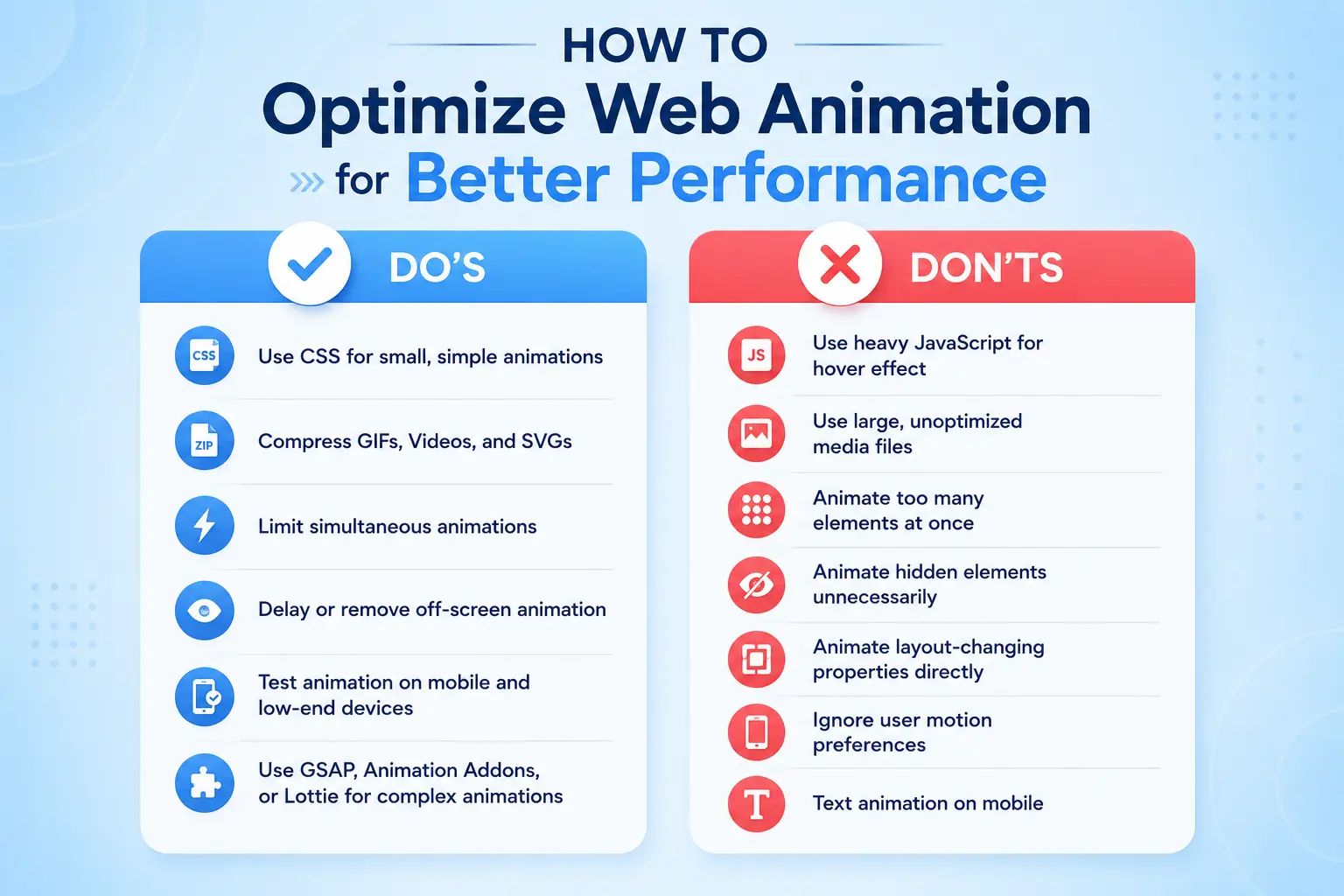
So far, you’ve learned what causes a website to slow down, and what to avoid to optimize animations for better page speed. Now, let’s focus on how you can actually optimize your animations.
Step by Step on How to Optimize Web Animation for Performance
Let’s go step by step to optimize web animation for performance. These steps will help make your website smooth, fast, and easy to use without losing any creative motion.
Step 1: Animate Transform and Opacity Instead of Layout Properties
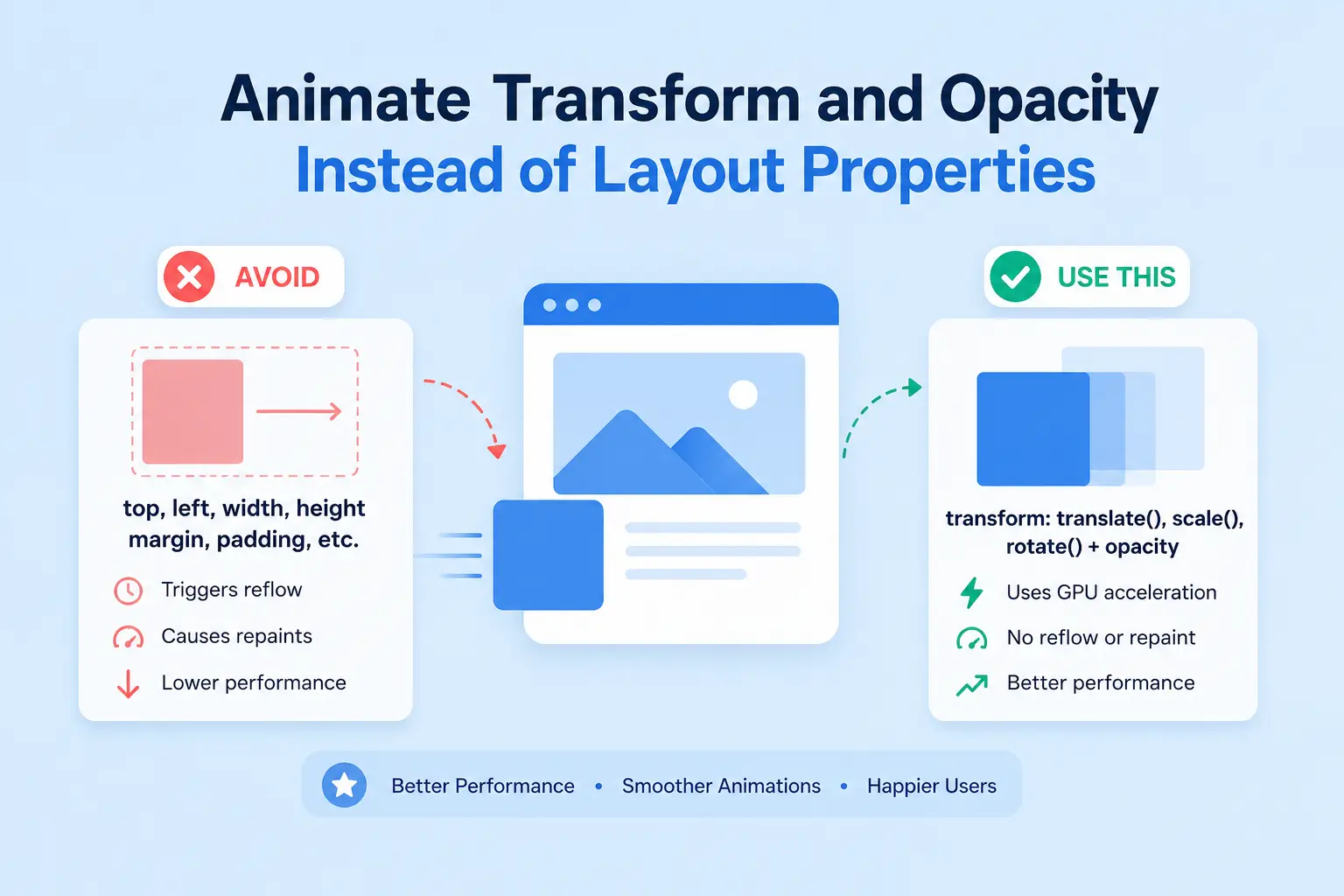
This is the single highest-impact change you can make. The browser can animate transform (move, scale, rotate) and opacity without recalculating page layout, and it can often hand this work to the GPU. That keeps the main thread free.
So instead of animating left to slide an element, animate transform: translateX(). Instead of animating width to grow something, animate transform: scale(). The visual result is nearly identical, but the performance cost is far lower.
Rule of thumb: if you can express a motion as translate, scale, rotate, or fade, do it that way.
Step 2: Reduce How Many Elements Animate at Once
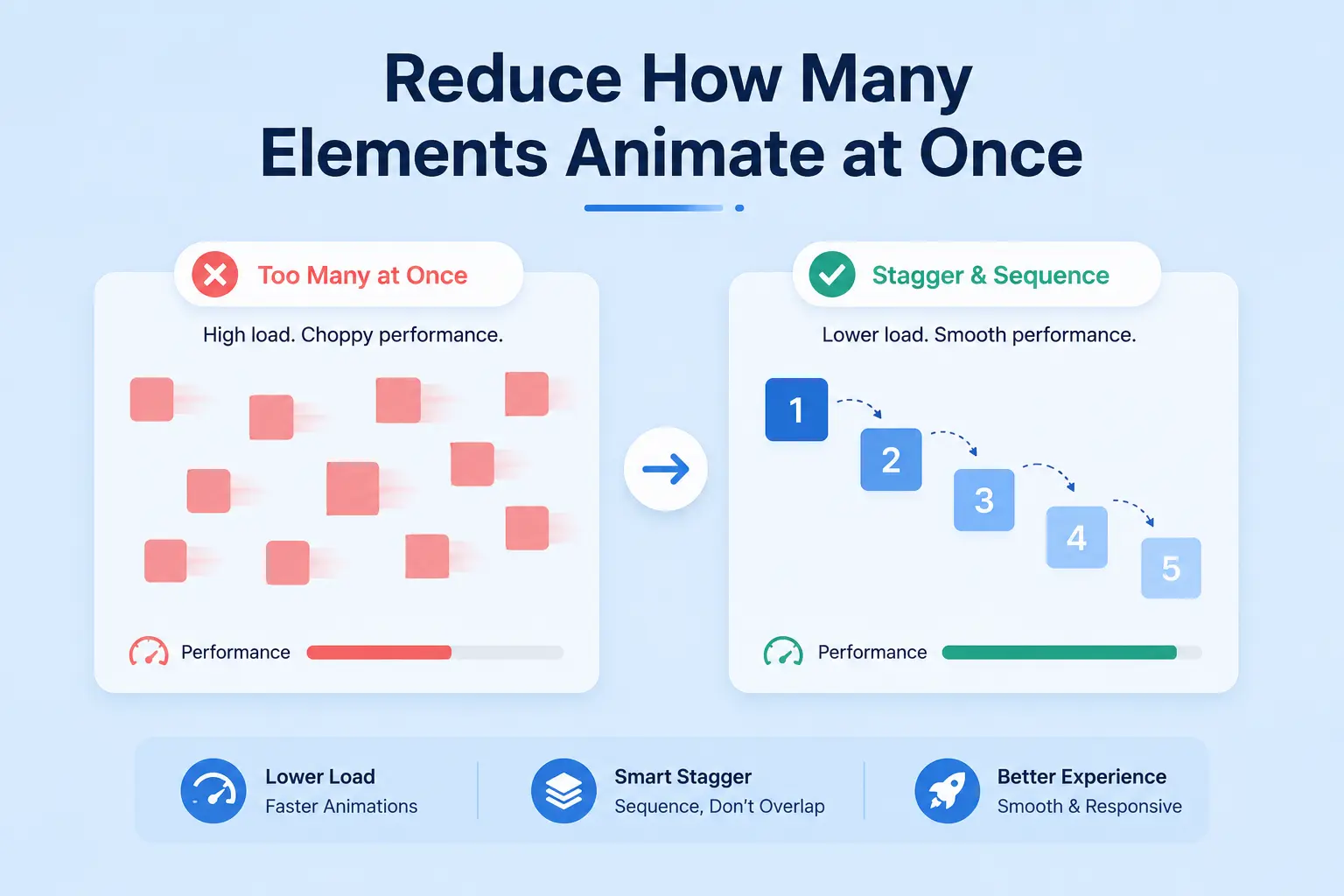
Every animating element adds to the per-frame workload. A hero section with fifty independently moving pieces will struggle where a well-staged handful will glide.
With staggering, you can create the impression of many things moving while keeping the actual load manageable, because elements start in sequence rather than all firing on the same frame. GSAP’s stagger controls make this straightforward: instead of animating a list of items simultaneously, you offset each one by a small delay.
Ask yourself whether every element truly needs to move. Often, animating a container instead of each child inside it gives the same feel at a fraction of the cost.
Step 3: Only Animate What’s On Screen
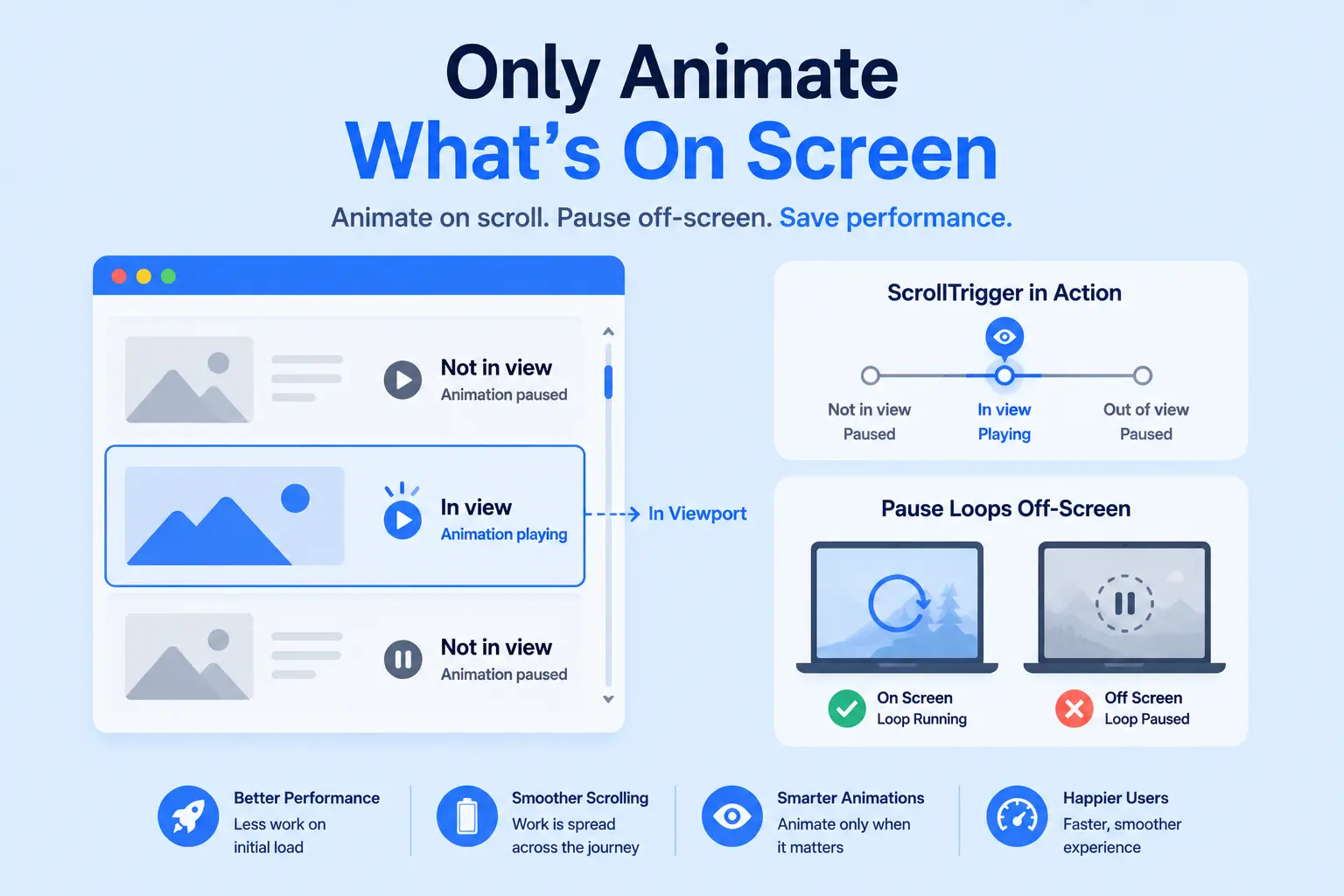
There’s no reason to run an animation the visitor can’t see. Trigger effects as elements scroll into the viewport, and let them rest until then.
This is exactly what scroll-triggered animation is for. GSAP’s ScrollTrigger ties an animation’s playback to the scroll position, so a section only animates when it enters the viewport. That saves work on initial load and spreads the animation cost across the scroll journey rather than dumping it all at once.
The same principle applies to looping animations. A decorative loop that keeps running off-screen is pure waste. Pause it when it leaves the viewport and resume when it returns.
Step 4: Use will-change Sparingly
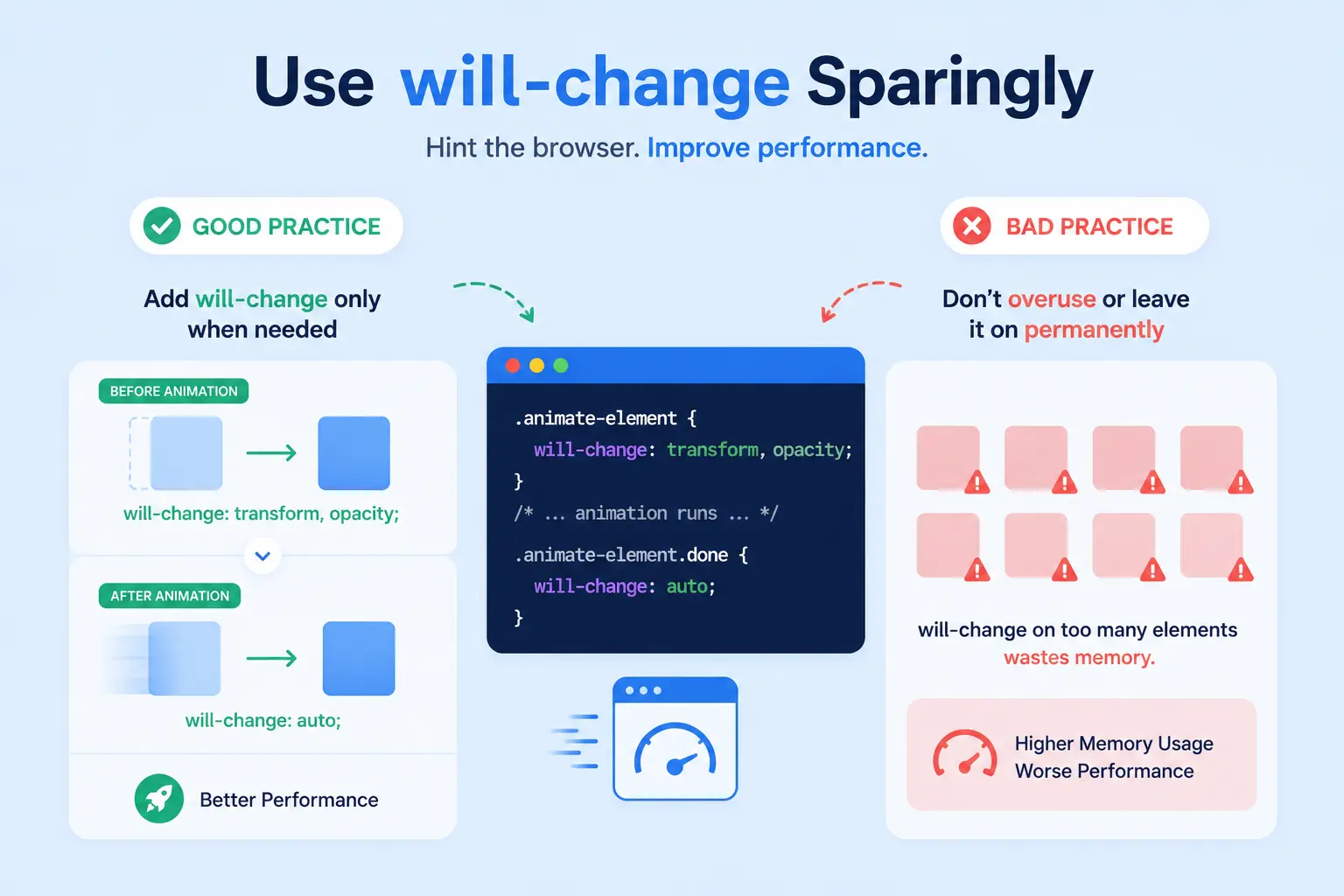
The CSS will-change property hints to the browser that an element is about to animate, letting it prepare ahead of time. Used well, it can smooth out the start of an animation.
Used carelessly, it backfires. Applying will-change to many elements, or leaving it on permanently, consumes memory and can make performance worse, not better. Add it only to elements that are genuinely about to move, and remove it once the animation is done.
Step 5: Optimize Your Assets Before You Animate Them
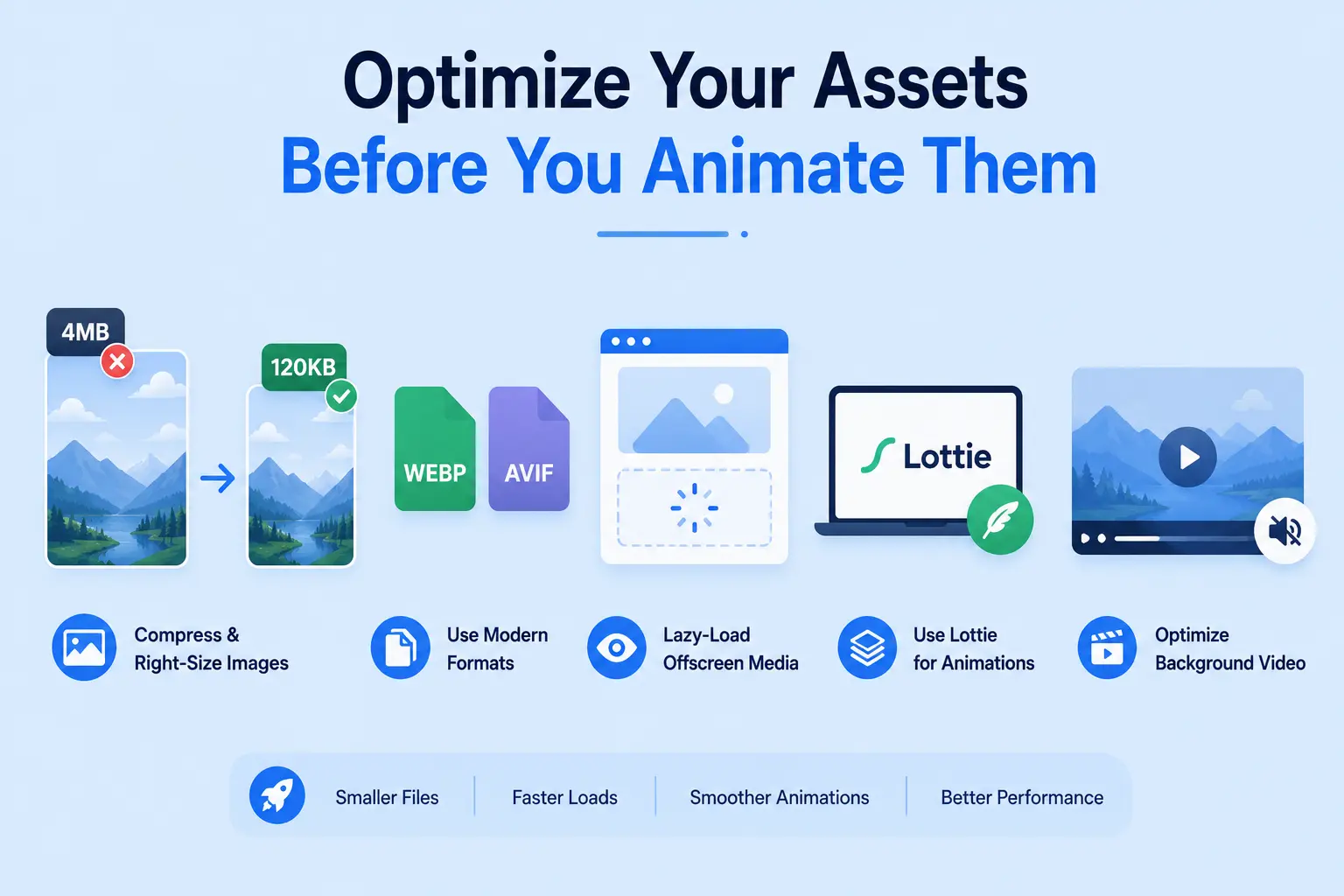
No amount of clever animation code fixes a 4 MB background image. Compress and correctly size images, serve modern formats like WebP or AVIF where supported, and lazy-load media that isn’t immediately visible.
For animated illustrations, Lottie files are usually lighter than video and scale cleanly, but even those should be trimmed of unused layers. For background video, keep it short, compressed, and muted, and consider a static poster image on slower connections.
Step 6: Respect Reduced-Motion Preferences
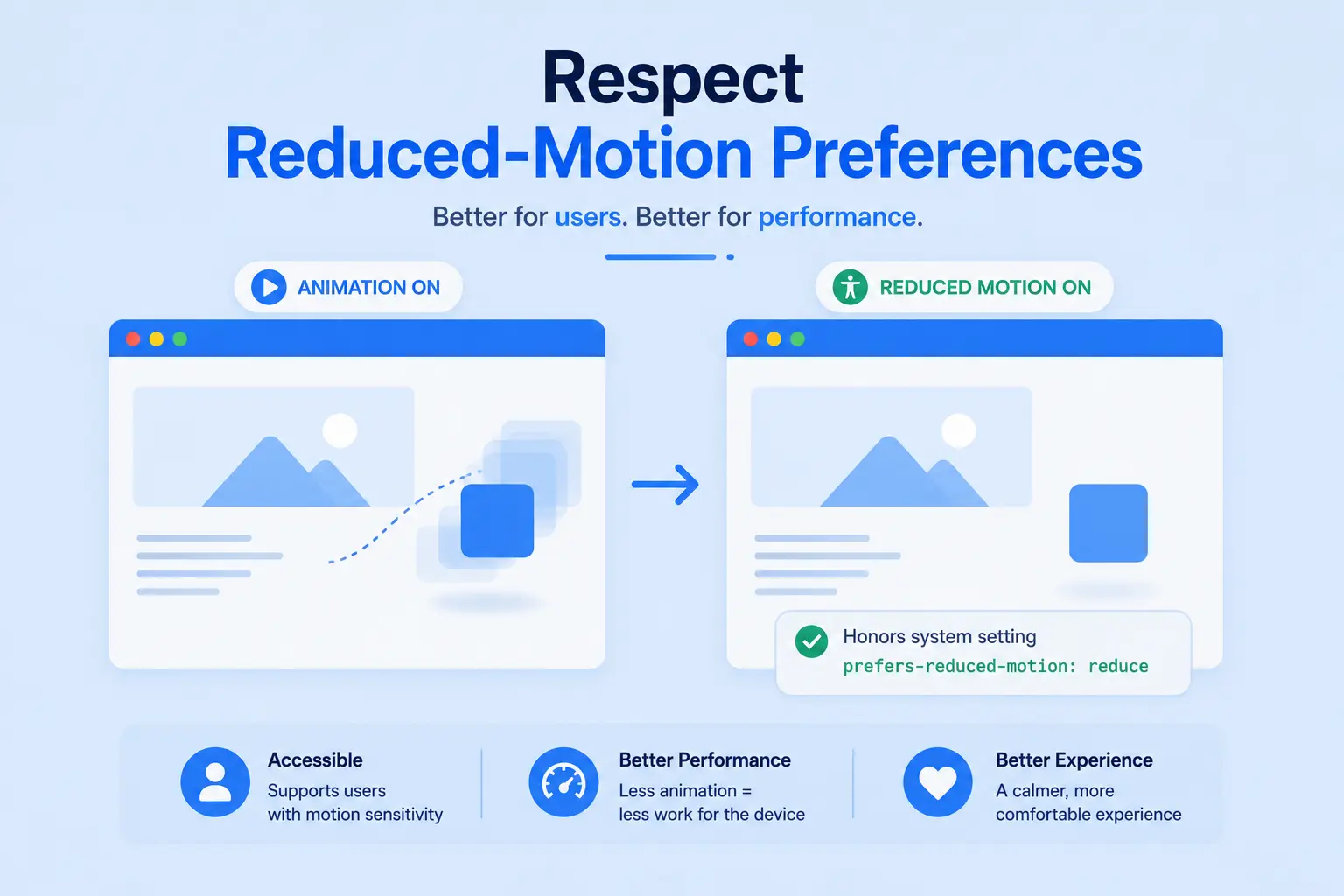
Some visitors set their system to reduce motion, often for accessibility reasons. Honoring the prefers-reduced-motion setting means those users get a calmer experience, and it’s a signal of a well-built site. It also happens to reduce work for the devices most likely to struggle with heavy motion.
Step 7: Test on Real Devices, Not Just Your Desktop
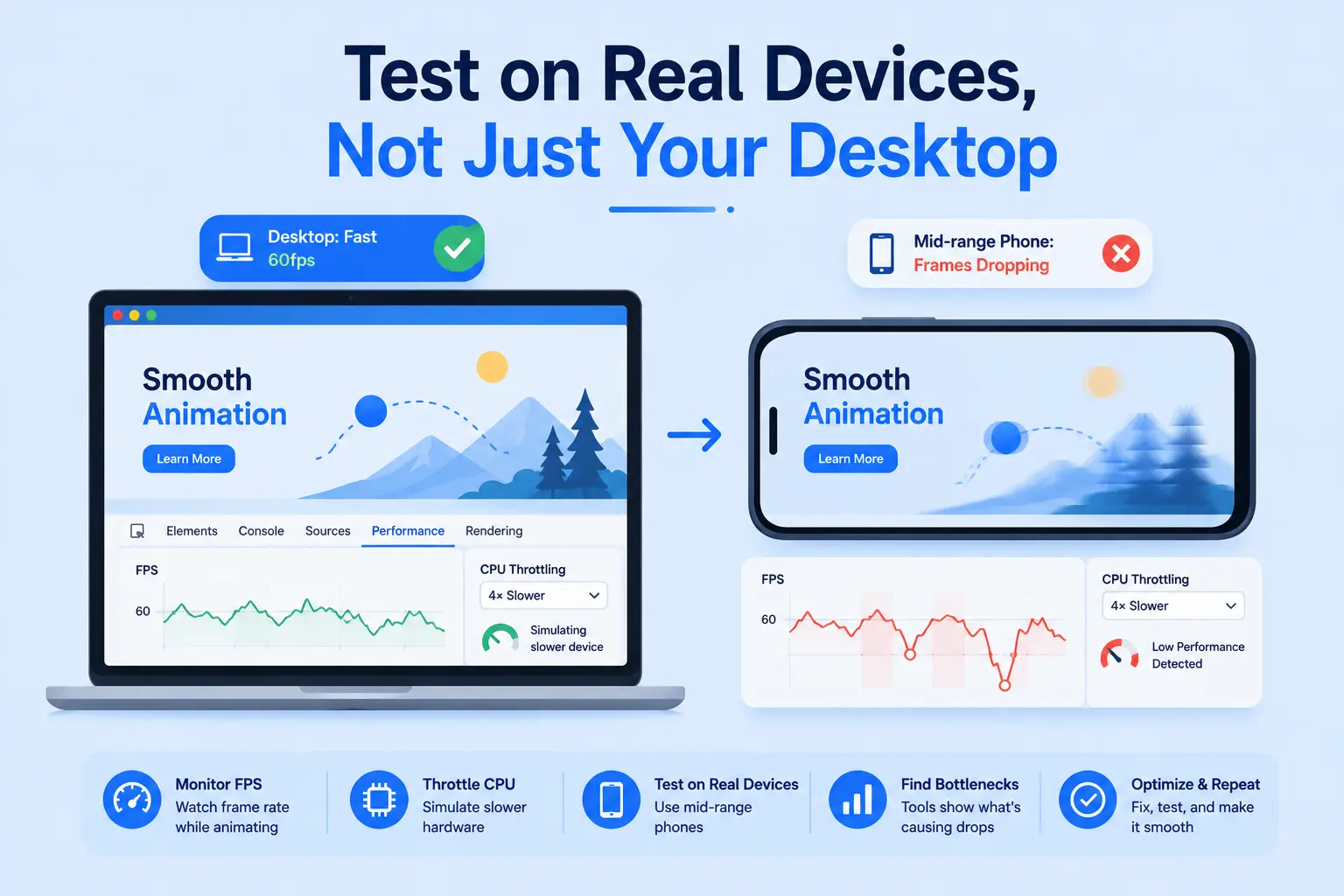
Your development machine is almost always faster than the phone your visitors use. An animation that runs at 60fps on your laptop may crawl on a three-year-old Android device.
Use your browser’s built-in performance and rendering tools to watch the frame rate while animations play, throttle the CPU to simulate slower hardware, and test on an actual mid-range phone before shipping. If frames are dropping, the tools will show you exactly where.
Best Practices to Optimize Web Animations
Optimizing animations is not just about speed, it’s about creating smooth, engaging experiences without slowing down your site. Here are proven strategies to keep your animations light, efficient, and user-friendly:
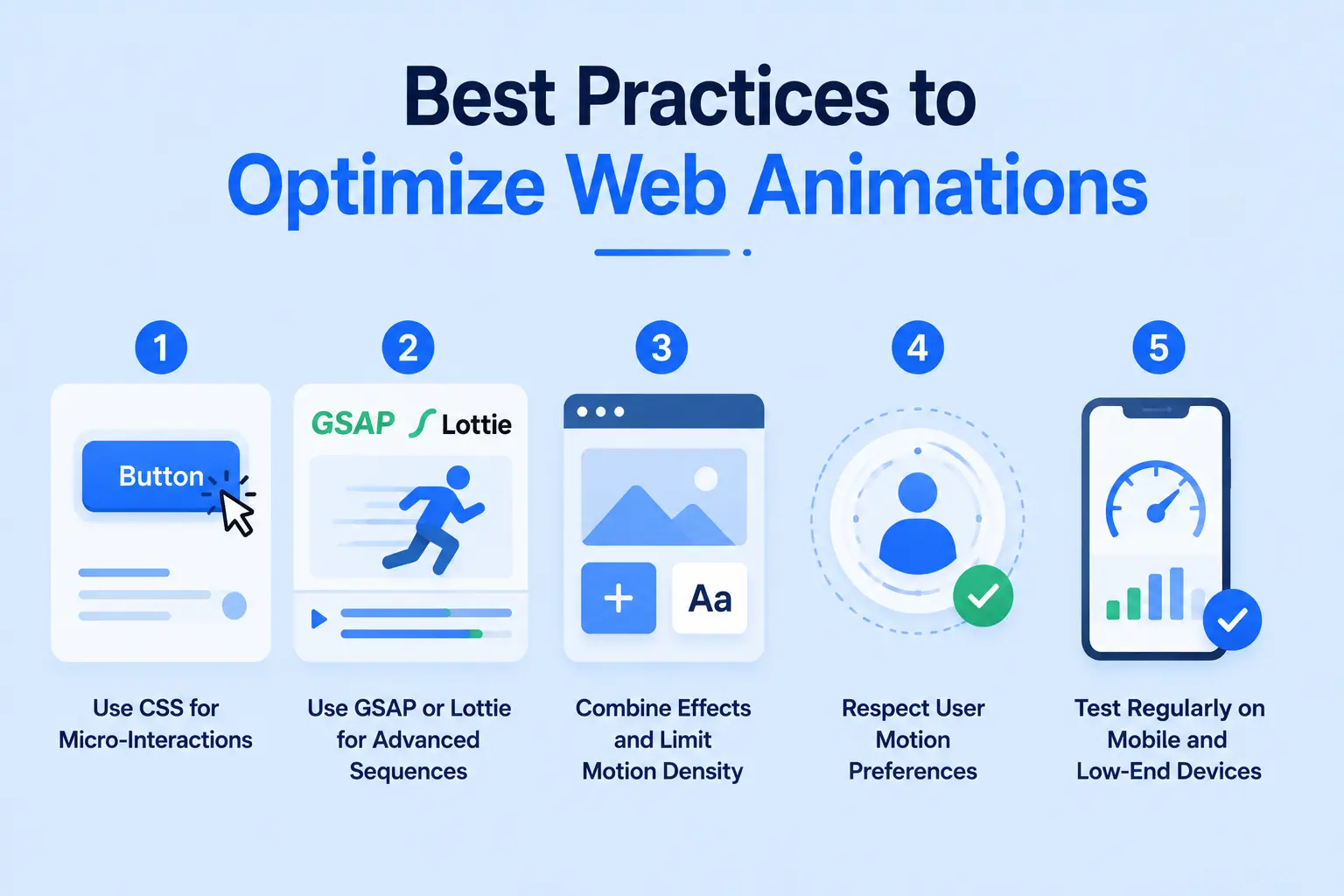
Use CSS for Micro-Interactions
For small animations like hover effects, button transitions, and subtle fades, CSS animations are the most efficient. They are hardware-accelerated, supported by all modern browsers, and use minimal CPU power.
Tip: Avoid using JavaScript for small effects. For example, a hover fade or color change should always use CSS transitions instead of JS animations.
Use GSAP or Lottie for Advanced Sequences
For complex animations like scroll-triggered effects, timelines, or character animations, GSAP (GreenSock Animation Platform) or Lottie are the best options. They are optimized for performance and let you create smooth sequences without overloading the browser.
- GSAP: Ideal for timeline-based, scroll, or 3D effects. Provides precise control and performance optimization.
- Lottie: Perfect for vector or character animations exported from After Effects. Lottie files are lightweight JSON files that replace heavy GIFs or video clips.
Pro Tip: With plugins like Animation Addons for Elementor, you can apply GSAP and Lottie animations visually, without writing code, while keeping them optimized for speed.
Combine Effects and Limit Motion Density
Running too many animations at once can cause frame drops and lag. Combine small effects where possible and avoid animating multiple elements simultaneously.
- Use staggered starts for elements that animate together, for example, start each animation 0.2 seconds apart.
- Focus on key elements rather than animating everything on the page.
This approach improves frame rate stability and creates a cleaner, more pleasant experience for visitors.
Respect User Motion Preferences
Some users prefer reduced motion for accessibility or device performance reasons. Always check for the prefers-reduced-motion media query and adjust animations accordingly.
- Disable non-essential animations for users with reduced motion settings.
- Keep essential transitions (like dropdown menus) subtle and lightweight.
Respecting user preferences not only improves accessibility but also reduces CPU usage on low-end devices.
Test Regularly on Mobile and Low-End Devices
Animations can behave differently across devices. Always test your site on:
- Smartphones and tablets with different screen sizes
- Older or low-end devices with limited processing power
- Multiple browsers to ensure consistent performance
Tools like Chrome DevTools Performance tab or Google Lighthouse help you monitor FPS, CPU load, and layout shifts. For Elementor users, Animation Addons provides device-specific animation controls, letting you enable or disable effects per device for optimal performance.
How Animation Addons Helps You Build Fast Animations
Writing all of this by hand, transform-based motion, staggering, scroll triggers, reduced-motion handling, is doable, but it’s a lot of code to maintain across a whole site. That’s the gap Animation Addons closes.
Animation Addons for Elementor is a GSAP-powered animation plugin built for Elementor V4. Because it runs on GSAP, the underlying engine is already the one performance-focused developers reach for. You get scroll, text, hover, and page-load animations through a visual Elementor workflow, without hand-writing the optimization patterns above for every element.
For performance specifically, that means:
- Motion is delivered through GSAP rather than stacked CSS or heavy third-party scripts.
- Scroll-based effects tie to viewport position, so animations run when they’re visible.
- Effects are configured visually, which makes it easier to keep motion intentional instead of piling on effects that quietly tank the frame rate.
Try Animation Addons to create scroll animations, text effects, and hover interactions in Elementor without writing custom performance code.
Common Mistakes That Slow Down Web Animation
Even careful builders hit these. Each mistake has a simple fix:
Animating Layout Properties
Using properties like top, left, width, or height for slide-in effects forces the browser to recalculate the page layout during every frame. This often creates stuttering, especially on complex pages or mobile devices, so use transform: translate() instead for smoother and more efficient movement.
Animating Too Many Elements
Adding motion to every heading, image, icon, and button can quickly overwhelm the browser and make the page feel visually noisy. Animate larger containers where possible, then use individual effects only for content that genuinely needs extra emphasis.
Leaving will-change Active
The will-change property can help the browser prepare an element for animation, but leaving it enabled permanently may consume unnecessary memory. Apply it shortly before the animation starts and remove it after the animation finishes to keep resource usage under control.
Using Unoptimized Media
Large images, videos, and GIFs make animated sections slower to load and harder to render smoothly. Resize assets to their actual display dimensions, compress them properly, and use modern formats such as WebP, AVIF, or optimized MP4 before adding animation.
Testing Only on Fast Devices
An animation may look perfectly smooth on a powerful desktop while struggling on an average phone or older laptop. Throttle the CPU in your browser tools and test the final experience on a real mid-range mobile device before publishing.
Wrapping Up
Web animations can significantly improve user engagement, but only when they’re optimized for speed and efficiency. By applying best practices such as animating with CSS transforms and opacity, minimizing unnecessary effects, lazy loading animation assets, and monitoring Core Web Vitals, you can deliver smooth experiences without sacrificing performance.
Following these best practices allows you to create visually appealing websites with high-performing animations. With the right optimization techniques, you can create engaging, high-performing websites that provide a better experience for users while supporting stronger SEO results.
FAQs
Optimizing web animation for performance ensures your website loads faster, responds smoothly, and provides a better user experience. Efficient animations reduce unnecessary CPU and GPU usage, improve Core Web Vitals, and can positively impact search engine rankings.
Some of the most effective techniques include animating only transfor and opacity properties, reducing the number of simultaneous animations, using lazy loading for animation assets, minimizing JavaScript execution, and leveraging hardware acceleration. Regular performance testing with tools like Lighthouse can also help identify bottlenecks.
GSAP is designed to deliver high-performance animations when used correctly. By combining GSAP with best practices such as ScrollTrigger optimization, lazy loading, and efficient animation timing, you can create smooth animations without significantly impacting page speed or user experience.
Poorly optimized animations can increase rendering time, delay user interactions, and negatively affect Core Web Vitals metrics such as Largest Contentful Paint (LCP) and Interaction to Next Paint (INP). Optimized animations help maintain fast loading times and responsive interactions while preserving visual appeal.
You can evaluate animation performance using tools such as Google Lighthous, PageSpeed Insights, and Chrome DevTools Performance Panel. These tools help identify animation-related issues, measure Core Web Vitals, and provide recommendations for improving overall website performance.
Yes. A GSAP-powered plugin like Animation Addons for Elementor lets you add scroll, text, hover, and page-load animations through Elementor’s visual interface. Because the motion runs on GSAP, you get a performance-focused engine without hand-writing the optimization patterns yourself.
There’s no fixed number, since it depends on what each animation does and the devices you’re targeting. The better question is how much work runs per frame. A page with many lightweight, staggered, transform-based effects can outperform a page with a few heavy layout-animating ones. Test on a real mid-range device and watch the frame rate rather than counting effects.