


 Login
Login

Did an Elementor widget stop working after upgrading to V4? Broken layouts, missing controls, JavaScript errors, styling problems, and widgets that work in the editor but break on the frontend are common signs of an addon compatibility issue.
The good news is that you don’t always need to rebuild your website. In most cases, you can identify the conflicting addon, plugin, theme, cache setting, or script and fix it systematically.
In this guide, you’ll learn the common Elementor V4 addon conflicts, how to identify what’s causing them, and the exact troubleshooting steps to fix them safely.
Elementor V4 addon conflicts usually happen when a third-party addon, theme, optimization plugin, or custom code relies on outdated widget behavior, JavaScript dependencies, CSS rules, or compatibility assumptions.
Start by updating Elementor and the addon, checking Elementor’s compatibility information, testing in Safe Mode or on staging, disabling addons one by one, and checking browser console errors.
5-step mini checklist
- Update Elementor and the addon.
- Check Elementor compatibility information.
- Clear cache and regenerate Elementor files.
- Disable addons one at a time.
- Check browser console/PHP errors.
Understanding Elementor V4’s New Architecture
Elementor V4 represents one of the most significant architectural changes in the platform’s history. Unlike previous versions that relied heavily on traditional widget-based styling and controls, V4 introduces a more scalable design system built around atomic components, global classes, variables, and improved rendering processes.
These changes are designed to enhance performance, improve consistency across websites, and make large-scale design management easier for developers, freelancers, and agencies.
The new architecture also modernizes how Elementor handles styles, layouts, and component interactions.
Instead of applying styles individually to every widget, V4 encourages reusable design patterns through centralized classes and variables. This reduces redundant code and helps websites load more efficiently.
Common Causes of Elementor V4 Addon Conflicts
Understanding the most common causes of conflicts can help you quickly diagnose issues and implement the right solutions.
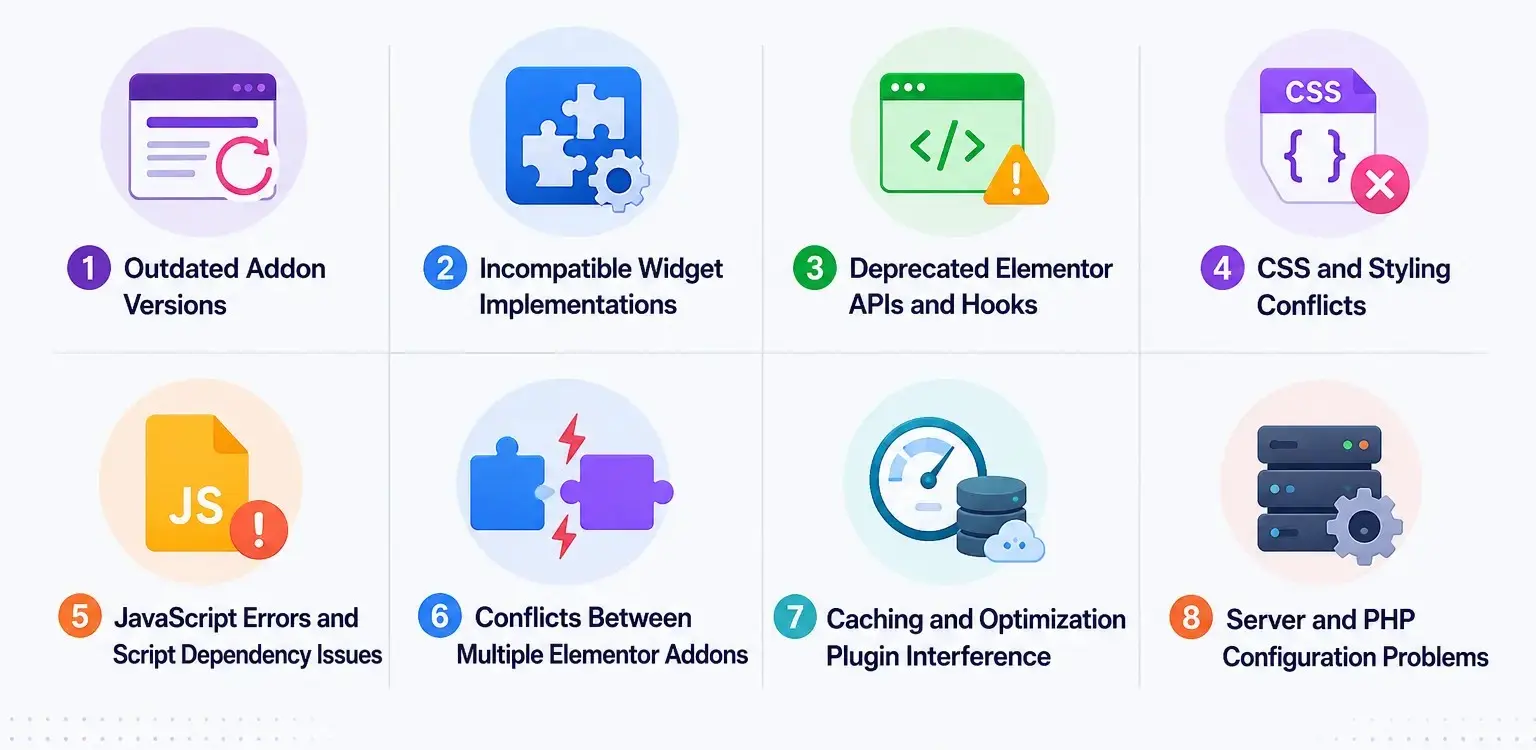
1. Outdated Addon Versions
One of the most common causes of Elementor V4 conflicts is using an outdated addon version. Many addon developers need time to update their products to support Elementor’s latest architecture and APIs.
If an addon has not been updated for Elementor V4, you may experience:
- Widgets failing to load
- Missing controls in the editor
- Broken layouts on the frontend
- Unexpected editor errors
Even a reliable free Elementor addon can experience compatibility issues after upgrading to Elementor V4 if it hasn’t been updated to support the platform’s latest architecture. Running the latest version of both Elementor and your addon significantly reduces the likelihood of conflicts.
2. Incompatible Widget Implementations
Many Elementor addons create custom widgets that integrate directly into Elementor’s editor. Since Elementor V4 introduces changes to how components, styling, and rendering are managed, some older widget implementations may become incompatible.
Common symptoms include:
- Widgets disappearing from the editor
- Controls not responding properly
- Widget settings not saving
- Frontend output appearing broken
Widgets built according to older Elementor development standards may require substantial updates to work seamlessly with the new V4 framework.
3. Deprecated Elementor APIs and Hooks
Elementor addons rely heavily on APIs, hooks, and internal functions provided by Elementor. As Elementor evolves, some of these APIs become deprecated or replaced with newer alternatives.
When an addon continues using outdated APIs, several issues can occur:
- Widget registration failures
- Editor functionality problems
- Missing style controls
- PHP warnings or errors
Elementor V4 introduces architectural improvements that may require addon developers to update their codebase. Addons that continue relying on legacy methods may not function correctly until they are updated.
4. CSS and Styling Conflicts
Some addons use overly aggressive CSS selectors or custom styles that override Elementor’s default styling system. As a result, users may encounter:
- Broken layouts
- Misaligned elements
- Incorrect spacing and typography
- Design inconsistencies across pages
If you’re using a free Elementor template, it’s important to verify that all associated widgets and addons are fully compatible with Elementor V4 to avoid layout and styling conflicts.
When multiple plugins attempt to control the same visual elements, styling conflicts become much more likely. Websites using numerous design-focused addons are particularly vulnerable to this issue.
5. JavaScript Errors and Script Dependency Issues
Modern Elementor addons often depend on JavaScript to power interactive widgets, animations, sliders, popups, and dynamic content. Elementor V4 may introduce changes to script loading sequences or frontend rendering processes that affect how these scripts operate.
Common JavaScript-related problems include:
- Widgets becoming unresponsive
- Animation effects not working
- Infinite loading indicators
- Editor crashes or freezes
In many cases, a single JavaScript error can prevent multiple Elementor widgets from functioning correctly. Browser developer tools can often help identify the exact script causing the issue.
6. Conflicts Between Multiple Elementor Addons
Many website owners install multiple Elementor addon packages to access a broader range of widgets and features. However, using several addons simultaneously can increase the risk of conflicts.
Problems typically arise when multiple addons:
- Register similar widgets
- Load duplicate libraries
- Use conflicting JavaScript frameworks
- Override the same Elementor functions
For example, two addons may attempt to load different versions of the same script or apply competing styles to identical elements. To minimize issues, it is generally best to avoid installing multiple addons that provide nearly identical functionality.
7. Caching and Optimization Plugin Interference
Performance optimization plugins can sometimes create compatibility issues that appear to be Elementor addon conflicts. Some Elementor free templates may display broken sections or missing elements if they were built using widgets from addons that are not yet fully compatible with Elementor V4.
Common optimization-related symptoms include:
- Widgets loading incorrectly
- Missing animations
- Broken editor functionality
- Delayed frontend interactions
If conflicts appear immediately after enabling performance optimizations, temporarily disabling those features can help determine whether the issue originates from the optimization plugin rather than the addon itself.
8. Server and PHP Configuration Problems
Not every conflict is caused by Elementor or the addon itself. In some cases, server limitations or outdated PHP configurations can prevent addons from functioning correctly.
Potential causes include:
- Insufficient PHP memory limits
- Outdated PHP versions
- Server-side caching issues
- Restricted hosting environments
Ensuring your hosting environment meets the recommended requirements can eliminate many compatibility-related issues before they occur.
Elementor V4 Addon Problems: Find Your Symptom
Elementor widget disappeared
Likely causes: Outdated addon, incompatible widget implementation, disabled widget, plugin conflict.
Try this first:
Update the addon → check Elementor compatibility → disable other addons → test again.
Elementor editor is stuck loading
Likely causes: JavaScript error, plugin conflict, theme conflict, browser extension, custom code.
Try this first:
Open Developer Tools → Console → identify errors → test Safe Mode → disable third-party plugins.
Elementor design looks broken after V4 update
Likely causes: CSS conflict, cached CSS, theme styles, addon styling.
Try this first:
Clear cache → regenerate Elementor CSS/data → temporarily disable the suspected addon/theme.
Elementor animations stopped working
Likely causes: JavaScript dependency, optimization settings, changed markup/script behavior.
Try this first:
Check Console → disable JS optimization/delay → test addon without other animation plugins.
How to Identify an Elementor V4 Addon Conflict
Before you can fix an Elementor V4 addon conflict, you need to accurately identify its source. By following a systematic troubleshooting process, you can quickly determine whether an addon is responsible for the problem.
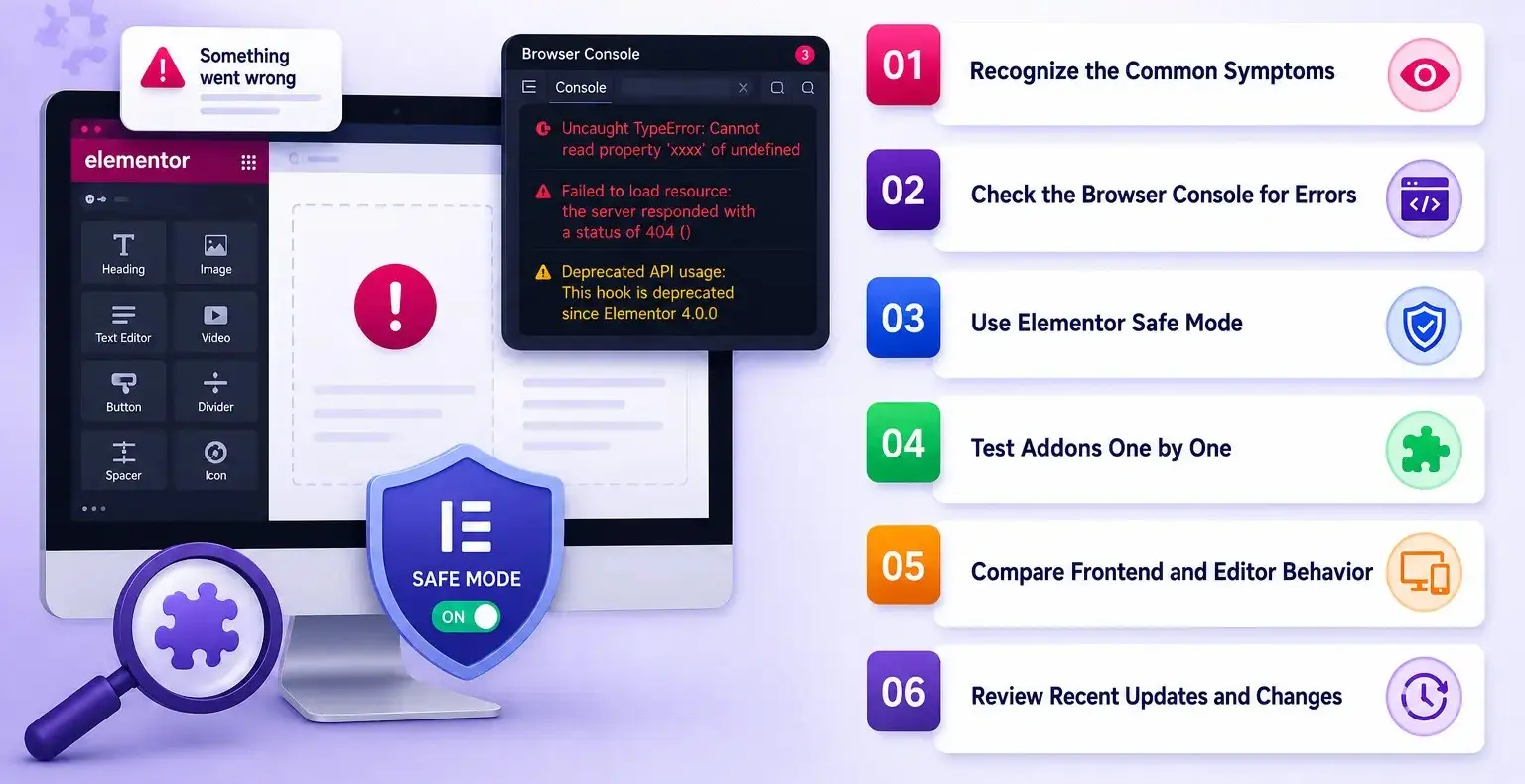
Recognize the Common Symptoms
The first step is to identify the signs of a potential addon conflict. After updating to Elementor V4, you may notice unexpected behavior such as:
- Widgets failing to load or display properly
- Missing controls in the Elementor editor
- Broken layouts or styling inconsistencies
- Animations and interactive elements not working
- The editor freezing, crashing, or becoming unresponsive
- Error messages appearing during page editing
If these issues occur immediately after installing, updating, or activating an addon, there is a strong possibility of a compatibility conflict.
Check the Browser Console for Errors
Modern Elementor addons rely heavily on JavaScript. If a script fails to load or contains errors, it can affect the functionality of Elementor widgets and the editor itself.
Open your browser’s Developer Tools and navigate to the Console tab. Look for:
- JavaScript errors
- Failed resource loading messages
- Uncaught exceptions
- References to specific addon files
Error messages often reveal the exact plugin or script causing the conflict, making troubleshooting significantly easier.
Use Elementor Safe Mode
Elementor includes a Safe Mode feature that helps isolate potential conflicts. Safe Mode temporarily disables the influence of themes and most plugins while allowing Elementor to function in a controlled environment.
If the issue disappears when Safe Mode is enabled, the problem is likely caused by:
- A third-party addon
- Your active WordPress theme
- Another plugin interacting with Elementor
This method provides a quick way to confirm that the conflict exists outside Elementor’s core functionality.
Test Addons One by One
One of the most effective troubleshooting techniques is the process of elimination.
To identify the conflicting addon:
- Deactivate all Elementor addons except Elementor itself.
- Check whether the issue persists.
- Reactivate addons one at a time.
- Test Elementor after each activation.
When the problem reappears, you have likely identified the addon responsible for the conflict.
Although this process may take time, it remains one of the most reliable ways to pinpoint compatibility issues.
Compare Frontend and Editor Behavior
Sometimes a conflict only affects the Elementor editor or only impacts the live website.
For example:
- A widget may look correct in the editor but break on the frontend.
- A page may display properly to visitors but fail to load in the editor.
- Styling may differ between editing and live views.
Comparing both environments can help determine whether the issue is related to rendering, styling, or editor-specific functionality.
Review Recent Updates and Changes
Many conflicts occur immediately after a software update. If the problem appeared recently, consider what changed before the issue started.
Common triggers include:
- Updating Elementor to V4
- Updating an addon plugin
- Installing a new addon
- Changing themes
- Enabling performance optimization tools
Identifying the most recent change often provides valuable clues about the source of the conflict.
- Before You Disable Everything
- Perform plugin isolation on a staging site whenever possible. If you’re troubleshooting production, create a backup first and avoid making several changes simultaneously. Otherwise, you may fix the problem without knowing which change actually solved it.
How to Find the Source of an Elementor V4 Addon Conflict
Proven Fixes for Elementor V4 Addon Conflicts
Once you have identified the source of an Elementor V4 addon conflict, the next step is implementing the appropriate solution. The following fixes have proven effective for the majority of Elementor V4-related conflicts.
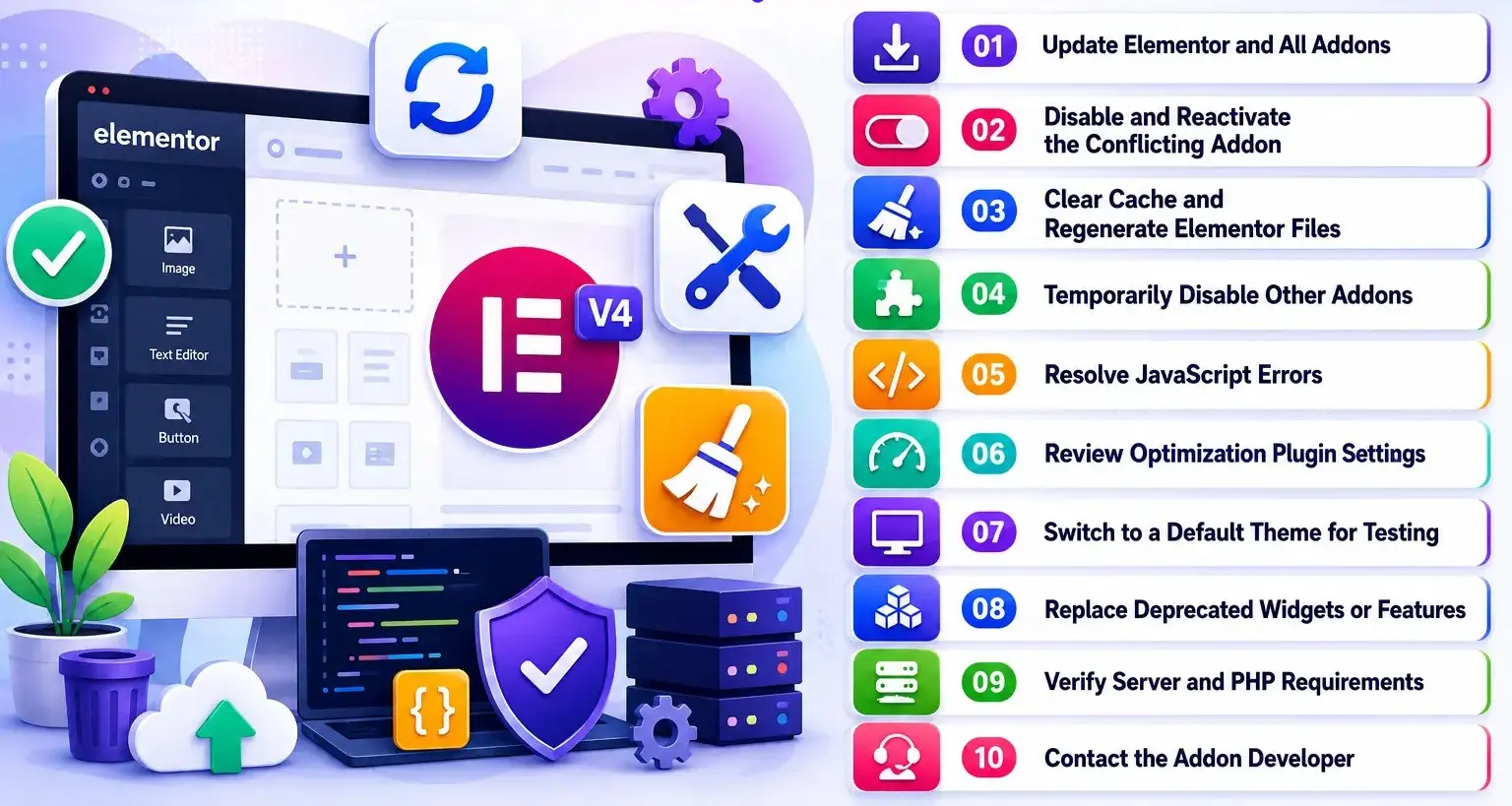
Update Elementor and All Addons
The first and most important step is ensuring that both Elementor and your addons are running their latest versions. Many users are eager to explore free Elementor V4 features, but they should also ensure their installed addons are optimized for the new framework before updating a live website.
Addon developers regularly release compatibility updates to support new Elementor releases. If you’re using an older addon version, it may still rely on deprecated APIs or outdated widget structures that no longer work correctly in Elementor V4.
Before troubleshooting further:
- Update Elementor Core and Elementor Pro
- Update all Elementor addon plugins
- Update your WordPress installation
- Update your active theme
In many cases, conflicts disappear immediately after installing the latest updates.
Disable and Reactivate the Conflicting Addon
Sometimes plugin files, cached resources, or incomplete updates can cause unexpected issues. A simple deactivate-and-reactivate process can help refresh the plugin’s functionality.
To perform this fix:
- Deactivate the problematic addon.
- Clear all website caches.
- Reactivate the addon.
- Test Elementor functionality again.
This process forces WordPress to reload the addon’s assets and can resolve minor compatibility problems.
Clear Cache and Regenerate Elementor Files
After upgrading to Elementor V4, outdated cached files may continue serving old CSS or JavaScript resources. This can create styling inconsistencies and functionality issues even when plugins are fully compatible.
Clear the following caches:
- Browser cache
- WordPress caching plugin cache
- CDN cache (if applicable)
- Hosting-level cache
Next, navigate to Elementor’s tools section and regenerate CSS and data files. This ensures Elementor rebuilds its assets using the latest framework and styling system.
Temporarily Disable Other Addons
If multiple Elementor addons are installed, conflicts may occur between addons rather than between an addon and Elementor itself.
To identify whether another addon is interfering:
- Disable all non-essential Elementor addons.
- Leave only Elementor and the suspected addon active.
- Test the affected widgets and features.
- Reactivate addons one at a time.
This method helps uncover situations where multiple plugins are competing for the same resources, scripts, or functionality.
Resolve JavaScript Errors
JavaScript issues are among the most common causes of Elementor addon conflicts. A single script failure can prevent widgets, animations, and editor functionality from working properly.
Use your browser’s developer tools to identify:
- Script loading failures
- Console errors
- Missing dependencies
- Conflicting JavaScript libraries
Once identified, you can:
- Update the affected addon
- Contact the developer
- Disable the problematic feature
- Remove duplicate scripts
Addressing JavaScript errors often restores Elementor functionality immediately.
Review Optimization Plugin Settings
Performance optimization plugins can sometimes interfere with Elementor and its addons. Features designed to improve loading speed may inadvertently break scripts or styling required by Elementor widgets.
Common settings that can cause conflicts include:
- JavaScript minification
- JavaScript deferral
- CSS aggregation
- Lazy loading scripts
- Script delay features
Temporarily disable these optimizations and test your website. If the issue disappears, selectively re-enable features until you identify the problematic setting.
Switch to a Default Theme for Testing
Before importing free Elementor templates, check whether the template creator has tested them with Elementor V4 and the addons used on your website. Themes can occasionally contribute to addon conflicts through custom styling, scripts, or framework modifications.
To determine whether the theme is involved:
- Activate a default WordPress theme temporarily.
- Test Elementor and the affected addon.
- Compare the results.
If the issue disappears after switching themes, the conflict may originate from theme-specific customizations rather than Elementor or the addon itself.
Replace Deprecated Widgets or Features
Some older addon widgets may not be fully compatible with Elementor V4’s new architecture. In such cases, developers may discontinue support for certain features or release newer alternatives.
If a widget consistently causes problems:
- Check the addon’s documentation
- Look for updated widget replacements
- Remove obsolete widgets where possible
- Rebuild affected sections using newer elements
While this may require additional work, it often provides a more stable long-term solution.
Verify Server and PHP Requirements
Elementor V4 and modern addons depend on up-to-date server environments. Running outdated software can lead to compatibility issues that resemble addon conflicts.
Verify that your hosting environment meets recommended requirements, including:
- A supported PHP version
- Adequate PHP memory limits
- Updated MySQL or MariaDB versions
- Sufficient server resources
Many hosting providers offer tools that allow you to review and upgrade these settings with minimal effort.
Contact the Addon Developer
If none of the previous solutions resolve the issue, contacting the addon developer is often the best course of action.
When submitting a support request, include:
- Elementor version
- Addon version
- WordPress version
- Theme information
- Screenshots or error messages
- Steps to reproduce the problem
Providing detailed information helps developers identify compatibility issues more quickly and may even contribute to future updates that benefit other users experiencing the same problem.
Don’t Do These When Troubleshooting Elementor V4
- Don’t update Elementor directly on your only live copy.
- Don’t deactivate random plugins without documenting what you changed.
- Don’t install another addon just to replace a broken widget before identifying the cause.
- Don’t permanently disable optimization features without testing.
- Don’t ignore PHP/JavaScript errors.
- Don’t keep abandoned addons simply because the widgets still appear to work.
Best Practices to Prevent Future Elementor V4 Addon Conflicts
By following a few proactive maintenance practices, you can minimize compatibility issues, reduce website downtime, and ensure a smoother Elementor experience as new updates are released.
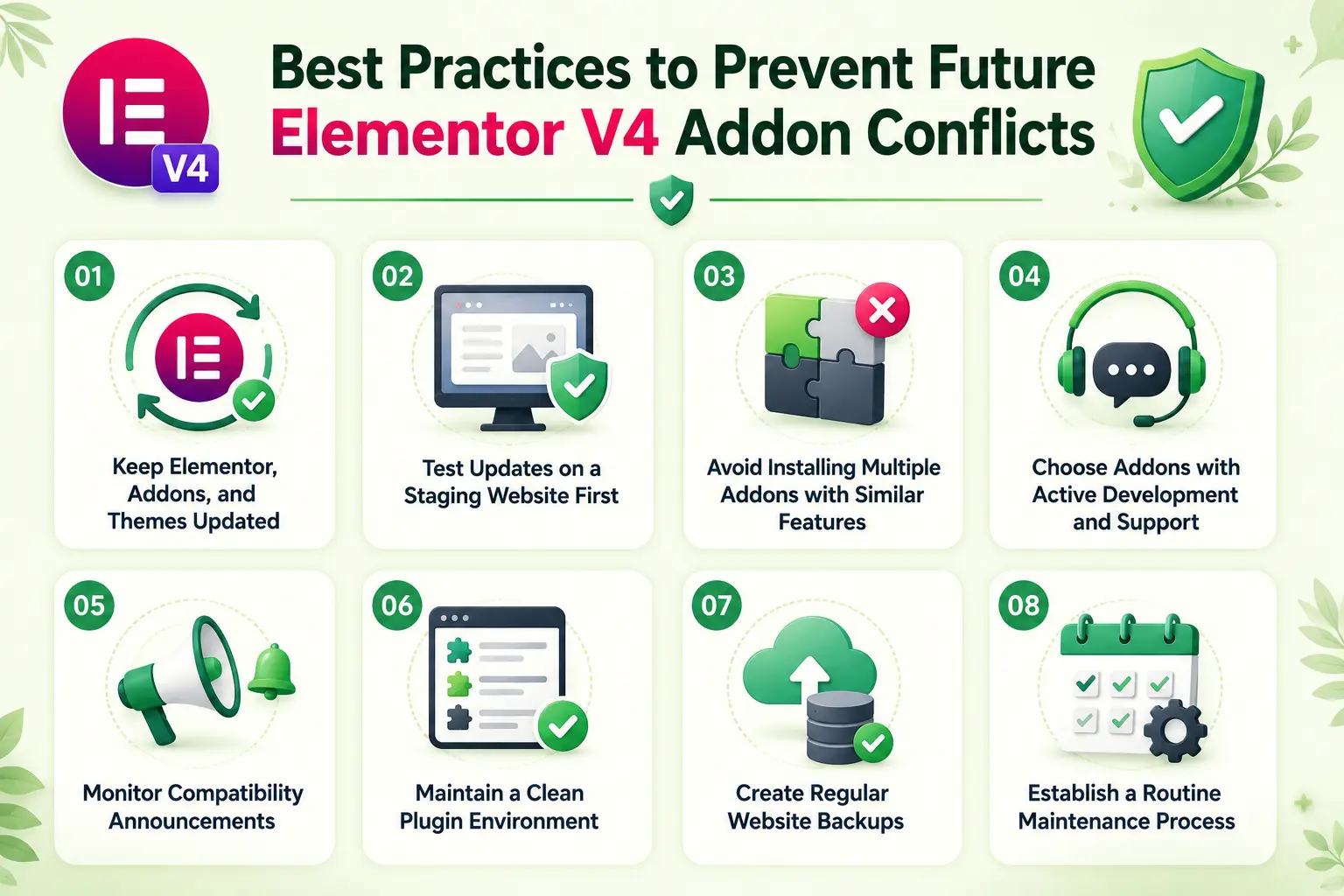
Keep Elementor, Addons, and Themes Updated
Choosing the best free Elementor addon is not only about features and widgets but also about long-term compatibility with major Elementor updates such as Elementor V4.
Elementor frequently releases improvements, bug fixes, and compatibility enhancements, while addon developers continuously update their products to support the latest Elementor versions.
Make it a habit to regularly update:
- Elementor Core
- Elementor Pro
- Third-party Elementor addons
- WordPress Core
- Your active theme
Running outdated software increases the risk of conflicts, security vulnerabilities, and performance issues.
Test Updates on a Staging Website First
Applying updates directly to a live website can be risky, especially when major Elementor releases introduce architectural changes. Custom free Elementor single post templates can sometimes encounter styling or dynamic content issues when paired with outdated addons that have not been updated for Elementor V4 compatibility.
A staging environment allows you to:
- Test Elementor updates safely
- Check addon compatibility
- Identify layout or styling issues
- Resolve conflicts before they affect visitors
By testing updates in a controlled environment first, you can avoid unexpected disruptions and maintain a stable user experience.
Avoid Installing Multiple Addons with Similar Features
Many Elementor users install several addon packages to access a larger widget library. However, using multiple addons that provide similar functionality often increases the likelihood of conflicts.
For example, two addons may offer:
- Advanced sliders
- Mega menus
- Form builders
- Animation effects
- Dynamic content widgets
These overlapping features can result in duplicate scripts, conflicting styles, and compatibility problems.
Choose Addons with Active Development and Support
Not all Elementor addons receive updates at the same pace. Before installing an addon, evaluate its maintenance history and support quality.
Look for indicators such as:
- Frequent updates
- Active changelogs
- Elementor V4 compatibility announcements
- Responsive support teams
- Positive user feedback
Addons that are actively maintained are far more likely to adapt quickly to future Elementor updates and architectural changes.
Monitor Compatibility Announcements
Major Elementor releases often require developers to make adjustments to their addons. Monitoring compatibility announcements from both Elementor and addon developers can help you stay informed about potential issues before updating.
Review:
- Release notes
- Changelogs
- Developer blogs
- Support forums
- Official compatibility documentation
This information can help you determine whether an update is ready for production use or whether it is better to wait for additional compatibility fixes.
Maintain a Clean Plugin Environment
The more plugins installed on a website, the greater the chance of conflicts occurring. Regularly review your plugin list and remove tools that are no longer necessary.
A streamlined plugin environment offers several benefits:
- Reduced compatibility risks
- Faster website performance
- Easier troubleshooting
- Improved security
Keeping only essential plugins active helps create a more stable and manageable Elementor ecosystem.
Create Regular Website Backups
Even with careful planning, unexpected conflicts can still occur. Maintaining recent backups ensures you can quickly restore your website if an update causes serious issues.
A reliable backup strategy should include:
- Website files
- WordPress database
- Theme settings
- Elementor templates
- Plugin configurations
Having a recent backup provides peace of mind and significantly reduces recovery time if compatibility problems arise after an update.
Establish a Routine Maintenance Process
Preventing Elementor V4 addon conflicts is not a one-time task. Regular maintenance plays a critical role in keeping your website healthy and compatible with future releases.
A monthly maintenance routine should include checking for updates, reviewing plugin compatibility, testing critical functionality, monitoring performance, and removing unused tools. By adopting these best practices, you can significantly reduce the risk of future addon conflicts and maintain a stable, high-performing Elementor website.
Elementor V4 Addon Compatibility Checklist
- Elementor is up to date
- Elementor Pro is up to date
- Addons are updated
- Compatibility information checked
- WordPress is updated
- Theme is updated
- Website backup created
- Staging environment tested
- Browser console checked
- Cache cleared
- Elementor CSS/data regenerated
- Optimization settings tested
- Addons tested individually
- Frontend and editor both tested
Is the Addon Really the Problem?
| Symptom | Possible source |
|---|---|
| Editor won’t load | Plugin/theme/JS |
| Frontend styling broken | CSS/cache/theme |
| Widget missing | Addon/widget compatibility |
| Changes not appearing | Cache/Elementor files |
| PHP fatal error | Addon/server/PHP |
| Animation broken | JS/optimization/addon |
| Only one browser affected | Browser/extension/cache |
Conclusion
Elementor V4 can deliver a cleaner, more modern editing experience, but addon conflicts can still disrupt widgets, layouts, scripts, and frontend performance. The key is to troubleshoot systematically rather than disable everything at once. Keep Elementor and addons updated, verify compatibility, test changes on staging, and isolate plugins, themes, optimization settings, and server issues step by step.
If an addon remains outdated or unsupported, replacing it may be the safest long-term solution. With a lean, compatible addon stack and a careful update process, you can resolve conflicts faster and keep your Elementor V4 website stable, functional, and ready for future updates.
FAQs
An Elementor V4 update can expose compatibility issues with addons that rely on older widget implementations, APIs, CSS, or JavaScript. Start by updating the addon, clearing cache, and testing the affected widget with other third-party plugins temporarily disabled.
Disable your Elementor addons one at a time and test the affected widget after each change. If the problem disappears after disabling a specific addon, you’ve likely found the source of the conflict.
Yes, existing Elementor 3.x widgets can coexist with Elementor V4, but individual third-party addons may still have compatibility issues depending on how they are built. Check the addon developer’s compatibility information before relying on an older addon in a V4 site.
Check the addon’s documentation, changelog, and compatibility information to confirm support for your Elementor version. Elementor also provides compatibility information through Elementor → System Info, which can help you identify third-party compatibility status.
A loading screen that never finishes can be caused by JavaScript errors, plugin or theme conflicts, server limitations, or custom code. Test Elementor in Safe Mode and check your browser’s Console for JavaScript errors to narrow down the cause.
When a widget works in the editor but breaks on the live page, cached CSS/JavaScript, optimization settings, theme styles, or frontend scripts may be interfering with it. Clear your caches, regenerate Elementor files, and temporarily disable CSS/JavaScript optimization to test the cause.
Open your browser’s Developer Tools and check the Console for errors, failed resources, or missing dependencies related to Elementor or the addon. Update the affected plugins and temporarily disable other addons or JavaScript optimization features to isolate the conflicting script.
Yes, optimization features such as JavaScript delay, minification, CSS aggregation, and caching can sometimes interfere with Elementor or third-party addon assets. Temporarily disable these features and re-enable them individually to identify the problematic setting.
For major updates, it’s safer to create a backup and test the update on a staging site before applying it to production. This gives you an opportunity to identify addon, theme, or custom-code conflicts without affecting visitors.
If an update causes a serious problem, restore a recent backup or use a supported rollback option to return to the previous working version. After recovery, reproduce and troubleshoot the issue on staging before attempting the update again.

Leave a Reply