 Login
Login


Most Elementor users still build the way they did three years ago, stacking heavy widgets and styling each one by hand.
Elementor V4 quietly changed what’s possible: a new generation of Elementor V4 widgets, built on the Elementor V4 editor’s Atomic Editor, that produce cleaner markup and let you style once and reuse everywhere.
But with new building blocks come new questions: which widgets actually matter, when should you reach for each, and how do you get the most out of them?
This guide breaks down the best Elementor V4 widgets, the Atomic Widgets at the core of V4, what each one does, when to use it, and how to extend them with templates and animation for a genuinely faster WordPress workflow.
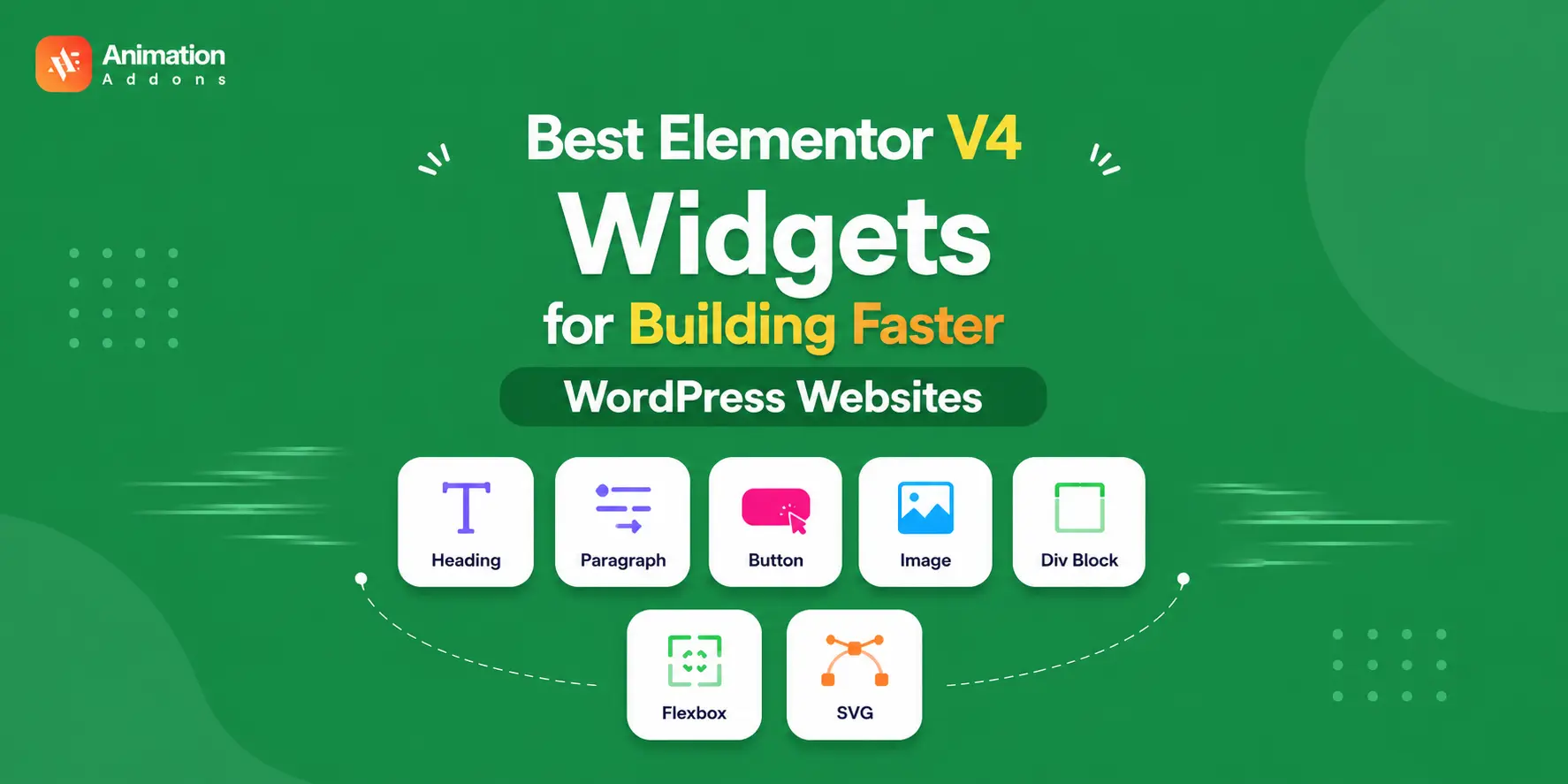
The best Elementor V4 widgets are the Atomic Widgets built for the CSS-first Atomic Editor. Containers like Div Block and Flexbox, plus Heading, Paragraph, Button, Image, and SVG. They output cleaner markup, accept Global Classes and Variables for reusable styling, and load faster than legacy widgets.
Combined with Element States and V4-ready animation, they let you build modern WordPress sites quickly and consistently.
Key Takeaways
- Atomic Widgets are the foundation of Elementor V4 – designed for the CSS-first Atomic Editor, not retrofitted from V3.
- Containers matter most – Div Block for lightweight, fast sections; Flexbox for flexible, pixel-perfect layouts.
- Core content widgets (Heading, Paragraph, Button, Image, SVG) accept Global Classes and Variables for reusable styling.
- Element States let you style hover and other conditions within the same structured system.
- Pair widgets with V4-ready animation to add motion without sacrificing the clean, fast output.
What Are Elementor V4 Atomic Widgets?
Elementor V4 Atomic Widgets are the core building blocks of Elementor V4’s new Atomic Editor, designed to give you a simpler and more structured way to build WordPress websites.
Instead of relying on large, highly configurable widgets for every design need, the Atomic approach focuses on a smaller set of purposeful elements that you can combine, style, and reuse across your website.
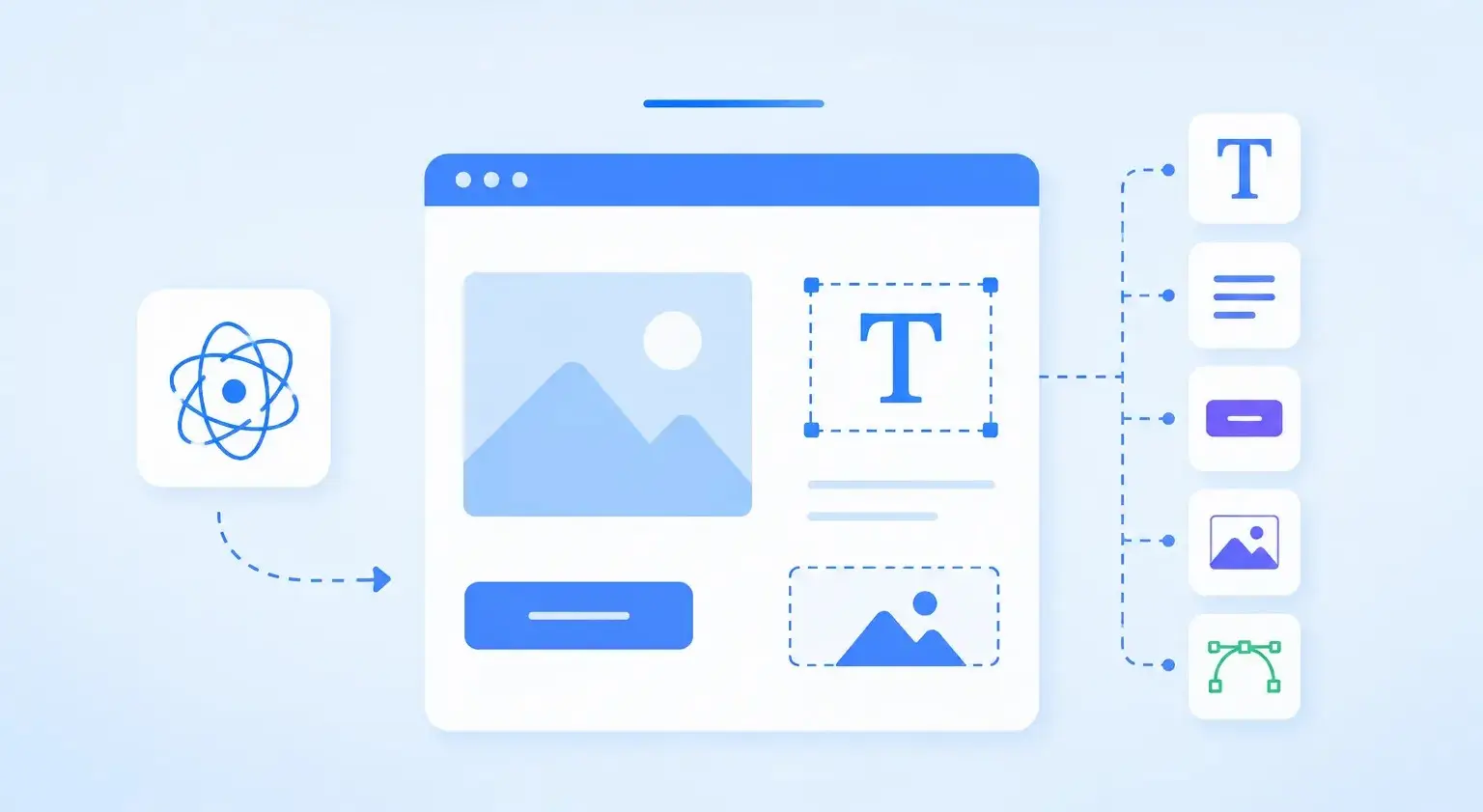
The core Atomic Widgets include Div Block, Flexbox, Heading, Paragraph, Button, Image, and SVG. Each widget has a focused role: Div Block and Flexbox handle structure and layout, Heading and Paragraph handle text, Button handles calls to action, while Image and SVG handle visual content.
Elementor V4 Widgets vs V3 Widgets: What’s Changed?
Elementor V4 isn’t simply a collection of redesigned widgets, it introduces a different way to build and style websites. Instead of relying heavily on individually configured elements, V4 moves toward an Atomic Editor workflow built around reusable elements, Classes, Variables, Components, and cleaner markup.
Atomic Elements
Elementor V4 introduces Atomic Widgets as the core building blocks of the new editor. Elements such as Div Block, Flexbox, Heading, Paragraph, Button, Image, and SVG are designed to give you a more focused set of building blocks instead of depending on large, highly configurable widgets for every design task.
Classes
In older workflows, you might style individual widgets one at a time, which becomes tedious when the same design appears across multiple pages. Elementor v4 classes let you define a style once and apply it across multiple elements, making consistent design much easier to maintain.
Variables
Variables take reusable styling a step further by allowing shared design values to be managed centrally. Instead of repeatedly entering the same colors, spacing, or other values, you can build a more consistent system and make site-wide adjustments with less manual work.
Components
Elementor v4 components help turn frequently used design patterns into reusable building blocks. Rather than recreating the same structure every time, you can reuse a consistent component and spend more time designing the page instead of rebuilding the same elements from scratch.
Cleaner Markup
One of the key goals of the V4 workflow is reducing unnecessary markup and creating a leaner page structure. This is particularly useful for complex websites, where excessive wrappers and repeated structures can make pages harder to maintain and potentially affect performance.
Reusable Styling
V4 shifts styling away from isolated, one-off settings toward a reusable system based on Classes and Variables. This means you can change a shared design rule once and have that change reflected wherever the style is used, which is especially valuable for large websites and agency projects.
A New Workflow
The biggest change is the mindset behind V4: instead of building every section as an isolated collection of individually styled widgets, you can combine Atomic Widgets with reusable styling and components to create a more systematic design workflow. This makes it easier to build consistently, scale a website, and spend less time repeating the same design decisions.
Coexistence With Legacy Widgets
You don’t have to rebuild an existing website from scratch to start using Elementor editor V4. Atomic Widgets can coexist with legacy widgets, allowing you to introduce the new workflow gradually such as using Atomic Widgets for new pages or sections while keeping existing elements where they still make sense.
- The bottom line: Elementor V3 and V4 aren’t simply a matter of old widgets versus new widgets. V4 changes the underlying building approach, giving you a more structured system for creating, styling, and reusing elements while still allowing legacy content to remain part of your workflow.
7 Best Elementor V4 Widgets
Elementor V4’s Atomic approach gives you a focused set of building blocks for creating modern WordPress websites without relying on a different specialized widget for every design task.
The seven core widgets are Div Block, Flexbox, Heading, Paragraph, Button, Image, and SVG cover the fundamental needs of structure, layout, content, calls to action, and visual elements.
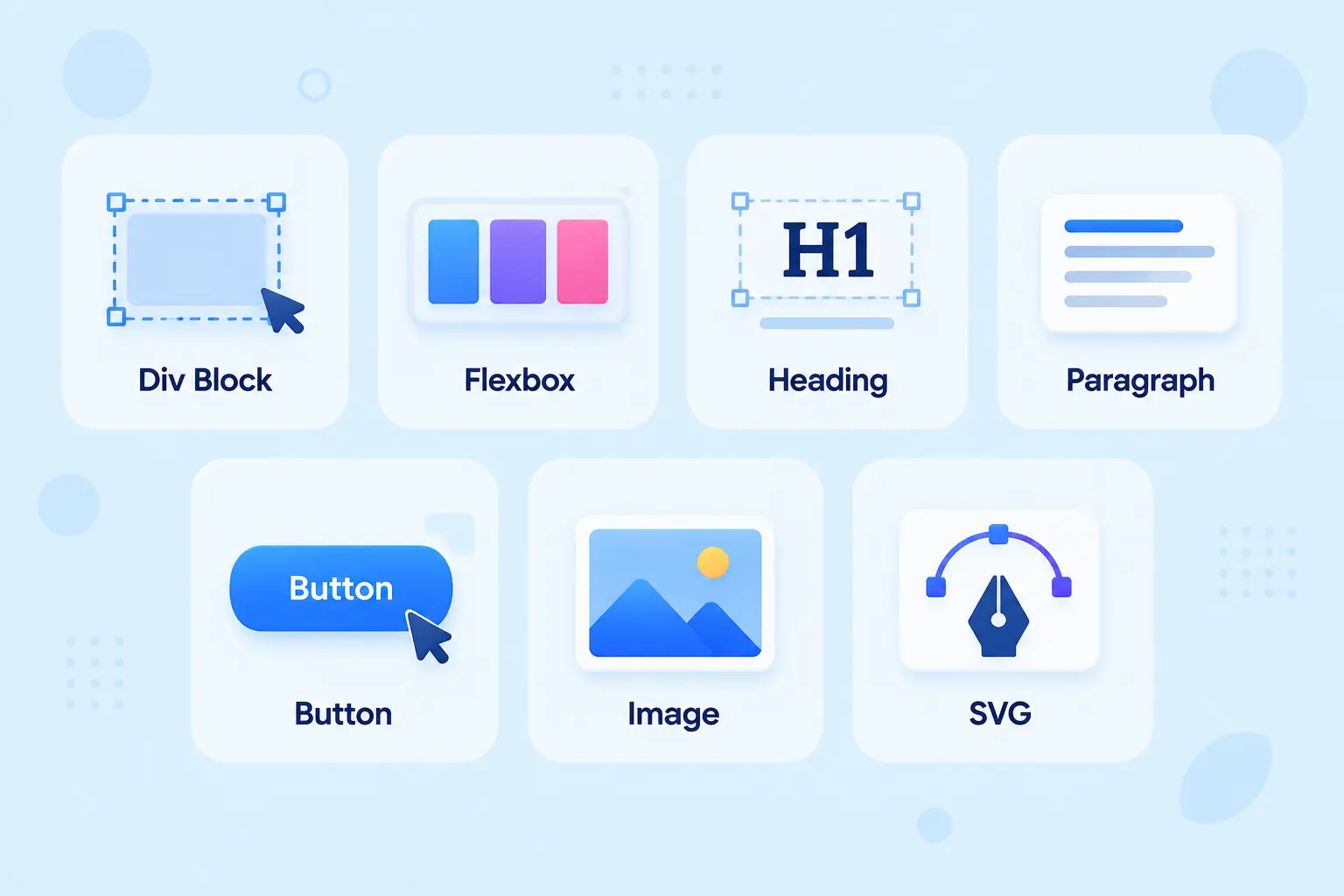
The key is not simply knowing what each widget does, but understanding when to use it and how it fits into a clean, reusable workflow. Here’s how each Elementor V4 widget can help you build pages more efficiently.
1. Div Block
Best for: Simple sections, cards, content groups, and basic page structures.
The Div Block is one of the most fundamental building blocks in Elementor V4. It gives you a simple structural element for grouping content without requiring a specialized widget for every section of your page.
Think of it as the basic container for your content. You can place a Heading, Paragraph, Button, Image, or other elements inside it and then control how that group is styled and positioned.
Why use Div Block?
- Creates simple and organized page structures
- Helps avoid unnecessary complexity
- Works well for cards, content sections, and grouped elements
- Provides a flexible foundation for reusable designs
- Fits naturally into the Atomic Editor workflow
For example, a simple website card could use a Div Block as its outer structure, with a Heading, Paragraph, and Button inside it. This keeps the structure easy to understand while allowing you to reuse the same pattern across different pages.
2. Flexbox
Best for: Complex layouts, alignment, spacing, and responsive positioning.
When your design requires more control than a basic structure provides, Flexbox becomes the go-to layout tool. It allows you to arrange elements along a flexible layout direction and control their alignment and spacing more precisely.
Flexbox is particularly useful for layouts such as navigation bars, multi-column sections, feature cards, pricing layouts, and responsive content groups.
Why use Flexbox?
- Provides greater control over element alignment
- Helps create flexible horizontal and vertical layouts
- Makes responsive positioning easier
- Works well for multi-element compositions
- Gives you more control when a simple Div Block isn’t enough
The important thing is not to use Flexbox simply because it is available. For straightforward structures, a Div Block may be sufficient; use Flexbox when the design genuinely requires additional layout control.
3. Heading
Best for: Page titles, section headings, and content hierarchy.
A strong visual hierarchy helps visitors understand your content before they read every word. The Heading widget gives you a focused building block for creating titles and section headings throughout your website.
You can use headings for everything from the main page title to smaller section and card headings. When combined with reusable Classes, you can keep typography consistent across your website instead of manually styling every heading.
Why use Heading?
- Creates clear content hierarchy
- Makes important information easier to scan
- Works well with reusable typography styles
- Helps maintain consistency across pages
- Provides a dedicated element for heading content
For a content-heavy page, consistent heading styles can make the difference between a page that feels organized and one that feels visually scattered.
4. Paragraph
Best for: Body copy, descriptions, supporting text, and informational content.
The Paragraph widget handles the text visitors actually read, introductions, descriptions, supporting information, product details, and other body copy.
Rather than treating every text block as a separately styled element, you can create reusable styles for your paragraph text and apply them throughout your website. This is especially useful for blogs, service pages, landing pages, and content-rich websites.
Why use Paragraph?
- Keeps body text structured and readable
- Helps establish consistent typography
- Works well with reusable Classes
- Makes long-form content easier to manage
- Fits naturally alongside Heading elements
A useful approach is to establish a consistent paragraph style early in your design system. That way, adding new content doesn’t require you to repeatedly adjust font size, spacing, or other styling properties.
5. Button
Best for: Calls to action, navigation, conversions, and interactive actions.
A Button is more than a clickable element, it is often the point where a visitor decides what to do next. Whether you want users to sign up, purchase a product, download a resource, book a service, or contact your business, the Button widget gives you a focused element for that action.
Elementor V4 also supports Element States, allowing you to create different visual treatments for interactions such as hover and focus. This can make buttons feel more responsive and provide users with clearer feedback when they interact with them.
Why use Button?
- Creates clear calls to action
- Supports interactive states
- Works well with reusable styling
- Helps maintain consistent CTA designs
- Can be reused across landing pages, cards, headers, and forms
For example, instead of creating a different button style for every section, create a reusable CTA style and apply it wherever the same action pattern appears.
6. Image
Best for: Photos, illustrations, product visuals, and other visual content.
Images often carry as much meaning as the text surrounding them. The Image widget gives you a dedicated way to add visual content to your page while keeping it integrated with the rest of your Atomic layout.
Use it for product photography, blog images, illustrations, portfolio work, hero visuals, or supporting graphics. You can combine Images with Div Blocks, Headings, Paragraphs, and Buttons to create complete content sections without needing a specialized widget for every layout.
Why use Image?
- Adds visual context to your content
- Works across hero sections, cards, blogs, and portfolios
- Combines easily with other Atomic Widgets
- Supports flexible page compositions
- Helps create visually engaging layouts
However, choosing the Image widget is only one part of performance optimization. Large or poorly optimized image files can still affect loading performance, so compress and appropriately size your images before adding them to the page.
7. SVG
Best for: Icons, logos, illustrations, and scalable vector graphics.
The SVG widget is designed for vector-based visuals that need to remain sharp at different sizes. Unlike raster images, SVG graphics can scale without becoming pixelated, making them particularly useful for icons, logos, interface graphics, and simple illustrations.
SVGs can also fit naturally into modern interface designs where visual clarity and scalability are important. For example, you might use SVG icons inside buttons, feature cards, navigation elements, or service sections.
Why use SVG?
- Keeps vector graphics sharp at different sizes
- Works well for icons and logos
- Useful for scalable interface graphics
- Fits cleanly into modern layouts
- Can complement Images when building visual sections
The important distinction is simple: use Image when you’re working with photographs or raster-based graphics, and consider SVG when the visual is a scalable vector such as an icon, logo, or illustration.
Choosing the Right Elementor V4 Widget
These seven widgets cover the fundamental building blocks of an Elementor V4 website, but you don’t need to use all seven in every section. Start with the simplest element that solves your design problem, then introduce additional layout or visual elements only when they provide a clear benefit.
- Need structure? Start with Div Block.
- Need advanced layout control? Use Flexbox.
- Need text hierarchy? Choose Heading and Paragraph.
- Need an action? Add a Button.
- Need a photo or raster graphic? Use Image.
- Need a scalable vector? Choose SVG.
The real strength of Elementor V4 editor comes from how these simple building blocks work together with Classes, Variables, Components, and Element States. Instead of building every section from scratch, you can create a cleaner structure, reuse your design patterns, and make future changes without repeating the same work across every element.
Elementor V4 Widgets at a Glance
As Elementor V4 matures, expect more advanced widgets to join this core set, but these seven cover the fundamentals today.
| Widget | Best for | Why it’s fast / useful |
| Div Block | Simple, quick sections | Lightweight container, loads fast |
| Flexbox | Complex, precise layouts | Flexible alignment without custom CSS |
| Heading | Section titles | Reusable styling via classes |
| Paragraph | Body text | Consistent, globally editable typography |
| Button | CTAs | Shared styling + Element States |
| Image | Visuals | Uniform sizing and spacing |
| SVG | Icons & graphics | Scalable and lightweight |
Div Block vs Flexbox: Which Container Should You Use?
The most common question with V4 widgets is which container to reach for. Here’s a quick comparison.
| Consideration | Div Block | Flexbox |
| Weight / speed | Lighter, faster | Slightly heavier |
| Layout control | Basic | Advanced, flexible alignment |
| Best for | Simple sections, cards | Complex, pixel-perfect layouts |
| Learning curve | Minimal | Slightly more involved |
- The rule of thumb: start with Div Block for simple, performance-first sections, and switch to Flexbox when you need precise control over how elements line up. Using the lighter option where you can keeps your pages fast by default.
Which Elementor V4 Widget Should You Use?
Choosing an Elementor V4 widget isn’t about finding one “best” element for every situation. The better approach is to start with the simplest widget that fits your layout, then use more specialized elements only when they provide a clear advantage.
For Simple Sections and Content Blocks: Div Block
Use Div Block when you need a straightforward structure for sections, cards, content groups, or other basic page elements. It keeps your layout simple while giving you a flexible foundation for adding headings, text, buttons, images, or other content.
For Complex Layouts: Flexbox
Choose Flexbox when your layout needs more control over alignment, direction, spacing, or responsive positioning. It’s particularly useful for multi-column sections, navigation layouts, card groups, and designs where elements need to adapt across different screen sizes.
For Page Titles and Section Headings: Heading
The Heading widget is the natural choice for titles, section headings, and other important text that needs clear visual hierarchy. Use reusable Classes to maintain consistent typography across headings instead of styling each one individually.
For Supporting Copy: Paragraph
Use the Paragraph widget for descriptions, supporting text, introductions, and other body content. Keeping paragraph styling consistent through reusable Classes can make long pages easier to design and maintain.
For Calls to Action: Button
When you want visitors to take an action such as signing up, purchasing, downloading, or contacting you, the Button widget is the right choice. You can also define interaction states such as hover and focus to make the CTA feel responsive and provide clear visual feedback.
For Visual Content: Image
Use the Image widget when photography, illustrations, product visuals, or other raster-based graphics are part of your page. For better performance, optimize the image itself as well as choosing the appropriate widget – large, unoptimized images can still slow down a page regardless of the page builder.
For Icons and Vector Graphics: SVG
SVG is a strong choice for logos, icons, illustrations, and other vector graphics that need to remain sharp at different sizes. It can be particularly useful for interface elements where scalability and visual clarity matter.
How Elementor V4 Widgets Affect Performance
Elementor V4’s Atomic Widgets are designed around a CSS-first approach, cleaner markup, and reusable styling. That means performance is not just about choosing a “faster” widget, it is about building pages with less unnecessary structure, less repeated CSS, and a more organized design system.
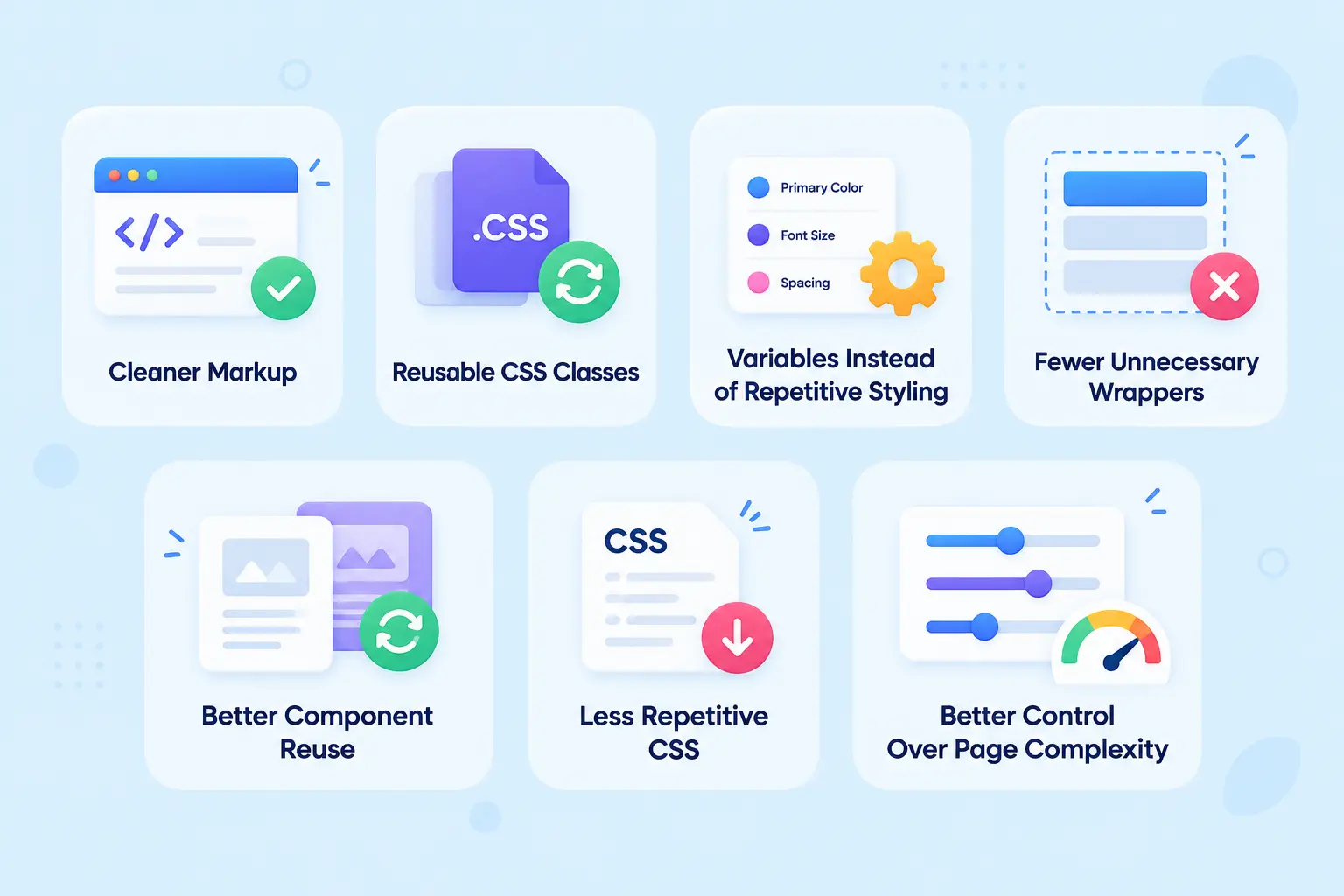
1. Cleaner Markup
Atomic Widgets are designed to produce cleaner, more structured markup instead of adding unnecessary layers of HTML around every element. A cleaner DOM can make your pages easier to maintain and gives browsers less structure to process, especially as a page becomes more complex.
2. Reusable CSS Classes
Instead of styling every widget individually, elementor v4 widgets lets you apply reusable CSS Classes across multiple elements. Style a button, heading, or card once and reuse that class throughout your website, reducing repetitive styling and making global design changes much faster.
3. Variables Instead of Repetitive Styling
Variables allow you to define shared design values and reuse them across your site rather than repeatedly entering the same values for individual elements. For example, changing a shared color or spacing value can update multiple elements consistently without manually editing each one.
4. Fewer Unnecessary Wrappers
Every extra wrapper adds another layer to the page structure, which can make complex layouts harder to manage. Using the appropriate Atomic Widget such as a Div Block for simple sections instead of adding unnecessary layout containers helps keep the DOM more streamlined.
5. Better Component Reuse
Reusable components help you build common website sections once and use them wherever needed. Instead of recreating the same card, CTA, or content pattern on every page, you can maintain a consistent structure and styling while reducing repetitive work.
6. Less Repetitive CSS
Traditional page-building workflows can lead to the same styles being defined repeatedly across individual elements. Elementor V4’s Classes and Variables encourage a more centralized styling approach, helping reduce duplication while making your site’s design system easier to manage.
7. Better Control Over Page Complexity
Performance isn’t determined by a single widget, it depends on how the entire page is structured and what you load on it. Elementor V4 gives you more control over that complexity by combining lightweight Atomic Widgets, reusable styling, and a cleaner structure, helping you build pages that remain easier to manage as they grow.
Build faster with Elementor V4
Start with Atomic Widgets, reuse your design system with Classes and Variables, then add V4-ready templates and animation when you need more interaction.
Explore Animation Addons V4Elementor V4 Widgets + Templates + Animation
Individual widgets are powerful, but speed really comes from combining them well. Even with great widgets, building every page from a blank canvas and adding motion by hand, eats hours.
For freelancers and agencies, build time is profit. Slow builds limit how many projects you can take on.
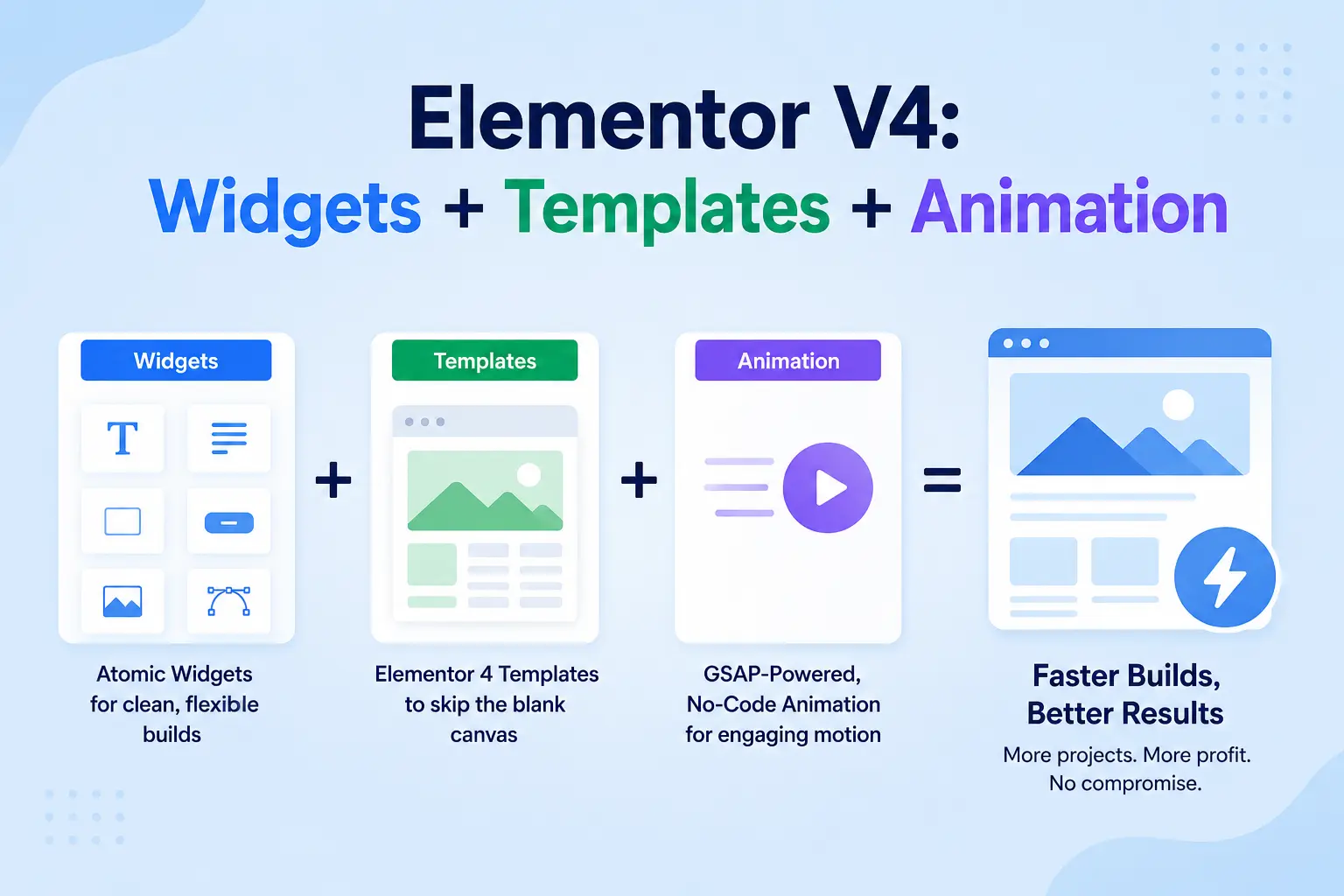
Pair Atomic Widgets with two things: ready-made elementor v4 website templates to skip the blank-canvas stage, and V4-ready animation to add motion without custom code. This is where Animation Addons for Elementor fits, a complete Elementor V4 addon pairing Atomic Widgets, Elementor V4 templates, and GSAP-powered, no-code animation designed for the clean, CSS-first output you just built.
You start from polished, animated layouts and assemble pages from consistent widgets, dramatically faster builds without sacrificing performance or quality.
In practice, that means adding scroll, text-reveal, hover, and page-load effects to your Atomic Widgets without writing a line of code, while keeping the lean markup that makes V4 worthwhile.
Common Elementor V4 Widget Mistakes
Elementor V4 gives you more control over structure, reusable styling, and interactions, but the new workflow can still be misused. Avoiding a few common mistakes can help you build cleaner pages, maintain consistency, and get more value from the Atomic Editor.
Using Flexbox for Everything
Flexbox is powerful, but that doesn’t mean every section needs it. For simple sections, cards, or content blocks, Div Block can provide a lighter and simpler structure; use Flexbox when you actually need its alignment and layout capabilities.
Styling Every Widget Individually
One of the biggest advantages of Elementor V4 is reusable styling, so manually styling every Heading, Button, or Paragraph defeats the purpose of the new workflow. Create reusable Classes and Variables instead, then apply them wherever the same design pattern appears.
Ignoring Element States
A button that looks good in its default state can still feel unfinished when users hover, focus, or interact with it. Use Element States to define consistent interaction styles across buttons, links, cards, and other interactive elements rather than treating each state as an afterthought.
Adding Too Many Nested Containers
Deeply nested layouts can make a page harder to understand, maintain, and optimize. Before adding another container, ask whether an existing Div Block or layout structure can handle the job without creating another unnecessary layer.
Mixing Atomic and Legacy Widgets Without a Plan
Elementor V4 animations allows Atomic Widgets and legacy widgets to coexist, which makes gradual migration possible. However, randomly mixing both approaches can create inconsistent styling and workflows, so use Atomic Widgets for new sections where appropriate and keep legacy elements only when they still serve a clear purpose.
Adding Animation Without Considering Structure
Animation can make a website more engaging, but adding heavy or unnecessary effects can work against a clean, performance-focused workflow. Start with a well-structured Atomic layout, then add purposeful motion where it improves navigation, feedback, or storytelling rather than animating every element.
Ignoring Reusability
If you’re repeatedly rebuilding the same button, card, heading style, or content pattern, you’re creating unnecessary work for yourself. Look for repeated design patterns and turn them into reusable Classes, Variables, or Components so future pages can be built faster and updated more consistently.
Treating Performance as a Widget-Only Problem
Choosing lightweight Atomic Widgets is helpful, but a fast website depends on much more than the widgets themselves. Images, fonts, scripts, plugins, hosting, animations, and overall page complexity can all affect performance, so use the V4 workflow as a foundation rather than assuming a particular widget automatically makes a page fast.
- The key takeaway: Elementor V4 works best when you think in terms of systems rather than individual widgets. Keep the structure simple, reuse your styling, use the right layout element for each situation, and add interactions only when they genuinely improve the user experience.
Final Thoughts
The best Elementor V4 widgets aren’t just new versions of old ones, they’re a faster, cleaner way to build.
Atomic Widgets like Div Block, Flexbox, Heading, Paragraph, Button, Image, and SVG give you lean markup and reusable styling through Global Classes and Variables, while Element States keep your interactions consistent.
Choose the lighter container when you can, style through classes instead of one-off tweaks, and you’ll ship faster sites that stay fast. That’s how you turn a faster builder into a faster business.
FAQs
The best Elementor V4 widgets for a lean, reusable workflow are Div Block, Flexbox, Heading, Paragraph, Button, Image, and SVG. Each serves a specific purpose, while Classes, Variables, and Element States help keep styling consistent and maintainable.
Atomic Widgets are the core building blocks of Elementor V4’s CSS-first Atomic Editor, designed to create cleaner markup and reusable styling. Unlike older widgets, they are built around a more structured system using Global Classes and Variables.
Div Block is best for simple, lightweight sections and cards, while Flexbox is better for complex layouts that require precise alignment and direction control. Choosing between them depends on the layout complexity rather than treating one as universally better.
Use Div Block for simple, performance-focused sections where you don’t need complex alignment, and use Flexbox when you need flexible positioning, spacing, or multi-column layouts. Starting with Div Block and switching to Flexbox only when additional layout control is needed can keep your structure simpler.
Elementor V4 Atomic Widgets are designed around cleaner markup and reusable styling, which can provide a lighter foundation than older widget-based workflows. However, actual website performance also depends on factors such as images, scripts, hosting, plugins, and overall page complexity, so the widgets alone do not guarantee a faster site.
Yes, Elementor V4 Atomic Widgets can be used alongside existing legacy widgets, allowing you to gradually adopt the new workflow instead of rebuilding an entire website. The article recommends testing any legacy widgets you keep to ensure they work well with the new Atomic structure.
In Elementor V4, Atomic Widgets refer to the new core elements built specifically for the Atomic Editor, while “widgets” can also refer more broadly to Elementor’s existing and legacy elements. Atomic Widgets are designed around cleaner markup, reusable Classes and Variables, and a CSS-first workflow rather than the older one-off styling approach.
Yes, Elementor V4 Atomic Widgets can be extended with animation, including scroll, hover, and reveal effects, while keeping the underlying structure clean. The article specifically highlights V4-ready GSAP-based animation as an option for adding motion without relying on heavy legacy animation workflows.
Div Block, SVG, Image, and the other lightweight Atomic Widgets are strong choices when building a performance-conscious page, especially when combined with reusable Classes and Variables.
Yes. It pairs Atomic Widgets with Elementor V4 templates and GSAP-powered animation, so widgets, templates, and animation come from one addon instead of three separate tools.