
 Login
Login


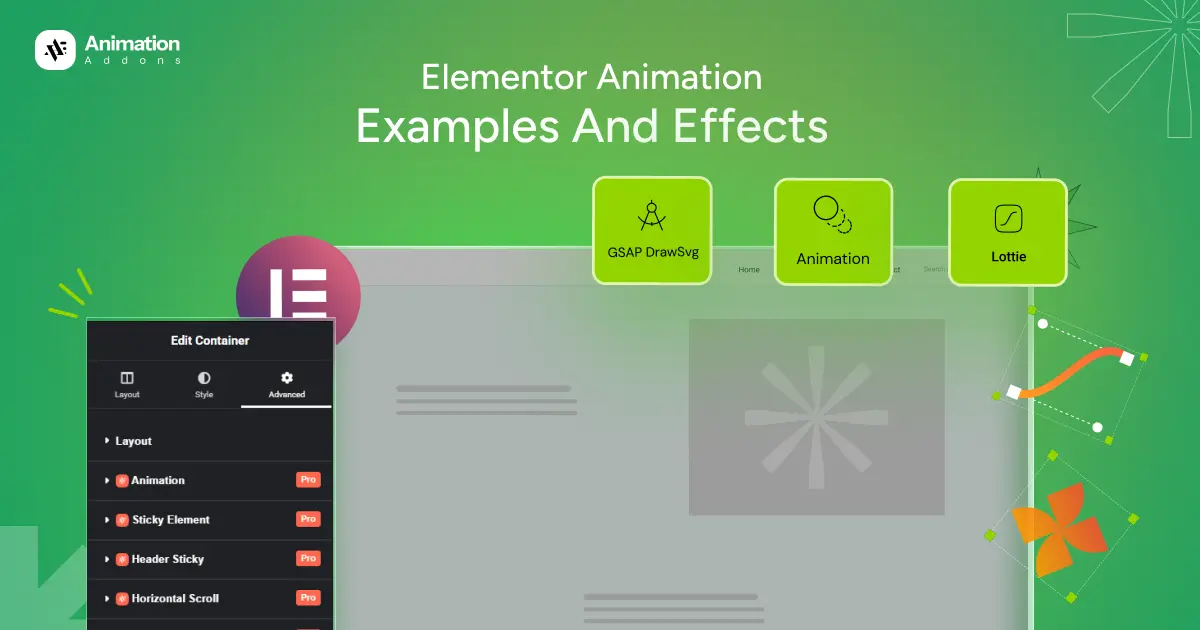
Elementor animations can turn a static WordPress page into a more engaging, interactive experience, from simple fade-ins and hover effects to scroll-triggered storytelling, SVG morphing, and video interactions.
But not every animation belongs on every website. The right effect should support your content, guide attention, and make the user experience feel more intuitive, not simply add movement for the sake of movement.
In this guide, you’ll find 20+ Elementor animation examples, with practical ideas for where to use each effect, what it adds to the user experience, and how to choose the right animation for your website.
Elementor animations are visual effects that add movement and interaction to WordPress websites, from simple fade-ins and hover effects to scroll-triggered animations, parallax, SVG morphing, and video effects.
The right animation can guide attention, improve storytelling, and make important interactions feel more intuitive without overwhelming the user.
Key Takeaways
- Elementor offers built-in animation and Motion Effects for creating engaging interactions.
- Choose animations based on your website goals, content, and user experience.
- Simple effects like fade, hover, and parallax work well for everyday websites.
- Advanced effects such as ScrollTrigger, GSAP, Split Text, and SVG animations enable richer interactions.
- Optimize images, videos, scripts, and animation properties to maintain website performance.
- Always test animations across desktop, tablet, and mobile devices.
- Respect user preferences by reducing or disabling non-essential motion when needed.
List of 20+ Elementor Aniamtion Examples for Modern Websites
2. Pin Elements
8. GSAP DrawSVG
11. Advanced Tooltip
12. Smooth Scrolling
13. Fade Animation
14. Bounce Animation
20. Toggle Switch
23. Video Mask
Elementor Animation Effects at a Glance
| Animation | Best For | Difficulty | Interaction |
|---|---|---|---|
| Horizontal Scroll | Portfolios | Intermediate | Scroll |
| Pin Elements | Storytelling | Intermediate | Scroll |
| Stacked Cards | Product sections | Intermediate | Scroll |
| Parallax | Hero sections | Beginner | Scroll |
| ScrollTrigger | Advanced storytelling | Advanced | Scroll |
| Lottie | Illustrations | Beginner | Automatic |
| DrawSVG | Icons & illustrations | Advanced | Scroll |
| Split Text | Headlines | Intermediate | Scroll |
| Cursor Move | Interactive pages | Advanced | Mouse |
| Morph SVG | Creative visuals | Advanced | Scroll |
| Button Hover | CTAs | Beginner | Hover |
| Video Mask | Hero sections | Advanced | Scroll/Auto |
1. Horizontal Scrolling
Horizontal scrolling transforms vertical scrolling into a sideways visual journey, allowing multiple pieces of content to move horizontally as visitors scroll.
Best for:
- Portfolio websites
- Product showcases
- Creative agencies
- Case studies
Why use it: It can present a large amount of visual content without making the page feel like a conventional vertical gallery.
2. Pin Elements
Pin elements keep important content fixed in place while the rest of the page continues scrolling. This creates a focused storytelling experience and ensures key messages, visuals, or CTAs remain visible at the right moment.
Best for:
- Product storytelling
- SaaS feature sections
- Landing pages
- Long-form case studies
Why use it: It keeps important information in view while users explore the surrounding content, making complex sections easier to follow and more engaging.
3. Stacked Cards
Stacked card animations layer multiple cards that move, reveal, or rearrange as visitors scroll through the page. This creates a structured visual sequence without requiring users to navigate through multiple sections.
Best for:
- Service showcases
- Feature sections
- Product benefits
- Portfolio presentations
Why use it: It turns static cards into an interactive storytelling sequence while maintaining a clean and organized page layout.
4. Parallax Effect
The parallax effect creates depth by moving background and foreground elements at different speeds as users scroll. This subtle motion can make otherwise static sections feel more immersive and visually dynamic.
Best for:
- Hero sections
- Creative portfolios
- Agency websites
- Photography websites
Why use it: It adds depth and visual richness to a page without requiring complex interactions, helping important sections feel more memorable.
5. ScrollTrigger
ScrollTrigger connects animations directly to a visitor’s scrolling position, allowing elements to move, reveal, pin, or transform at precise points on the page.
Best for:
- Interactive landing pages
- Product storytelling
- Creative portfolios
- Scroll-based experiences
Why use it: It gives designers precise control over scroll-driven animations, making it possible to create sophisticated experiences that respond naturally to user behavior.
6. Image Animation
Image animations add movement to visuals through effects such as reveals, transitions, zooms, or scroll-based transformations. Instead of displaying images as static assets, they become part of the overall interaction.
Best for:
- Portfolio websites
- Product showcases
- Photography websites
- Editorial layouts
Why use it: It draws attention to important visuals while creating a more engaging way to introduce images and tell a visual story.
7. Lottie Animation
Lottie animations use lightweight vector-based motion graphics to bring illustrations, icons, and interface elements to life. They can add expressive movement while maintaining sharp visuals across different screen sizes.
Best for:
- Product websites
- SaaS interfaces
- Onboarding sections
- Animated illustrations
Why use it: Lottie makes it easier to add polished motion graphics without relying on large video files, making it useful for lightweight visual storytelling.
8. GSAP DrawSVG
GSAP DrawSVG creates an effect where SVG paths appear to draw themselves progressively on the screen. It can turn simple icons, illustrations, and line graphics into engaging animated elements.
Best for:
- Creative portfolios
- Animated illustrations
- Icons and logos
- Interactive storytelling
Why use it: It creates a distinctive drawing effect that can guide attention and make vector graphics feel more dynamic and expressive.
9. Flip Animation
Flip animations rotate or transform elements to reveal another side, state, or piece of content. They work particularly well when information needs to be presented in a compact but interactive format.
Best for:
- Service cards
- Product features
- Pricing information
- Portfolio sections
Why use it: It allows you to hide secondary information until interaction occurs, keeping the initial layout clean while encouraging users to explore further.
10. Typewriter Animations
Typewriter animations reveal text progressively, creating the visual impression that words are being typed in real time. This effect can make headlines, messages, and short statements feel more dynamic.
Best for:
- Hero sections
- Personal portfolios
- Agency websites
- Marketing headlines
Why use it: It naturally draws attention to important words and messages while creating anticipation and giving static typography a more interactive feel.
11. Advanced Tooltip
Advanced tooltips reveal additional information when users hover over or interact with an element. They provide helpful context without permanently occupying valuable space on the page.
Best for:
- Feature explanations
- Product interfaces
- Icons and buttons
- Technical websites
Why use it: It keeps the interface clean while allowing users to discover supporting information exactly when they need it.
12. Smooth Scrolling
Smooth scrolling creates fluid movement between sections instead of the abrupt jumps associated with standard page navigation. It can make long pages feel more polished and connected.
Best for:
- One-page websites
- Portfolio websites
- Landing pages
- Story-driven websites
Why use it: It creates a more comfortable browsing experience and helps transitions between sections feel intentional and seamless.
13. Fade Animation
Fade animations gradually reveal or hide elements by changing their opacity. They are one of the simplest ways to introduce movement without overwhelming the visitor.
Best for:
- Text sections
- Images
- Content reveals
- Page transitions
Why use it: It provides a subtle visual cue that helps new content enter the screen naturally while keeping the overall experience clean and readable.
14. Bounce Animation
Bounce animations add a lively up-and-down movement to elements, making them stand out from surrounding content. When used selectively, they can create visual emphasis without requiring complex animation sequences.
Best for:
- Buttons
- Icons
- Notifications
- Interactive elements
Why use it: It attracts attention to important elements and can make calls to action or interactive components feel more noticeable and responsive.
15. Split Text Animation
Split text animations break headlines or paragraphs into individual characters, words, or lines and animate them separately. This transforms ordinary typography into a more expressive visual element.
Best for:
- Hero headlines
- Creative portfolios
- Campaign pages
- Brand storytelling
Why use it: It gives important messages stronger visual impact and can create memorable text reveals without relying on large graphical elements.
16. Custom Hover Effect Animation
Custom hover effects change an element’s appearance or movement when visitors interact with it using their cursor. They can combine transitions, transformations, color changes, or other visual effects to create responsive interfaces.
Best for:
- Buttons
- Image cards
- Navigation elements
- Portfolio items
Why use it: It provides immediate visual feedback and helps visitors understand which elements are interactive, making the interface feel more responsive.
17. Cursor Move Effect
Cursor move effects make website elements respond to the visitor’s mouse movement. Objects can follow, shift, rotate, or react to cursor position to create a more playful and immersive interaction.
Best for:
- Creative agency websites
- Interactive portfolios
- Hero sections
- Experimental websites
Why use it: It creates a sense of direct interaction between the visitor and the interface, helping a website feel more distinctive and engaging.
18. SVG Morph Animation
SVG Morph animations smoothly transform one SVG shape into another through fluid motion-based transitions. This allows icons, illustrations, and graphic elements to change form without abrupt visual jumps.
Best for:
- Creative websites
- Animated icons
- Brand storytelling
- Interactive illustrations
Why use it: It creates sophisticated visual transitions that can make a website feel modern, expressive, and highly customized.
19. Content Slider Animation
Content slider animations move between multiple pieces of content within a single interactive area. Users can explore different slides without needing to navigate through separate sections or pages.
Best for:
- Testimonials
- Product showcases
- Portfolio projects
- Feature sections
Why use it: It helps organize multiple pieces of information into a compact space while giving visitors an intuitive way to explore more content.
20. Toggle Switch
Toggle switch animations allow users to instantly switch between two or more content states. The transition can make comparisons and interactive selections feel clearer and more responsive.
Best for:
- Pricing comparisons
- Monthly/yearly plans
- Feature comparisons
- Before-and-after content
Why use it: It lets users control what information they see while reducing visual clutter and making comparisons easier to understand.
21. Button Animations
Button animations add movement when visitors hover, click, or interact with a call-to-action. Subtle transitions can make buttons feel more responsive while drawing attention to important actions.
Best for:
- Call-to-action buttons
- Signup forms
- Product pages
- Landing pages
Why use it: It provides instant interaction feedback and makes important CTAs more noticeable without distracting visitors from the main content.
22. Video PopUp Animation
Video popup animations open videos inside a modal overlay instead of sending visitors to another page. This allows users to watch product demos, tutorials, promotional videos, or presentations while staying on the current page.
Best for:
- Product demonstrations
- Video testimonials
- Tutorials
- Promotional content
Why use it: It keeps visitors on the same page while giving them access to richer video content, creating a smoother and more focused viewing experience.
23. Video Mask
Video mask animations display video through custom shapes, typography, or layered designs instead of a conventional rectangular frame. This turns video content into a visual design element that can become part of the page’s overall composition.
Best for:
- Creative hero sections
- Portfolio websites
- Brand websites
- Experimental landing pages
Why use it: It gives video a more distinctive presentation and can create striking visual compositions that immediately capture attention.
Which Elementor Animation Should You Use?
Choose an Elementor animation based on your website’s goals, content type, and the level of interaction you want to create. From subtle fade and hover effects to advanced ScrollTrigger, SVG, and video animations, the right effect should enhance the user experience without distracting from your content.
| Your Goal | Recommended Animation |
|---|---|
| Make a headline appear | Fade / Split Text |
| Showcase products | Horizontal Scroll / Parallax |
| Create storytelling | Pin / ScrollTrigger |
| Animate illustrations | Lottie / DrawSVG |
| Make buttons interactive | Hover / Button Animation |
| Add playful interaction | Cursor Move |
| Showcase before/after content | Content Slider |
| Make videos more immersive | Video Mask |
| Create dynamic icons | Morph SVG |
| Reveal information | Flip / Tooltip |
Which Animations Fit Which Sites? A Breakdown by Website Type
The right animation depends on what visitors came to do, so a portfolio, a store, a course platform, and a launch page each need different motion to keep people engaged and moving toward the goal. Here is a breakdown by website type –
Portfolio and Agency Sites
For portfolios, the animation is part of the pitch. Use scroll-triggered reveals on project cards and subtle image parallax to make work feel considered and premium. Keep it smooth and restrained, since a portfolio that lags undercuts the exact skill you are trying to sell.
SaaS and Product Landing Pages
On a product page, motion should earn its place by clarifying, not decorating. Animate features into view as the reader scrolls, use number counters for key stats, and pin a section to walk through a workflow step by step. The goal is to guide attention toward the value and the signup button.
eCommerce Stores
For online stores, animation should support the purchase, not slow it down. Hover effects on product images, a smooth quick-view reveal, and a gentle bounce on the add-to-cart confirmation all nudge shoppers forward. Speed matters most here, so every effect has to stay light on mobile.
Blogs and Content Sites
Content sites live and die by readability, so animation stays quiet. Fade paragraphs in on scroll, add a reading-progress indicator, and animate related-post cards as they enter the viewport. The reader should feel the page respond without ever being pulled away from the text.
LMS and e Learning Sites
On a learning platform, animation should support progress, not compete with the lesson. Animate course cards and module unlocks as learners scroll, use progress bars that fill to show how far along they are, and add subtle completion effects when a lesson or quiz is finished. Keep motion calm and consistent, since anything distracting pulls focus away from the material learners came to absorb.
Corporate and Business Sites
Business sites need to feel trustworthy first. Use clean section transitions, a soft reveal on service blocks, and a professional hero animation that sets tone without shouting. Restraint signals credibility, which is exactly what a corporate visitor is scanning for.
Event and Launch Pages
Event and launch pages exist to create a moment, so the animation can be bolder. Animate a countdown timer, reveal the agenda in sequence, and use a strong hero effect to make the date feel like it matters. Big motion works here because the whole page is built around a single deadline.
Final Words
The best Elementor animation isn’t necessarily the most complex one, it’s the one that makes your content easier to understand, your interface easier to use, or your story more memorable.
Start simple → choose the right effect → test on mobile → optimize performance → add complexity only when it improves the experience.
With these 20+ Elementor animation examples and effects, you now have the inspiration to design visually compelling websites that not only look impressive but also drive real results.
FAQs
Elementor animations are visual effects that add movement and interaction to elements such as text, images, buttons, and sections. They can help guide attention, improve visual storytelling, and make a website feel more interactive.
Yes, Elementor includes built-in animation and Motion Effects features for effects such as entrance animations, scrolling effects, mouse effects, and sticky elements. These native options are suitable for many common website animations without requiring custom code.
Select an element in the Elementor Editor and use the available animation or Motion Effects settings to configure its behavior. Depending on the effect, you can adjust options such as animation type, direction, speed, trigger, and responsive behavior.
There is no single best animation because the right choice depends on your content, website goals, and user experience. Simple effects such as fade and hover animations work well for most websites, while ScrollTrigger, Split Text, and SVG animations are better suited to advanced interactive experiences.
Yes, Elementor provides built-in scrolling effects that can animate elements based on the visitor’s scroll position. For more advanced scroll-driven sequences and precise timelines, you can use GSAP-based animation techniques or compatible animation addons.
Yes, GSAP can be used with Elementor to create more advanced and customized animations than basic visual effects. It is particularly useful for complex timelines, scroll interactions, SVG animations, and highly controlled motion effects.
Animations can affect website performance when they rely on heavy scripts, large media files, or too many simultaneous effects. Using lightweight animations, optimized assets, efficient CSS properties, and limiting unnecessary motion can help maintain a fast experience.
Use lightweight animation techniques, optimize images and videos, avoid excessive effects, and prefer efficient properties such as transform and opacity where possible. You should also test animations on real mobile devices and monitor performance metrics after adding them.
Elementor animations can be adapted for different devices using responsive controls, allowing you to adjust or disable effects on mobile and tablet. For complex animations, always test touch interactions and performance on smaller screens before publishing.
You can respect users’ motion preferences by using the CSS prefers-reduced-motion media query to reduce or disable non-essential animations. This provides a more comfortable experience for visitors who have enabled reduced motion in their operating system or browser.
 Built Natively for Elementor V4
Bring your next Elementor website to life.
Start with ready-made templates, build with Atomic Widgets, and add scroll, text, hover, and image effects. Animation Addons V4 combines page-building tools and GSAP animations in one Elementor toolkit.
- 40+Atomic Widgets
- 30+Website Templates
- 500+Section Templates
- 20+Extensions

Leave a Reply