

 Login
Login

As your WordPress business grows, customer support can become repetitive. Your team may spend hours assigning tickets, searching documentation, answering the same questions, and updating ticket statuses.
Customer support ticket automation reduces that manual work. It can automatically create and assign tickets, convert support emails into tickets, answer documented questions, and route complex issues to human agents.
The goal is simple: automate repetitive support tasks so your team can focus on problems that actually require human judgment.
Here is how to build that workflow in WordPress.
What Does Customer Support Automation Mean in WordPress?
Customer support ticket automation means using rules or software to handle repetitive support tasks without requiring an agent to perform every step manually.
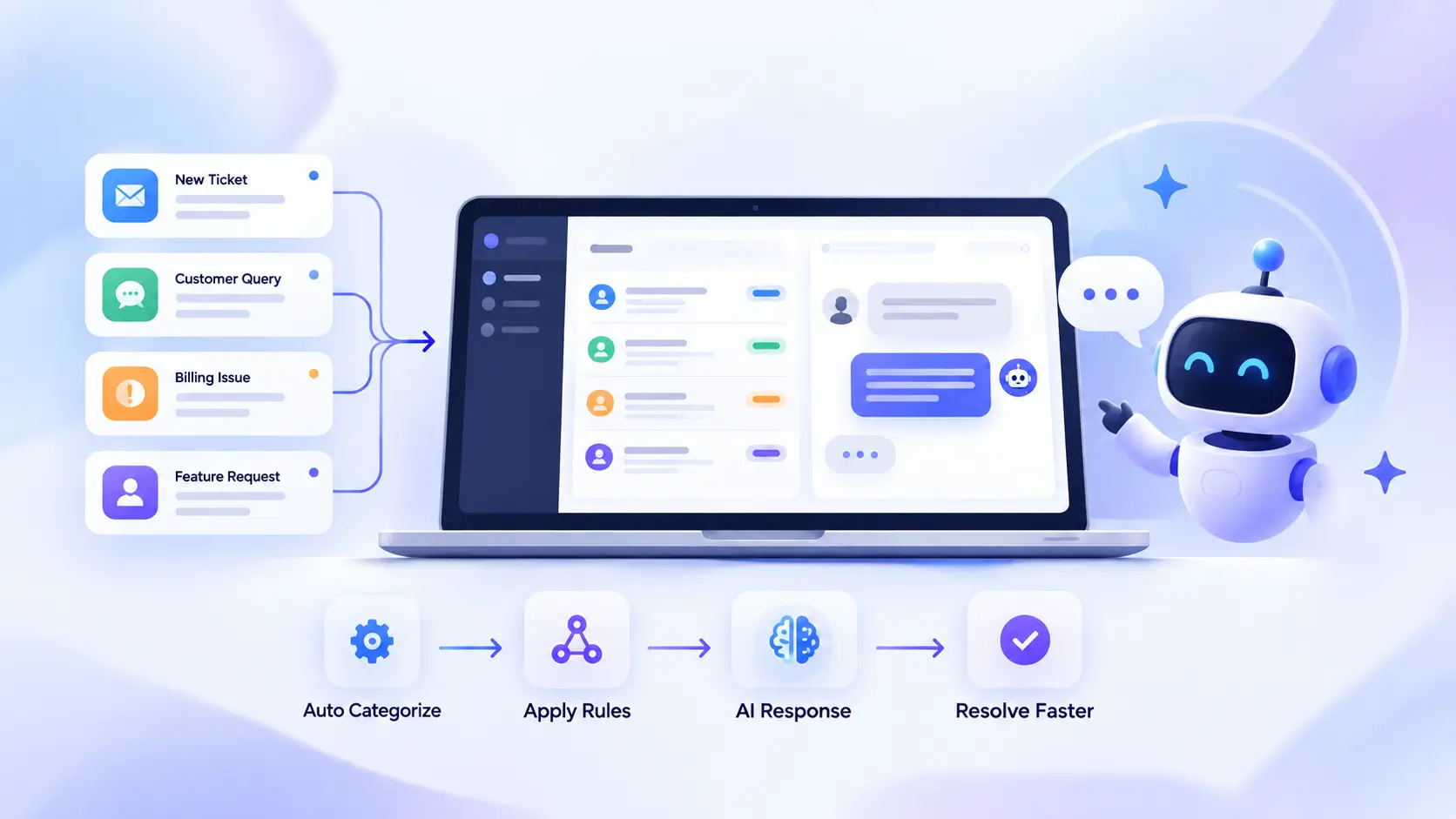
A mostly manual workflow might look like this:
Customer sends a question → someone reads it → assigns it to an agent → agent searches for the answer → agent replies → ticket status is updated
With automation, the workflow could look more like this:
- Customer asks a question → the system checks whether it can answer → known question gets an automated response → unresolved question stays in the ticket queue → ticket is assigned to an agent → agent handles the issue
Depending on the WordPress help desk you use, you may be able to automate tasks such as:
- Creating tickets from customer requests
- Converting support emails into tickets
- Assigning new tickets to agents
- Sending ticket notifications
- Answering common questions from documentation
- Updating ticket statuses
- Routing unresolved questions to human agents
You do not need to automate all of these at once. Start with the most time-consuming, repetitive tasks.
Can One WordPress Plugin Handle the Whole Support Workflow?
Yes. A WordPress help desk plugin can combine several parts of the support process in one system instead of making your team switch between separate tools.
Useful capabilities to look for include:
- Support tickets
- Knowledge base
- Automatic ticket assignment
- Email-to-ticket functionality
- AI-based answers
- Human handoff
- Support reporting
Keeping these functions connected can make automation easier because your documentation, tickets, customer conversations, and agents all work within the same workflow.
For example, NiroHelp combines a knowledge base and support ticket system with automatic ticket assignment, email piping, AI-based support, and reporting.
You do not necessarily need every feature from day one. What matters is choosing a system that can support the parts of your workflow you want to automate now and expand later if needed.
What Should You Automate, and What Should Stay Human?
A useful rule is: Automate predictable, low-risk work. Keep people involved when a decision requires judgment, context, or authority.
Good candidates for automation include:
- Assigning incoming tickets
- Sending confirmation notifications
- Converting support emails into tickets
- Providing setup instructions already covered by documentation
- Answering common product questions
- Updating predictable ticket states
- Routing requests to the appropriate support queue
For example, if a WordPress plugin company receives the same installation question 20 times a month and the answer is already documented clearly, there is little reason for an agent to rewrite the same response every time.
Other requests should usually remain with a person, including:
- Refund decisions
- Billing disputes
- Account changes
- Security issues
- Unusual technical bugs
- Sensitive customer complaints
- Requests with incomplete information
- Questions the system cannot answer confidently
An automated reply is also not the same as an automated resolution.
If a bot sends an answer but the customer contacts support again because the issue was not solved, the response was automated. The problem was not.
That is why every support automation workflow needs a clear path back to a human agent.
How to Automate Customer Support Tickets in WordPress Step by Step
A practical WordPress support automation workflow starts with a ticketing system, organized documentation, automatic ticket assignment, email integration, and automated answers for suitable questions.
Here is how to set it up.
Step 1: Set Up a WordPress Support Ticket System
First, you need one place where customer requests can be managed.
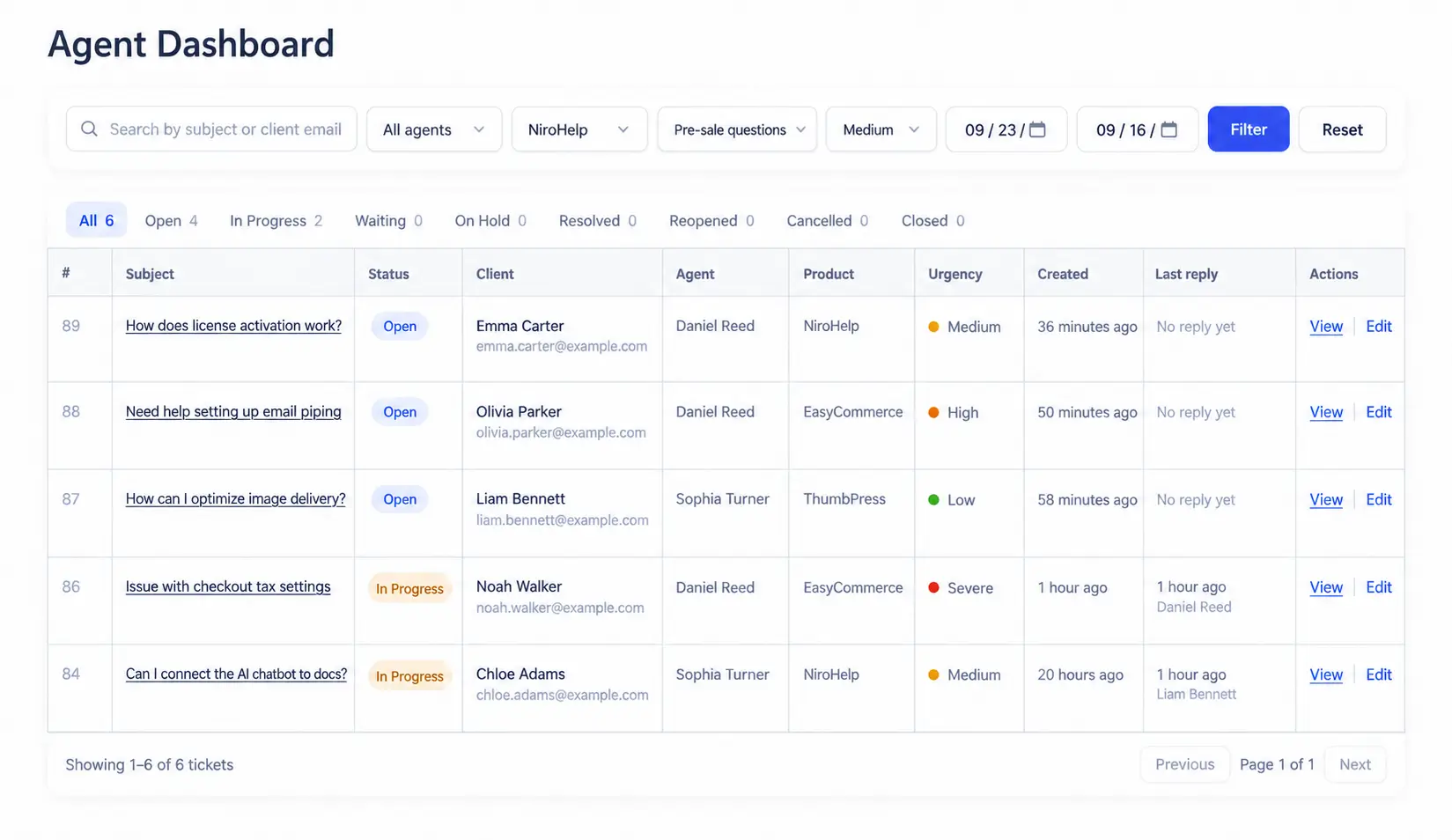
At minimum, a WordPress ticketing system should provide:
- A customer ticket form
- A ticket management dashboard
- Agent access
- Ticket statuses
- Customer replies
- A way for customers to review their tickets
This gives you the foundation for automation.
If customer requests are scattered between WordPress forms, personal inboxes, social messages, and spreadsheets, automating the workflow becomes much harder.
Before adding advanced automation, decide where customers should submit requests, how agents should respond, which ticket statuses your team will use, and when a ticket should be considered resolved.
NiroHelp is a WordPress help desk that combines support tickets and a knowledge base.
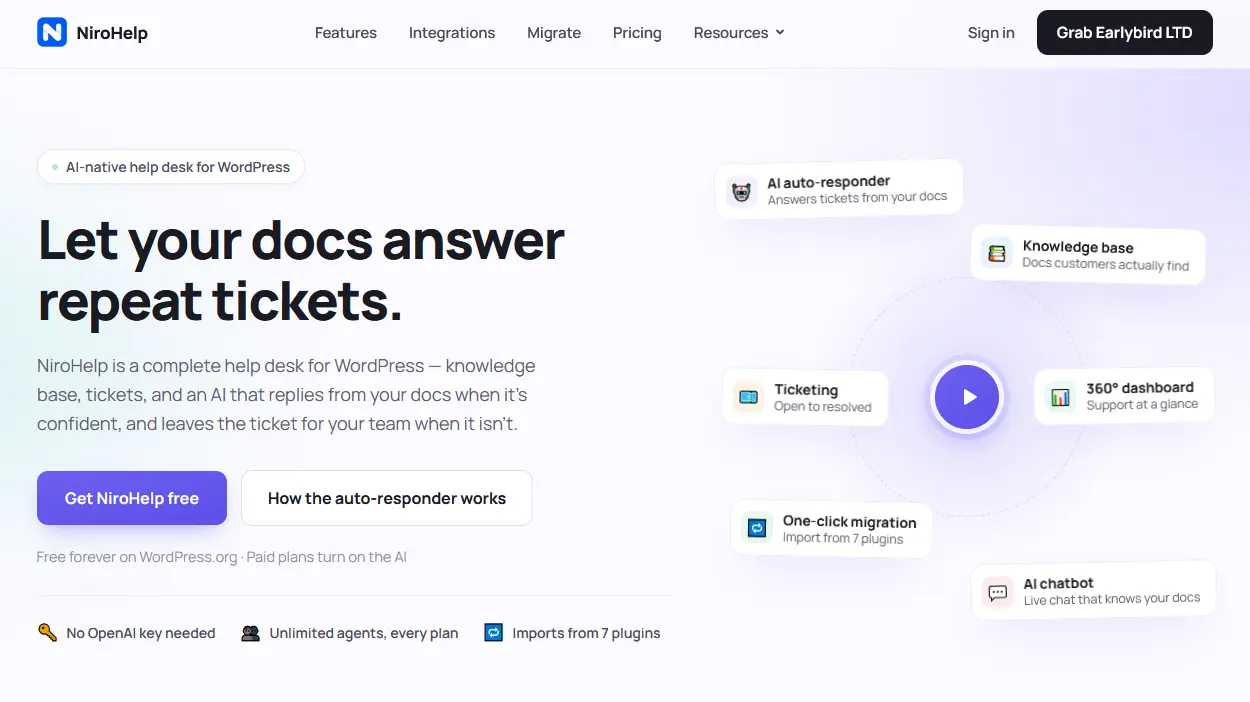
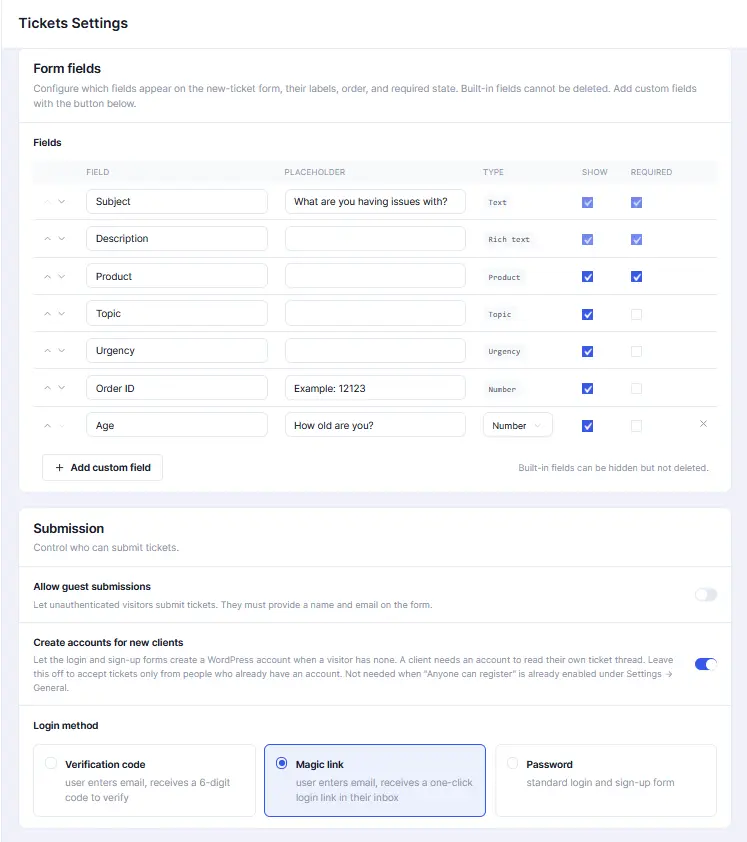
Its ticket system supports customer ticket submission, ticket stages, custom ticket fields, agent assignment, and customer ticket access.
At this stage, the priority is not AI. It is getting support requests into one consistent workflow.
Step 2: Build a Knowledge Base for Repeat Questions
Before automating answers, improve the information those answers will depend on.
Review previous support tickets and identify questions customers ask repeatedly. Then turn those questions into clear documentation.
For example, if customers often ask how to connect your WordPress plugin to another service, create an article that explains:
- What they need before starting
- Where the relevant setting is located
- What information they need to enter
- How to confirm the connection worked
- What to check if it fails
Good documentation helps customers solve problems themselves and gives documentation-based AI a reliable source for automated answers.
You do not need to document every possible problem before starting.
Begin with the questions that appear most often, such as:
- Installation instructions
- Plugin activation
- License management
- Integration setup
- Common configuration questions
- Basic troubleshooting
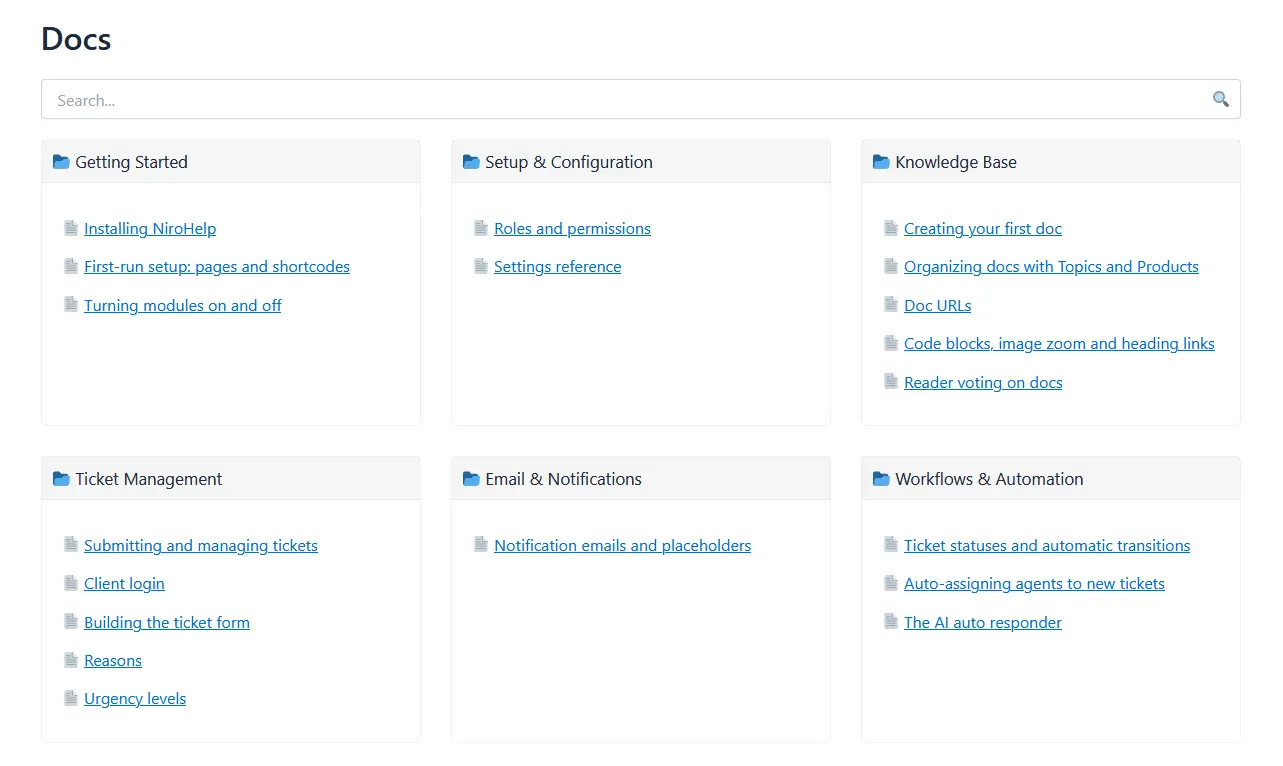
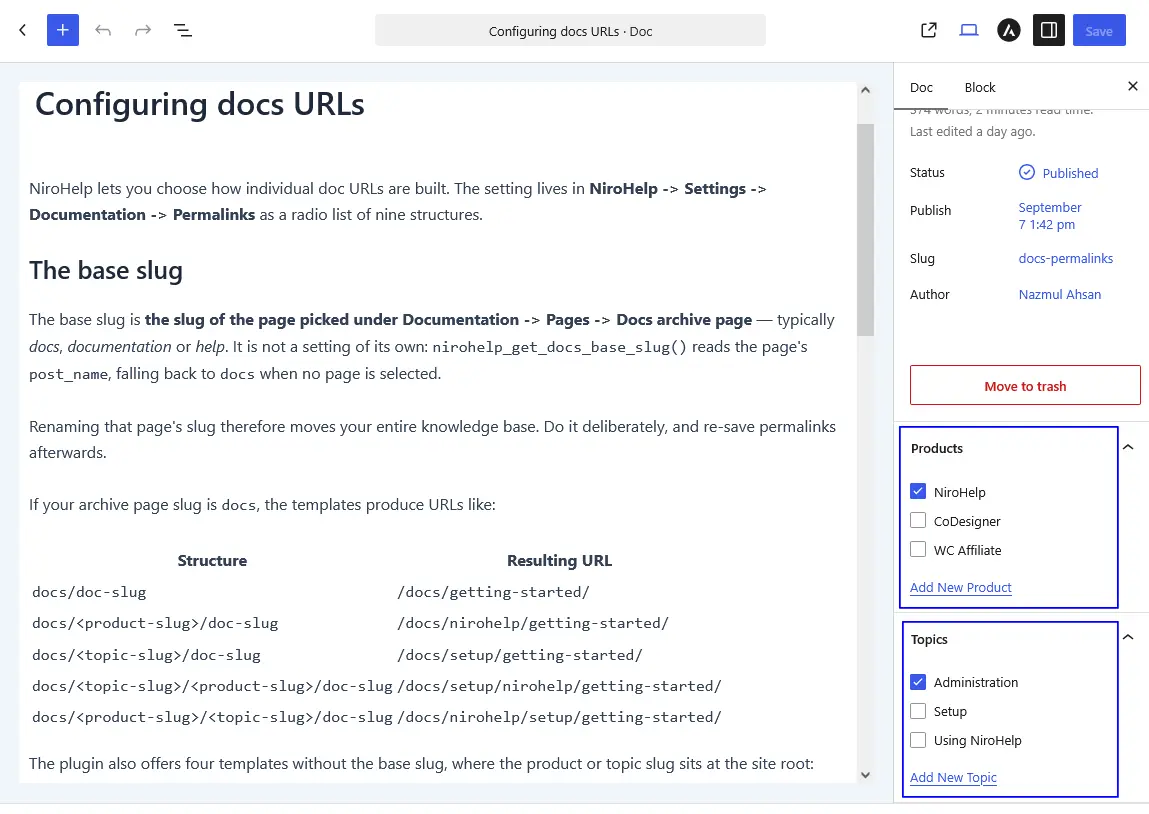
NiroHelp’s knowledge base lets you organize support articles into topics and make them searchable.
There is also an important limitation: AI cannot fix missing documentation.
If customers ask questions your documentation never answers, an AI system that depends on those documents will not have reliable information to work from.
The same applies to outdated documentation. If your product changes but the article does not, automated answers may send customers to the wrong instructions.
Maintaining the knowledge base is therefore part of maintaining the automation.
Step 3: Automate Ticket Assignment
When a ticket needs a human agent, someone still has to decide who receives it. Automatic assignment removes that repetitive administrative step.
Common assignment methods include:
Round-robin assignment
Tickets are distributed to agents in rotation. For example:
Ticket 1 → Agent A
Ticket 2 → Agent B
Ticket 3 → Agent C
This works well when agents have similar responsibilities.
Least-loaded assignment
Tickets are sent to the agent with the smallest current workload.
This can be more useful when some tickets take much longer to resolve than others.
There is no single assignment method that works best for every team. A small team may prefer round-robin assignment because it is simple, while a larger support team may benefit from workload-based assignment.
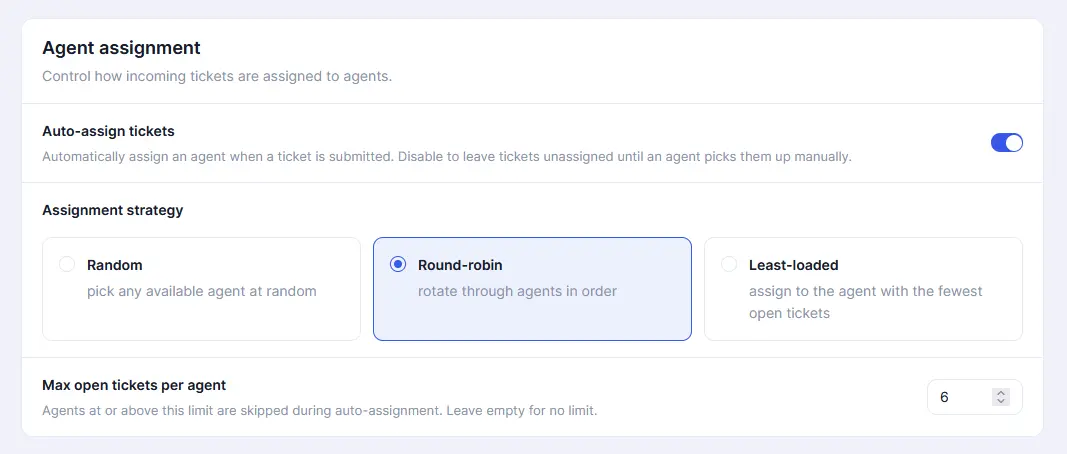
NiroHelp’s support ticket system supports random, round-robin, least-loaded, and manual assignment. It also supports a per-agent open-ticket cap.
An open-ticket cap can help prevent one agent from receiving new requests while already managing too many unresolved conversations.
Automatic assignment is a relatively simple change, but across hundreds of tickets it can remove a meaningful amount of administrative work.
Step 4: Turn Support Emails Into Tickets Automatically
Even after you create a support portal, some customers will continue emailing your support address. Instead of managing email separately, bring those conversations into the same ticket workflow.
Email piping converts incoming support emails into tickets automatically.
The workflow looks like this:
- Customer emails your support address → help desk receives the email → a ticket is created → agent replies through the ticket system → conversation stays attached to the ticket
This gives your team one queue instead of forcing agents to monitor both a help desk and a shared inbox.
It also keeps the conversation history together and makes assignment and tracking easier.
NiroHelp’s email piping can connect support mailboxes and convert incoming messages into tickets. It can also work with multiple shared inboxes and route them to their respective agents.
For example, you might have separate inboxes for technical support, billing, and general questions. Bringing those inboxes into the ticket system lets your team manage them through one support workflow.
For many small teams, simply centralizing email and website tickets can already remove a lot of support friction.
Step 5: Automate Repeat Answers With AI and Create a Human Handoff
Once your documentation is reliable, AI can help answer repeat questions. There are two common approaches.
AI-assisted support helps an agent find or prepare an answer. A person still decides what gets sent.
AI auto-response allows the system to answer customers directly when enough reliable information is available.
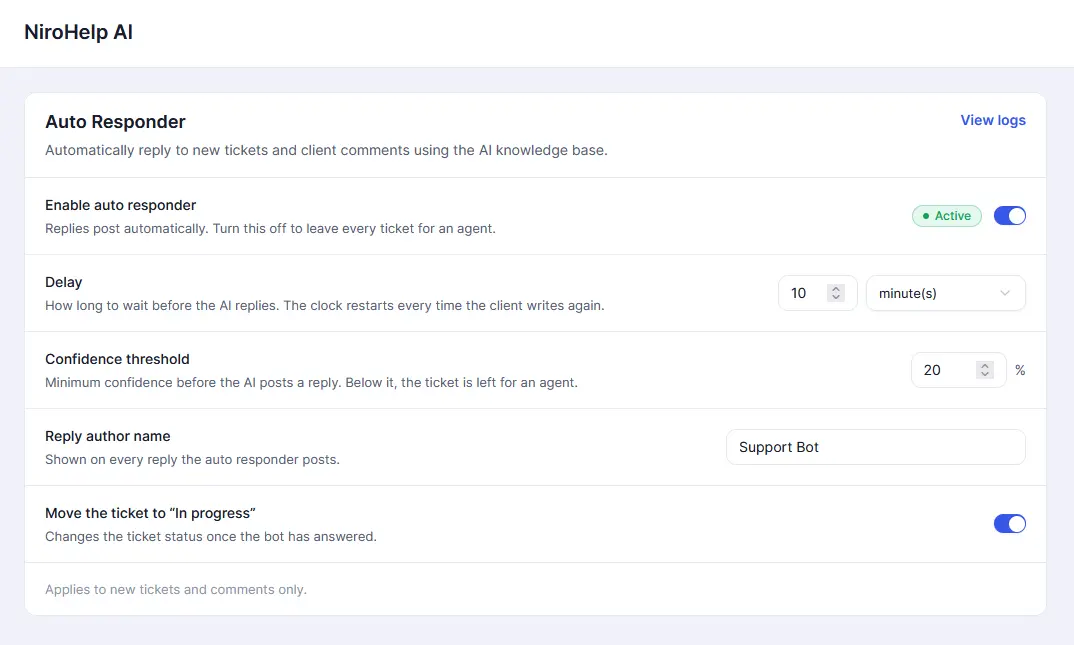
A safer auto-response workflow looks like this:
Customer asks a question → AI searches approved documentation → system checks whether it has enough information → confident answer is sent → uncertain question remains with a human agent
The last step is essential.
According to the supplied NiroHelp product information, the AI auto-responder reads incoming tickets and answers using published documentation when its configured confidence threshold is met.
If it is not confident enough, it stays silent instead of generating an unsupported answer. It also steps aside once a teammate replies.
The objective should not be:
“AI must answer every ticket.”
It should be:
“AI handles questions it can reliably answer, while everything else goes to the support team.”
You can also start conservatively by automating only well-documented topics such as installation, basic configuration, or common product usage.
Then review where the automation works and where agents still need to step in. A customer should never become trapped in an automated workflow because the system does not know the answer.
Step 6: Measure Whether Automation Is Actually Helping
Once automation is running, review what happens after the automated interaction.
Useful metrics can include:
- Total ticket volume
- First reply time
- Number of repeat questions
- Tickets handled by automation
- Tickets that return after an automated answer
- Reopened tickets
- Customer sentiment
NiroHelp’s dashboard includes support metrics such as AI deflection rate and median first reply period.
The important distinction is between deflection and resolution.
If a customer receives an automated answer but later contacts your team again about the same issue, the interaction may have been deflected temporarily, but it was not successfully resolved.
Look at patterns as well.
If automated answers reduce first reply time but reopened tickets increase, your system may be responding quickly without solving enough problems. If one category of question repeatedly reaches human agents, that may indicate a gap in your documentation.
Support automation data can therefore help you improve both your support process and the information customers receive.
5 Common Mistakes When Automating WordPress Support Tickets
Automation can reduce repetitive work, but a poorly designed workflow can create new support problems.
Automating Before Fixing Your Documentation
If your support articles are incomplete or outdated, automated answers based on those articles will have the same problems.
Start by improving documentation for your most common support questions.
Trying to Automate Every Ticket
Some support requests should reach a person. Avoid forcing automation into refunds, billing problems, security issues, unusual technical problems, policy decisions, and situations where the system does not have enough information.
The goal should be useful automation, not maximum automation.
Measuring Responses Instead of Resolutions
Fast replies are useful, but they do not automatically mean the customer’s problem was solved.
Watch for reopened tickets, repeat questions, and customers switching from automated support to another channel.
Leaving Email Outside the Ticket Workflow
A well-organized ticket dashboard does not help much if agents still have to monitor a separate shared inbox.
If email is an important support channel, bring those messages into the same ticket system when possible.
Never Reviewing Your Automation
Support needs change over time. A new release may create new questions. Documentation may become outdated. A problem that once required an agent may become easy to automate after you publish a better help article.
Review recurring tickets and automation performance regularly.
Where Should You Start With Support Automation?
If you are starting from a mostly manual support workflow, you do not need to implement everything at once.
A practical order is:
Centralize your tickets: Give agents one main place to manage customer requests.
Automate assignment: Remove the need to distribute routine tickets manually.
Connect your support email: Turn incoming messages into tickets so agents do not have to monitor separate queues.
Improve documentation: Document the questions that appear repeatedly.
Add automated answers: Once the information is reliable, automate suitable repeat questions.
This order solves the operational problems first and introduces more advanced automation only when the foundation is ready.
Final Words
You do not need to automate your entire customer support operation at once. Start with the repetitive work your team handles every day:
Centralize incoming requests → automate ticket assignment → bring support email into the same queue → document common questions → automate suitable answers
Then add AI where it has reliable information to work from.
The goal of customer support ticket automation in WordPress is not to remove people from support. It is to reduce repetitive work, so your team can spend more time solving problems that genuinely require human attention. NiroHelp combines a WordPress knowledge base, support ticket system, email piping, automatic assignment, and documentation-based AI in one help desk.
If you want to build this type of workflow inside WordPress, explore NiroHelp and start with the parts of your current support process that consume the most repetitive work.
FAQs
Yes. WordPress help desk systems can automatically assign tickets using methods such as round-robin or workload-based assignment, reducing the need to distribute incoming requests manually.
Yes. AI can answer suitable support questions using your existing documentation or knowledge base. Questions it cannot answer confidently should remain available for a human agent.
Yes. With email-to-ticket or email piping functionality, incoming customer emails can automatically become support tickets and be managed alongside requests submitted through your website.
Start with predictable tasks such as ticket assignment, notifications, and email-to-ticket conversion. Once your documentation is reliable, you can begin automating answers to common support questions.
No. Automate repetitive questions and predictable tasks, but keep human agents involved when a request requires investigation, judgment, sensitive information, or information the system does not have.