 Login
Login


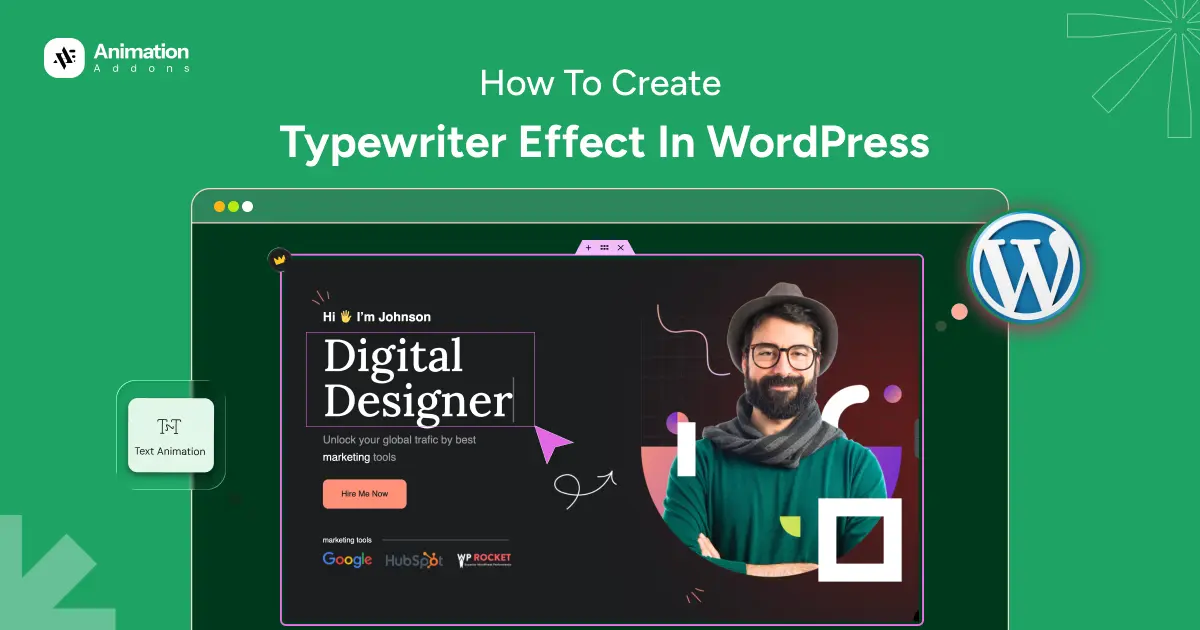
Want to add a typewriter effect to your WordPress website without writing complicated code?
A typewriter animation can make a hero headline feel more dynamic while allowing you to rotate through multiple short messages in the same space.
That single animation grabs attention instantly, makes a site feel alive and modern. The good news? You do not need any coding skills to add this effect to your WordPress site.
In this guide, you will learn exactly how to set up the Typewriter widget in Elementor, configure its content settings and style it to match your brand. No code. No complexity. Just results.
The easiest way to add a typewriter effect to a WordPress website is to use a no-code animation widget such as Animation Addons for Elementor.
Install the plugin, enable the Typewriter widget, drag it into your Elementor page, add your animated words, and customize the typography and cursor.
If you don’t want to use a plugin, you can also create a basic typewriter effect with CSS and JavaScript.
What Is a Typewriter Effect?
A typewriter effect is a text animation that makes letters or words appear on the screen one character at a time, creating the look of someone typing in real time. Once a phrase is complete, the animation can pause, delete the text, and replace it with another word or phrase in a repeating sequence.
For example, instead of showing a static headline like “I am a Digital Designer,” you can keep the main part of the heading unchanged while rotating different words:
I am a Designer → I am a Developer → I am a Marketer
This approach lets you communicate several related ideas within a single headline without creating multiple separate headings.
Why Use a Typewriter Effect on a Website?
A typewriter animation can be particularly useful in hero sections, portfolio websites, agency homepages, SaaS landing pages, and personal websites where you want to highlight different skills, services, or value propositions without taking up additional space. For example, a freelancer could rotate between “Designer,” “Developer,” and “Marketer” to introduce different areas of expertise.
The key is to keep the animated phrases short, clear, and relevant to the page. When used thoughtfully, a typewriter effect adds motion to an otherwise static headline while keeping the message easy to understand.
What You Need Before You Start
Before jumping into the steps, make sure you have the following in place:
- WordPress installed and running on your website.
- Elementor (free version) installed and activated.
- Animation Addons for Elementor installed and activated.
The Typewriter widget is available in the free version, so no paid plan is required to follow this tutorial.
You can install Animation Addons directly from your WordPress dashboard or download it from WordPress.org.
Step-by-Step: How to Add Typewriter Widget in Elementor
Let’s break it down. We will go through each method one by one, so adding typewriter to your site is easy.
Step 1: Enable the Typewriter Widget in Animation Addons
After installing Animation Addons, the first thing to do is make sure the Typewriter widget is enabled in your plugin settings. This step takes only a moment and ensures the widget appears in your Elementor panel.
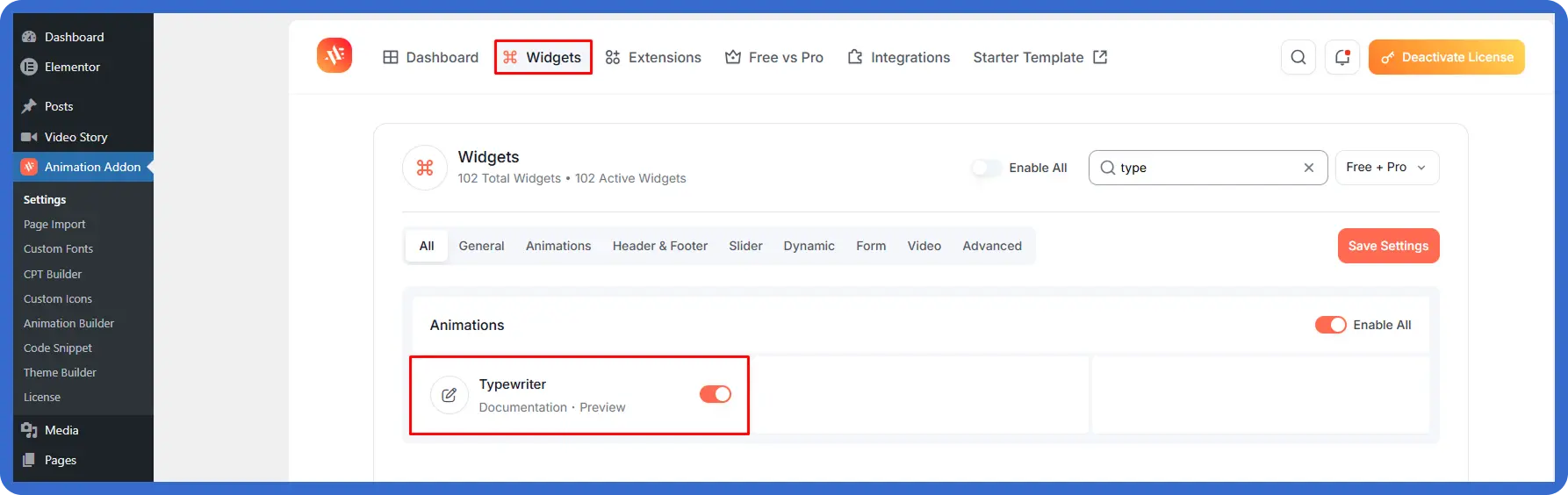
Go to your WordPress dashboard and click on Animation Addon in the left sidebar. This opens the Animation Addons dashboard. From the top navigation, click the Widgets tab. You will see a search bar on the right side of the Widgets page. Type “type” into the search field. The Typewriter widget will appear under the Animations section.
Check that the toggle next to it is switched on (shown in orange). Once it is enabled, click Save Settings.
Step 2: Open Your Page in Elementor
With the Typewriter widget enabled, the next step is to open the page where you want to add the animation. If you are starting fresh, create a new page by going to Pages and clicking Add New. Give the page a title, then click Edit with Elementor to open the Elementor editor.
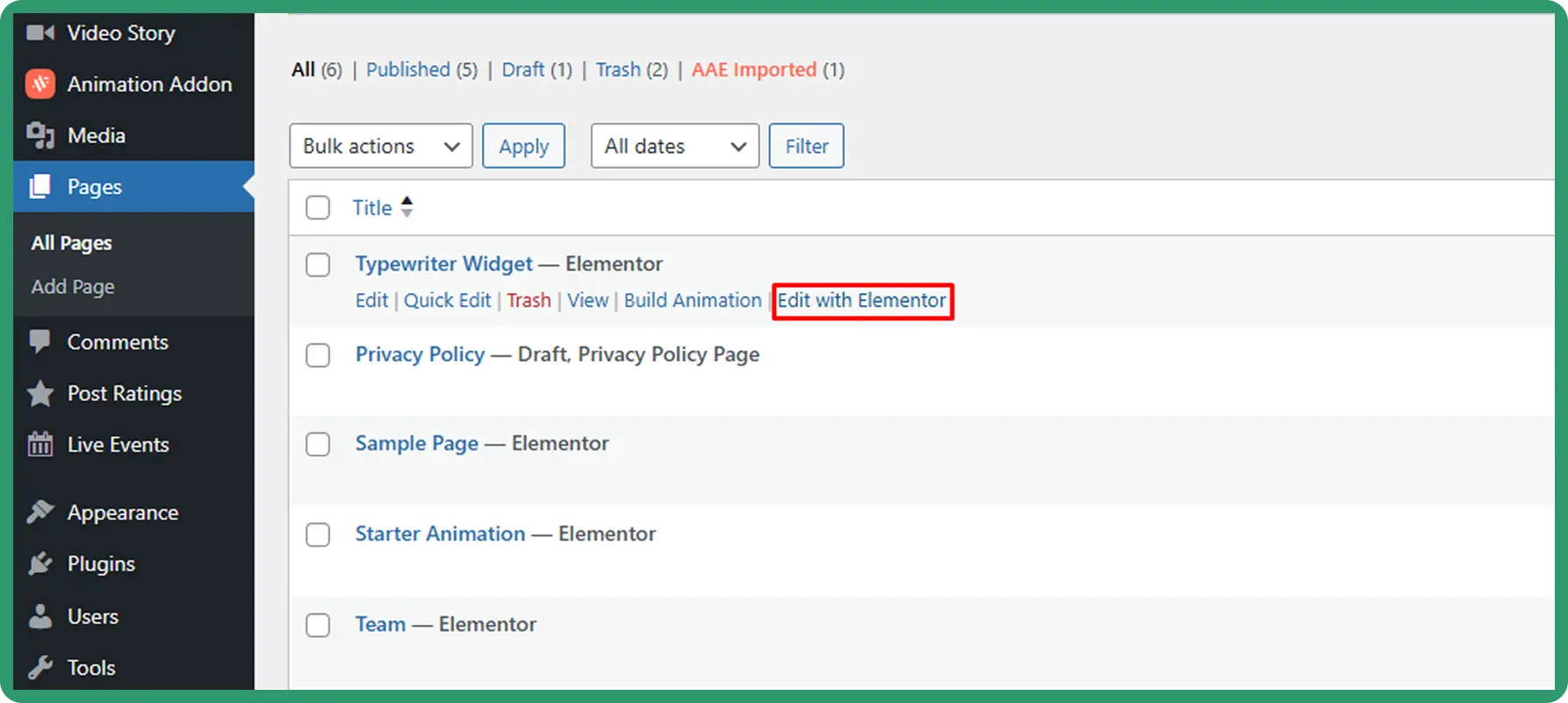
If you are working on an existing page, go to Pages in your WordPress dashboard, find the page you want to edit, hover over it, and click Edit with Elementor. This will load the page in the visual Elementor editor where you can drag and drop widgets freely.
Step 3: Add the Typewriter Widget to Your Page
Inside the Elementor editor, click the plus icon on the left panel to open the widget library. In the search bar at the top of the panel, type “type” and the Typewriter widget will appear. You will recognize it by the “Abc” icon with the blinking cursor and the Animation Addons badge.
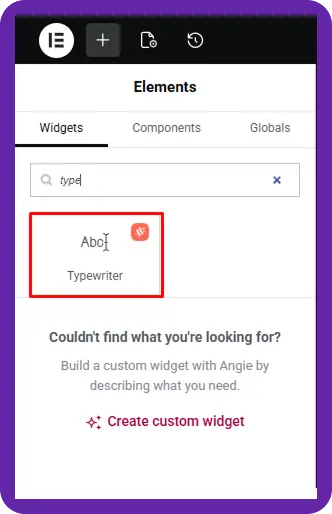
Drag the Typewriter widget and drop it onto your desired section or column on the page. Once placed, the widget will appear on your canvas and the settings panel on the left will switch to the Edit Typewriter options. You are now ready to configure the content.
Step 4: Configure the Content Settings
The Content tab is where you define what text the widget displays. Click on the Content tab in the left panel if it is not already selected. You will see the following fields:
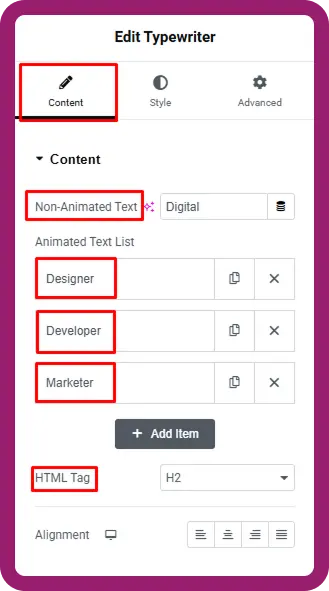
Non-Animated Text — This is the static part of your headline that stays fixed. For example, if your headline reads “I am a Digital Designer,” the word “Digital” is a separate animation. The non-animated part could be “I am a” and it will remain visible throughout all cycles.
Animated Text List — These are the words or phrases that rotate. You can add as many items as you like using the + Add Item button. Each item will appear in sequence, get typed out, pause, get deleted, and then be replaced by the next item in the list.
HTML Tag — This setting controls the heading level of the animated text. You can choose H1, H2, H3, H4, H5, H6, or a standard paragraph tag. For hero sections and main headlines, H1 or H2 is recommended for both visual hierarchy and SEO.
Alignment — Choose whether you want the text aligned to the left, center, or right. This should match the overall layout of the section you are designing.
Using the example shown in the images: the Non-Animated Text is set to “Digital” and the Animated Text List includes “Designer,” “Developer,” and “Marketer.” The HTML Tag is set to H2. This creates a clean, professional rotating headline that clearly communicates three roles in one line.
Step 5: Style the Typewriter Text to Match Your Brand
Once the content is set up, click the Style tab in the left panel to customize how the text looks. The Style tab gives you three main options:
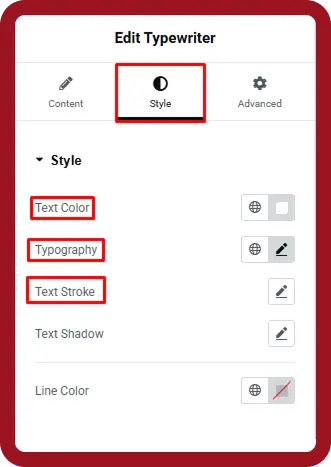
Text Color — Set the color of the entire typewriter text. Choose a color that works well against your background and aligns with your brand palette.
Typography — Control the font family, size, weight, line height, and letter spacing. This is where you make the text look like it truly belongs to your design.
Text Stroke — Add an outline to the text characters. This is a creative styling option that can make the animated words stand out more dramatically, especially on image or video backgrounds.
Line Color — This controls the color of the blinking cursor line that appears while the text is being typed.
Take time here to match the typography to the rest of your page design. Consistent font sizing between the static text and the animated text will make the headline look like one cohesive unit rather than two separate elements.
- Want to explore more text animation options beyond the typewriter effect? Check out the Text Animation extension in Animation Addons for GSAP-powered split text, mask reveals, and scroll-triggered word animations.
Step 6: Preview and Publish Your Page
If everything looks good, click the Publish button or the Update button if you are editing an existing page. Your typewriter animation is now live on your website.
Method 3: Create a Typewriter Effect Without a Plugin
If you prefer not to install an additional WordPress plugin, you can create a typewriter effect with custom CSS or JavaScript. This approach gives you more control over how the animation behaves, but it requires some basic knowledge of HTML, CSS, and JavaScript.
For a simple one-line typing animation, CSS can be enough. If you want multiple phrases to type, pause, delete, and change automatically, JavaScript gives you much more flexibility.
- Note: This method is an additional approach beyond the Animation Addons workflow covered earlier in this guide. The uploaded article itself focuses on creating the effect with the Animation Addons Typewriter widget.
Using CSS
CSS is a good option when you want a simple typewriter animation without a plugin or JavaScript. You can combine CSS animations with a fixed text width and a blinking cursor to create the familiar typing-and-revealing effect.
For example, you can add a text element such as:
<h2 class="typewriter">Create Better Websites</h2>Then use CSS to animate the text:
.typewriter {
  width: 18ch;
  overflow: hidden;
  white-space: nowrap;
  border-right: 3px solid currentColor;
  animation: typing 3s steps(18), blink 0.7s step-end infinite;
}

@keyframes typing {
  from {
    width: 0;
  }
  to {
    width: 18ch;
  }
}

@keyframes blink {
  50% {
    border-color: transparent;
  }
}
This creates a basic effect where the text appears gradually from left to right, while the border acts as a typing cursor.
Best for: a single phrase or headline where you want a lightweight and simple animation.
Using JavaScript
JavaScript is more suitable when you want the typewriter effect to cycle through multiple words or phrases automatically. For example, you can display “Designer,” then delete it and replace it with “Developer,” followed by “Marketer,” creating a continuous typing loop.
A basic implementation can follow this sequence:
Designer → delete → Developer → delete → Marketer → repeat
JavaScript allows you to control important animation behaviors such as:
- Typing speed
- Deleting speed
- Pause duration
- Multiple phrases
- Animation looping
- Cursor behavior
This makes JavaScript a better choice when you need a more dynamic typing animation in WordPress rather than a single text-reveal effect.
However, custom JavaScript requires more technical knowledge and careful implementation. If you want the same typewriter-style animation without writing or maintaining custom code, a dedicated Elementor widget can provide a simpler workflow.
Best Practices for the Typewriter Effect
A typewriter animation works best when it is used thoughtfully. Follow these practices to get the most out of it:
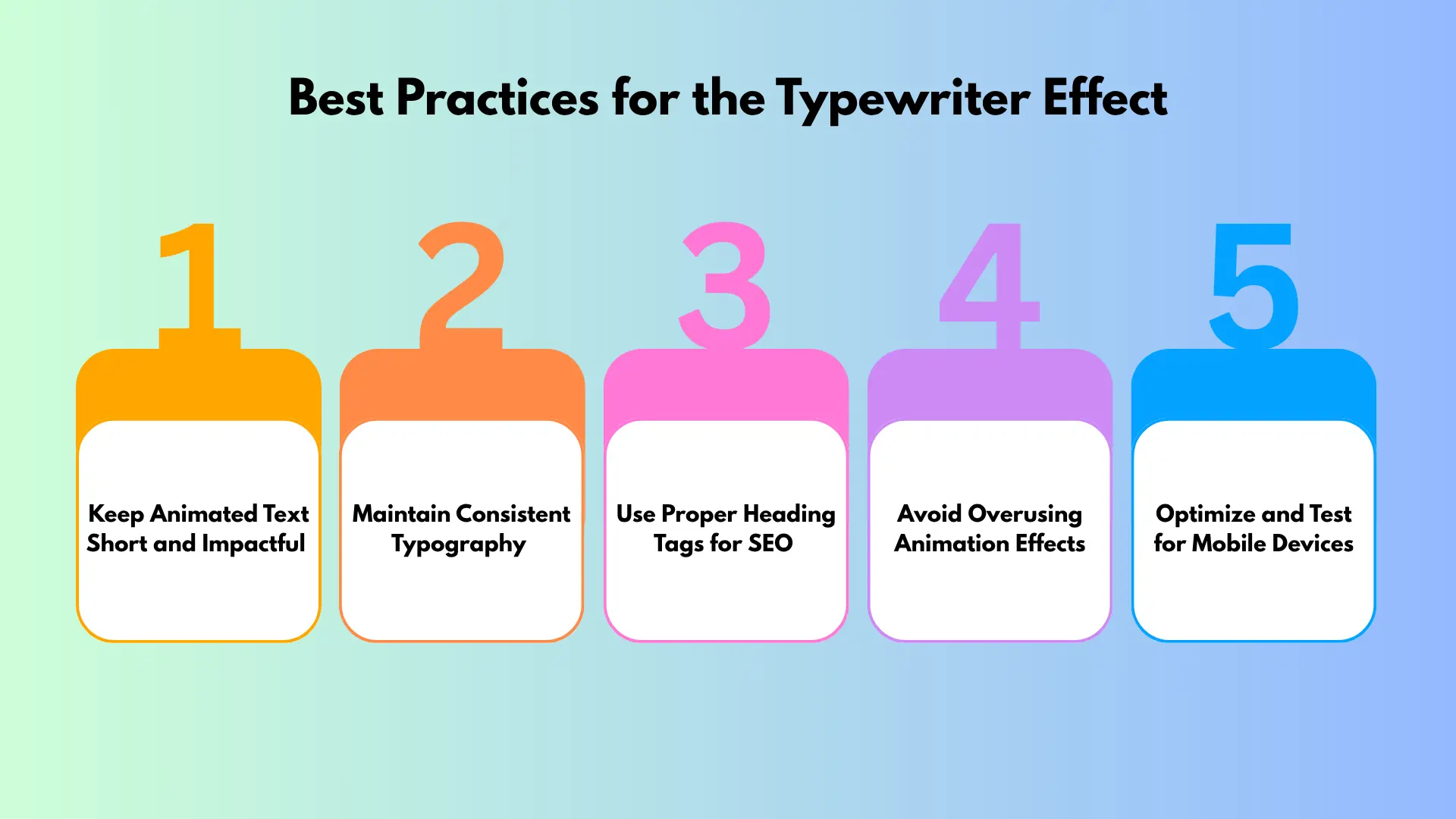
Keep Animated Text Short and Impactful
Keep animated words short and punchy. One to three words per item works best. Longer phrases take more time to type and delete, which can feel slow or distracting.
Maintain Consistent Typography
Match the static text and animated text in font size and style. Inconsistent sizing makes the headline look broken. The Style tab is used to keep everything uniform.
Use Proper Heading Tags for SEO
Use heading tags according to the semantic structure of your page. Your main page heading will often be an H1, while supporting headings can use H2/H3. Don’t choose H1 or H2 simply because you want an SEO benefit.
Avoid Overusing Animation Effects
Avoid using the typewriter effect on multiple sections of the same page. One instance per page is usually enough. Too many animated elements compete for attention and reduce the impact of each one.
Optimize and Test for Mobile Devices
Test the animation on mobile. Open your site on a phone after publishing to make sure the text size and alignment work well on smaller screens.
Common Mistakes to Avoid
As typewriter widget is really a funny widget, but there are some consequences while you are using it. These are –
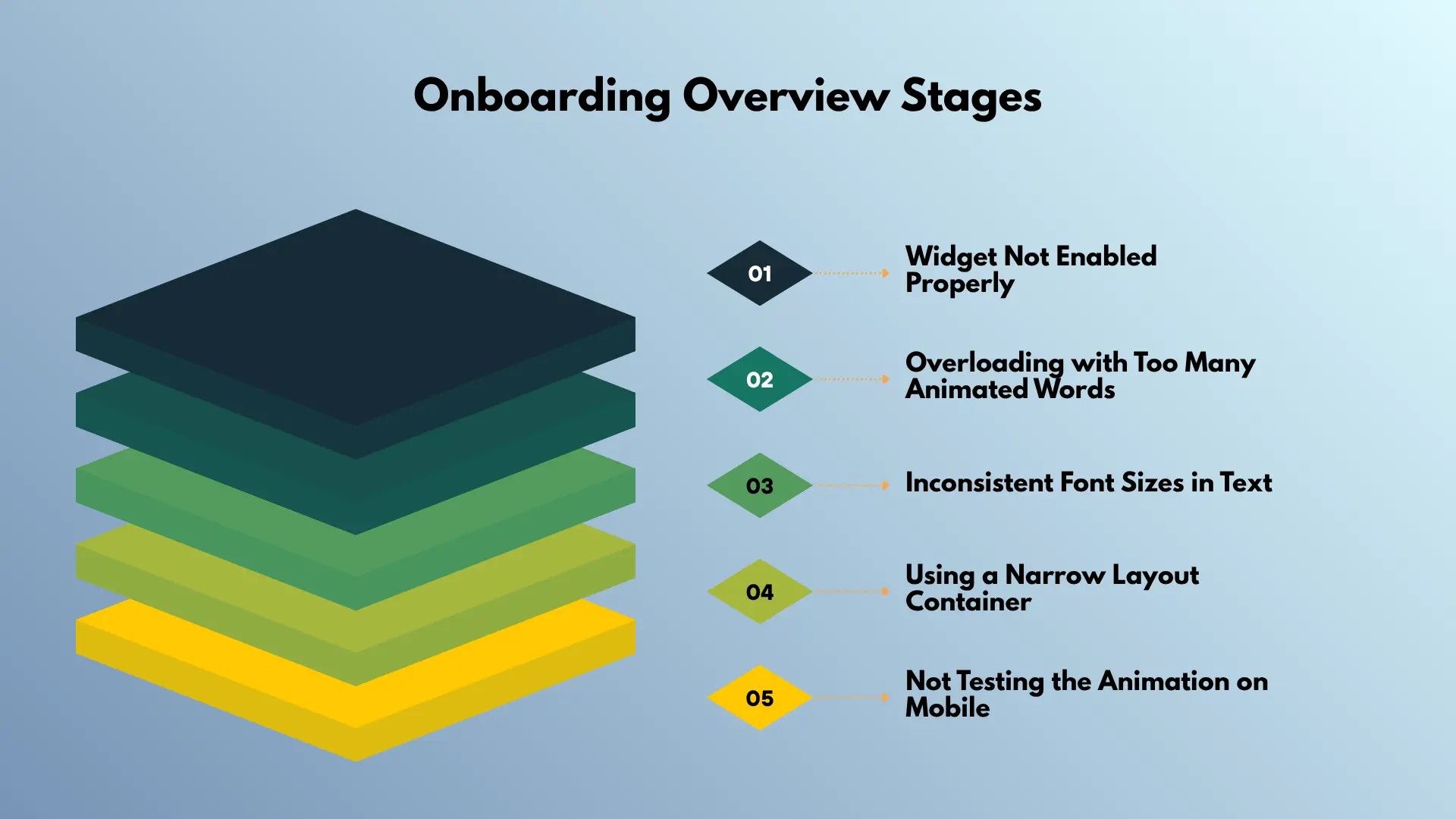
Widget Not Enabled Properly
Forgetting to enable the widget. If the Typewriter widget does not appear in your Elementor panel, make sure the toggle is switched on and saved.
Overloading with Too Many Animated Words
Using too many animated words. Adding six or seven items to the list makes the animation feel repetitive and slow. Stick to three or four items for a clean, engaging loop.
Inconsistent Font Sizes in Text
Mismatching font sizes between the static and animated text. This creates a visual disconnect in your headline. Always set the same font size for both parts in the Style tab.
Using a Narrow Layout Container
Placing the widget inside a container that is too narrow. If the layout column is small, the typed text may wrap to a second line mid-animation, breaking the visual flow. Use a full-width section for hero headlines.
Not Testing the Animation on Mobile
Skipping the mobile preview. Always check how the animation looks on smaller screens before publishing. What looks perfect on desktop may need a smaller font size on mobile.
Where the Typewriter Widget Works Best
The Typewriter widget is flexible enough to work across many different website types. Here are the most common and effective use cases:
Portfolio and Personal Websites
Creative professionals, developers, and designers often use the typewriter effect in their hero section to introduce themselves. Instead of picking one title, they can rotate through all of their skills. Each phrase reinforces a different dimension of their work.
Digital Agency Homepages
Agencies can use the widget to highlight their service areas in the main headline. A line that rotates between “Web Design,” “SEO,” and “Paid Ads” tells visitors exactly what the agency does without requiring them to scroll to find out.
SaaS and Product Landing Pages
Product teams can showcase different benefits of their tool in a single animated headline. Rotating phrases like “Fast,” “Reliable,” and “Affordable” communicate multiple selling points instantly, keeping the hero section clean and focused.
Small Business Websites
Local businesses can use the typewriter effect to rotate through their key services or target audiences. A salon, for example, might display “Hair,” “Nails,” and “Skin” as rotating words under a static headline like “We specialize in.”
Final Thoughts
The typewriter effect is one of the most effective yet simple animations you can add to a WordPress website. It communicates more in less space, keeps visitors engaged, and gives your site a polished, modern feel without requiring any design or coding expertise.
With Animation Addons for Elementor, setting up a typewriter animation takes just a few minutes. You define the static text, add your rotating words, choose a heading tag, and style it to match your brand. That is all it takes to turn a flat headline into a dynamic, attention-holding centerpiece.
Ready to Add a Typewriter Effect to Your WordPress Site?
Turn a static headline into an engaging animated experience with the Typewriter widget in Animation Addons for Elementor.
Explore Animation Addons →FAQs
Yes, you can add a typewriter effect to WordPress for free using a free Elementor-compatible widget such as Animation Addons. The Typewriter widget is available in the free version, so you don’t need a paid plan to follow this tutorial.
Yes, you can create a typewriter effect without Elementor Pro by using the free version of Elementor together with Animation Addons. The Typewriter widget works with the free version, allowing you to create and style the effect without Elementor Pro.
Yes, a typewriter effect can also be created with custom CSS or JavaScript instead of using a WordPress plugin. However, this article focuses on the no-code approach using the Typewriter widget in Animation Addons for Elementor.
No, a typewriter effect is not inherently bad for SEO when the animated content is implemented as accessible text and the page maintains a clear heading structure. Use appropriate HTML heading tags and avoid hiding important information exclusively inside animations.
Yes, a typewriter effect can work on mobile, but you should test the animation on smaller screens before publishing. Shorter animated phrases, appropriate font sizes, and sufficient container width can help prevent text wrapping or layout problems.
The exact typing-speed control depends on the typewriter tool or widget you are using. In Animation Addons, configure the available Typewriter animation settings in the widget’s settings panel and preview the result before publishing.
A typewriter effect can loop when the animation is configured to repeat the animated text sequence. The exact loop option depends on the widget or implementation you use, so check the available animation settings in your Typewriter widget.
Yes, you can use a typewriter effect within an H1 when the animated text is part of the page’s main heading. The article’s Typewriter widget lets you select an HTML tag, including H1, H2, H3, H4, H5, H6, or paragraph.
Yes, you can add multiple words or phrases to the Animated Text List and have them appear sequentially. The article demonstrates using phrases such as “Designer,” “Developer,” and “Marketer” as rotating animated text.
A simple text animation generally shouldn’t be a major performance issue when used appropriately, but excessive animations can affect the user experience. Keep the number of animated elements reasonable and optimize the effect for mobile devices rather than adding it to multiple sections on the same page.