 Zoom In
Calm Rooms
 Classic Elementor widget · Free
Add a blog section to any Elementor page in a few clicks. The free Elementor posts widget turns your latest articles into post cards: pick one of six styles, choose the columns, show the categories, date, author and a Read More link, and give every image a hover effect. It works as a free Elementor blog grid, and page numbers let readers browse older posts.
Zoom InCalm Rooms
 Zoom Out
Wine Notes
 Left Move
Desert Days
 Right Move
Rooftop Light
The short answer
The Posts Widget is a free Elementor widget from Animation Addons that shows your blog posts as an Elementor post grid or list of Elementor post cards. You pick one of six styles, set the columns and posts per page, choose which parts each card shows (image, categories, date, author, comments, excerpt, Read More) and add page numbers below the grid.
As an Elementor blog posts widget it needs no theme builder: drop it on any page, post or template. It is a classic widget for the Elementor 3 editor that keeps working in Elementor 4, and it does not need Elementor Pro. When you need a category filter, Load More or infinite scroll, use Advanced Posts from Animation Addons Pro.
Also searched as: elementor posts widget, free elementor posts widget, posts widget for elementor, elementor blog posts widget, elementor blog grid, elementor blog layout, elementor post grid, elementor post cards, elementor latest posts, elementor recent posts widget, elementor posts pagination, elementor posts by category, elementor posts custom post type, elementor posts hover effect, elementor posts read more button, how to display blog posts in elementor.
Live demos
Seven blog sections on small sites, from a three column grid to a list with page numbers. Hover a card to see the image zoom, and click the page numbers in the last one.
From the Halden blog
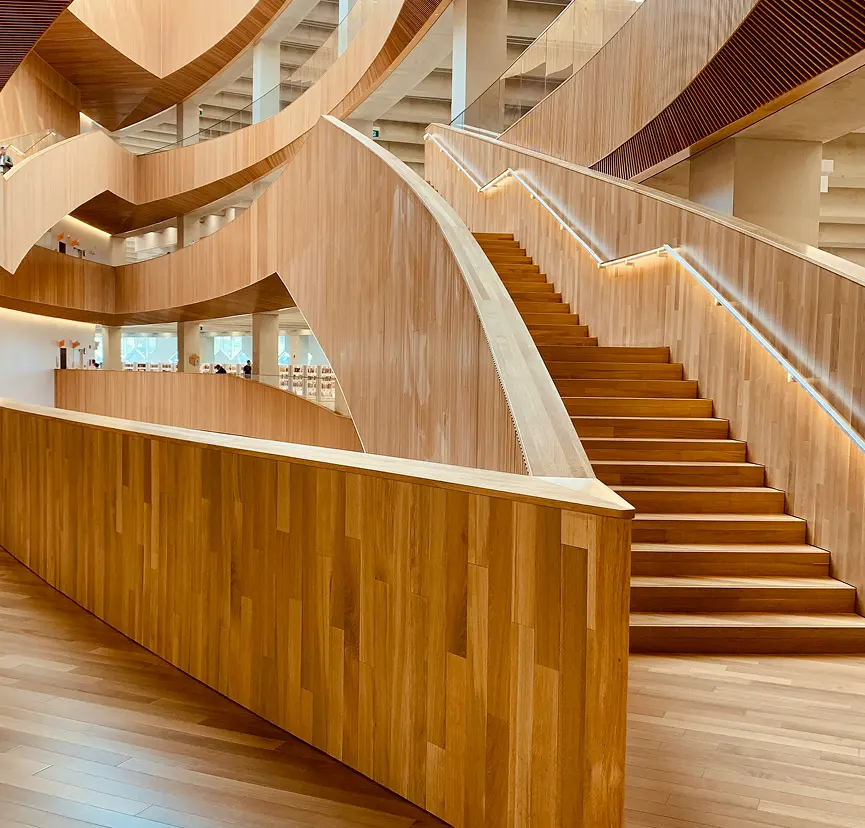
The blog page of a software company. Three post cards in a row, each with category chips, a large title and a Read More link. The image zooms a little when you point at a card.
Hover a cardIn the panel, set Style to One, Columns to 3, Show Taxonomy to Show and Hover Effect to Zoom In.
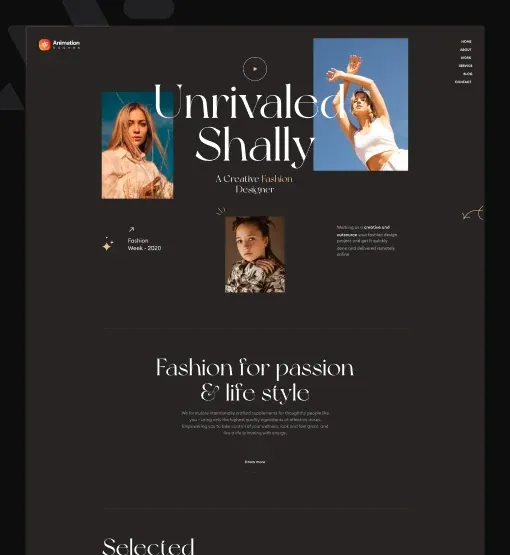
The stories page of a fashion label. Each post has a portrait photo and a dark panel with the date, the title and a white Read More button that turns dark on hover.
Hover Read MoreIn Layout, set Style to Two, Columns to 2 and turn on Show Date. Keep Highlited Title on and set its Title Length to 3, so the first three words stand out.
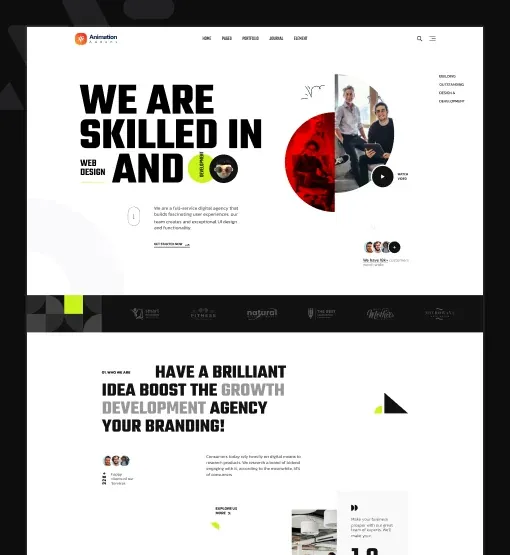
The journal of an interior studio. A large photo with the text panel overlapping its lower edge shows the date, the comment count and the title.
Hover a photoIn the panel, set Style to Three, Columns to 2, Show Date to Show and Show Comment to Show.
The journal of a production company. The photo fills the card and the text sits on top. On hover the tint deepens and the image zooms in, so the title stays easy to read.
Hover a cardIn the panel, set Style to Four, Columns to 3, Icon Position to After and Hover Effect to Zoom In.
The journal of a photo studio. A tall portrait photo with a dark text box that overlaps it from the side, with the date, the comment count, the title and an underlined Read More.
Hover a photoIn the panel, set Style to Five, Show Date to Show, Show Comment to Show and Hover Effect to Zoom In.
The journal of a wine estate. Six posts in a grid with white category chips, bold uppercase titles and the date, and no Read More link.
Hover a cardIn the panel, set Style to One, Posts Per Page to 6, Read More to Hide and Show Date to Show.
The talks page of a clinic. A list with a date column, a thumbnail with a video, audio or gallery badge, the author and the views, and page numbers below. Click a number to see the next posts.
Switch pagesSet Style to Six and Posts Per Page to 3. In Pagination, choose Numbers + Previous/Next. The badges on the photos come from Video Icon, Audio Icon and Gallery Icon.
Features
What the Elementor post grid gives you, each feature tied to a setting in the Elementor panel.
Pick one of six Elementor blog layout styles in Style, from One to Six, then set Columns per screen size, Posts Per Page and the Image Resolution.
Show or hide the title, cut it with Title Length (words) or Title Length (lines), pick the Title HTML Tag and make the first words bolder.
Turn on Show Excerpt and set the Excerpt Length so each Elementor post card shows just enough to invite a click.
Switch Show Date, Show Comment, Show Author and Show Taxonomy on or off, and choose which taxonomy to list.
For an Elementor posts read more button, turn on Read More, change the Read More Text, add an Icon before or after it and set the Icon Spacing.
Use Query Type Custom, Archive or Related, pick the Source, include or exclude terms or authors to show Elementor posts by category, filter by Post Format and Date, and set the order.
For Elementor posts pagination, set Pagination to Numbers + Previous/Next, choose style One or Two, a Page Limit and Shorten for long archives.
Give images an Elementor posts hover effect with Hover Effect (Zoom In, Zoom Out, Left Move, Right Move) and style the thumbnail, content box, title, taxonomy, meta and Read More, with a separate background for even items.
Step by step
Five steps, all in the free plugin. The bold names are the labels in the Elementor panel.
Install and activate Animation Addons for Elementor from WordPress.org, and make sure Posts is on under Animation Addons → Elements.
Open your page in Elementor, search the panel for Posts and drag the widget into a section.
In Layout, choose a Style, the Columns and Posts Per Page, then switch on the parts each card should show.
In Query, pick the Source and the terms, authors or post formats to include, and set Order By.
Add page numbers in Pagination, pick a Hover Effect in the Style tab, check the grid on mobile and publish.
Honest comparison
Both come from Animation Addons and pull your posts with a query. The free Posts widget covers a classic blog grid; Advanced Posts (Pro) adds filters and more ways to load posts.
| Feature | Posts Widget (free) | Advanced Posts (Pro) |
|---|---|---|
| Plan | Free on WordPress.org | Animation Addons Pro |
| Needs Elementor Pro | No | No |
| Layouts | 6 styles, including a list with a date column | 5 layout types |
| Category filter bar | No | Yes |
| Pagination | Numbers + Previous/Next | Numbers, Load More or Infinite Scroll |
| Query types | Custom, Archive, Related | 12 query types |
| Highlight the first words of the title | Yes | Yes |
| Post views in the meta | Style Six only | Yes |
Compared from the plugin source of Animation Addons (free) and the Advanced Posts docs, October 2026.
FAQ
Install Animation Addons for Elementor from WordPress.org and add the Posts widget. It lists your posts as cards in one of six styles and works with Elementor Free.
Yes. It is part of the free Animation Addons plugin on WordPress.org. You do not need Animation Addons Pro or Elementor Pro to use it.
Elementor Pro's Posts widget needs Elementor Pro and offers Classic, Cards and Full Content skins. This widget is free, has six styles and adds image hover effects and title highlights.
Add the Posts widget and keep Order By on Date with Order on DESC. It then works as Elementor latest posts, and set to 3 posts it makes a small Elementor recent posts widget.
In Query, use Include By Term and add the term IDs. That gives you Elementor posts by category. Exclude By removes terms or authors you do not want.
Yes. Set Columns to 3 for desktop and pick fewer for tablet and mobile. Posts Per Page sets how many post cards appear in the grid.
No. The free widget offers Numbers + Previous/Next pagination in two styles. Load More and infinite scroll are in Advanced Posts, part of Animation Addons Pro.
Yes. For an Elementor posts custom post type setup, set the Source in Query to any public post type, such as pages or products. The posts then use the same cards and styles.
Four: Zoom In, Zoom Out, Left Move and Right Move, set in Hover Effect in the Style tab. Zoom In is the default; choose None to turn it off.
Yes. It is a classic widget, so Elementor 4 lists it with the legacy widgets, and it works on the same page as atomic elements.
Pairs well with
Widgets from the old page that work well with the Posts widget on a blog. See all 102 widgets.
Animation Addons Pro · Elementor 4
A free post grid for Elementor with hover effects, post meta and page numbers.
Halloween deal40% off every Pro planEnds 5 Nov