
 Login
Login


Imagine spending months building your website and then one day it is just gone. This can happen to anyone. A computer crash, a hacker, or even a simple mistake can erase your whole website in seconds.
Scary right? But don’t worry, because there is an easy way to stay safe. A backup plugin saves a copy of your website so you can bring it back if something bad happens.
We tested a lot of plugins to find the best ones for you. Keep reading to find the best WordPress backup plugin for your website!
Important Features to Look For
When picking a plugin, make sure it has these features to keep your site safe:
Off-Site Backup: It is important to save backups somewhere else like Google Drive or Dropbox. This way, if your server fails or is hacked, your backups are still safe.
Automatic Backups: Good plugins let you schedule backups to happen on their own every hour, day, or week, so you do not have to remember to do it yourself.
Simple Restore: You should be able to bring your site back with just one click from WordPress, or use a special file if you cannot log in. This helps fix problems fast.
Full vs. Partial Backups: Full backups save everything on your site, while partial backups only save the new changes. Partial backups are faster and use less space.
Testing and Moving Sites: Many plugins let you try changes on a test site or move your site to a new host easily, which is very helpful.
Top WordPress Backup Plugins We Have Found
Here’s a quick overview in the table below for your reference.
| WordPress Backup Plugins | Best For | Pricing |
| Duplicator | Moving & cloning sites | Free+Paid |
| UpdraftPlus | Scheduled cloud backups | Free+Paid |
| Jetpack Vaultpress | Zero-config automation | Paid |
| Solid Backup Nextgen | Backup + security bundle | Paid |
| BlogVault | High-traffic stores | Paid |
| WPvivid | Multi-cloud on a budget | Free+Paid |
| All-in-One WP migration | Quick one-click exports | Free+Paid |
| BackWPup | Lightweight manual control | Free+Paid |
How We Checked and Reviewed these Plugins
We didn’t just read about the features. We built real WordPress sites, added real content, and tested each plugin in real situations.
Full Restore Tests
We rebuilt full sites from the start and checked for missing files, broken links, and errors each time.
Speed on Large Sites
We tested how fast backups worked on small blogs, medium business sites, and big WooCommerce stores with many products and images.
Cross-Host Migration
We restored backups on different hosts to make sure they work when you need to change providers quickly.
Ease of Recovery
We timed how long it takes a beginner to fix a broken site and get it back online with each plugin.
8 Best WordPress Backup Plugins
Let’s explore each backup plugin in detail.
1. Duplicator
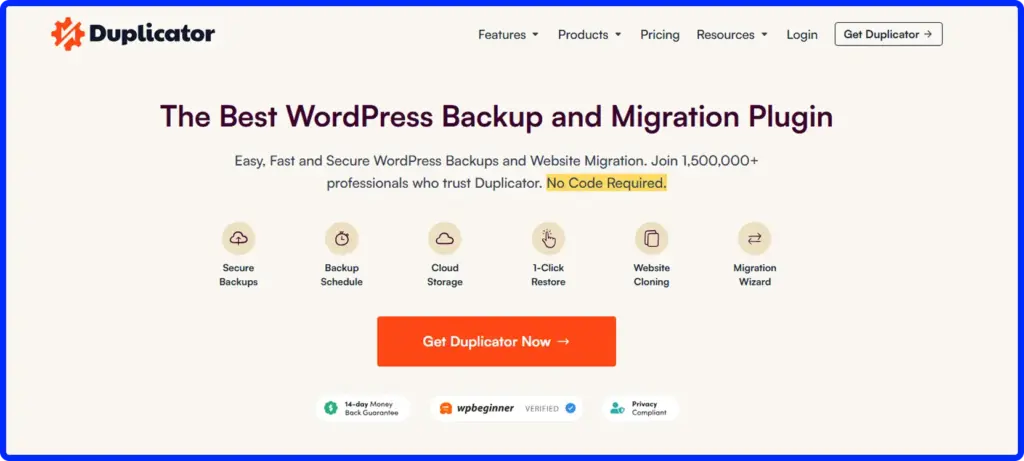
Duplicator is different from other plugins because it does not just back up your site. It puts everything into one file. Instead of many files, it includes your data, images, themes, and settings in one file with a small setup file.
After uploading these to a new host, your site rebuilds itself automatically.
This makes Duplicator very useful when you move your site, copy it, or fix it after a big problem. We used it on over 50 real sites, and it works well even with tricky setups and big sites.
The Pro version lets you make automatic backups, save files to cloud storage like Google Drive or Dropbox, and handle bigger sites. The free version works well for basic use and small sites.
Pros
- ✅ Portable single-package format works anywhere
- ✅ Handles complex migrations with custom configs
- ✅ Automated installer updates all database URLs
- ✅ Solid free version for smaller sites
- ✅ Excellent documentation and community support
Cons
- ❌ Free version has size limits for large sites
- ❌ Slightly steeper learning curve than basic plugins
2. UpdraftPlus
UpdraftPlus is the most popular WordPress backup plugin, and for good reason. The free version can make automatic backups on a schedule and save them to cloud services like Google Drive, Dropbox, or Amazon S3, all without a monthly fee.
For most personal blogs and small business sites, the free plan has everything you need.
We like that UpdraftPlus breaks your site into parts when backing up: the database, plugins, themes, uploads, and WordPress itself are all saved separately. This is helpful because if you delete some images by mistake, you can restore just the uploads instead of the whole site.
The premium version adds encrypted backups, more cloud storage options, multisite support, and a tool to move your site. For small to medium sites that want reliable automatic backups without extra costs, UpdraftPlus is still the best free choice.
Pros
- ✅ Genuinely powerful free tier with scheduling
- ✅ Granular component-level restore
- ✅ Supports all major cloud storage services
- ✅ Simple interface, perfect for beginners
- ✅ Large, active support community
Cons
- ❌ Can be slow on very large databases
- ❌ Some essential features locked behind premium
- ❌ Limited cloud destinations on free plan
3. Jetpack Vaultpress
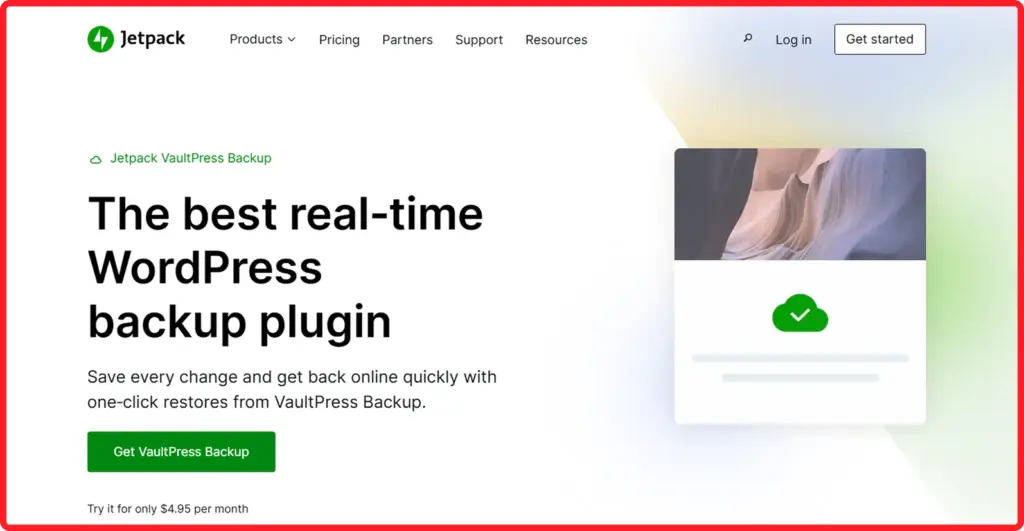
If you do not want to worry about backups, Jetpack VaultPress Backup is almost a “set it and forget it” tool. Once you install it, it automatically makes daily or real-time backups and saves them on Jetpack’s own servers.
What impressed us the most was how easy it is to restore your site. You just look at your backup history, pick a point, and click. You can restore the whole site, one post, or a single image. It works without using your server’s resources, so your site keeps running smoothly.
VaultPress is part of Jetpack, which gives you extra tools like uptime monitoring, security checks, and spam protection. But it also means you need a Jetpack subscription and will have all its features on your site.
Pros
- ✅ Zero configuration, works immediately
- ✅ Real-time backups for high-frequency publishing
- ✅ Off-server restore process is genuinely fast
- ✅ Granular activity log lets you pinpoint issues
- ✅ Bundled security scanning adds extra value
Cons
- ❌ Higher monthly cost than standalone alternatives
- ❌ Requires full Jetpack installation
- ❌ Limited control over backup customization
4. Solid Backup Nextgen
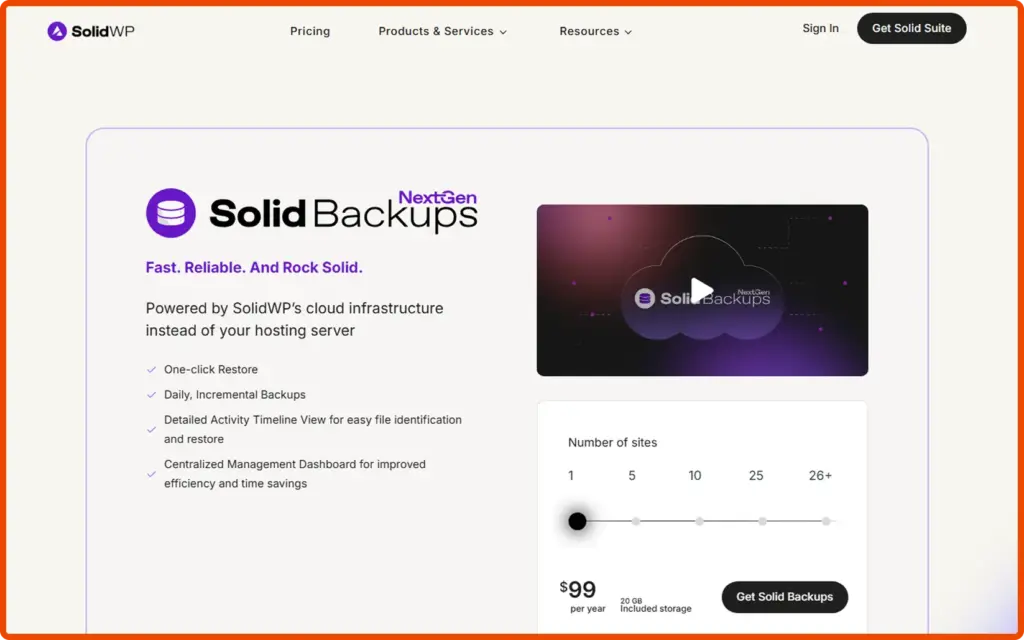
Solid Backups NextGen by SolidWP, once called BackupBuddy, is a plugin that helps you back up your site, move it, and store files all in one place. It is easy to use and does not need much setup. One of its best features is Stash, its own cloud storage.
You can save your backups there without needing Google Drive or Amazon S3.
In our tests, restoring a site worked very well. It was easy to bring back the whole site or just one file without problems. The tool to move sites also worked well and updated everything correctly after changing hosts.
It also checks your site for malware, which adds extra safety. The downside is that it costs more and can feel a bit confusing if you only want a simple backup tool.
Pros
- ✅ Built-in Stash cloud storage requires no setup
- ✅ Reliable full-site and partial restores
- ✅ Migration tools handle URL rewrites automatically
- ✅ Malware scanning included in plans
- ✅ Strong official support and documentation
Cons
- ❌ No free version available
- ❌ Interface can feel complex for basic needs
- ❌ Premium pricing
5. BlogVault
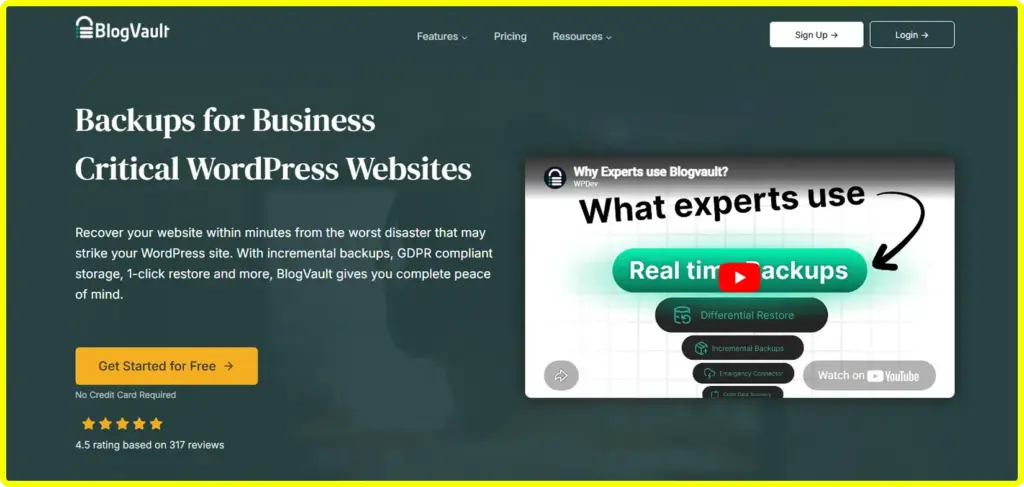
BlogVault is made for big WordPress sites that need fast and safe backups. Large sites often take a long time to back up and can slow down the server. BlogVault fixes this by only saving the changes instead of copying the whole site every day.
In our tests, a large WooCommerce store with over 8,000 products backed up in less than ten minutes. Other plugins that copy the whole site took two to three hours and slowed the site down for visitors.
BlogVault also lets you create a test copy of your site. You can try changes there and then move them to your live site when you are ready. This is very helpful for developers and teams working on big sites.
BlogVault works as an online service, so your backups and settings are managed outside of WordPress.
Pros
- ✅ Incremental backups are dramatically faster on large sites
- ✅ Minimal server impact during backup process
- ✅ One-click staging environment creation
- ✅ Detailed backup history and monitoring dashboard
- ✅ Reliable performance on high-traffic sites
Cons
- ❌ Higher entry price than most alternatives
- ❌ Advanced features have a learning curve
- ❌ Overkill for simple blogs or small sites
6. WPvivid
WPvivid is a surprising plugin on this list. Most plugins keep the best features for paid plans, but WPvivid gives many of them for free. You can save backups to places like Google Drive, Dropbox, Amazon S3, OneDrive, and more without paying anything.
Setting it up is easy. You connect your cloud accounts, pick a backup time, and choose what to save, like your full site, just the database, or only files. You can also restore your site right from the WordPress dashboard without using extra tools.
The Pro version adds a test site feature, team tools, and more ways to move your site. But for most people, the free version is more than enough. The plugin is also updated often, so it works well with new WordPress versions.
Pros
- ✅ Multiple cloud destinations included in free version
- ✅ Clean, intuitive backup and restore interface
- ✅ Staging functionality available in Pro
- ✅ Active development and regular updates
- ✅ Good migration tools included
Cons
- ❌ Documentation could be more thorough
- ❌ Some advanced management features require Pro
7. All-in-One WP migration
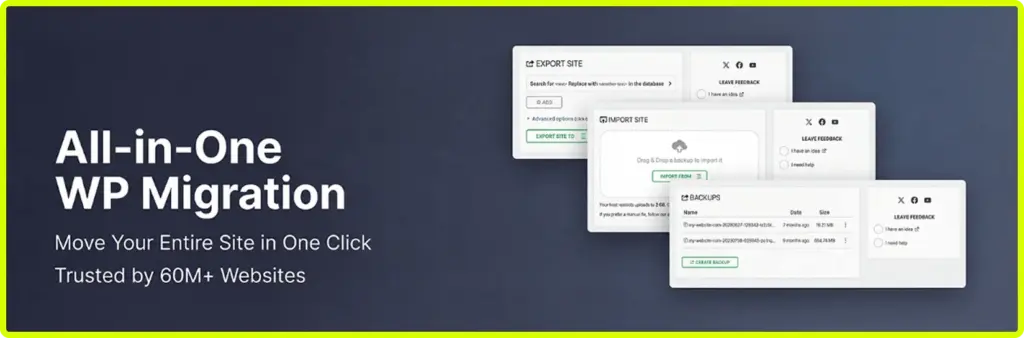
All-in-One WP Migration is known for making it very easy to move a website. You can export your whole site, including files, images, plugins, themes, and settings, into one file. Then you upload that file to a new host, and your site is ready. The plugin also fixes links and file paths on its own.
The free version lets you move sites up to 512MB, which works for many websites. If you want to use cloud storage like Google Drive or Dropbox, you need to buy extra add-ons.
This plugin is great for moving or copying sites, but it is not made for automatic daily backups. Many people use it along with a backup plugin to get the best results.
Pros
- ✅ Extremely simple export and import process
- ✅ Single portable .wpress file format
- ✅ Automatic URL and path rewriting on import
- ✅ Works with virtually every hosting environment
- ✅ Great free tier for standard-sized sites
Cons
- ❌ Not designed for automated scheduled backups
- ❌ Cloud storage requires paid extensions
- ❌ Extension costs can add up significantly
8. BackWPup
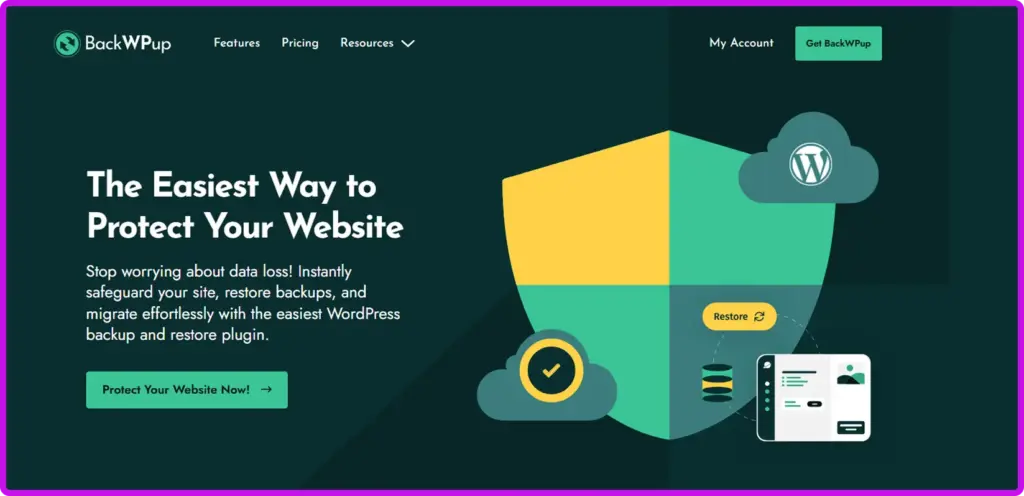
BackWPup is a trusted WordPress backup plugin that has been around for many years. The free version lets you back up your full site, including files and data, on a schedule you choose. You can send backups to places like Google Drive, Dropbox, Amazon S3, or even email.
The plugin lets you create different backup tasks. Each task can save different parts of your site and send them to different places. This gives you more control, but it may feel a bit hard for beginners who just want a simple daily backup.
Restoring your site is not as easy as other plugins. You need to download the backup and upload it using FTP or your host tools. This extra work is why it ranks lower on the list. Still, for users who are okay with a more hands-on process, it is a strong free option.
Pros
- ✅ Extensive cloud destination support for free
- ✅ Flexible job-based scheduling system
- ✅ Lightweight and low server impact
- ✅ Long track record of reliability
- ✅ Highly configurable for technical users
Cons
- ❌ No one click restore. Do it manually
- ❌ Interface is dated compared to newer alternatives
- ❌ Steeper learning curve for non-technical users
Select What Best Fits Your Needs
Every website is different, and so is every website owner. Whether you run a personal blog, a growing business, or a busy online store, the right backup plugin depends on your specific situation.
Here is a quick breakdown to help you decide.
Site migration and cloning: Go with Duplicator. It packages your entire site into one portable file, making it the most reliable option for moving or copying sites.
Free scheduled cloud backups: UpdraftPlus is the gold standard. Beginner-friendly, supports all major cloud services, and the free version covers most small to medium sites.
Completely hands-off experience: Jetpack VaultPress handles everything automatically. Nothing to configure, just install and forget.
Large WooCommerce or high-traffic sites: BlogVault is built for this. Incremental backups keep things fast without putting load on your server.
Maximum value on a free plan: WPvivid offers multiple cloud destinations at no cost, something most competitors lock behind a paywall.
Quick one-click site exports: All-in-One WP Migration makes moving a site as simple as it gets, no technical steps needed.
Lightweight manual control: BackWPup is a solid free option for technical users who prefer a flexible, hands-on setup.
Backups with built-in security: Solid Backup NextGen combines malware scanning, cloud storage, and migration tools all in one place.
No matter which plugin you choose, the most important thing is that a backup system is in place. Even a simple weekly backup is far better than having none at all.
FAQs
Do I really need a backup plugin?
Yes. WordPress does not back up your site automatically. Anything from a failed update to a hacked server can wipe your site instantly. A backup plugin is the simplest way to protect everything you have built.
How often should I back up my website?
It depends on how often you update your site. A blog that posts once a week can back up weekly. An online store with daily orders should back up daily or even in real time.
Where should I store my backups?
Always store backups somewhere other than your own server. Cloud services like Google Drive, Dropbox, or Amazon S3 are safe options. If your server is hacked or crashes, your backups will still be safe.
What is the difference between a full backup and an incremental backup?
A full backup saves a complete copy of your entire site every time. An incremental backup only saves what has changed since the last backup. Incremental backups are faster and use less storage, which is why plugins like BlogVault use them for large sites.




Leave a Reply