


 Login
Login

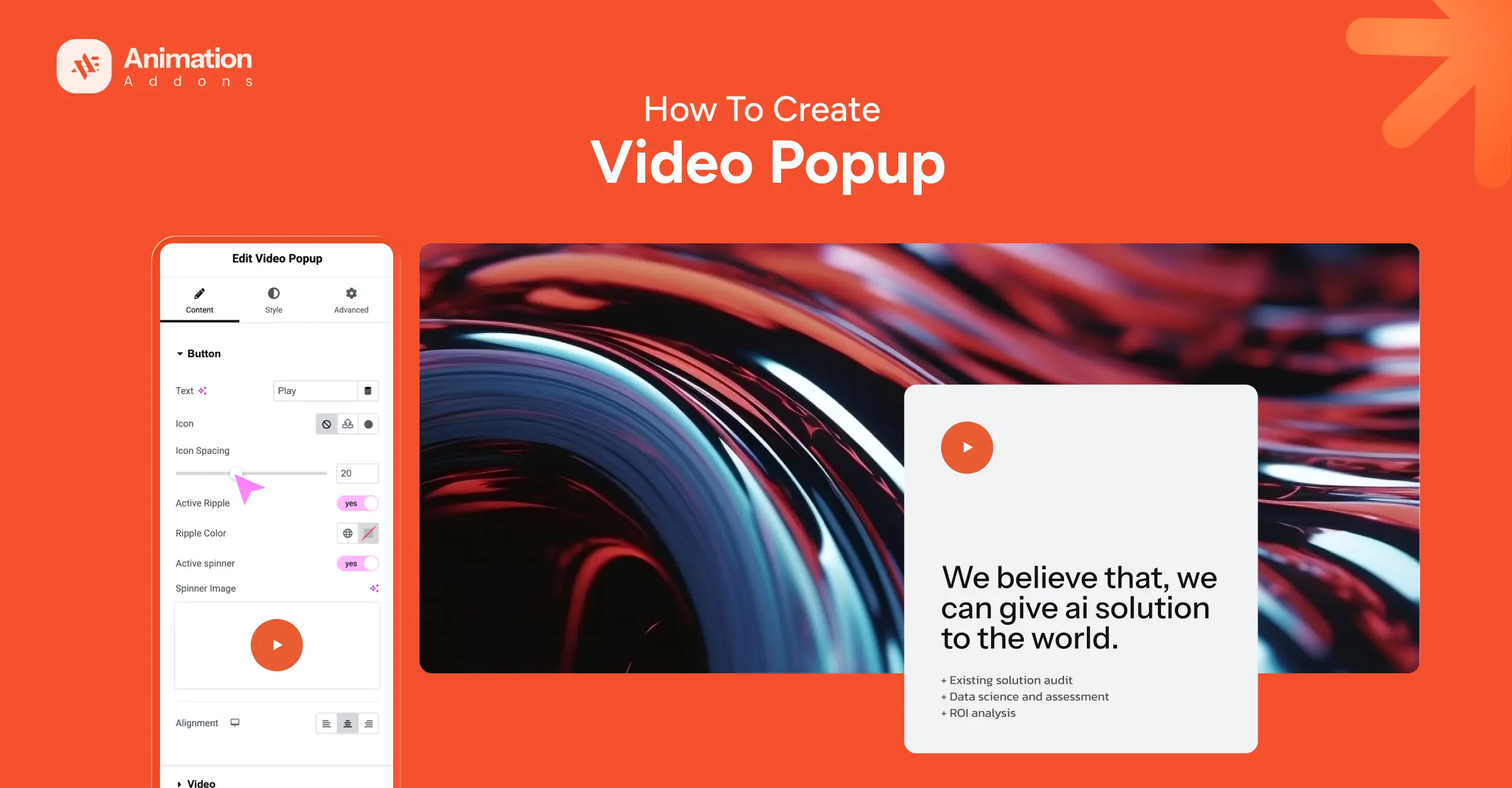
Videos are one of the most effective ways to capture attention and communicate information on a website. However, placing a full video player directly on a page can sometimes disrupt the layout. A video popup provides a smarter solution by allowing visitors to open and watch a video only when they click a button or icon.
With Elementor, creating a video popup becomes simple when using the Video Popup Widget from Animation Addons. This widget allows you to display videos from platforms like YouTube, Vimeo, or self-hosted sources inside an elegant popup window. In this guide, you’ll learn how to create and customize a video popup step by step to enhance user engagement on your website.
Why Use a Video Popup on Your Website
A video popup is an effective way to present video content without affecting the overall layout of your webpage. Instead of embedding a large video player directly on the page, a popup allows visitors to watch the video only when they choose to interact with it.
- One of the biggest advantages of using a video popup is improved user engagement. When visitors see a play button, they are more likely to click and watch the content. This makes video popups ideal for showcasing product demonstrations, tutorials, or promotional videos.
- Video popups also help improve page performance. Since the video player is not loaded immediately on the page, it can reduce initial loading time.
- Another benefit is design flexibility. You can customize the popup button, play icon, and animations to match your website’s branding.
Overall, video popups provide an interactive way to present video content while maintaining a professional and user-friendly website design.
How to Create Video Popup in WordPress
To use video popup in your website, we have to know how to add video popup and use it effectively to improve user engagement. Here, we show a step by step process on how to create a video popup in WordPress.
Activating the Video Popup Widget
Before you can use the Video Popup feature on your website, you need to activate the widget from the Animation Addons settings. Once enabled, the widget will appear inside the Elementor editor and can be used in any section of your page.
First, log in to your WordPress dashboard. In the left sidebar menu, locate Animation Addons and click on Elements. This section contains a list of all available widgets provided by the Animation Addons plugin.
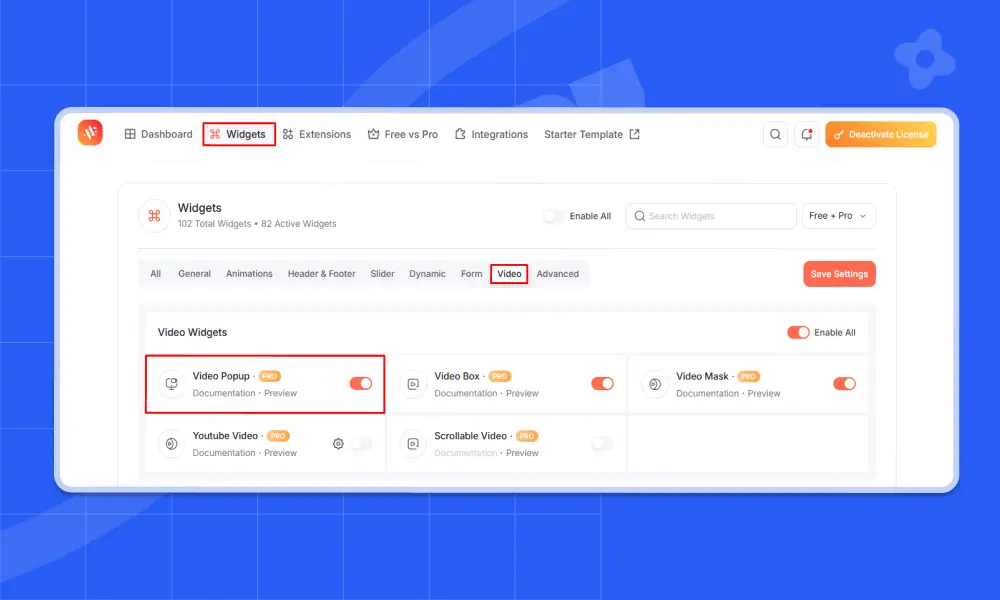
Scroll through the list or search for Video Popup Widget. Once you find it, simply toggle the switch to enable it.
- Ensure the Widget is Activated
- Before using the Video Popup Widget, make sure it is enabled from the Animation Addons settings; otherwise, it won’t appear in Elementor.
After enabling the widget, open any page with Elementor and search for Video Popup in the widget panel.
Adding the Video Popup Widget in Elementor
Once the Video Popup Widget is activated, the next step is to add it to your page using the Elementor editor. Elementor’s drag-and-drop interface makes the process simple, allowing you to place the widget exactly where you want the video popup to appear.
Create or Edit a Page with Elementor
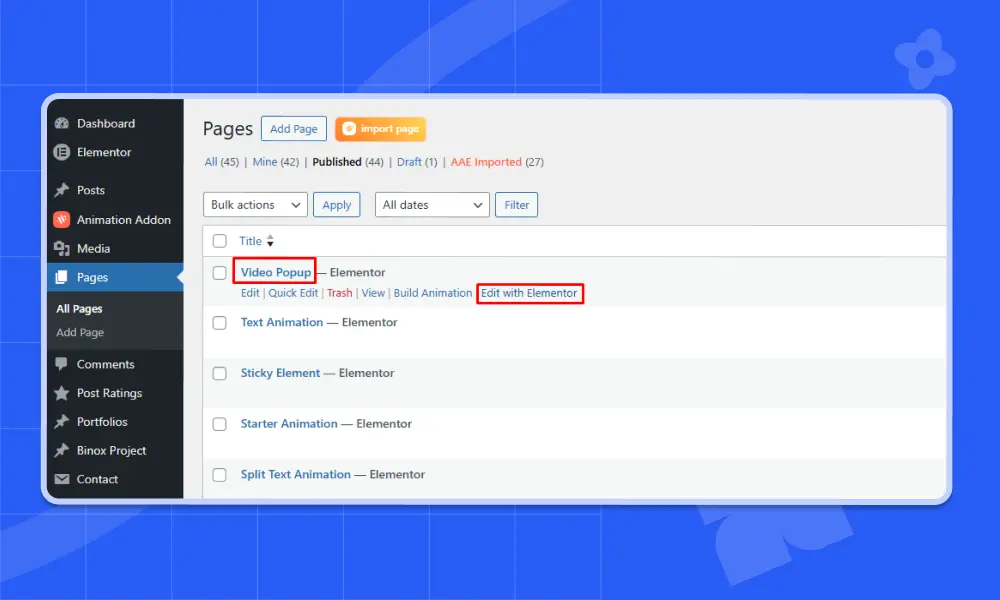
Start by going to your WordPress Dashboard and navigating to Pages → Add New. Enter a title for your page and select the Elementor Full Width template if you want a clean layout without sidebar restrictions. After that, click Publish and then select Edit with Elementor to open the page in the Elementor editor.
If you already have a page where you want to display the video popup, you can simply open that page and click Edit with Elementor.
Add the Video Popup Widget
Inside the Elementor editor, look at the widget panel on the left side. In the search bar, type Video Popup to quickly find the widget. Once it appears in the list, drag and drop the Video Popup Widget into the section where you want the button or trigger to appear.
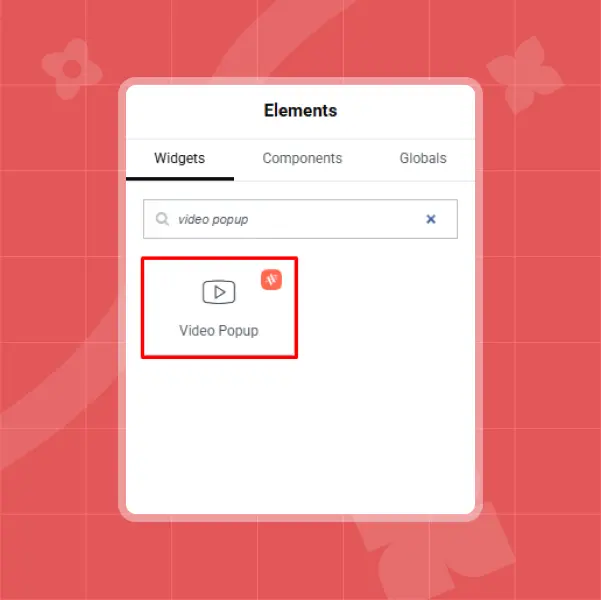
After placing the widget, you can begin configuring its settings. You’ll be able to add the video link, customize the button text and icon, and control how the popup behaves when users click the button.
Customizing Button Options
Customizing the button options helps you control how the video popup trigger looks and behaves on your page. The Video Popup Widget provides several options that allow you to adjust the button’s text, icon, and interactive effects.
Button Text and Icon
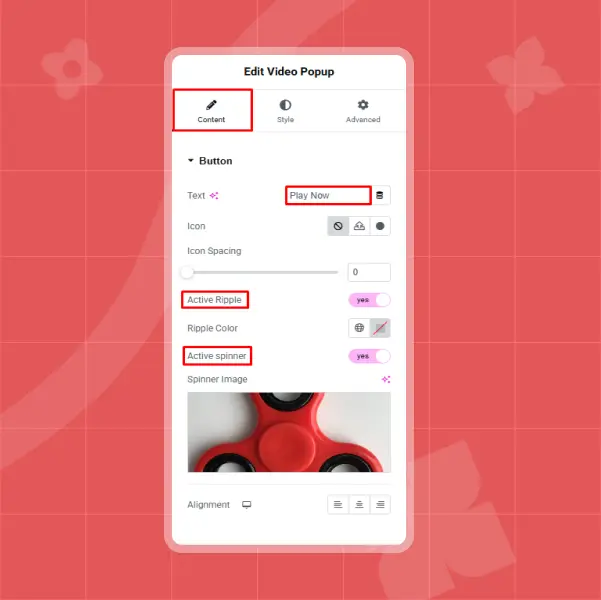
You can start by setting the button text, which tells visitors what action to take. Clear and engaging text can improve the chances of users clicking the button.
💡
Pro Tip:
Make your button text action-oriented, such as Watch Now or Play Demo. Clear CTAs encourage more clicks and improve user engagement with your video content.
You can also add an icon beside the text to make the button more visually appealing. A play icon is commonly used because it clearly indicates that a video will open. The icon spacing option lets you adjust the distance between the text and the icon to maintain a balanced layout.
Interactive Effects
To make the button more dynamic, you can enable features like Active Ripple, which creates a ripple animation when the button is clicked. You can also enable an Active Spinner, which shows a loading indicator while the video popup is opening.
Adding the Video Source
After configuring the button options, the next step is to add the video that will appear inside the popup. The Video Popup Widget allows you to easily connect your button to a video from popular platforms or a self-hosted source.
Enter the Video Link
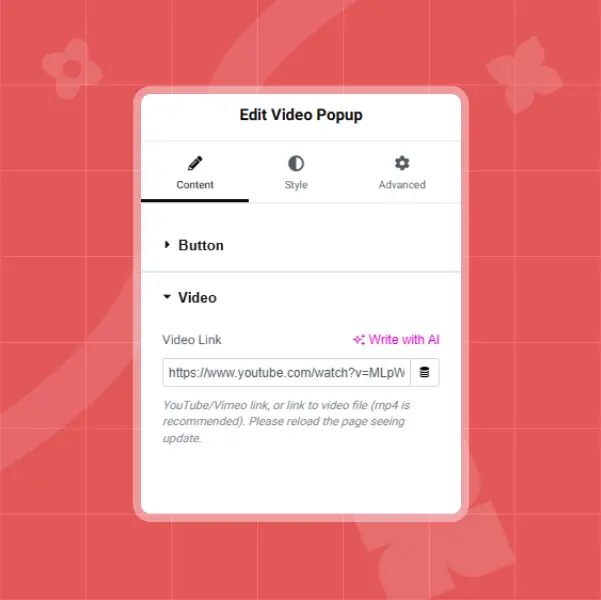
To add your video, go to the Video section under the Content settings of the widget. In the Video Link field, paste the URL of the video you want to display. The widget supports videos from platforms such as YouTube and Vimeo, as well as videos hosted on your own server.
💡
Pro Tip:
Use concise and focused videos (1–2 minutes) to retain user attention. Short videos are more likely to be watched and deliver your message effectively.
For example, if you are using YouTube, simply copy the video URL from the browser and paste it into the Video Link field. Once added, the widget will automatically connect the button to the video.
- Check Video Links Carefully
- Always double-check your video URL to ensure it works properly. A broken or incorrect link will prevent the popup from functioning correctly.
Styling the Video Popup Button
Styling the Video Popup button helps you match the button design with your website’s overall look and branding. The Style settings in the widget allow you to control the visual appearance of the button.
Typography and Size
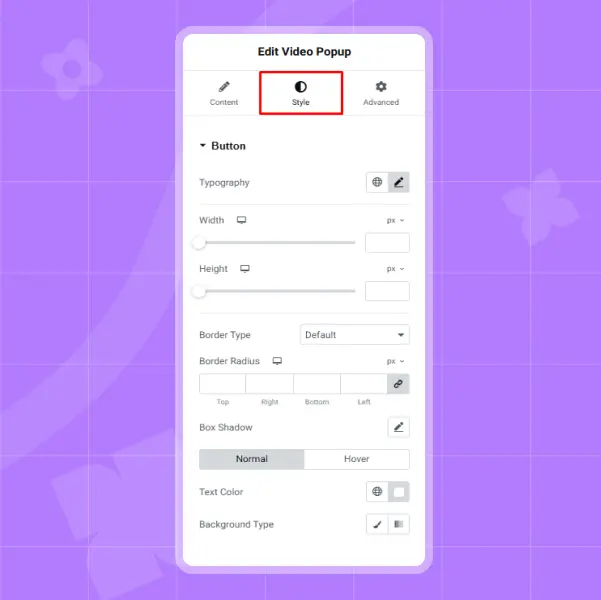
In the Typography settings, you can customize the font style of the button text. This includes adjusting the font family, font size, font weight, line height, and letter spacing. These options help ensure the text is readable and consistent with your website’s design.
You can also define the width and height of the button to maintain a balanced layout within your section. Proper sizing helps the button stand out without overwhelming other elements on the page.
Colors, Borders, and Effects
The styling options also allow you to control the text color and background type of the button. You can use solid colors, gradients, or even image backgrounds to create a unique design.
💡
Pro Tip:
Use an eye-catching thumbnail image and a recognizable play icon. This visually signals users that the button will open a video, increasing interaction rates.
Additionally, you can apply a border type such as solid, dashed, or dotted, and adjust the border radius to create rounded corners. Adding a box shadow can also give the button more depth and make it visually prominent.
Final Output
Benefits of Using Video Popup
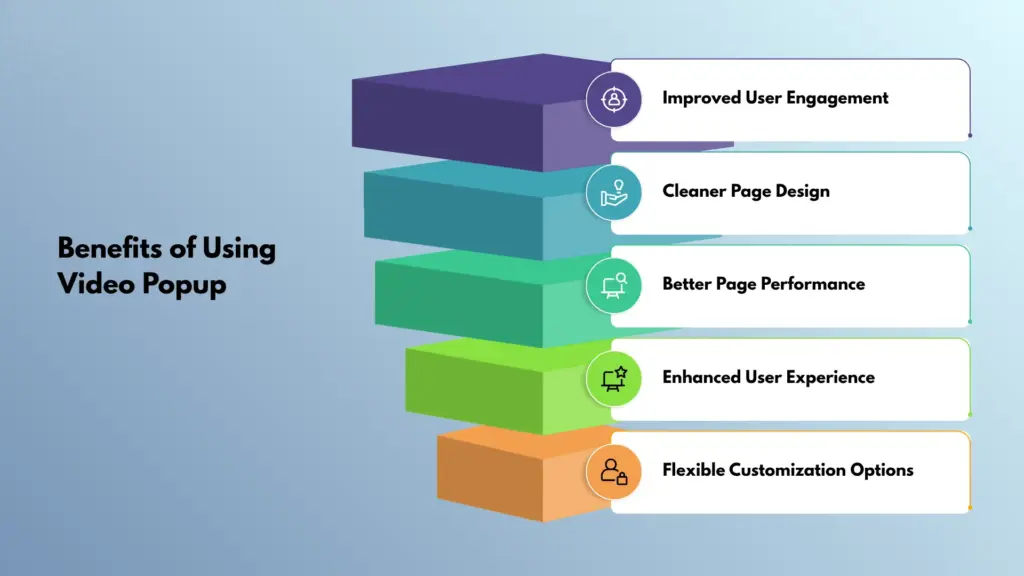
Video popups help increase user engagement by encouraging visitors to interact with video content. Here are five benefits of using video popup in WordPress.
Improved User Engagement
Video popups are highly effective at capturing user attention. When visitors see a clear play button or call-to-action, they are more likely to interact with it. This increases engagement and encourages users to spend more time on your website, especially when showcasing tutorials, demos, or promotional content.
Cleaner Page Design
Instead of embedding large video players directly into your layout, video popups keep your page clean and organized. The video only appears when users click the button, allowing you to maintain a minimal and distraction-free design.
Better Page Performance
Since the video is not loaded immediately when the page opens, video popups can help improve initial loading speed. This leads to a smoother browsing experience, especially for users with slower internet connections.
Enhanced User Experience
Video popups allow users to watch content without leaving the current page. This creates a seamless experience where visitors can view the video and continue exploring your site without interruptions.
Flexible Customization Options
Video popup widgets offer various customization features, including button styles, animations, colors, and layouts. This flexibility allows you to match the popup design with your brand and create a more professional and visually appealing website.
Conclusion
Creating a video popup in Elementor is a simple and effective way to present video content while keeping your website layout clean and organized. By using the Video Popup Widget from Animation Addons, you can easily add interactive video popups without needing any coding knowledge.
It allows visitors to watch content without leaving the page, which helps improve engagement and interaction. With the customization options available in the widget, you can design the popup button to match your website’s style and create a more dynamic and professional-looking website.
FAQs
What is a Video Popup in Elementor?
A Video Popup is a feature that allows a video to open in a popup window when a user clicks a button or icon. It helps keep the page layout clean while still allowing visitors to watch videos easily.
Do I need the pro version of Animation Addons to use the Video Popup Widget?
Yes, the Video Popup Widget is a pro feature of Animation Addons for Elementor. You need the premium version of the plugin to activate and use this widget on your website.
Can I add videos from YouTube or Vimeo to the popup?
Yes, the widget supports video links from popular platforms like YouTube and Vimeo, as well as self-hosted videos. You simply need to paste the video URL into the Video Link field.
Can I customize the appearance of the Video Popup button?
Yes, you can fully customize the button using Elementor’s style settings. You can change the text, icon, colors, typography, size, borders, and animations to match your website design.
Will a video popup affect my website performance?
No, video popups usually help maintain better performance because the video does not load immediately on the page. The video player only loads when the user clicks the popup button, which can improve initial page loading speed.

Leave a Reply