


 Login
Login



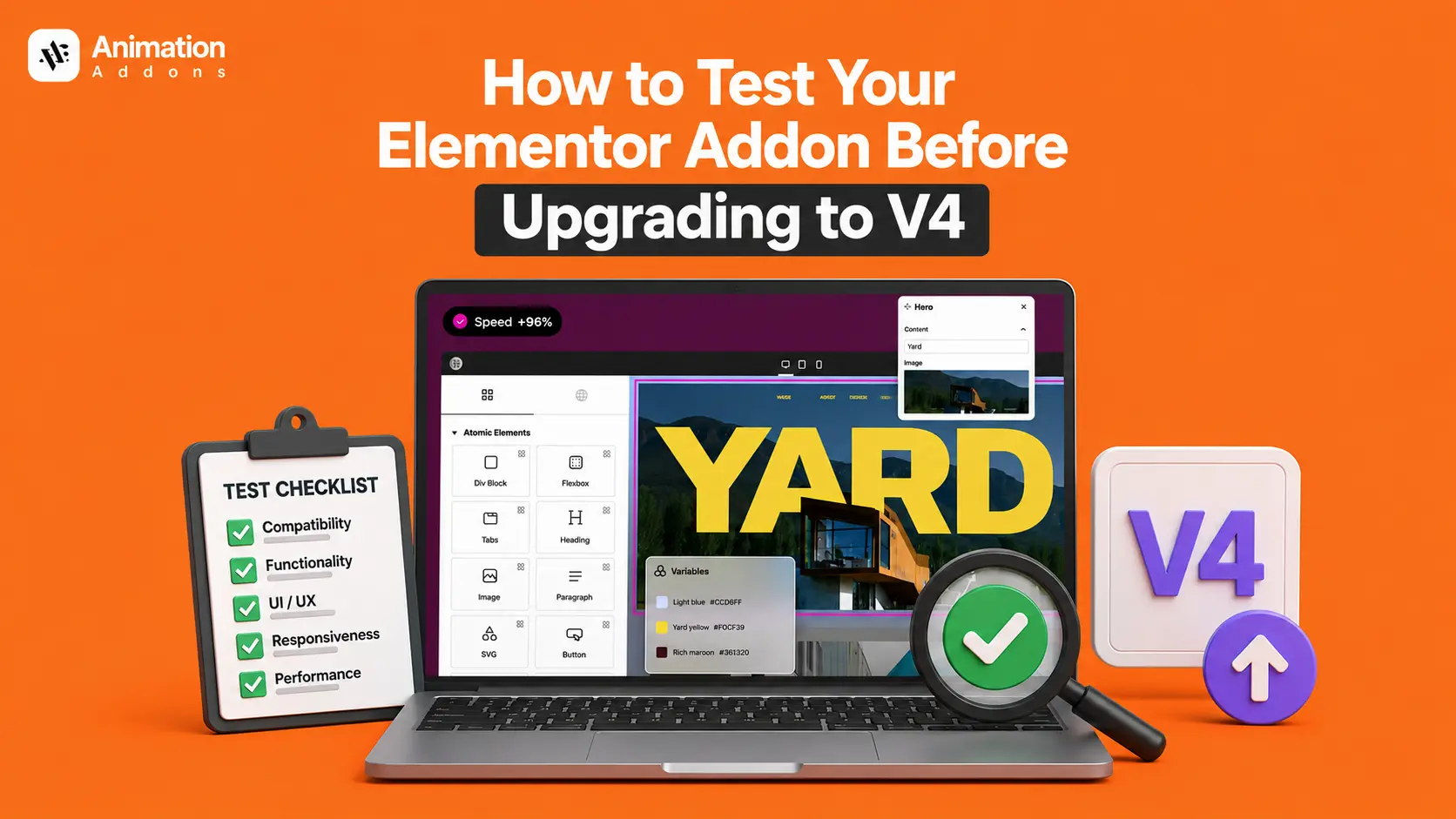
Elementor V4 is one of the biggest updates in Elementor’s history. It introduces a completely new architecture, including Atomic Elements, improved performance, enhanced design workflows, and a more scalable foundation for future development.
These advancements make Elementor more powerful, but they also highlight the importance of addon compatibility.
Many Elementor websites rely on multiple addons for widgets, animations, forms, marketing features, WooCommerce enhancements, and design flexibility.
If even one addon isn’t fully compatible with Elementor V4, it could lead to broken layouts, missing styles, malfunctioning widgets, or unexpected frontend issues.
That’s why testing your Elementor addon stack before upgrading is critical.
In this guide, you’ll learn how to safely test Elementor V4 compatibility, identify potential conflicts, and ensure your website is ready for a smooth upgrade without risking your live site.
Before You Start: Elementor V4 Testing Requirements
Before beginning the testing process, make sure you have everything necessary to perform a safe and accurate compatibility check with Elementor V4.
Proper preparation will help you identify potential issues more effectively and reduce the risk of unexpected problems during the upgrade process.
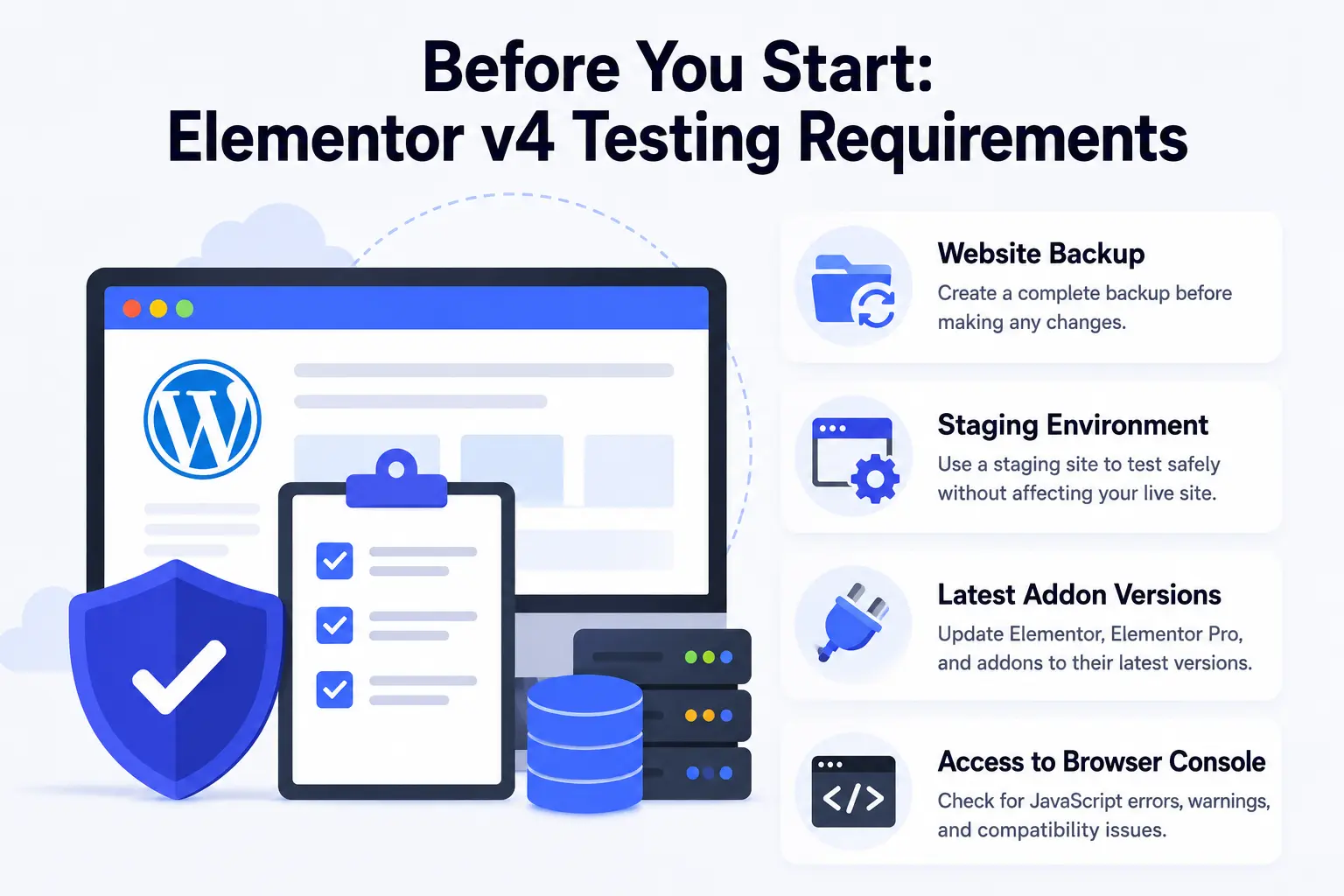
Below are the essentials you’ll need before testing Elementor V4.
Website Backup
Always create a complete backup of your website before making major changes. Even if you plan to test on a staging environment, having a recent backup provides an additional layer of protection in case something goes wrong during the upgrade process.
Your backup should include website files, the WordPress database, media uploads, theme settings, plugin configurations, and Elementor templates.
If your website contains WooCommerce data, forms, or other business-critical functionality, ensure those components are included as well.
A complete backup allows you to quickly restore your website to its previous state if compatibility issues occur or if you need to roll back changes after testing.
Staging Environment
Never test major updates on a live website. Instead, create a staging environment that closely mirrors your production site.
A staging environment is an isolated copy of your website where you can safely test Elementor V4, evaluate addon compatibility, and troubleshoot issues without affecting visitors, customers, or search engine rankings.
Ideally, your staging site should contain the same theme, plugins, custom code, content, and Elementor templates as your live website.
This ensures your test results accurately reflect what will happen when you eventually upgrade your production environment.
Many managed WordPress hosting providers offer one-click staging functionality, making it easy to create a testing environment within minutes.
Latest Addon Versions
Before testing Elementor V4, update Elementor, Elementor Pro, and all Elementor-related addons to their latest available versions.
Major Elementor releases often prompt addon developers to publish compatibility updates, bug fixes, and performance improvements.
Running outdated addon versions can produce inaccurate test results and may cause issues that have already been resolved by the developer.
You should also review the changelogs, release notes, and compatibility announcements provided by addon developers. This can help you identify known limitations, supported features, and any additional steps required when using Elementor V4.
Access to Browser Console
Browser developer tools play an important role in compatibility testing. While some issues are immediately visible on the frontend, others may only appear as JavaScript errors, warnings, or failed resource requests within the browser console.
Checking the console allows you to identify hidden conflicts between Elementor, third-party addons, themes, and custom code before they impact your live website.
You can access the browser console using the following shortcuts:
- Chrome: F12 → Console
- Edge: F12 → Console
- Firefox: F12 → Console
During testing, pay attention to JavaScript errors, deprecated warnings, missing files, failed API requests, and addon-specific error messages.
The browser console will become one of your most valuable tools for diagnosing compatibility issues throughout the testing process.
Step-by-Step: How to Test Your Elementor Addon Stack Before Upgrading to V4
Follow the step-by-step process below to test your Elementor addons before upgrading to Elementor V4.
These checks will help you identify compatibility issues early. They will also ensure a smooth transition without affecting your live website.
Step 1: Create a Full Website Backup
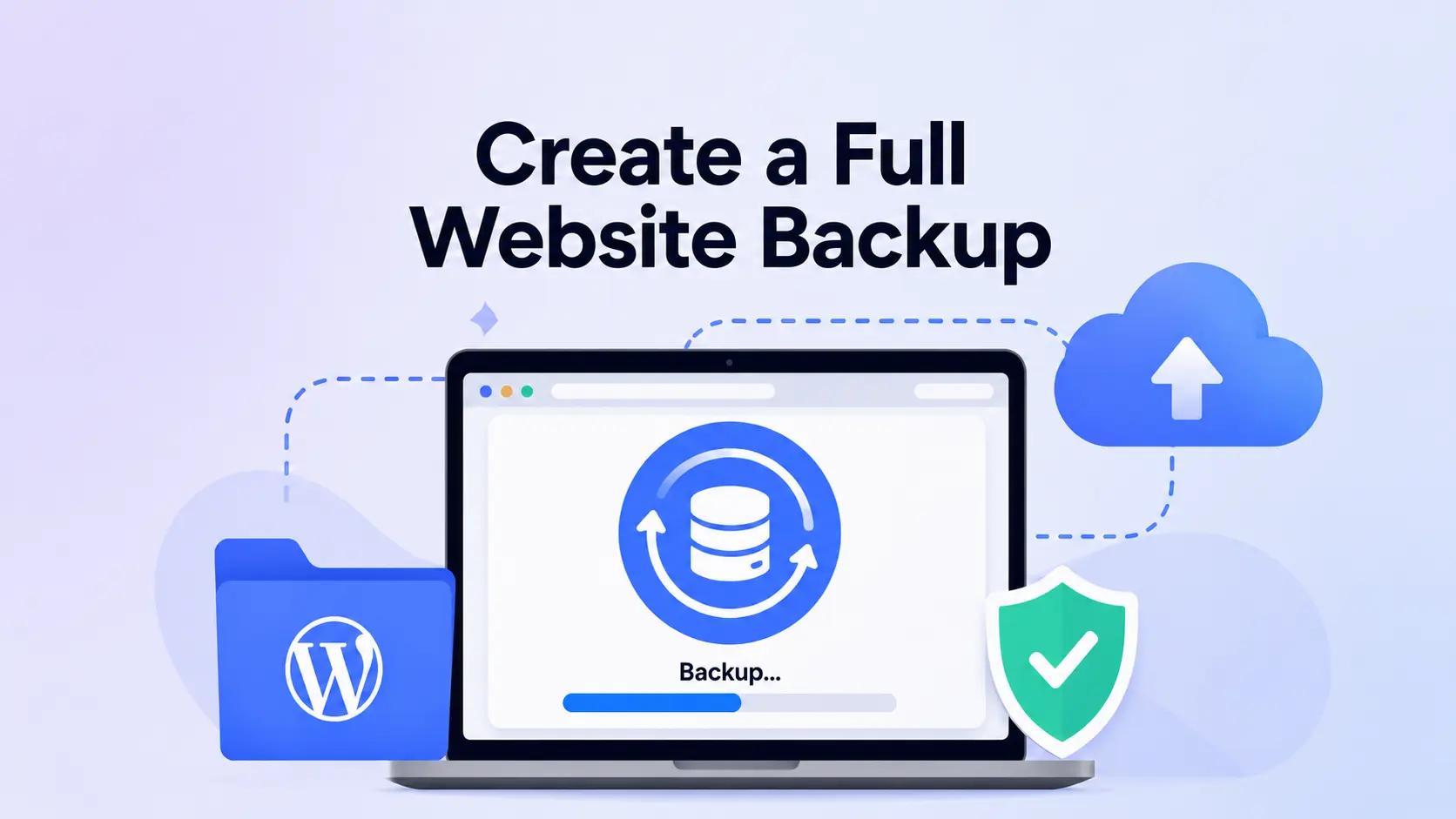
The first step is creating a complete backup of your website. Even though you’ll be testing on a staging site, having a recent backup provides an additional layer of protection.
Make sure your backup includes the WordPress database, theme files, plugin files, media uploads, and Elementor templates. Store the backup in a secure location before proceeding.
Step 2: Clone Your Website to a Staging Environment
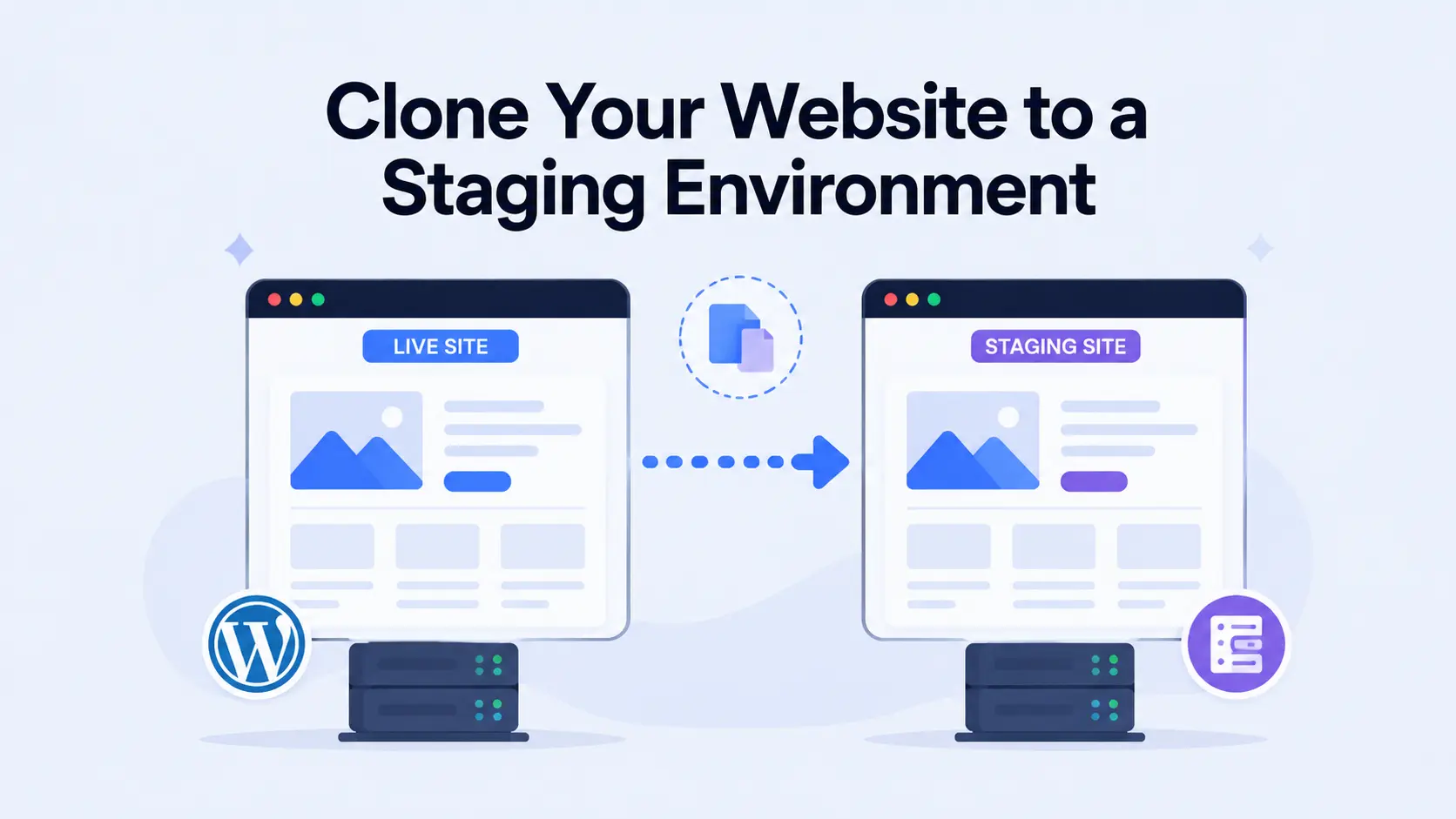
Next, create a staging copy of your website. The staging site should mirror your production environment as closely as possible, including your active theme, Elementor version, installed addons, WooCommerce settings, custom code, and content.
Testing on a staging environment ensures that any issues discovered won’t affect your live visitors.
Step 3: Audit Your Elementor Addons
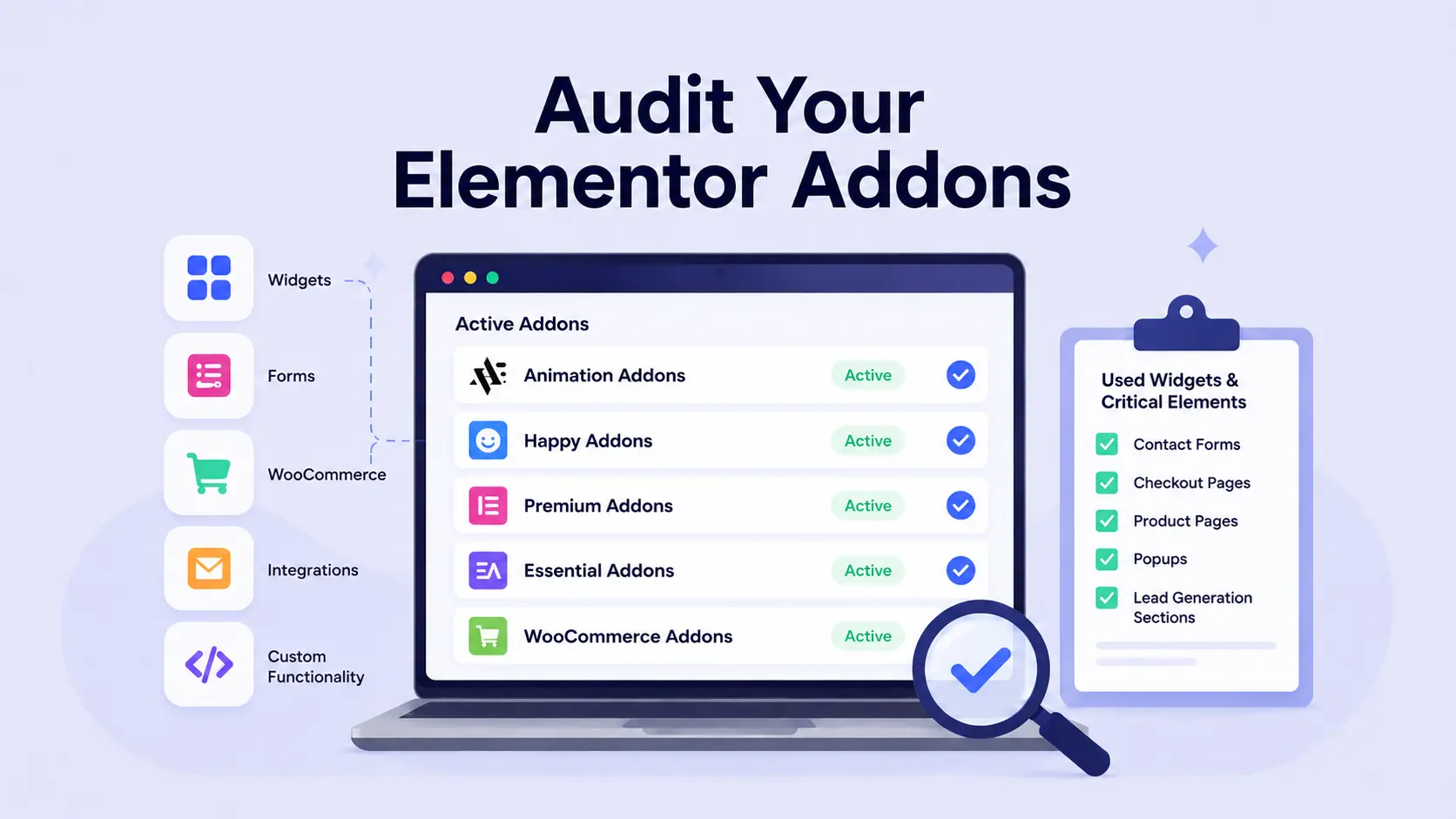
Before upgrading, review all Elementor-related addons currently active on your website. This includes widget addons, animation addons, form addons, WooCommerce extensions, marketing integrations, and any custom Elementor functionality.
Also, identify which widgets are actively used across your website. Pay special attention to business-critical elements such as contact forms, checkout pages, product pages, popups, and lead generation sections.
Step 4: Update Elementor and All Addons to Their Latest Versions
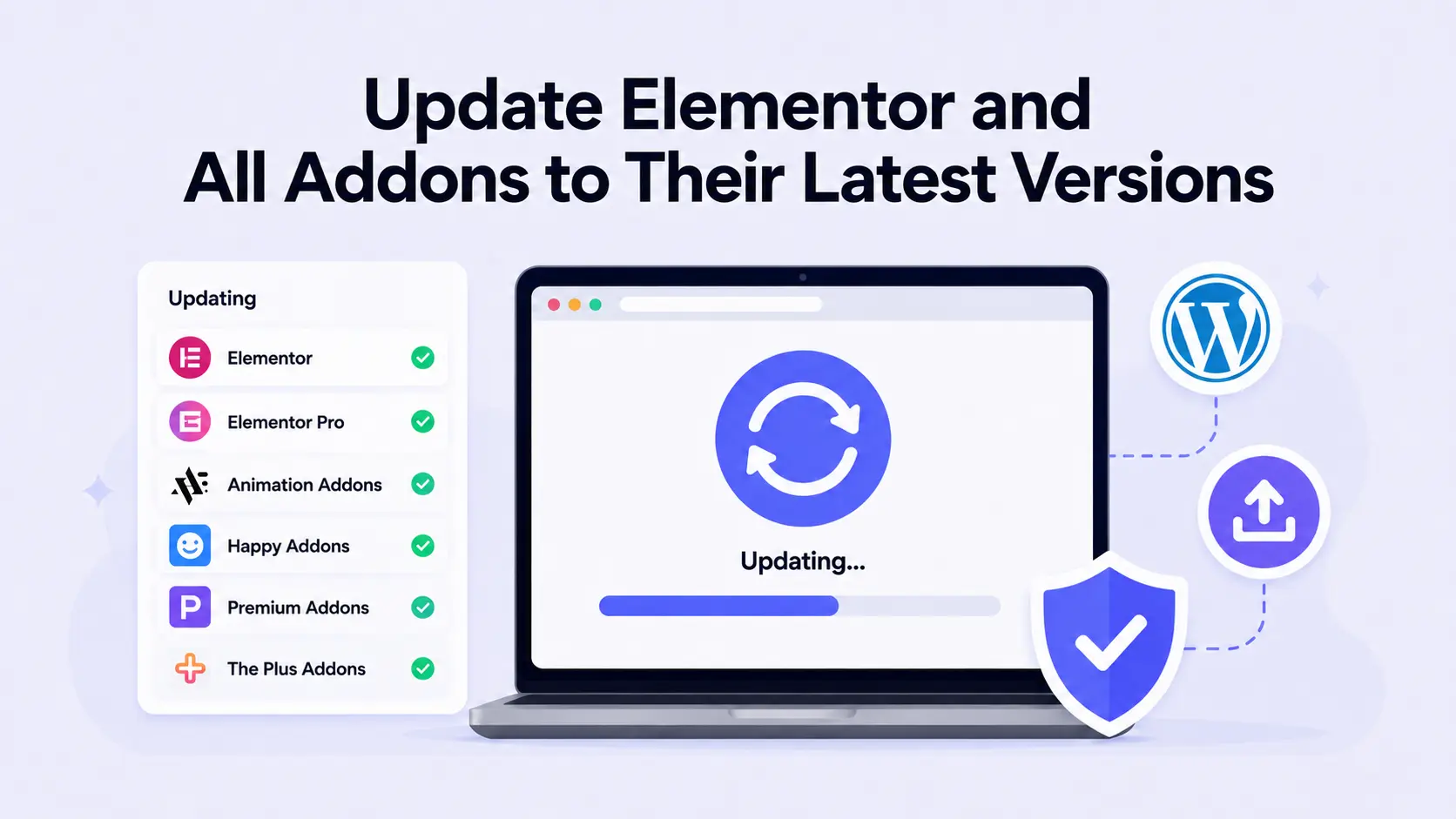
Update Elementor, Elementor Pro, your installed addons, and your active WordPress theme to their latest versions.
Developers often release compatibility updates before major Elementor releases, so running the latest versions helps minimize conflicts.
After updating everything, quickly verify that your staging site continues to function correctly before proceeding with Elementor V4 testing.
Step 5: Activate Elementor V4 Features on Staging
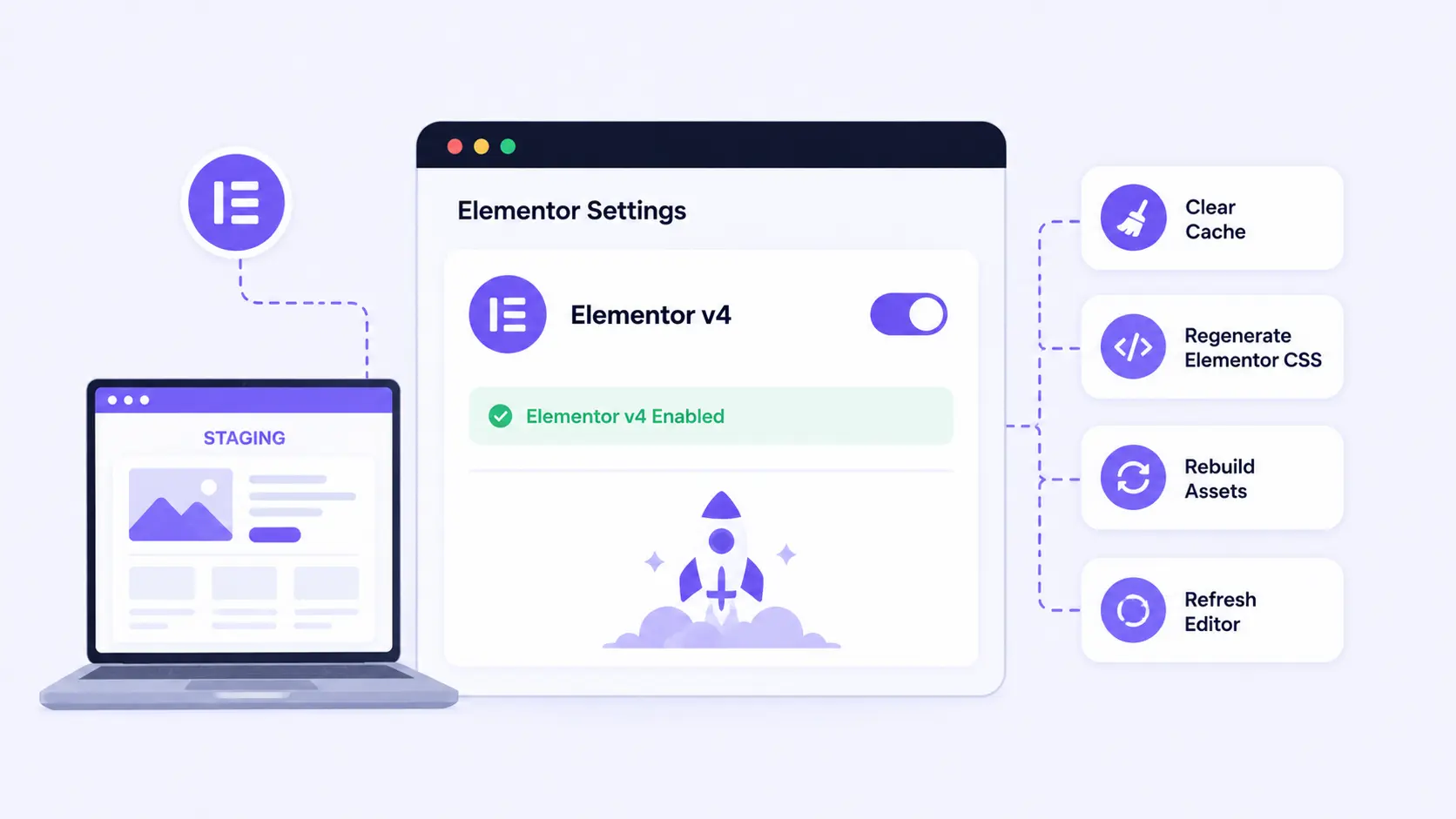
Once your staging environment is fully updated, activate Elementor V4 features according to Elementor’s current upgrade process. Perform all testing on the staging site and avoid making changes to your live website until testing is complete.
After activating Elementor V4, clear your website cache, regenerate Elementor CSS files, rebuild assets if necessary, and refresh the editor to ensure you’re testing the latest configuration.
Step 6: Create a Compatibility Testing Page
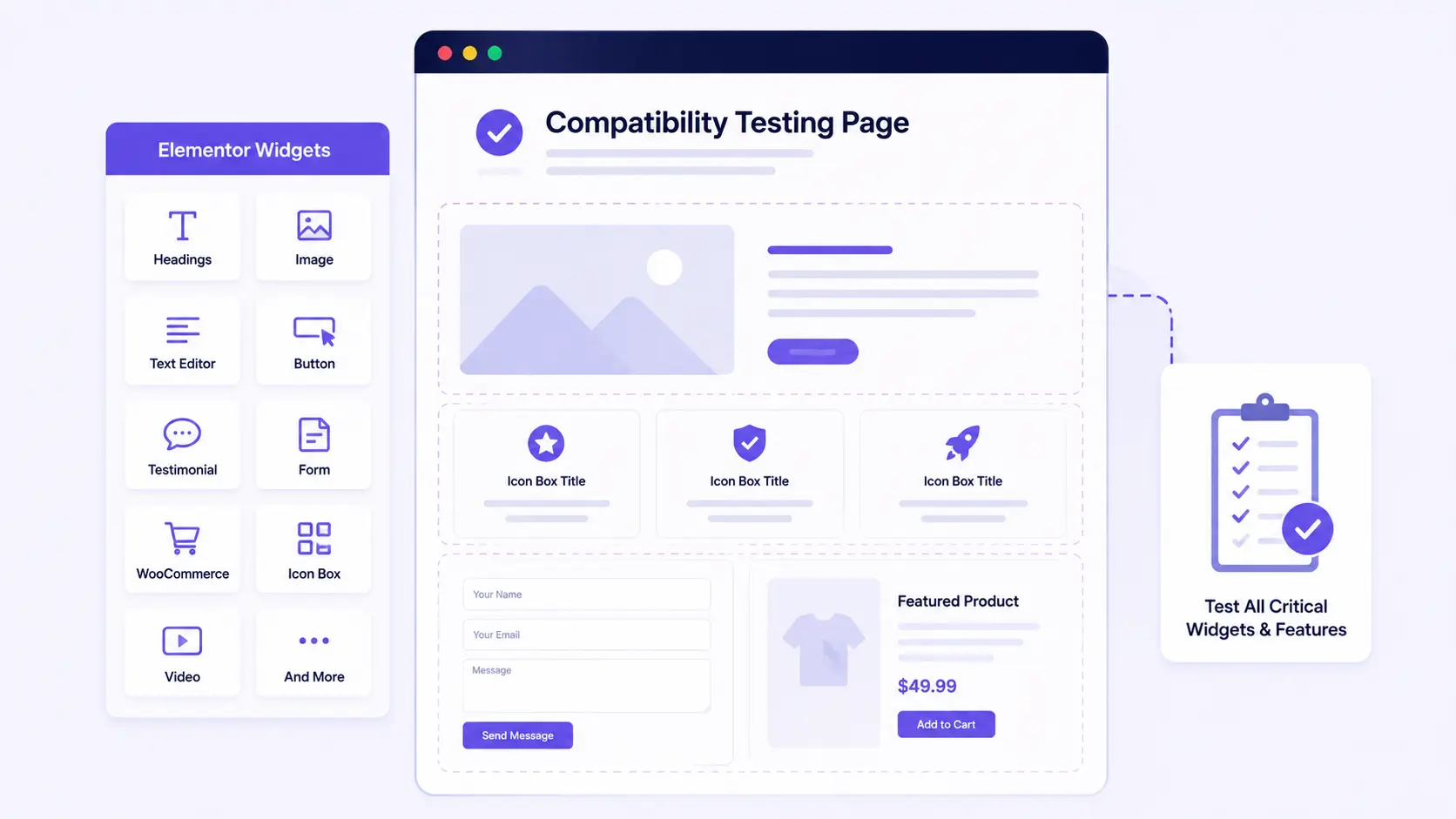
Create a dedicated testing page that contains every important Elementor widget and feature used throughout your website. Include common content elements, forms, WooCommerce widgets, interactive components, and any addon-specific widgets that are critical to your site’s functionality.
Centralizing these elements on a single page makes it easier to identify compatibility issues during testing.
Step 7: Test Every Addon Widget and Template
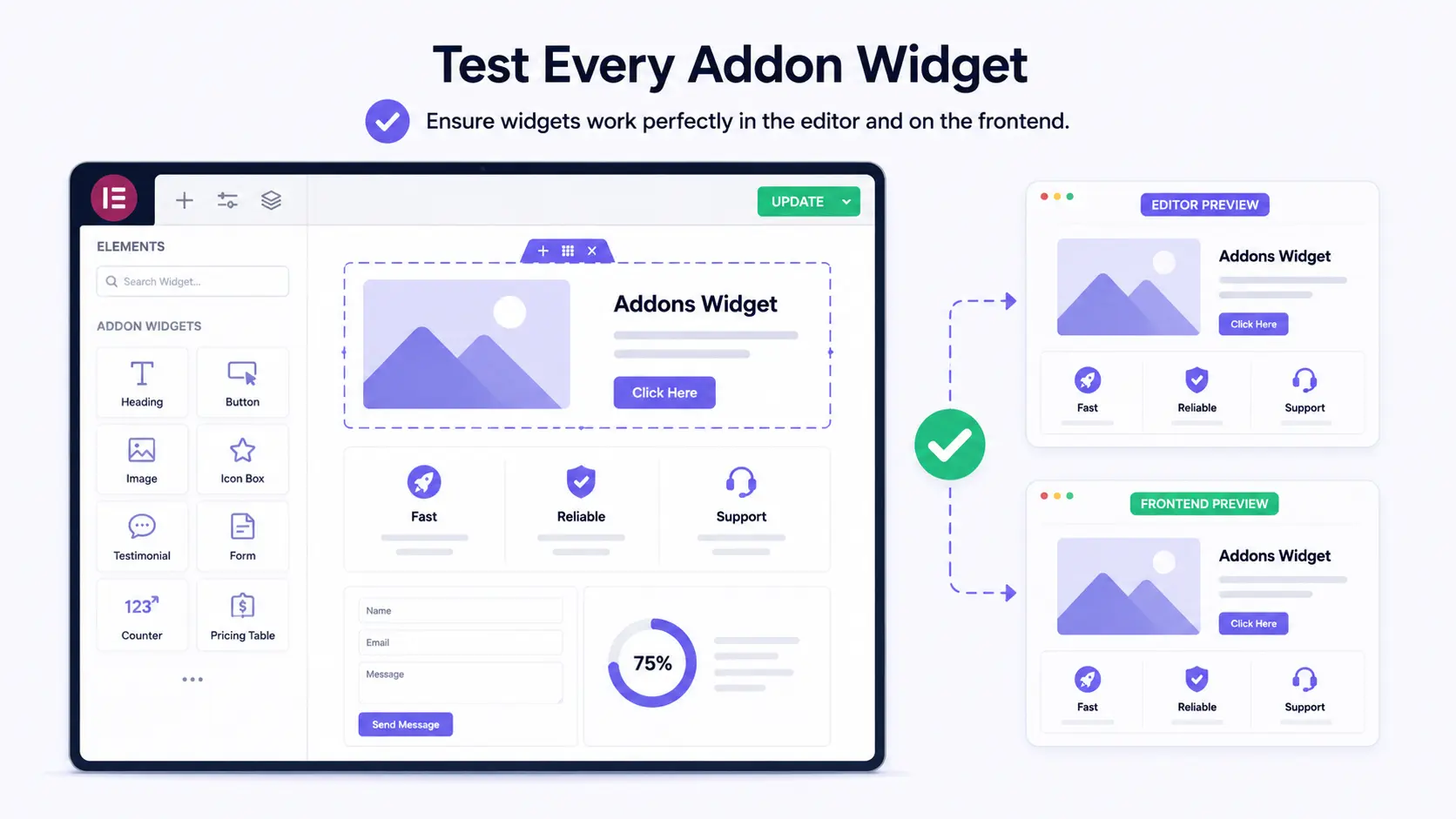
Open the Elementor editor and review each addon widget individually. Confirm that widgets load correctly, settings panels open as expected, controls remain functional, styling options are available, and content displays properly.
Then compare the frontend output with the editor preview to ensure there are no inconsistencies.
If your website uses Elementor Theme Builder, also test headers, footers, single post templates, archive templates, and WooCommerce templates to verify they continue to function correctly.
Step 8: Test Responsive Layouts
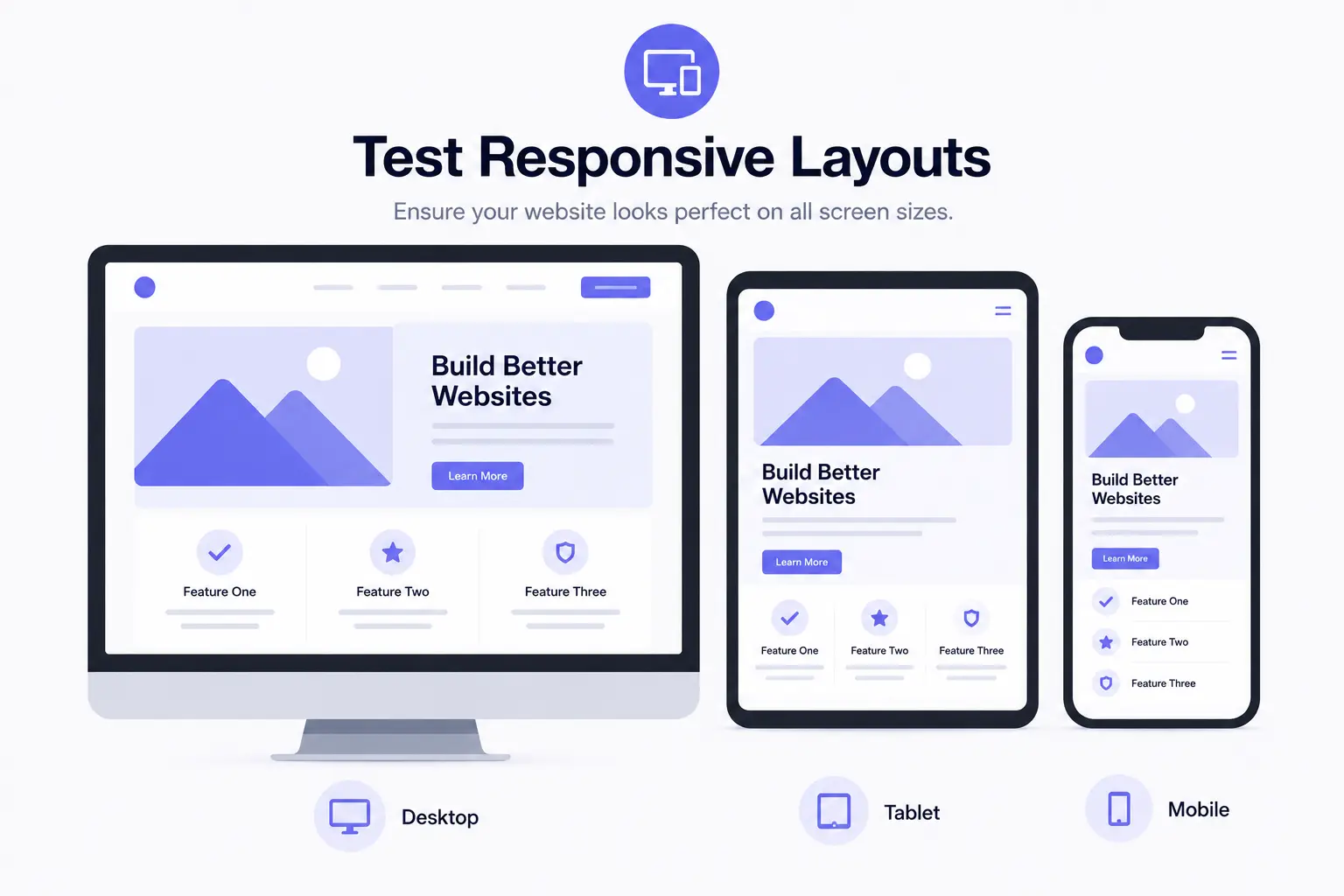
Review your pages across desktop, tablet, and mobile devices. Pay close attention to alignment, spacing, typography, container layouts, and grid structures.
Responsive issues often appear after major updates, so verify that your website maintains a consistent appearance and user experience across all screen sizes.
Step 9: Check Frontend Functionality and User Experience
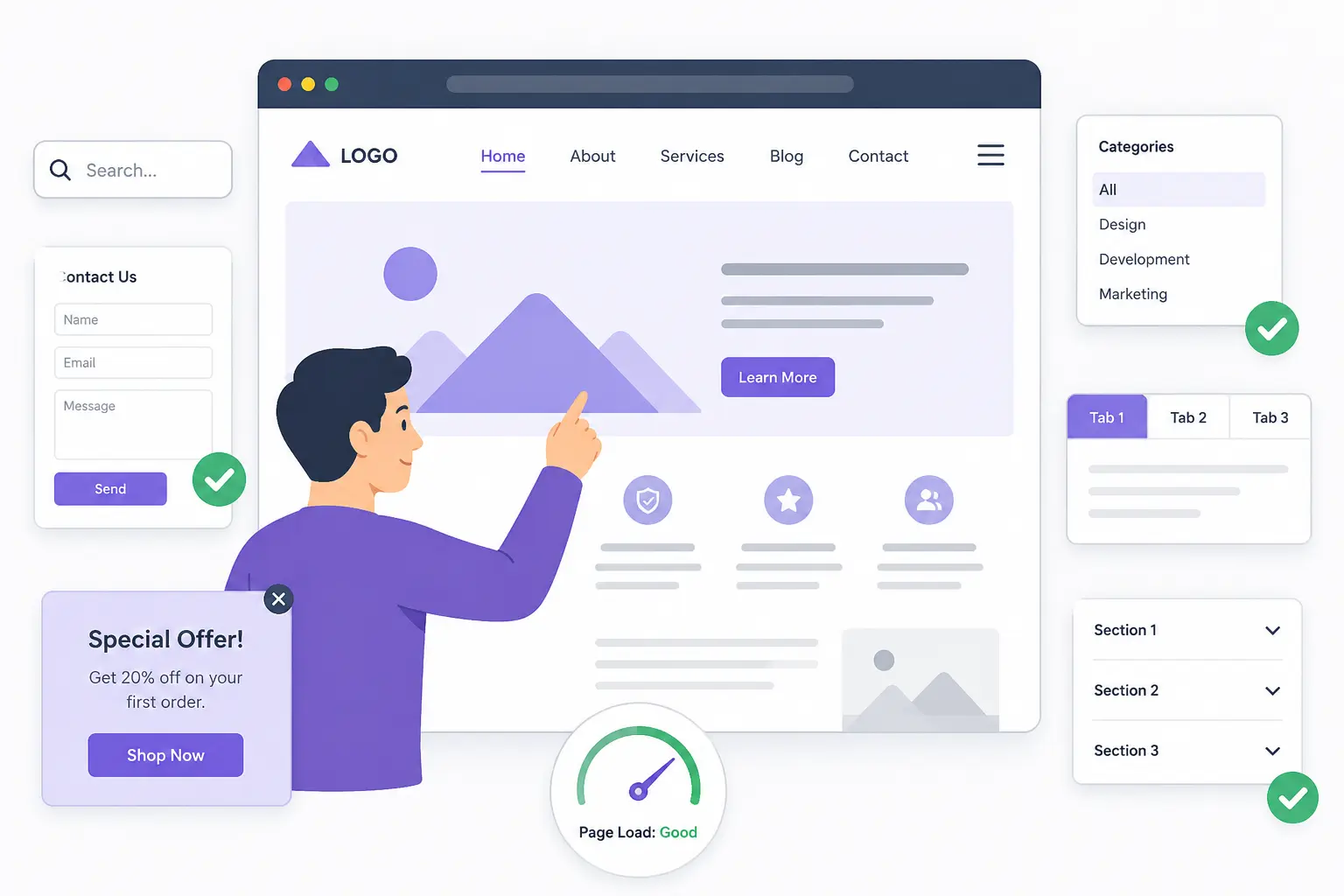
Navigate through your website as a visitor and verify that all frontend functionality works correctly. Test navigation menus and submit forms. Interact with popups and other interactive elements.
Also, check that features such as search, filters, tabs, and accordions function as expected.
Ensure pages load properly and provide a smooth, consistent user experience across the entire website.
Step 10: Check Browser Console Errors
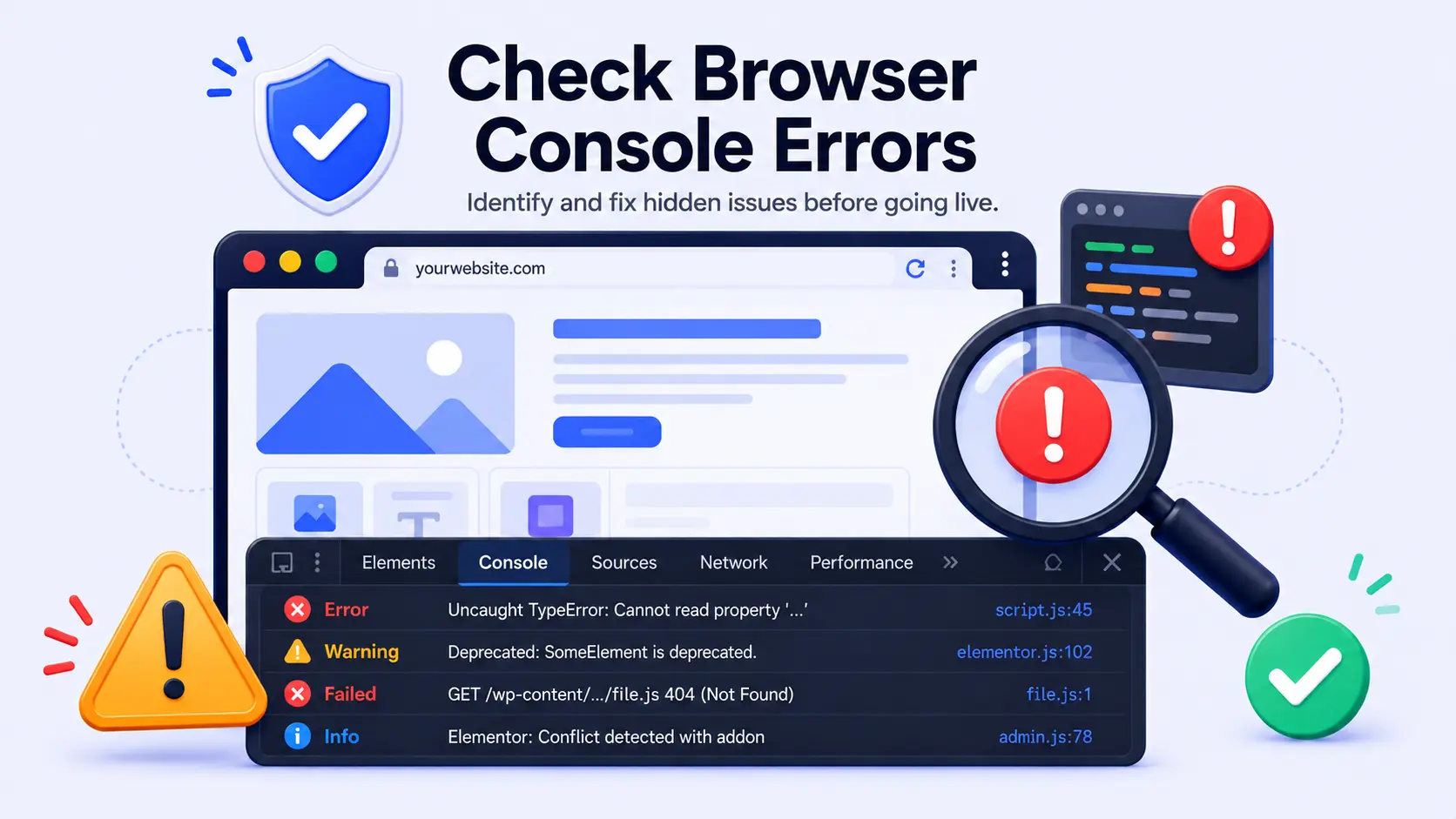
Finally, inspect your browser’s developer console for hidden compatibility issues. Look for JavaScript errors, deprecated warnings, failed resource requests, Elementor-related conflicts, and addon-specific errors.
Some issues may not be immediately visible on the frontend, so resolving console errors before upgrading your live website is an important final step.
How to Know Your Addon Stack Is Ready for Elementor V4
Before upgrading to Elementor V4, use the checklist below to make sure your addons, widgets, and layouts work as expected.
| Compatibility | Status |
| Widgets load properly in the editor | ✅ |
| Widgets render correctly on the frontend | ✅ |
| Styles remain intact | ✅ |
| Animations work normally | ✅ |
| Responsive layouts remain unchanged | ✅ |
| No console errors appear | ✅ |
| Forms function correctly | ✅ |
| WooCommerce elements work properly | ✅ |
| No visual regressions are detected | ✅ |
What Should I Do If an Addon Is Not Compatible With Elementor V4?
If an addon is not compatible with Elementor V4, avoid upgrading your live website immediately.
First, check whether the developer has released a newer version or published a compatibility update.
Reviewing the addon’s changelog, documentation, and support resources can often provide useful information about Elementor V4 support.
If compatibility issues persist, contact the developer to learn about upcoming fixes or known limitations.
For business-critical widgets such as forms, WooCommerce elements, popups, or dynamic content, it’s usually best to delay the upgrade until a stable solution is available.
If the addon is no longer actively maintained, consider replacing it with a compatible alternative.
Most importantly, continue testing on a staging site and only upgrade your live website once all required addons function correctly without errors or conflicts.
Get Ready for Elementor V4 — Test Your Addons Before You Upgrade
Elementor V4 is almost here, and Animation Addons is preparing for a smooth transition to the next generation of Elementor. While the new version promises better performance, cleaner architecture, and a more powerful editing experience, upgrading without proper testing can lead to unexpected issues.
That’s why we’ve put together this step-by-step guide to help you validate compatibility, review widget behavior, and identify potential conflicts before making the switch. Follow these essential testing practices to ensure your websites remain stable, fast, and fully functional when Animation Addons officially launches its Elementor V4-ready update very soon.
Final Thoughts
Elementor V4 brings significant improvements to performance, scalability, and website building workflows. However, upgrading without proper testing can lead to compatibility issues that affect your site’s functionality and user experience.
By following the testing process outlined in this guide, you can identify conflicts early, verify addon compatibility, and ensure your website continues to perform as expected after the upgrade.
Taking the time to test in a staging environment, review critical functionality, and resolve potential issues before deployment will help make your transition to Elementor V4 much smoother.
If your addon stack passes all compatibility checks, you can move forward with confidence and enjoy the benefits of Elementor v4 without unnecessary risks.
FAQs
Should I upgrade to Elementor V4 immediately?
Not necessarily. Before upgrading your live website, test Elementor V4 in a staging environment and verify compatibility with your theme, addons, custom code, and business-critical functionality.
How do I know if my Elementor addons support V4?
Start by checking the addon’s official documentation, changelog, release notes, or compatibility announcements. Even if compatibility is officially stated, it’s still important to test the addon on your own website because every setup is different.
Can I use Elementor v3 widgets with Elementor V4?
In most cases, yes. Elementor is designed to maintain backward compatibility with existing content and widgets. However, functionality may vary depending on how individual addon developers implement support for Elementor V4 features and Atomic Elements.
Do I need a staging site before upgrading?
While not mandatory, a staging site is strongly recommended. It allows you to test Elementor V4 safely, identify compatibility issues, and make adjustments without affecting your live visitors or customers.
Can I roll back to Elementor v3 if something goes wrong?
Yes. Elementor provides rollback options for previous versions. However, restoring from a recent website backup is often the safest and most reliable way to recover from major compatibility issues.

Leave a Reply