
 Login
Login


Do you have a WordPress website that looks simple? There is no animation or movement on your pages. You might think you need to rebuild the whole site or make a new one to improve it. But you do not have to.
You can animate your existing WordPress website without starting over. You do not need to use any code unless you want to.
There are a few easy ways to do this. You can use Animation Addons for a no-code solution or create custom animations with CSS and JavaScript. I’ll show you both options, so you can pick what works best for you.
Now, let’s get started and make your site more lively and modern.
Quick Answer
You can add animations to your existing WordPress website without rebuilding it. Use Animation Addons for a no-code solution, or create custom animations with CSS and JavaScript.
Animation Addons lets you animate existing text, images, and sections using its animation extensions. You can also import ready-made animated pages, sections, or complete websites using Starter Templates.
Types of Animation Effects You Can Use
Before you start, it is good to know the types of animations you can add. Animations make your website more interesting. They also help visitors explore your site with more interest. Here are some popular ones:
- Scroll Animations – Items appear or move when someone scrolls down the page.
- Hover Effects – If a person moves their mouse over a button or picture, it changes or moves slightly.
- Text Animations – Words can slide, bounce, or fade in to grab attention.
- Section Reveals – Full sections can slide, zoom, or fade in as people scroll.
- Mouse-tracking Animations – Effects that follow the mouse pointer as it moves.
- Looping Background Effects – Moving backgrounds or floating shapes that keep playing over and over.
Animation makes your website more interesting. It helps people notice important parts. It also keeps visitors engaged without causing confusion.
Ways to Add Animation to Your Existing WordPress Site
There are lots of ways to make your site move and look better. Some are simple and fast. Others need a little more work, but give you more options.
To make it simple, we’ll look at two easy ways:
- No-code WordPress plugins (perfect for beginners).
- Custom code (for developers).
1. WordPress Plugins
The easiest way to add animations to WordPress is by using a plugin. However, many add-ons lack the advanced GSAP features needed for professional websites.
Animation Addons fills this gap as a GSAP-powered plugin with 25+ animation extensions and 300+ prebuilt animated websites. You can add smooth scroll effects, flip animations, and other interactive effects to new or existing websites without writing code.
Animation Addons
First, let’s start with Animation Addons, a simple yet powerful no-code plugin for WordPress. Here are the different ways you can use it to animate your existing WordPress website:
- Text Animation Extensions.
- Starter Templates.
1. Text Animation Extensions
If you find videos easier to follow, watch the tutorial below to see how to add text animation step by step.
Prefer written instructions? Here’s a simple guide to animate your existing text using the Text Animation Extensions:
Step 1: First, make sure you have installed the Animation Addons plugin on your WordPress site.
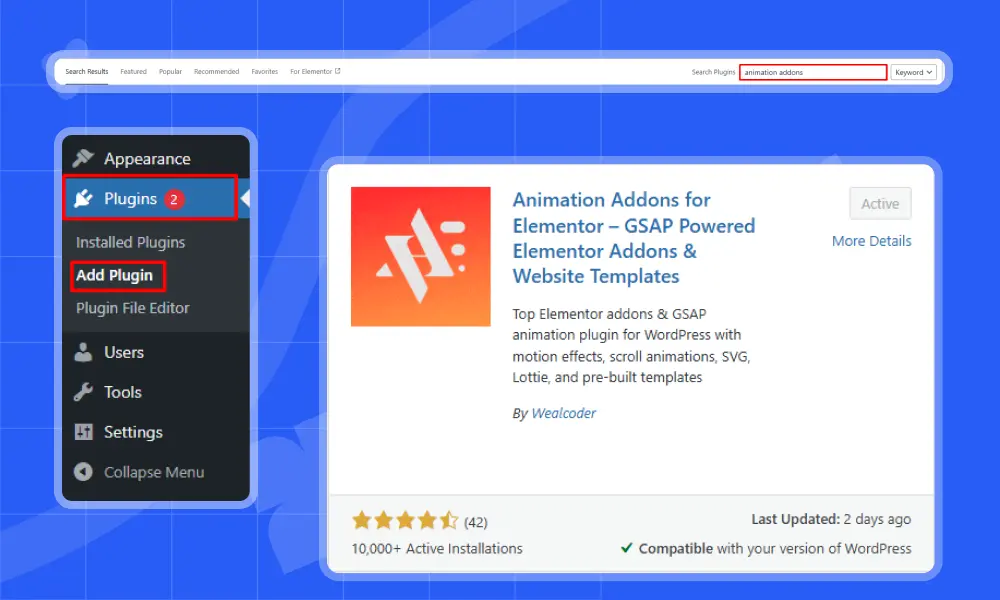
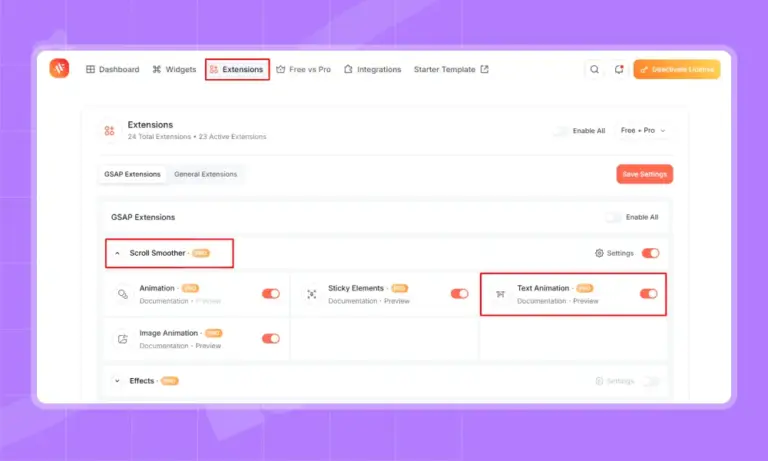
Step 2: Next, go to the Animation Addons plugin and click on Extensions. Choose any extension you want to use to add animation to your WordPress site.
For example, here it picks ‘Text Animation,’ but you can choose any extension you like.
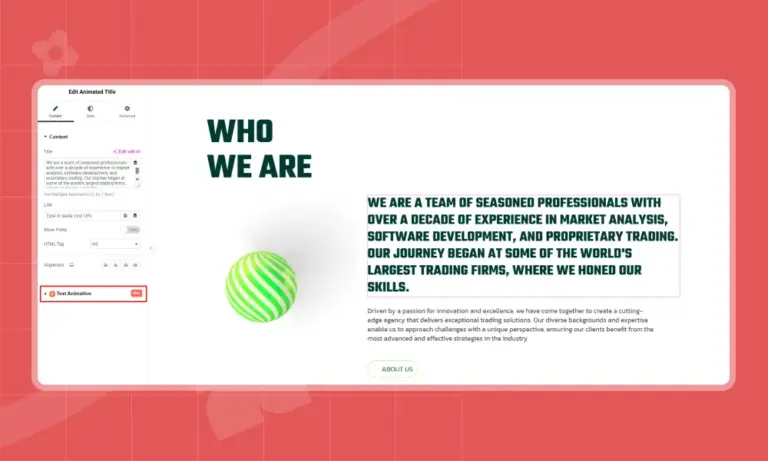
Step 3: Select a text element that you want to animate. Then, click on ‘Text Animation’.
Step 4: Text Animation offers different effects like Character, Word, Text Move, Text Reveal, Text Scale, Text Invert, and 3D Spin.
You can choose any effect based on what you need. For example, here it picks the ‘Character’ effect.
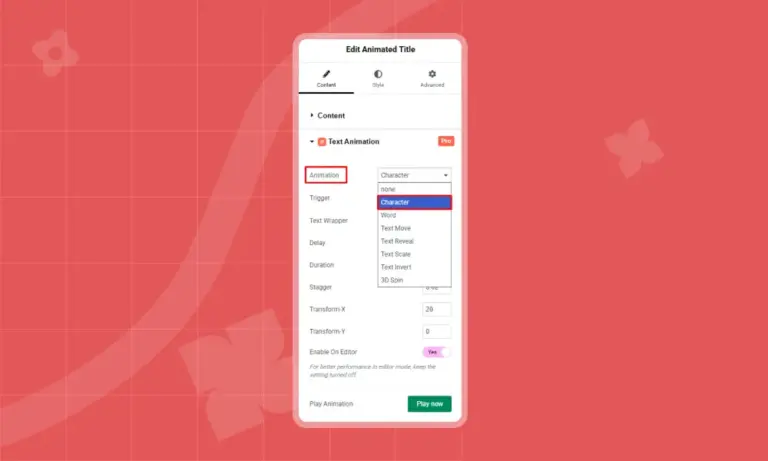
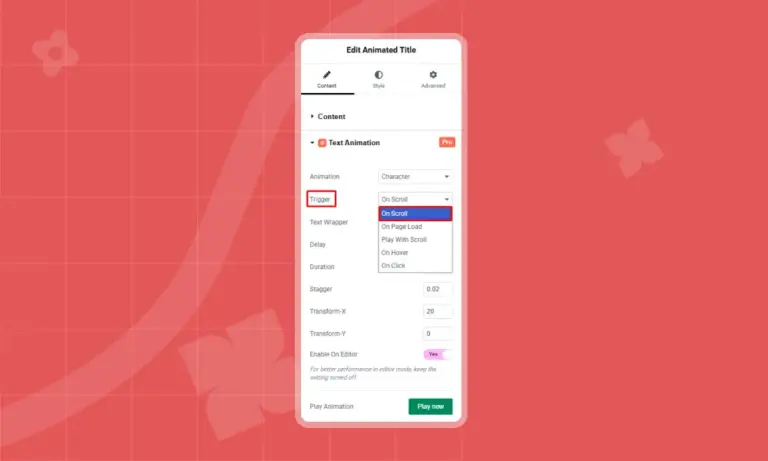
Step 5: Afterward, personalize the rest of the settings based on your choice. Here you will find options like Text Wrapper, Delay, Duration, Stagger, Transform X, Transform Y, Scrub, and Breakpoint to match your style.
Since I picked the ‘Character’ effect, the trigger is set to ‘On Scroll,’ but you can choose any option you like.
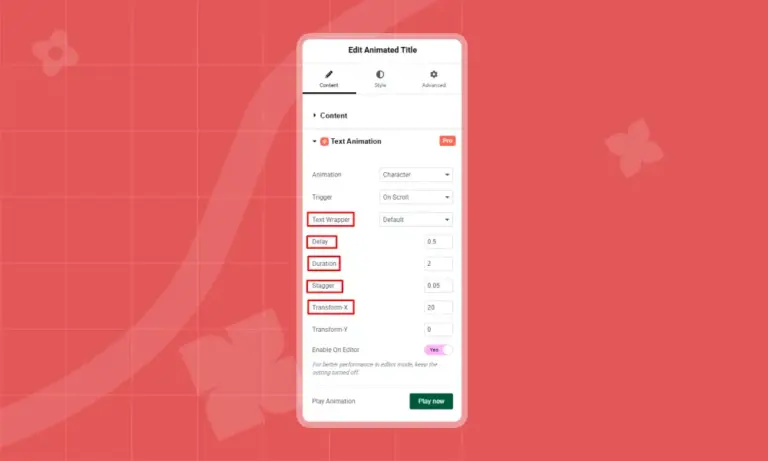
Then, set Text Wrapper to Default, Delay to 0.5, Duration to 2, Stagger to 0.05, and Transform X to 20, leaving other settings as they were.
Step 6: Finally, click ‘Publish’ and then click the ‘Preview’ button to see your Text Animation effect. You can also play the animation by clicking on ‘Enable on Editor’.
2. Using Starter Templates
So far, you have explored how to animate your existing WordPress site using the Animation Addons extension called Text Animation.
Now, let’s look at another way to create an animated website using starter templates.
Starter Templates are flexible, responsive, SEO-friendly, and fully customizable with no coding needed. Whether it’s a portfolio, store, or agency site, templates help you bring ideas to life faster.
- Note
- You can import a complete Starter Template into your existing WordPress website and customize it to match your needs. You can also import individual pages or sections without replacing your current website.
Watch the Video Tutorial
If you prefer watching a step-by-step guide, check out our video tutorial below, where we demonstrate how to Import Starter Templates.
Here’s a simple guide to launching your animated website with starter templates in just a few minutes.
(i) First things first, make sure Animation Addons is installed and activated on your website.
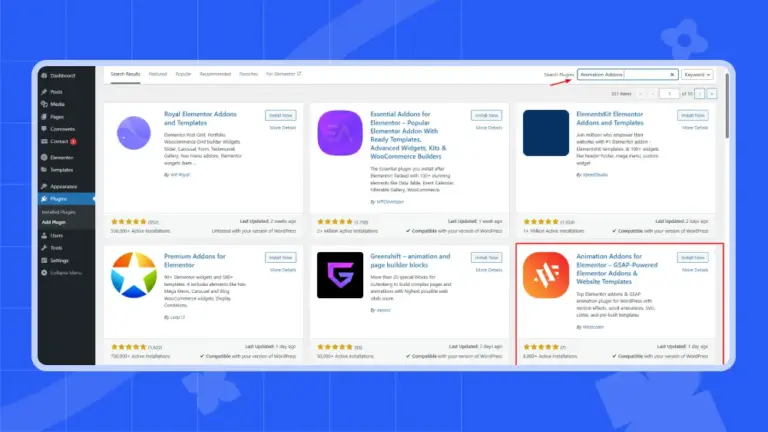
(ii) After that, go to Animation Addons and click on “Starter Templates.”
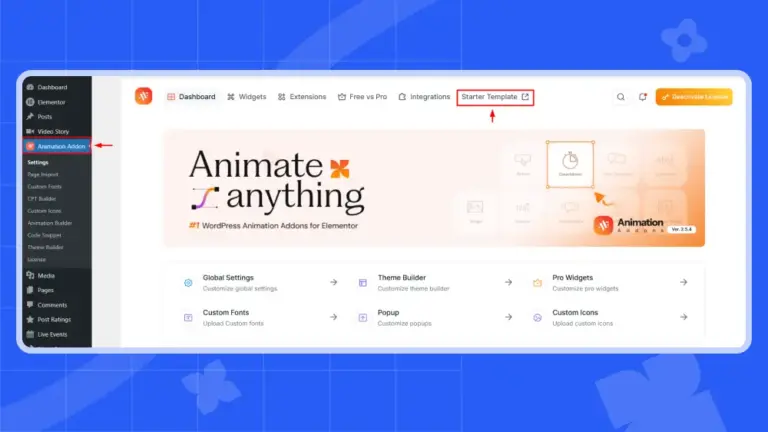
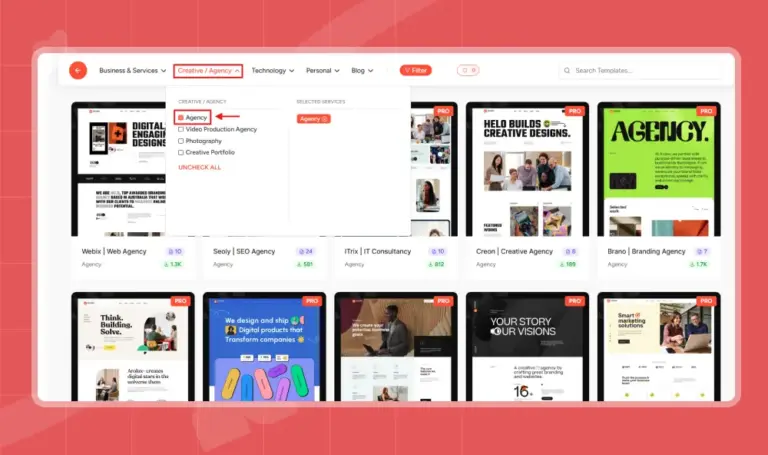
(iii) Once you click on Starter Templates, you will see different niche templates to explore.
Click Filter to find and view templates for your chosen industry.
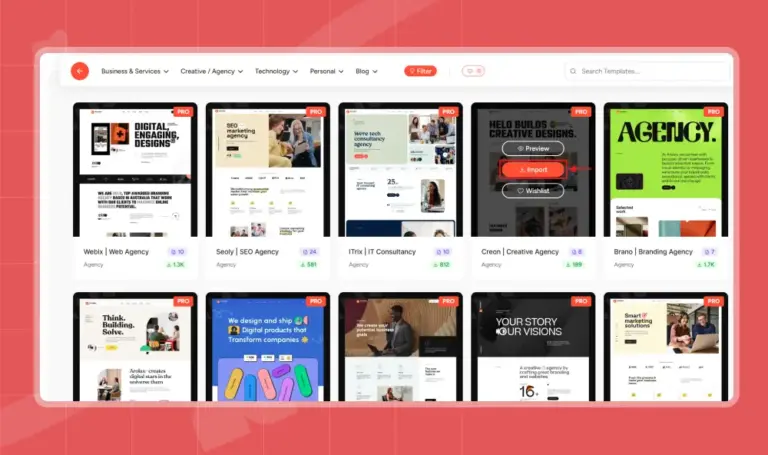
(iv) After your chosen template appears, hover your mouse over it. You will see three options: Preview, Import, and Wishlist.
All you have to do is click on Import.
(V) Now, click on ‘Continue to Next’ to proceed.
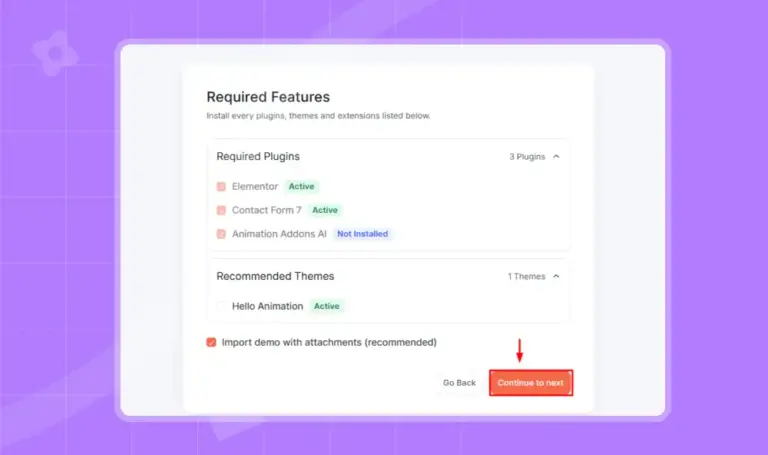
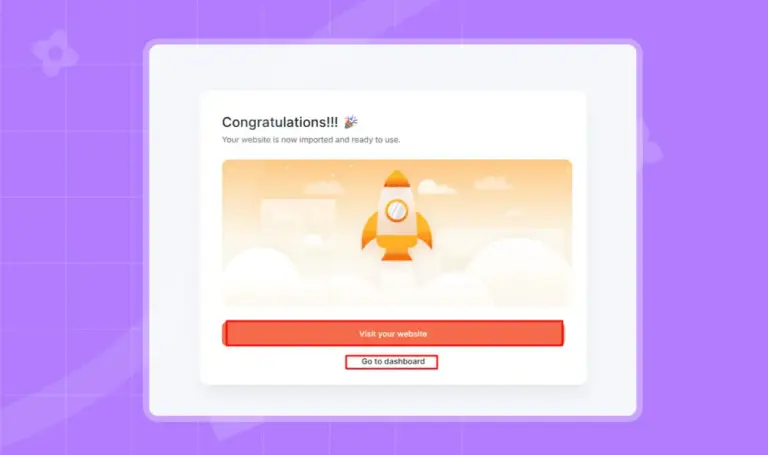
(VI) Once you click Continue to Next, your selected website will be created successfully with animations included. Click “Visit Website” to preview it, or go to the dashboard to keep everything as it is. If you want to customize your website, click “Visit Website.”
Use Animated Sections Template(Optional): If you want something even faster, you can import ready-made animated section templates. These are fully designed sections that already have animation added.
Just change the text or images, and your section is ready. This is great for the homepage, landing pages, and hero areas.
Overall, it’s the best no-code animation tool for interactive web design in Elementor. Just pick, click, and watch it animate.
Watch the complete step-by-step video to see how to add pages or sections.
Elementor
Afterward, Elementor has built-in motion design for WordPress. These effects can make things move, like when you scroll or when you move your mouse. They can create simple animations, like fading in or having a moving background.
They are easy to use, but there aren’t too many choices. They are great for quick and light animations without needing an extra plugin or coding.
Slider Revolution
Slider Revolution is more than just a slider plugin. You can use it to make moving banners, pop-ups, and carousels. It features a drag-and-drop editor, allowing you to build by simply clicking and moving elements around.
You can set how it moves, when it shows, and what triggers it. It also comes with ready-made templates to help you build a page faster. It works well for homepage banners, product sliders, and other important parts of your site.
2. Custom Code (for Developers or Specific Needs)
If you know coding, use custom CSS for full control. It’s great for developers who want custom moves and timing.
Here are some helpful CSS animation tools you can use.
Animate.css
Animate.css is a free and easy library. It gives you many ready-made animations like fade, bounce, zoom, slide, and more. To use it, add the Animate.css file. Then apply class names in HTML or Elementor.
Example:
<div class = “animate_animated animate_fadeIn”></div>
This will make the element fade in when the page loads. Overall, it is best for simple animation on text, buttons, icons, or images.
Animista
Next, Animista is a website that helps you create custom CSS animations. You choose how things move, how long it takes, and when it starts. It shows you the live animation on screen. Then it gives you the exact code you need.
You do not need to write the code by yourself. You just copy and paste it into your website. Overall, it’s best for custom animation with full control over speed, style, and timing.
AOS (Animate On Scroll)
Last, we have AOS, which stands for Animate On Scroll. It’s a JavaScript-based library that adds animation as you scroll. It is easy to set up and include many animation types like fade, zoom, slide, and more.
It’s useful for showing content step by step while scrolling. You only need one line of code for each item you want to animate.
Example:
<div data-aos= “fade-up”></div>
This makes the element fade in and move up when it enters the screen. Overall, it’s best for portfolio, landing pages, or any site that needs scroll-based animation.
Plus, people who know CSS and want to make custom animations with full control. It is also a good option if you want fewer plugins and faster loading times.
Custom JavaScript (for Advanced Users)
If you want full control over how things move on your site, use JavaScript animation tools. They give you strong features. You can use them with WordPress. Just add shortcodes or custom code. It works really well.
Let’s explore some of the best options that work well with WordPress.
GreenSock Animation Platform (GSAP)
Let’s start with GSAP. It is one of the best tools for making animations. It is very fast and works on every browser. It is great if you want smooth and cool effects.
- You can create timelines for complex motion.
- Works with ScrollTrigger to animate while you scroll.
- Supports 3D motion, parallax, and custom easing.
- It works inside WordPress using custom scripts or plugins like Code Snippets.
Useful for: Developers making interactive designs or advanced UI effects.
Anime.js
Anime.js is great for simple and creative animation. It works with SVG, CSS, and HTML elements. You can move colors, size, shapes, and even text.
- Works with any framework (like React, Vue, or plain HTML).
- Can animate multiple things at once.
- Good for hover effects, buttons, icons, and small touches.
Useful for: Designers who want stylish, unique animations without heavy code.
Locomotive
Locomotive scroll gives your website a modern feel. It adds smooth scrolling, parallax movement, and lets you trigger animations as you scroll.
- Adds a ‘smooth scroll’ effect to your page.
- Can control animation based on scroll speed or direction.
- Often used in portfolio websites, agency pages, or storytelling design.
Useful for: Sites with scroll-based layout or storytelling content.
Smart Animation Tips for Smooth Performance
Animations are fun, right? They make your site look cool and modern. But if you use too many, your site might feel slow or even hard to use. Let’s keep it smooth and easy. Here are some tips to help you keep it clean and fast.
Only Animate What Matters
Don’t try to animate everything on your page. It’s tempting, I know! But too much motion can feel messy. Instead, focus on important parts like:
- When a new section loads.
- A button you want people to click.
- A headline or image you want to highlight.
That way, animations guide the visitor instead of distracting them.
Use Lightweight Tools
Big, heavy plugins can slow your site down, even if they add fun effects. So stick to tools that are small but powerful. My favorites are:
- Animation Addons – an easy tool made for Elementor.
- GSAP – super smooth and fast.
- Anime.js – great for fun little effects.
These tools won’t slow down your site, and they work great.
Reduce Image Size
If you use animations and big images at the same time, your site could become slow. That’s not good for visitors, especially on phones.
So, compress your images before uploading. Tools like:
- TinyPNG.
- ImageOptim.
- Pixresizer.
- Or save them in WebP format.
These can make your images way smaller without losing quality.
Always Check on Mobile
Your site might look great on a computer, but how does it feel on a phone? Sometimes, animations work fine on desktop but break or lag on mobile.
So, always check your site on:
- A phone.
- A tablet.
- Different screen sizes.
If it feels slow or glitchy, remove or simplify the animations for mobile users.
Keep the Timing Smooth
Fast, simple, clean. That’s the trick. Don’t make your animations too long or too wild. Try:
- Short delays (like 0.2s to 0.5s).
- Easy fade-ins, slides, or zooms.
- No crazy spinning or bouncing everywhere.
The goal is to help users, not make them confused!
Remember: Animations should support your content, not fight it. Keep them light, smooth, and focused on what really matters. That way, your site looks awesome and feels great to use.
Wrapping Up
You’ve learned that adding animation to your existing WordPress site is simple and flexible. Whether you use easy plugins or dive into custom code, animations can improve how visitors interact with your content. The key is to keep things smooth and focused so your site stays fast and enjoyable. Start small, try different effects, and watch your site come alive!
FAQs
Yes, you can! You don’t need to start over or change your theme. Just use plugins or page builders to add animations. Sometimes, a little bit of code can help too.
No, you don’t need to know coding. Many tools, like Elementor and Animation Addons let you add animations by clicking and choosing options. It’s easy and works with drag-and-drop. So anyone can do it!
Not if you do it right. Use small, well-made plugins and only animate important parts. Avoid heavy animations that use lots of resources. Also, lazy loading helps keep your site fast.
Start with simple ones like fade-ins or slide-ins. Buttons that change when you hover over them look nice, too. Scroll-triggered animations are cool and popular. These make your site look fresh without much work.
Use plugins that let you control animations by device. You can turn off or change animations for phones and tablets. This keeps your site smooth on smaller screens. Animation Addons has settings like this built in.
Leave a Reply