Halloween 40% off every Pro plan. Lifetime from $51, pay once.40% off Pro Vanishes in Claim40% off
Classic Elementor widget · Pro

Stacked Cards for Elementor: Stacking cards that build as visitors scroll

Stacked Cards is the Elementor stacked cards widget for services, features and programmes. The stack pins in view, and as visitors scroll each new card slides up, tilts into place and covers the one before, so your Elementor cards stack on scroll like a pile. Build each card in the widget or from a saved Elementor template. No code.

  • Pinned card stack on scroll
  • 3D tilt with a Rotation setting
  • Cards from content or templates
  • GSAP ScrollTrigger built in

Classic widget · Elementor 3 and 4 · ProUpdated

Live demos

Four card stacks, live

Four ways to use an Elementor stacking cards scroll effect, each on a small site. Every frame scrolls on its own: scroll inside it and the stack pins and builds the way it does on a page, then scroll back up to take it apart.

Arolax®WorkServicesContact
Services

What we do

Scroll inside the frame

Brand identity

Logos, type and colour systems that hold up from a business card to a billboard.

See the work

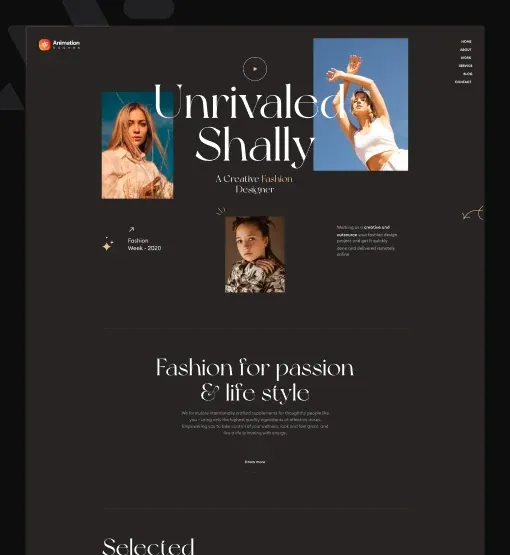
Fashion portrait with a red pleated collar

Websites

Fast sites built in Elementor, with a design your own team can update without us.

See the work
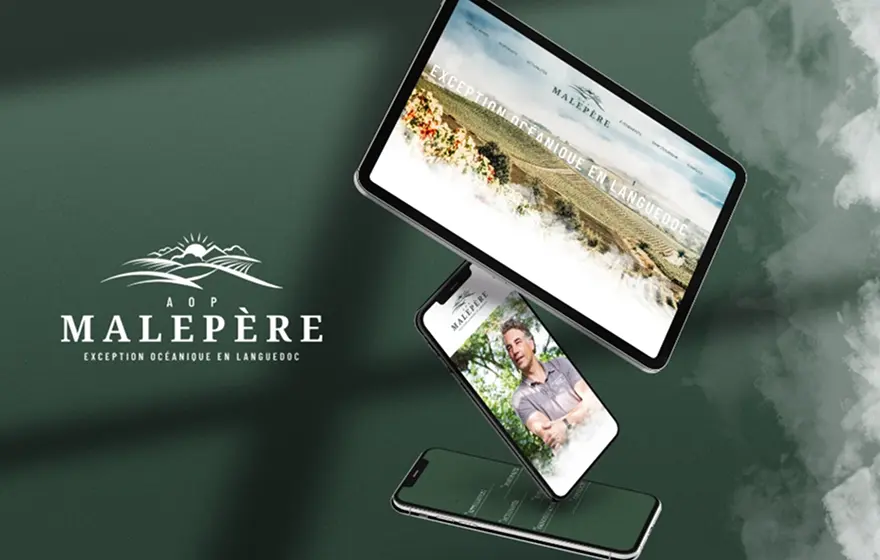
A tablet and a phone showing a winery website

Campaign films

Short films and social cuts made from one shoot, ready for every channel.

See the work

A dancer turning, motion blur

Product design

App screens and dashboards, tested with real users before anyone builds them.

See the work

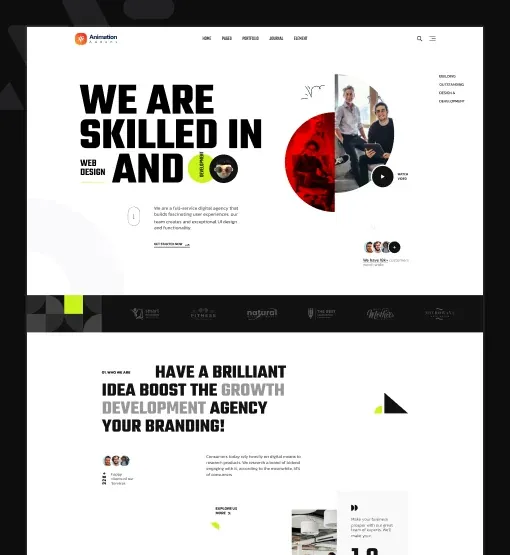
A tablet showing a web app landing page

Have a project in mind?

Tell us what you need. We reply within two working days.

Start a project
Agency services

Services as a card stack

The services page of a design studio. Four dark cards, each with a title, a line of text and a link on the left and a photo on the right. As you scroll, a new card slides up tilted, and the one under it leans back.

Scroll inside the frame

In the panel, set Content Type to Saved Templates for each card, Start Position to Custom with top top+=150, and Rotation to 45.

HaldenProductPricingDocs
Scroll inside the frame
Platform

One workspace for every client project

Four tools that replace a pile of spreadsheets.

A dashboard on a tablet

Live dashboards

Numbers that update through the day. Pin the charts your team checks every morning and share them with one link.

A team around a table with laptops

Shared workspaces

One space per client or project, with its own files, tasks and people, and nothing that leaks between them.

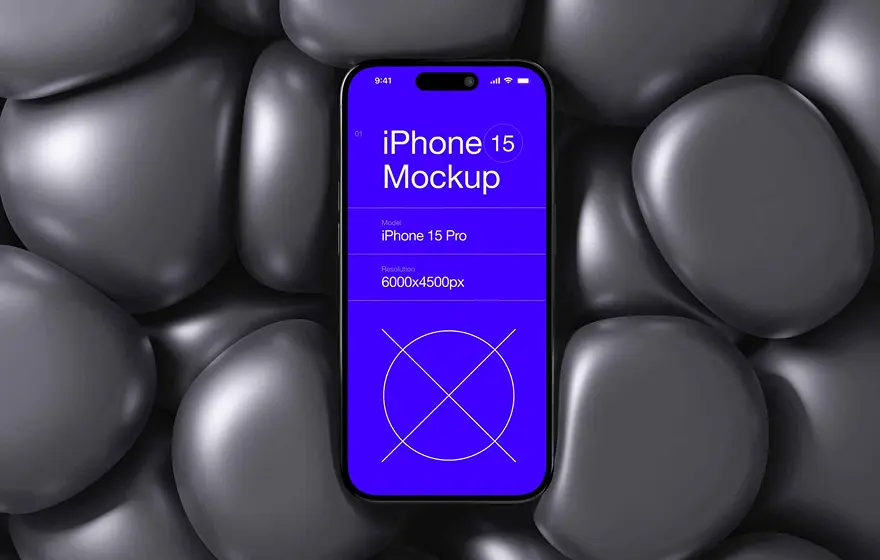
A phone mockup on dark pebbles

A mobile app

Approve, comment and check the numbers from your phone. Everything syncs back to the web app in seconds.

Three colleagues reviewing work on laptops

Client portals

Give clients a branded page with their reports and invoices, so the weekly status email can go.

Try Halden free for 14 days.

Start free
SaaS product page

Features beside a heading

A product page for a project tool. The heading stays on the left while four narrow cards pile up on the right, each with a photo, a title and a short text.

Scroll inside the frame

In the panel, set Content Type to Saved Templates, Start Position to Custom with top top+=150, and Rotation to 45. The heading is a separate column next to the widget.

Sahara FilmsProgrammeTicketsAbout
Festival 2026

Opening week

Scroll inside the frame
01

Blue of the Dunes

Tue 12 May, 19:30

A man in a blue turban beside a camel
02

Salt Sea

Wed 13 May, 20:00

A woman looking out to sea
03

Tall Grass

Thu 14 May, 19:30

A woman in a field of tall grass
04

Night Bloom

Fri 15 May, 21:00

A portrait in purple light

Four nights, four films.

Book a seat
Event programme

Programme as stacked boxes

The programme page of a film festival. Square boxes with a number, the film title and the screening time on the left, and a still on the right. Each box lands a little lower than the one before, so the edges show.

Scroll inside the frame

In the panel, set Content Type to Saved Templates, Start Position to Custom with top top+=150, and Rotation to 45.

MalepèreHousesJournalVisit
Journal

Latest from the journal

Scroll inside the frame

Written byLéa Marchal

Interiors, 18 Sep 2026

Why we kept the old stone floor in the kitchen

Read more

Written byInès Roy

Materials, 2 Sep 2026

Lime wash, the slow finish we keep coming back to

Read more

Written byClara Vidal

Bedrooms, 21 Aug 2026

Five rules for a bedroom with nothing extra

Read more

Written byNadia Faure

Lighting, 7 Aug 2026

How to light a long room for slow evenings

Read more

Twelve stories this year.

All articles
Blog and journal

Articles as a deck of cards

The journal of an architecture office. Tall cards in the centre show the author, the date, the title and a Read more link. They pile up like a deck as you scroll, starting a little higher on the page.

Scroll inside, then back up

In the panel, set Content Type to Saved Templates, Start Position to Custom with top top+=100, and Rotation to 45.

Features

Features of Stacked Cards

What the widget does on scroll, checked against its script, and where you set it in the Elementor panel.

Elementor sticky cards on scroll

The stack holds its place on screen while visitors scroll through the cards, then the page moves on. Each card adds 400 px of scroll.

Scrubbed by the scroll

The Elementor stacked cards animation follows the scroll forward and back, with a short catch-up so it feels smooth. Stop scrolling and the stack holds.

Elementor 3D stacked cards

Each new card rises from below, tilted by the Rotation angle and set back in depth, then flattens as it lands on top.

Layered edges

The card underneath tilts back and narrows, and each card sits 10 px lower than the last, so the pile shows a row of edges.

Cards from content

Set Content Type to Content and fill in Icon, Title, Text, Button Text, Button Icon, Link and Image.

Cards from templates

Set Content Type to Saved Templates and pick a design in Save Template. An Elementor stacked cards saved template can hold any widgets. All four demos on this page use templates.

Start where you want

Start Position sets where the pin begins, from Top Top to Bottom Bottom, or a Custom value such as top top+=150.

Layout per device, GSAP included

Layout arranges the text and image inside each card, with a separate choice per device, and the Title Tag keeps your headings in order. Animation Addons Pro loads GSAP and ScrollTrigger for you.

Step by step

How to add stacked cards in Elementor

Five steps. The bold names are the labels in the Elementor panel.

  1. Install Animation Addons Pro, then turn on Stacked Cards in Animation Addons → Widgets, under Advanced.

  2. In Elementor, search the panel for Stacked Cards and drag it into a container.

  3. In Layout, choose how the text and image sit inside each card.

  4. In Content, add one item per card in Stacked Cards Items. Set Content Type to Content and fill in the fields, or to Saved Templates and pick a template. Choose the Title Tag.

  5. In Animation Settings, set the Start Position and the Rotation, for example 45. Then preview the page and scroll.

Get Animation Addons Pro Part of Animation Addons Pro · Works with Elementor Free
FAQ

Questions about Stacked Cards

What does the Stacked Cards widget do?

It pins a set of cards on screen and stacks them as visitors scroll. Each new card slides up with a 3D tilt and covers the last, and the card underneath tilts back and narrows.

How to create stacking cards in Elementor?

Turn on Stacked Cards in Animation Addons Pro, drag the widget into a container, add one item per card in Stacked Cards Items, then set Start Position and Rotation under Animation Settings.

Is Stacked Cards free?

No. It is part of Animation Addons Pro. It works with Elementor Free, and Elementor Pro is not needed.

Can I design each card in Elementor?

Yes. Set Content Type to Saved Templates and pick a template you saved in Elementor. Or use Content for a ready card with an icon, title, text, button and image.

What do Start Position and Rotation do?

Start Position sets where on the screen the stack pins and the animation starts, such as Top Top or a Custom value. Rotation is the tilt, in degrees, of each card as it rises.

How long does the stack stay pinned?

For 400 px of scroll per card. A stack of four cards stays pinned for 1600 px, then the page scrolls on.

Can visitors swipe the cards?

No. This card stack moves with the page scroll, not with swipes or clicks. For swipeable cards, use a slider such as Nested Slider.

Does it work on phones?

Yes. The stack pins and animates with touch scrolling, and Layout can differ per device, for example the image above the text on phones.

Do I need to add GSAP myself?

No. Animation Addons Pro loads GSAP and ScrollTrigger for you. It is a classic widget, so it also runs in Elementor 4.

Can I use stacked cards with Elementor Free?

Yes. The widget needs Animation Addons Pro, not Elementor Pro. It runs on Elementor Free, so you can add it to any page or container.

Animation Addons Pro · Elementor 4

Stack the cards, let the scroll deal

A pinned card stack with 3D tilt for Elementor, built from content or your own templates.

Halloween deal40% off every Pro planEnds 5 Nov

  • 15-day money-back guarantee
  • Rated 4.6 / 5 on WordPress.org
  • No Elementor Pro needed
  • Elementor 3 & 4 in one license