Halloween 40% off every Pro plan. Lifetime from $51, pay once.40% off Pro Vanishes in Claim40% off
Classic Elementor widget · Free

Floating Elements for Elementor: Images and icons that float, spin or wiggle around your content

The Floating Elements widget adds an Elementor floating image to any section. Place each floating icon, photo or badge exactly where you want it, then give it a looping Elementor floating animation: float up and down, float sideways, spin, scale or wiggle.

  • 5 looping animations
  • As many images as you need
  • Exact offsets per device
  • Hide per device

Classic widget · Elementor 3 and 4Updated

Live demos

Seven floating designs, live

Each Live Animation on a small site: wiggle, float up and down, float sideways, scale and spin, then a card with eight floating items and an article with floating photos. Every loop runs on the widget's own timing.

Arolax®WorkReviewsContact
Client reviews

Rated 4.9 by our clients

From 312 project reviews since 2019

Client reviews

An Elementor wiggle animation on a mascot

The reviews section of a branding agency. A small cartoon sits under the heading and gives a quick shake every two seconds, then waits for the next round.

Watch the character shake

In the panel, set Live Animation to Wiggle, Size to 93, Horizontal Orientation to Left and Offset to 45%.

ShallyFeaturesAppPricing
Mobile app

Plan your posts on the go

Shally for iOS and Android

App download section

A float animation on an app icon

A scheduling app promotes its mobile app. The icon drifts up 20 px and back down over six seconds, with soft easing at both ends. This is the Float Y loop.

Watch the icon rise and settle

In the panel, set Live Animation to Float Y, Size to 80, Horizontal Orientation to Left and Offset to 46%.

ShallyFeaturesIntegrationsPricing
Integrations

Works with the tools you use

Calendars, drives and chat, connected

Integrations list

Float X: an icon that drifts sideways

The integrations section of the same app. The icon moves 20 px to the left and back over six seconds, which suits a heading that reads left to right.

Watch the icon drift left and back

In the panel, set Live Animation to Float X, Size to 80, Horizontal Orientation to Left and Offset to 46%.

ShallyFeaturesAppPricing
Pricing

Start free, upgrade later

Free for one brand and three channels

Pricing highlight

A scale animation on a pricing page

A pricing section with one icon above the plan line. It shrinks to 80% over three seconds and grows back, like a slow pulse that draws the eye to the free plan.

Watch the icon shrink and grow

In the panel, set Live Animation to Scale, Size to 80, Horizontal Orientation to Left and Offset to 46%.

Northlight StudioFilmsRentalsContact
Contact

Have a film in mind?

LET'S TALK TO OUR TEAM • LET'S TALK TO OUR TEAM •

[email protected]

Contact section

An Elementor spin animation on a round badge

A film studio puts a round text badge above its email address. The badge makes one full turn every six seconds at a steady speed.

Watch the badge turn

In the panel, set Live Animation to Spin, Size to 150, Horizontal Orientation to Left and Offset to 50%.

ShallyFeaturesCreatorsPricing

Meet them where they are

Portrait of a creator

Easily connect with your audience

Community section

Floating icons and avatars around a heading

A community section with eight items around one bold line: four social tiles and four creator photos. Half of them float and half stay still. The four on the left use Hide On Mobile, so a phone sees a calmer layout.

Narrow the window: four items hide

In the panel, set Live Animation to Float Y, Size to 64, Z-Index to 1 and Hide On Mobile to Hide.

Maison FormeProjectsJournalShop
Journal · Materials

Rooms that feel lighter

Light rooms start with fewer, better pieces. We pick one large sofa, one low table and one lamp, then let the walls breathe.

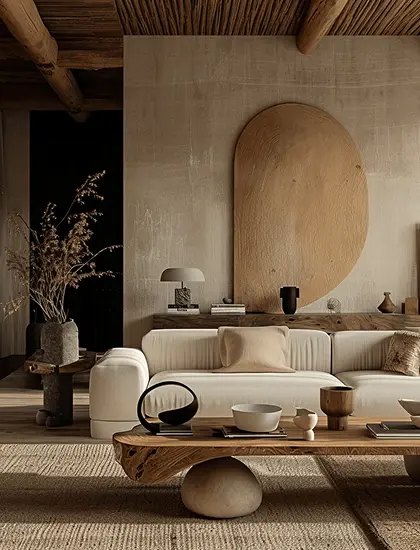
A bright living room with a yellow sofa and an open stair

Pale oak, washed linen and lime plaster reflect daylight back into the room, so it feels bigger at every hour.

Keep the floor clear. A rug that stops short of the walls makes the room look wider than it is.

A living room with an arched wall and a low wooden table

Hang curtains high and wide. When they open fully, the window seems taller and more light comes in.

Finish with one warm accent, a terracotta vase or a rust throw, so the calm never turns cold.

Read the full guide in our autumn issue.

A sitting room with wooden furniture
NEW COLLECTION • AUTUMN •
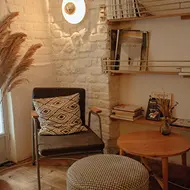
A reading corner with an armchair and a pouf
Journal article

Floating elements on scroll beside an article

An interiors journal article with two photos and a spinning badge in the margin. Each one moves at its own pace as you scroll and catches up a moment later. This needs the Pro Scroll Smoother.

Scroll inside the frame

In the panel, set Enable Scroll Smoother to Yes, Data Speed to 0.7, Data Lag to 0.5 and Live Animation to Spin.

Features

Key features of Floating Elements

What the widget does, with the setting behind each feature.

Many images, one widget

Add an item per image in the Elements repeater. Each floating object has its own settings.

Five looping animations

Set Live Animation to Float Y, Float X, Spin, Scale or Wiggle, or leave it on None. The Elementor float animation and the Elementor spin animation and wiggle animation all loop on their own.

Exact placement

Open Offset, pick a Horizontal Orientation and Vertical Orientation, and set the distance in px, %, em or rem.

Size per device

The Size control sets the width of each floating image, with its own value on desktop, tablet and mobile.

Layering

Use Z-Index to put an item in front of or behind the content around it.

Float on scroll

For Elementor floating elements on scroll, turn on Enable Scroll Smoother and set Data Speed and Data Lag. This needs the Pro Scroll Smoother extension.

Hide per device

Each item has Hide On switches for every breakpoint. Use them to hide floating elements on mobile and keep a busy layout calm.

Any image you like

Use Choose Image for a PNG, WebP or JPG from the media library: floating icons, a photo, a sticker, a badge or any floating object for the Elementor floating effect. The image alt text comes from the media library too.

Step by step

How to add floating elements in Elementor

Five steps. The bold names are the labels in the Elementor panel.

  1. Install the free Animation Addons plugin, then turn on Floating Elements in Animation Addons → Elements.

  2. In Elementor, search the panel for Floating Elements and drag it into the section you want to decorate.

  3. In Elements, add one item per image: Choose Image, set the Size, then open Offset to place it.

  4. Pick a Live Animation for each item and raise the Z-Index if it should sit in front of the content.

  5. Use the Hide On switches for small screens, and check the result in preview, where device hiding takes effect.

Try it free Free on WordPress.org · Works with Elementor Free
FAQ

Questions about Floating Elements

How do I add an Elementor floating image?

Drag the Floating Elements widget into a section, add an item, choose the image and set its Size and Offset. Then pick a Live Animation to make it float.

Which floating animations are included?

Five: Float Y moves 20 px up and back in 6 seconds, Float X moves 20 px sideways in 6 seconds, Spin turns once every 6 seconds, Scale pulses between 100% and 80% every 3 seconds, and Wiggle gives a short shake every 2 seconds.

Do floating elements stay fixed on scroll?

No. Each item is positioned inside its section and scrolls with the page. With the Pro Scroll Smoother on, Data Speed lets it move slower or faster than the page.

Can a floating element react to hover?

No. Live Animation loops on its own from the moment the page loads. For hover effects, use a widget such as Image Box or Advanced Button.

Can I add Elementor floating icons?

Each item is an image. For floating icons, upload the icon as a PNG or WebP and size it with the Size control. Elementor floating images and icons use the same settings.

How do I hide floating elements on mobile in Elementor?

Every item has Hide On switches per device, so an Elementor floating elements layout can stay light on phones. The switches take effect in preview and on the live page, not while you edit.

Is it the same as Elementor's Floating Buttons?

No. Elementor's floating buttons and bars stay on screen as contact tools. This widget decorates a section with images that loop.

Are there free Elementor floating images?

Yes. Floating Elements is a free Elementor floating elements addon, a classic widget that works with Elementor Free, in Elementor 3 and 4. Only the Scroll Smoother option needs Animation Addons Pro.

Animation Addons Pro · Elementor 4

Make your sections feel alive

Floating images with five looping animations, placed and styled in Elementor.

Halloween deal40% off every Pro planEnds 5 Nov

  • 15-day money-back guarantee
  • Rated 4.6 / 5 on WordPress.org
  • No Elementor Pro needed
  • Elementor 3 & 4 in one license