
 Login
Login


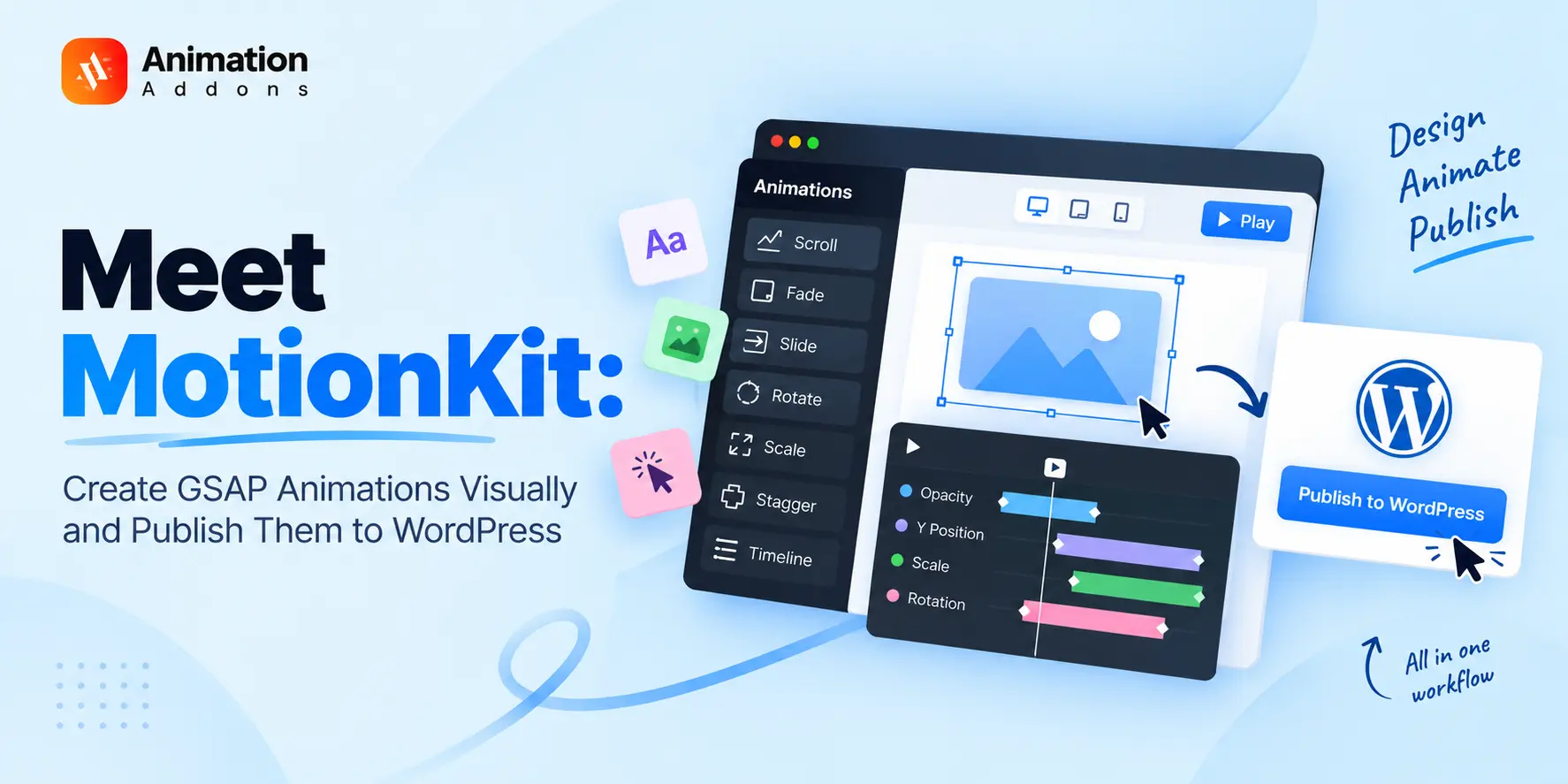
Professional website animations often means choosing between two extremes: using the basic controls built into your page builder or diving into custom JavaScript and GSAP code for the flexibility you actually need.
MotionKit brings a third, more practical approach.
Instead of juggling multiple WordPress animation plugins or writing custom code for every interaction, MotionKit brings your animation workflow into one connected visual platform. You can design GSAP-powered animations visually, preview them directly on your website, fine-tune how they behave across devices, and publish them to WordPress without leaving the workflow.
MotionKit gives you the tools to create polished animations without turning every effect into a development task.
And because your animations can be saved and reused, the work you create today can become part of your workflow for future pages, projects, and client websites.
Create once. Animate freely. Publish anywhere.
Quick Answer
MotionKit lets you create professional GSAP animations visually instead of writing custom code for every effect.
With ready-made presets, a visual timeline, responsive controls, and direct WordPress publishing, you can design, preview, and reuse animations from one connected workflow.
MotionKit at a Glance
MotionKit turns the entire animation process into one streamlined workflow from selecting elements and designing effects to previewing, reusing, and publishing animations directly to WordPress.
Instead of jumping between your page builder, JavaScript files, GSAP documentation, browser developer tools, and multiple animation plugins, you can manage everything from the MotionKit Visual Editor.
What Can You Do With MotionKit?
With MotionKit, you can:
- Connect your existing WordPress website and work with your real pages.
- Open WordPress pages directly inside the Visual Editor for a more accurate editing experience.
- Select elements visually instead of searching through layers or writing CSS selectors.
- Choose from 100+ ready-made animation presets to get started quickly.
- Create custom GSAP animations visually when you need more control.
- Build complex animation sequences using a visual timeline.
- Create interactions triggered by scroll, hover, click, and page load.
- Fine-tune duration, delay, easing, timing, and animation properties.
- Configure different animation behavior for desktop, tablet, and mobile.
- Preview animations before publishing to make sure everything works as expected.
- Publish animations directly to WordPress when your design is ready.
- Save and reuse animations across pages, projects, and client websites.
- Work alongside major WordPress page builders without rebuilding your entire workflow.
Built for Modern WordPress Creators
MotionKit is designed for web designers, freelancers, agencies, developers, and WordPress creators who want more control over website animation without adding unnecessary complexity.
Whether you’re building a client website, creating a reusable animation system, or experimenting with advanced GSAP interactions, MotionKit gives you a visual way to bring those ideas to life.
What Problems Does MotionKit Solve?
WordPress makes it easy to build websites, but creating advanced, polished animations can quickly turn into a complicated process.
MotionKit is designed to bridge that gap, giving you the creative control of advanced animation with a more visual and streamlined workflow.
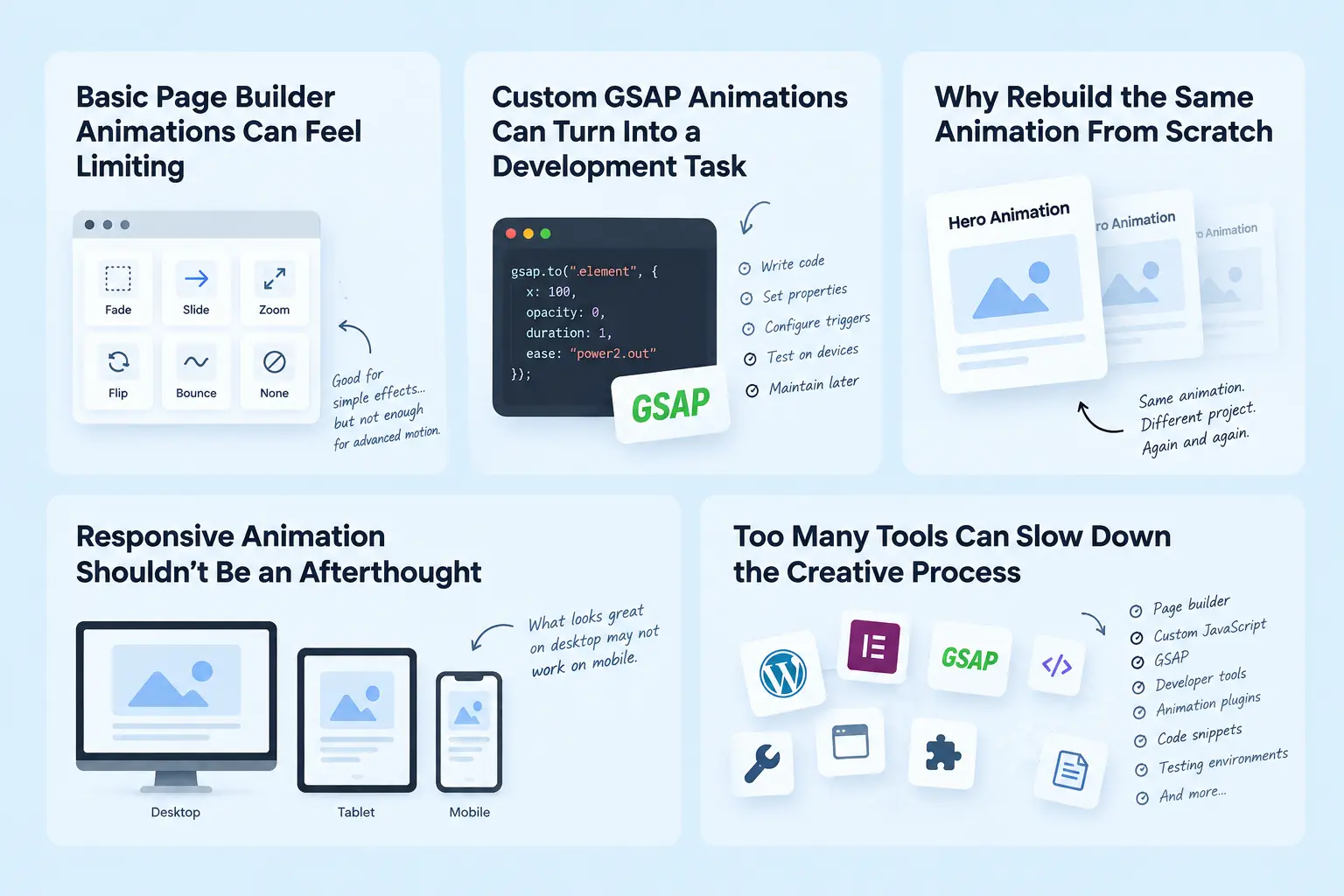
Basic Page Builder Animations Can Feel Limiting
Most WordPress page builders provide familiar effects such as fades, slides, zooms, and entrance animations. They’re useful for adding simple movement, but they can become restrictive when you want to create more sophisticated interactions.
Want a scroll-driven section? A pinned element? Animated text? Parallax movement? A multi-step timeline? Custom hover interactions?
That’s where basic animation controls often start to fall short. Adding more functionality may also mean bringing another WordPress animation plugin into the mix, creating another layer in your workflow.
Custom GSAP Animations Can Turn Into a Development Task
GSAP gives you powerful control over web animation, but that flexibility comes with development work.
You may need to write JavaScript, target specific elements, configure timelines and triggers, fine-tune easing, handle responsive behavior, and test everything across different devices.
For developers, this can mean repeating similar implementation work. For designers and non-developers, the technical barrier can make advanced animation harder to create.
Why Rebuild the Same Animation From Scratch?
Freelancers and agencies often create similar motion patterns across multiple websites.
Without a reusable system, valuable animation work stays buried inside individual projects. MotionKit changes that workflow by allowing animations to be saved, reused, and adapted across pages and websites.
Responsive Animation Shouldn’t Be an Afterthought
An animation designed for a large desktop screen doesn’t always translate perfectly to mobile.
Movement distances may need to change. Timings might need adjustment. Pinned sections can behave differently. Scroll interactions may need to be simplified.
Managing all these variations manually can quickly add complexity to an otherwise simple animation.
MotionKit provides responsive controls so you can adjust animation behavior for desktop, tablet, and mobile as part of the same workflow.
Too Many Tools Can Slow Down the Creative Process
Creating advanced WordPress animations can involve a long chain of tools:
- WordPress page builders
- Custom JavaScript
- GSAP
- Browser developer tools
- Code snippets
- Animation references
- Additional WordPress plugins
- Separate testing workflows
Every extra tool can mean more switching, more configuration, and more places to troubleshoot.
MotionKit brings the core animation workflow together. You can create animations visually, work with GSAP-powered effects, preview them on your website, configure responsive behavior, save animations for reuse, and publish them to WordPress.
MotionKit Is More Than an Animation Library
We didn’t set out to build MotionKit as just another collection of entrance effects, fades, and slide animations.
The real challenge isn’t simply creating an animation. It’s managing everything that happens before, during, and after that animation becomes part of a real WordPress website.
A typical animation workflow involves several steps:
- Find the right element on the page.
- Design the animation you want.
- Choose how it should start, such as on scroll, hover, click, or page load.
- Fine-tune timing and motion until it feels right.
- Preview and test the animation on the actual page.
- Adapt it for different screen sizes and responsive layouts.
- Publish it to WordPress without rebuilding the implementation from scratch.
- Maintain and update it when the website changes.
- Reuse the animation when the same interaction makes sense for another project.
You can work with the actual WordPress page, select the element you want to animate, build the effect visually, preview how it behaves, and publish it back to your connected website.
And when you create something worth keeping, you don’t have to start over the next time you need it. Save it, reuse it, and adapt it for your next page or project.
The goal isn’t just to make animation easier to create. It’s to make the entire animation workflow easier to manage.
Benefits of Using MotionKit
MotionKit makes advanced website animation easier to create, refine, reuse, and manage without adding unnecessary complexity to your WordPress workflow.
Create Advanced GSAP Animations Visually : Control timing, easing, triggers, sequences, and animation properties through a visual interface instead of writing JavaScript for every effect.
Get Started Faster with 100+ Presets: Why start from zero every time? Choose from 100+ ready-made animation presets, apply one to your element, customize it, and make it your own.
Animate Your Real WordPress Pages: Connect your WordPress site and work directly with existing page elements inside the MotionKit Visual Editor. No need to recreate your website somewhere else just to design its animations.
Create Once, Reuse Everywhere : Save animations you’ve already perfected and reuse them across pages, projects, and client websites. Your best animation work can become a reusable asset, not a one-time setup.
Build Responsive Motion: Fine-tune animation behavior for desktop, tablet, and mobile so your motion feels intentional across every screen size.
Cut Down Repetitive Development: Developers can visually configure frequently used animation patterns instead of rebuilding the same GSAP logic project after project.
Create a Repeatable Agency Workflow: Build reusable motion systems for hero sections, portfolios, service pages, CTAs, case studies, and other common website sections, making animation easier to standardize across client projects.
Who MotionKit Is For
MotionKit is built for WordPress professionals who want advanced animation control without an unnecessarily complicated production process.
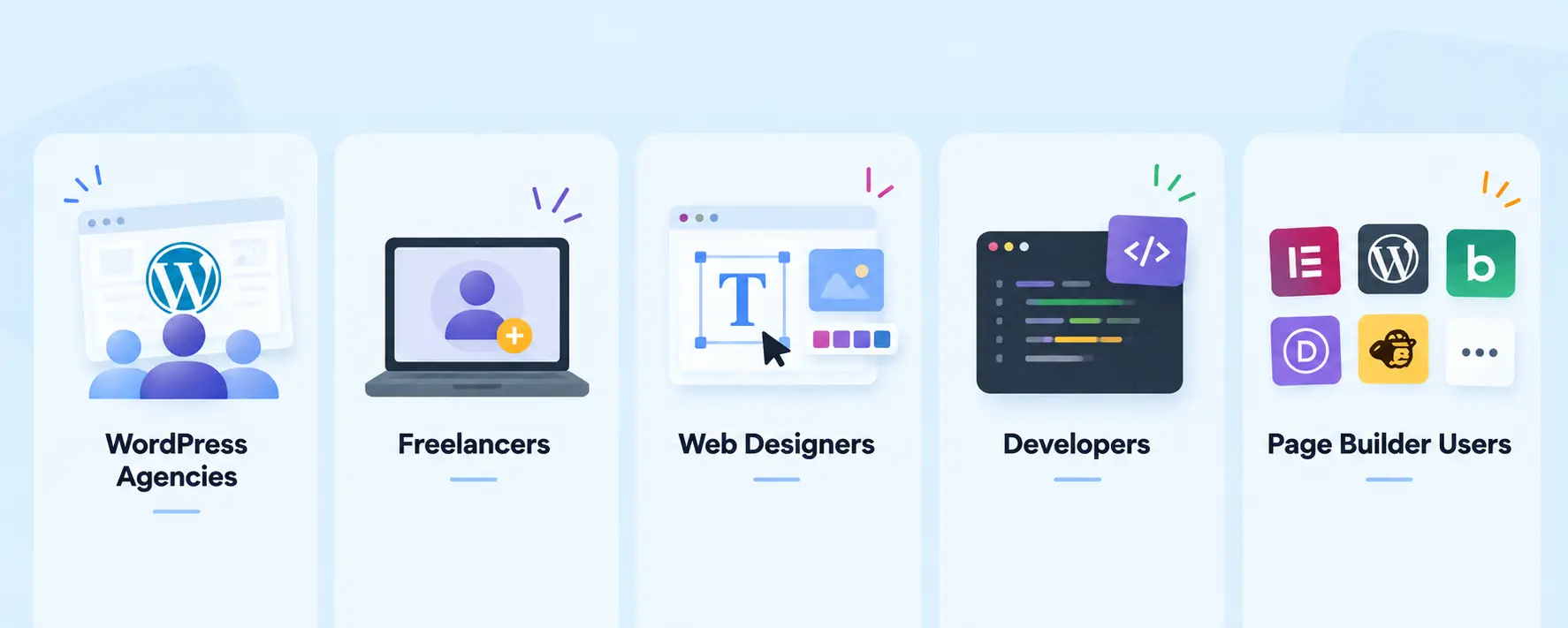
WordPress Agencies
Create reusable motion systems and bring more consistency to animation across multiple client websites.
Freelancers
Deliver more sophisticated animations without turning every project into a custom GSAP development task. Start quickly with presets and go deeper with the visual timeline when needed.
Web Designers
Experiment with movement, timing, easing, scroll effects, and sequences visually and bring your motion ideas directly into real WordPress projects.
Developers
Reduce repetitive animation setup while continuing to work with familiar GSAP concepts. MotionKit provides a visual workflow without taking away creative control.
Page Builder Users
MotionKit works with major WordPress page-building environments, including Elementor, Gutenberg, Bricks, Divi, WPBakery, Beaver Builder, Breakdance, Oxygen, Greenshift, GeneratePress, and other supported environments.
How to Connect MotionKit to Your WordPress Website
Getting started with MotionKit only takes a few steps. Once the connector is installed and your website is connected, you can launch the Visual Editor and start creating animations directly on your WordPress pages.
Step 1: Install the MotionKit Connector
- Note
- First, download the MotionKit Connector from MotionKit. The connector acts as the bridge between your WordPress website and the MotionKit Visual Editor.
In your WordPress dashboard:
- Go to Plugins → Add Plugin.
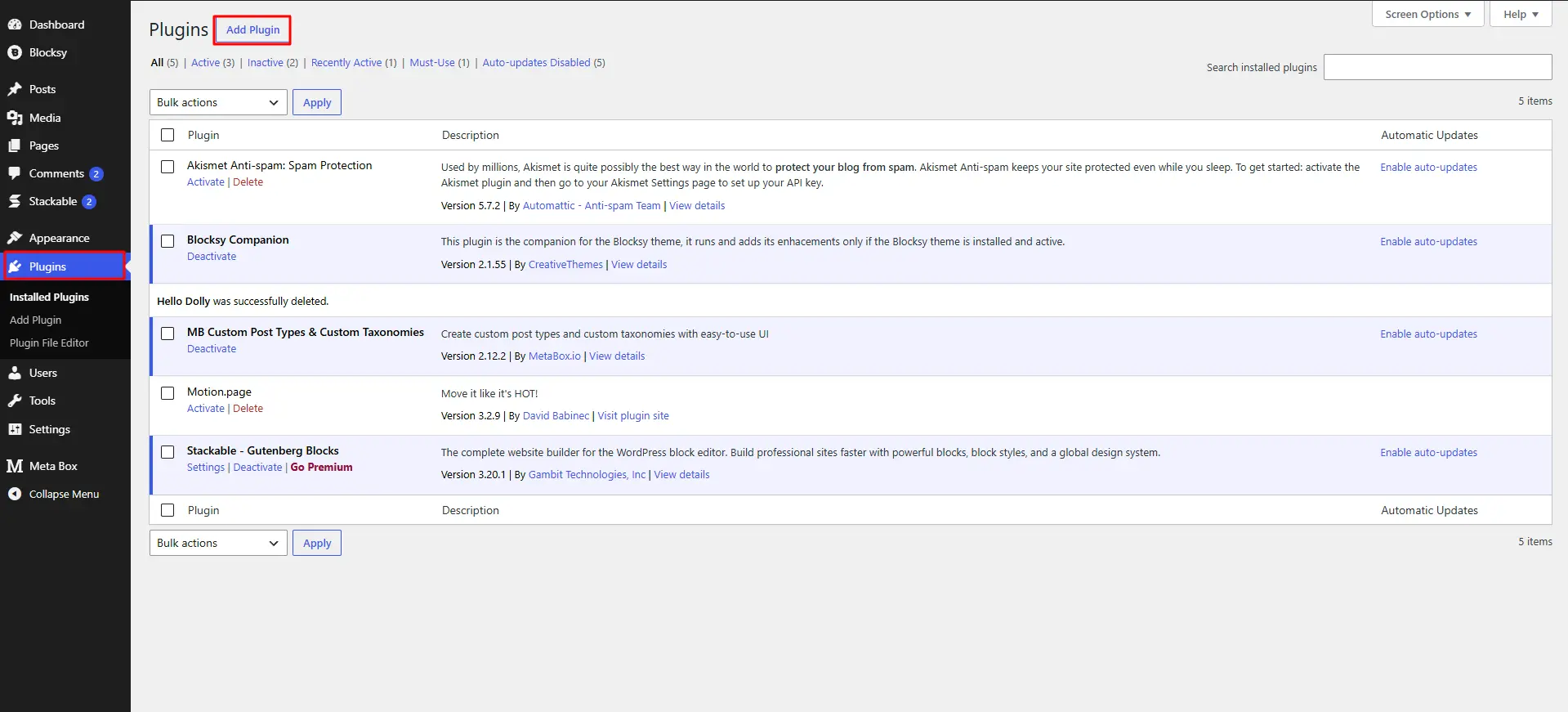
- Select Upload Plugin.
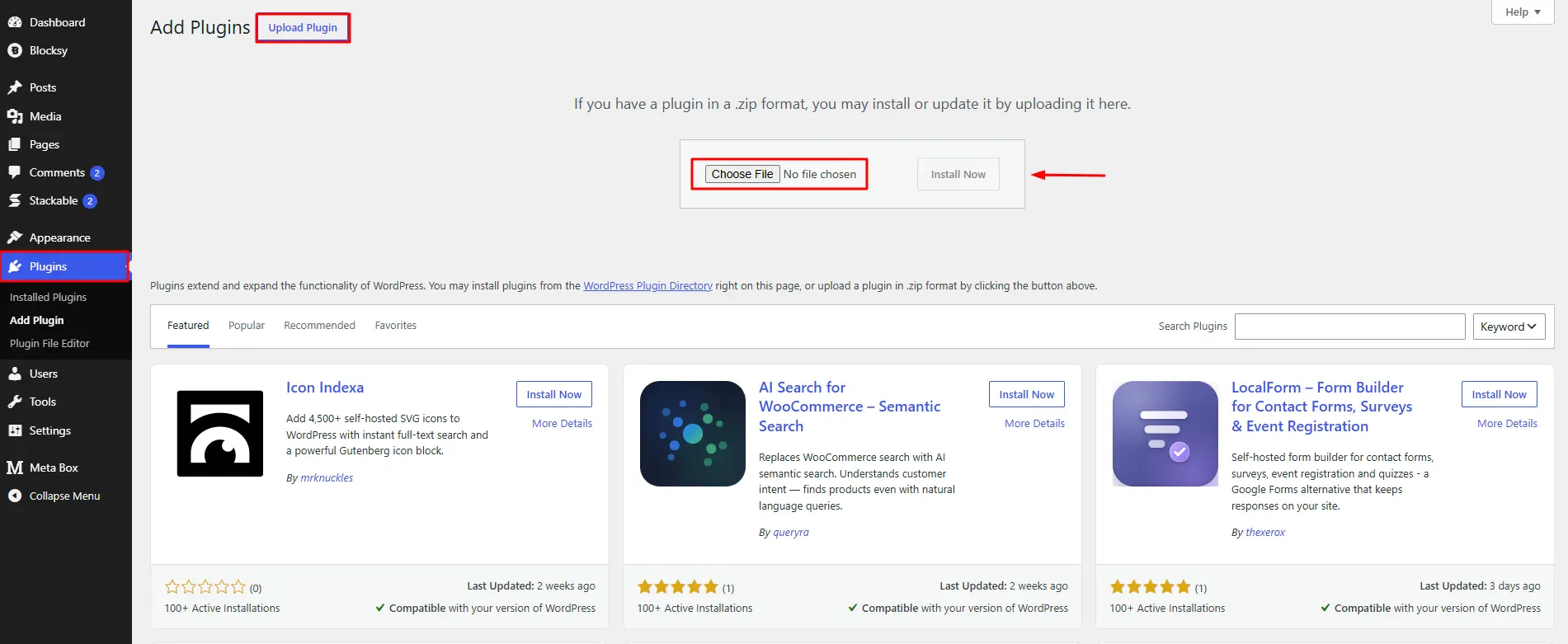
- Click Choose File and select the MotionKit Connector file.
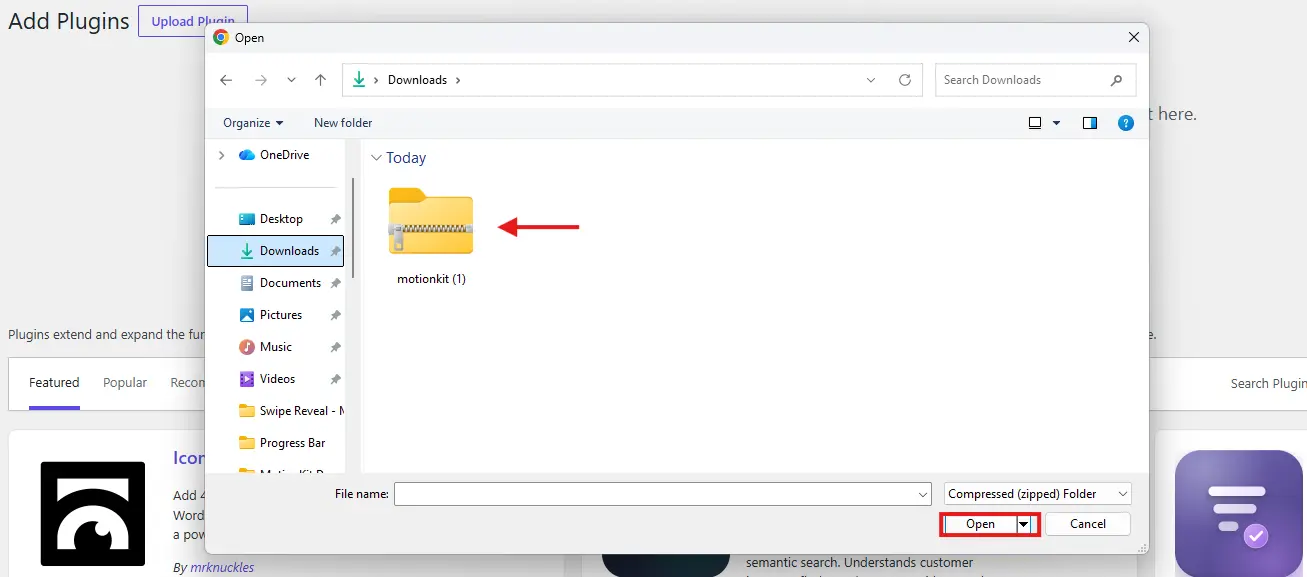
- Click Install Now and complete the installation.
Step 2: Add MotionKit Connector
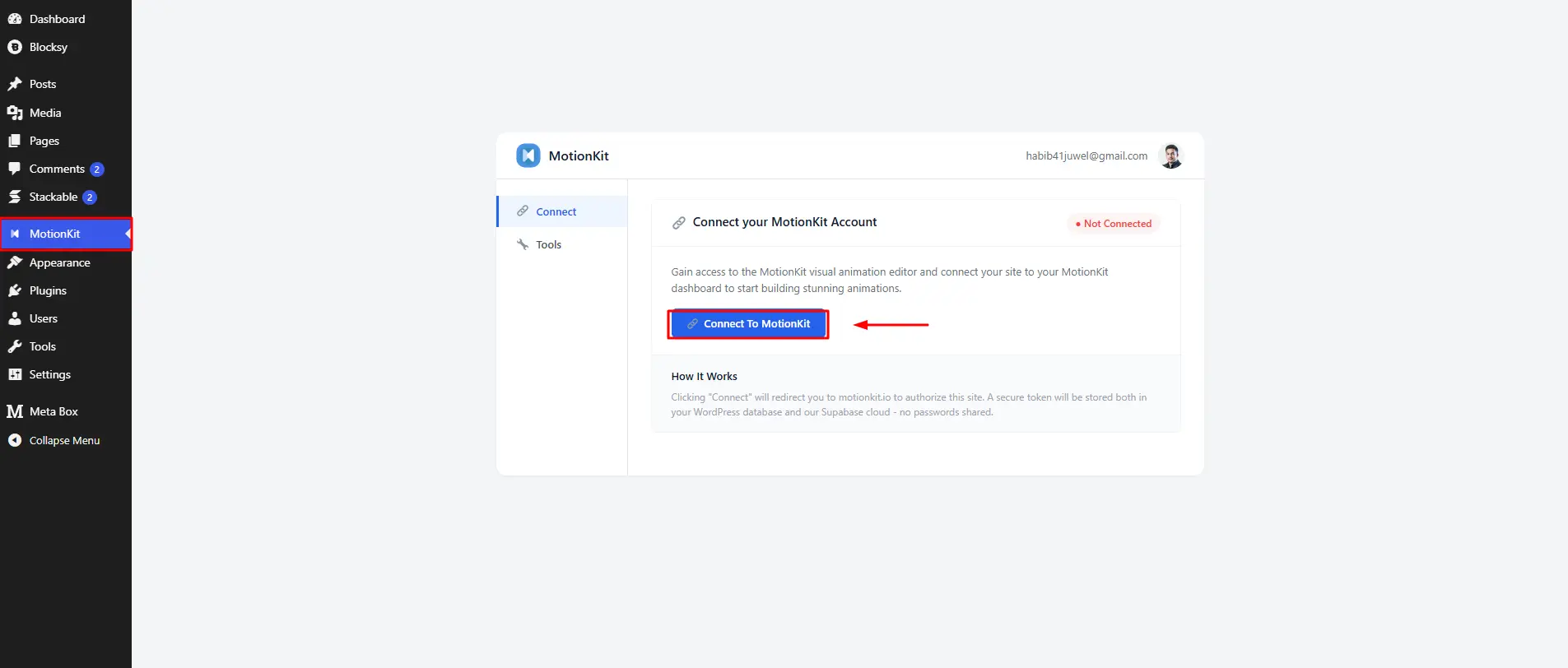
Once the plugin is installed, you’ll find MotionKit in your WordPress dashboard sidebar.
Open it and click Download Connector if prompted. If you have already downloaded the connector, install it using the same WordPress plugin installation process.
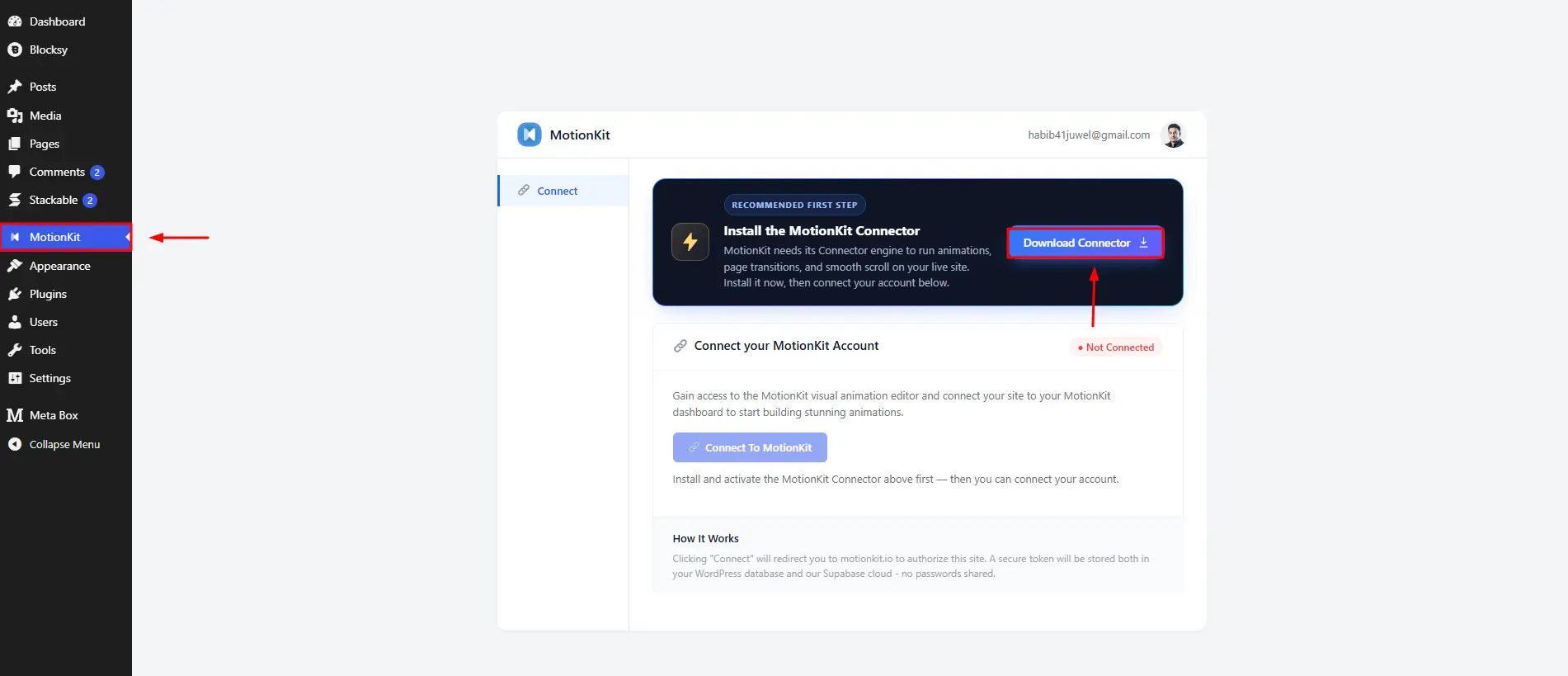
Similarly, install the MotionKit Connector by following the same steps.
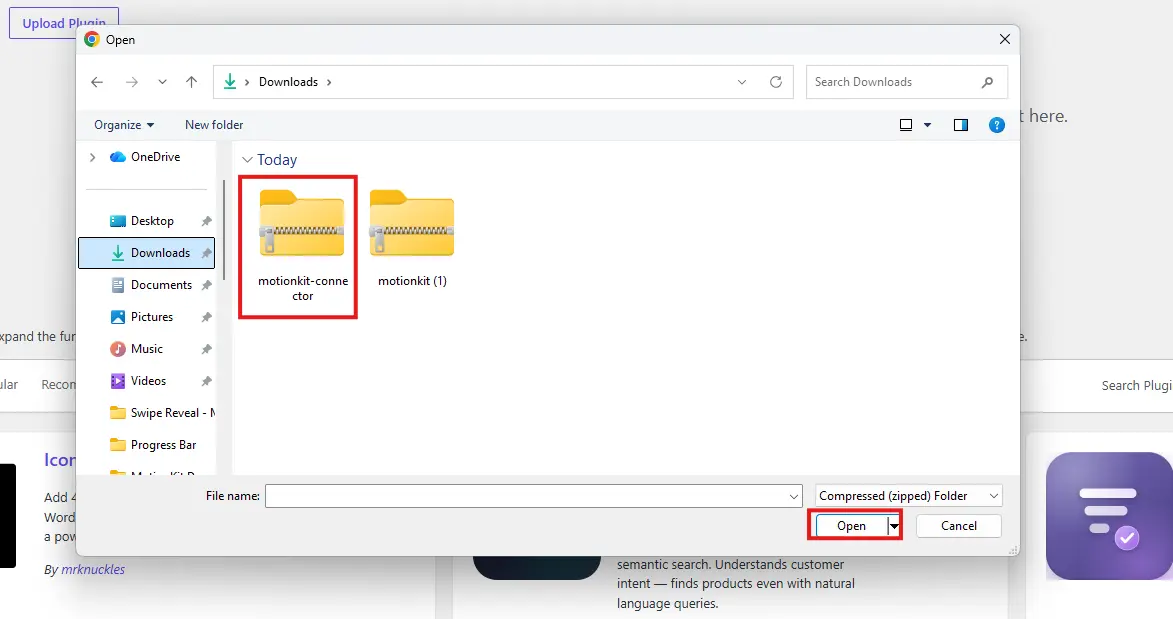
The connector establishes the link between your WordPress website and MotionKit, allowing the Visual Editor to work with the pages and elements on your site.
Step 3: Create Your MotionKit Account
Return to the MotionKit menu in WordPress and click Connect to MotionKit.
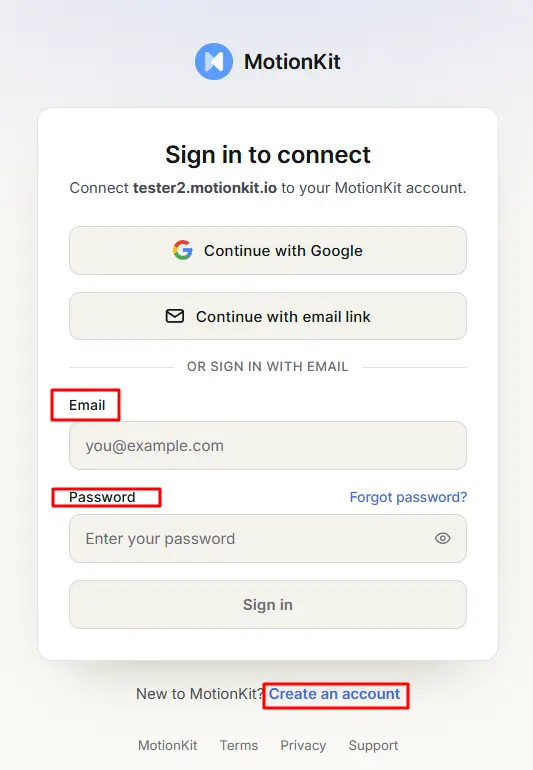
- Already have an account? Log in.
- New to MotionKit? Select Create an Account and sign up.
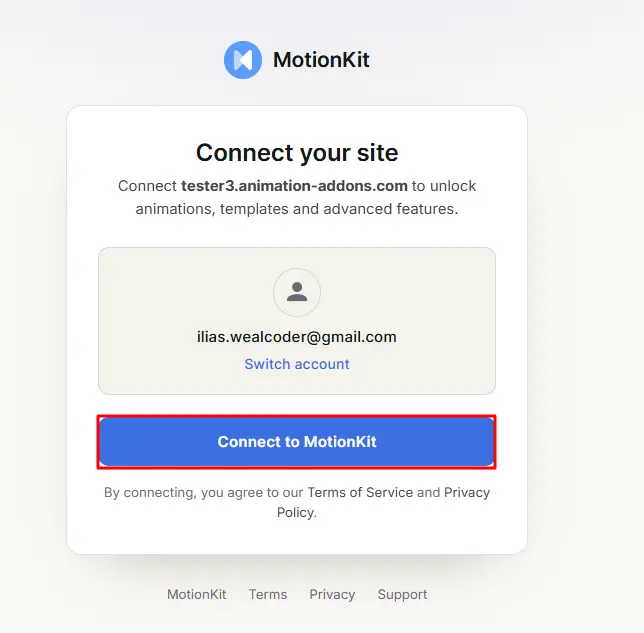
Once connected, your website will be linked to your MotionKit account, giving you access to your dashboard, projects, connected sites, and Visual Editor.
Step 4: Launch MotionKit Visual Editor
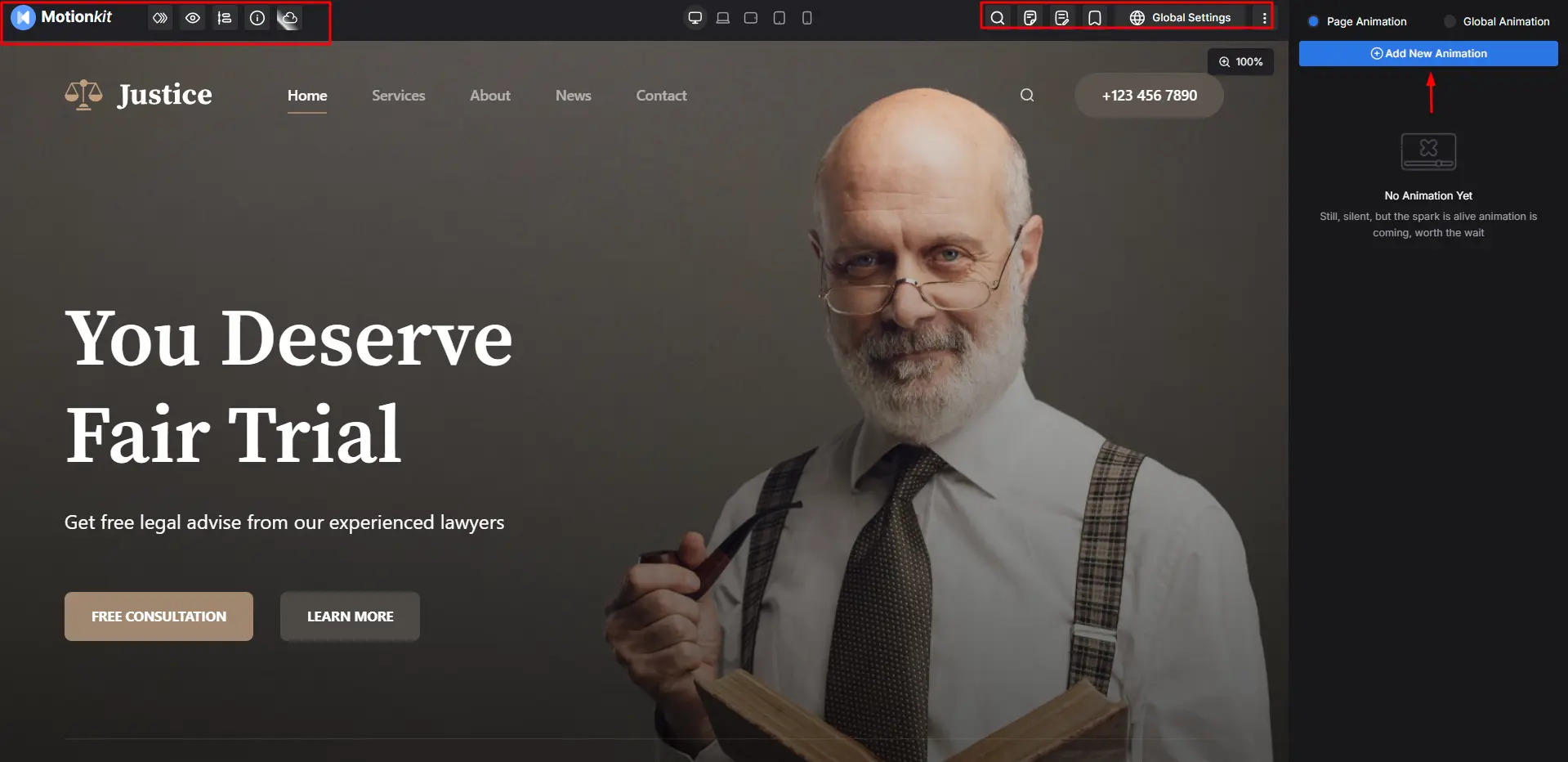
With your website connected, click Launch MotionKit.
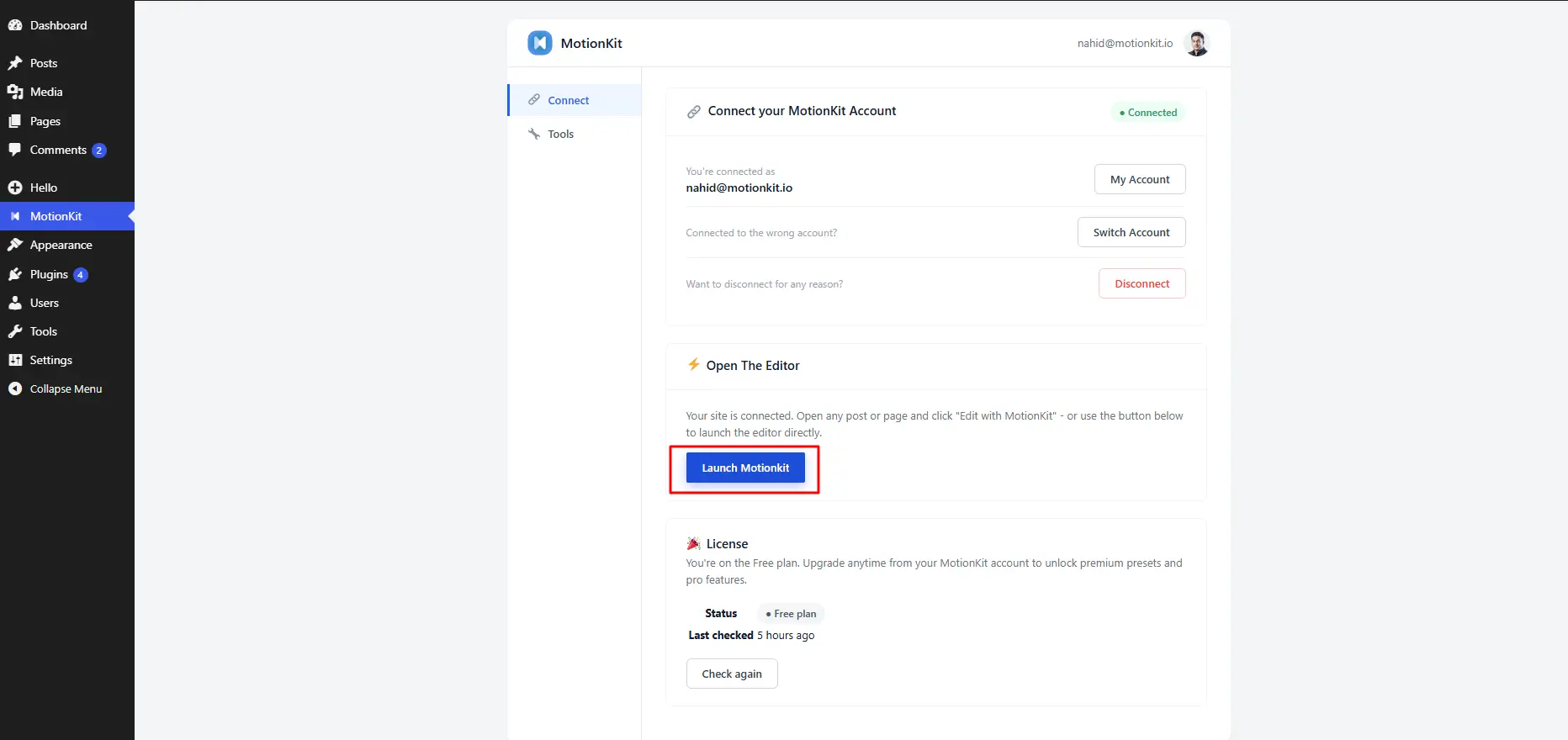
The MotionKit Visual Editor will open directly on your website, allowing you to select page elements and start creating animations visually.
Step 4: Add and Manage Multiple Websites
Need to work on another project? You can manage multiple websites from the MotionKit dashboard.
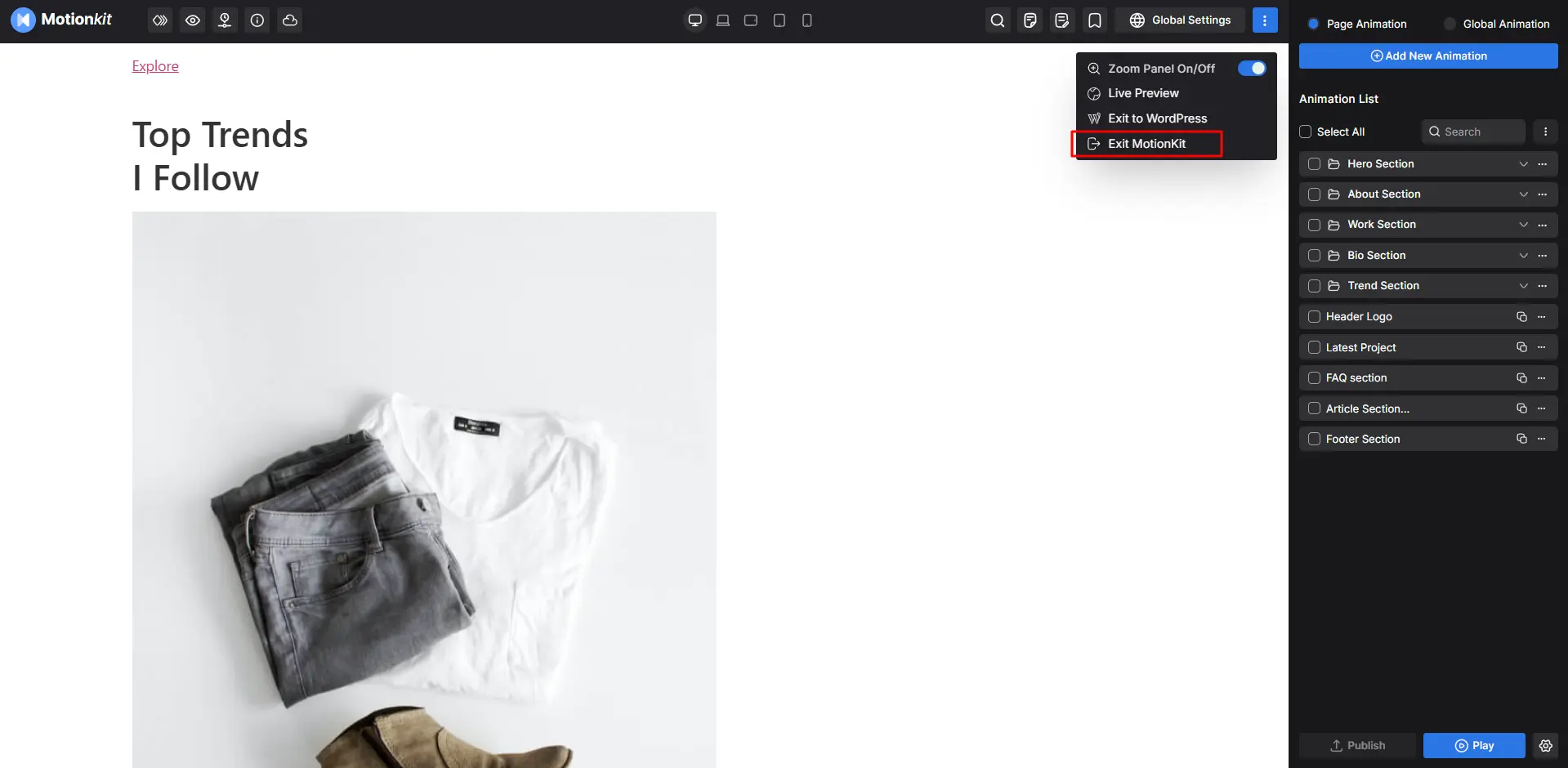
To exit the Visual Editor, click the three-dot menu and select Exit MotionKit. You’ll return to the dashboard, where you can click + Add Site to connect another WordPress website.
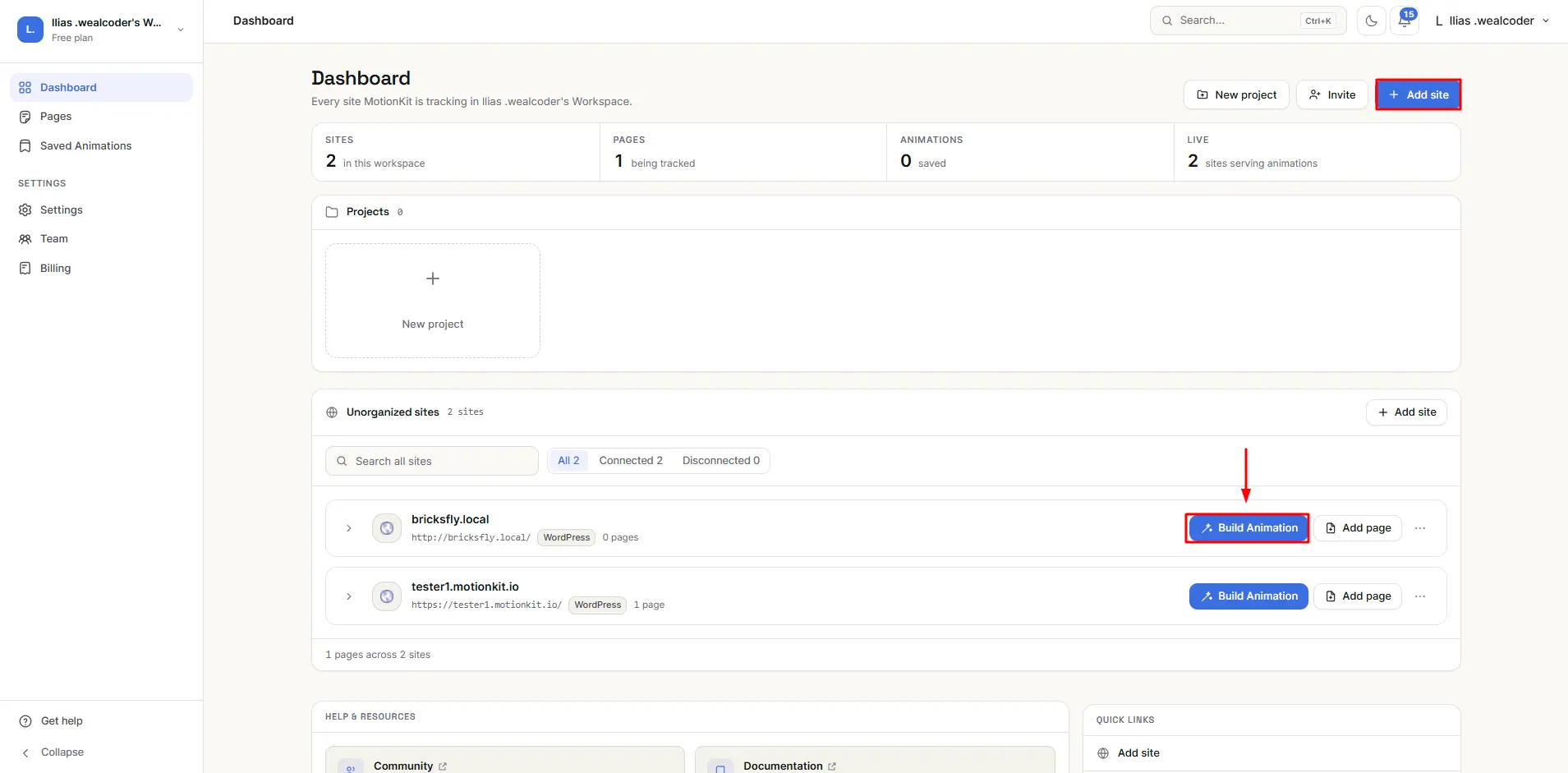
Once connected, you’re ready to start designing, animating, and publishing, all from one workflow.
MotionKit’s Main Features
MotionKit brings the essential parts of modern website animation into one connected workflow. Instead of switching between code, plugins, page builders, and testing tools, you can create, customize, preview, reuse, and publish animations from one place.
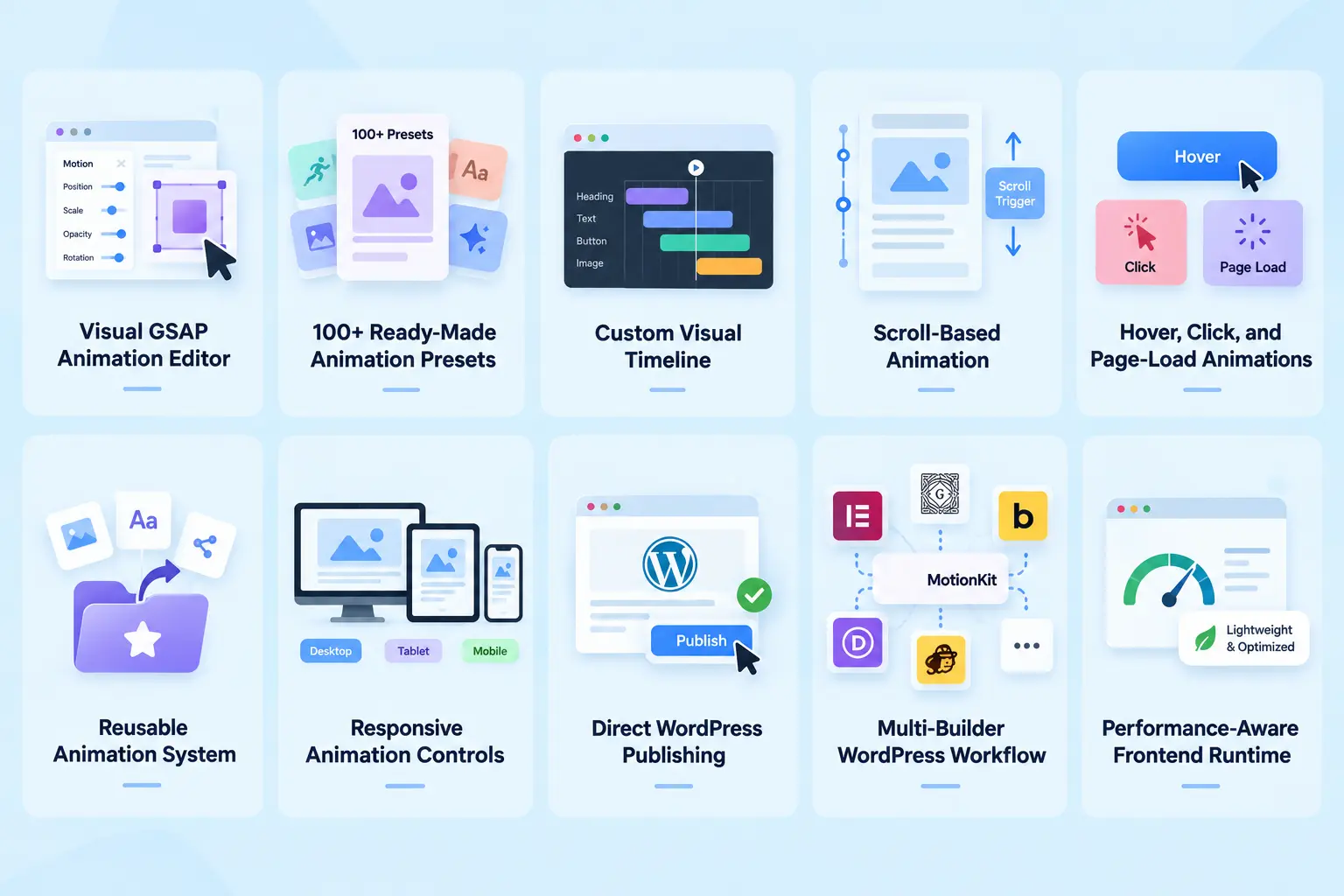
1. Visual GSAP Animation Editor
At the heart of MotionKit is the Visual GSAP Animation Editor. It lets you create and fine-tune animations directly on your webpage without writing JavaScript for every interaction.
Control movement, scale, rotation, opacity, easing, timing, triggers, and more while working with the actual elements on your WordPress page.
Why it matters:
- Create GSAP animations visually
- Select real website elements as targets
- Adjust animation settings without constantly editing code
- Preview changes as you build
- Combine multiple effects into custom animations
2. 100+ Ready-Made Animation Presets
Not every animation needs to start from a blank timeline. MotionKit gives you 100+ ready-made presets that provide a quick starting point for common animation patterns.
Apply a preset, customize its behavior, and move on to the next part of your design.
Presets include effects for:
- Text and character reveals
- Image movement and scaling
- Rotation effects
- Scroll interactions
- Hover effects
- Page-load animations
- Creative reveal effects
The benefit? Less time configuring basic effects and more time creating something unique.
3. Custom Visual Timeline
When a simple animation isn’t enough, the Visual Timeline gives you control over multiple actions and their sequence.
Imagine a hero section where the heading appears first, the description follows, then the CTA and image enter the scene. You can organize and fine-tune that entire sequence visually.
With the timeline, you can:
- Build multi-step animations
- Sequence multiple elements
- Control delays and durations
- Adjust timing visually
- Create coordinated page-load experiences
- Build richer motion storytelling
4. Scroll-Based Animation
Scroll can become more than a way to move through a page, it can become part of the experience.
With MotionKit, you can create animations that respond to how visitors scroll through your website, including:
- Scroll reveals
- Parallax effects
- Sticky and pinned interactions
- Scroll-linked sequences
- Section transitions
- Horizontal scrolling experiences
- Animated storytelling sections
You can configure elements such as triggers, start and end positions, scrub behavior, and pinning while previewing how the interaction behaves.
5. Hover, Click & Page-Load Animations
Scroll isn’t the only way to trigger motion. MotionKit lets you connect animations to different visitor actions and page events.
Create effects that run when:
- A page loads
- A visitor hovers over an element
- A visitor clicks an element
- A configured interaction occurs
This opens up possibilities for animated buttons, cards, menus, images, CTAs, and interactive sections.
6. Reusable Animation System
Why recreate the same animation every time you start a new project?
MotionKit lets you save and reuse animation setups, turning successful motion designs into reusable assets.
You can:
- Save completed animations
- Reuse effects across pages
- Apply patterns to new projects
- Build an internal animation library
- Standardize motion across client websites
- Reduce repetitive setup work
Your animation work becomes something you can build on, not something you throw away after one project.
7. Responsive Animation Controls
An animation that looks great on a large monitor may feel completely different on a phone. MotionKit lets you adapt animation behavior across desktop, tablet, and mobile.
You can keep more detailed effects on larger screens while simplifying or adjusting movement for smaller devices.
This helps you:
- Configure desktop motion
- Fine-tune tablet behavior
- Simplify mobile animations
- Reduce excessive movement on smaller screens
- Create more appropriate experiences for different devices
8. Direct WordPress Publishing
Designing the animation is only half the job. It still needs to make its way onto the live website.
MotionKit connects the creation and publishing stages, allowing you to preview your animation and then publish the completed configuration back to your connected WordPress site.
This reduces the need to export code, manually recreate settings, or manage a separate handoff between design and development.
9. Multi-Builder WordPress Workflow
Every WordPress project doesn’t use the same page builder. One client may use Elementor, another Bricks, while another relies on Gutenberg or a different supported environment.
MotionKit provides a consistent animation workflow across supported WordPress page builders, so your approach to animation doesn’t have to change completely from project to project.
This gives agencies and freelancers more flexibility while reducing dependence on any single builder’s built-in animation controls.
10. Performance-Aware Frontend Runtime
Advanced animation shouldn’t automatically mean unnecessary frontend overhead.
MotionKit uses a frontend runtime designed to deliver the animation configuration where it is needed, while responsive controls give you the option to simplify or reduce motion on devices where certain effects may not be appropriate.
The result is a workflow focused on creating rich interactions without treating every animation as something that needs to load everywhere, all the time.
MotionKit vs Writing GSAP Manually
GSAP gives you the power to create almost any web animation you can imagine. MotionKit doesn’t replace GSAP, it gives you a more visual way to work with it.
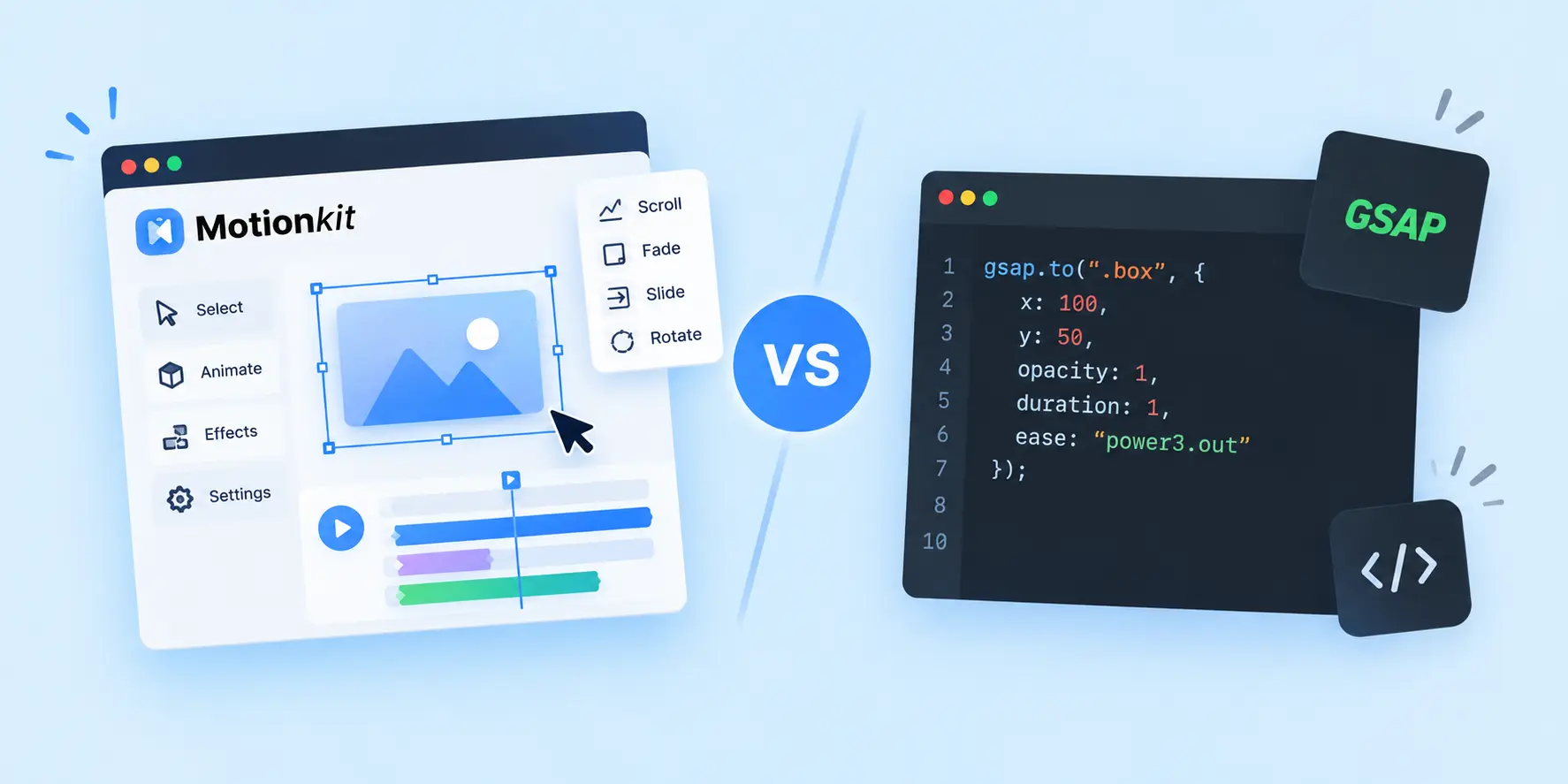
With a traditional GSAP workflow, even a seemingly simple animation can involve several development steps:
- Identify the correct DOM element.
- Write the JavaScript logic.
- Define animation properties.
- Build and organize timelines.
- Configure ScrollTrigger when needed.
- Set scroll start and end positions.
- Fine-tune easing, duration, and delays.
- Test across different screen sizes.
- Manage the required scripts.
- Update the code when the website changes.
MotionKit brings many of these steps into a visual workflow connected to your WordPress website.
Developers can spend less time repeating animation setup. Designers can experiment with advanced motion without needing to write JavaScript for every change. And agencies can turn successful animations into reusable assets for future projects.
The result isn’t about choosing between GSAP and MotionKit. It’s about making GSAP-powered animation easier to create and manage.
Build Your Own Motion Library
FFor freelancers and agencies, the real value of MotionKit can grow with every project.
Instead of recreating the same animation from scratch, you can build a collection of motion patterns you already know work well:
- Hero heading reveals
- CTA animations
- Service cards
- Portfolio interactions
- Case study sections
- Product showcases
- Testimonial reveals
- Pricing sections
- Navigation interactions
- Image reveals
- Page-introduction sequences
Over time, these animations can become part of your own reusable motion library.
Create an effect once, refine it until it feels right, and bring it into future projects when you need it. That’s where “Create once. Animate anywhere.” becomes a practical workflow rather than just a tagline.
Final Words
Creating great website animation shouldn’t require a maze of tools and repetitive development work.
You may already have the perfect page. The challenge is adding motion without constantly switching between code editors, plugins, browser tools, and different settings.
MotionKit brings that process together.
And when you create an animation worth keeping, save it. Use it again on another page, another project, or another client website.
Want to create powerful GSAP animations visually?
Start creating with MotionKit today and turn your next WordPress website into an interactive experience.
Secure Early Bird Access to MotionKitFAQs
MotionKit is primarily a SaaS platform with a WordPress connector. Rather than functioning like a traditional WordPress animation plugin, the connector links your website to the MotionKit Visual Editor, allowing you to work with existing pages and publish animations back to WordPress.
No. You don’t need to write GSAP code to use the main MotionKit workflow. Visual controls let you work with concepts such as timelines, easing, triggers, duration, and animation properties without manually coding each effect.
Not for creating supported animations through the visual workflow. Developers can still use their JavaScript and GSAP knowledge when additional technical customization is needed.
Yes. MotionKit goes beyond presets. You can create custom animations and multi-step sequences using its visual controls and timeline.
You can create a range of effects, including page-load, scroll, hover, click, text, reveal, parallax, and sequenced animations, depending on the available features and configuration.
Yes. You can save animation setups and reuse them across pages, projects, and connected websites, making it easier to build your own collection of reusable motion patterns.
Yes. MotionKit provides responsive controls for configuring animation behavior across desktop, tablet, and mobile.
MotionKit is designed to work with major WordPress environments, including Elementor, Gutenberg, Bricks, Divi, WPBakery, Beaver Builder, Breakdance, Oxygen, Greenshift, GeneratePress, and other supported environments.
Yes. MotionKit is designed for freelancers, agencies, developers, and teams working across WordPress projects. Its reusable workflow can be particularly useful when similar animation patterns are needed across multiple client websites.
Built-in page builder controls generally focus on a set of predefined effects within that builder. A basic WordPress animation plugin can expand those options, but MotionKit is built around a broader visual GSAP workflow.
It combines presets, custom timelines, different animation triggers, responsive controls, reusable animations, and WordPress publishing into one connected workflow.




Leave a Reply