



01
Cabin hero that the next section slides over
The hero is a 100vh Flexbox with Sticky on; the cabins Flexbox below covers it. Set Pin Start to Top Top, Pin End to Bottom Top and Pin Spacing to False.
 Interaction extension · Pro
Hold a hero while the next section slides over it, or pause a statement for a screen of scrolling. Sticky adds a GSAP pin to Elementor 4 containers, so any Elementor sticky section holds between start and end points you choose.
Need a plain sticky header or sidebar? Elementor 4's own Style › Position › Sticky is free and does that well.
The short answer
Sticky is an Animation Addons Pro extension for Elementor 4 that pins a Flexbox, Div Block or Grid between two scroll points using a GSAP pin. Pin Start, Pin End and Pin Spacing decide when the Elementor sticky element holds and whether the next section waits or slides over it, with separate values for every breakpoint.
Also searched as: elementor sticky element, elementor sticky section, elementor sticky on scroll, elementor pin section, elementor stacking cards, stacked panels in elementor, elementor sticky not working, elementor sticky hero, elementor position sticky, gsap pin for elementor, sticky in elementor 4, elementor sticky container, elementor sticky scroll effect
| Plan | Pro |
|---|---|
| Type | Interaction (scroll) |
| Works on | Elementor 4 Flexbox, Div Block and Grid only. To pin a heading, image or button, wrap it in a Div Block. |
| Main controls | Enable Sticky, Pin Start, Pin End, Pin Spacing, Pin Markers, Enable On Editor; advanced: Pin Trigger, Pin End Trigger, Pin, Toggle Class, Border, Background Color |
| Engine | GSAP; the runtime ships in Animation Addons Pro |
| Editor preview | Off by default. Enable On Editor runs the pin on the canvas and adds a Play button. |
| Limits | Containers only. Without an active Pro licence, settings save but nothing pins. Pin Markers applies to all devices. Elementor 4.0+. |
| Plugin version | Animation Addons for Elementor 4.3 · Last updated October 2026 |
Demo variations
Every demo is built with Sticky from Animation Addons Pro on Elementor 4's own elements. The settings on each card are a good place to start.
Every demo pins the container itself, with Pin Trigger, Pin End Trigger and Pin left on Default. Full-screen panels use Min Height 100vh; a section that slides over a pinned one gets a solid background, Position Relative and Z-index 1 in Elementor's Style tab.
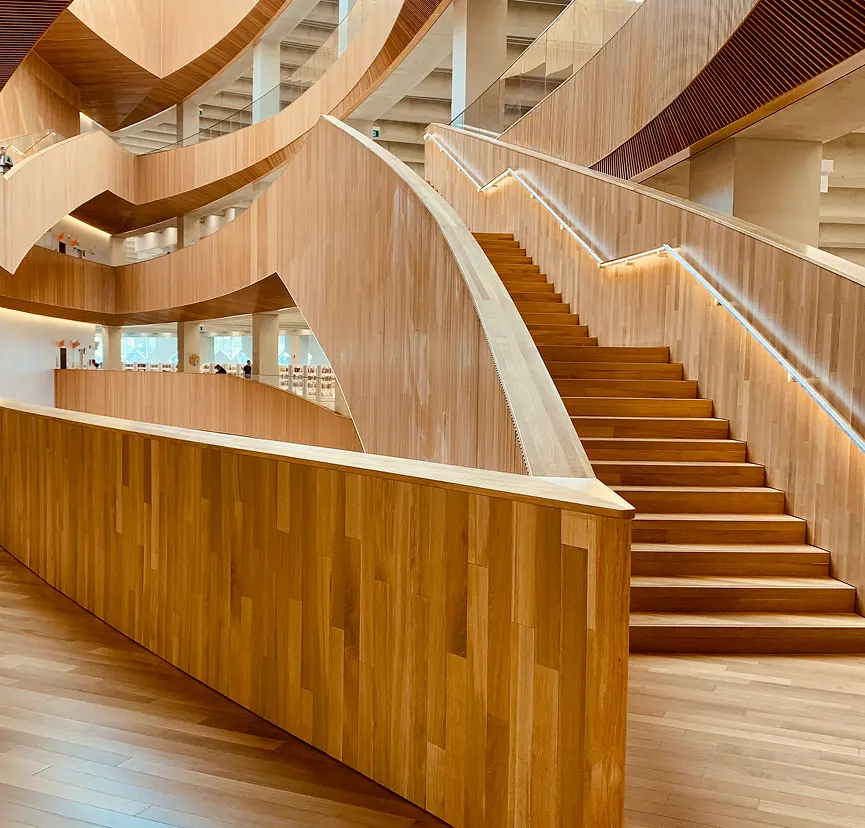
The hero is a 100vh Flexbox with Sticky on; the cabins Flexbox below covers it. Set Pin Start to Top Top, Pin End to Bottom Top and Pin Spacing to False.
Elementor stacking cards, or stacked panels in Elementor: three 100vh Flexbox panels with Sticky on the first two. Set Pin Start to Top Top, Pin End to Bottom Top, Pin Spacing to False and Z-index to 1, 2 and 3 so each lands on top.
A 100vh Div Block holding a Heading. Set Pin Start to Top Top, Pin End to Bottom Top and Pin Spacing to True, so the next section waits.
A Div Block card with a Heading, a Paragraph and a Button. Set Pin Start to Center Center, Pin End to Bottom Top and Pin Spacing to True.
A 100vh Flexbox with the free Background Video extension (a slow zoom on a still photo stands in for the video here). Set Pin Start to Top Top, Pin End to Bottom Top and Pin Spacing to True, with Enable Sticky off at tablet and mobile.
A 100vh Grid per opener, with the title over an image and Sticky on, and the chapter text in the Flexbox below. Set Pin Start to Top Top, Pin End to Bottom Top and Pin Spacing to False.
Features
Every point below is a real control in the Sticky panel section or part of how it works, from a simple Elementor sticky on scroll hold to stacked panels. Nothing here needs custom code.
Pin Start takes a position pair: a point on your element, then a point on the screen. Top Top pins when the element's top reaches the screen's top; Center Center pins it mid-screen. Pick from 15 presets or type your own.
Pin End uses the same pairs. Bottom Top keeps a full-screen panel pinned for one screen of scrolling.
Pin Spacing True makes the next section wait until the pin ends. False lets it scroll straight over the pinned one, the cover effect in demos 1, 2 and 6, an Elementor sticky scroll effect many designers ask for.
Pin Markers draws the start and end lines on the page. Enable Sticky, Pin Start, Pin End and Pin Spacing each take a value per breakpoint, so a pin can run on desktop only.
Pin Trigger, Pin End Trigger and Pin switch from Default to Custom to name another element. The Style tab adds Toggle Class, Border and Background Color.
Step by step
Six steps from switching it on to publishing. The bold names are the exact labels you will see on screen.
Get Animation Addons ProIn WordPress, open Animation Addon › Settings › Extensions and check that Sticky is on.
In Elementor 4, select the Flexbox, Div Block or Grid for your Elementor pin section. For a full-screen panel, set its Min Height to 100vh in the Style tab.
Open the Sticky/Pin Element section and turn on Enable Sticky.
Set Pin Start and Pin End, choose Pin Spacing, and turn on Pin Markers.
Turn on Enable On Editor, press Play and adjust until the markers sit where you want.
Switch Enable Sticky off on breakpoints that shouldn't pin, turn Pin Markers off, and publish.
Honest comparison
Elementor position sticky is a free Style › Position › Sticky option in Elementor 4, with a Top or Bottom offset and Z-index. It keeps an element on screen within its parent container: exactly right for sticky headers and sidebars. Animation Addons Sticky is for scroll moments, holding a whole section between two scroll points.
| Need | Elementor 4 Position: Sticky | Animation Addons Sticky |
|---|---|---|
| Plan | Free, in the Style tab | Animation Addons Pro |
| How long it stays | Until it reaches the edge of its parent container | Between the Pin Start and Pin End points you set |
| Where it starts | A Top or Bottom offset | Element-and-screen pairs (Top Top, Center Center, Top 80px…) |
| Make the next section wait | No setting | Pin Spacing True or False |
| See start and end on the page | No | Pin Markers |
| Engine | CSS position: sticky | GSAP |
Compared with Elementor 4.3.3 (September 2026).
Elementor Pro's Interactions add a "While scrolling" trigger but no pin, so Sticky complements them.
Who it's for
The people who get the most out of it, and what they use it for.
Building stacked panels and hero reveals for clients.
Holding a hero photo while content arrives.
Structuring long reads with chapter openers.
FAQ
For a sticky header or sidebar, use Elementor's free Style › Position › Sticky. To hold a section between two scroll points, select a Flexbox, Div Block or Grid, open the Sticky/Pin Element section, turn on Enable Sticky and set Pin Start and Pin End. Animation Addons Sticky is part of Animation Addons Pro.
CSS sticky keeps an element in view only until it reaches its parent's edge. A GSAP pin for Elementor, which Animation Addons Sticky uses, holds the element between start and end scroll points you define and can make the page wait with Pin Spacing. Use CSS sticky for headers and sidebars, a pin for scroll moments.
For an Elementor sticky hero, give it a Min Height of 100vh, enable Animation Addons Sticky on it, and set Pin Start to Top Top, Pin End to Bottom Top and Pin Spacing to False. The hero holds while the next section scrolls over it; give that section a solid background, Position Relative and Z-index 1 so it covers the hero.
Animation Addons Sticky makes an Elementor sticky container out of a Flexbox, Div Block or Grid, and appears only on those three; wrap a single heading, image or button in a Div Block to pin it. It needs Elementor 4.0 or later and an active Animation Addons Pro licence. Without Pro, the settings save but nothing pins on the live page.
Yes, when you ask for it. Animation Addons Sticky does not run on the editor canvas by default, so editing stays calm. Turn on Enable On Editor to run the pin in the editor with a Play button, and Pin Markers to see the start and end lines while you adjust.
Yes. In Animation Addons Sticky, Enable Sticky is set per breakpoint, so you can pin on desktop and switch it off at tablet or mobile. Pin Start, Pin End and Pin Spacing also vary per breakpoint. Pin Markers is one setting for all devices, so turn it off before publishing.
Use one method per element. If a container already has Elementor's Position set to Sticky, reset it before enabling Animation Addons Sticky, so CSS sticky and the GSAP pin are not both holding it. A page can still use Elementor's sticky header and Animation Addons Sticky on other sections.
Animation Addons loads an effect's scripts on the pages that use it, and Pro adds Lazy Animation, Reduced Motion and a Performance Wizard. Animation Addons Sticky only changes where a section sits while scrolling; text and links stay in the HTML, so search engines read the page as before.
Check that Enable Sticky is on, that the element is a Flexbox, Div Block or Grid, and that Elementor's own Position Sticky is not also set on it. Turn on Pin Markers to see the start and end lines. Playback on the live site needs Animation Addons Pro, and the editor only shows the pin when Enable On Editor is on.
More answers in the FAQ · Documentation · Free vs Pro
Pairs well with
What works well with Sticky on the same page or template.
Move content sideways on scroll.
The free extension behind the clinic tour panel.
Depth for sections scrolling past a pin.
Smooth-scroll links between pinned chapters.
A ready-made stacking widget instead of hand-built panels.
Animation Addons Pro · Elementor 4
For a sticky header, Elementor 4's free Position › Sticky works well; upgrade for pins with their own start and end.