


 Login
Login


Website animations can make a site feel alive and engaging. They grab attention, guide visitors, and create a smooth browsing experience.
One of the best tools for creating these effects is GSAP (GreenSock Animation Platform). GSAP is a leading JavaScript library that gives you complete control to create smooth, dynamic, and creative web animations.
In this article, we’ll explore some of the GSAP animation examples and web animation techniques with GSAP that can help bring your website to life.
Types of GSAP Animations:
Scroll-Based Animations trigger visual effects as users scroll, creating a dynamic and engaging storytelling experience throughout the page.
SVG Animations bring scalable graphics to life with smooth motion while keeping visuals sharp and lightweight across all devices.
UI Animations enhance user interactions by providing visual feedback that makes interfaces feel responsive, intuitive, and polished.
Text Animations animate words or characters to highlight key messages and guide user attention naturally.
Interactive Based Animations respond to user actions like hover, click, or cursor movement to create engaging, real-time experiences.
Scroll-Based Animations
1. ScrollTrigger
ScrollTrigger lets you tie animations to the user’s scrolling. This means elements on your page can move, appear, or change as someone scrolls up or down. It’s great for making websites feel alive and interactive.
With ScrollTrigger, you can:
- Pin sections so they stay in place while the rest of the page scrolls.
- Create parallax effects where the background moves slower than the foreground.
- Reveal content smoothly as it comes into view.
- Break animations into phases that trigger at different scroll points.
- Sync multiple animations to the scroll for a seamless experience.
It’s easy to use, works on any element, and adds a professional, dynamic feel to your site without heavy code.
2. ScrollSmoother
ScrollSmoother in GSAP makes your website’s scrolling feel soft and smooth. Instead of the content jumping quickly as you scroll, scrollsmoother flows nicely and looks more professional.
With ScrollSmoother, you can:
- Make scrolling look smooth and natural.
- Add parallax effects where the background moves slower than the foreground.
- Create a lag effect so some elements gently follow the scroll.
- Fix jumpy scrolling on mobile for a cleaner experience.
- Control the smoothness of the scroll on both desktop and touch devices.
It’s easy to use and adds a polished, modern feel to any website.
3. Horizontal Scrolling
Horizontal scrolling allows content to move sideways instead of the traditional vertical direction, creating a unique and immersive browsing experience. It is often used for portfolios, galleries, product showcases, and storytelling sections where visuals play a key role.
By breaking away from standard layouts, horizontal scrolling helps websites stand out while presenting large amounts of content in a smooth, controlled flow. When designed carefully, it feels intuitive and engaging rather than confusing.
Key benefits of horizontal scrolling:
- Creates immersive, visually driven layouts
- Ideal for portfolios and product showcases
- Encourages exploration through smooth motion
- Adds a modern, creative website feel
Combined with smooth animations and clear visual cues, horizontal scrolling can guide users naturally and keep them exploring longer. However, it should always be optimized for performance and usability across all devices to avoid frustration.
4. Pinned Elements
Pinned Elements keep important content fixed on the screen while users scroll, creating a more engaging and guided browsing experience. This technique is commonly used to highlight key messages, showcase features, or control storytelling flow without overwhelming the visitor.
By keeping elements visible at the right moment, pinned sections help users focus on what matters most and move naturally through the page.
With pinned elements, you can:
- Keeps important content visible during scrolling
- Guides users through sections step by step
- Enhances storytelling and visual hierarchy
- Creates modern, interactive website experiences
When implemented correctly, pinned elements add a polished, interactive feel and improve overall user engagement without hurting performance or usability.
5. Stacked Cards
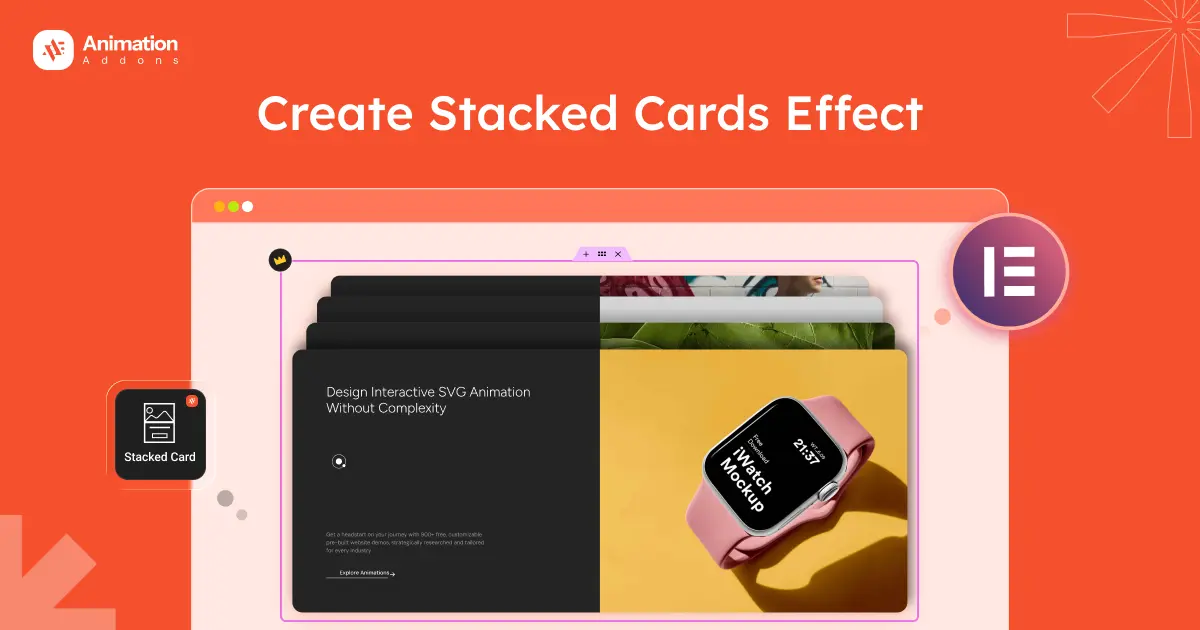
Stacked Cards are a modern layout and animation pattern where content cards appear layered on top of each other and animate as users scroll or interact. This effect is commonly used to present step-by-step information, feature highlights, case studies, or storytelling sections in a visually engaging way.
As each card enters, expands, or transitions, it naturally draws attention and keeps users focused on one piece of content at a time. Stacked cards help reduce visual clutter while maintaining a sense of depth and progression.
Key benefits of stacked cards:
- Presents content in a clear, sequential flow
- Enhances visual depth and layering effects
- Keeps user attention on active sections
- Works well for storytelling and walkthroughs
- Creates a modern, interactive interface feel
When combined with smooth animations and proper spacing, they create a premium, app-like experience that feels intuitive and polished across devices.
6. ScrollTo
ScrollTo makes scrolling smooth and controlled. Instead of jumping suddenly to a section, it lets the page (or a scrollable box) glide to the right spot.
With ScrollTo, you can:
- Move directly to any section of the page or an exact pixel spot.
- Decide how many seconds the scroll should take.
- Choose if the scroll should start fast, slow, or ease smoothly.
- Stop a little before the target, so things don’t get hidden behind headers.
- If someone scrolls manually, the animation stops immediately.
- Not just the whole page, but also smaller containers can scroll smoothly.
It’s great for making navigation feel smooth when users click links to different page sections.
SVG Animations
7. DrawSVG
DrawSVG lets you animate the outlines of SVG shapes, making it look like they are being drawn or erased in real time. It’s a great way to bring static graphics, icons, or illustrations to life with smooth, eye-catching effects.
With DrawSVG, you can:
- Make lines, paths, or shapes appear or disappear as if drawn or erased.
- Works with shapes like paths, circles, rectangles, and more — perfect for logos, icons, or illustrations.
- Control exactly where the animation starts and ends.
- Add easing, adjust speed, and sequence multiple animations smoothly.
DrawSVG is perfect for creating signature effects, animated logos, map routes, line illustrations, or any design that needs a “hand-drawn” or dynamic feel. It’s easy to use, visually impressive, and works beautifully on any screen because SVGs scale perfectly.
8. MorphSVG
MorphSVG lets you smoothly transform one SVG shape into another. Even if the shapes have different numbers of points or structures, MorphSVG makes the animation look natural and seamless. This is perfect for creating dynamic effects like logos changing form, animated icons, or illustrations that come alive.
With MorphSVG, you can:
- Animate one SVG path into another, no matter how detailed or different they are.
- Change shapes made of multiple points into new designs easily.
- Add easing, timelines, and synchronized animations for professional, smooth effects.
MorphSVG makes it easy to create eye-catching, fluid SVG animations that give your website or app a polished, interactive feel.
9. MotionPath
MotionPath allows you to move any element along a custom path like a curved line, circle, or complex shape. Instead of just sliding things left or right, you can make objects follow smooth, natural-looking paths. This makes animations like cars driving on roads, planes flying, or icons moving in curves easy to create.
With MotionPath, you can:
- Animate along any path: Move elements smoothly along SVG paths, custom curves, or even a series of points.
- Align and rotate objects: Automatically rotate an element as it moves, so it always faces the direction of motion (great for vehicles or arrows).
- Control start and end points: Choose where the animation begins and ends on the path, or loop it for continuous movement.
- Combine with other plugins: Use it with ScrollTrigger or timelines to make animations sync perfectly with user interactions or scroll progress.
MotionPath helps bring motion to life with ease making your designs feel dynamic, fluid, and more visually engaging.
UI Animations
10. Flip Animation
Flip animation helps you create smooth, smart transitions between different states of elements, like when something changes position, size, or layout on your page. Instead of jumping from one layout to another, Flip makes the movement fluid and natural.
With Flip, you can:
- Animate layout changes smoothly – Perfect for cards, grids, and image galleries.
- Handle position and size changes automatically – No need to calculate start and end positions manually.
- Make UI feel more responsive and interactive – Great for adding polish to page transitions or expanding elements.
Flip makes complex layout changes look effortless and keeps your interface feeling modern and dynamic.
11. Draggable
The Draggable enables you to make elements on your page interactive by allowing users to drag, swipe, or reposition them with ease. It adds a fun, natural feel to interfaces and is perfect for sliders, carousels, or drag-and-drop features.
With Draggable, you can:
- Drag elements in any direction – Horizontal, vertical, or both.
- Set boundaries – Keep elements inside a container or area.
- Detect user actions – Track when dragging starts, moves, or ends.
- Use for UI interactions – Create sliders, draggable menus, or sorting features.
It’s simple to use and works smoothly across all devices, including touch screens.
12. Inertia
Inertia makes motion feel more real by adding momentum. When you drag something and let go, it keeps moving a bit before slowing down, just like real objects do.
With Inertia, you can:
- Add natural movement when objects slide or spin.
- Control how fast they slow down after moving.
- Make animations feel smooth and realistic.
- Use it with Draggable for “throw” effects that look natural.
Inertia makes your interactions feel alive and more satisfying to use.
13. Observer
The Observer helps you easily listen to user actions like scrolling, dragging, swiping, or touch gestures and trigger animations or events based on those actions.
With Observer, you can:
- Detect different types of input – Scrolls, wheel movements, touch gestures, and drags.
- Trigger animations or actions – Start animations when a user swipes or scrolls.
- Customize behavior – Set what happens when users move up, down, left, or right.
- Simplify interactivity – No need to write complex event listeners.
Observer makes it simple to connect animations with user interactions, helping you build more engaging and interactive web experiences.
Text Animations
14. SplitText
SplitText lets you break your text into smaller pieces like lines, words, or even single letters so you can animate each part separately. This makes it easy to create beautiful text effects, such as text appearing one letter at a time or sliding in word by word.
With SplitText, you can:
- Animate letters, words, or lines individually to make your text feel more alive.
- Add effects like fading, sliding, or rotating for a creative look.
- Make titles and headings stand out with smooth, eye-catching motion.
- Use it with ScrollTrigger to animate text as users scroll down the page.
SplitText helps you turn plain text into engaging animations that capture attention and make your website feel more dynamic.
15. ScrambleText
ScrambleText makes your text appear in a “decoding” or “glitchy” style. At first, the text is filled with random letters, and then it gradually changes into the real message, like the words are being “unlocked” or revealed.
With ScrambleText, you can:
- Reveal text dramatically – Start with random letters and gradually show the real words.
- Choose which characters to scramble – Use uppercase, lowercase, numbers, or your own set of characters.
- Add a delay – Keep the scrambled text visible for a moment before showing the actual text.
- Control speed – Decide how fast the random letters change to the real text.
- Change direction – Reveal text from left-to-right or right-to-left.
ScrambleText is perfect for creating attention-grabbing headlines, transitions, or effects that make your text stand out.
16. Typewriter Effect
Typewriter Effect is a text animation style where characters appear one by one, mimicking the motion of typing in real time. It is widely used for headlines, hero sections, taglines, and call-to-action messages to instantly grab attention and create a sense of anticipation.
This effect helps guide the reader’s focus, making key messages feel more intentional and impactful. When used subtly, the typewriter effect adds personality and rhythm to a website without feeling distracting.
Key benefits of the typewriter effect:
- Draws immediate attention to important text by revealing words gradually and encouraging users to pause and read carefully
- Creates a storytelling rhythm that builds curiosity and emotional engagement instead with static content
- Enhances hero sections and landing pages by making headlines feel dynamic, interactive, and purpose-driven
- Works well with minimal design layouts where motion replaces heavy visuals to communicate ideas effectively
- Adds a modern, expressive touch while still maintaining clarity, readability, and user-friendly performance
Proper timing and pauses are essential to keep the animation readable, smooth, and accessible across all devices.
17. Text Replace
Text Replace lets you smoothly change one piece of text into another. Instead of the text switching instantly, it transitions gracefully, making your content feel more dynamic and polished.
With TextPlugin, you can:
- Replace text smoothly – Swap old text with new text over a set duration.
- Animate words or lines – Control whether text changes by character, word, or line.
- Prevent layout jumps – Keep spacing consistent, even if the new text is shorter than the old text.
- Style old and new text separately – Apply different CSS classes to make transitions look more creative.
- Combine with other GSAP features – Use timelines or easing to make text transitions even smoother.
TextPlugin is perfect for updating messages, rotating headlines, or creating typewriter-style effects that make your website feel more lively and interactive.
Interactive-Based Animations
18. Text Hover Image Effect
Text Hover Image Effect reveals an image when users hover over specific text, creating an interactive and visually engaging way to present information. This effect is commonly used in portfolios, case studies, menus, and feature lists where visuals add context without cluttering the layout.
By keeping images hidden until interaction, the design stays clean while still offering rich visual feedback. The animation feels lightweight and intentional. Also, Text Hover Image Effect uses responsive text animation to reveal images when users hover over specific words or phrases, creating an interactive way to connect text with visuals.
With Text Hover Image Effect, you can:
- Reveals supporting visuals only on interaction, keeping layouts clean while adding visual depth when users engage
- Helps users quickly understand context by connecting text labels directly with relevant images or previews
- Enhances storytelling and exploration by rewarding curiosity without overwhelming the screen with static visuals
- Works especially well for portfolios, product listings, and editorial-style websites with strong visual content
- Adds a subtle, high-end interaction that improves engagement while maintaining performance and readability
When text hover image effect implemented smoothly, it adds a premium, storytelling-driven experience that feels modern and intuitive.
19. Cursor Hover Effect
Cursor Hover Effect changes the appearance or behavior of elements when the cursor hovers over them, providing instant visual feedback to user actions. This effect improves usability by clearly indicating interactive elements such as buttons, links, cards, or images.
Subtle hover animations make interfaces feel responsive and alive, helping users navigate with confidence. When designed thoughtfully, cursor hover effects enhance clarity without becoming distracting or gimmicky.
With Cursor Hover Effect, you can:
- Provides immediate visual feedback that confirms which elements are clickable or interactive
- Improves usability and navigation by reducing confusion and guiding user actions naturally
- Adds polish and responsiveness that make interfaces feel refined and professionally designed
- Helps highlight calls to action, links, and key UI elements without relying on heavy visuals
- Enhances user confidence by making interactions feel predictable, smooth, and intentional
20. Cursor Move Effect
Cursor Move Effect responds dynamically to the movement of the user’s cursor, creating animations that follow, react, or transform based on cursor position. This effect is often used in creative websites, landing pages, and brand-focused designs to add depth and immersion.
By reacting in real time, cursor move effects create a sense of control and playfulness, making the browsing experience feel more personal and interactive. When kept subtle, they add motion without harming usability or performance.
With Cursor Move Effect, you can:
- Creates a dynamic, immersive experience by responding directly to real-time cursor movement
- Adds depth and spatial awareness that makes flat layouts feel more interactive and engaging
- Encourages exploration by making users feel connected to on-screen elements through motion
- Works well for creative brands, agencies, and experimental layouts seeking visual distinction
- Enhances perceived interactivity while maintaining smooth performance with optimized animations
Explore The Easiest Way to Add GSAP Animations to Your Website
GSAP is one of the best tools for creating smooth, professional animations that make websites feel alive. It lets you add scroll effects, animated text, moving shapes, and realistic motion that instantly grab attention and make your site more fun to explore.
If you love what GSAP can do but don’t want to deal with coding, Animation Addons is the perfect solution for you. It brings the power of GSAP directly into WordPress and Elementor, letting you create stunning, professional animations visually, no coding required.
With Animation Addons, you get everything you need to build modern, interactive websites:
- All-in-one GSAP animation toolkit for WordPress – Add scroll effects, SVG motion, text reveals, flip animations, and more, all inside Elementor’s visual interface.
- 200+ ready websites, 2,000+ page templates, and 10,000+ section blocks – Quickly design and launch beautiful pages with built-in animation support.
- 100+ unique widgets and 25+ advanced extensions – Customize motion, timing, and interaction exactly how you want.
- Performance-optimized for speed – Enjoy smooth, optimize animations that load fast and don’t slow down your site.
- Fully responsive – Your animations look perfect on desktop, tablet, and mobile devices.
- Beginner-friendly yet powerful – Designed for both creators and developers who want professional GSAP results without writing JavaScript.
From scroll-based animations and text effects to UI transitions and physics-based motion, Animation Addons makes every type of GSAP animation easy to apply throughout simple visual controls.
Already trusted by 10,000+ active users worldwide, this plugin has become the go-to tool for designers and marketers who want engaging, motion-rich websites without the technical complexity.
If you want to add GSAP animations to your website quickly, easily, and without touching a single line of code, Animation Addons is the best solution.
Final Thoughts
Website animations are a powerful way to make your site stand out, grab attention, and keep visitors engaged. With GSAP (GreenSock Animation Platform), you can create smooth, high-performance animations that bring any webpage to life.
If you want these effects on your WordPress site without writing code, Animation Addons is the perfect solution. It’s an all-in-one GSAP animation plugin for WordPress and Elementor, built to help you design scroll effects, text reveals, parallax motion, and interactive transitions easily. Whether you’re a designer, marketer, or creator, Animation Addons helps you build professional, animated websites that load fast, look amazing, and offer an unforgettable user experience.


Leave a Reply