


 Login
Login


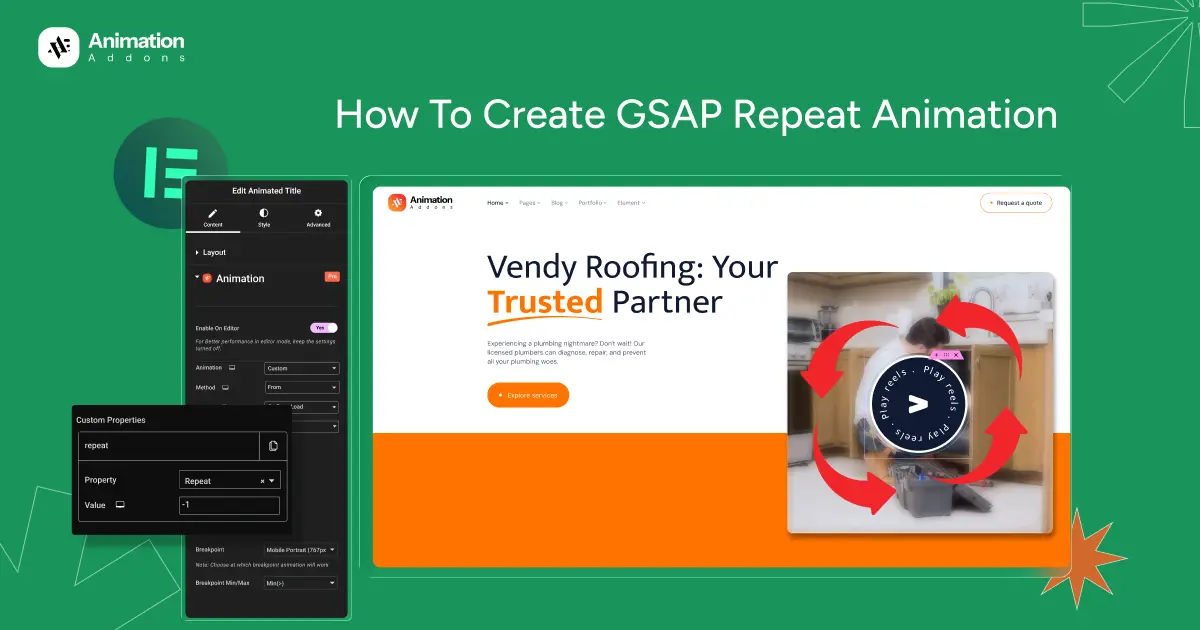
Ever noticed how a small bouncing arrow makes you scroll or how a gently pulsing button invites you to click? These tiny repeat animations guide users without saying a word. Proper use keeps the motion smooth and purposeful instead of distracting. GSAP makes it possible to control this kind of animation with precision in WordPress.
In this blog, you will learn how to create GSAP repeat animations in Elementor for WordPress. The guide covers common animation patterns and practical use cases. It also explains two reliable ways to add repeat animations using a WordPress plugin or the GSAP JavaScript library.
By the end, you will know how to create smooth repeat animations that improve usability and keep your website fast and professional.
Common GSAP Repeat Animation Example
Repeat animations help grab attention without user action. Proper use keeps the motion smooth and helpful instead of distracting. Repeat animation is often used to guide users and highlight important elements on a page.
Pro Tip: Always test repeat animations at normal scroll speed. If an animation feels annoying after 5–10 seconds, you can slow it down.
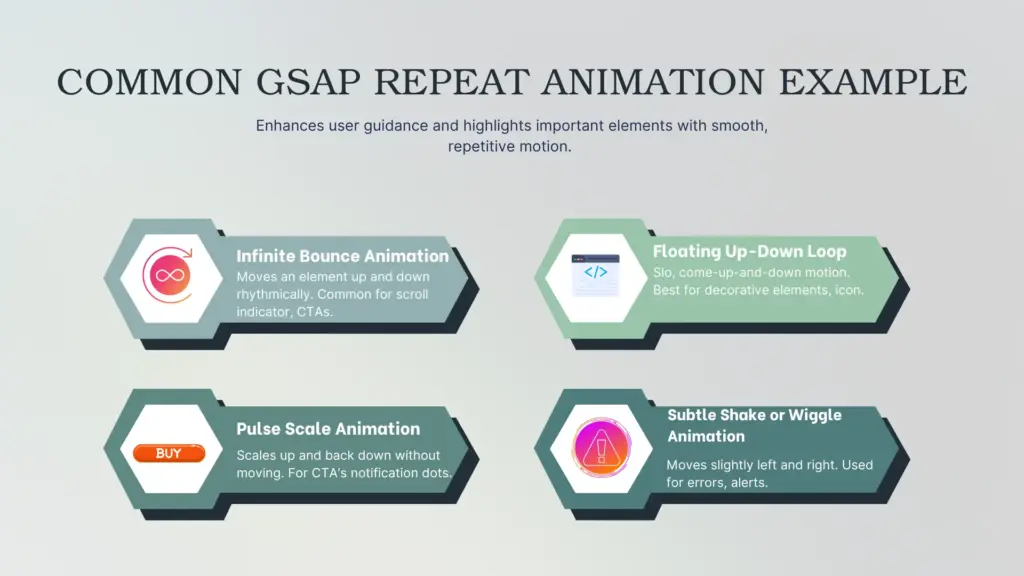
Infinite Bounce Animation
Infinite bounce animation moves an element up and down again and again. The movement should be light and rhythmic so it feels natural. If the bounce is too strong or too fast, it can feel distracting.
This animation is commonly used for scroll-down indicators, call-to-action buttons, and small icons that need attention. In GSAP, this animation uses
- repeat: -1
- vertical y movement
- ease: “power1.inOut”
This works well because users notice the movement quickly and understand that the element is important.
Floating Up-Down Loop
Floating animation moves elements slowly up and down in a loop. The motion feels calm and modern. This animation is best for design elements, not for actions.
It is often used for hero section icons, decorative shapes, and illustration elements. Floating works well because it does not distract users and adds depth to the layout. In GSAP, floating loops are created with
- slow y movement
- repeat: -1
- yoyo: true
- easing like sine.inOut or power1.inOut
Pulse Scale Animation
Pulse scale animation makes an element scale up and then scale back down again. This repeats to draw attention without moving the element across the screen.
This animation is often used for CTA buttons, notification dots, highlights, and badges. Scale values should stay small, and the duration should not be too fast. Pulse animations work well because they highlight important elements without changing the layout.
Subtle Shake or Wiggle Animation
Shake or wiggle animation moves an element slightly left and right. It is used to show errors, alerts, or important feedback. The movement should feel controlled, not aggressive.
This animation is commonly used for error indicators, alerts, and attention-based micro-interactions. In GSAP, shake animations use small x values, short duration, and limited repeat. Using shake animation too often can reduce trust, so it should be used only when necessary.
When Should You Use Repeat Animation on a Website?
Repeat animation should support user intent and guide users, not distract them. When used in the right places, it helps users understand what to do next and improves the overall experience.
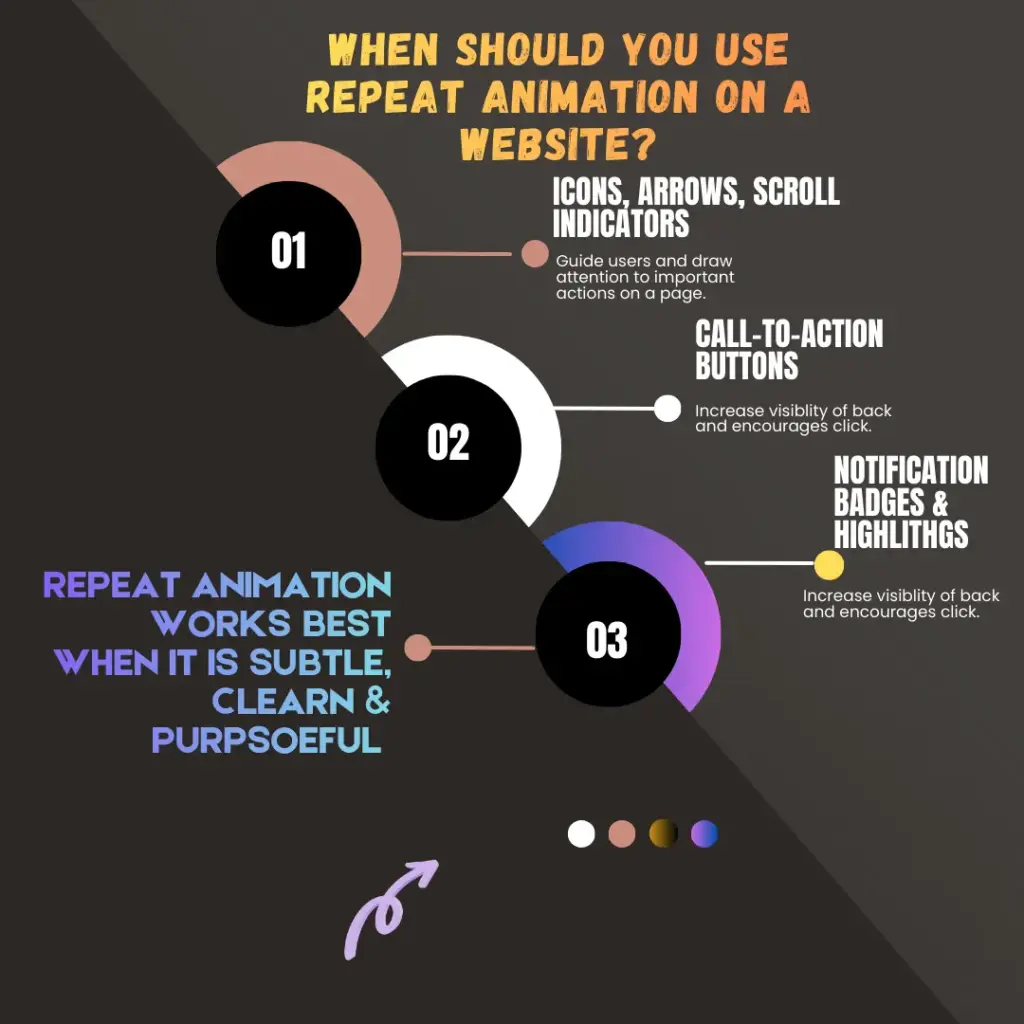
Icons, arrows, scroll indicators: Repeat motion helps users understand that more content is available below the screen. A gentle loop works best because it feels natural and easy to follow. Strong or fast movement can feel distracting.
Call-to-action buttons: Repeat animation can increase visibility and encourage clicks. Subtle bounce or pulse effects work best when used carefully. The motion should stay smooth and controlled to maintain trust.
Notification badges and highlights: Looping animations help users notice updates or new actions. These animations should remain small and lightweight so they do not pull attention away from the main content.
Repeat animation works best when it is subtle, clear, and purposeful. When used correctly, it guides users naturally without hurting usability.
How to Add GSAP Repeat Animation in WordPress & Elementor
Two effective methods you can use to add repeat animations to your website:
- Animation Addons (no-code WordPress plugin)
- GSAP Library (JavaScript coding method)
1. Animation Addons
Animation Addons for Elementor helps you add animations to WordPress without coding. You can control animations using a simple timeline inside Elementor. It uses GSAP to make movements smooth and fast.
The plugin includes many widgets, helpful tools, and ready-made animated sections. You can use it on new pages or add animations to existing ones. It works for designers, developers, and teams who want easy and clean animations. It also allows you to create repeat animations easily. You can add animations to existing websites without writing any code.
Before getting started, confirm that Animation Addons is installed and active on your WordPress site. You should also check that all extensions and widgets are enabled, otherwise, they will not function properly.
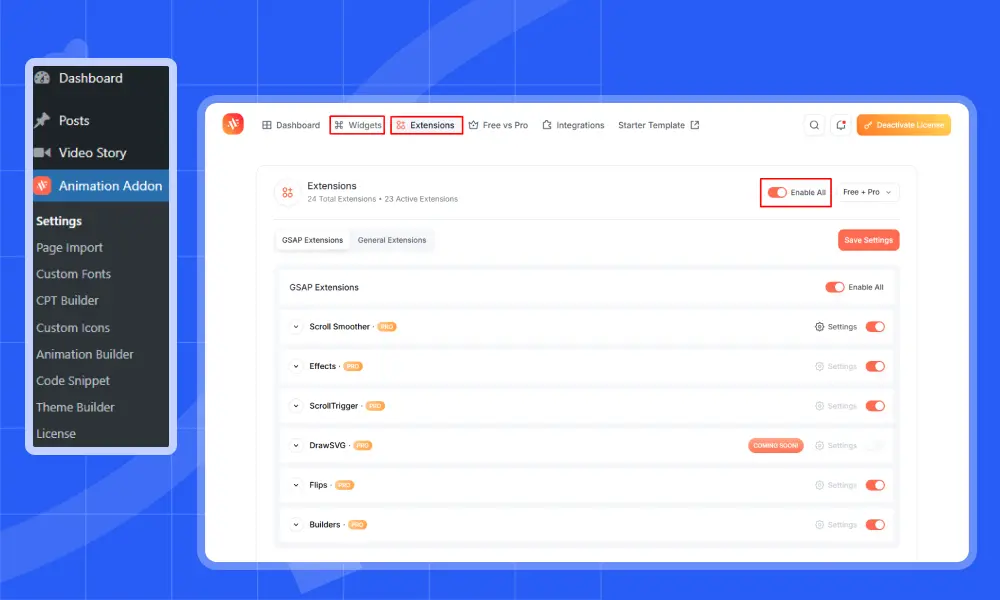
Now, let’s take a look at how you can add GSAP repeat animations to your WordPress website:
GSAP Repeat Animation on Icon
All you need to do is select the icon or element where you want to apply the repeat animation. You can also use a container, but in this example, we’ve chosen an icon.
Once you select the element or icon, the Animation extension will appear under the Advanced tab in the left sidebar. Scroll down a bit to find it. Then click on it and select Custom.
Note: Adjust only the options listed below. Do not change any other settings.
- Animation: Select Custom from the animation type options.
- Trigger: Choose On Page Load from the trigger options. The animation will run as soon as the page loads, without requiring any user interaction.
- Ease: To set the animation speed style, select ‘SlowMo’.
After that, click on Custom Properties and enter the values manually. To start, click +Add Item to add a new property.
Custom Properties
Click +Add Item to add a new property.
- Repeat: Set the value to -1 to make the animation loop infinitely.
- Rotate: Set the value to 360 to rotate the element in a full circle.
- Duration: Set the value to 4 to control how long one full animation cycle takes (in seconds).
Enable on Editor
Finally, toggle this option to Yes to enable the animation and show the play button inside the editor.
GSAP Repeat Animation On Text
Similarly, select the text you want to add a repeat animation to. After selecting it, open the Animation extension and choose Custom.
Note: Adjust only the options listed below. Do not change any other settings.
- Animation: From the available animation types, select Custom.
- Trigger: Select On Page Load as the trigger so the animation starts automatically when the page loads.
Next, open Custom Properties and manually enter the required values. To start, click +Add Item to add a new property.
Custom Properties
- Repeat: Set the value to -1 to make the animation loop continuously without stopping.
- Duration: Set the duration to 2s to control how long one complete animation cycle takes.
- Scale: Set the scale value to 0.5 to reduce the element to half of its original size during the animation.
Enable on Editor
Lastly, switch this option to Yes to activate the animation and display the play button in the editor.
2. GSAP Library
The GSAP library lets you control animations using JavaScript. You decide how animations start, move, and repeat. This method is best for advanced animations that need full control. It is useful for developers who want precise timing and smooth motion.
Let’s take a look at how you can create repeat animations using the GSAP library.
HTML
					<div class="gsap-wrapper">

  <button class="cta-btn">Get Started</button>

  <div class="arrow">↓</div>

</div>
CSS
					.gsap-wrapper {

  height: 100vh;

  display: flex;

  flex-direction: column;

  gap: 40px;

  align-items: center;

  justify-content: center;

}

.cta-btn {

  padding: 14px 28px;

  font-size: 16px;

  border: none;

  background: #f6502c;

  color: #fff;

  cursor: pointer;

  border-radius: 6px;

}

.arrow {

  font-size: 32px;

}
JavaScript
					// Arrow bounce animation

gsap.to(".arrow", {

  y: 16,

  repeat: -1,

  yoyo: true,

  duration: 0.8,

  ease: "power1.inOut"

});

// Button pulse animation (saved to variable)

const pulseTl = gsap.to(".cta-btn", {

  scale: 1.08,

  repeat: -1,

  yoyo: true,

  duration: 1.2,

  ease: "power1.inOut"

});

// Button hover interaction

const button = document.querySelector(".cta-btn");

button.addEventListener("mouseenter", () => {

  pulseTl.pause(); // stop loop

  gsap.to(button, {

    scale: 1.15,

    duration: 0.3,

    ease: "power3.out"

  });

});

button.addEventListener("mouseleave", () => {

  gsap.to(button, {

    scale: 1.08,

    duration: 0.3,

    ease: "power3.in",

    onComplete: () => pulseTl.resume()

  });

});
Best Practices for Performance and Accessibility
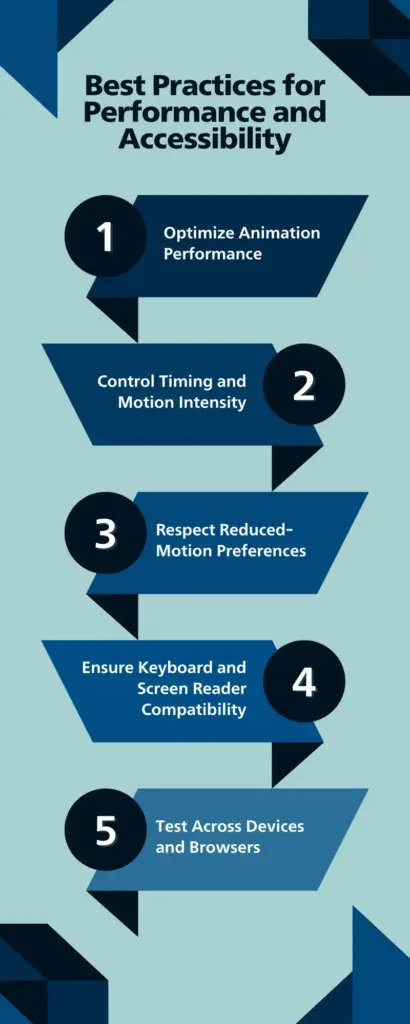
Using animations effectively requires balancing visual impact with speed, usability, and inclusivity. Following best practices ensures animations enhance the experience without creating barriers.
Optimize Animation Performance
Animations should be lightweight and purposeful. Use transforms and opacity instead of layout-changing properties like width or position, as they are more performance-friendly. Trigger animations only when elements enter the viewport rather than running them continuously. Limiting the number of simultaneous animations also helps maintain smooth scrolling and faster page loads, especially on mobile devices.
Control Timing and Motion Intensity
Avoid long or overly complex animation loops. Short, subtle animations with controlled delays feel smoother and reduce CPU usage. Infinite or repeating animations should be used sparingly, as constant motion can distract users and drain device resources.
Respect Reduced-Motion Preferences
Some users are sensitive to motion and prefer minimal animation. Ensure your setup respects system-level “reduced motion” preferences by disabling or simplifying effects when needed. Important content should always remain visible, even if animations are turned off.
Ensure Keyboard and Screen Reader Compatibility
Animations must not interfere with keyboard navigation or focus order. Interactive elements should remain usable without relying on motion. Text, buttons, and links should be readable and accessible to screen readers regardless of animation state.
Test Across Devices and Browsers
Always review animations on different screen sizes and browsers. What feels smooth on desktop may be distracting or broken on mobile. Device-specific controls help maintain usability while preserving performance and drive higher revenue.
Common Mistakes to Avoid in GSAP Repeat Animations
GSAP repeat animations can add dynamic motion and visual interest when used correctly. However, poor implementation often leads to performance issues, usability problems, and distracting user experiences. Understanding common mistakes helps ensure repeat animations remain effective and purposeful.
Overusing Infinite Repeat Animations
One of the most common mistakes is applying infinite repeat animations to too many elements. Constant motion across a page can overwhelm users and draw attention away from important content. Repeating animations should be limited to small decorative elements or subtle indicators, not primary content areas.
Ignoring Performance Impact
Repeat animations continue running in the background, consuming browser resources. Using complex animations with large images, shadows, or multiple properties can significantly increase CPU usage. Always keep repeat animations lightweight and avoid running them unnecessarily, especially on mobile devices.
Poor Timing and Delay Settings
Incorrect timing values can make repeat animations feel rushed or unnatural. Very short durations or zero delays often create jittery motion that feels distracting. Balanced timing, proper delay animation, and smooth easing functions help create more natural animation loops.
Failing to Respect Reduced Motion Preferences
Not accounting for users who prefer reduced motion can cause discomfort. Repeat animations are particularly problematic for motion-sensitive users. Always provide a way to disable or simplify looping animations when reduced-motion settings are detected.
Using Repeat Animations Without Purpose
Adding looping animations just because they look interesting weakens design clarity. Every repeat animation should have a clear role, such as indicating activity or drawing subtle attention. Decorative motion without intent can quickly feel distracting or unprofessional.
Overlooking Accessibility and Focus Behavior
Animations that affect interactive elements can interfere with keyboard focus and usability. If buttons or links move continuously, they may become harder to select or read. Ensure repeat animations do not disrupt navigation or hide essential information.
Not Testing Across Devices
Animations that perform well on desktop may behave poorly on mobile or older devices. Always test repeat animations across browsers and screen sizes to ensure consistent performance and usability.
Wrap Up
Repeat animations help guide users and draw attention to important parts of a website. Gentle motion feels helpful and does not distract from the content. GSAP offers strong control over how animations move, repeat, and stop, making it a solid choice for WordPress and Elementor.
Repeat animations work best on elements like icons, buttons, and indicators. Two simple ways exist to add them. One uses a no-code Elementor plugin, and the other uses the GSAP JavaScript library.
Balance matters most. Light movement, smooth timing, and clear purpose keep animations useful. Thoughtful repeat animations improve usability and make a website feel polished without slowing it down.
FAQs
Can repeat animations run on page load?
Yes. By using the On Page Load trigger, repeat animations can start automatically as soon as the page finishes loading. This works well for elements like arrows, icons, or indicators that should be visible right away without any user action.
Should repeat animations be enabled on mobile devices?
Yes, but they should be used with extra care. Mobile screens are smaller, so strong or fast animations can feel distracting. Keeping repeat animations light and subtle helps maintain a smooth mobile experience.
How many repeat animations should be on one page?
Only a small number should be used. Too many repeat animations on a single page can make the layout feel noisy and confusing. It is best to apply them only to the most important elements that need attention.
Can I stop a repeat animation on hover?
Yes. GSAP allows you to pause a repeat animation when a user hovers over an element and resume it when the mouse leaves. This creates better interaction and prevents multiple animations from running at the same time.

Leave a Reply