


 Login
Login


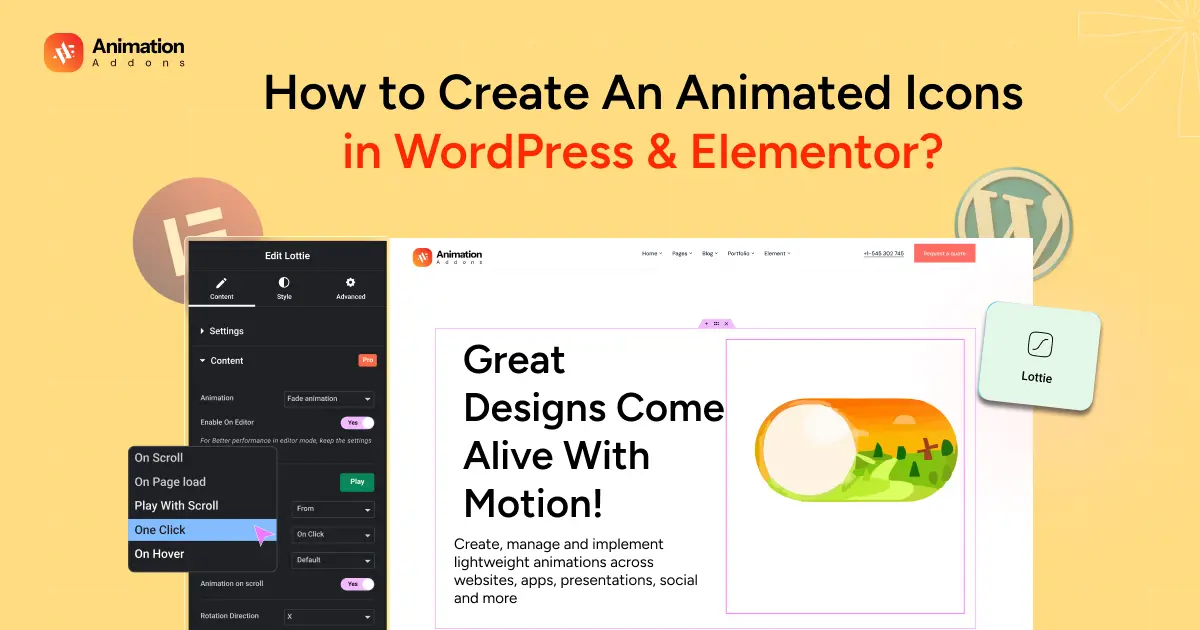
Looking to make your WordPress website feel more modern, interactive, and user-friendly? Animated icons are one of the easiest ways to do that. These small moving graphics instantly grab attention, guide users toward important actions, and bring your design to life.
Adding these animated icons for your websites is incredibly simple. You can use built-in motion effects or upload beautiful Lottie animations that play smoothly on any device. In this guide, you will learn step-by-step how to create and use animated icons in WordPress and Elementor, even if you’re a complete beginner.
What You Need to Get Started?
Before you begin creating animated icons in WordPress and Elementor, it’s important to have the right setup. Don’t worry, you don’t need anything too advanced! Here’s a simple checklist to make sure you’re ready to go:
1. A WordPress Website
You’ll need a working WordPress site where you can install and edit pages. If your site isn’t set up yet, choose a reliable hosting provider and install WordPress to make an animated website as most hosts make this process just a few clicks.
2. Elementor Page Builder
Install and activate the Elementor plugin from your WordPress dashboard. Elementor’s free version is enough to create and animate basic icons, but if you have Elementor Pro, you’ll get more advanced design features and widgets.
3. Icons or Lottie Animation Files
Decide whether you want to use Elementor’s built-in icons or Lottie animations (JSON files). Lottie animation files are great for adding lightweight, smooth animations without slowing down your site.
Once you have these tools ready, you’re all set to start designing animated icons that bring your website to life!
Understanding Animated Icons
Animated icons are small graphic elements that include motion or transitions to make a website more lively and engaging. Unlike static icons, these icons move, bounce, fade, or transform when users interact with them adding a touch of creativity and professionalism to your design.
What Are Animated Icons?
Animated icons are typically vector-based graphics that include simple motion effects, such as fading in, sliding, or rotating. They can be created using tools like Lottie, SVG animation, or built directly inside Elementor using Motion Effects. Because they’re vector-based, they stay sharp and smooth on all screen sizes which is perfect for both desktop and mobile.
Why Use Animated Icons?
They do more than just look good. Animated icons can:
- Grab attention and guide users to important sections or actions.
- Enhance user experience by making navigation more interactive.
- Communicate visually, for example, a spinning gear icon suggests “loading” or “processing.”
- Add personality to your website, helping it stand out from competitors.
Types of Animated Icons
Common animation styles include hover effects, loop animations, scroll-triggered movements, and click-triggered actions. Each type helps you add movement in different ways, depending on the design and purpose of your page.
Method 1: Using Elementor’s Built-In Motion Effects
Step 1: Open Your Page in Elementor
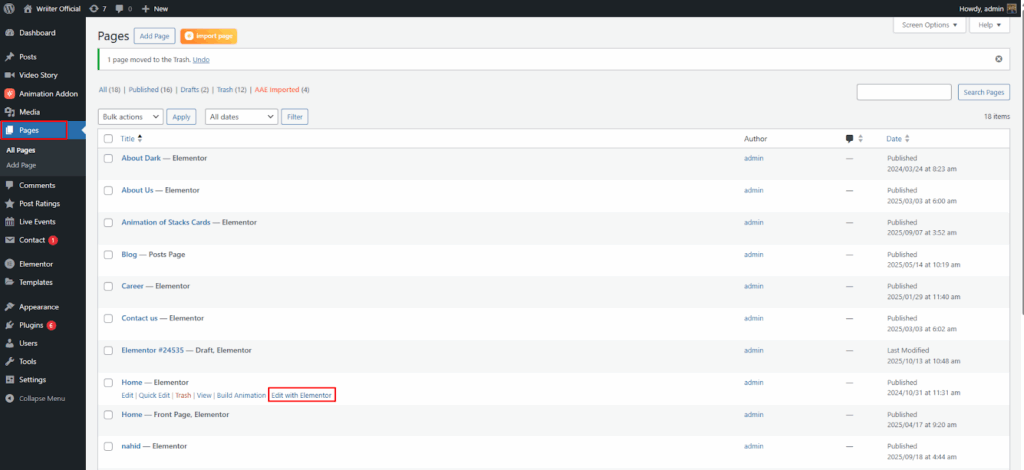
First, go to your WordPress dashboard → Pages. Then, select the page you want to edit in Elementor and click Edit with Elementor.
Step 2: Add Your Icon
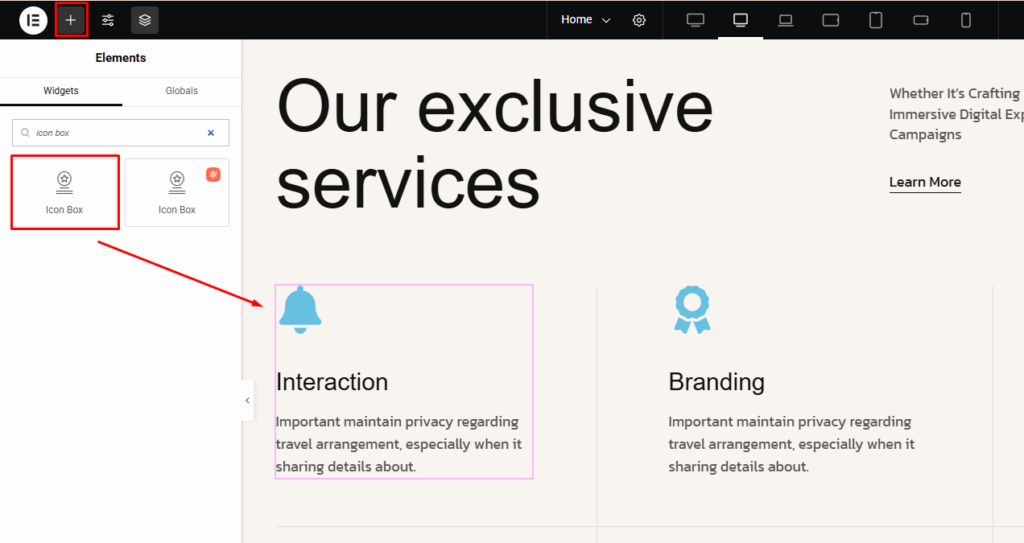
Click on the ‘+’ sign and under the Widgets section, search Icon Box. Drag the Icon Box from the Elementor panel and drop it where you want it to appear.
Step 3: Open the Motion Effects Settings
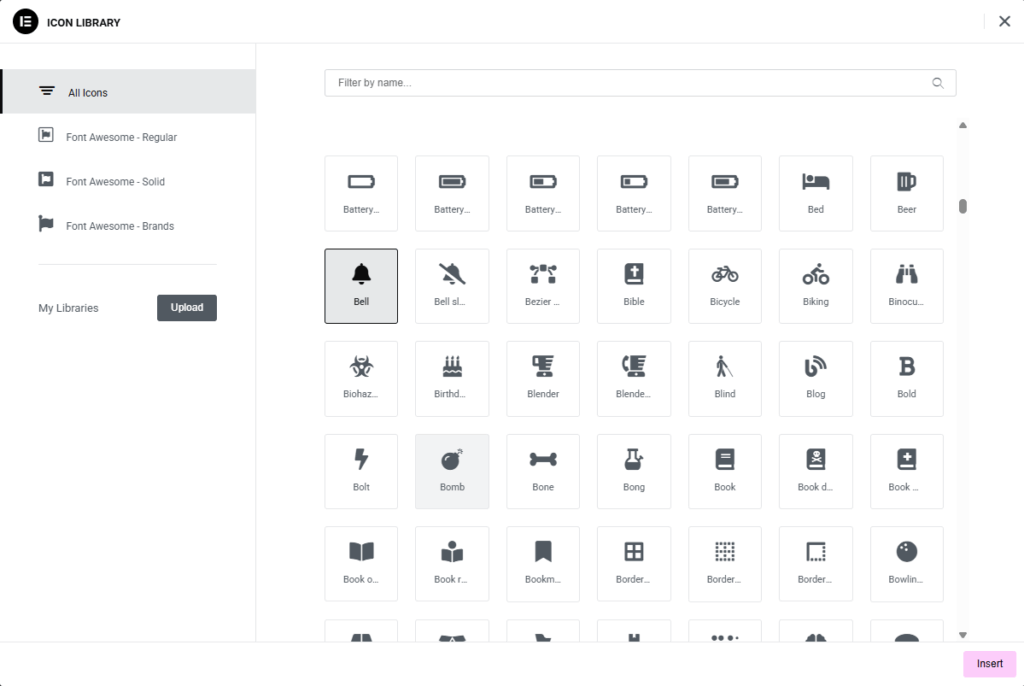
Click on the Icon widget to select it. From the left panel, under the content section, either you can choose the icon from the icon library or upload svg file. Then, give it a title and description.
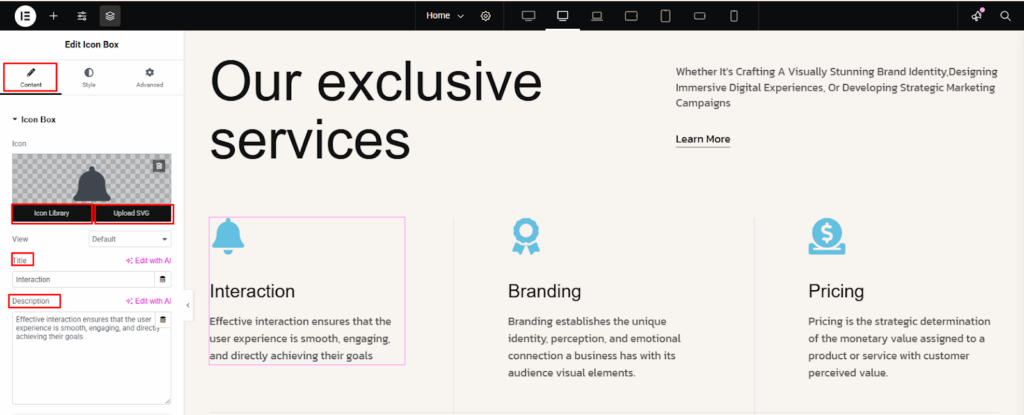
You can find a huge icon library. You can choose according to your criteria.
Step 4: Add Style to Icons
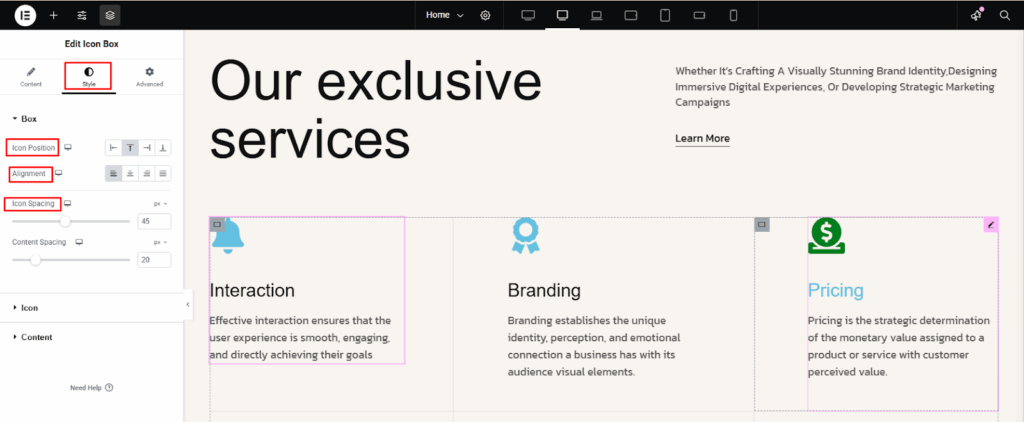
From the style option, you can change the icon position, alignment and icon spacing. Also, you can change the icon primary color from the normal and hover options.
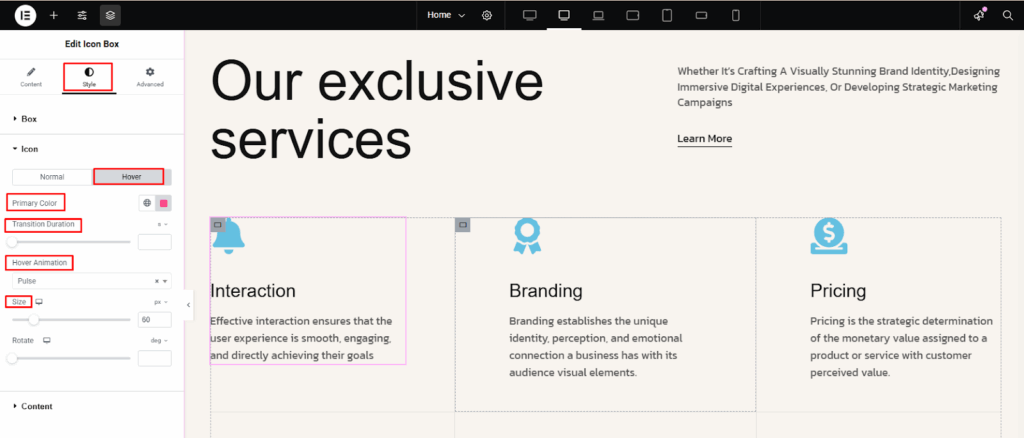
Moreover, you can change the hover animation, size and transition duration from the hover option.
Step 5: Add Entrance Animation
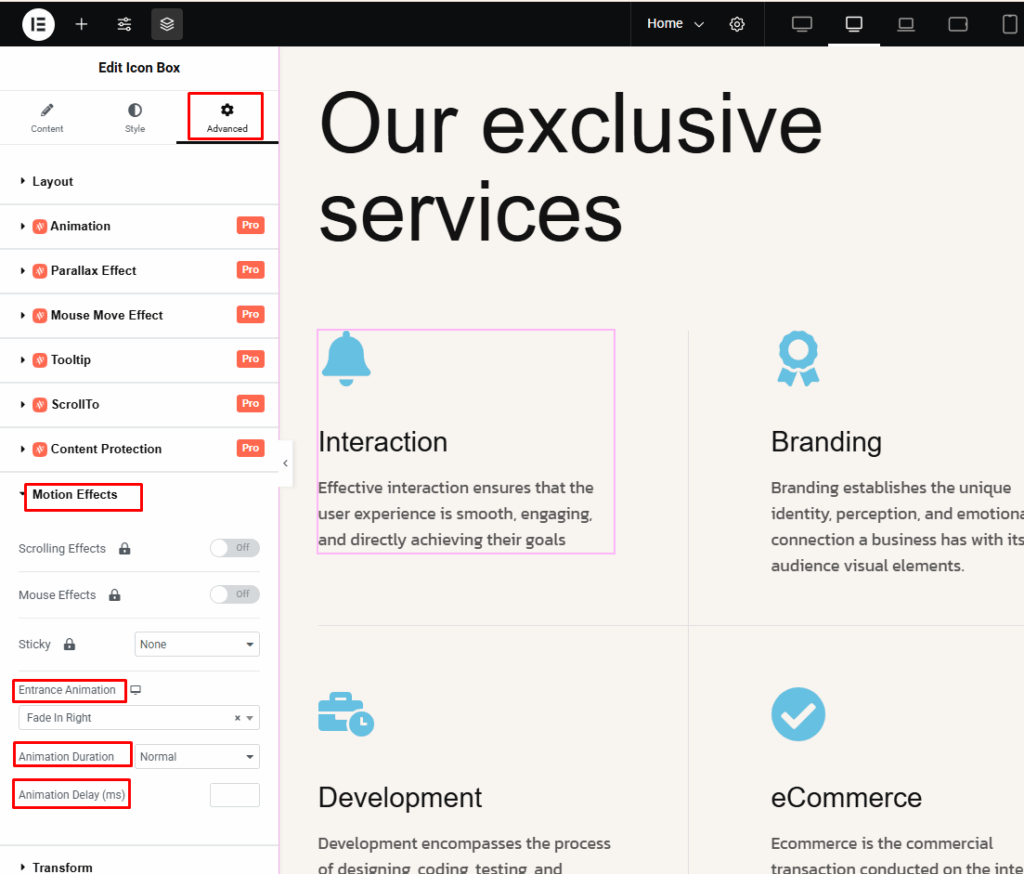
Go to the Advanced tab on the left sidebar. Find and expand the Motion Effects section. From there, select the Entrance animation which make your icon appear smoothly when someone scrolls to that part of the page. In Motion Effects → Entrance Animation, click the dropdown menu.
Choose an animation that fits your style, such as: Fade in, Bouncing, Rotating, Zooming, Sliding and many more. Adjust the Animation Duration and Delay to control the speed and timing.
Step 6: Save and Preview the Animated Icon
After editing the animated icon, click on the Publish. Preview your page to see your animated icon in action until it feels smooth and natural.
Method 2 : Add Lottie Animated Icons with Animation Addons
Lottie animations are lightweight, high-quality vector animations that stay sharp on any screen size. They’re perfect for adding smooth, eye-catching motion without slowing down your website!
Step 1: Choose and Download a Lottie File
Visit a site like LottieFiles.com or use an animation provided by your designer. Search for the icon animation you like. Download it as a JSON file or copy the direct URL to the JSON animation.
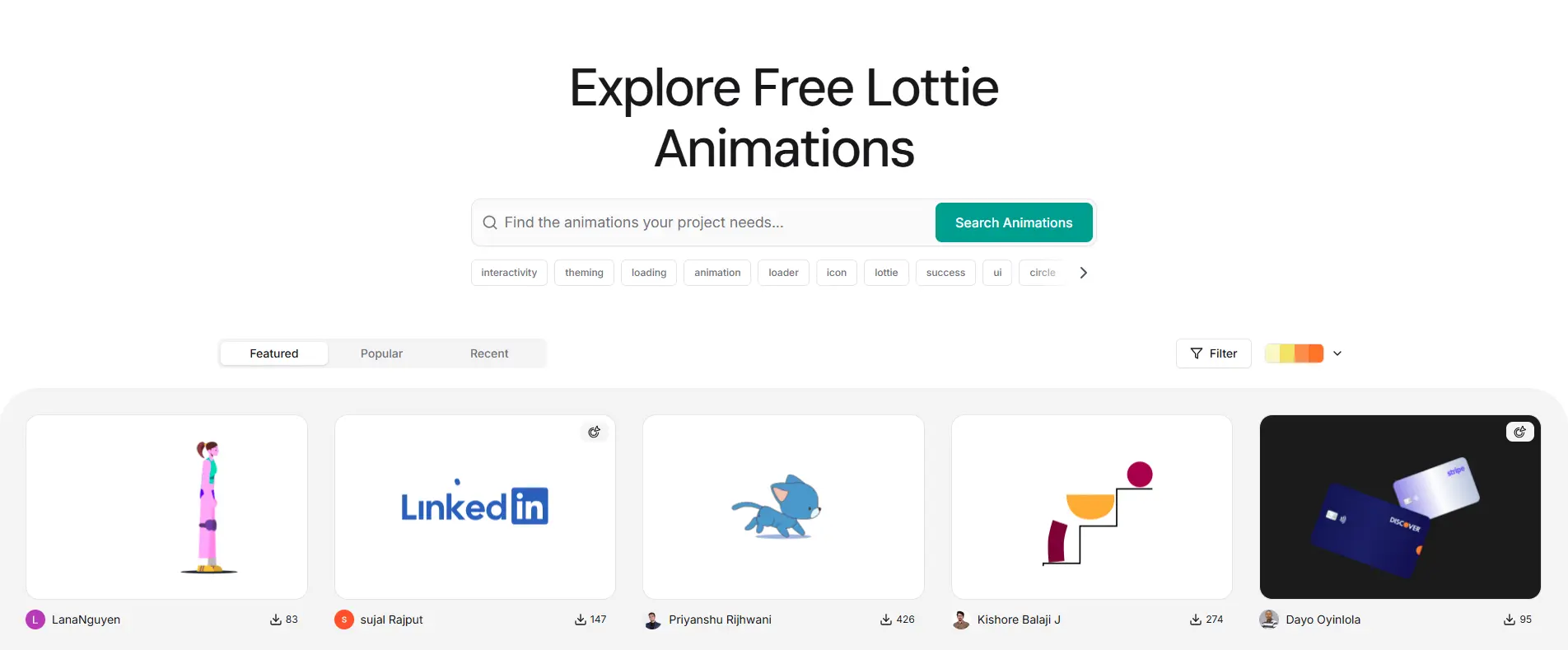
Step 2: Add the Lottie Widget in Elementor
Open your page in the Elementor Editor. From the left panel, click on the ‘+’ sign and search for the “Lottie” widget. In Animation Addons, the lottie widget is available only on the paid version. Drag and drop it into your section where you want the animated icon to appear.
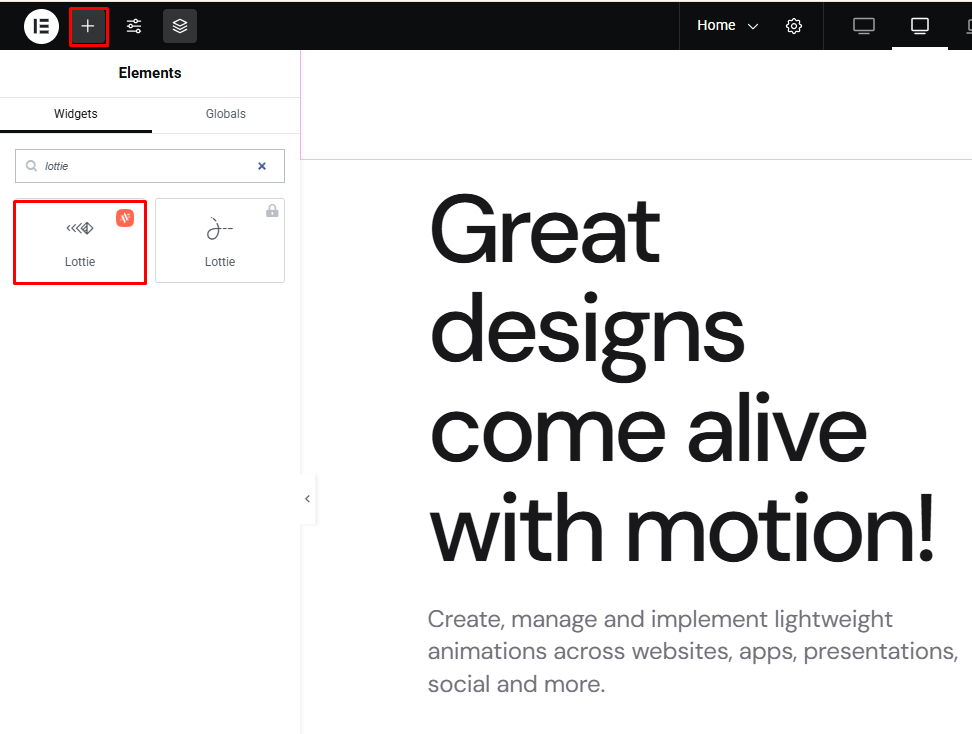
Step 3: Upload or Insert Your Lottie Animation
Click on the Lottie Widget you added. Now, in the Content tab, click upload and select your downloaded .json file, or paste the Lottie animation URL if you copied it from a site. Now, you can set the trigger – on scroll, on hover, on click or mouse cursor move. Here, we select the on click option and set the loop for 5 times. You can also set the speed of the Lottie if you want.
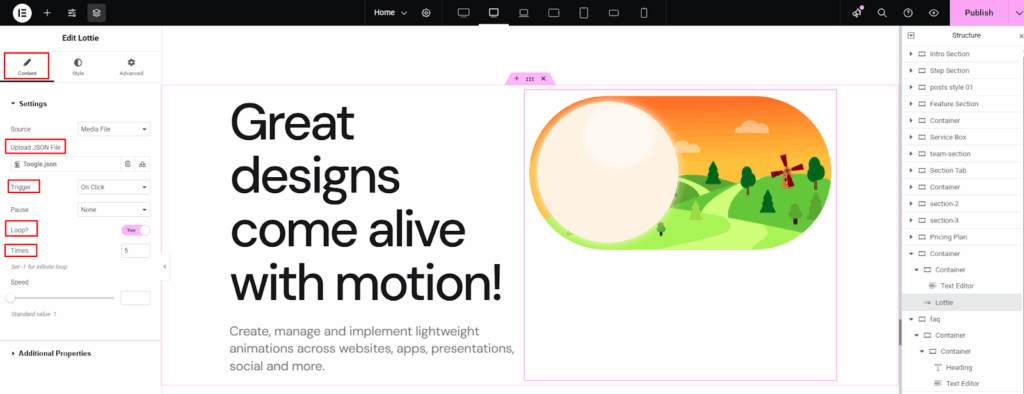
Step 4: Publish and Preview
After editing the lottie file, publish the file. You will instantly see the animation preview right inside Elementor. Your animated icon is ready to make your page look more professional and engaging.
Best Practices for Animated Icons
Animated icons can make your website more dynamic, but using them the right way is key. Here are some best practices to help you design smooth, eye-catching animations that enhance your website’s experience.

1. Keep It Simple and Purposeful
Animations should have a clear purpose such as drawing attention to a call-to-action button or highlighting key features. Avoid adding too many moving elements, as this can confuse or distract visitors. A subtle bounce, fade, or hover effect is often all you need to make an icon stand out.
2. Optimize for Performance
Large animation files can slow down your site. Always use lightweight formats like SVG or Lottie JSON, and compress them if possible. Limit the number of animated icons per page, and disable unnecessary loops or autoplay animations on mobile devices to improve speed.
3. Ensure Cross-Browser Compatibility
Test your animations on different screen sizes and browsers to make sure they work smoothly everywhere. Some effects that look great on desktop may appear too large or laggy on mobile, so adjust sizes and triggers for each device using Elementor’s responsive settings.
4. Don’t Forget Accessibility
Not every user enjoys motion effects. Respect system preferences for “reduced motion,” and ensure icons don’t convey important information solely through animation. Add ARIA labels or descriptive text for screen readers so that everyone can understand the icon’s meaning.
5. Maintain Consistency and Balance
Use a consistent animation style and duration across your website, for example, all hover icons could use the same fade or zoom effect. Balanced animations create a professional and cohesive user experience.
Common Issues and Troubleshooting for Animated Icons
While adding animated icons in WordPress and Elementor is usually smooth, you might sometimes face small issues. Don’t worry! Most of these problems have simple fixes. Here’s a detailed guide to help you troubleshoot common issues easily.
1. Animation Not Showing or Not Playing
If your animation doesn’t appear or stays static:
Check the file type – Make sure you’re using a supported format such as SVG or Lottie JSON.
Verify upload settings – Some hosting providers restrict JSON uploads; if so, enable them through your WordPress settings or by using a plugin like SVG Support or LottieFiles for Elementor.
Elementor cache – Clear Elementor’s cache and refresh the page preview. Sometimes, cached data stops new animations from showing.
2. Animation Is Too Slow or Lagging
Heavy animations can slow down your page or stutter on mobile. To fix this:
- Reduce the file size by optimizing your Lottie or SVG.
- Disable looping for complex animations.
- Avoid adding too many animated icons on one page.
- Turn off animations for mobile if performance drops significantly.
3. Hover or Scroll Effects Not Working
When interactive effects don’t trigger:
- Ensure the right trigger is selected (On Hover, On Click, or On Scroll).
- Test on multiple devices like hover effects don’t work on touch screens, so use On Click or On Load for mobile.
- Check for plugin conflicts that might interfere with Motion Effects.
4. Design or Alignment Issues
If icons appear off-center or overlap other content:
- Adjust padding and margins in the Style tab.
- Set consistent width and alignment for all icons.
- Use Elementor’s responsive mode to tweak layouts for tablet and mobile.
Final Words
Animated icons are a simple yet powerful way to make your website feel modern, interactive, and engaging. These little icons can instantly capture visitors’ attention and improve user experience. The best part? You don’t need to be a designer or coder to use them, Elementor makes it super easy!
Just remember to keep animations lightweight, smooth, and consistent with your website’s overall design. So go ahead for the experiment, have fun, and bring your website to life with motion and personality!
FAQs
Do animated icons slow down a website?
Animated icons are usually lightweight, especially when using Lottie (JSON) files. As long as you optimize file size and avoid too many animations playing at once, your website speed will remain fast.
Can I use animated icons without Elementor Pro?
Yes! Elementor’s free version supports basic motion effects. For Lottie animations, you can install a free addon like LottieFiles for Elementor or use widgets available in Elementor Pro or in Animation Addons.
Where can I find animated icons for my website?
You can download high-quality Lottie icons from trusted sites like LottieFiles, Lordicon, or use animations provided by your designer. Make sure you select web-safe and optimized JSON files.
Can I control when an animated icon plays?
Absolutely! Elementor lets you set animations to play on scroll, hover, click, or automatically on load. You can adjust speed, loop settings, and even which frames should play.
Are animated icons mobile-friendly?
Yes, when properly used. Lottie animations scale perfectly on any screen. Just ensure your icons are responsive and don’t block important content on smaller devices.

Leave a Reply