


 Login
Login

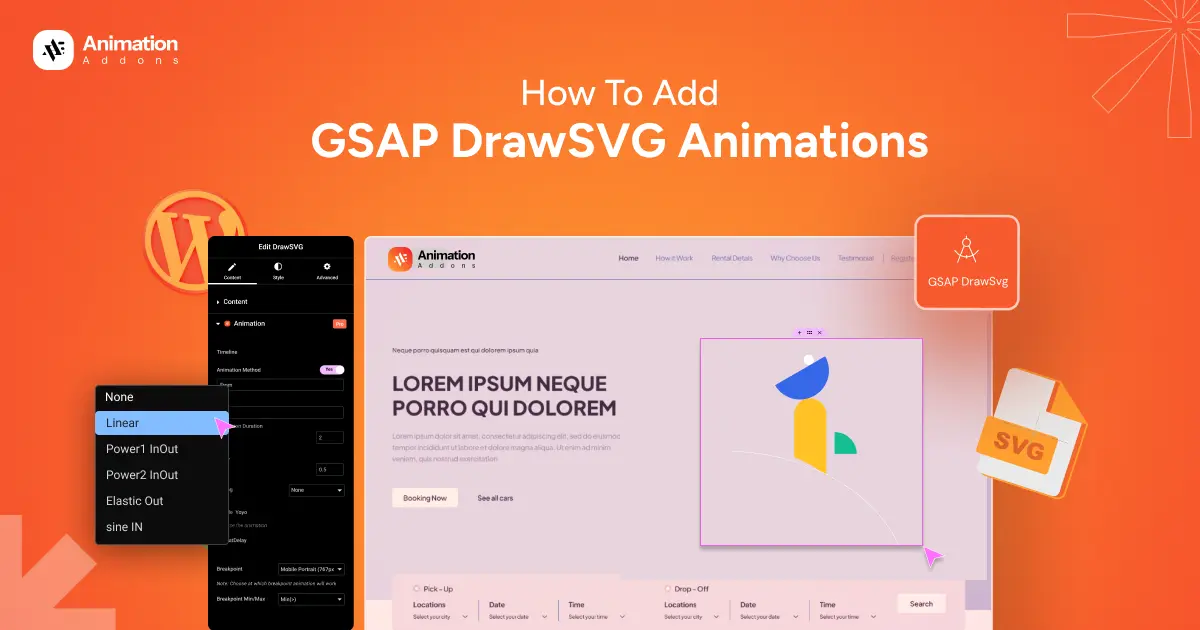
SVG animations can make a website feel alive in a very simple way. When a line slowly appears on the screen or an icon starts to draw itself, people stop and look. It feels smooth and natural, almost like someone is sketching right in front of you.
There is a special method that helps create this drawing effect. It takes a normal SVG line and makes it look like it is being drawn in real time. People use it for things like a signature writing itself, text animation appearing like handwriting, simple line icons forming on the screen, or drawings showing up one line at a time. Many creators use it because it looks clean, loads fast, and adds a touch of magic that visitors enjoy.
In this guide, you will see how this effect works, why people love using it, and two simple ways to add it to your website. One method is easy for anyone, and the other gives more control for people who like writing code.
What Is GSAP DrawSVG?
GSAP DrawSVG is a plugin that lets you make SVG lines draw themselves on the screen. It takes an SVG path and shows the stroke from 0 percent to 100 percent, so it looks like someone is actually drawing the shape in real time.
The best part is that DrawSVG gives you full control over how the line appears. You can choose where the drawing starts, how fast it moves, when it ends, and what direction it goes. You can also make it play forward, backward, or in a loop.
Even though the animation looks smooth and professional, it still runs fast on all modern browsers and does not slow down the website. You can use it with timelines to create longer and cool animations. You can also connect it with scroll effects so the drawing happens as the user scrolls down the page.
This makes it useful for many things like reveal animation, handwriting effects, infographic lines, and other creative illustrations.
Why Use GSAP DrawSVG for Animations?
GSAP DrawSVG brings together performance, control, and creativity, making it a smart choice for both designers and developers who want impactful animations without compromising speed.
Smooth & High-Performance Animations
- Creates clean, fluid line-drawing effects with no shaking or lag
- Runs smoothly even on low-end or weak devices
- Fully compatible with all modern browsers
Full Creative Control
- Control exactly where the drawing starts and ends
- Adjust animation speed, direction, and motion feel easily
- Create precise, professional-grade SVG animations
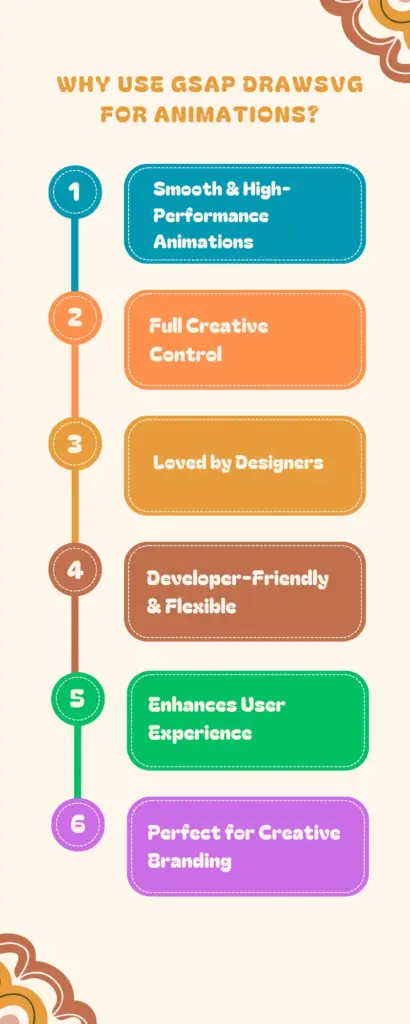
Loved by Designers
- Lightweight and fast, so it doesn’t slow down the website
- Perfect for logo reveals, signatures, illustrations, and infographics
- Adds a modern, premium feel to web visuals
Developer-Friendly & Flexible
- Easy to customize: speed, delay, reverse, loop, or repeat animations
- Works seamlessly with GSAP timelines and ScrollTrigger
- Simple to integrate into existing projects
Enhances User Experience
- Turns simple SVG lines into engaging visual stories
- Makes websites feel interactive, modern, and memorable
Perfect for Creative Branding
- Helps brands stand out with subtle yet powerful motion design.
- Ideal for hero sections, animated icons, charts, and custom illustrations.
Ways to add DrawSVG animation to your site
In WordPress, only a few plugins offer advanced SVG animations, and Animation Addons is one of them. Some developers also prefer using pure code to add GSAP animations manually.
Below are two simple ways to add DrawSVG:
- WordPress Plugin (Beginner-friendly).
- GSAP Library (Developer-friendly).
1. WordPress Plugin
In WordPress, you can easily add DrawSVG animations using a plugin without writing any code. One such plugin is Animation Addons, which lets you create advanced animations with simple drag-and-drop controls.
Even non-technical users can use it easily. Here is how to add DrawSVG using Animation Addons.
Animation Addons
Animation Addons is a complete WordPress plugin made for Elementor users. It offers a wide range of animation tools, including over 100 widgets, 25 extensions, and thousands of ready-to-use templates, pages, and sections.
It also comes with a built-in animation builder that lets you create your own effects. With all these features, you can design fully animated websites quickly and without any coding. On top of that, you also get live copy and paste features that let you create any animated website by simply copying and pasting.
Now let’s see how you can use widgets to add DrawSVG animation to your site.
Step 1 : Install Animation Addons
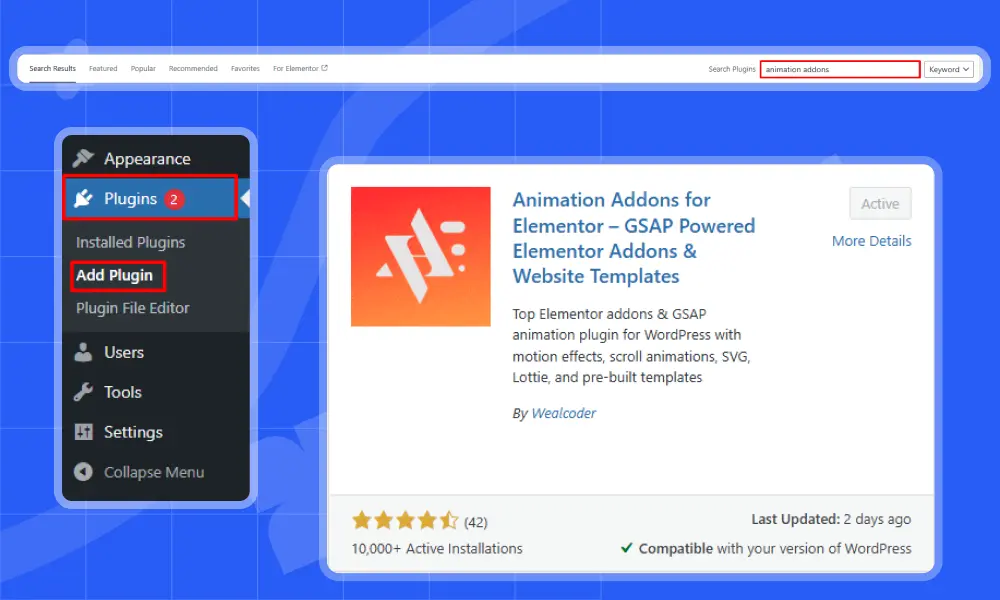
First and foremost, ensure that you have installed the Animation Addons plugin on your WordPress website.
Step 2 : Enable GSAP DrawSVG
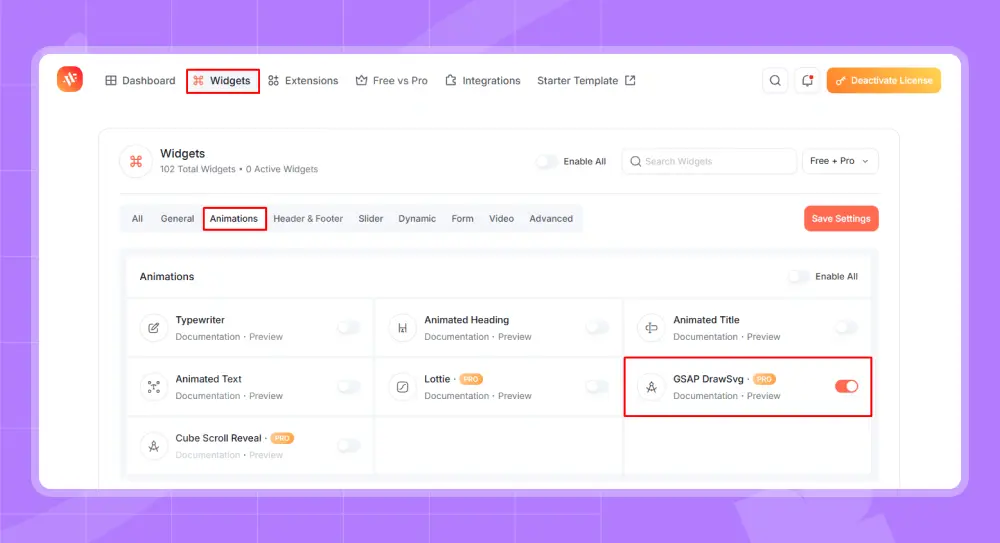
After that, open Animation Addons, go to Widgets, and under the Animation section, click on GSAP DrawSVG.
Step 3 : Search DrawSVG
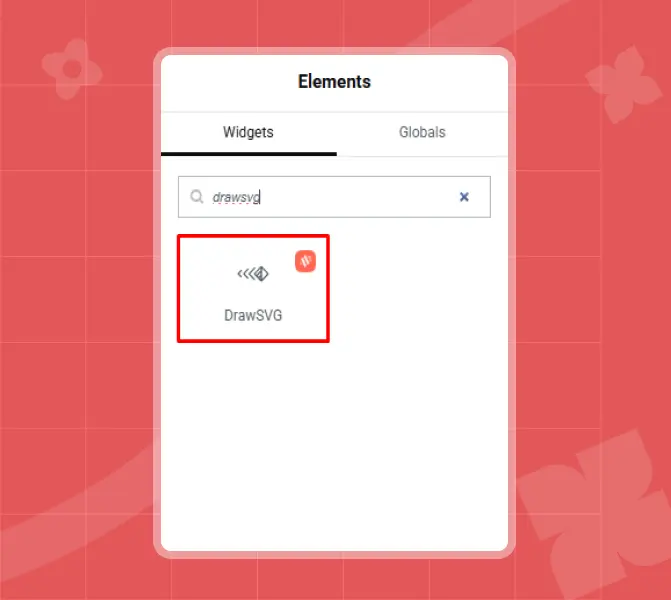
Once the setup is complete, go to the Elementor editing panel. Then click the ‘+’ icon and type “DrawSVG” in the search bar to find it.
Step 4 : Edit Options of DrawSVG
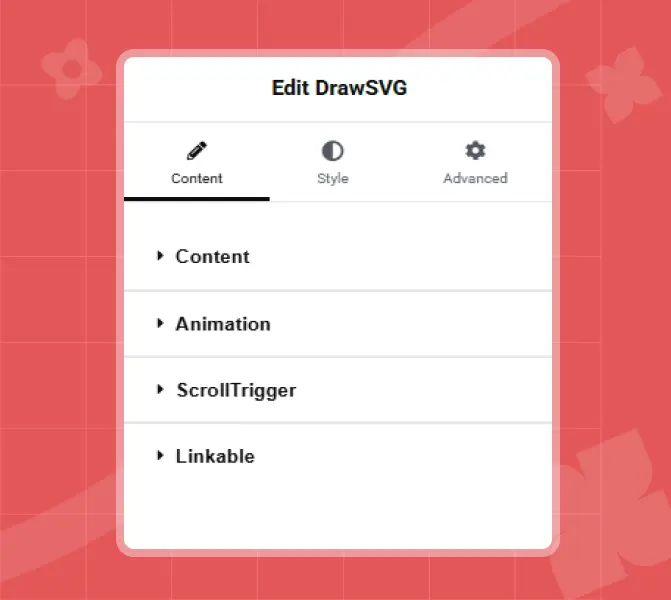
After clicking, you will find four options to customize your SVG animation such as Content, Animation, Scrolltrigger, and Linkable. Let’s start with ‘Content’.
Step 5 : Content of DrawSVG
In the content section, you will find two types of SVG: SVG Code and SVG Image. SVG Code lets you paste the raw SVG markup for full control over path animations.
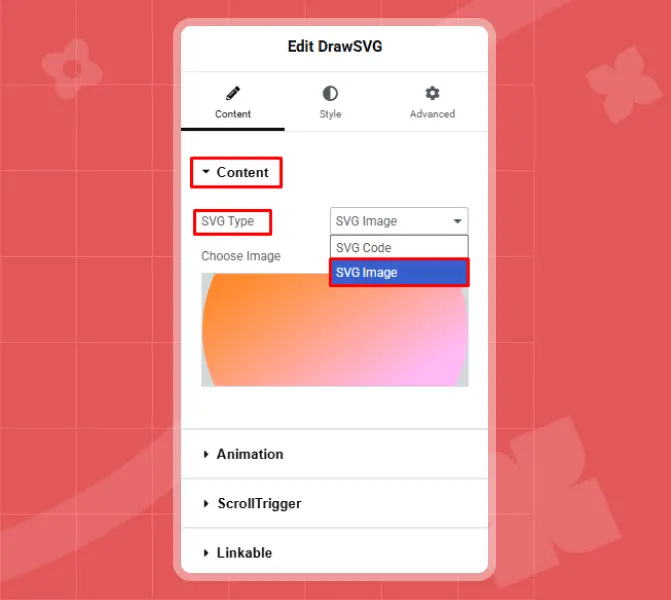
On the other hand, SVG Image allows you to use an uploaded SVG file and animate it without touching any code.
For example, here SVG Image is selected, but you can choose either option based on your preference. Notably, an SVG image has animation enabled by default.
Next, click on ‘Animation ‘ to access ‘Animation Method’. This setting basically controls the style of the draw effect, such as whether the stroke is drawn from start to end, in reverse, from the center outward, or using a custom direction.
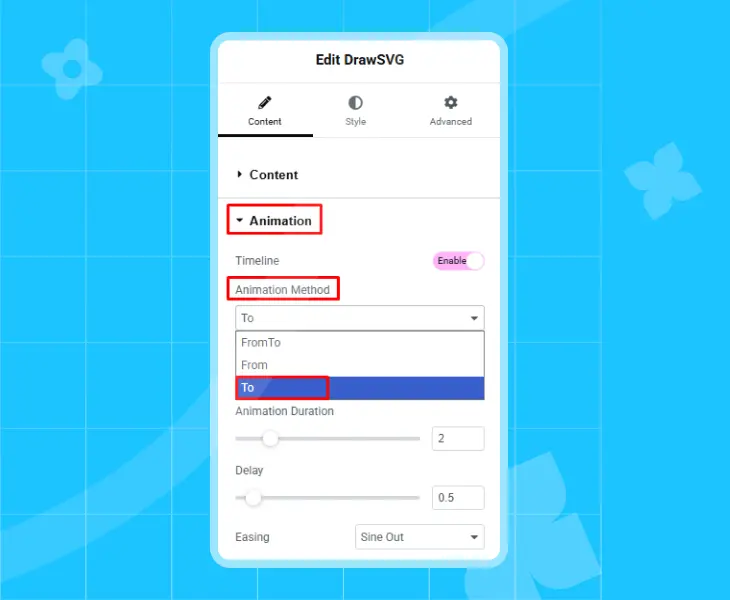
To do this, you have three options: From To, From, and To. You can choose any option based on your preferred animation style.
For example, here ‘To’ is selected.
Step 6 : Animation of DrawSVG
Now set the ‘To Value (End)’ according to your choice. It controls how much of the SVG path will be drawn when the animation finishes. For example, here ‘To Value (End)’ is set to 0%, but you can set any value you like.
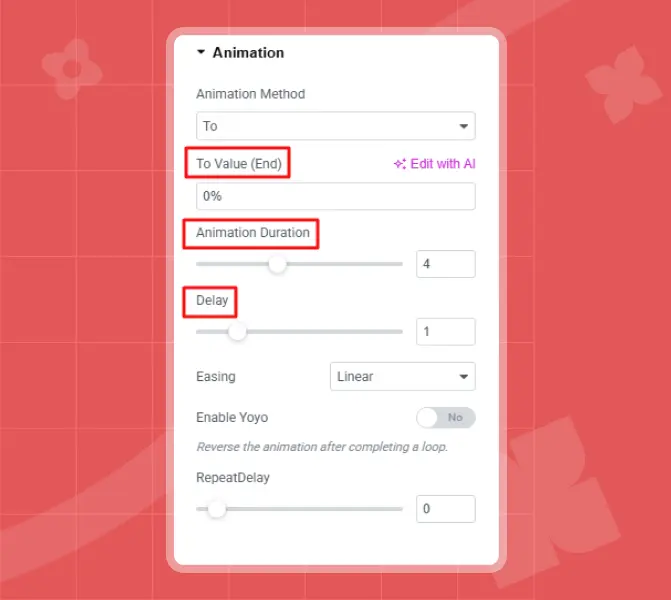
Similarly, adjust the other settings, such as Animation Duration, which is set to 4 here, and Delay set to 1.
Remember, you can customize each setting based on your preference.
Step 7 : Easing option of DrawSVG
The Easing option defines how the SVG moves. It controls the speed and motion style.
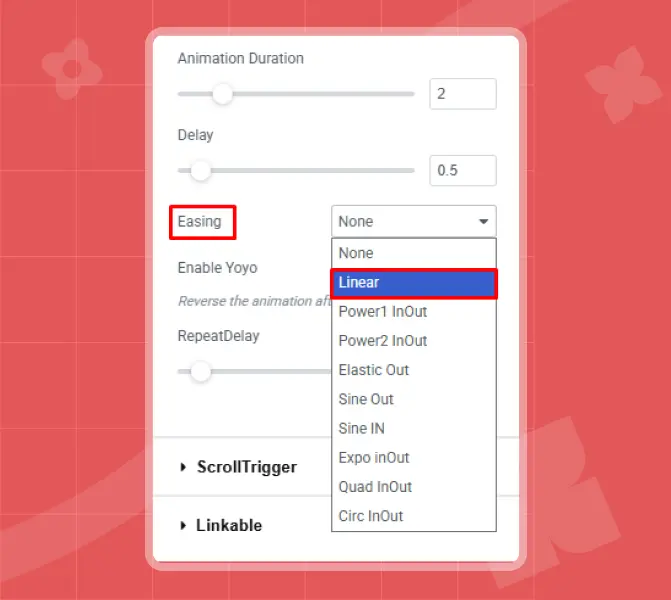
This makes the animation feel smooth and natural, not flat or robotic. You will find various options to choose from. For example, here “Linear” is selected, but you can choose any option you like.
Yoyo effect means that after the animation finishes, it automatically plays in reverse, creating a back-and-forth (yoyo) effect.
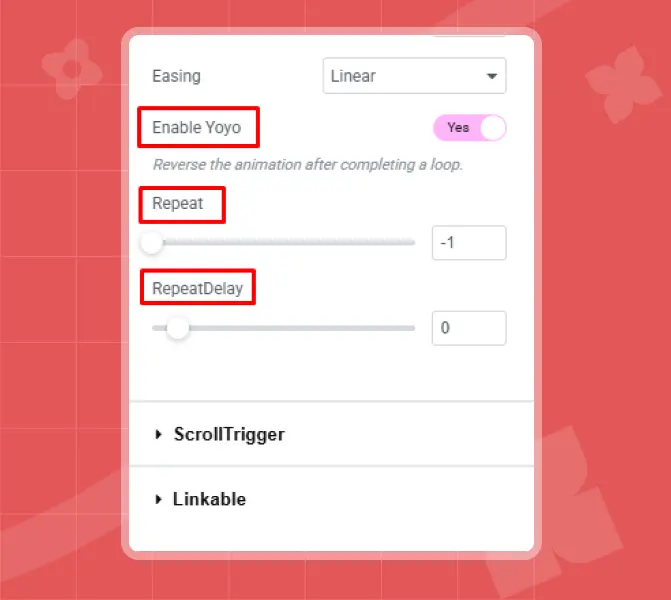
Repeat: -1
It means the animation repeats infinitely. (In GSAP, -1 means unlimited repeats.)
RepeatDelay: 0
There is no pause between each repeat; the animation restarts immediately.
Afterward, keep the other settings as they are such as ScrollTrigger, and Linkable. However, you can adjust them later based on your preference to explore SVG animation.
Step 8 : Preview your DrawSVG animation
Finally, click the Publish button, then preview your animation.
2. GSAP Library
If you prefer to write your own code or need full creative control outside Elementor, you can use GSAP directly. GSAP’s DrawSVG plugin lets you animate any SVG path by “drawing” it with precise control perfect for icons, illustrations, signatures, logos, and animated diagrams.
Below is a complete step-by-step guide to adding DrawSVG using code.
Step 1: Add GSAP and DrawSVG Scripts
You must load GSAP first, then the DrawSVG plugin. If you have GSAP Club membership, you can load DrawSVG locally.
					<script src="https://cdnjs.cloudflare.com/ajax/libs/gsap/3.12.5/gsap.min.js"></script>

<script src="https://cdnjs.cloudflare.com/ajax/libs/gsap/3.12.5/DrawSVGPlugin.min.js"></script>
Step 2: Add Your SVG Code
Place your SVG markup inside your page. Make sure the path you want to animate has an ID (for example: myPath). GSAP will target this ID in the next step.
Step 3: Animate It Using GSAP
This creates a smooth draw-line animation from start to finish.
					<script>

  gsap.fromTo("#myPath",

    { drawSVG: "0%" },

    { drawSVG: "100%", duration: 3, ease: "power2.out" }

  );

</script>
What This Code Does
- Starts drawing from 0%
- Ends at 100%
- Runs for 3 seconds
- Uses an easing curve for a smoother finish
This is the most common DrawSVG animation for logos, signatures, borders, and line illustrations.
Optional Enhancements (Delay, Loop, Scroll, etc.)
GSAP becomes extremely powerful when you add advanced options.
Add a Delay Before Animation Starts
					gsap.from("#myPath", {

  drawSVG: 0,

  duration: 4,

  delay: 1,

  ease: "linear"

});
Useful when you want the animation to play after the content loads.
Loop the Line Animation
Perfect for animated backgrounds, illustrations, or continuous motion effects.
					gsap.to("#myPath", {

  drawSVG: "0% 100%",

  repeat: -1,

  yoyo: true,

  duration: 3

});
- repeat: -1 → Infinite loop
- yoyo: true → Draws forward, then reverses
Trigger the Animation on Scroll (ScrollTrigger)
Great for long pages, landing sections, storytelling layouts, and timeline visuals.
					gsap.from("#myPath", {

  drawSVG: 0,

  scrollTrigger: {

    trigger: "#myPath",

    start: "top 80%"

  }

});
This will start drawing the SVG when it enters the viewport.
Best Practices for Preparing SVG Files
To ensure DrawSVG works perfectly, your SVG should follow a few important rules.
- Use stroke-based paths only, because DrawSVG animates outlines, not filled shapes.
- Avoid too many anchor points, as complex paths can reduce animation performance.
- Keep your SVG clean and optimized when exporting from design tools.
- Assign a unique ID to each path you want to animate for easy targeting.
- Remove unnecessary groups, masks, or hidden elements from the SVG.
- Use simple strokes and consistent stroke widths for smoother results.
- If DrawSVG fails, the issue is usually a poorly exported or unclean SVG file, simplifying it often fixes the problem.
Final Thoughts
DrawSVG is one of the simplest but most impressive animation techniques you can add to your website. It gives you motion, style, and visual interest without adding heavy files or slowing down your site.
Whether you prefer a no-code solution inside WordPress or enjoy writing your own GSAP scripts, both methods allow you to create beautiful line animations easily.
If you want the fastest and easiest experience, you can explore Animation Addons and start designing animated websites with drag-and-drop controls. Developers can extend DrawSVG even further using GSAP timelines and scroll-based interactions.
FAQs
What is GSAP DrawSVG used for?
GSAP DrawSVG is used to make SVG lines appear as if they are being drawn in real time. It is perfect for signature effects, logo outlines, icons, diagrams, and handwritten text animations.
Do I need coding knowledge to use DrawSVG?
No. If you are using WordPress and Elementor, you can use a plugin like Animation Addons to create DrawSVG animations without writing any code. Developers can also use the GSAP library for complete control.
Does DrawSVG require a GSAP Club membership?
DrawSVG is part of the GSAP Club plugins. You can load it using the official Club files or through CDNs that provide DrawSVG access. If you use Animation Addons, the plugin already includes GSAP animation features, so you don’t need to manage GSAP files manually.
Why is my SVG not animating?
The most common reasons are missing strokes, incorrect SVG export, or paths converted into shapes. Make sure your SVG uses stroke-based paths and avoid clipping masks or overly complex shapes.




Leave a Reply