


 Login
Login


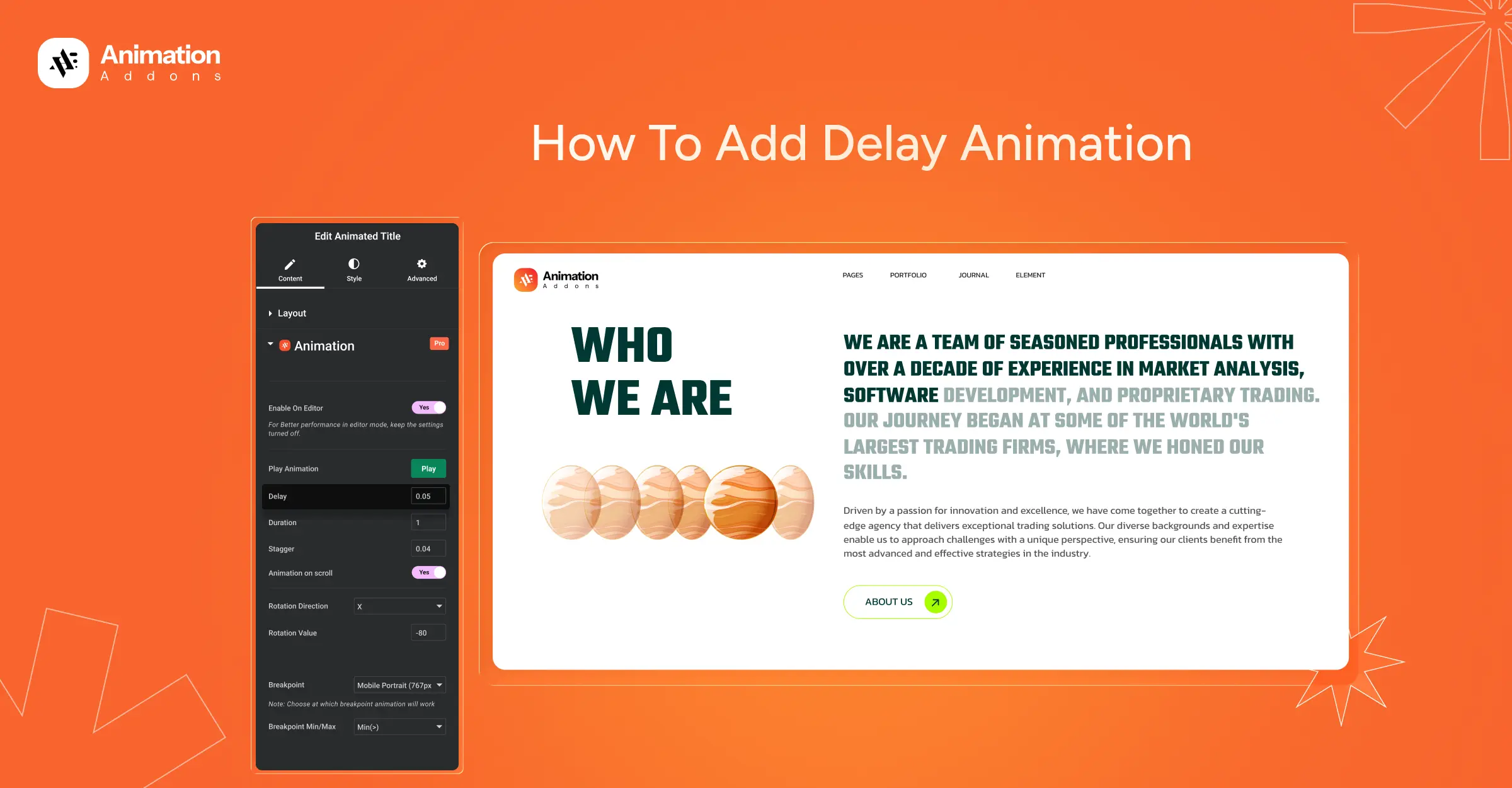
Animations can make a website feel smooth and modern. But they only work well when used with purpose. Delay animation helps control how content appears on a page. It allows elements to show in a clear order instead of all at once.
In this guide, you will learn how to add delay animation in WordPress and Elementor. It covers where delay animation works best and where it should be avoided. You will also learn how to apply it using an Elementor plugin and using different GSAP animation effects.
This guide is useful for landing pages, SaaS websites, and layouts with repeated elements. It will help you guide user attention, improve readability, and use delay animation for clarity rather than decoration.
Who Should Use Delay Animation?
Delay animation is not for decoration. It is used to control how content appears and to make pages easier to understand. It helps guide users step by step without changing the layout.
In short, delay animation is for designers, marketers, and website owners who want better control over how content appears.
This works well for marketing and landing pages where visitors need to read content in order. It is also useful for SaaS, agency, and product websites that show features or services. Elementor layouts with cards, grids, or repeated sections can look more clean and organized with delay animation.
If your website focuses on conversion, storytelling, or clear structure, delay animation helps users notice important content at the right time.
Best Use Cases for Delay Animation on a Website
Delay animation works best when multiple elements appear together on a page. By spacing out how content appears it improves readability, guides attention, and creates a smoother visual experience without distracting users.
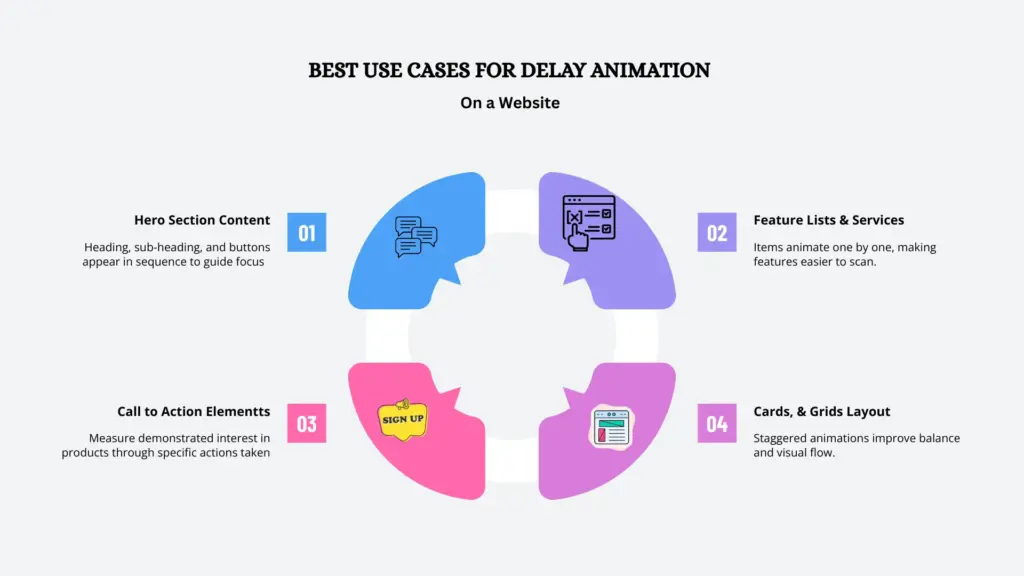
Hero Section Content
Delay animation is especially effective in hero sections, where first impressions matter most. Instead of showing everything at once, animate headings, subheadings, and interactive buttons can appear in a sequence.
This helps users focus on the message step by step and makes the layout feel more polished and intentional. It also prevents visual overload, especially on large screens.
Feature Lists and Service Blocks
For sections that display multiple features or services together, delay animation helps users process the information more naturally. Each item appears one after another, making the list easier to scan and understand.
This approach works well for feature highlights, service sections, and benefit lists where clarity is more important than speed.
Call to Action Elements
Delay animation helps call-to-action elements stand out without feeling aggressive. A button that appears slightly after the main content feels purposeful and draws attention at the right moment. This timing encourages interaction while keeping the overall experience calm and user-friendly.
Cards, Grids, and Repeated Layouts
Delay animation is ideal for card layouts, grids, and repeated elements such as portfolios, blog lists, or product showcases. Staggered animations make these sections feel organized and visually balanced.
It also guides the eye smoothly across the layout, improving both readability and design consistency.
How to Add Delay Animation In WordPress & Elementor
There are two reliable approaches that you can follow, depending on your needs:
- Animation Addons (WordPress Plugin)
- GSAP Library
1. Animation Addons
Animation Addons makes it easy to create animations in Elementor without code. It includes animation widgets, extensions, and ready-made templates that work out of the box. With hundreds of full websites and thousands of prebuilt pages and animated section templates, you can design animated layouts quickly and efficiently.
Delay animations can be added in just a few clicks, with minimal setup required.
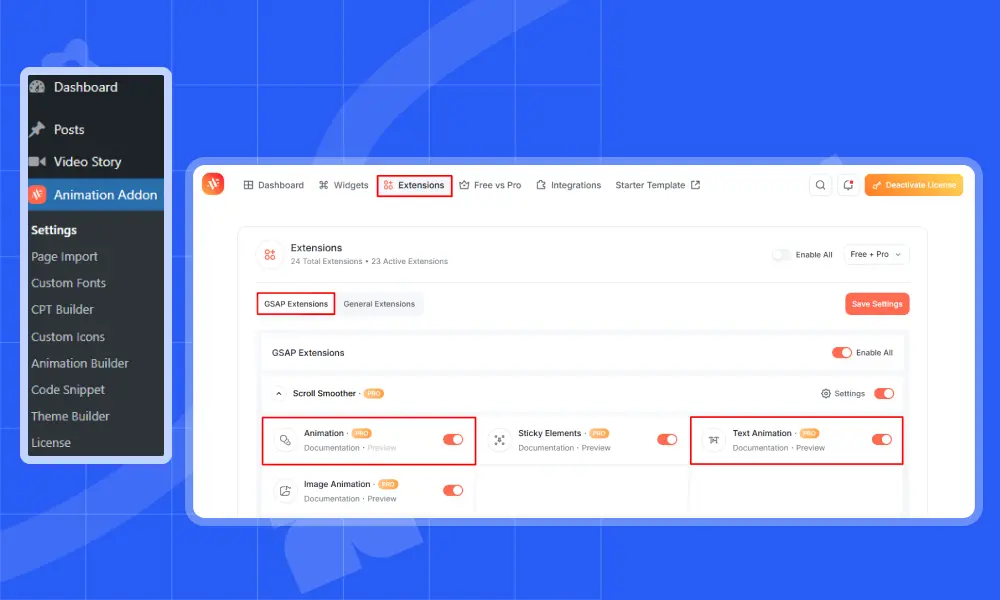
Before anything else, make sure Animation Addons is installed and activated. Also, ensure that all required extensions are enabled on your WordPress website.
Delay Animation On Text
Next, click on the text element where you want to add a delay animation. After selecting it, the Text Animation option will appear in the left sidebar.
Note: Modify only the values mentioned below. All other settings should remain unchanged.
- Animation: Under Animation Type, select Character.
- Trigger: Select On Page Load to run the animation when the page loads.
- Delay: Set the delay value to 0.4s
- Enable On Editor: Lastly, toggle the option to ‘Yes’ to enable the Play button.
Delay Animation On Image
In the same way, select any image where you want to add a delay to the image animation. After selecting it, the Animation extension will appear under the Advanced tab.
Note: Modify only the values mentioned below. All other settings should remain unchanged.
- Animation: Among available animation types, select “Fade Animation.”
- Delay: Use a delay value of 0.7s to slightly pause the animation before it starts, creating a smoother visual flow.
- Fade From: Set the Fade From option to Right. This makes the element fade in while moving slightly from the right side, adding a subtle directional motion.
- Enable On Editor: Lastly, toggle the option to ‘Yes’ to enable the Play button.
2. GSAP Library
The GSAP library gives you precise control over animation timing and sequence. It lets you add delays, animate multiple elements in order, and fine-tune how each animation behaves.
The examples below show how to apply delay animations using GSAP.
HTML
					<div class="gsap-wrapper">
  <h2 class="title">Animated Title</h2>
  <p class="subtitle">This content appears with a delay</p>
  <a href="#" class="button">Get Started</a>
</div>
CSS
					.gsap-wrapper {
  max-width: 600px;
  margin: 100px auto;
  text-align: center;
}

.title {
  font-size: 36px;
  margin-bottom: 12px;
}

.subtitle {
  font-size: 18px;
  margin-bottom: 24px;
  color: #555;
}

.button {
  display: inline-block;
  padding: 12px 28px;
  background: #f6502c;
  color: #fff;
  text-decoration: none;
  border-radius: 6px;
}
JavaScript (GSAP)
					gsap.from(".title", {
  opacity: 0,
  y: -30,
  duration: 0.8
});

gsap.from(".subtitle", {
  opacity: 0,
  y: -20,
  duration: 0.8,
  delay: 0.2
});

gsap.from(".button", {
  opacity: 0,
  scale: 0.9,
  duration: 0.6,
  delay: 0.4
});
When You Should Avoid Delay Animation?
Delay animation should never interfere with usability or clarity. In some areas, adding even a small delay can slow users down, create confusion, or negatively affect the overall experience.
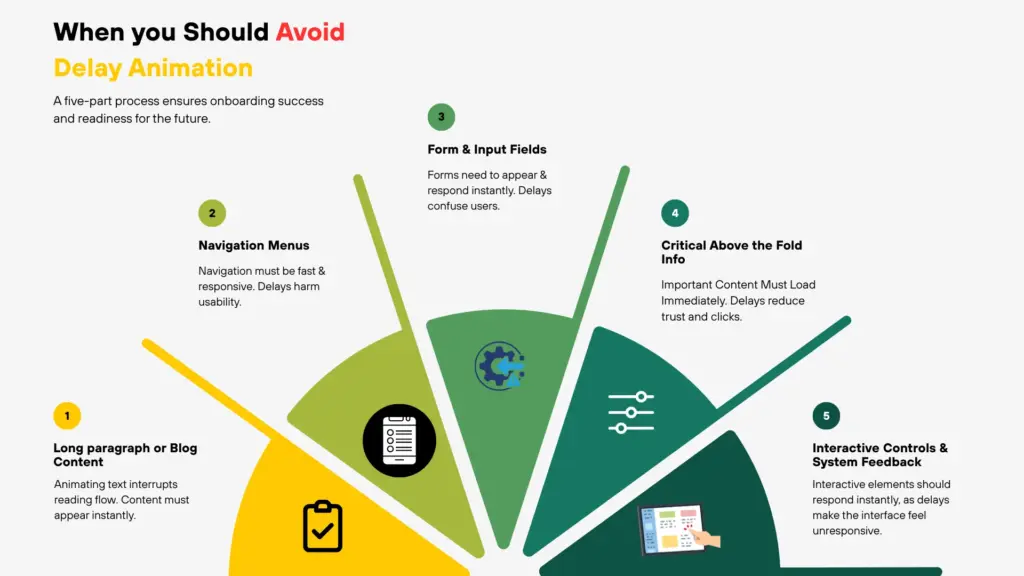
Long Paragraphs or Blog Content
Delay animation should be avoided in long text sections such as blog posts, articles, or detailed descriptions. Animating text line by line or word by word interrupts the natural reading flow and can frustrate users who want to read quickly. Content meant for reading should appear instantly and remain easy to scan.
Navigation Menus
Navigation menus need to be fast and responsive. Any delay in menu items, dropdowns, or links can make the site feel slow and unresponsive. Users expect immediate access to navigation, and delay animation in these areas can harm usability and increase frustration.
Forms and Input Fields
Forms require instant feedback so users know their actions are being recognized. Adding delay animation to form fields, labels, or validation messages can confuse users and slow down the interaction. For better usability, form elements should appear and respond immediately.
Critical Above the Fold Information
Important content that appears above the fold should never be delayed. Pricing details, key messages, warnings, or primary calls to action need to be visible as soon as the page loads. Any delay in showing critical information can reduce trust and negatively impact conversions.
Final Thoughts
Delay animation can make a website feel clear and well structured when used the right way. It helps control how content appears and guides users through a page step by step. Instead of showing everything at once, delay animation creates a smooth and natural flow.
In WordPress and Elementor, delay animation is easy to apply using plugins. For more control, GSAP gives you full flexibility with timing and sequence. The key is to use delay animation with purpose. It should support content, not slow users down or distract them.
With careful use, delay animation improves readability, highlights important actions, and creates a better user experience.
FAQs
Is delay animation bad for performance?
No. Short and lightweight delay animations do not affect performance. They run smoothly when used in small amounts. Performance issues happen only when animations are too heavy or overused.
What is the best delay value to use?
A delay between 0.03s and 0.06s works well for most text and user interface elements. It feels smooth without slowing the page.
Should I use delay animation on mobile?
Yes, but use it carefully. Mobile users expect fast interaction. Avoid delay animation on important content or actions.
Should delay animation be used everywhere?
No. Delay animation works best on grouped content like headings, lists, cards, and buttons. These sections benefit from staggered appearance. Navigation, forms, and long text should always appear instantly.

Leave a Reply