


 Login
Login

You have probably already seen many tutorials on how to create animations in Elementor. Some focus only on basic effects, while others make the process feel complicated and time-consuming. Animations can transform a static Elementor website into an engaging, interactive experience that instantly captures user attention.
When used correctly, animations guide visitors through your content, highlight important sections, and make your website feel modern and professional without slowing performance. Elementor makes it easy to add animations without coding, allowing anyone to create smooth entrance effects, hover interactions, and scroll-based motion.
In this guide, we will show you the easiest and most convenient way to create animations in Elementor without coding. You will discover how to build smooth, eye-catching animations that give you full creative control and keep visitors engaged from the very first scroll.
Types of Animations You Can Create in Elementor
Elementor has built-in motion effects that work well for simple animations. If you want smoother movement and more control, GSAP is a better choice. It helps you create animations that feel natural and respond nicely to user actions.
With GSAP, you are not limited to basic fades or slides. You can animate text, images, buttons, and even whole sections, while still keeping the website fast and smooth.
1. Text Animations
Text animations help draw attention to important messages and improve content hierarchy. Effects like fade, slide, zoom, rotate, and split-text reveal headings in a controlled, readable way.
These animations work best for hero sections, headlines, and key messages where you want users to pause and read.
2. Image Animations
Image animations make visual content feel more engaging and alive. Hover zoom, scroll-based reveals, parallax movement, and image-reveal effects add depth without overwhelming the layout.
These animations are ideal for portfolios, galleries, product showcases, and feature sections.
3. Button Animations
Interactive button animations provide instant feedback and encourage interaction. Hover effects such as color transitions, scaling, ripple effects, and smooth motion make buttons feel responsive and clickable.
Used properly, these animations guide users toward actions like sign-ups, purchases, or contact forms.
4. Scroll Animations
Scroll animations control how content appears as users move down the page. Fade-ins, slide-ups, and parallax backgrounds create a smooth flow and prevent content from feeling static.
These animations help structure long pages, improve readability, and keep users engaged while scrolling.
5. Cursor Hover Effects
Cursor-based animations react to mouse movement and create a more interactive experience. Effects like 3D tilt, magnetic buttons, and elements that follow the cursor add a modern, playful touch.
These work best for creative websites, landing pages, and interactive sections where engagement matters most.
How to Create Animations in an Elementor Website : Step-by-Step Guide
There are several tools available for adding animations in Elementor. For this tutorial, we’ll use Animation Addons for Elementor. It is a GSAP-powered, all-in-one animation plugin that lets you create smooth, modern motion effects without writing any code.
Pro Tip: Animation Addons makes the process even faster by giving you access to a massive design library with 200+ complete website templates, 2,000+ ready-made pages, and 10,000+ section templates.
It also includes a live copy-paste feature, allowing you to copy any design from the Starter Templates preview and paste it directly into your page.
Let’s start with the easiest way to create split text animation in Elementor without coding.
Before we start, make sure the following plugins are installed and activated:
- Elementor
- Animation Addons
Once both are active, you’ll be able to access all split text features inside the Elementor editor.
Step 1 : Enable the Text Animation Extension
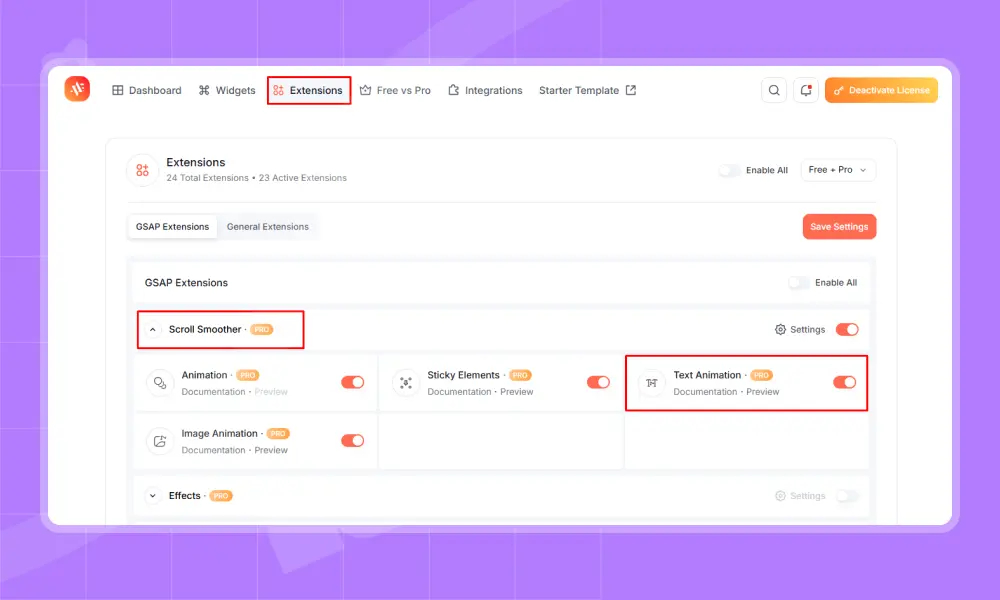
To start, open your WordPress Dashboard and click on Animation Addons from the sidebar menu. Next, go to the Extensions tab and scroll down to the ScrollSmoother section. From there, locate Text Animation and toggle it ‘ON’.
Once enabled, the Text animation features will be available inside Elementor, allowing you to animate text characters, words, or lines smoothly.
Step 2 : Open Your Page in Elementor
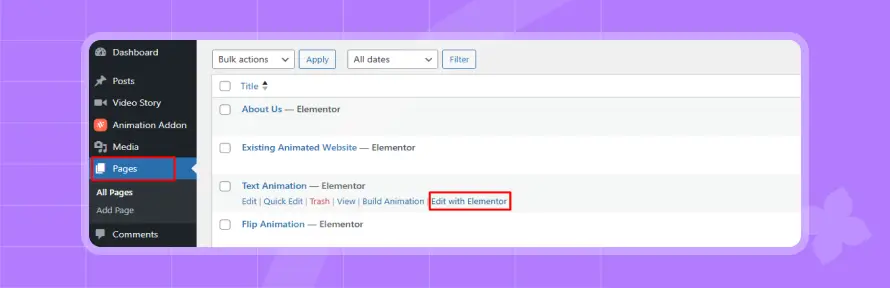
Go to Pages in your WordPress dashboard, then open the page where you want to add the animation. Click Edit with Elementor to launch the editor.
Step 3 : Choose the Container for Adding Text Animation
Select the container or element you want to animate, such as a heading, hero title, section headline, or any other text. Once you select, the Text Animation will appear on the left sidebar.
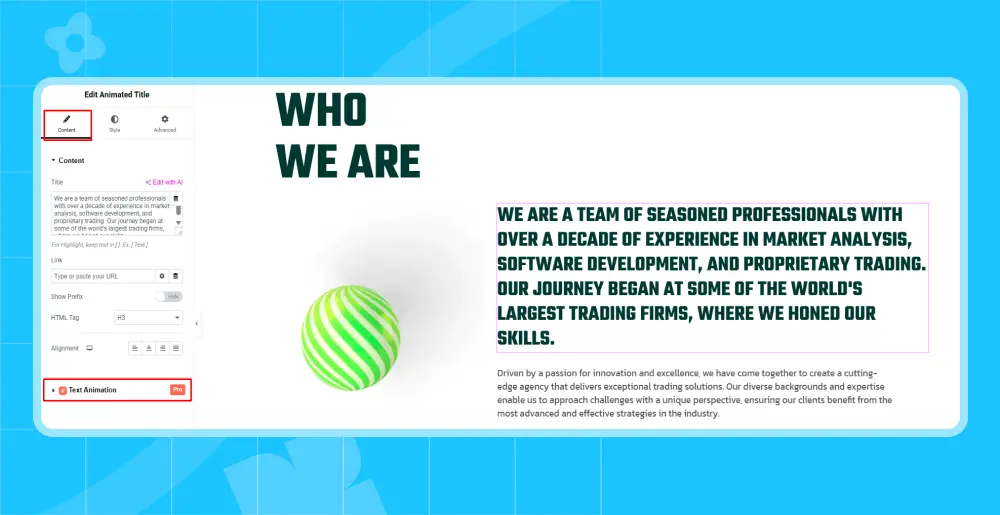
Then click on the Text Animation, and you’ll find all the Text configuration settings.
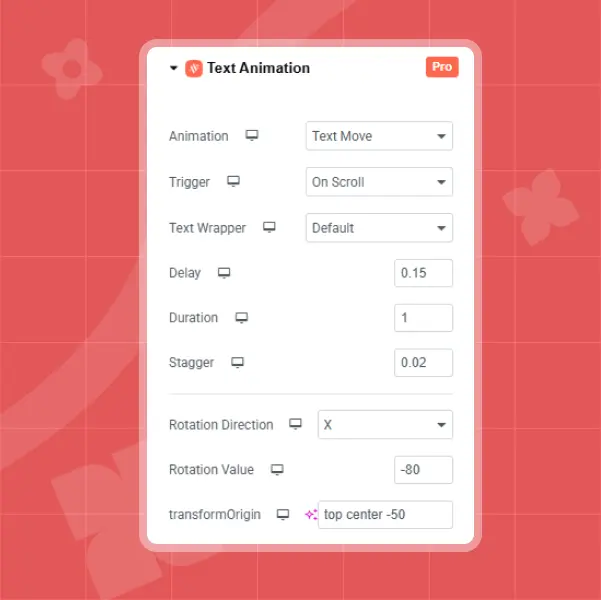
Step 4 : Customize the Animation
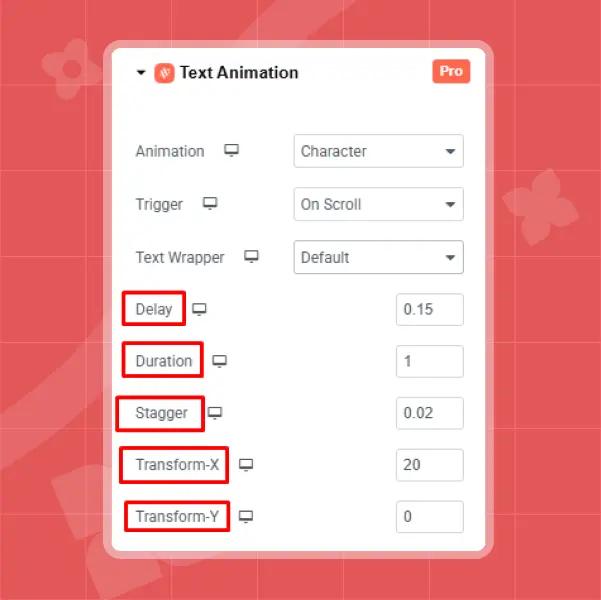
Here, you control how the text animation behaves and looks on the screen. These options let you decide how the text breaks, when it starts, and how it moves as users scroll.
Split Type
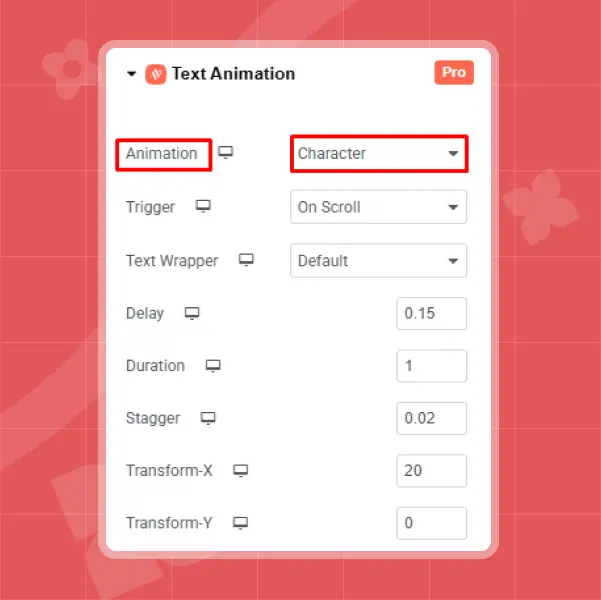
You can choose how the text will be divided and animated. Animation Addons provides multiple options such as Characters, Words, Text Move, Text Reveal, Text Scale, Text Invert, and 3D Spin.
Each option controls how the text breaks apart and animates on the screen. For this example, we are selecting Characters to create a split-text animation where each letter animates individually.
Trigger
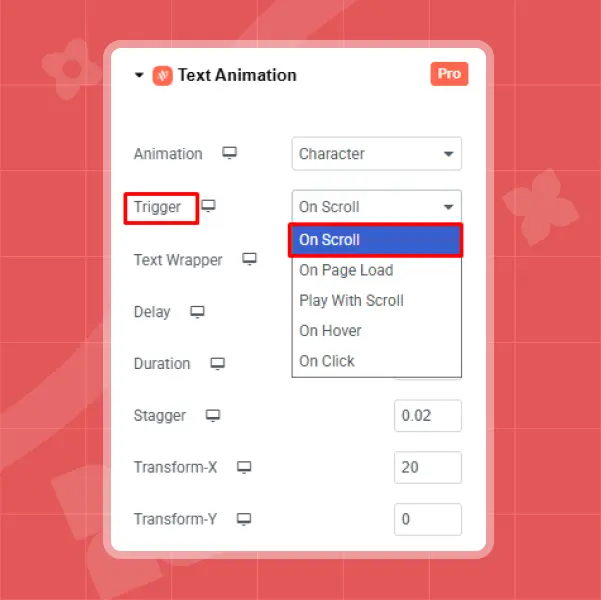
This option lets you control when the split text animation starts as the user scrolls. There are options like On Scroll, On Page load, Play With Scroll, On Hover, and On Click. In this example, ‘On Scroll’ is selected. You can choose any option based on your preference.
Text Wrapper
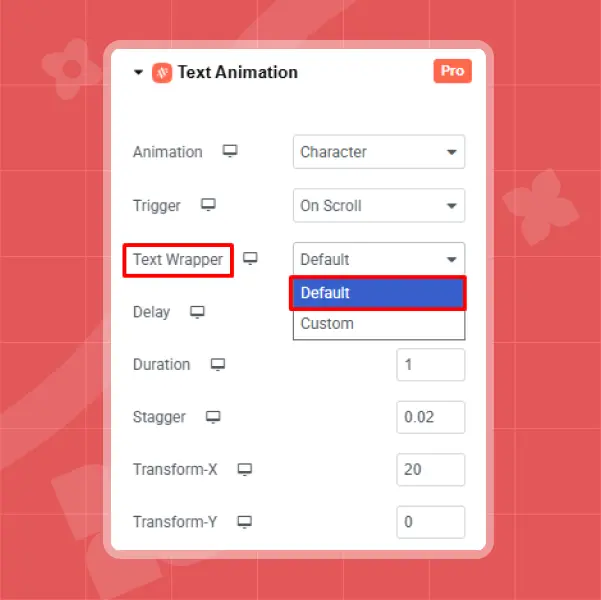
The Text Wrapper option helps you control where the animation starts and where it ends while scrolling. It controls the exact point at which the split text animation begins and finishes. You will see two options in the Text Wrapper settings.
- Default: Keeps the animation settings unchanged and uses the preset scroll behavior.
- Custom: Gives you full control over the animation timing and movement. When selected, it unlocks the following options.
In this example, the Default option is selected.
Delay
Controls how long the animation waits before starting after it is triggered. In this example, the Delay is set to 0.15 seconds, so the animation starts shortly after the trigger.
Duration
It lets you control how long the entire animation takes to complete. Here, the Duration is set to 1 second, creating a smooth and balanced animation speed.
Stagger
This option sets the time gap between each character, word, or line animation. In this example, we’ve added a 0.02s stagger, which animates the text pieces one after another for a clean, flowing effect.
Transform X (Horizontal Movement)
Choose the direction and movement of your text during animation. In this example, the value is set to 20. That means the text will animate 20 pixels along the X-axis.
Transform Y (Vertical Movement)
In this example, the Transform Y value is set to 0, which means the text will animate slightly along the Y-axis for added depth.
Step 5: Preview Your Animation
After adjusting the settings, turn on Enable On Editor. Then click Play to preview how the animation looks.
Explore More Animation Effects with Animation Addons
Animation Addons offers a wide range of effects to create engaging animations effortlessly. Here are a few examples of advanced animations you can create using Animation Addons:
Reveal Animation
A Reveal Animation effect adds a visual response when users move their mouse over an element. It helps show that the element is interactive.
To use it in Elementor, enable Reveal Animation Effect from Animation Addons → Extensions. Then edit the page with Elementor, select an element, go to the Advanced tab, and turn it on to customize and preview the effect.
Flip Animation
GSAP Flip animation rotates an element on its axis to reveal content in a dynamic and engaging way. It adds depth and interaction, making sections like cards or buttons feel more lively and modern. To get started, turn on the Flip Animation option from Animation Addons → Widgets in your WordPress dashboard.
After that, open the page in Elementor, choose the container or element, and adjust the Flip settings from the Advanced tab.
Fade Animation
Fade animation smoothly reveals or hides elements by gradually changing their opacity, creating a clean and natural visual flow. It helps guide user attention without being distracting or overwhelming. Go to Animation Addons → Extension in your WordPress dashboard. Open the page in Elementor, select the element or container, and adjust the fade settings from the Advanced tab.
Why Should You Use Interactive Animation on a Website?
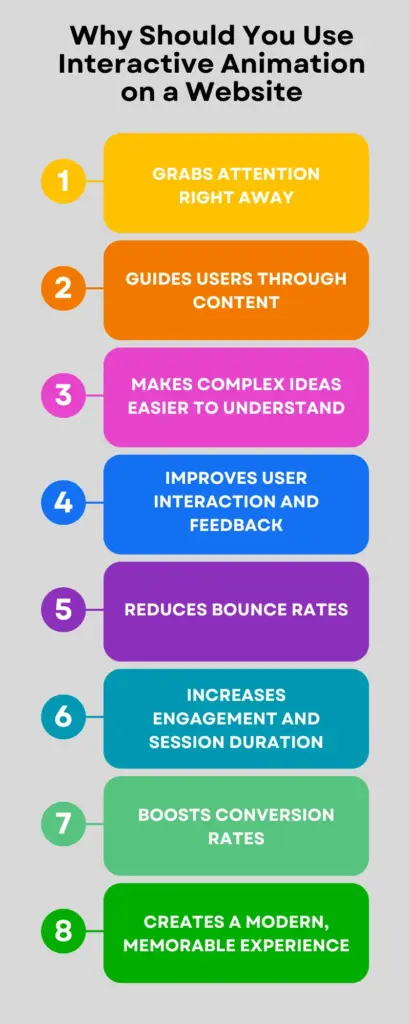
Interactive animation helps make your website more engaging, intuitive, and visually appealing by guiding users and improving overall experience. It does more than improve design. It helps people understand your content faster, feel more connected to the page, and enjoy the overall experience while browsing your site.
Grabs Attention Right Away
Movement naturally catches the human eye. When a page loads, small animations help highlight important sections and prevent users from missing key information. This creates a strong first impression within seconds.
Guides Users through Content
Animations create a smooth visual flow from one section to the next. Instead of appearing suddenly, the content shows up smoothly and feels easy to follow. This helps users scroll with purpose instead of feeling confused.
Makes Complex Ideas Easier to Understand
Visual motion explains concepts faster than long blocks of text. Animations help break down complex information into simple, digestible parts. This is especially useful for features, processes, or instructions.
Improves User Interaction and Feedback
Hover effects, clicks, and transitions show users that their actions are noticed. This instant feedback makes the site feel alive and interactive. As a result, users feel more comfortable exploring the page.
Reduces Bounce Rates
Smooth motion and visual feedback reduce the feeling of waiting. Pages feel faster and more engaging, even when content is loading. This encourages users to stay instead of leaving quickly.
Increases Engagement and Session Duration
Interactive elements invite users to scroll, click, and explore more content. When a website feels dynamic, people naturally spend more time on it. This leads to better engagement overall.
Boosts Conversion Rates
Animations subtly draw attention to important actions like buttons or forms. Without being distracting, they guide users toward what to do next. This can lead to more sign-ups, inquiries, or purchases.
Creates a Modern, Memorable Experience
A well-animated website feels modern and thoughtful. It leaves a stronger impression than a static layout. Users are more likely to remember and return to a site that feels smooth and engaging.
Best Practices for Smooth & Performance-Friendly Animations
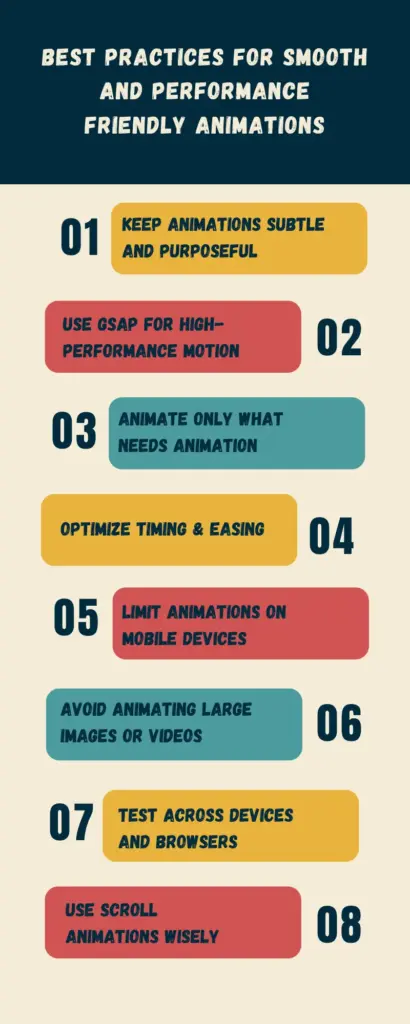
Creating beautiful animations is important, but making sure they run smoothly is what truly elevates user experience. Whether you’re using Elementor’s built-in effects or GSAP-powered animations from Animation Addons, following these best practices will help keep your website fast, responsive, and visually polished.
1. Keep Animations Subtle and Purposeful
Avoid overwhelming your visitors with too many effects. Subtle movements like fade-ins, gentle slides, and hover reveals feel natural and help guide attention without distracting from your content.
2. Use GSAP for High-Performance Motion
GSAP is known for smooth animations on the web. Since Animation Addons is powered by GSAP, scroll effects, text reveals, and timelines run smoothly with low CPU usage.
3. Animate Only What Needs Animation
Focus on elements that improve storytelling, such as headings, hero images, and call-to-action sections. Too many animated elements can slow down the page and overwhelm users.
4. Optimize Timing & Easing
Choose easing that feels natural (like ease-out or power ease) and avoid extremely long durations. Smooth timing helps motion feel balanced and keeps users engaged.
5. Limit Animations on Mobile Devices
Mobile devices have less processing power. Use responsive controls in Animation Addons to reduce or disable heavy animations on phones for smoother performance.
6. Avoid Animating Large Images or Background Videos
Heavy assets can cause frame drops. Instead, animate lighter elements such as text, small icons, or overlays for a cleaner, faster result.
7. Test Across Devices and Browsers
Always preview your animations on desktop, tablet, and mobile. Animation Addons makes this easy with the Elementor preview panel. Ensure everything feels fluid and doesn’t create lag on lower-end devices.
8. Use Scroll Animations Wisely
Scroll-triggered animations add depth to a page and help guide users through content. They can improve storytelling by revealing elements at the right time as visitors scroll.
However, using too many animations can affect performance and make scrolling feel heavy. Keeping a balanced approach ensures the experience stays smooth and enjoyable.
Final Thoughts
Creating animations in an Elementor website doesn’t have to be complicated or overwhelming. While Elementor offers built-in motion effects for basic needs, combining it with GSAP opens the door to smoother motion, better timing control, and more advanced interactions.
With a GSAP-powered solution like Animation Addons for Elementor, you can build professional-level animations without coding. The key is intention. Animations work best when used to guide attention and improve clarity. With proper use, animations create a modern, engaging experience without sacrificing performance across devices.
FAQs
Will animations slow down my website?
GSAP is optimized for performance, and Animation Addons loads animations efficiently. By following best practices, such as avoiding heavy assets and limiting animations on mobile, you can keep your site fast and smooth.
Can I animate any element in Elementor?
Yes. You can animate text, images, buttons, sections, containers, and even custom HTML elements, depending on the animation type you choose.
Are animations mobile-friendly?
They can be. Animation Addons include responsive controls, allowing you to adjust or disable animations on mobile devices to ensure smooth performance.
Can animations help with conversions?
Yes. Subtle animations can draw attention to call-to-action buttons, forms, and important sections. When used properly, they guide users toward actions without being distracting.

Leave a Reply