


 Login
Login


One jumpy scroll is all it takes to break the entire user experience. Smooth scrolling may look like a small detail, but it can completely change how your website feels. A clean and gentle movement between sections makes the whole page feel modern, polished, and enjoyable to explore.
It adds a calm and premium touch that visitors notice right away.
No matter what you are building, whether it is a long landing page, a creative portfolio, or a one page layout in Elementor, smooth scrolling can lift the entire experience with almost no effort.
In this guide, you will explore what smooth scrolling is, why it matters, and two simple ways to add it to WordPress using a plugin or the GSAP library.
What Is Smooth Scroll Effect?
Smooth scroll is a visual behavior where the browser gently transitions to a linked section instead of jumping instantly. For example, when a visitor clicks About, the page glides down in a smooth motion until it reaches the About section.
It improves readability, reduces confusion, and adds a premium feel to your website. Most modern sites website templates and themes with smooth scroll effect because it improves the user journey, especially for long pages and one-page layouts.
Benefits of Smooth Scrolling
Smooth scrolling improves the way visitors move through your website and enhances the overall benefits of user experience.
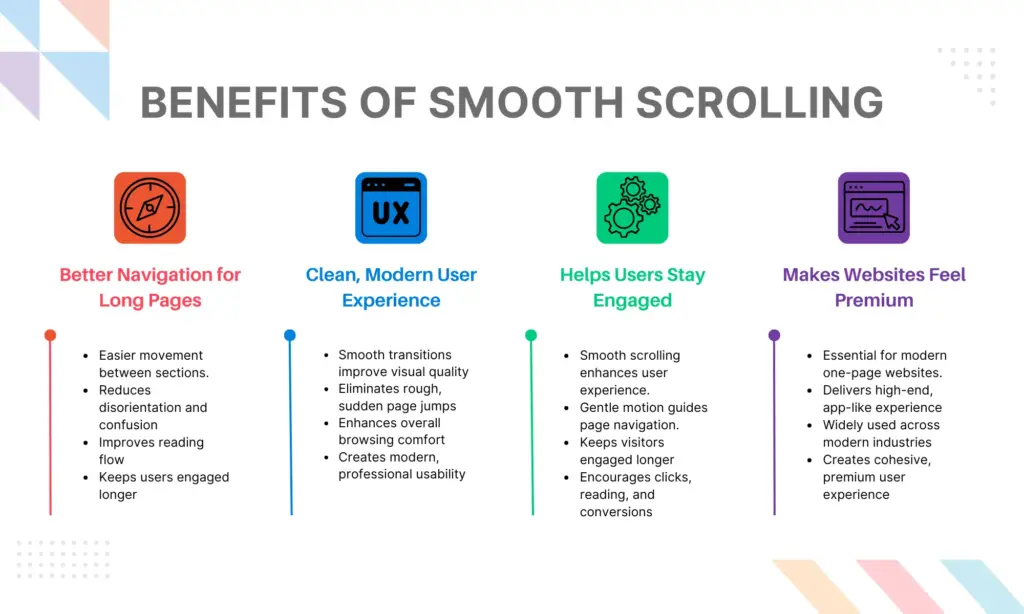
Better navigation for long pages
Smooth scrolling makes it easier for visitors to move between different sections of a long page without feeling lost or confused. Instead of instantly jumping to an anchor link, the page glides smoothly, helping users understand where they came from and where they’re going. Also, interactive button animations make smooth scrolling feel more engaging by providing instant visual feedback on hover, click, and scroll actions.
This reduces disorientation, improves reading flow, and keeps users interacting with your content for longer.
Clean, modern user experience
A smooth move between sections makes your website look clean and high quality. It removes the rough jumping that the browser normally does and replaces it with soft, natural movement.
This small feature makes the browsing experience feel better. It helps your site look modern, professional, and easy to use on any device.
Helps users stay engaged
Smooth and calm scrolling makes visitors want to explore more areas of the page. The gentle motion acts like a guide and leads them from one section to the next.
This keeps them interested in your content and helps them stay on your website longer. It also increases the chance that they will take action, like reading more, clicking a button, or making a purchase.
Makes one-page websites feel more premium
For one-page websites, smooth scrolling is almost essential. It adds a high-end, app-like browsing experience that users expect from modern websites.
Creative agencies, portfolios, SaaS startups, and app landing pages use smooth scroll to create a seamless flow. Service-based businesses also rely on it to guide users through their content in a smooth and natural way.
The effect makes the design feel more cohesive, premium, and user-friendly.
Two Methods to Add Smooth Scroll Effects
There are two popular methods you can use to add smooth scroll in WordPress:
1. WordPress Plugin (Beginner-Friendly)
2. GSAP Library (Developer Friendly)
1. WordPress Plugin
You can enable smooth scrolling easily using a lightweight plugin. Animation Addons is one of them. It is a WordPress plugin that gives you everything you need to add animations in Elementor.
It comes with more than one hundred plus widgets, many helpful extensions, and a big library of ready made designs. You get hundreds of full websites, thousands of pages, and many sections you can use right away.
It also has a custom animation builder that lets you make your own effects. With all these tools, you can create animated websites quickly and easily.
For now, take a look at how you can add the smooth scroll effect with Animation Addons step by step:
Step 1: Open Animation Addons Settings
Go to your WordPress Dashboard → click Animation Addons in the left sidebar→ open the Extensions tab → find Scroll Smoother under GSAP Extensions → click the Settings button.
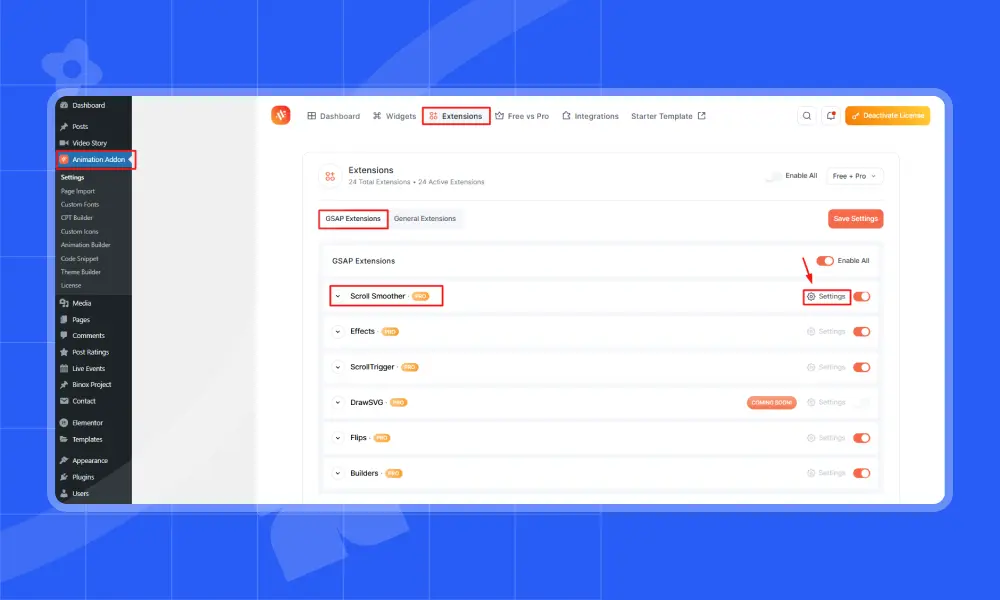
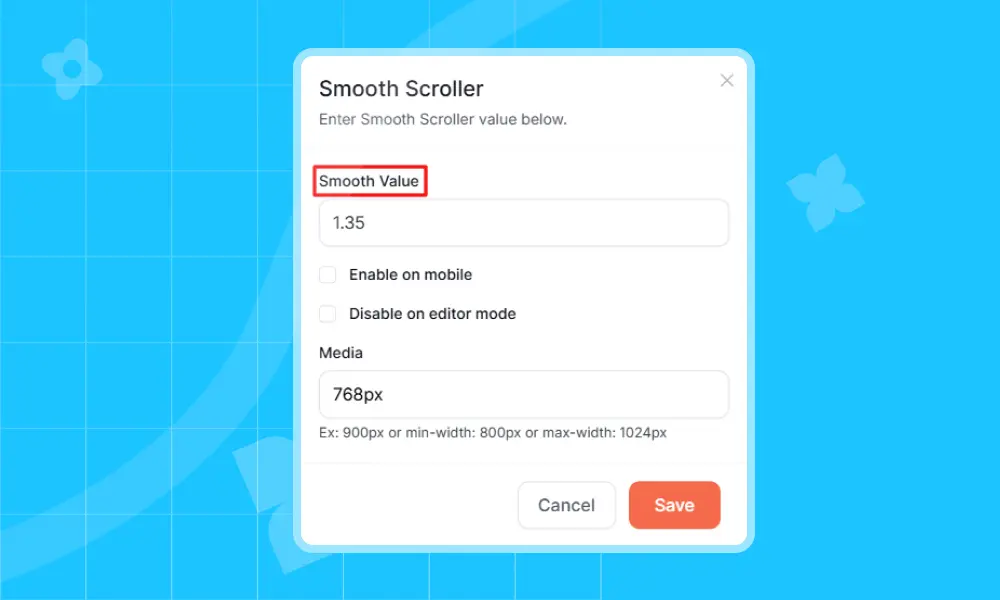
This will open the Smooth Scroller configuration popup.
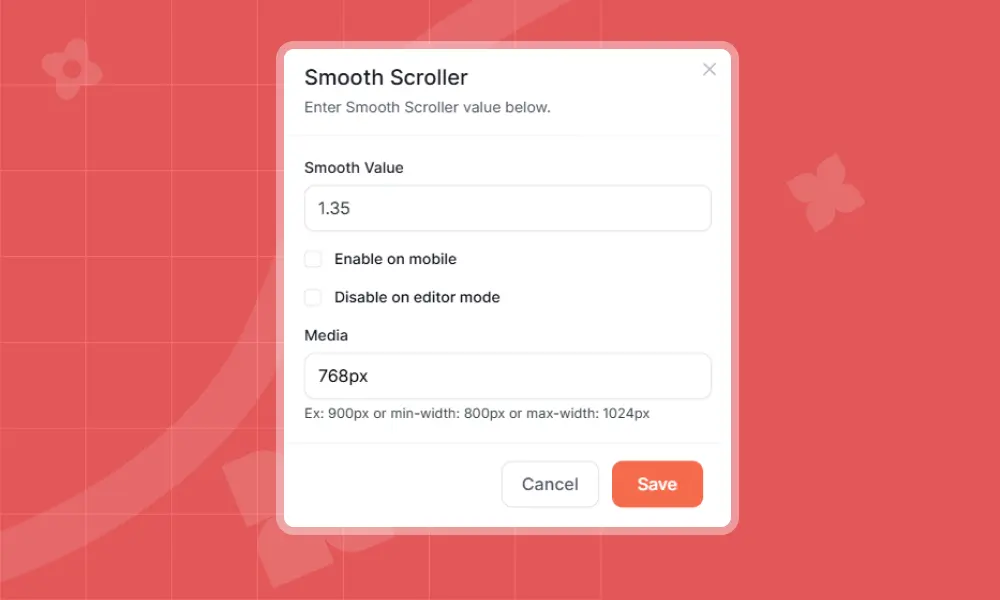
Step 2: Set the Smooth Value
Inside the popup, you’ll see an option called Smooth Value.
- This controls how soft and smooth your scrolling feels.
- A higher value creates smoother, slower scrolling.
- A lower value creates faster scrolling.
Recommended: Start with 1.2 or 1.5 for a natural feel. In this example, the value is set to 1.35. However, you can choose any value you prefer.
Step 3: Enable on Mobile (Optional)
If you turn this ON:
- Smooth scrolling will also work on mobile devices.
- If turned off, mobile users will see regular browser scrolling.
Mobile devices often feel better with normal scrolling, so this option is optional.
Step 4: Disable on Editor Mode
This option prevents Smooth Scroll from running inside the Elementor editor.
Why this matters:
- Smooth scroll effects can interfere with editing.
- If its enabled, the editor will behave normally, and the effect will only run on the live website.
We recommend keeping this ON for a smoother editing experience.
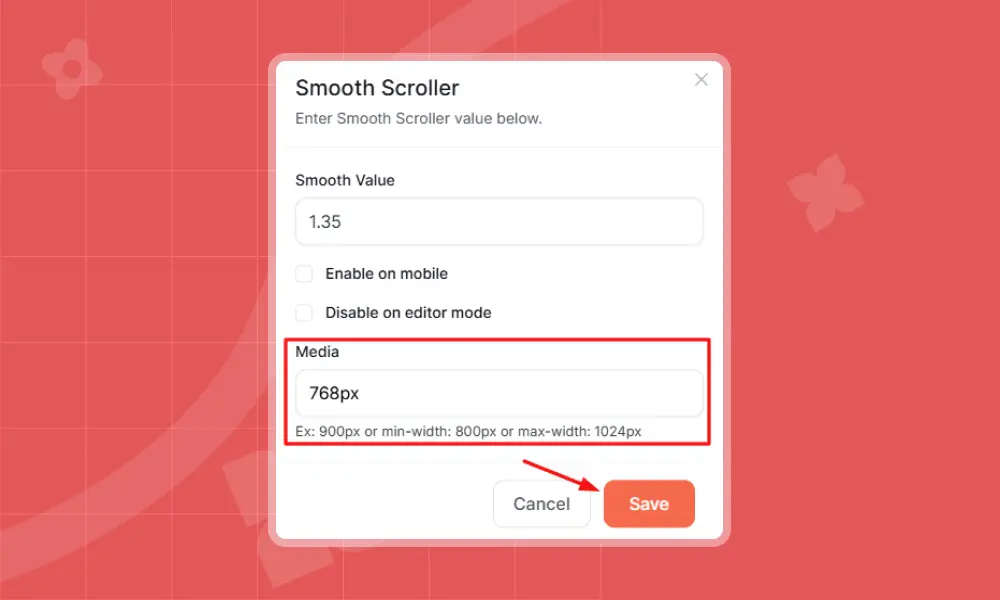
Step 5: Configure Media (Screen Size Control)
The Media field decides on which screen sizes Smooth Scroll will work. You can enter different types of values, and each one controls how the effect behaves.
1. Entering a value like 900px
If you type 900px, Smooth Scroll will run only on screens that are 900px and wider. This means it will work on tablets in landscape mode, laptops, and desktops.
However, smoothscroll will not work 900px below. Consequently, it will not run on smaller devices like mobiles or small tablets
2. Using min-width
If you type min width: 800px, Smooth Scroll will run on screens 800px and wider. Anything below 800px will not have Smooth Scroll.
3. Using max width
If you type max width: 1024px, Smooth Scroll will run on screens 1024px and below. This means mobile, tablet, and small laptop screens will work.
Large desktops that are wider than 1024px will not work with Smooth Scroll.
Example:
Mobile → works
Tablet → works
Small laptops (1024px wide) → works
Large desktops (1366px, 1920px) → does not work
When you are done, make sure to click the Save button.
After you set the smooth scroll value, your site will scroll like this:
Method 2: GSAP Library
If you want a true smooth scroll experience in GSAP, the feature you are looking for is ScrollSmoother. It makes your website scroll in a soft and smooth way. It feels much nicer than the normal browser scroll.
To use it, first load GSAP along with the ScrollSmoother and ScrollTrigger plugins. You can add these files with functions.php, a custom JavaScript file, or Elementor Custom Code.
					<script src="https://cdn.jsdelivr.net/npm/gsap@3/dist/gsap.min.js"></script>

<script src="https://cdn.jsdelivr.net/npm/gsap@3/dist/ScrollTrigger.min.js"></script>

<script src="https://cdn.jsdelivr.net/npm/gsap@3/dist/ScrollSmoother.min.js"></script>
After the scripts are loaded, wrap your page content like this:
					<div id="smooth-wrapper">

  <div id="smooth-content">

    <!-- All your page content here -->

  </div>

</div>
Now activate GSAP Smooth Scroll with a simple script:
					gsap.registerPlugin(ScrollTrigger, ScrollSmoother);

ScrollSmoother.create({

  wrapper: "#smooth-wrapper",

  content: "#smooth-content",

  smooth: 1.2,   // how smooth the scroll should feel

  effects: true  // enables extra scroll effects

});
Once this is added, your entire page will scroll with a soft, buttery movement that feels like a premium animation system. You can adjust the smooth value to control how gentle the scrolling feels.
A higher number makes the scroll slower and very smooth. A lower number makes it scroll faster but still feel smooth.
After you save the code, refresh your page. The smooth scroll effect will now work across your whole site. It will give your Elementor website a modern and polished scrolling experience that feels easy and comfortable for the user.
Best Practices for Smooth Scrolling
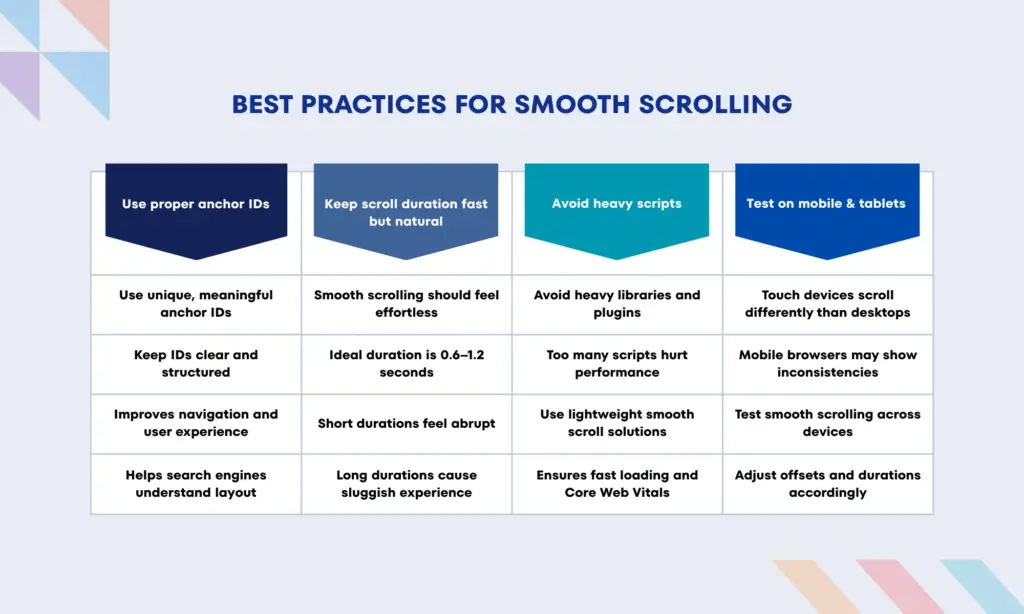
Smooth scrolling feels best when it’s done with care, keeping the experience fast, smooth, and consistent across devices. By following a few smart practices, users can create cleaner navigation and a more polished browsing flow.
Overall, it helps make any website feel modern and easier to explore.
Use proper anchor IDs
Assign unique, meaningful, and clearly structured anchor IDs to each section, for example, #about, #services, or #pricing. Clean IDs help both users and search engines understand your page layout, and they prevent navigation issues caused by duplicated or unclear anchors.
Keep scroll duration fast but natural
Smooth scrolling should feel effortless, not slow. A duration between 0.6 to 1.2 seconds is ideal because it creates a pleasant, controlled transition without interrupting the visitor’s pace. SVG and Lottie animations add lightweight, scalable motion that enhances smooth scrolling effects without hurting performance in WordPress and Elementor.
Shorter durations feel abrupt, while overly long ones may frustrate users or make the website feel sluggish.
Avoid heavy scripts
Smooth scrolling doesn’t require large libraries or unnecessary plugins. Using too many third-party scripts can increase page weight, reduce performance, and affect Core Web Vitals.
Stick to lightweight solutions like small JavaScript snippets, GSAP with ScrollToPlugin, or optimized Elementor extensions to ensure fast loading and smooth performance.
Test on mobile & tablets
Touch devices behave differently from desktops. Some easing effects, scroll physics, and anchor movements may show inconsistencies on mobile browsers.
Always test smooth scroll on Android, iOS, tablets, and multiple screen sizes to confirm that the motion feels natural and responsive everywhere for responsive text animation, responsive image animation, responsive fade animation and many more .
Adjust offsets and durations based on device behavior if needed.
Wrap Up
Smooth scrolling may look like a small detail, but it has a big impact on how people experience your website. A gentle transition between sections makes the entire page feel more professional, modern, and enjoyable to explore. One-page layouts, long landing pages, and creative Elementor websites all feel more premium with this simple enhancement.
By following best practices and keeping the motion natural, your website will feel cleaner and more engaging. Testing on different devices will also help create a smooth and intuitive browsing experience.
With just a few adjustments, your WordPress site can instantly feel polished, smooth, and ready for a modern audience.
FAQs
Can I add smooth scrolling using GSAP?
Yes. GSAP ScrollSmoother gives you an advanced and very smooth scrolling effect. This method is ideal for developers who want full control over scroll behavior.
Why is smooth scrolling important for a website?
Smooth scrolling plays a big role in user experience. When visitors navigate through different parts of your page, the soft transition helps them understand where they are going. It reduces confusion, prevents sudden jumps, and gives your website a premium, modern feel.
Websites with smooth scrolling often feel more polished, so users stay on the page longer and interact more with your content.
Does smooth scrolling work on all types of websites?
Yes. Smooth scrolling works effectively on almost any WordPress website. It is especially useful on designs where movement between sections is common, such as one-page websites, long landing pages, business/agency sites, portfolios, and creative layouts.
Whether a visitor clicks a menu link, button, or anchor link, smooth scrolling enhances the experience across all these layouts.
What is the easiest way to add smooth scrolling in WordPress?
The simplest option is using a plugin like Animation Addons, which includes a built-in Scroll Smoother feature. You can turn it on with a single click and adjust the smoothness, mobile settings, and breakpoints, all without writing any code.
This makes it perfect for beginners, designers, and anyone who wants professional-level smooth scrolling with minimal effort.



Leave a Reply