


 Login
Login


Are your website buttons getting the attention they deserve? In today’s digital world, static buttons often go unnoticed, but animated button WordPress designs can instantly grab user attention and boost engagement. If you’re using Elementor, adding interactive effects has never been easier. From subtle hover effects to dynamic transitions, Elementor button hover animation can transform ordinary buttons into eye-catching elements that guide users toward clicks.
In this guide, we’ll show you step-by-step how to implement button animation Elementor techniques and WordPress animated buttons that not only look professional but also enhance user experience and conversions.
Understanding Button Animations in WordPress and Elementor
Button animations are visual effects that bring your website buttons to life, making them more engaging and interactive for visitors. Unlike static buttons, WordPress animated buttons and Elementor animated buttons respond to user actions such as hovering, clicking, or scrolling, creating a dynamic experience that encourages interaction.
There are several types of button animations you can use. Hover effects, for example, change a button’s color, size, or style when a user moves the cursor over it, making Elementor button hover animation a popular choice for enhancing CTAs. Click effects provide visual feedback when a user presses a button, improving clarity and user satisfaction. Micro-interactions are subtle animations, such as a bounce or glow, that draw attention without being distracting.
Animated buttons guide users intuitively, highlight important actions, and increase click-through rates. By making your buttons visually appealing and interactive, you not only boost engagement but also create a more professional and memorable website for your visitors.
Prerequisites Before Adding Button Animations in WordPress & Elementor
Before diving into Elementor button animation or WordPress animated buttons, it’s important to ensure your website is ready for smooth implementation.
1. WordPress Setup
Ensure your website is running on the latest version of WordPress. An updated platform guarantees compatibility with animation plugins, themes, and Elementor widgets. Outdated versions may cause conflicts with button animation Elementor features or custom CSS effects.
2. Elementor Installed and Activated
You need Elementor installed, either the free or Pro version. While the free version allows basic elementor animated button effects, Elementor Pro provides advanced animate button Elementor options, including hover animations, motion effects, and custom CSS.
3. WordPress Animation Plugins
For more advanced effects, consider installing plugins like Animation Addons, Elementor Extras, or libraries like GSAP. These tools make it easier to create animated button WordPress designs without heavy coding.
4. Browser & Device Considerations
Test your animations across different browsers and devices to ensure consistency. Responsive animated buttons enhance user experience on desktops, tablets, and mobile devices for responsive text animation, responsive image animation and many more.
5. Basic Knowledge of CSS (Optional)
While Elementor handles most animations visually, knowing basic CSS can help you customize button animation WordPress effects for unique hover, click, or micro-interaction designs.
Method 1: Using Elementor’s Built-in Animations
Step 1: Open Your Page in Elementor
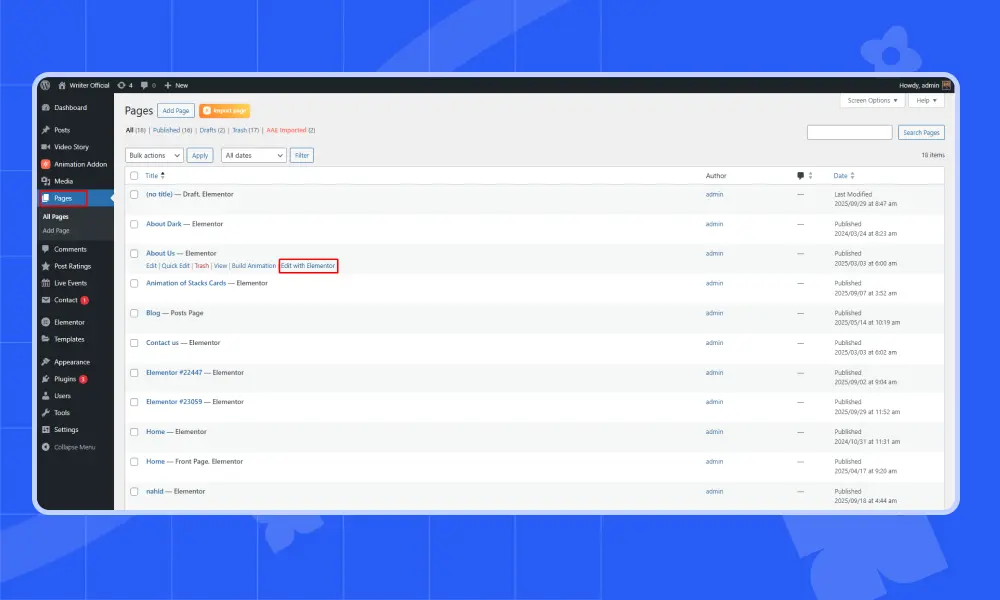
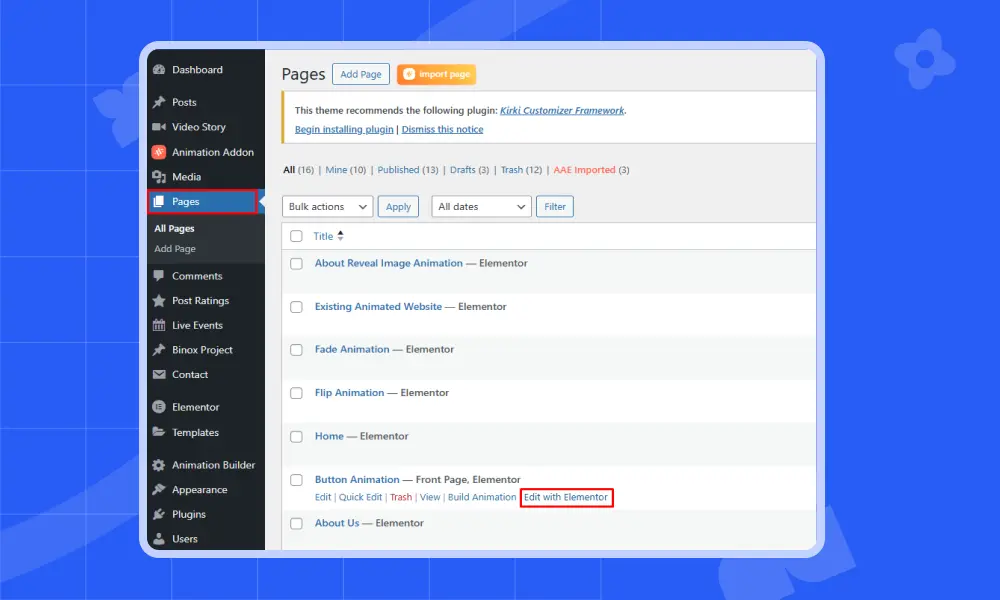
First, go to your WordPress dashboard → Pages → Select the page you want to edit → Click Edit with Elementor.
Step 2: Select the Button Widget
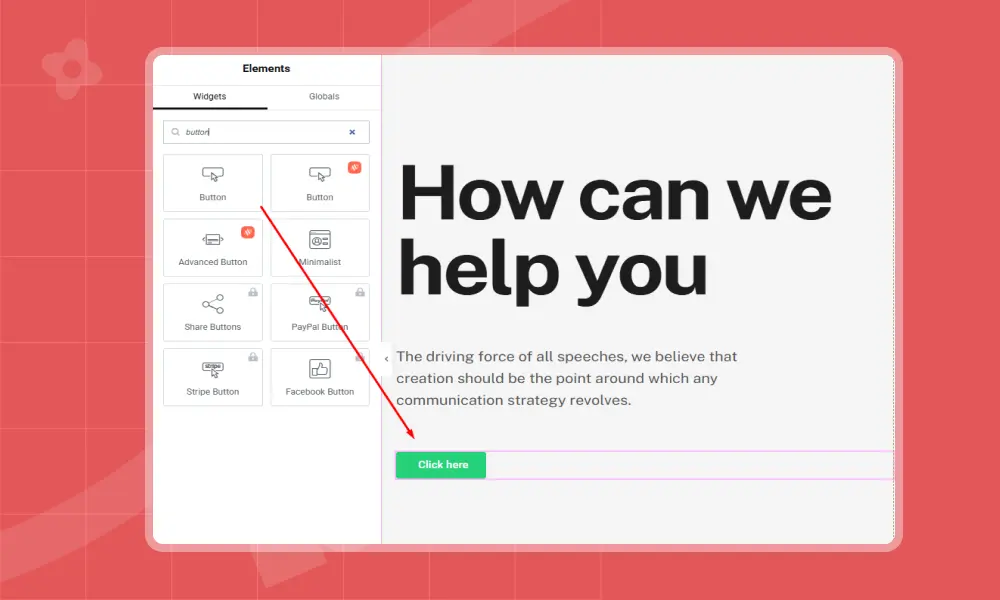
Click on the button you want to animate. If you don’t have a button yet, drag the Button widget from the Elementor panel onto your page.
Step 3: Apply Motion Effects
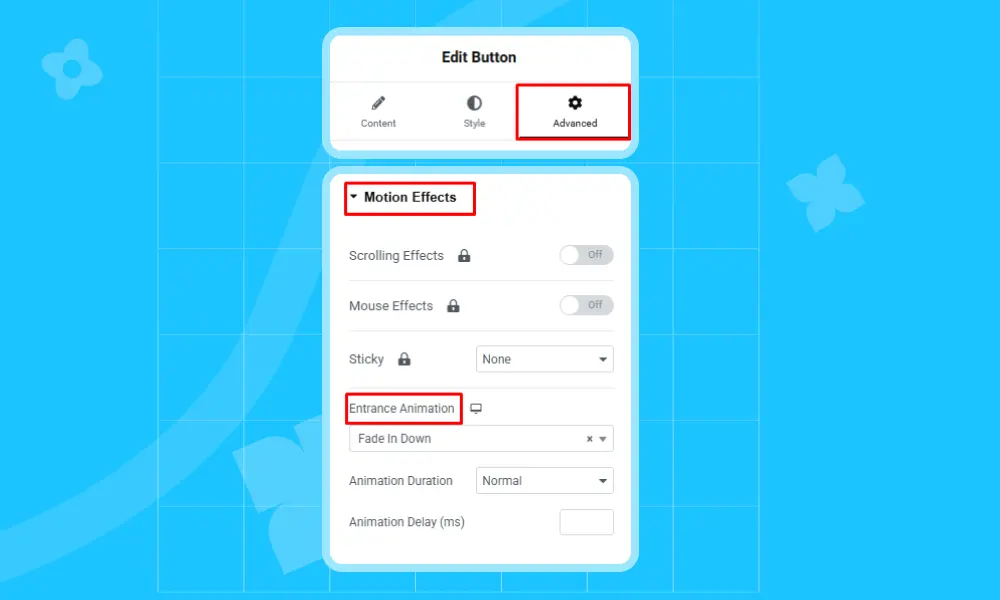
Click on the button. From the edit button options in the left panel, click the Advanced tab.
Scroll down to Motion Effects → Enable Entrance Animation. Choose the animation type (e.g., Fade In, Zoom In, Slide In). Set the Animation Duration (how long the effect takes). You can also set Animation Delay to control when the effect starts.
Step 4: Add Contents
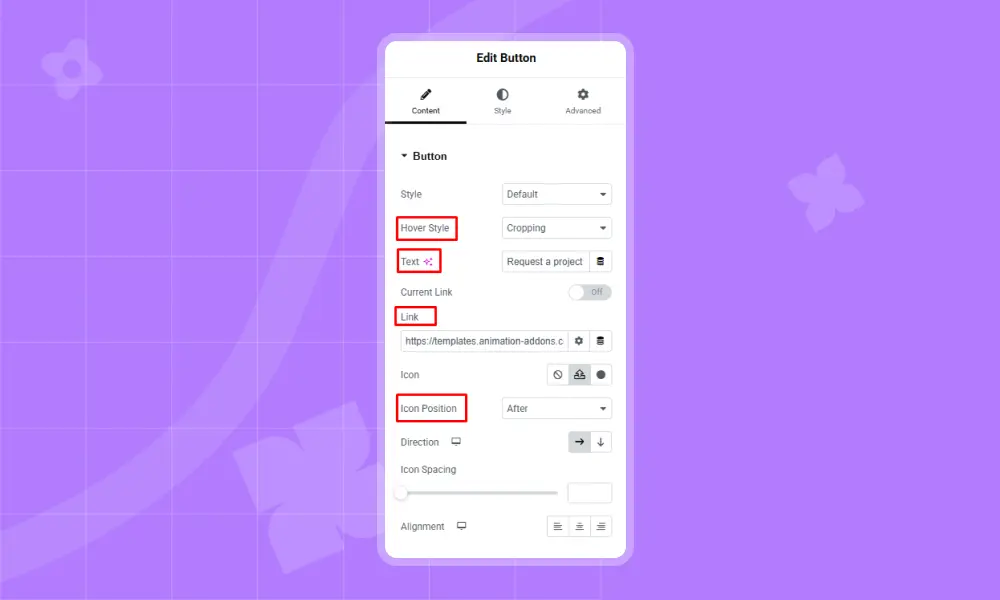
From the Content, you can add text for your button. You also change hover style, add link of your button and can also change the position, spacing and alignment of your icon.
Step 5: Add Hover Effects
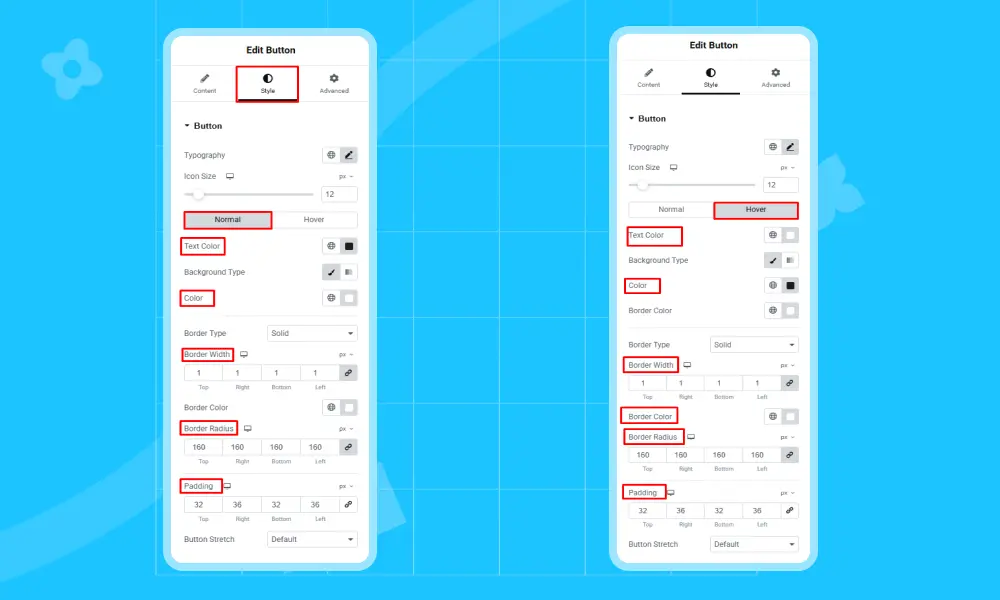
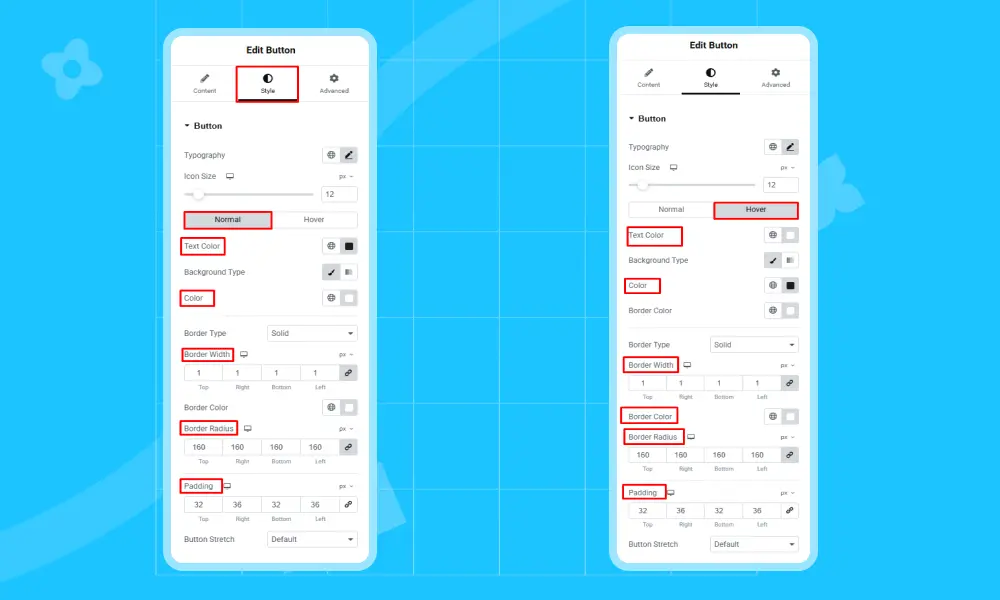
Go to Style and you will find 2 options – Normal and Hover. For both, the features are quite similar. Change background color, text color, or add subtle transition effects according to the requirements of your website. You can also change border color, border width, border radius according to your design.
Step 6: Preview and Save
Click the Preview icon to see the animation in action. Once satisfied, click Update to save changes.
Method 2: How to Add Animated Buttons in Elementor Using Addons or Plugins
Step 1: Install an Animation Addon Plugin
Go to WordPress Dashboard → Plugins → Add New. Search for plugins like Animation Addons or any animation plugin you prefer. Click Install Now → Activate.

Step 2: Enable the button widget
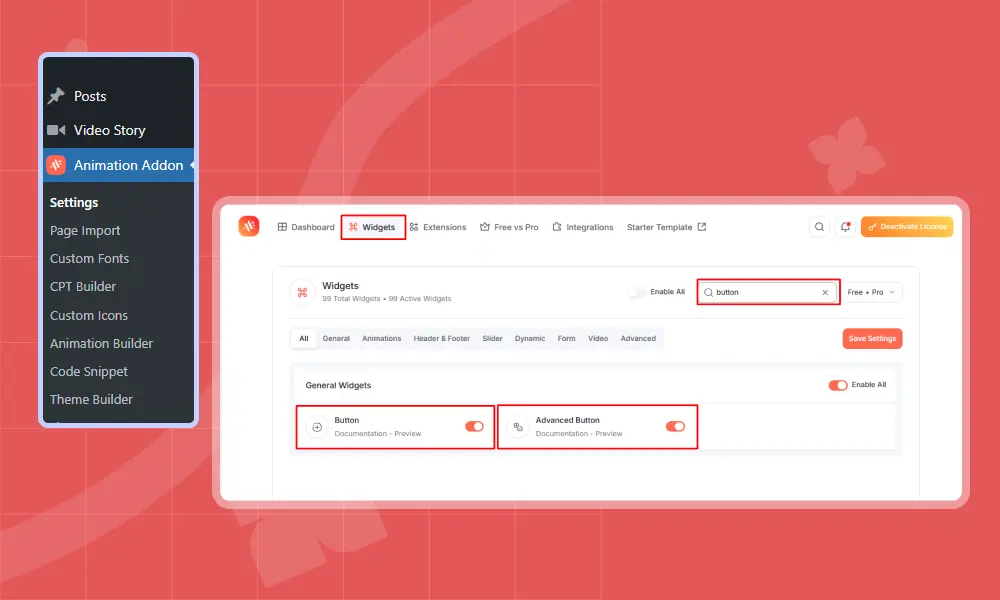
After activating the animation addons, you need to enable the button widget. From the left panel, go to Animation Addons → Widgets. Search button from the search bar, then enable button and advanced button from the list.
Step 3: Open Your Page in Elementor
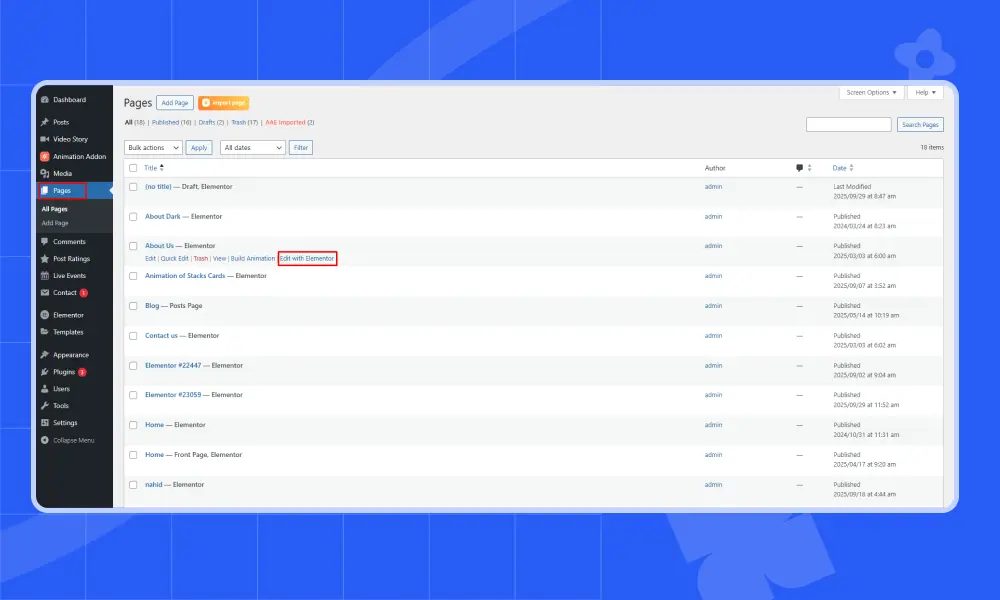
Now, from the WordPress dashboard, navigate to Pages. Select the page you want to edit and click on →Edit with Elementor.
Step 4: Select the Button Widget
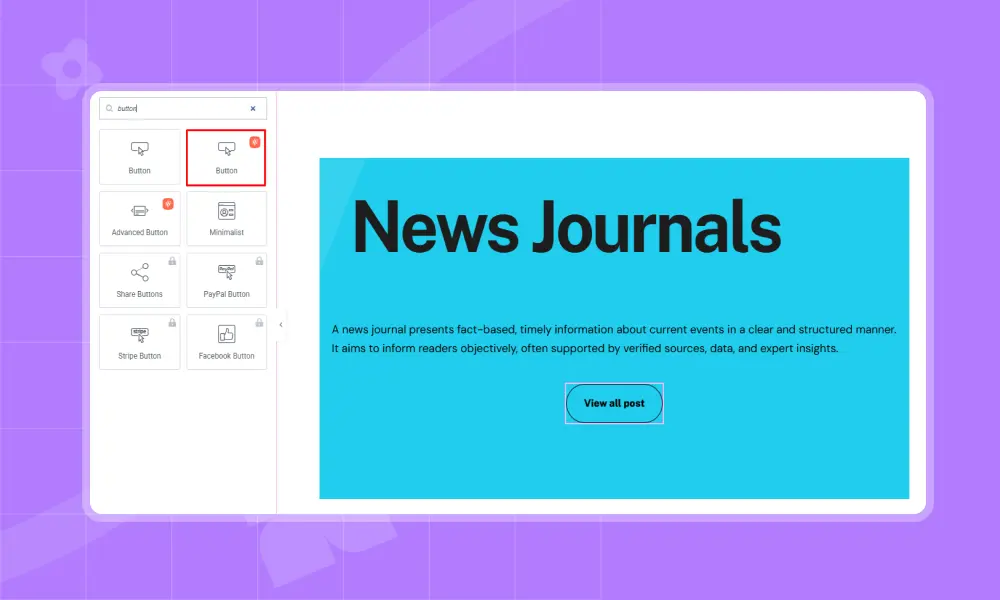
Now, click on the + sign of the top left corner. Under the Widgets section, search for the button widget of Animation Addons. Drag a Button widget from the panel and drop it on the required container.

Step 5: Apply Animation Addons Settings
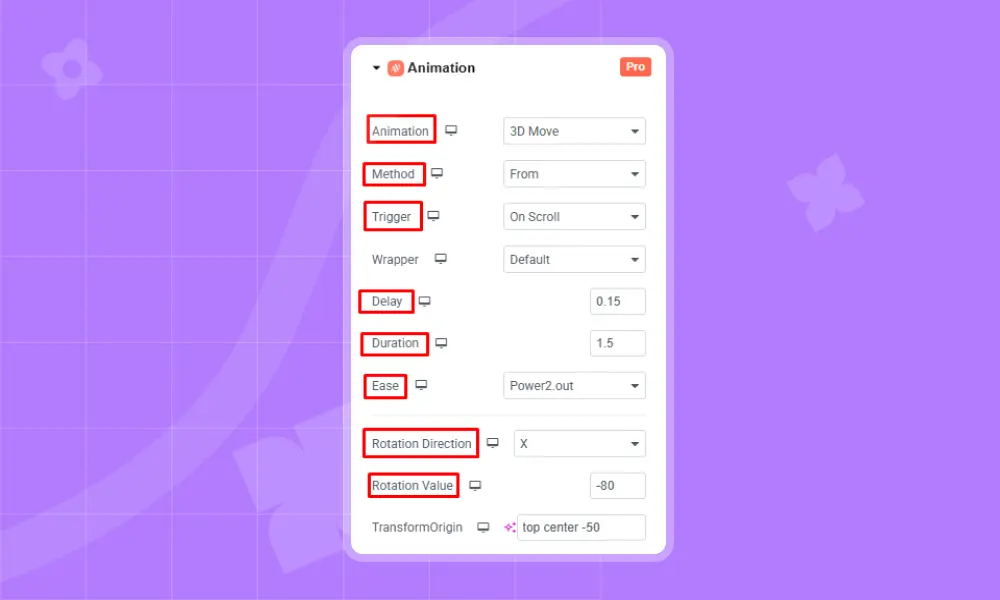
Select the button widget. From the left panel, click on the Advanced and choose an animation for your button widget. Under the Animation section, click which type of animation you want – 3D move, fade or custom. You can also set the delay, duration and rotation direction according to your needs.
Step 6: Apply Style to your Buttons
Now, go to Style from the left panel. Here, you can apply text color, background color, topography, border type, border radius and many more for the normal and hover options for the button.
Step 7: Preview and Save
Click the Preview button to see your Elementor animated button in action. Once satisfied, click Update to save changes.
Method 3: How to Add Button Animations Using Custom CSS
Step 1: Open Your Page in Elementor
You can add button animations using custom css. First, go to WordPress Dashboard → Pages → Edit with Elementor.
Step 2: Select the Button Widget
Click on the button you want to animate. If there’s no button yet, drag the Button widget onto the page from the widget category.
Step 3: Go to Advanced → Custom CSS
In the left panel, click Advanced. Now, scroll down to Custom CSS. Here, Custom CSS is available in the Elementor Pro.
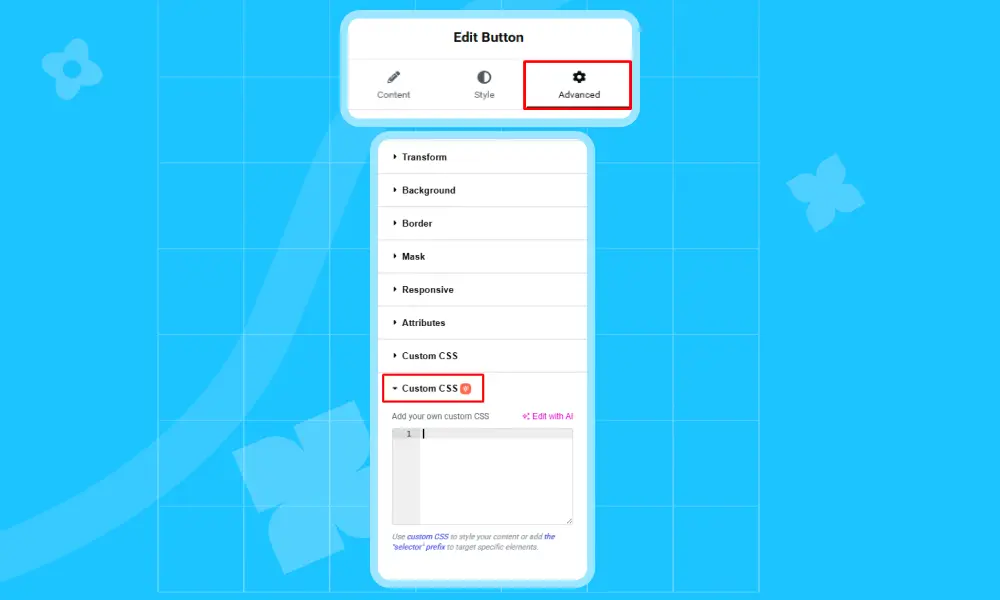
Step 4: Add CSS Code for Button Animation
We want to create a hover effect for the button animation. So, copy the following code and paste it in the custom css.
					selector:hover {

  transform: scale(1.1);

  transition: transform 0.3s ease;

}
This will make the button slightly enlarge on hover smoothly.
Step 5: Customize Style to Button Widget
You can also customize style for the button from the style section. You can change color, background color to the button according to your needs. You can also change color when you hover on the button.

Step 6: Preview and Save
Click the Preview icon to see the Elementor animated button effect. Once satisfied, click Update to save changes.
Best Practices for Button Animations in WordPress & Elementor
Adding motion to your website buttons can make a big difference in how users interact with your site. However, when using Elementor button animation or WordPress animated buttons, it’s important to find the right balance between creativity and usability.
Simple and Purposeful
The goal of any animated button Elementor design is to guide users toward an action like signing up, purchasing, or clicking a CTA, not to distract them. A smooth Elementor button hover animation, for example, can make a button feel more interactive and inviting without overwhelming the user.
Speed and Performance
Heavy or complex button animation WordPress scripts can slow down your site. Use lightweight effects like fade, scale, or color transitions that look professional but load quickly. Elementor’s built-in options or simple CSS animations are often enough to achieve a clean result.
Consistency
Try to use a similar button animation Elementor style across your pages so users have a familiar experience. Too many different effects can make your site look messy or confusing.
Responsiveness
Make sure your animated buttons work well on mobile, tablet, and desktop devices to perform responsive fade animation, 3D animation and many more animations. A hover effect may look great on a computer but might not translate well on touch screens.
Accessibility
Avoid rapid flashing or overly bright animations that could affect sensitive users. Every visitor should be able to enjoy your website comfortably.
When implemented thoughtfully, WordPress button animation can improve engagement, highlight key actions, and increase conversions, helping your design look modern and user-friendly while encouraging visitors to click and interact naturally.
Troubleshooting Common Issues with Button Animations
Even though Elementor button animation and WordPress animated buttons are easy to set up, you might sometimes face small issues that prevent animations from working properly. Don’t worry, most of these problems can be solved with simple fixes.
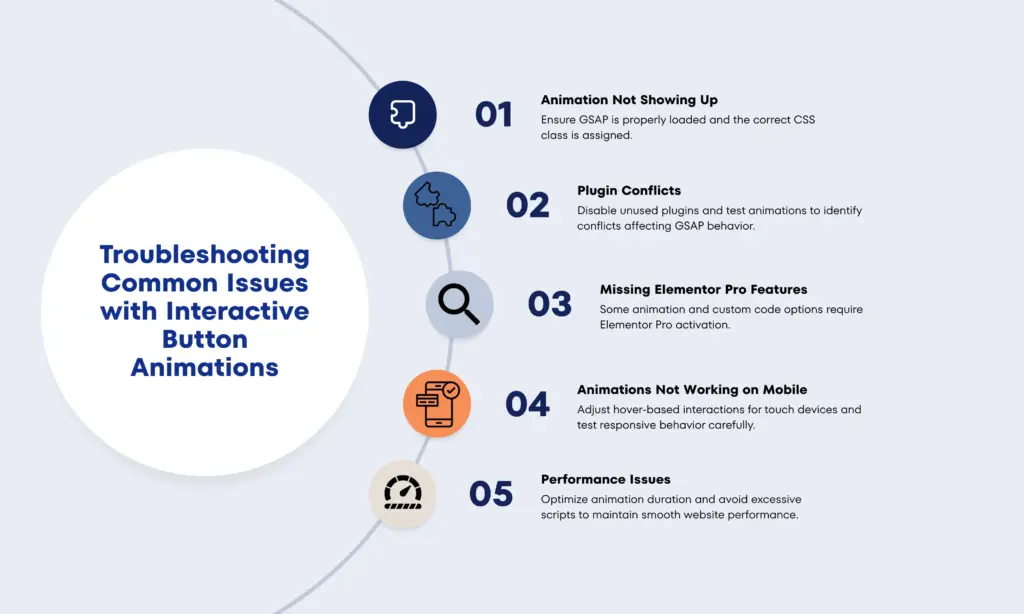
Animation Not Showing Up
If your animated button Elementor effect isn’t appearing, first check that your animation settings are properly configured. Ensure that “Entrance Animation” or “Hover Effects” are enabled in Elementor. Also, confirm that no other plugin or custom CSS is overriding your animation. Clearing your browser and Elementor cache can also help refresh the effect.
Plugin Conflicts
Sometimes, third-party plugins interfere with button animation WordPress scripts. To test this, temporarily deactivate your plugins one by one and see if the issue disappears. Once you identify the conflicting plugin, look for updates or alternative options.
Missing Elementor Pro Features
If the Custom CSS or motion effects aren’t available, make sure you’re using Elementor Pro, as the free version doesn’t include these advanced tools for elementor animated buttons.
Animations Not Working on Mobile
Hover-based effects often don’t trigger on touch devices. To fix this, use click-based or entrance animations for mobile users so your WordPress button animation still feels interactive.
Performance Issues
If your animations look slow or laggy, optimize your site. Compress images, enable caching, and avoid using too many heavy animation scripts.
By addressing these common issues, you’ll ensure your animated button WordPress designs run smoothly across all devices. When your animations work as intended, they enhance engagement, highlight CTAs, and create a seamless, enjoyable user experience that drives more conversions.
Conclusion
Interactive buttons can transform an ordinary website into an engaging, user-friendly experience. If you use built-in Elementor effects, animation plugins, custom CSS, or advanced GSAP techniques, each method offers creative ways to enhance interaction. The key is to keep your animated button Elementor designs smooth, consistent, and purposeful. Start experimenting with these techniques today to create buttons that truly bring your WordPress website to life.
FAQs
Can I add button animations in Elementor without using Elementor Pro?
Yes, you can! The free version of Elementor includes basic motion and hover effects. However, Elementor Pro gives you more flexibility with Custom CSS, advanced motion effects, and elementor animated buttons for complete design control.
Do button animations affect website speed?
Simple button animation WordPress effects like fades, slides, or color changes have very little impact on site speed. But heavy animations or multiple animation plugins can slow your site down.
Can I use animation plugins with Elementor?
Absolutely! You can install plugins like Animation Addons for Elementor to access additional animation styles. These make it easy to create stunning WordPress animated buttons without writing code.
Are button animations visible on mobile devices?
Some Elementor button hover animation effects may not work on touch screens since they rely on hovering. Instead, use click or entrance animations for better responsiveness across mobile and tablet devices.
What’s the best way to make animated buttons stand out?
Use smooth, subtle effects that draw attention to your call-to-action. A gentle scale-up or glow effect on hover often works best. The goal of an animated button Elementor design is to enhance user engagement, not distract from your message.


Leave a Reply