


 Login
Login


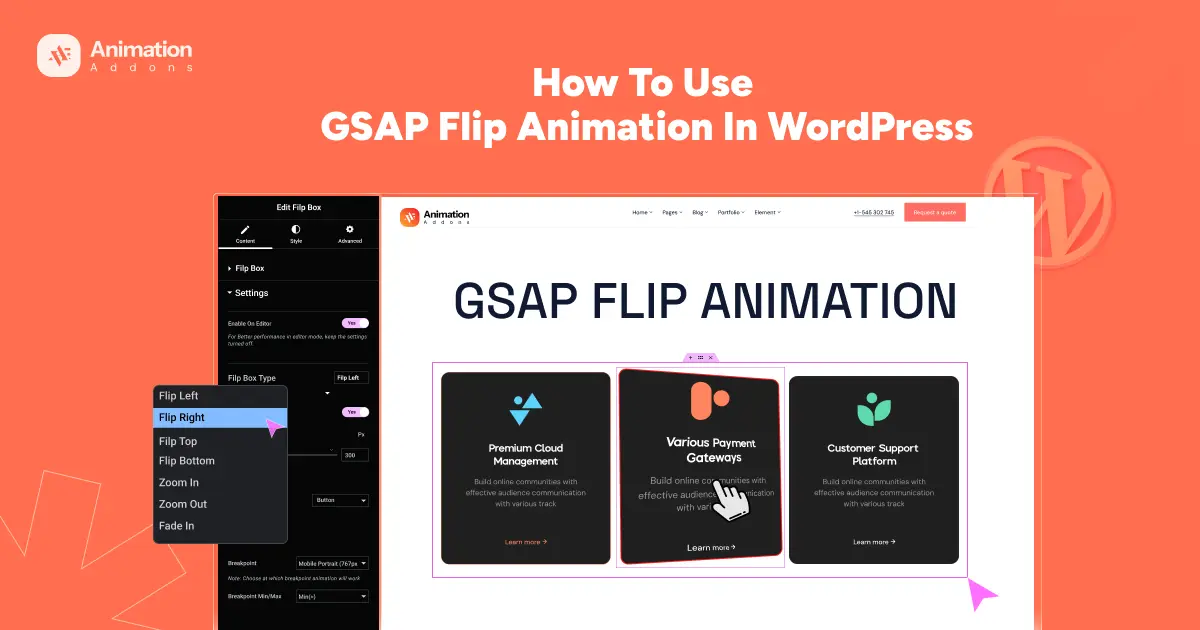
Ever clicked on a website and watched content shuffle, flip, or glide into place so smoothly it felt almost magical?
That is the power of GSAP Flip animation. It is the secret sauce behind those polished, modern transitions on big brand sites.
Instead of elements snapping or jumping around, GSAP Flip makes changes look effortless and natural. Whether you are swapping images, rearranging layouts, or flipping a product card, it works smoothly. The best part? You can add it to your WordPress site without writing any code.
In this post, you will learn what GSAP Flip animation is and why animation is important to improve user experience on the website. You will also see how to add it to your site using simple no-code tools.
Plus, I will share real-world examples, performance tips, and common mistakes to avoid. This way, your animations look great and run smoothly on any device.
What is GSAP Flip Animation?
GSAP Flip is a feature inside the GreenSock Animation Platform (GSAP). It’s a popular JavaScript animation library. FLIP stands for:
- First: Capture the element’s starting position and size.
- Last: Capture its final position and size after layout changes.
- Invert: Compare the beginning and ending positions.
- Play: Animate the element smoothly from the first to the last state.
The FLIP transition technique makes changes smooth. It feels natural. It works like flipping a card, moving items in a list, or changing pictures in a gallery. Instead of jumping quickly from one look to another, things slide and flip nicely.
This improves your WordPress frontend Flip animation performance. It makes the website easier to use and more lively and professional.
Overall, GSAP themes and templates is very helpful for websites where things change a lot, like online shops, portfolios, or galleries. It keeps the animations running well and looking good, even when the page changes a lot.
Why Use GSAP Flip Animation on Your WordPress Site?
GSAP Flip animation helps your website look nicer and keeps visitors engaged.
Here’s why it is good:
Makes Things Move Smoothly
Flip animation lets things on your website move in a smooth and natural way. Instead of jumping suddenly from one place to another, elements flip or slide gently. This kind of motion catches people’s attention and makes your site look more polished and professional.
Shows More Information Clearly
A flip animation lets you see more details on the back of something. For example, a product card might turn around to show the price, description, or a button to buy. This way, your website stays simple but still gives visitors all the important information.
Helps People Enjoy Your Site More
Animations like Flip make browsing your site more fun and interesting. Visitors enjoy exploring when things move nicely and respond to their actions. This can keep them on your site longer and encourage them to click more pages or buy products.
Makes Your Site Look Modern
Flip animations are used by many top websites and apps today. They give your site a fresh, up-to-date feel that shows you care about good design. A modern design helps visitors trust your site and feel comfortable browsing it.
Works Fast and Doesn’t Slow Your Site
GSAP animations are designed to run smoothly without slowing your website down. A fast-loading site keeps visitors happy and stops them from leaving early. It also helps your site rank better on search engines like Google.
For example, when you hover on a product, it flips to show more info. Or pictures in a gallery flip to show captions. These small moves help your site stand out.
Best No-Code Way to Add GSAP Flip Animation in WordPress
GSAP Flip animation makes layout changes smooth and natural. It moves elements by tracking their start and end positions, creating smooth flipping and transitions.
Many users want this effect but don’t want to learn coding. They often fear their website might load more slowly. This is where no-code tools help. They let you add GSAP Flip animations easily. You don’t need to code in JavaScript or manually upload files. The GSAP Flip plugin for WordPress lets you create layout animations without coding.
Let me introduce the best plugin for GSAP flip animation in WordPress. It will let you add smooth flip animations to your WordPress site quickly. With it, you can flip cards, images, or text to make your site more interactive.
Let’s explore the plugin.
Animation Addons
Animation Addons for Elementor is a powerful no-code animation plugin for WordPress. It combines GSAP animations with a visual timeline-based animation builder. Plus, a massive library of 100+ widgets, 25+ extensions, and 10K+ animated templates.
With both free and pro versions, it lets users animate new or existing designs without coding. Ideal for creatives, freelancers, and agencies, it’s the first complete visual animation solution inside WordPress.
Here’s an easy guide to use GSAP Flip with Animation Addons.
Step 1:
First and foremost, make sure you have installed Animation Addons on your WordPress site.
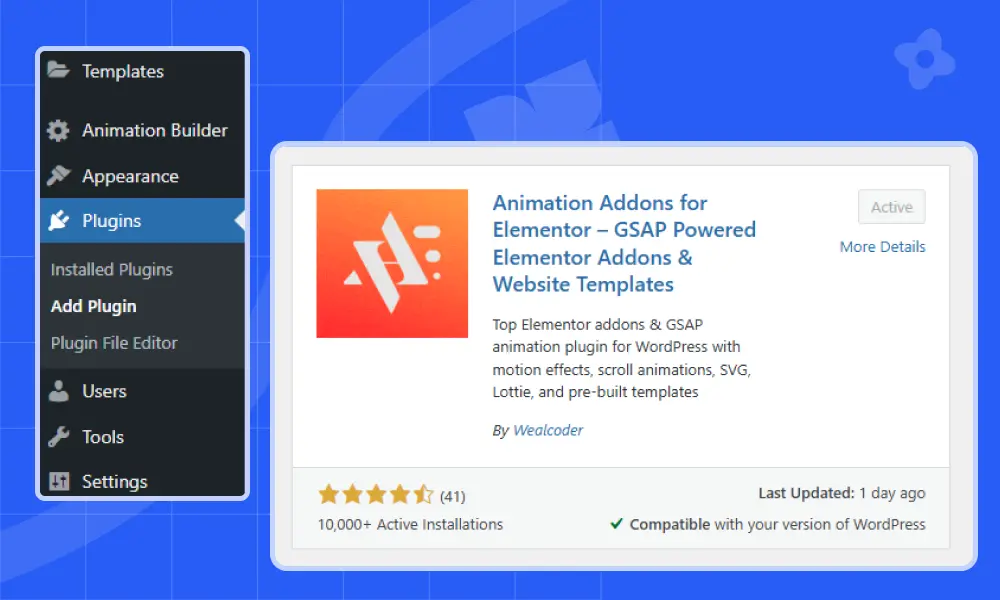
Step 2:
Afterward, open the Animation extension, find the ‘Widgets’ section, and turn on Flip Box by switching the toggle.
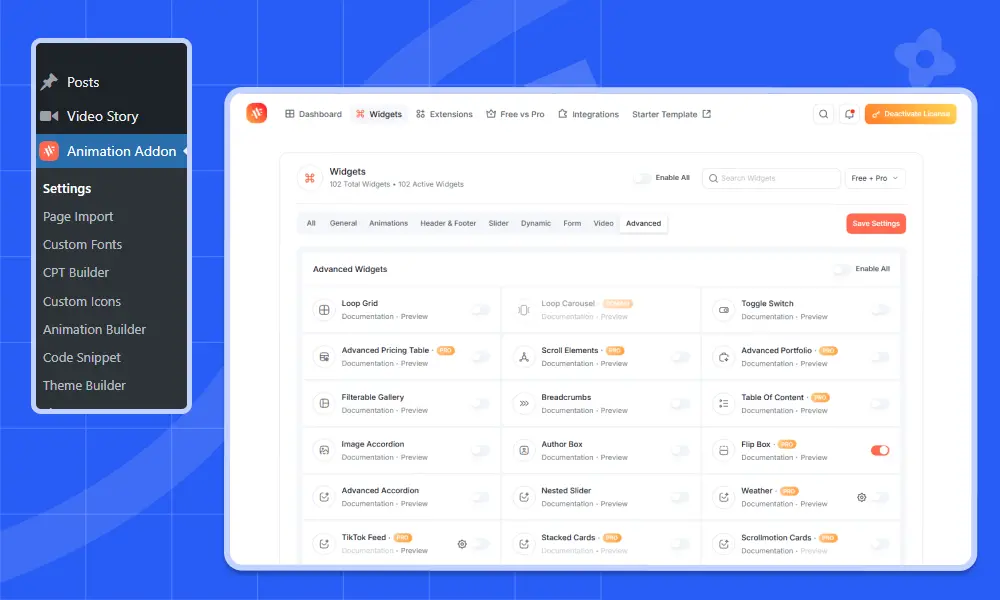
Step 3:
Then, go to your Elementor page and click on the ‘+’ icon at the top. After that, search for ‘Flip Box’ using the search bar.

Step 4:
Clicking the Flip Box triggers the GSAP flip animation instantly.
To get the look you want, you need to adjust a few basic settings for the front and back sides.
On each side, you can show an image, an icon, or leave it blank. The choice is yours.
Front Side
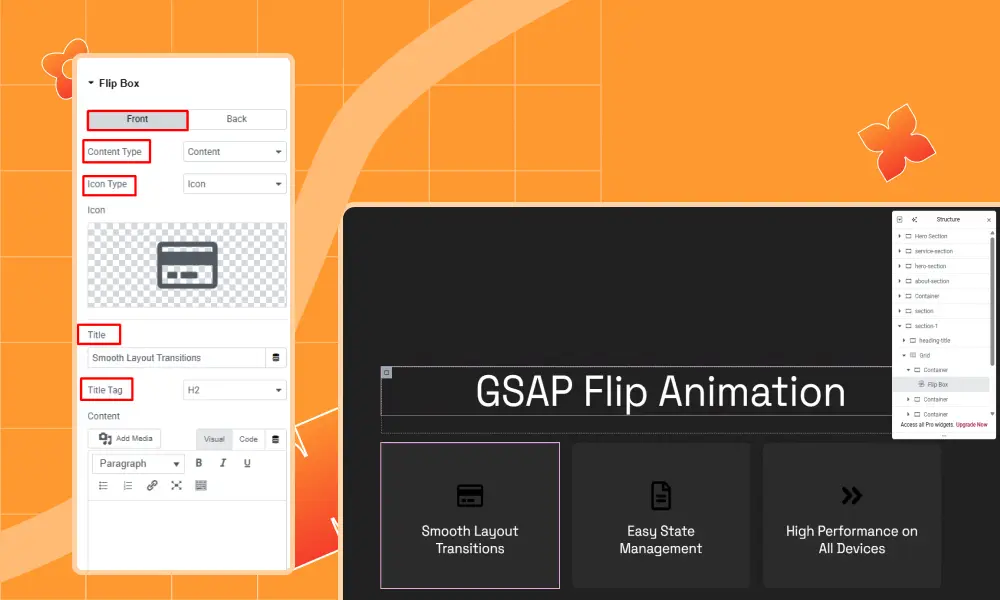
- Start with the front section first. There is a setting called Content Type that lets you pick either regular content or a saved template. This example uses Content, but you can choose what fits you best.
- Next, look at the Icon Type setting. It offers three options: None, Image, or Icon. Here, we use an icon from the icon library.
- Enter any title you prefer.
- Here, the title tag is set as H2, but feel free to change it to any tag you like.
- In the paragraph section, add your own message. For this, we didn’t add any text.
- In the content section, click ‘Add Media’ and pick the image you want to flip. Here, we did not add any media files.
Back Side
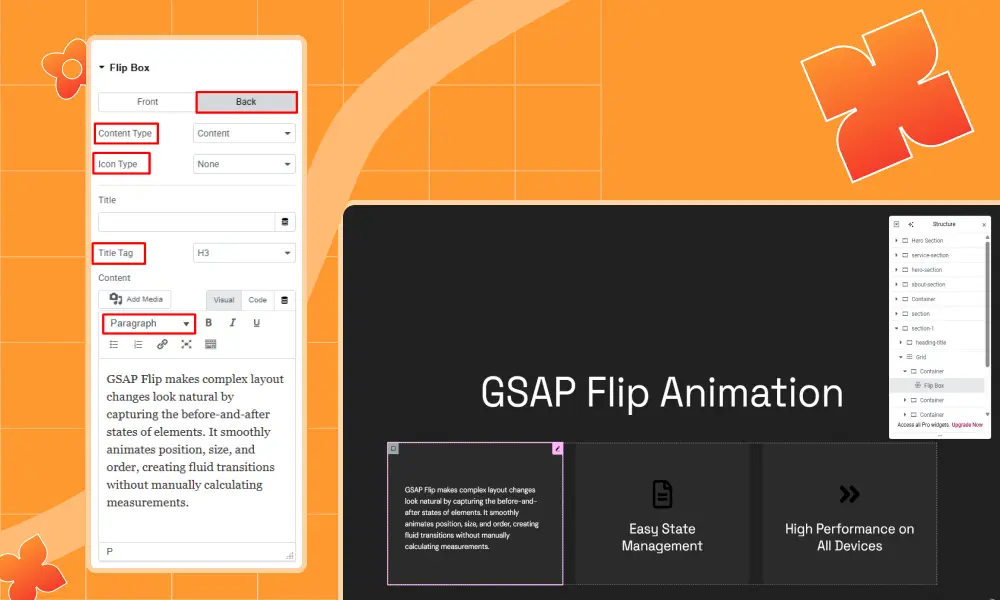
- In the Content Type of back side, we uses Content, but you can choose what fits you best.
- Next, at the Icon Type setting, we keep it none.
- Enter any title you prefer. Here, we keep it blank as per our design.
- Then, the title tag is set as H3, but feel free to change it to any tag you like.
- In the paragraph section, add your own message. For this, we add some texts.
Step 5:
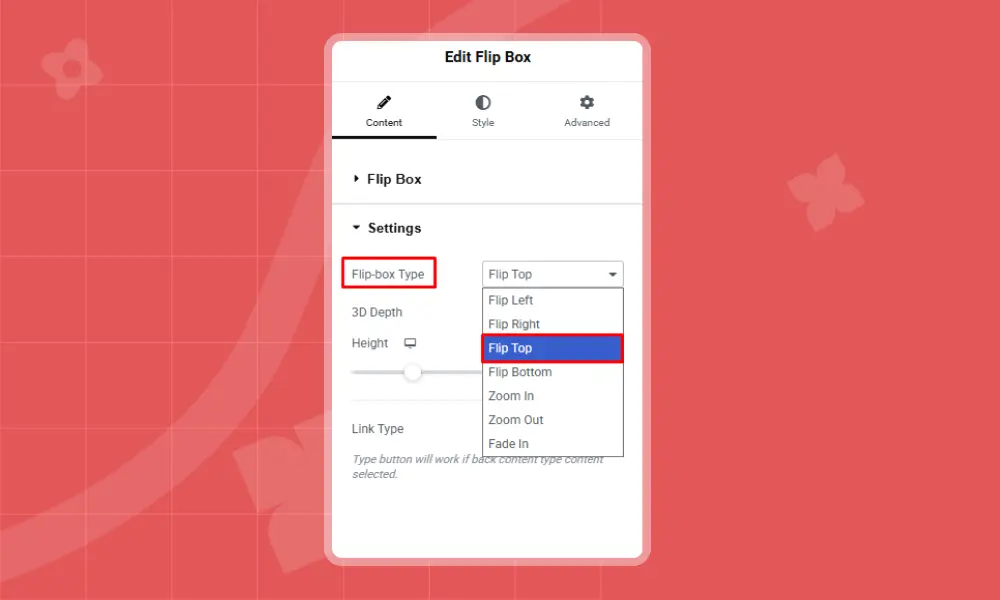
Next, go to the settings option and choose the flip effect you want for your element. You will see several options like Flip Left, Flip Right, Flip Top, Flip Bottom, Zoom In, Zoom Out and Fade In.
For example, here it is set to Flip Top, but you can select any effect you prefer. Since I select the flip top effect, it will make the element flip from the top side.
Step 6:
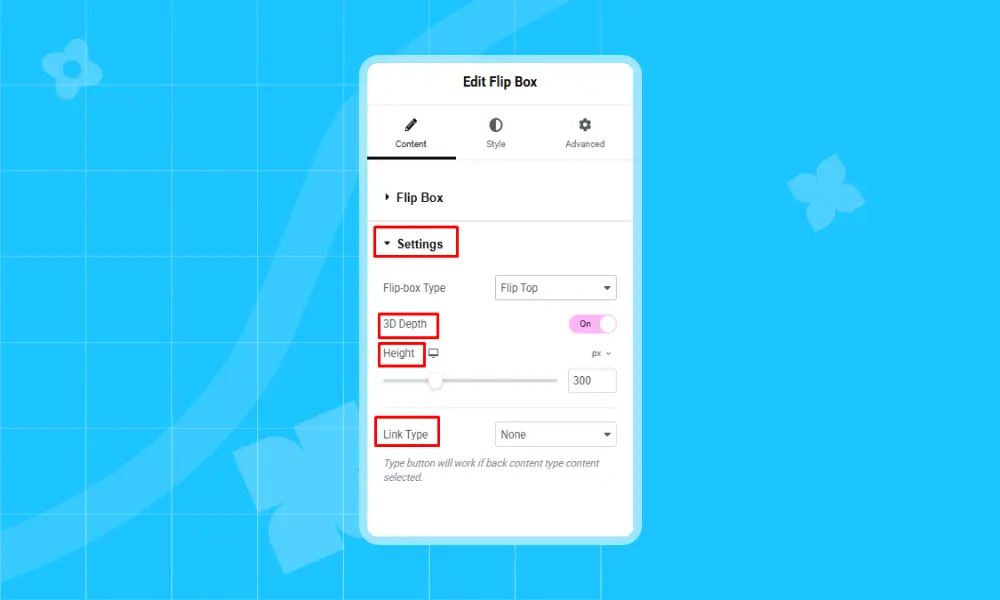
Next, go to the 3D Depth settings. Turn on the option to add a 3D effect to your element. I turned it on, but you can choose what looks best for you.
Then, set the height to 300 pixels. You can pick any size that fits your design.
For Link Type, choose from None, Button, or Wrapper. I picked none here, as it will not direct to any links.
Step 7:
Lastly, hit the ‘Publish’ button, and preview the flip animation.
Final Output
Now you know how to add GSAP Flip animation with a plugin. Next, let’s look at common mistakes to avoid so your GSAP Flip animations stay smooth.
How to Avoid Common GSAP Flip Mistakes
GSAP Flip is great. If you get it right, animations feel smooth and effortless. Get it wrong, and well, you might end up with slow, jumpy motion that makes people leave your site.
Below are the usual mistakes made with GSAP Flip, and how you can avoid them:
Animating Too Many Elements at Once
I often see people try to animate the entire page. Consequently, excessive animation can cause lag or stutter on the website while scrolling. Especially on phones or tablets.
A better approach is to:
- Focus on the few elements that matter most.
- Break big moves into smaller steps or run them one after another.
- Save Flip for key moments, like opening a menu or flipping a product card.
- Always check it on multiple devices before hitting publish.
Using Huge, Heavy Images
Big images are animation killers. They take forever to load and slow the browser down while the movement’s happening.
If you can, always:
- Compress before uploading.
- Stick to the size you actually need. No giant files hiding in tiny spaces.
- Lazy-load images so they appear only when someone scrolls to them.
- Use formats like WebP for a good balance of quality and speed.
Skipping Mobile Checks
It’s easy to design on a desktop and think, “Yep, looks perfect.” Then you open it on your phone, and it’s a disaster. Phones and tablets don’t have the same processing power as laptops. Some animations will feel choppy or even break completely.
What you should do:
- Test on real devices, not just in your desktop browser.
- Use dev tools to get a quick mobile preview.
- Simplify and shorten animations for smaller screens.
- Turn off non-essential effects for very slow devices.
Ignoring Proper Cleanup
If the Flip animation is not reset correctly, it can cause a strange problem. This happens when it runs too many times. The animation might get messy.
Therefore, a better approach is to:
- Turn off Flip animations when they end.
- Reset the items to how they were before starting the animation again.
- Don’t start new animations on items that are already moving.
Quick Tips for Smooth GSAP Flip Animations
Animations make your website more fun and help visitors see what matters most. They guide visitors and make the site easier to use. But if animations are not done well, they can slow your site down.
So it’s important to keep them smooth and simple for a good experience. Here are some summary performance tips for using GSAP Flip Animation:
- Only animate the parts that really need it.
- Don’t animate too many things at once.
- Use GSAP’s built-in tools like will-change to help.
- Test how animations work on phones and tablets.
- Load big images and files only as needed.
- Keep your animations short and natural.
Done right, flip animations make your site look better without making it slow.
Real Examples of GSAP Flip Animation in Action
GSAP Flip animation is a useful tool that can make many parts of your website look better. It helps show smooth changes between different views of your content. This makes it easier for people to understand what is happening and keeps them interested.
Here are some ways flip animation works best in real websites:
Card Flip Effects and Content Switches
Flip animation is often used on cards, like product cards, team profiles, or info boxes. Using the GSAP Flip animation technique in WordPress, a card flips. It shows more information on the back. This happens when the card is clicked or hovered.
Why it works: It keeps the page simple but still shows more details without opening new pages.
Example: An online course site where the front of the card shows the course name and the back shows the teacher, syllabus, or reviews.
Reordering Items in a Grid or List
Flip animation makes moving items in a list or grid look smooth. For example, if you sort products by price or filter posts by category, the items slide into their new spots without jumping around.
Why it works: It helps people see where things moved to and makes using the site easier.
Example: A shop website that changes product order when switching from “Best Selling” to “Newest.”
Gallery Item Transitions
Flip animation makes picture galleries change photos or layouts smoothly and nicely. Instead of pictures jumping suddenly, the flip effect helps the change look natural. This makes your website look more professional and keeps visitors interested.
Why it works: People see the gallery change step by step instead of a quick jump. This makes it easier to understand and nicer to watch.
Example: A photo gallery where you can sort pictures by type, and the images flip smoothly when you pick a new group.
Product Feature Comparisons
Flip animation helps show differences on product pages. It flips between details or highlights features. This helps people focus on important information. Breaking info into small parts makes it easier to understand.
Why it works: It draws attention and helps users understand information bit by bit.
Example: A tech site where users flip between different models or compare specs side by side.
Smooth UX Moments
Flip animation makes small things like pop-ups or menus look smoother. For example, a pop-up form flips open instead of just popping up. This smooth motion makes the website feel more polished and easier to use. It helps people notice things without being surprised.
Flip animations on menus or other parts keep the site looking clean and professional.
Why it works: Instead of appearing suddenly, things move smoothly. This helps the site look neat and professional.
Example: A newsletter sign-up that flips open or a menu that flips its style while scrolling.
Conclusion
GSAP Flip animation is a great way to add smooth motion to your WordPress site. You do not need to know how to code. Flip makes elements move naturally from one place to another. This helps your site look modern and professional.
Using tools like Animation Addons for Elementor, you can add Flip animations easily. You can flip cards, images, menus, and more. Keep your animations simple. Test them on phones and tablets. Also, use small images so your site stays fast.
Done right, Flip animation makes your website feel alive. It helps visitors enjoy your site more. So, what are you waiting for? Try GSAP Flip on your WordPress site now.
FAQs
Do I need coding skills to add GSAP Flip animation in WordPress?
No, you don’t have to know any coding to add GSAP Flip animations. Many tools let you add these effects by clicking and choosing options. You won’t need to write any JavaScript or code at all. This makes it easy for anyone to add cool animations to their site.
Which plugin is best for GSAP Flip in WordPress?
There are a few plugins that let you use GSAP Flip animations. Some are simple to use, while others have more features. The best one depends on what you want to do and how you build your site. Look for plugins that get regular updates and have good help if you need it.
GSAP Flip vs. Standard Animation: What’s the difference?
GSAP Flip animation moves things smoothly by watching where they start and end. On the other hand, standard animation just moves things from one place to another and can look jumpy. Flip is better when things change size or move, so it looks nice and smooth.
Will flip animations slow down my website?
Flip animations can make your site slower if not done right. But if you keep your images small and use animations carefully, your site will stay fast. It’s important to check how the animations work on different devices. Doing this helps your site run smoothly for everyone.
Can flip animation be used on mobile devices?
Yes, flip animations work well on phones and tablets. You should test to make sure they look good on smaller screens. Sometimes simple animations work best on mobile devices. This way, your site looks nice and works well everywhere.

Leave a Reply