


 Login
Login


Animation has become a core element of modern web design, transforming static interfaces into engaging digital experiences. GSAP is one of the most powerful animation libraries for the modern web, but many creative developers don’t use it efficiently. Common mistakes like animating the wrong properties, overusing scroll effects, or structuring animations poorly can hurt performance and make projects difficult to scale.
From optimizing performance and managing timelines to avoiding common mistakes and improving user experience, there are essential techniques every developer should know. In this guide, we’ll explore must-know GSAP animation tips that help you write cleaner code, create professional-grade effects, and deliver visually compelling experiences without sacrificing performance.
What Is GSAP and Why Creative Developers Use It?
GSAP (GreenSock Animation Platform) is a professional library for modern websites. Unlike basic CSS animation, GSAP gives you precise timing control, advanced sequencing, and smooth performance even in complex scenarios.
Creative developers prefer GSAP because it:
- Handles complex motion with predictable results
- Works across frameworks and CMS platforms
- Delivers consistent performance on all devices
- Scales from a simple effect to a full animation system
If animation matters in your product, marketing, or storytelling, GSAP gives you more control than CSS.
5 Core GSAP Performance Tips
GSAP is fast by default. But using it the wrong way can slow down rendering and scrolling.
Good performance improves when you animate the right things, keep animations organized, and remove them when they are no longer needed.
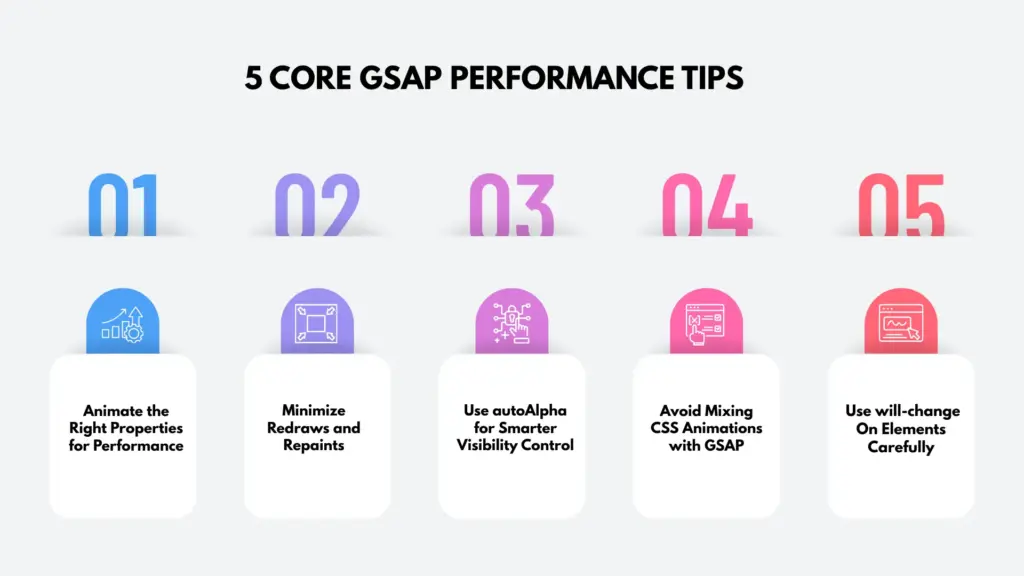
Here are the best practices that you can follow:
1. Animate the Right Properties for Performance
Not all CSS properties behave the same during animation. Some properties force the browser to constantly recalculate layout and repaint the page. This extra work reduces performance.
GSAP performs best when animations stay on the GPU.
Best properties to animate
- transform (translate, scale, rotate)
- opacity
- autoAlpha
These properties avoid layout recalculation and keep animations smooth, even on low-end devices.
Avoid animating
- top, left, width, height
- margin, padding
- box-shadow (especially heavy or repeated use)
Animating these properties causes layout shifts and slows down rendering.
💡
Pro Tip:
If you need to move an element visually, use transform: translate() instead of changing top or left. It looks the same but keeps animations smooth and fast.
2. Minimize Redraws and Repaints
Every animation frame uses CPU and GPU resources. Animating too many elements inefficiently causes performance to drop quickly.
Best practices
- Animate fewer elements at the same time
- Combine related animations into a single timeline
- Avoid reading layout values like offsetWidth during animation
GSAP timelines allow animations to run together instead of separately, which improves performance.
3. Use autoAlpha for Smarter Visibility Control
Instead of managing opacity and visibility separately, use autoAlpha. autoAlpha automatically applies:
- opacity: 0
- visibility: hidden
Why this matters
- Invisible elements do not block clicks
- You avoid extra conditional logic
- Animation code stays readable and consistent
This small habit improves performance, usability, and accessibility.
4. Avoid Mixing CSS Animations with GSAP
Running CSS animations and GSAP animations on the same element often causes conflicts.
Common problems
- Jittery motion
- Unexpected delays
- Timing mismatches
- Hard-to-debug overrides
If GSAP controls an element, let GSAP handle all motion and transitions for that element.
- Note
- Using CSS animations and GSAP together is fine as long as they don’t control the same property on the same element.
5. Use will-change carefully
will-change can improve performance, but overusing it creates memory pressure.
Best practices
- Apply it only to elements that actually animate
- Remove it after the animation completes
- Never apply it globally
GSAP already optimizes rendering internally, so will-change is rarely required.
- Note
- Adding will-change everywhere does not make a site faster. In many cases, it actually makes performance worse.
So far, you have covered some important GSAP animation tips. In the next section, you will see how to organize GSAP animations so they flow smoothly.
GSAP Workflow & Structure Guidelines
Clean structure is what separates animations that scale from animations that slowly break as a project grows. Without a clear workflow, even well-written animations become difficult to manage, debug, and reuse. GSAP is flexible, but that flexibility delivers the best results when animations are built with structure in mind.
Below are the most important GSAP workflow and structure practices to follow.
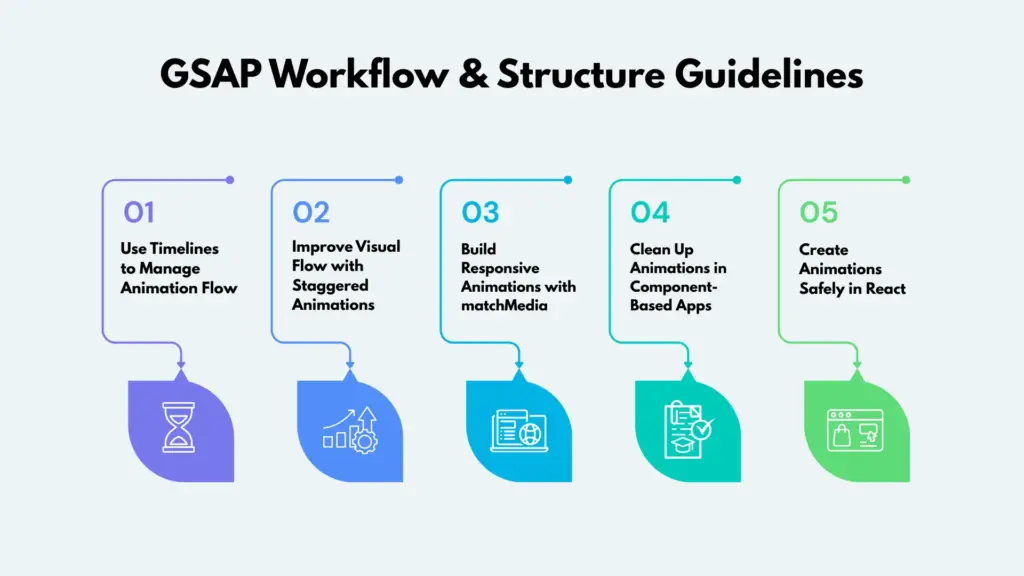
Use Timelines to Manage Animation Flow
Timelines are the foundation of professional GSAP workflows. Instead of creating isolated animations, timelines allow you to organize motion into a single, predictable sequence. This makes animation behavior easier to understand and control as projects grow.
Using timelines helps you:
- Sequence animations in a clear and logical order
- Control playback from one central point
- Synchronize multiple elements without manual delays
- Reuse animation logic across pages or components
Grouping animations into a timeline makes changes easier and reduces the risk of bugs.
💡
Pro Tip:
If you find yourself adding many delays to separate animations, that’s a sign that those animations should be grouped into a single timeline.
Improve Visual Flow with Staggered Animations
Staggered animations create rhythm and visual hierarchy. They guide user attention instead of overwhelming it. Animating many elements at the same time can feel chaotic. Staggering introduces motion gradually, making transitions feel intentional.
To use staggered animations effectively, consider:
- Adding small delay animations between elements
- Revealing content based on layout or direction
- Adjusting stagger timing for smaller screens
Staggered animations work especially well for text blocks, lists, cards, and grid-based layouts.
Build Responsive Animations with matchMedia
Animations should adapt to screen size, not fight against it. Responsive animation like image responsive animation, fade responsive animation is essential for modern websites because motion that works well on desktop can feel excessive on mobile devices.
With GSAP’s matchMedia, you can:
- Reduce movement distance on mobile screens
- Disable heavy effects on smaller devices
- Adjust scroll-based animations per breakpoint
This approach allows one animation system to support desktop, tablet, and mobile layouts without duplicate logic or workarounds.
💡
Pro Tip:
Start with desktop animation first, then simplify motion for mobile instead of trying to design mobile animations from scratch.
Clean Up Animations in Component-Based Apps
In component-based frameworks like React or Vue, animations must be removed when components change or unmount. Failing to clean up animations can lead to performance issues, memory leaks, and unexpected behavior.
To prevent these issues, always:
- Kill timelines when components unmount
- Remove ScrollTriggers when content updates
- Avoid recreating animations on every render
Proper cleanup ensures animations only run on elements that actually exist.
Create Animations Safely in React
React components re-render frequently, which means animation setup requires extra care.
To keep animations predictable and avoid conflicts, follow these best practices:
- Create animations only after the DOM is ready
- Scope selectors to the component instead of the entire page
- Use refs instead of global selectors
Properly scoped animations allow GSAP to integrate smoothly with React’s rendering cycle.
Cost-Effective GSAP Tips for Creative Teams
GSAP is commonly associated with advanced motion, but its biggest advantage is efficiency. Proper use of GSAP reduces development time, shortens revision cycles, and lowers long-term maintenance costs. This is especially important for creative teams working with tight timelines and frequent design changes.
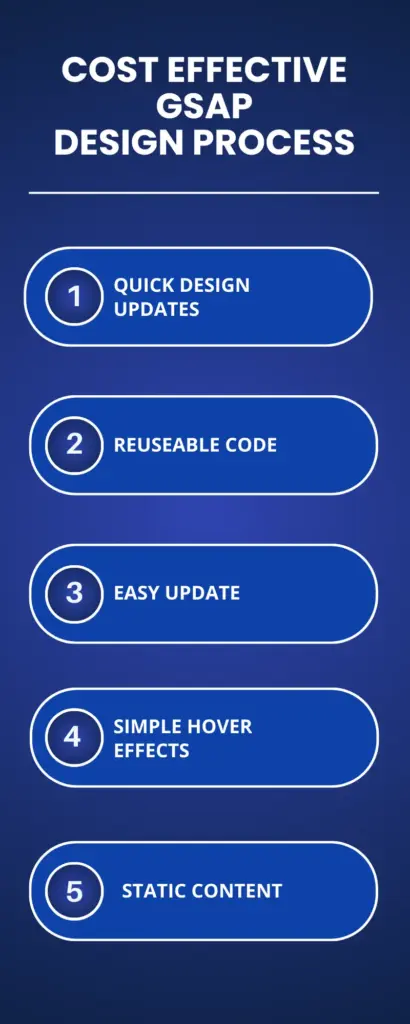
When GSAP Saves Development Time
GSAP is most cost-effective when animation needs to scale across multiple pages and layouts.
It helps reduce cost when:
- Animations repeat across pages and sections, allowing the same timeline to be reused instead of rebuilt
- Scroll animations need careful control without using weak CSS or messy JavaScript.
- Designers make changes often and need to quickly adjust timing, easing, or how far things move.
- Multiple animation states are needed, such as play, pause, reverse, or restart
In these cases, maintaining a clean GSAP timeline is faster and more reliable than managing scattered CSS animations.
When GSAP Is Overkill
GSAP isn’t necessary for every project. It may be unnecessary when:
- Animations are limited to simple hover effects
- No sequencing or scroll-based logic is required
- The project has no clear motion design goals
For content-heavy or mostly static websites, simpler solutions often lead to faster development and easier maintenance.
- Note
- Choosing not to use GSAP can be the right decision. Good animation design is about clarity, not complexity.
How Reuse Lowers Long-Term Cost
The strongest cost advantage of GSAP appears over time.
Reusable animation patterns help by:
- Reducing duplicate animation code across pages
- Making global updates faster and easier
- Keeping motion behavior consistent throughout the site
As projects get bigger, animation systems work better than one-time effects. Using structured GSAP timelines keeps animations easy to manage and prevents problems later.
Applying GSAP Across Project Types
GSAP works best when animations are used differently for each type of website. Animations that match the purpose of the site feel clear, helpful, and smooth instead of distracting.
Let’s take a look at where you can use GSAP animations in real projects.
Marketing and Landing Pages: Scroll-based storytelling, hero animations, and conversion-focused motion that guide attention without hurting performance.
SaaS and Product UI: Micro-interactions, state transitions, and feedback animations that improve usability and interface clarity.
Content-Heavy CMS Sites: Section-level animation, lightweight scroll effects, and a strong focus on readability and performance.
Animation-Driven Storytelling: Timeline-controlled narrative flow, ScrollTrigger-synced motion, and stable performance even at scale.
Easiest Way to Start with GSAP (Without Deep JavaScript)
Many developers want smooth GSAP animations, but don’t want to write hard JavaScript code. The good news is GSAP can be powerful without lots of code. There are a couple of ways you can use GSAP animation on your website. Either you can create GSAP animations using less code, or you can use no-code tools. Both options are available.
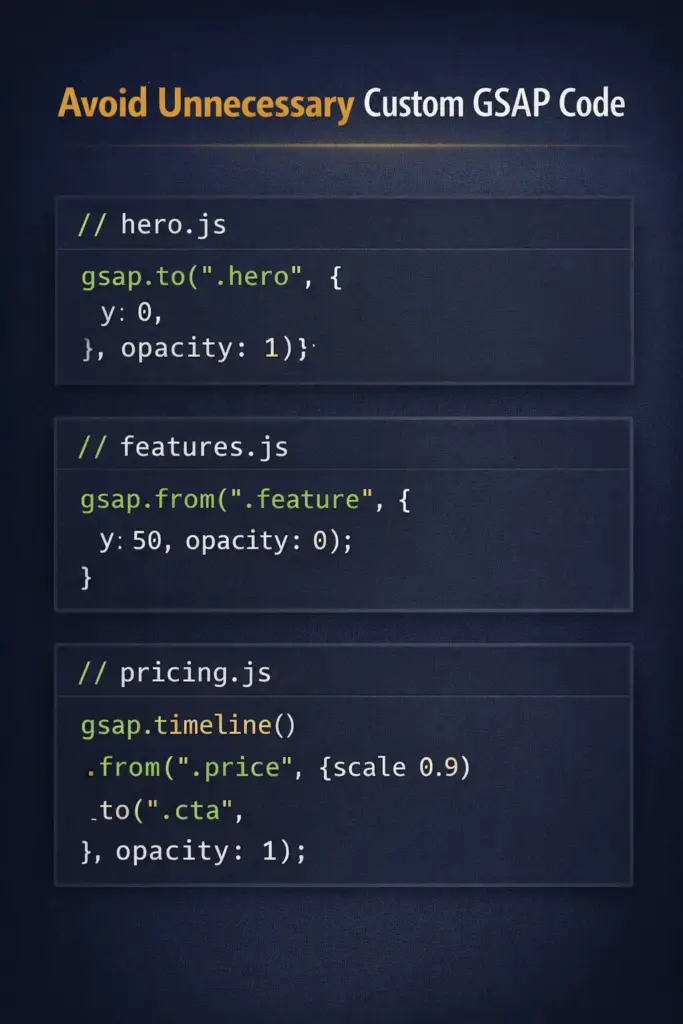
Avoid Unnecessary Custom GSAP Code
Writing custom GSAP code for every animation may feel flexible at first, but it becomes hard to manage over time. As projects grow, animation code spreads across many files, and even small design changes need a developer.
This becomes a bigger problem when changes happen often or when designers and marketers need to adjust animations without coding. Visual tools fix this by keeping animations in one place and making them easier to update.
Using GSAP Without Writing Code (Animation Addons)
So far, you’ve seen several GSAP animation tips for smooth animations on your site. Now, let’s look at an alternative to using GSAP. If you don’t want to write complex GSAP code, Animation Addons is an easy solution.
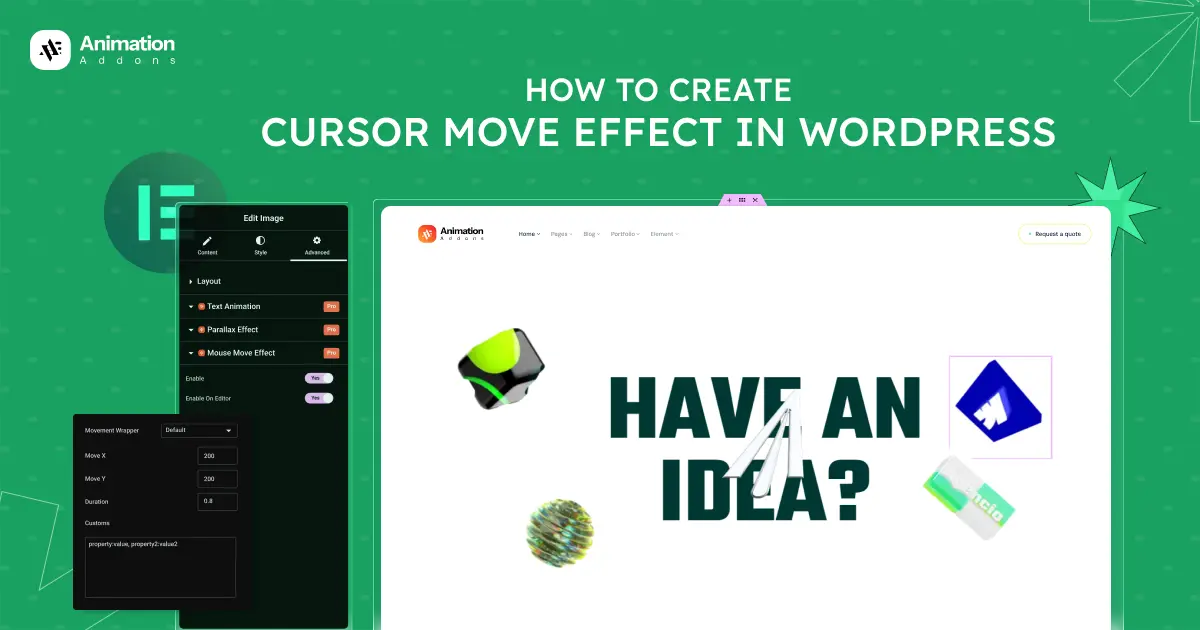
Animation Addons is a WordPress plugin powered by GSAP. It’s a no-code tool that lets you create GSAP animations using simple drag-and-drop controls.
Here, you’ll find various GSAP extension features, such as text animations, sticky elements, image animations, ScrollTrigger, and more.
The best part is that you can easily add animations to your website without writing any code.
3 Common GSAP Mistakes Creative Developers Make
Even though GSAP is powerful and flexible, many creative developers fall into the same traps when using it. These mistakes don’t usually break a site, but they quietly hurt performance, clarity, and the overall user experience.
Here are some common mistakes you’ll want to avoid:
1. Treating GSAP Like CSS
Many people use GSAP like it’s just a better version of CSS animations, but that misses its real strength. CSS works well for simple hover effects and small changes, but GSAP is built to control animations over time.
GSAP works best when animations need order, timing, work together, or respond to scrolling and user actions. It gives you more control over how motion flows across the page. Using GSAP only where it’s needed keeps animations clear, purposeful, and easy to manage.
2. Overusing ScrollTrigger
ScrollTrigger is one of GSAP’s most powerful tools, but it’s also easy to overuse. Pages feel noisy and heavy if every element animates on scroll. Too many triggers can slow down performance, distract users from the content, and reduce visual clarity.
Scroll animations should support the story of the page, guiding attention to key sections, not competing for it. In most cases, fewer, well-timed scroll animations create a much stronger experience.
3. Animating Everything Instead of Storytelling
A common mistake is animating elements simply because they exist. Motion without intent quickly becomes decoration instead of communication. Cool animations helps users understand hierarchy, focus on important actions, and move naturally through a page.
Great animation goes further by telling a story, using timing, sequence, and restraint to create meaning. The goal isn’t to animate more, but to animate smarter.
Wrap Up
Animating the right properties, keeping animations organized, and avoiding unnecessary complexity make GSAP fast, scalable, and reliable.
Small habits such as using timelines, limiting scroll effects, and cleaning up animations have a big impact on performance and long term maintenance. Animations that support storytelling instead of decoration improve clarity and user experience.
Create motion that feels purposeful, performs well, and scales with your project. Used the right way, GSAP becomes more than an animation tool. It becomes a dependable system for modern web motion.
FAQs
Is GSAP hard to use for creative developers?
GSAP is easy to use for basic animations, but problems appear when it’s used without structure. Many problems happen because of wrong animations, too many scroll effects, or messy code.
Using GSAP with best practices or visual tools makes it much easier to manage.
Why do GSAP animations sometimes hurt performance?
GSAP animations hurt performance when they trigger layout recalculations or repaint-heavy properties like top, left, width, or height.
Performance also drops when too many elements animate at the same time or when ScrollTrigger is overused. Animating GPU-friendly properties and organizing animations into timelines keeps performance smooth.
Should GSAP replace CSS animations?
GSAP should not replace CSS animations entirely. CSS works best for simple hover effects and small transitions.
GSAP is designed for motion that needs timing control, sequencing, scroll interaction, or storytelling. Using GSAP only where it adds real value keeps animations clean and intentional.
Is ScrollTrigger bad for websites?
ScrollTrigger is not bad, but overusing it can cause performance issues and visual noise. Too many scroll-triggered animations distract users and reduce clarity.
ScrollTrigger works best when it supports storytelling and guides attention to important sections.


Leave a Reply