


 Login
Login


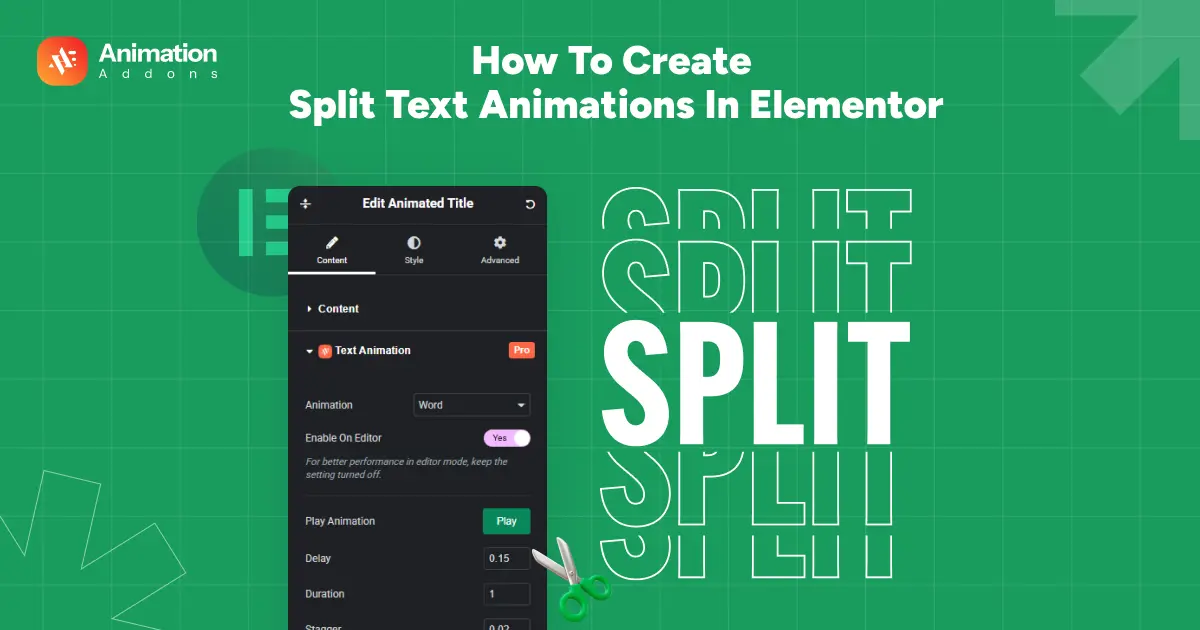
If you’ve ever watched a headline appear one letter at a time and thought, “Wow… that looks cool,” then you’ve already seen Split Text animation in action.
It’s one of those effects that instantly makes your website feel cleaner, smoother, and way more modern.
Split text animation is a way that breaks your text into smaller parts, such as characters, words, or lines, and animates each segment individually. This creates dynamic motion effects that instantly make any heading or paragraph feel more engaging.
You can create split text in Elementor in two ways:
1. Using a plugin
You can use any plugin that offers Split Text Animation. But in this guide, we’ll use Animation Addons, as it provides a simple, built-in Split Text feature that works smoothly inside Elementor.
Animation Addons gives you access to a massive design library, including 200+ complete website templates, 2,000+ ready-made page templates and 10,000+ section templates.
You can import an entire website in one click, drop in any page you need, or mix and match sections to build your layout faster. On top of that, it also includes a live copy-paste feature inside the Starter Templates, allowing you to copy any design from the preview and paste it directly.
2. Using custom GSAP code (for developers)
Developers can manually break text into span using GSAP’s SplitText plugin or custom JavaScript and animate each part with GSAP timelines.
Creating a Split Text Animation by using a Plugin in Elementor (Step-by-Step guide)
Let’s first start with the easiest way of creating split text animation in Elementor using Animation Addons.
Before we start, make sure the following plugins are installed and activated:
- Elementor
- Animation Addons
Once both are active, you’ll be able to access all text animation features inside the Elementor editor.
Step 1: Enable the Split Text Extension
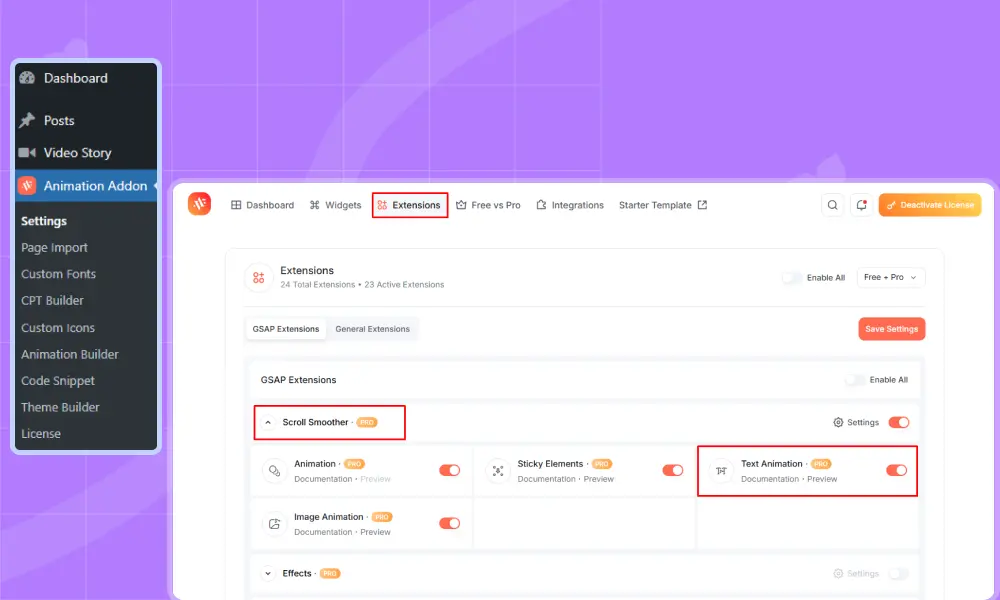
Open your WordPress Dashboard. In the sidebar, click Animation Addons. Now, go to the Extensions tab and scroll to the Scroll Smoother section. Find Text Animation and toggle it ON.
Step 2: Open Your Page in Elementor
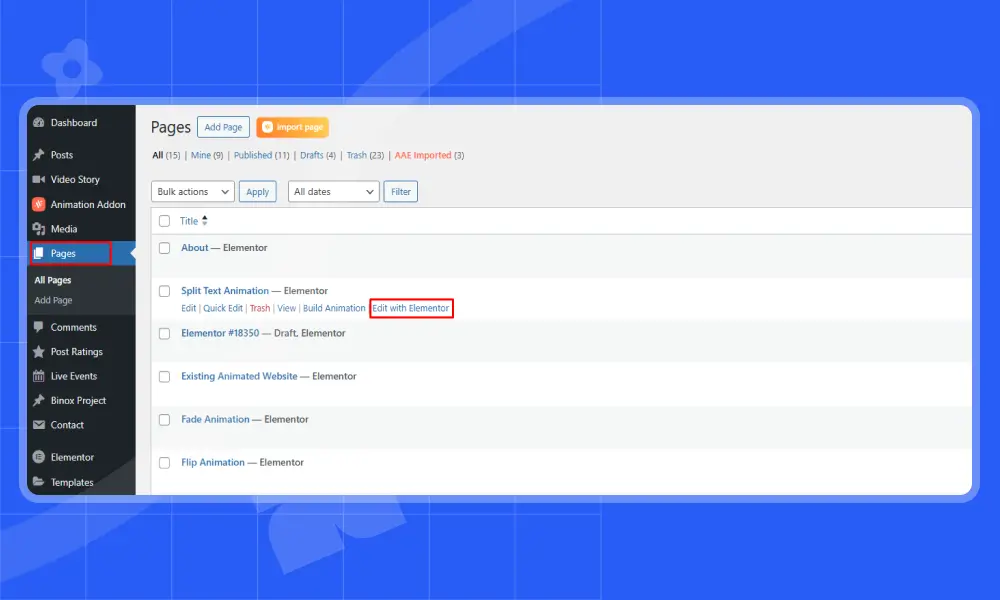
Now, go to Pages from your dashboard from the left hand sidebar. Open the page where you want to add split text. After that, click Edit with Elementor to launch the editor.
Step 3: Choose the Container for Your Animation
Select the container or widget you want to animate, such as animated heading, hero title, section headline, animated icons with text or any other text. Here we select text container. Once selected, enable Text Animation option to expand it. Once enabled, you’ll see all the text animation configuration settings.

Step 4: Choose Text Animation
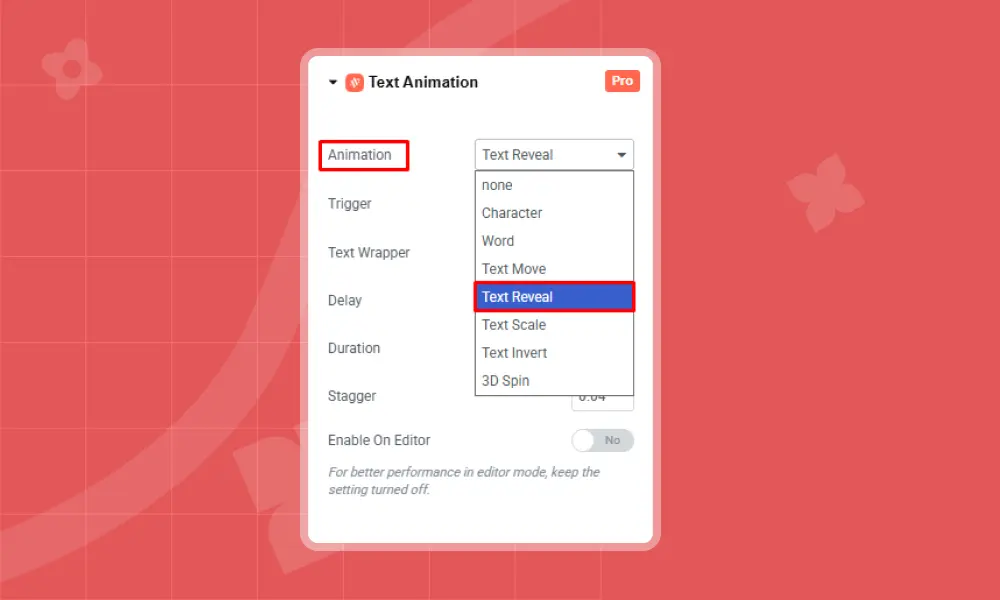
Choose how the text will be divided and animated—Characters, Words, Text Move, Text Reveal, Text Scale, Text Invert, or 3D Spin. In this example, I chose Text Reveal, but you can pick any effect you like.
Step 5: Choose Trigger Option
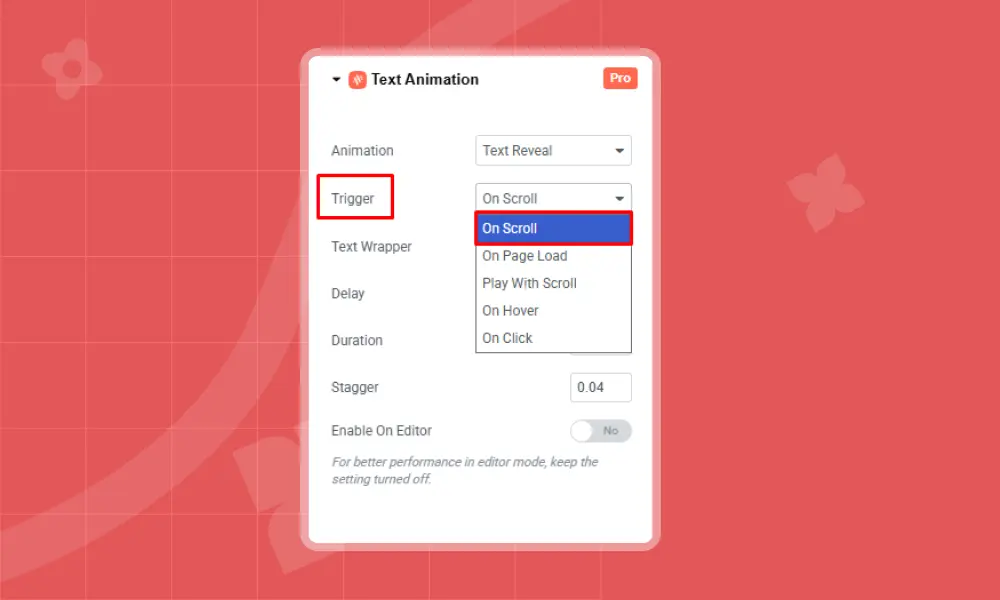
Then, you will see the Trigger option. It includes effects like On Scroll, On Page Load, Play with Scroll, On Hover, and On Click. This lets you decide when the text animation should start. In this example, I chose On Scroll, but you can pick any trigger you like.
Step 6: Select Text Wrapper
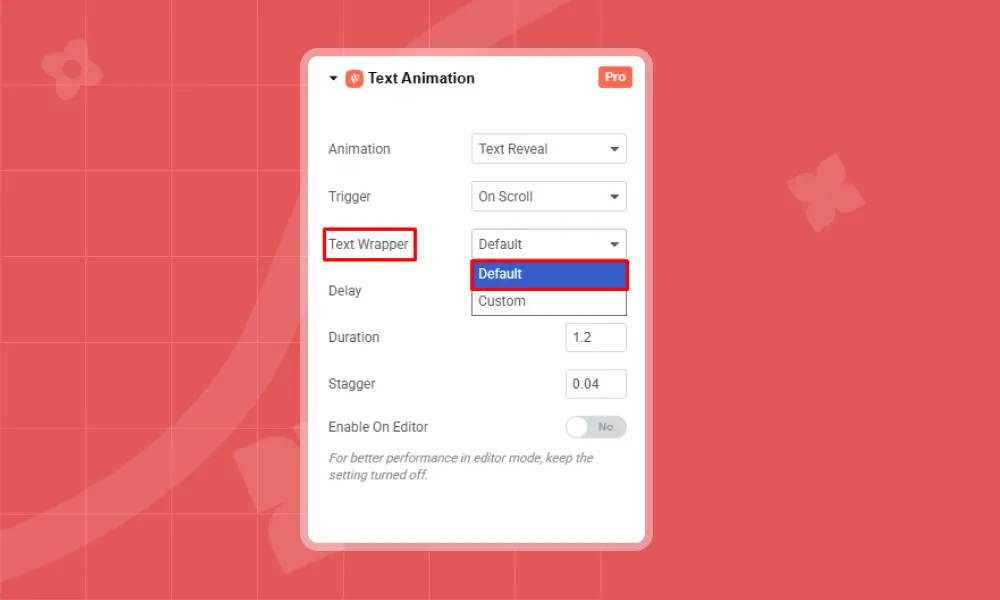
Text Wrapper gives you two options. Default wraps the text for you, so it can animate by letter, word, or the whole block. Custom lets you add your own wrapper for more control. In this example, I chose Default, but you can pick either one.
Step 7 : Customize other settings
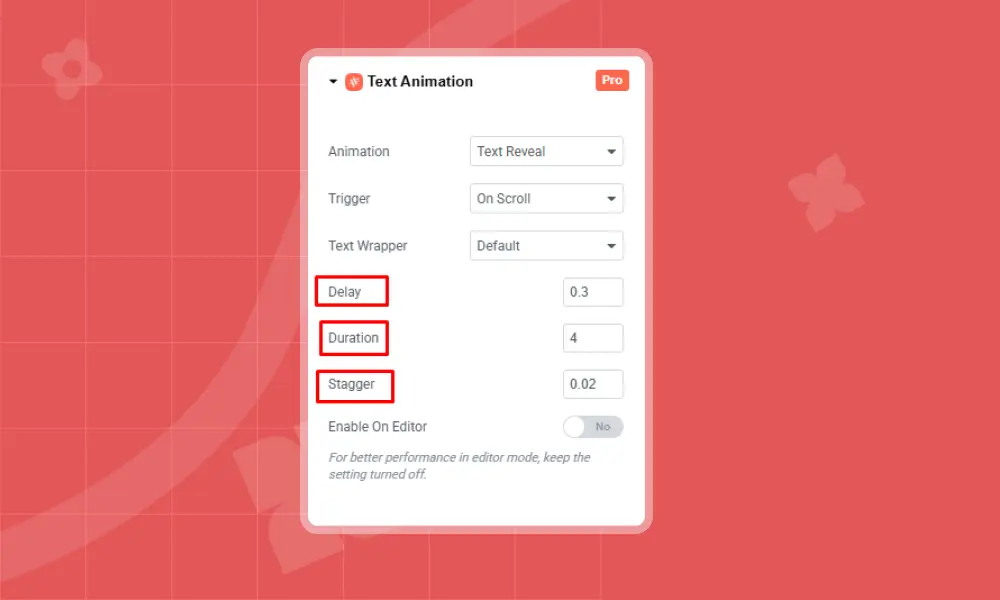
Now, you can customize the rest of the settings as you like. For example, I set Delay to 0.3, Duration to 4, and Stagger to 0.2. I left keep Enable Editor turned off.
Step 8: Preview Your Animation
After adjusting your settings, finally, click on ‘Publish’ to preview the animation. Here is the Final Output of Text Reveal:
You can also watch a full video on How to add GSAP SplitText for character animation for clear understanding.
2. Using Custom GSAP Code
This method is great for developers, and instead of using a plugin, you manually split the text and animate it with GSAP animation.
1. Add your text in HTML
Start with a simple heading or paragraph in your markup, such as:
<h1 class="split-text">Hello World</h1>
2. Split the text into span
To animate individual characters or words, the text must be broken into smaller pieces. You can do this in two ways:
- Using GSAP’s SplitText plugin, it automatically wraps each character, word, or line in a <span>
- This creates multiple small elements that GSAP can animate individually.
3. Create a GSAP animation
Use gsap.timeline() or gsap.to() to build your animation sequence.
					var tl = gsap.timeline();
// Split the text into characters
var split = new SplitText(".target_class", { type: "chars" });
// Animate each character
tl.from(split.chars, {
  opacity: 0,
  y: 50,
  duration: 2,
  ease: "back",
  stagger: 0.05
});
4. Animate each character
You can animate each character or word using opacity, x/y movement, rotation, scale, and stagger to create smooth, cascading effects.
If you want the animation to start only when the text enters the viewport, you can attach ScrollTrigger animation. This makes the animation reactive to scrolling.
Final Thoughts
Split text animation is one of the easiest ways to make your website feel alive. A simple heading can instantly become more engaging, modern and responsive across all the platforms. And the best part? You don’t need to touch a line of code to do it.
Animation Addons make this whole process super simple. Just enable the feature, choose your animation style, and customize it with intuitive controls. The plugin handles all the complexity behind the scenes while giving you full creative flexibility.
From characters to words, from smooth transitions to 3D effects, Animation Addons makes it effortless to bring professional-grade animations into Elementor. It’s not just an easier workflow; it’s a new way of designing. A way that lets you build visually rich, interactive, and modern websites faster than ever before.
Whether you’re new to Elementor or a pro designer, Animation Addons makes it effortless to create modern, eye-catching animations that bring your website to life.


Leave a Reply